
The Audio Player widget from Element Pack Pro allows you to add and display audio content on your website with a customizable and responsive player. It helps you showcase music, podcasts, or recordings in a clean and engaging way using Elementor. This documentation explains how to use and customize the Audio Player widget.
Enable The Audio Player Widget
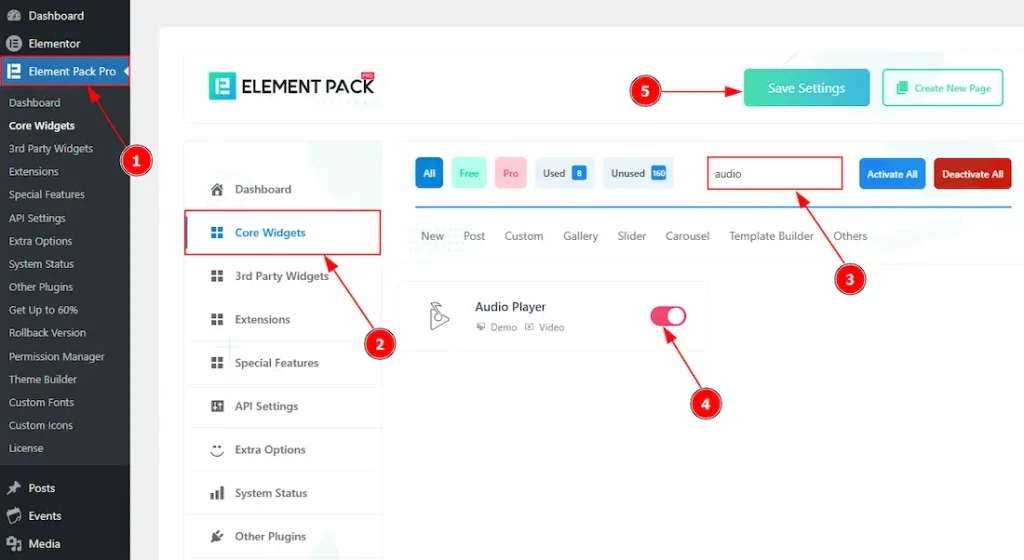
To use the Audio Player widget from Element Pack Pro, first, you have to enable the widget.
- Go to WordPress dashboard → Element Pack Pro Plugin dashboard.
- Then, Click the Core Widgets Tab.
- Search the Audio Player Widget Name.
- Enable the Audio Player Widget.
- Hit the Save Settings Button.
Inserting The Audio Player Widget
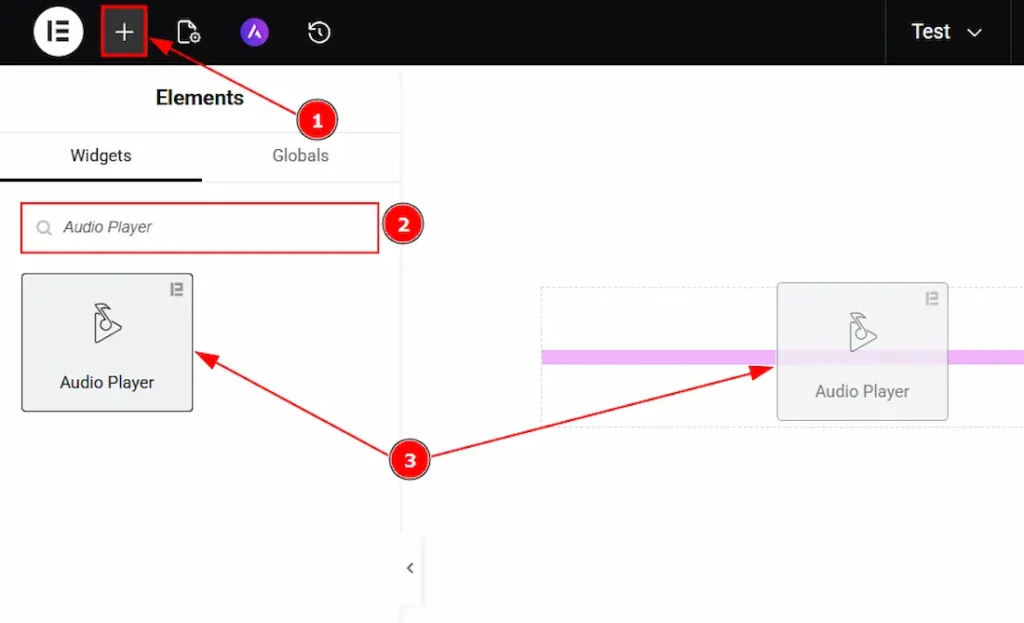
1. Go to the Elementor Editor Page and hit the “+” icon Button.
2. Search the Audio Player name.
3. Drag the widget and drop it on the editor page.
Work With The Content Tab
Audio Section
Go to Content → Audio
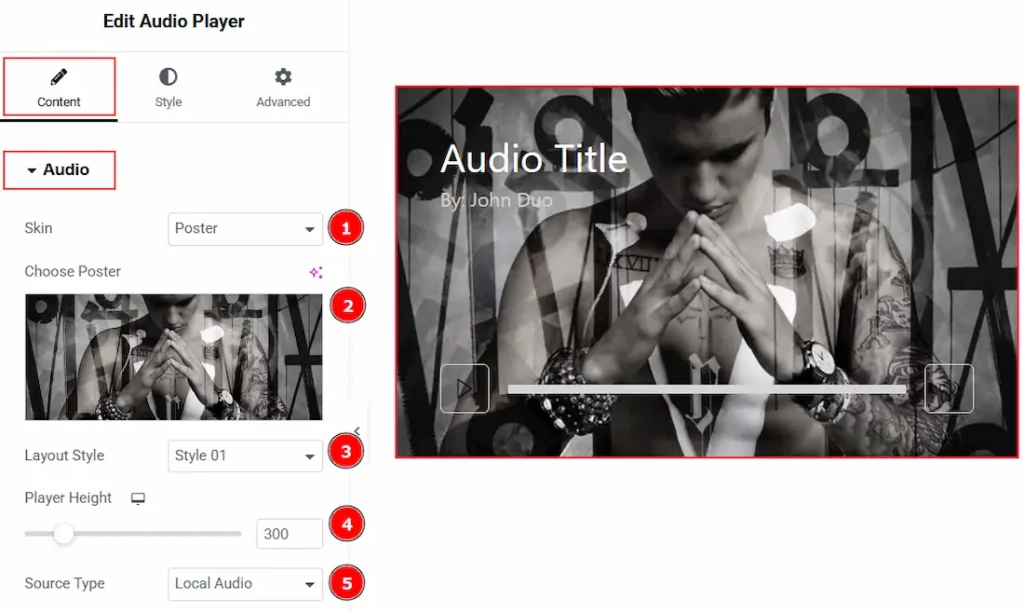
1. Skin: You can choose the audio player skin between the poster and default with this option. Here we have selected the skin type as poster.
2. Choose Poster: You can add a poster to your Audio Player with this option.
3. Layout Style: You can select the audio player layout style with this option. There are a total of 5 layout styles. Here, we have selected the layout style as style 01.
4. Player Height: You can make changes to the audio player height with this option.
5. Source Type: You can select the source from which you want to input the audio to the audio player. There are two source types available. These are Local Audio & Remote Audio.
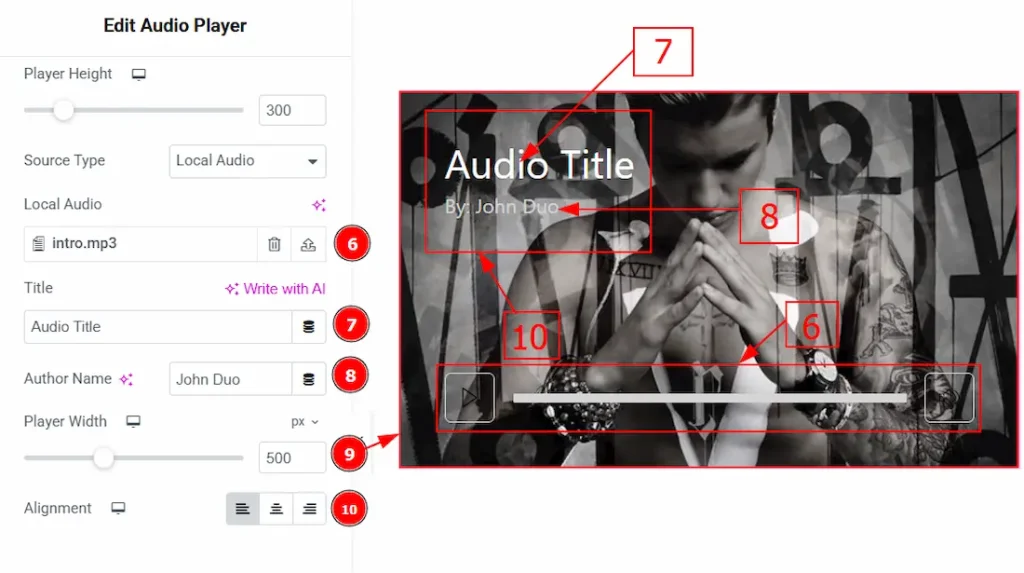
6. Local Audio: You can remove or add local audio with this option.
7. Audio Title: You can make changes to the audio file title with this option.
8. Author Name: You can make changes to the author name with this option.
9. Player Width: You can adjust the width of the audio player with this option.
10. Alignment: You can set the position of the content on the audio player with this option.
Additional Section
Go to Content → Additional
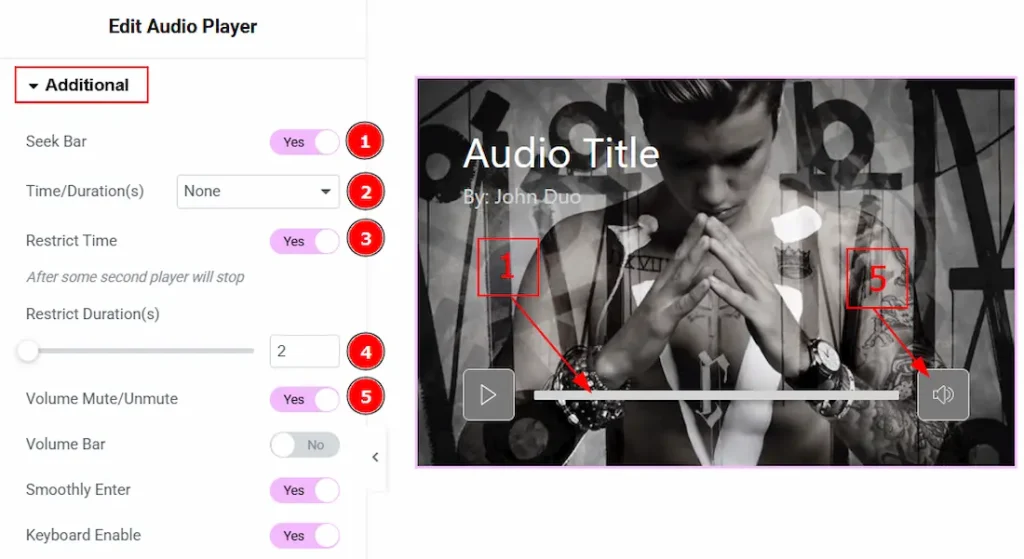
1. Seek Bar: Enable the switcher to show the seek bar to your audience.
2. Time/ Duration: You can select the option to show or hide time, duration, or both to your audience with this option.
3. Restrict Time: Enable the switcher to enable the feature to stop the player after the selected time.
4. Restrict Duration(s): You can adjust the time here after which the player will stop automatically.
5. Volume Mute/Unmute: Enable the switcher to allow the option of muting and unmuting volume to the audience.
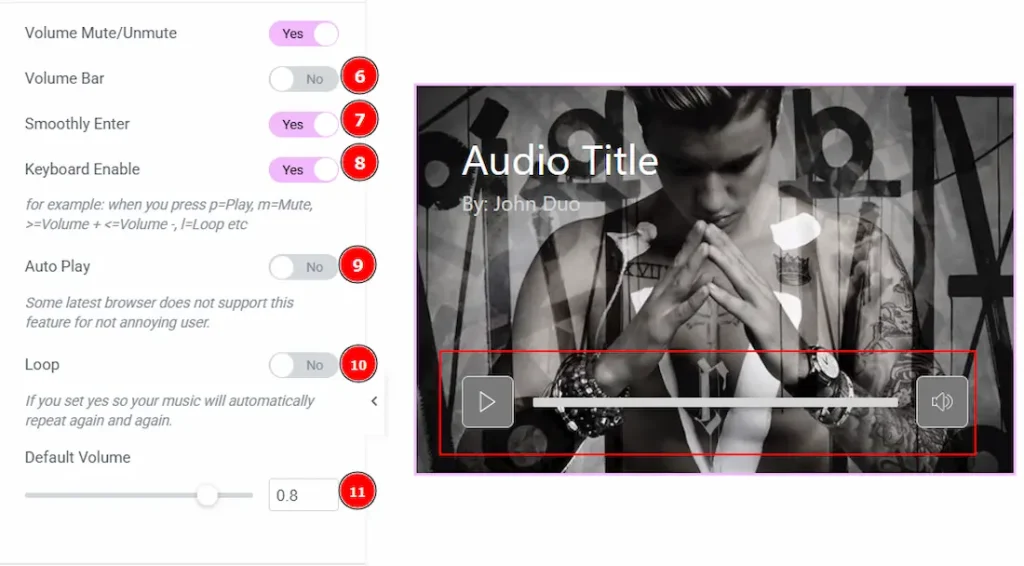
6. Volume Bar: Enable or disable the switcher to show or hide the volume bar for your audience.
7. Smoothly Enter: Enabling this option, it allows a smooth entrance animation when the Audio player appears on the screen.
8. Keyboard Enable: When this option is enabled, users can control the Audio player using their keyboard. (for example: when you press p=Play, m=Mute, >=volume +, <=volume – , l=Loop etc)
9. Auto Play: Enable the switcher to automatically play the audio player.
10. Loop: Enable the switcher to repeat the audio again and again after finishing playing once.
11. Default Volume: You can set the default volume for the Audio player with this option.
Work with The Style Tab
Skin Poster Section
Go to Style → Skin Poster
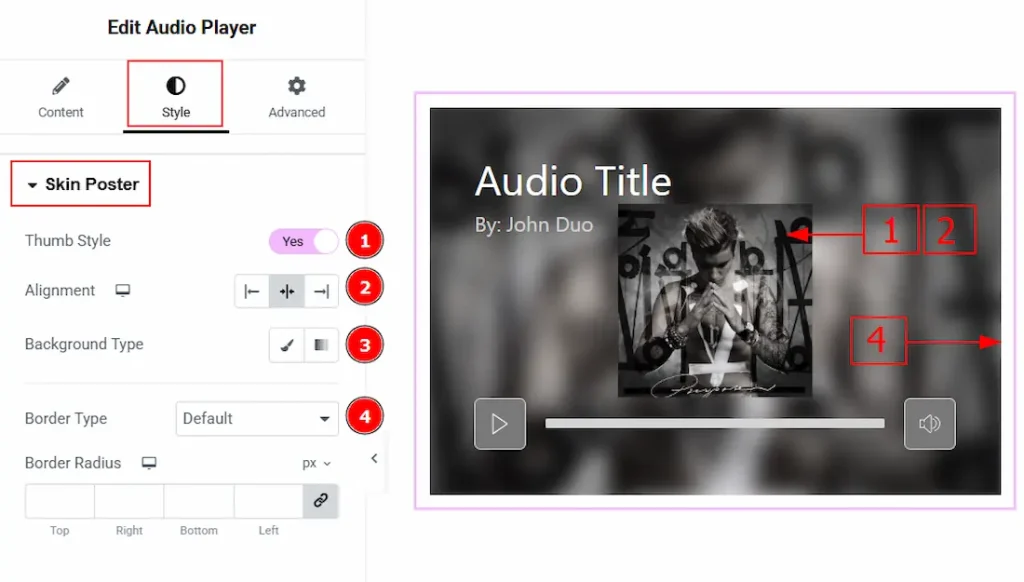
1. Thumb Style: Enable the switcher to show the thumbnail on the audio player with this option.
2. Alignment: You can select the position of the thumbnail to the left, center or right with this option. Here, we have selected the position as the center.
3. Background Type: You can select the background type to be classic or gradient with this option. Please note that this option will work only if you don’t add any image/poster.
4. Border Type: You can add or change the border type with this option.
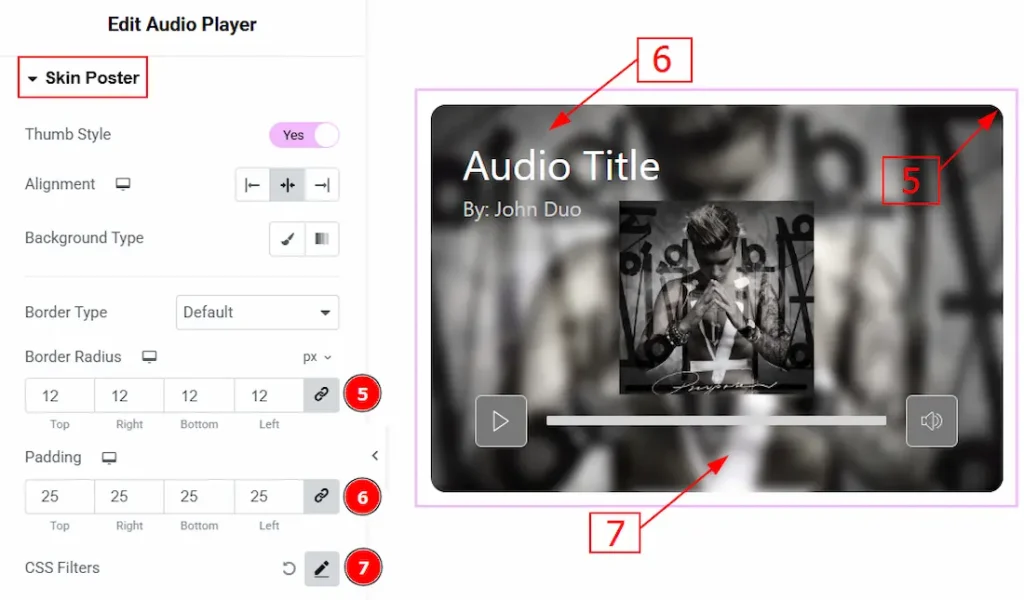
5. Border Radius: You can control the roundness of the border with this option.
6. Padding: You can adjust the inner space of the poster skin with this option.
7. CSS Filters: This setting lets you apply visual changes to the image. In this setting, you can modify properties like Blur, Brightness, Contrast, Saturation, and Hue.
- Blur: Softens the image, reducing sharpness.
- Brightness: Adjusts the overall lightness or darkness.
- Contrast: Modifies the difference between light and dark areas.
- Saturation: Controls the intensity of the colors.
- Hue: Shifts the overall color spectrum.
Thumbnail Section
Go to Style → Thumbnail
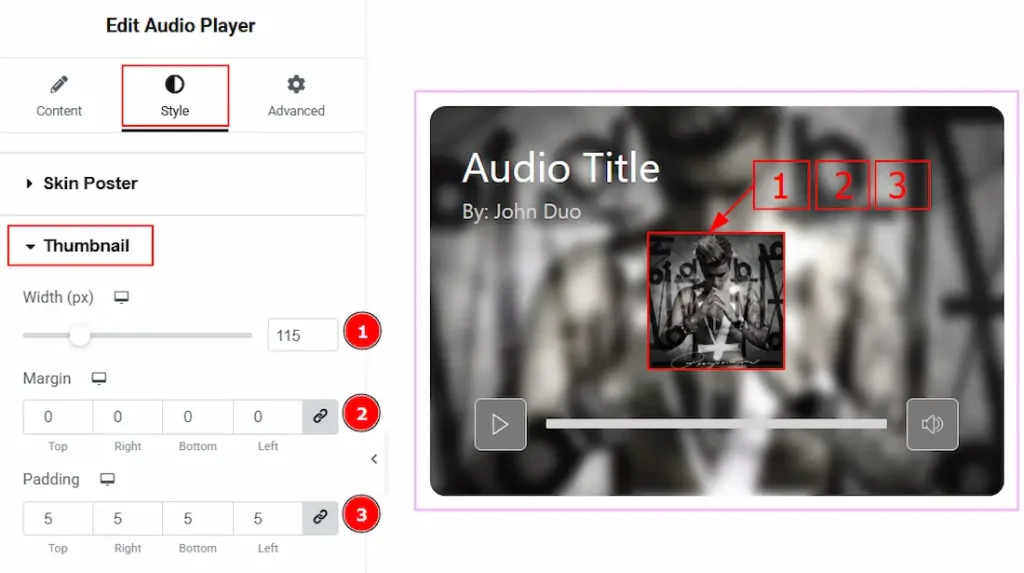
1. Width: You can adjust the width of the thumbnail image with this option.
2. Margin: You can adjust the outer space of the thumbnail with this option.
3. Padding: You can adjust the inner space of the thumbnail with this option.
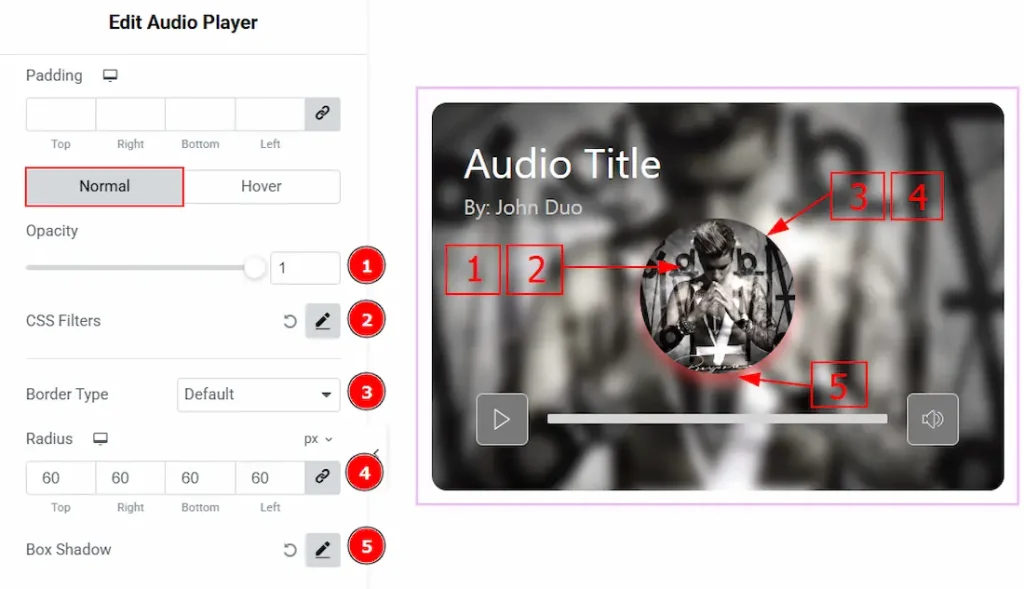
In this section, we have two more tabs. These are Normal & Hover. Let’s start with the Normal Tab first –
1. Opacity: You can control the transparency of the thumbnail with this option.
2. CSS Filter: You can customize the thumbnail image with this option.
3. Border Type: You can add or change the border type with this option.
4. Radius: You can control the roundness of the border with this option.
5. Box Shadow: You can add a shadow effect to the thumbnail with this image.
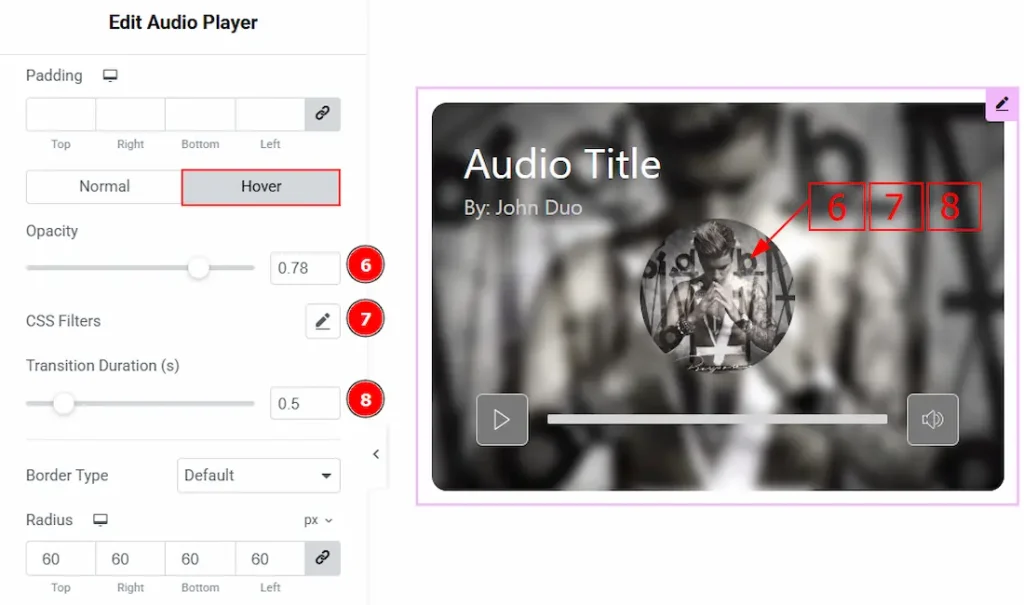
Now, let’s proceed to the Hover Tab –
6. Opacity: You can control the transparency while hovering over the thumbnail image with this option.
7. CSS Filter: You can adjust the hover thumbnail image with this option.
8. Transition Duration (s): You can control the appearance of the thumbnail image while hovering over the image with this option.
Play/Pause Button Section
Go to Style → Play/Pause Button
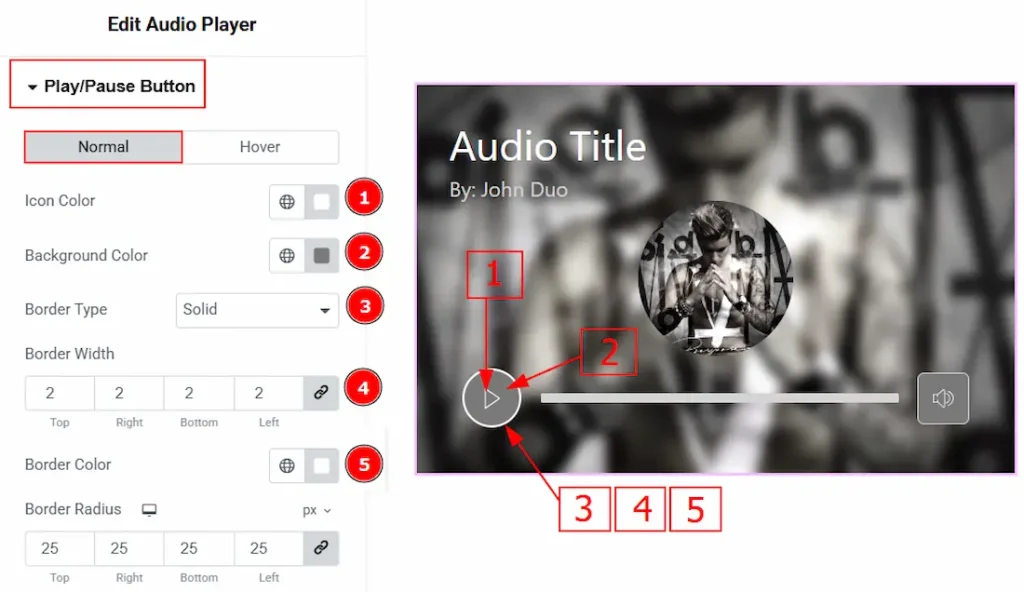
In this section, we have two more tabs. These are Normal & Hover. Let’s start with the Normal Tab first –
1. Icon Color: You can make changes to the play & pause icon color with this option.
2. Background Color: You can change the background color of the play/pause icon with this option.
3. Border Type: You can add and change the border types with this option.
4. Border Width: You can set the thickness of the border with this option.
5. Border Color: You can make changes to the border color with this option.
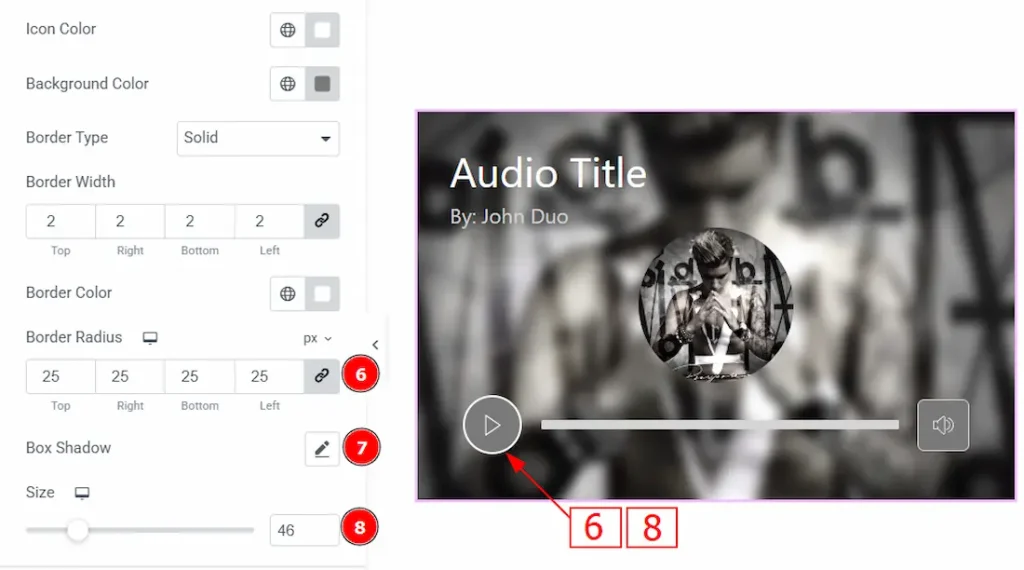
6. Border Radius: You can control the roundness of the border with this option.
7. Box Shadow: You can add a shadow effect to the play/pause button with this option.
8. Size: You can make changes to the play icon size with this option.
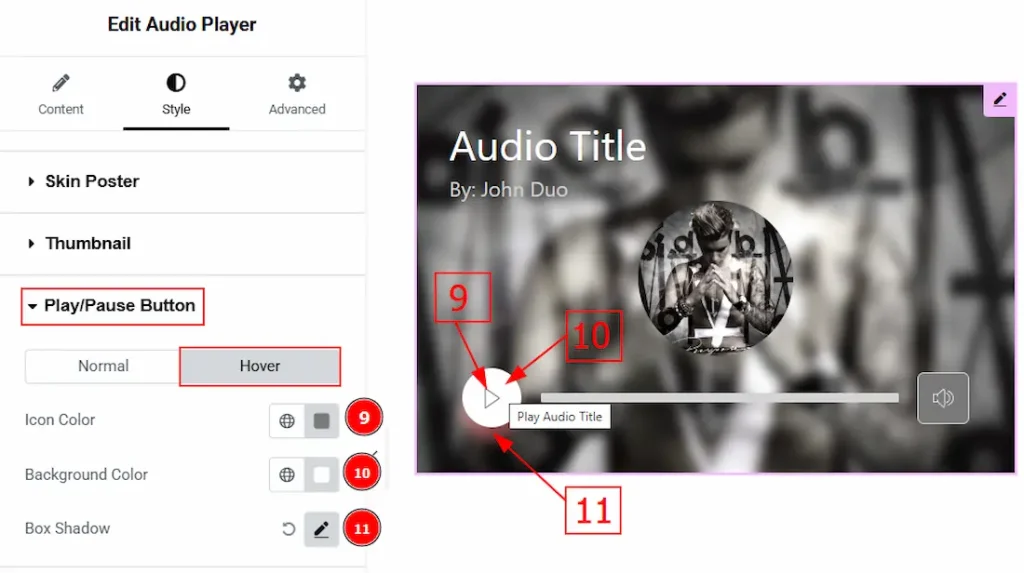
Now, let’s proceed to the Hover Tab –
9. Icon Color: You can change the play/pause icon hover color with this option.
10. Background Color: You can change the background hover color with this option.
11. Box Shadow: You can add a hover shadow effect to the play/pause button with this option.
Seek Bar Section
Go to Style → Seek Bar
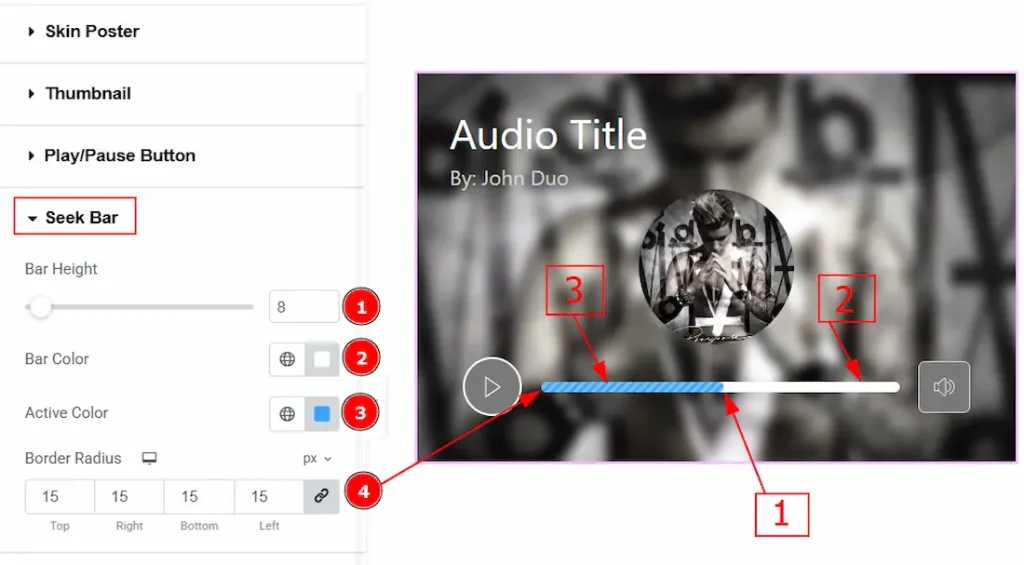
1. Bar Height: You can adjust the seek bar height with this option.
2. Bar Color: You can change the seek bar color with this option.
3. Active Color: You can make changes to the bar’s active color with this option.
4. Border Radius: You can control the roundness of the border with this option.
Volume Button Section
Go to Style → Volume Button
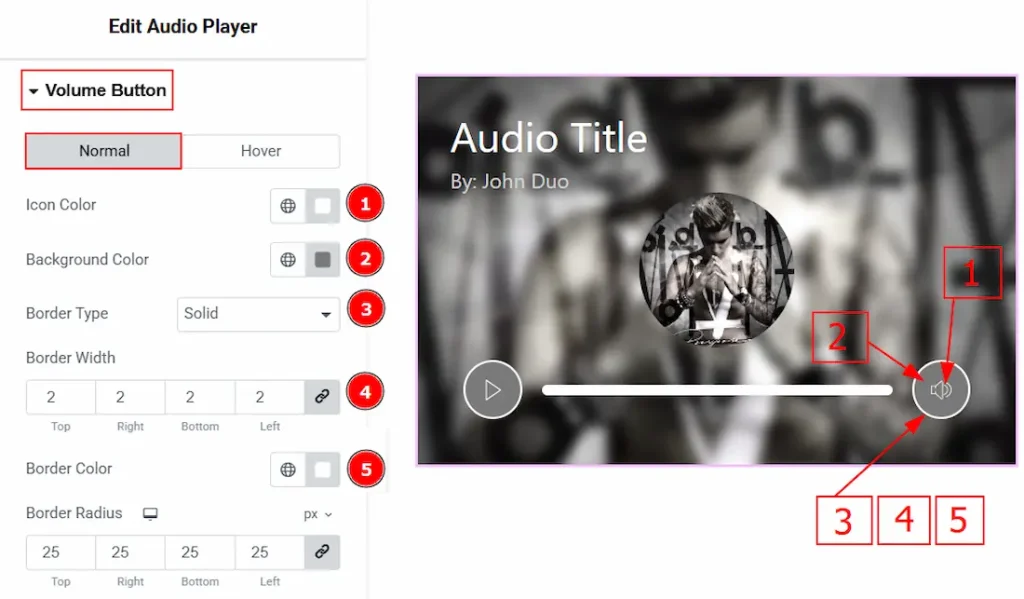
In this section, we have two more tabs. These are Normal & Hover. Let’s start with the Normal Tab first –
1. Icon Color: You can make changes to the volume button icon color with this option.
2. Background Color: You can change the background color with this option.
3. Border Type: You can add and change the border types with this option.
4. Border Width: You can adjust the thickness of the border with this option.
5. Border Color: You can make changes to the border color with this option.
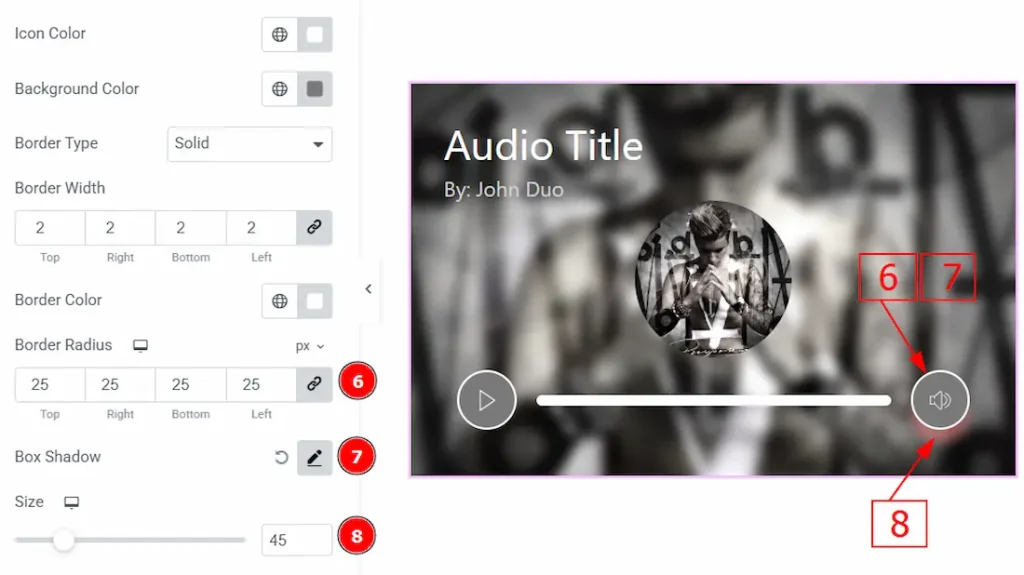
6. Border Radius: You can control the roundness of the border with this option.
7. Box Shadow: You can add a shadow effect to the volume button with this option.
8. Size: You can make changes to the size of the volume button with this option.
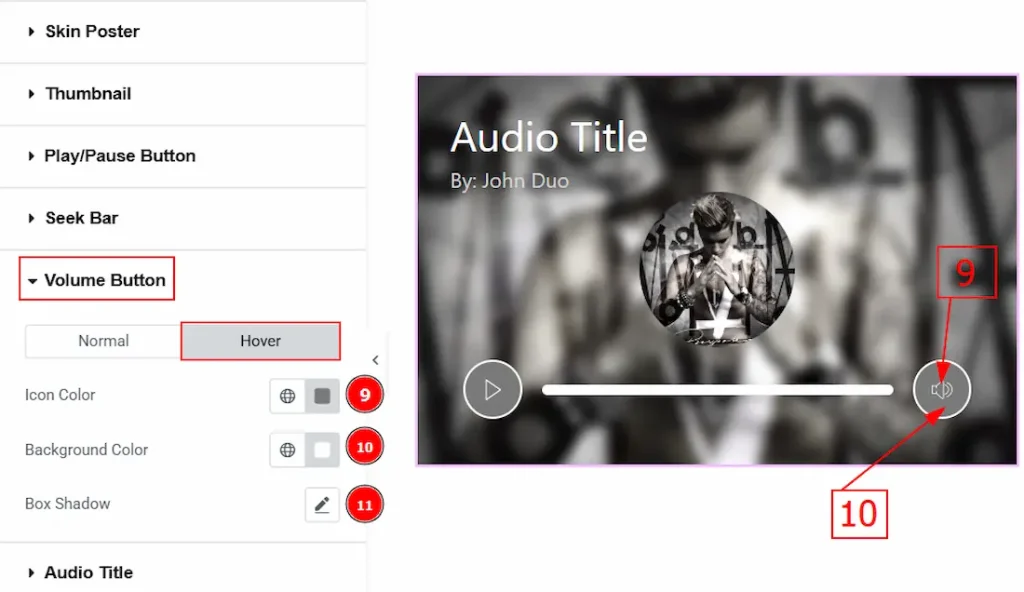
Now, let’s proceed to the Hover Tab –
9. Icon Color: You can make changes to the volume button icon hover color with this option.
10. Background Color: You can change the volume button background hover color with this option.
11. Box Shadow: You can add a hover shadow effect to the volume button with this option.
Audio Title Section
Go to Style → Audio Title
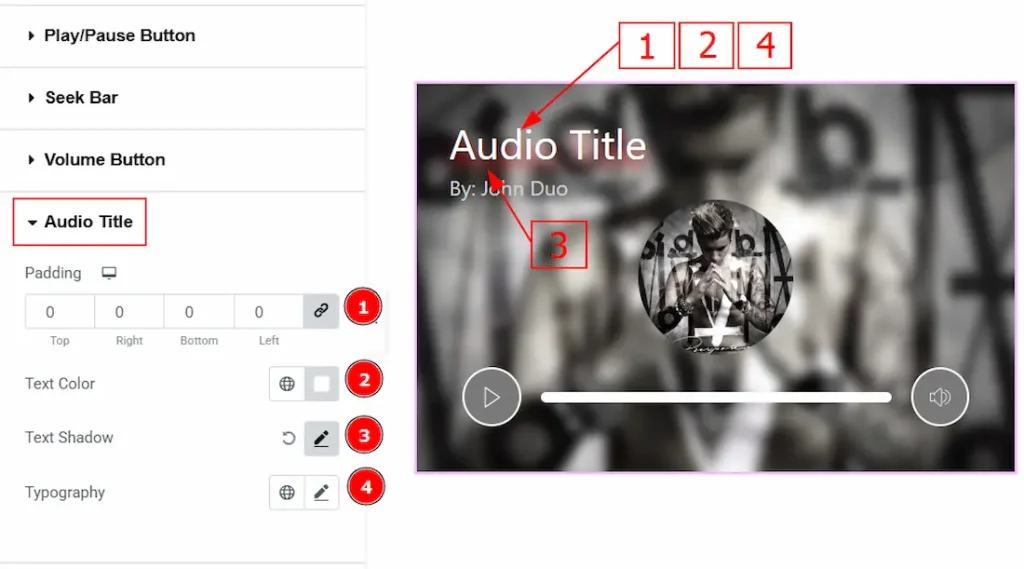
1. Padding: You can adjust the inner space of the audio title field with this option.
2. Text Color: You can make changes to the audio title text color with this option.
3. Text Shadow: You can add and customize a shadow effect to the audio title with this option.
4. Typography: Change the font family, size, weight, transform, style, decoration, line height, letter spacing, and word spacing from here.
Author Name Section
Go to Style → Author Name
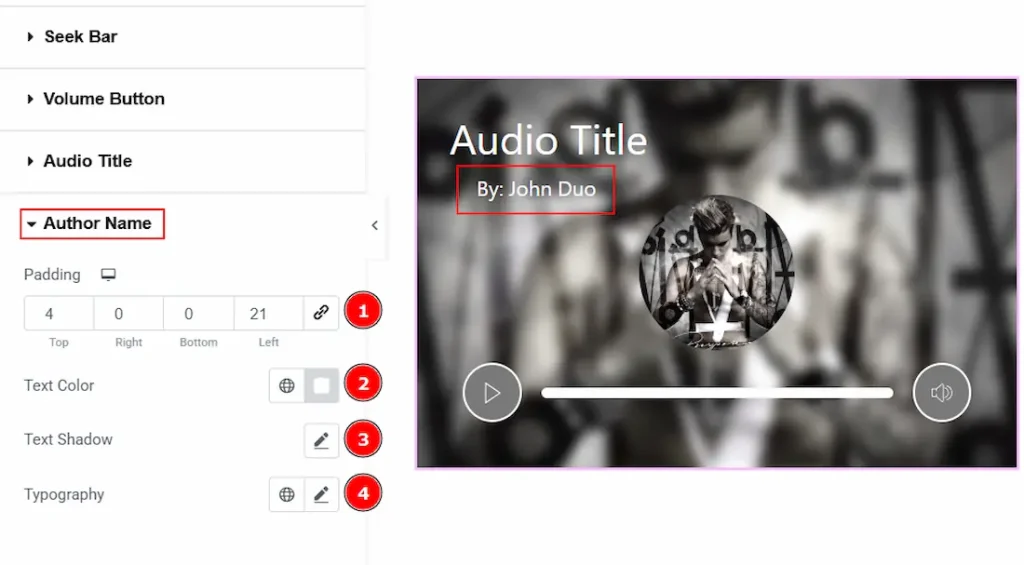
1. Padding: You can adjust the inner space of the author name field with this option.
2. Text Color: You can make changes to the author name text color with this option.
3. Text Shadow: You can add a shadow effect to the author’s name with this option.
4. Typography: Change the font family, size, weight, transform, style, decoration, line height, letter spacing, and word spacing from here.
All done! You have successfully customized the Audio Player widget on your website.
Audio Assist
You can also watch the Audio tutorial to learn more about the Audio Player widget. Please visit the demo page for examples.
Thanks for being with us.

