

In this documentation, we will show you how to customize the Image Compare widget presented by Element Pack Pro.
Inserting The Image Compare Widget
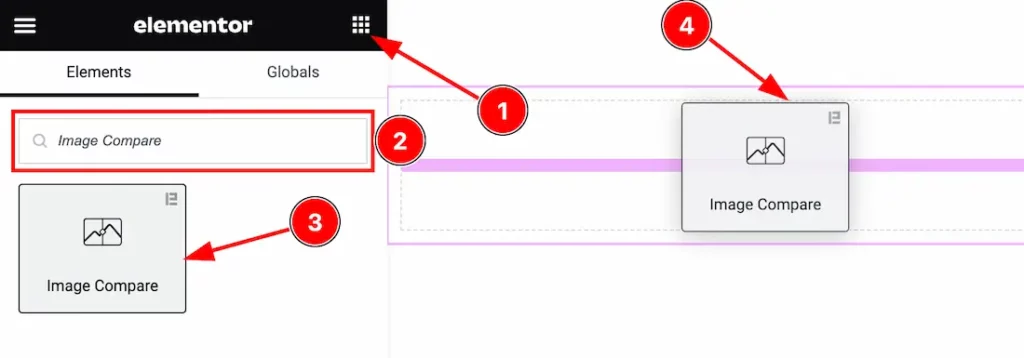
Open your page in the Elementor editor, search by the widget name, and then drag and drop it on the page.
Note: You need both Elementor and Element Pack Pro installed to use this widget.
Content Tab Customizations
Layout Section
Go to Content > Layout
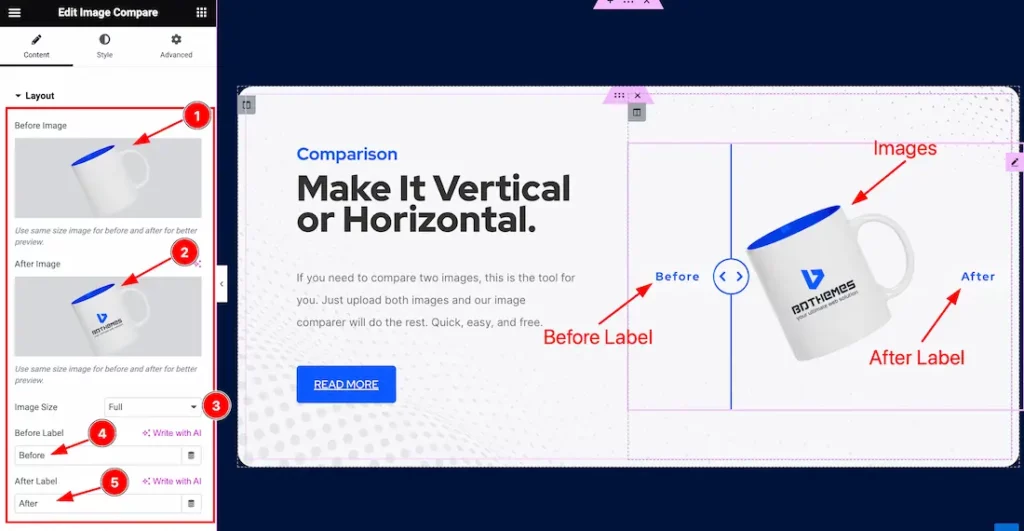
Come to the Layout section, Find the Before Image, After Image, Image Size, Before Label, and After Label options.
Additional Section
Go to Content > Additional
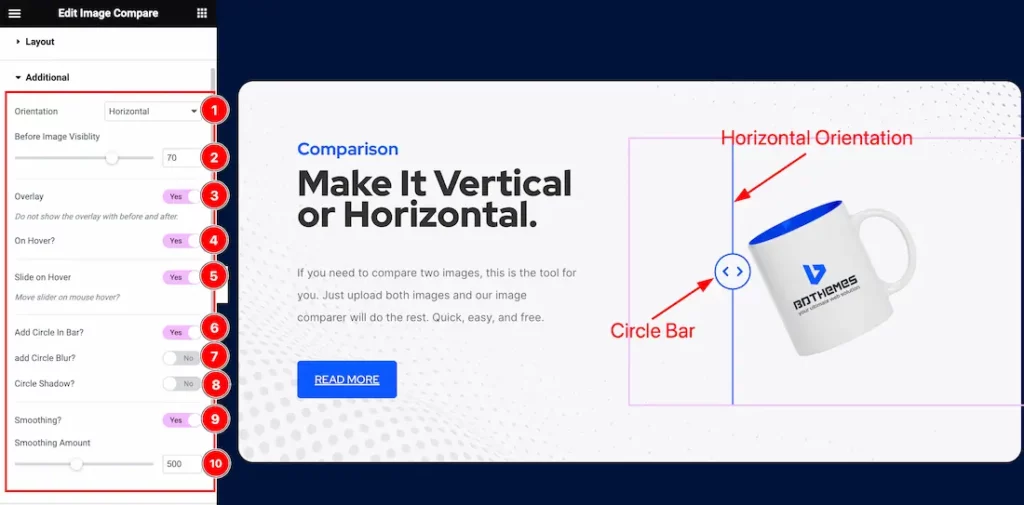
Here find the Orientation (Horizontal, and Vertical), Before Image Visibility, Smoothing Amount options, and Overlay, on Hover, Slider On Hover, Add Circle in Bar, Add Circle Blur, Circle Shadow, and Smoothing switchers.
Work with The Style Tab
Style Section
Go to Style > Style
Step-1
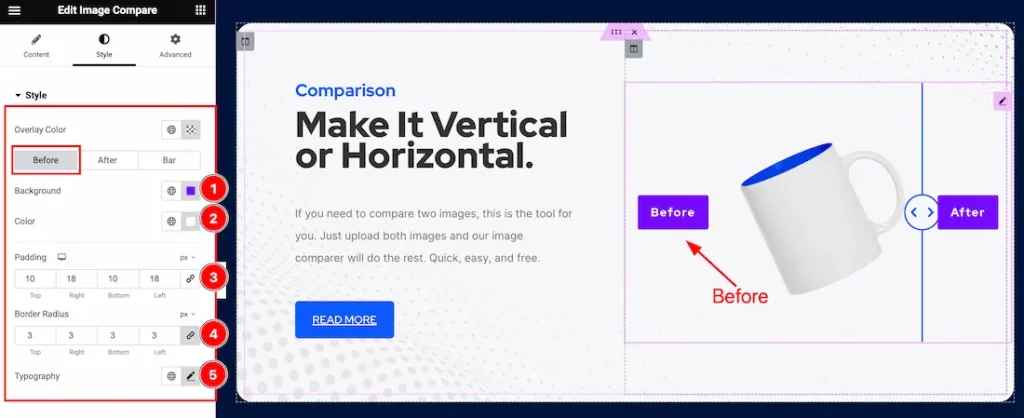
Come to the Style section, you will find three tabs section; Before, After, and Bar.
In the Before tab mode, you will find the Overlay Color, Background Color, Before Text Color, Padding, Border Radius, and Typography options.
Step-2
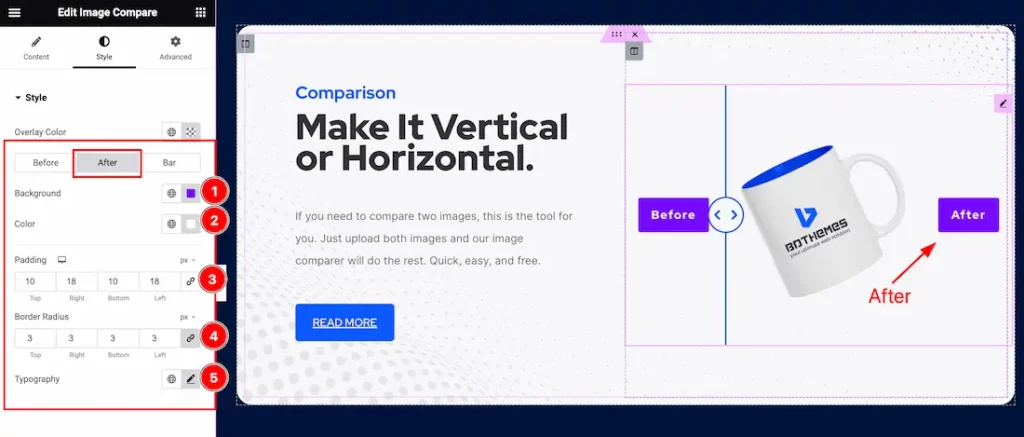
In the After tab mode, you will find the Background Color, After Text Color, Padding, Border Radius, and Typography options.
Step-3
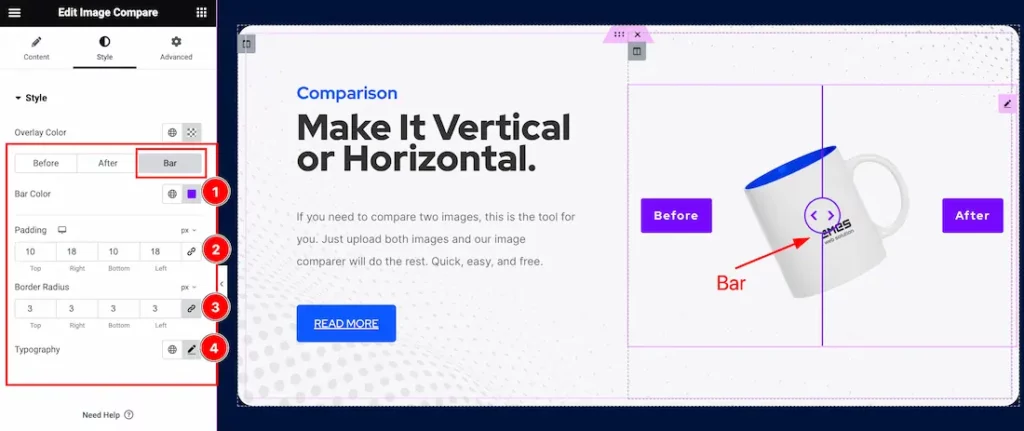
In the Bar tab mode, you will find the Bar Text Color, Padding, Border Radius, and Typography options.
All done! You have successfully customized the Image Compare widget on your website.
Video Assist
You can also watch the tutorial video about the Image Compare widget. Please visit the demo page for examples.
Thanks for staying with us.