

This documentation provides comprehensive insights into to create Tag Page in Theme Builder using Element Pack Pro.
Add New Template For Tag Page
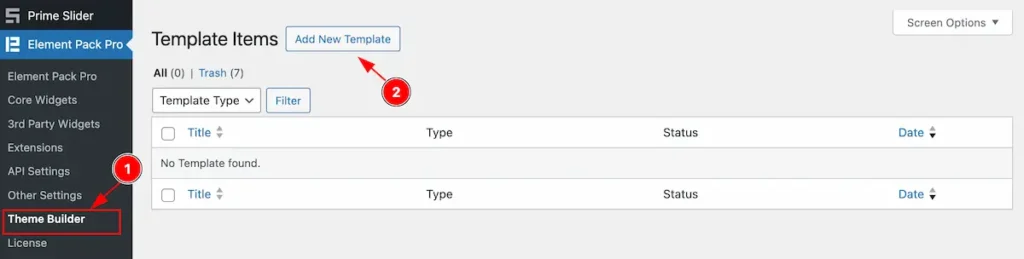
- Navigate to Element Pack Pro > Theme Builder from Dashboard.
- Click on the ” Add New Template ” button and click on it.
Create Tag Template
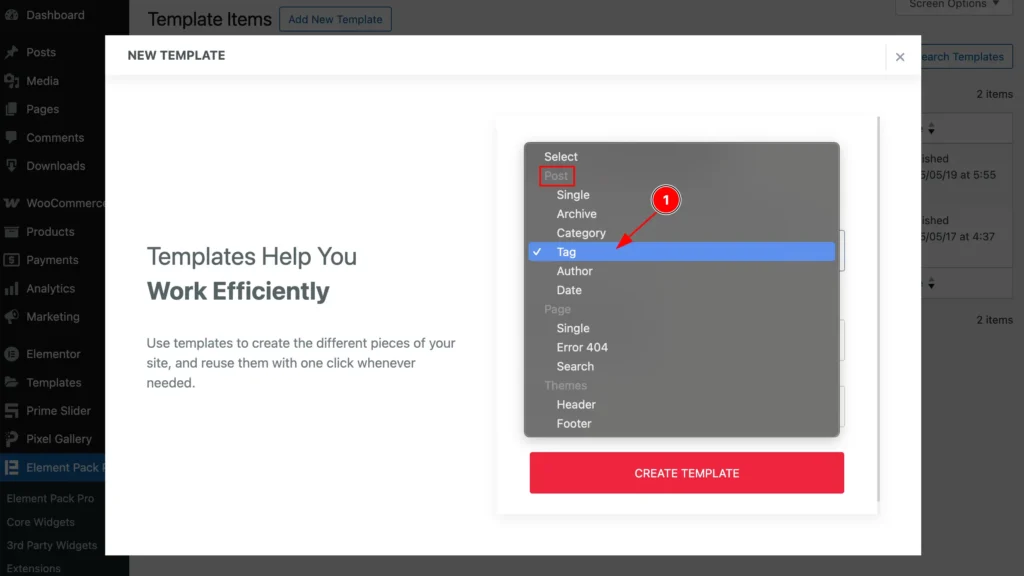
- Select the Template Type Tag from Post Section.
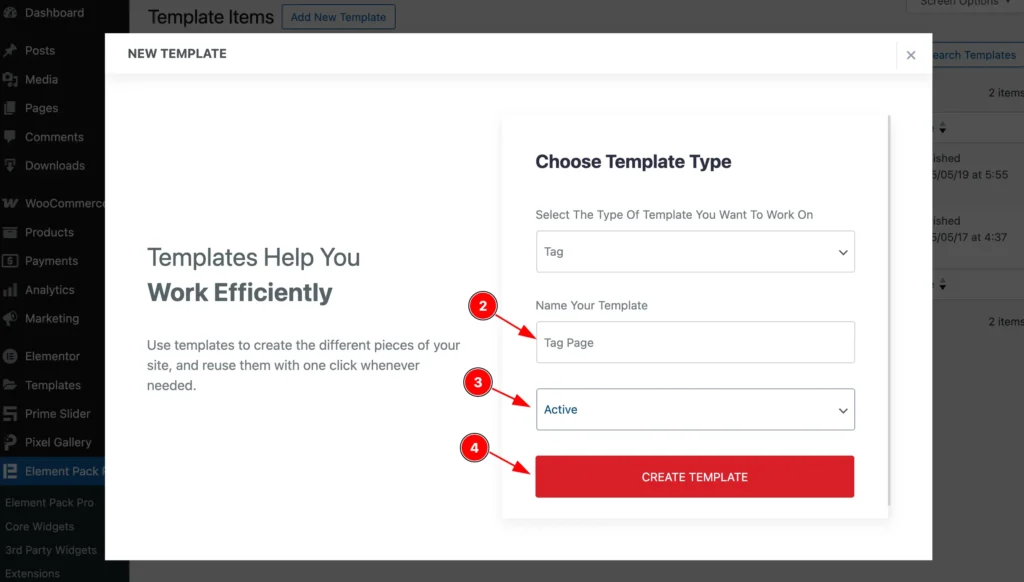
- Name your Template: Set the name for the Template e.g.: Tag page.
- Status: Select the Status Active.
- Click on the ” CREATE TEMPLATE ” button and it will create a new template page and redirect to the Editor page.
Edit Tag Page
Select Post Terms
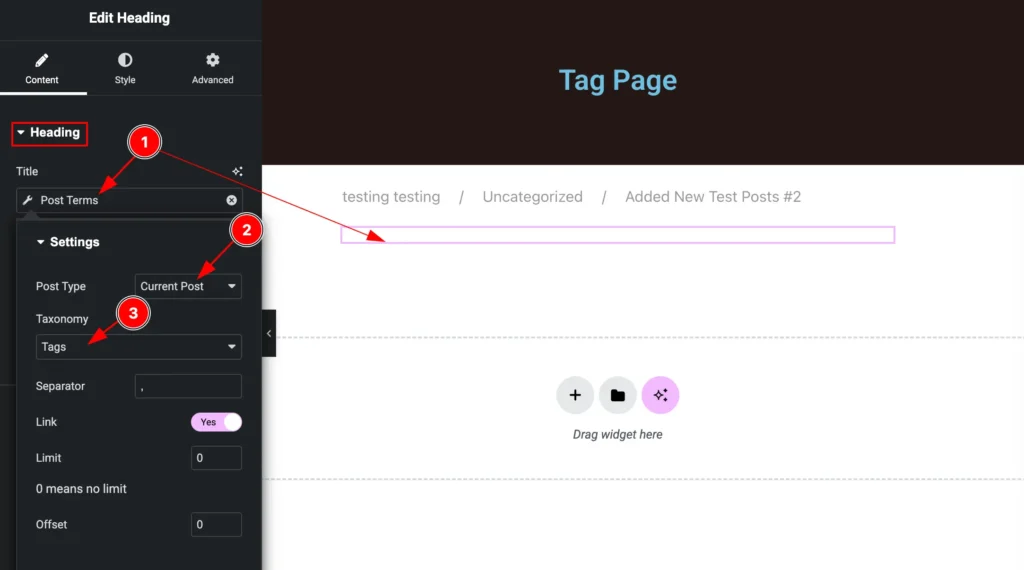
- Post Terms: Select the Post Terms for the Dynamic Content .
- Post Type: Set the post type to current post.
- Taxonomy: Select the taxonomy to Tags.
Another Design
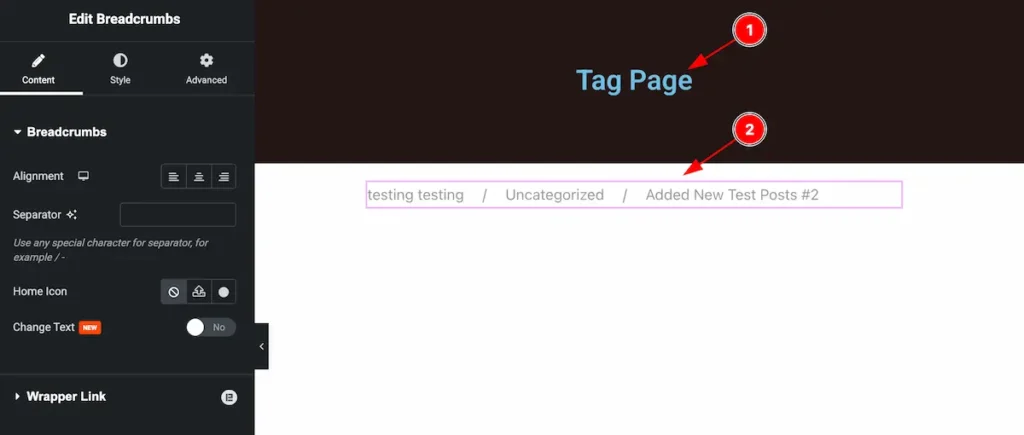
Choose any design for the template page.
- Set the Page Title according to the Template Name.
- Select the Breadcrumbs widget to demonstrate the Page Position.
Check the Tag Template

- Click on the Tag . It will redirect to the Tag Theme Builder page.
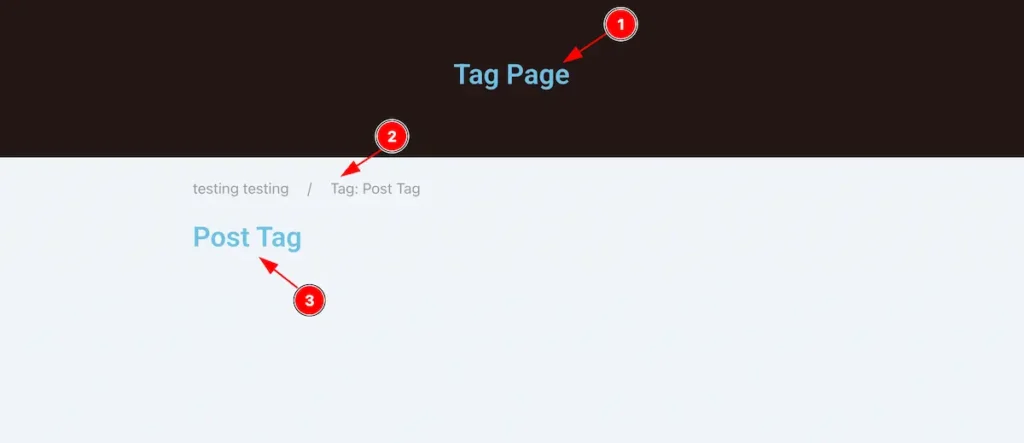
- The Tag Page Appear on the .
- Breadcrumbs info appear.
- The Tag of the relevant Post appear.
By following you can use the Tag Themes Builder.
Video Assist
Video Tutorial Coming Soon.
Thanks for stying with us.