

The SVG Support feature from Element Pack Pro allows you to safely upload and use SVG files within your WordPress media library. In this documentation, we will guide you on how to enable and use the SVG Support feature.
Uploading SVG Before Enabling SVG Support Feature
Media Tab
Go to WP Dashboard → Posts
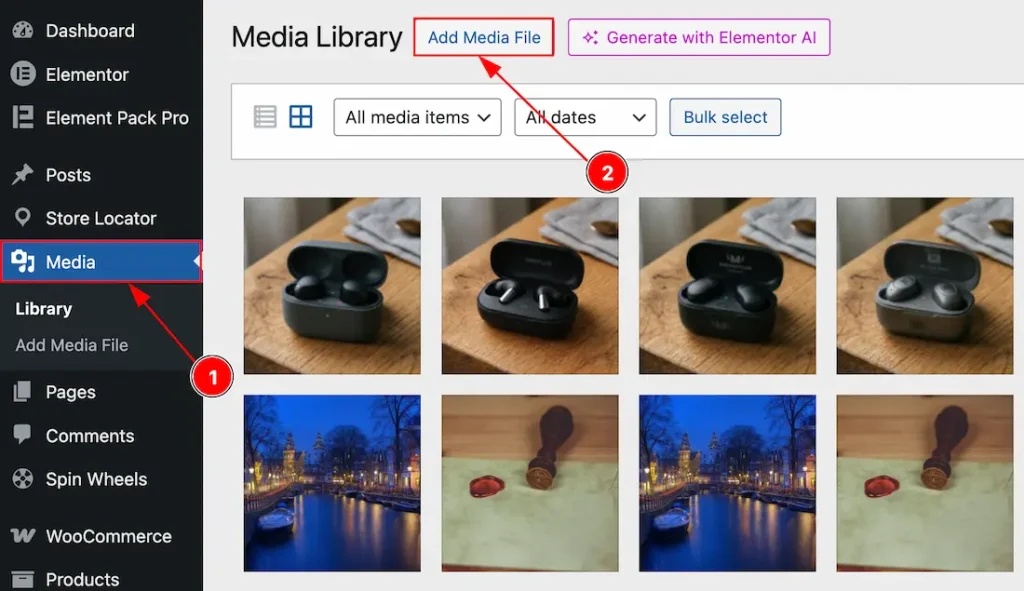
1. Go to the WP Dashboard and then click on Media.
2. After that, click on the Add Media File option to add the SVG image/icon that you want.
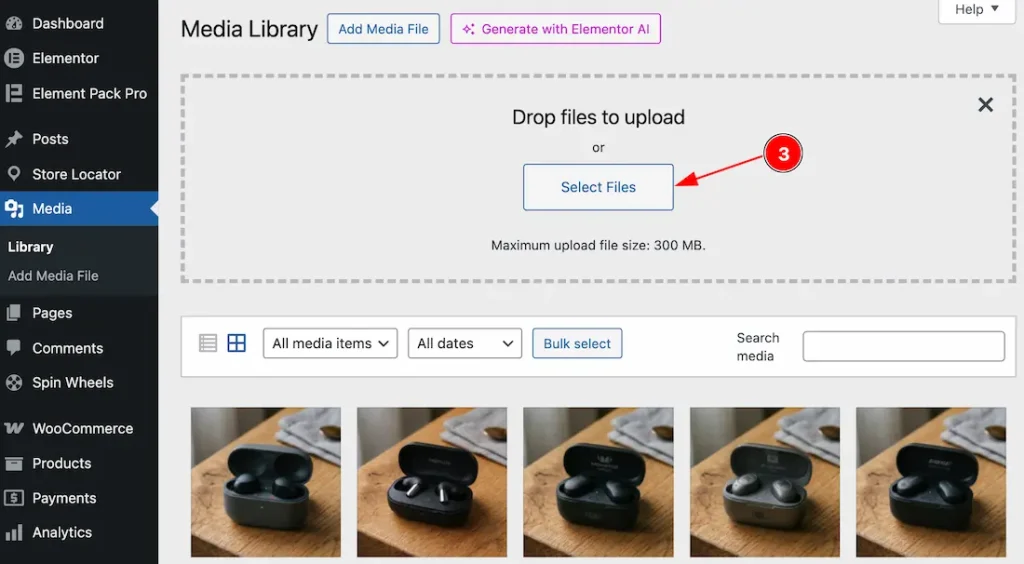
3. Now, click on the Select files as you want to upload the SVG Image/Icon from your local.
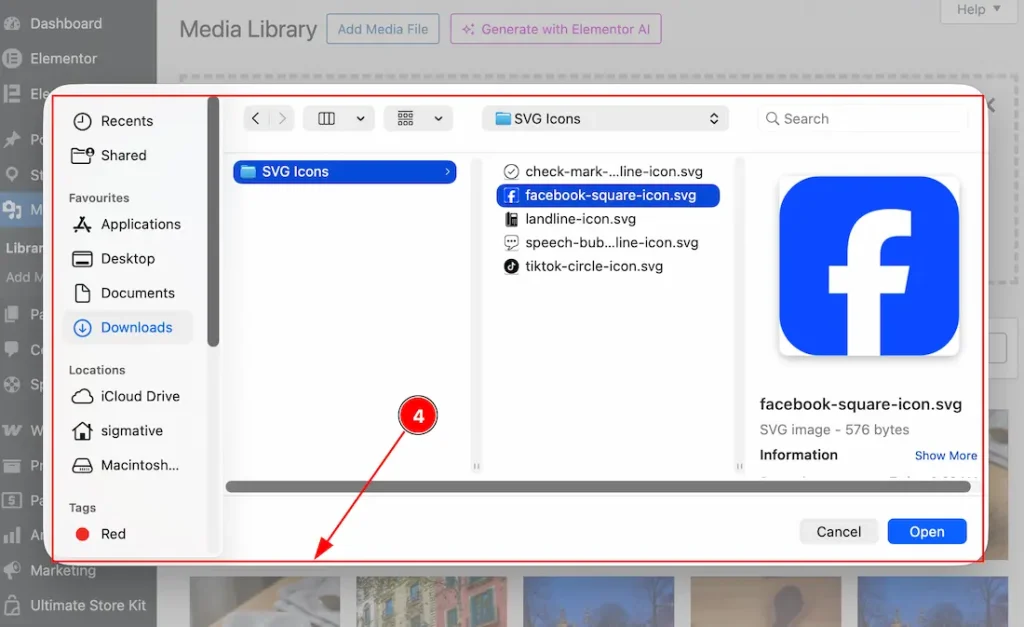
4. After clicking on the select files option, a pop-up will appear to let you choose the media files that you want to add to the media. Here we have selected a Facebook SVG icon.
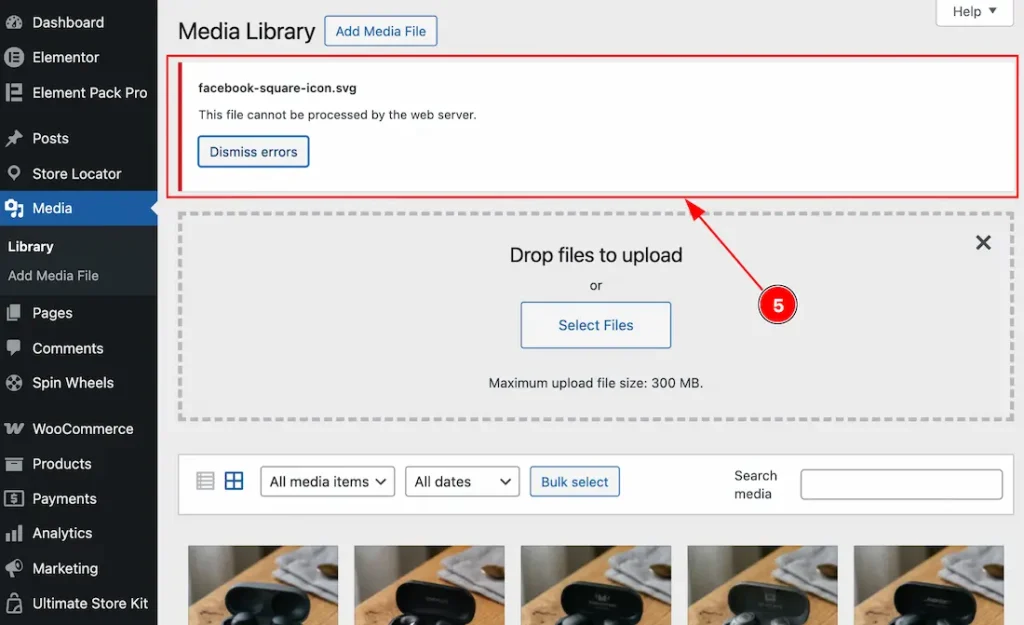
5. As you haven’t enabled the SVG Support feature from the Element Pack, you will receive an error instead of uploading the SVG files, with a notification that this file can not be processed by the web server.
Enable The SVG Support Feature
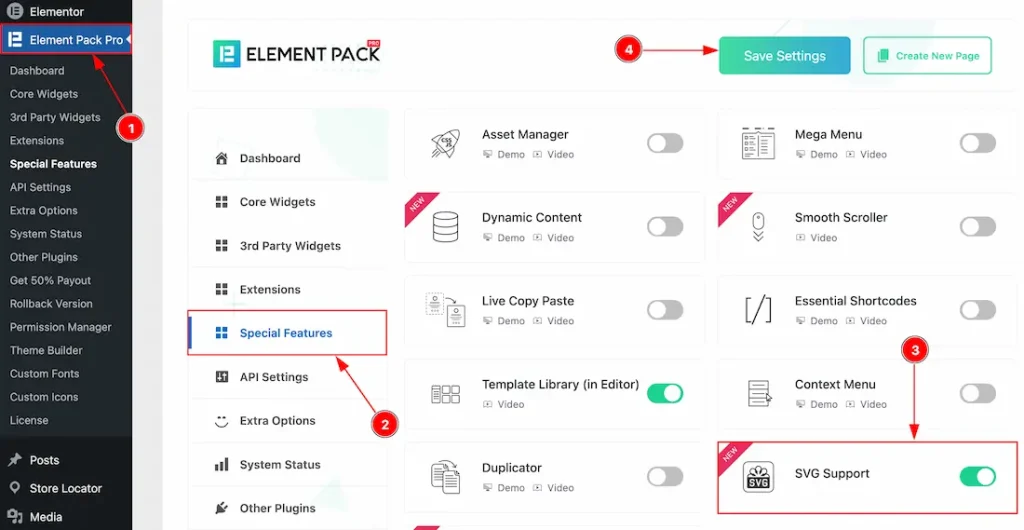
To use the SVG Support Feature from Element Pack, first, you have to enable the feature.
- Go to WordPress dashboard → Element Pack Plugin dashboard.
- Then, Click the Special Features Tab.
- Enable the SVG Support feature.
- Hit the Save Settings Button.
Uploading SVG After Enabling the SVG Support Feature
Media Tab
Go to WP Dashboard → Media
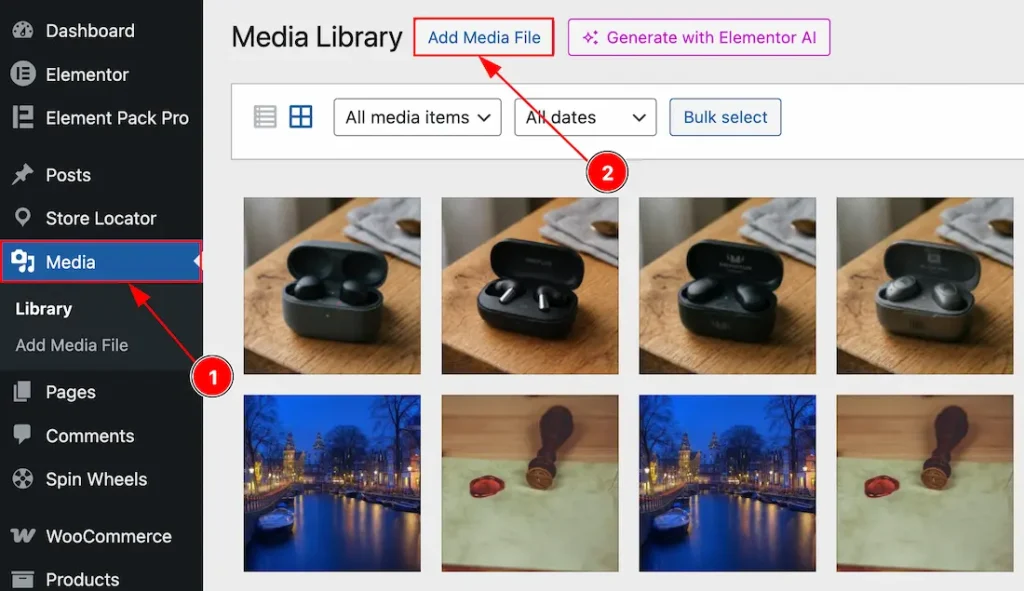
1. Go to the WP Dashboard and then click on Media.
2. After that, click on the Add Media File option to add the SVG image/icon that you want.
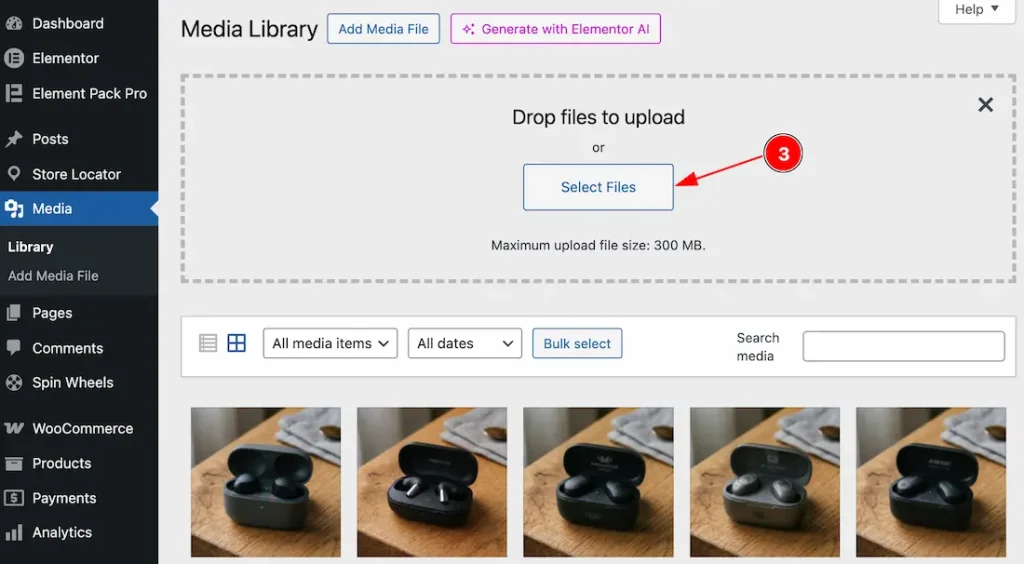
3. Now, click on the Select files as you want to upload the SVG Image/Icon from your local.
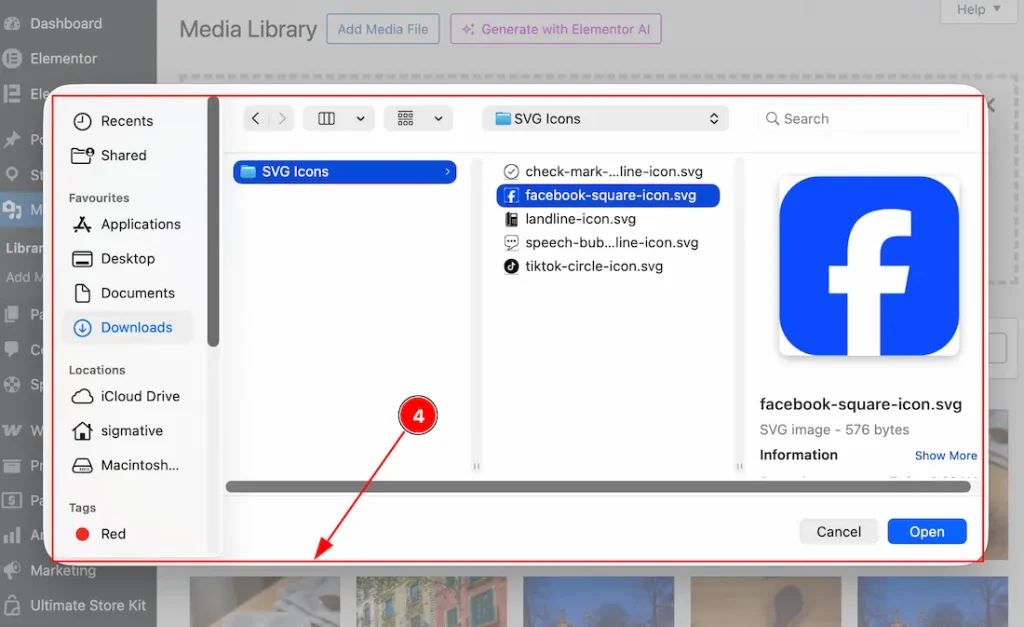
4. After clicking on the select files option, a pop-up will appear to let you choose the media files that you want to add to the media. Here we have selected a Facebook SVG icon.
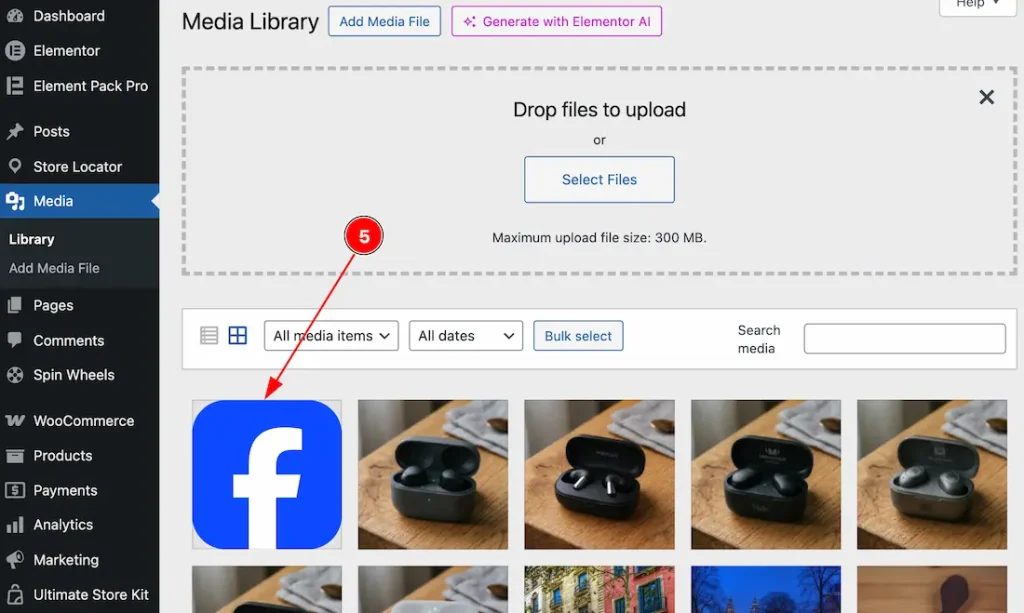
5. Now, the upload will complete, and you can easily see the SVG media between the media files.
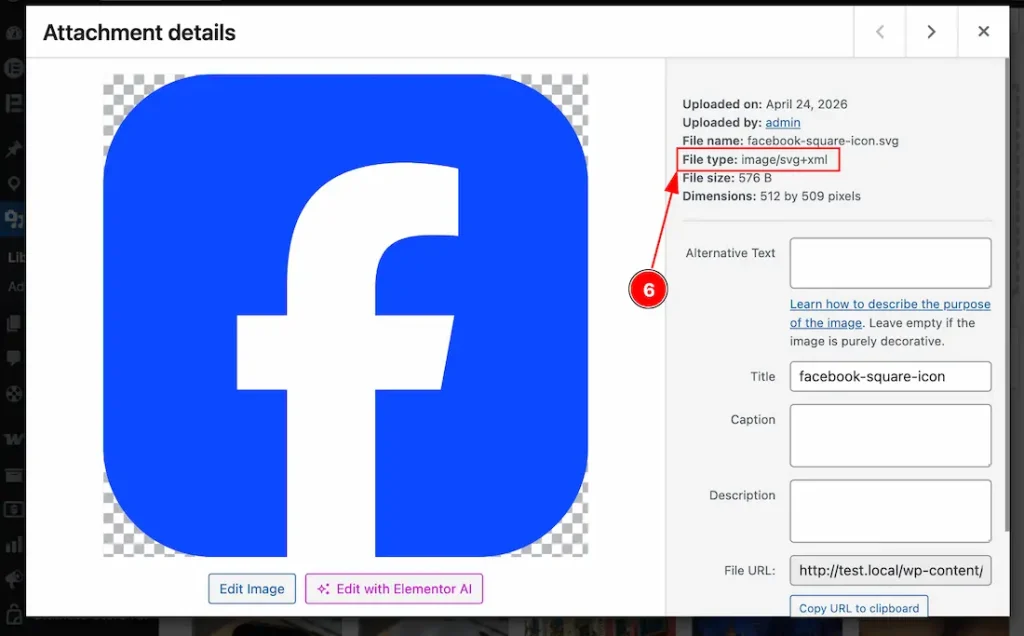
6. Click on the image to open the lightbox with its information. Here you can see the file type.
All done! This is how you can use the SVG Support feature on your site.
Video Assist
The video and demo will come soon. Thanks for staying with us.