

The Duplicator feature from Element Pack Pro lets you quickly copy posts, pages, and templates within Elementor. It helps save time and maintain design consistency across your pages. In this documentation, we will guide you on how to use the Duplicator feature.
Visual Preview Before Enabling the Duplicator Feature
Visual preview of the Posts Tab
Go to WP Dashboard → Posts
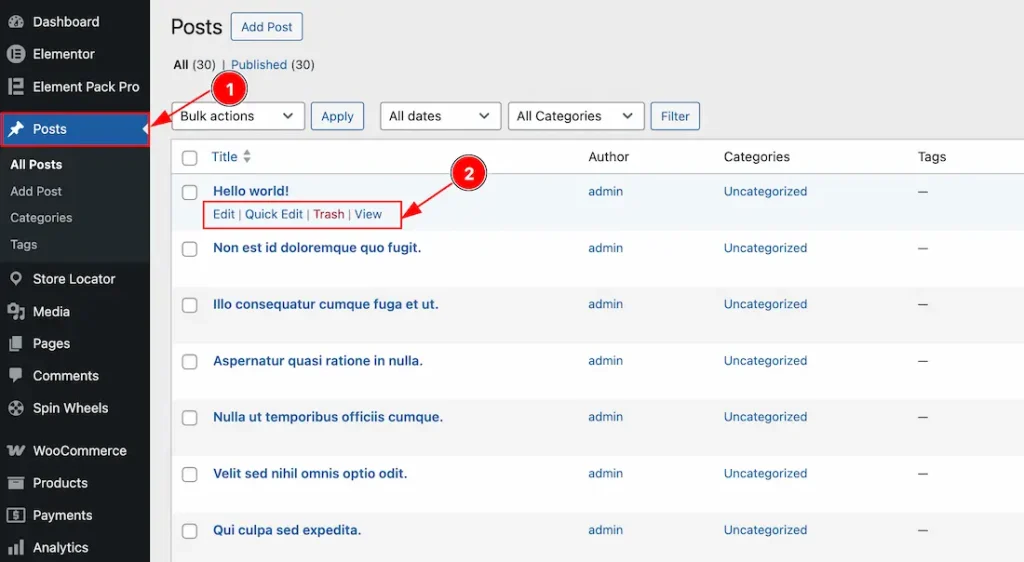
1. Go to the WP Dashboard and then click on Posts.
2. Hover over a post, and you will get to see the quick navigate menus such as Edit, Quick Edit, Trash & View. As the duplicator feature is not activated, you won’t see any option to duplicate the post.
Visual preview of the Pages Tab
Go to WP Dashboard → Pages
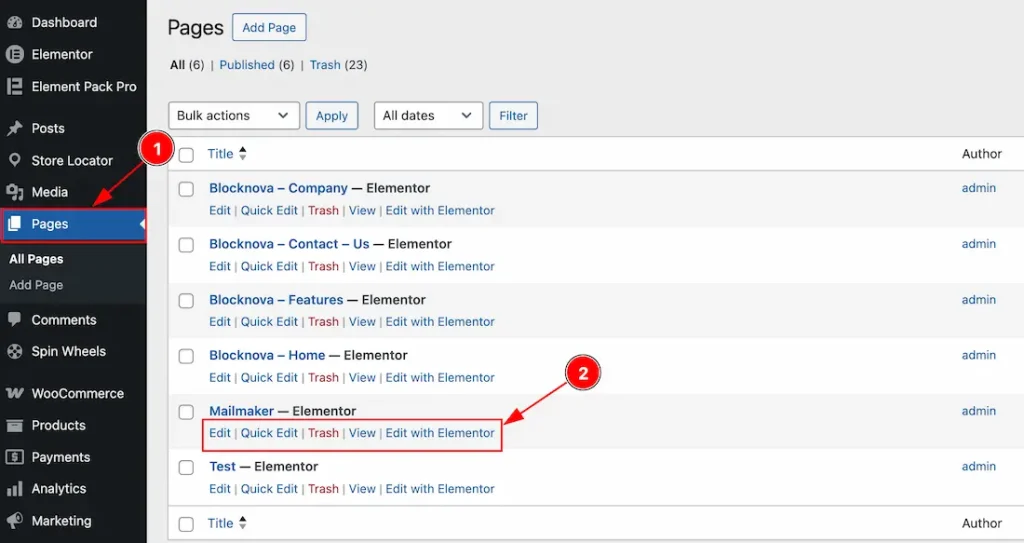
1. Go to the WP Dashboard and then click on Pages.
2. Hover over a page, and you will get to see the quick navigate menus such as Edit, Quick Edit, Trash, View & Edit with Elementor option, as the duplicator feature is not activated, so you won’t see any option to duplicate the page.
Visual preview of the Templates Tab
Go to WP Dashboard → Elementor (Templates)
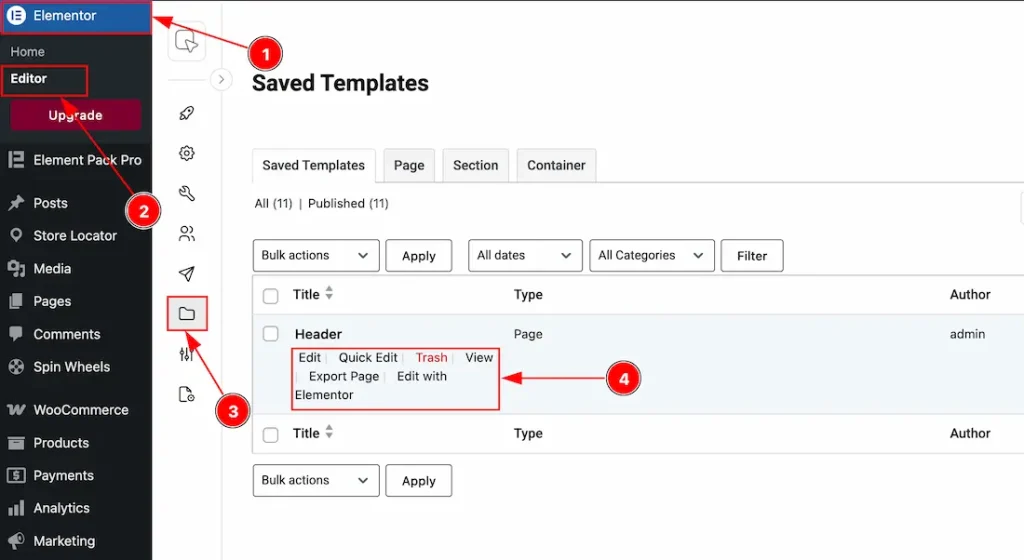
1. Go to the WP Dashboard and then click on Elementor.
2. After that, click on the Editor tab.
3. Then, click on the Templates option.
4. Below the template name, you will get to see the options named Edit, Quick Edit, Trash, View, Export Page & Edit with Elementor. As the duplicator feature is not activated so you won’t see any option to duplicate the template.
Enable The Duplicator Feature
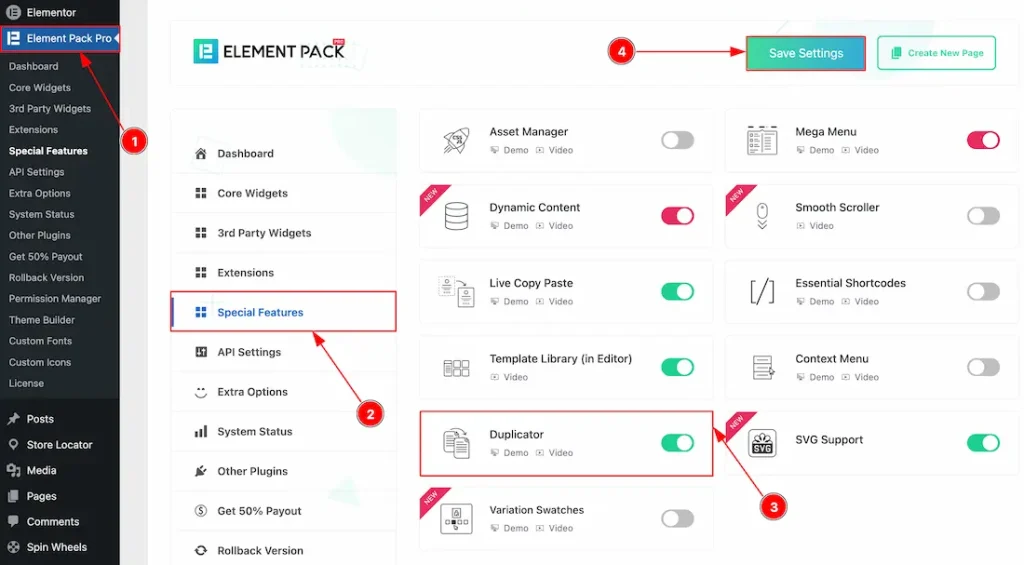
To use the Duplicator Feature from Element Pack, first, you have to enable the feature.
- Go to WordPress dashboard → Element Pack Plugin dashboard.
- Then, Click the Special Features Tab.
- Enable the Duplicator feature.
- Hit the Save Settings Button.
Visual Preview After Enabling the Duplicator Feature
Visual preview of the Posts Tab
Go to WP Dashboard → Posts
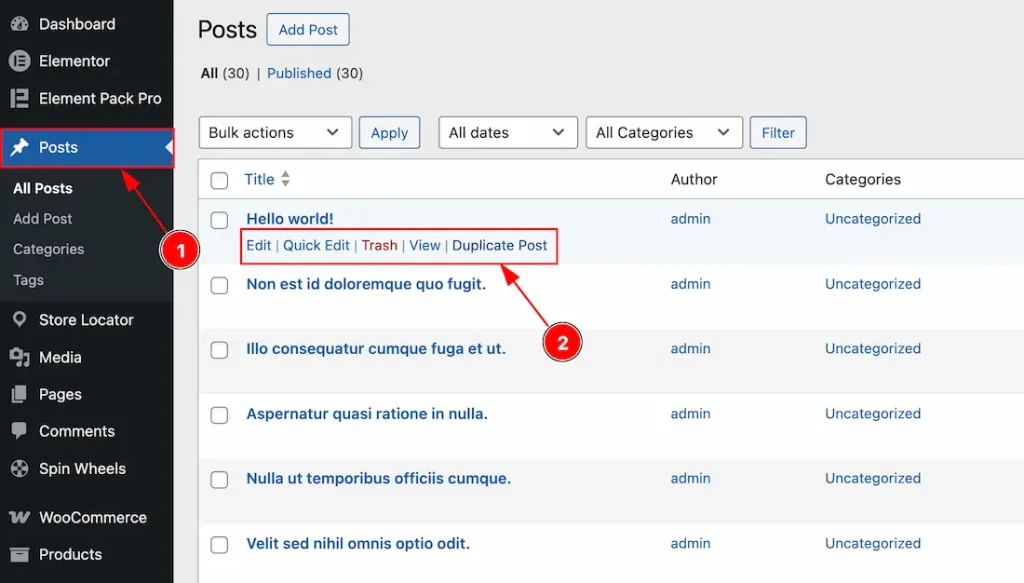
1. Go to the WP Dashboard and then click on Posts again.
2. Hover over a post, and now you will get to see the quick navigate menus such as Edit, Quick Edit, Trash, View & Duplicate Post. Click on the Duplicate Post option to duplicate the post.
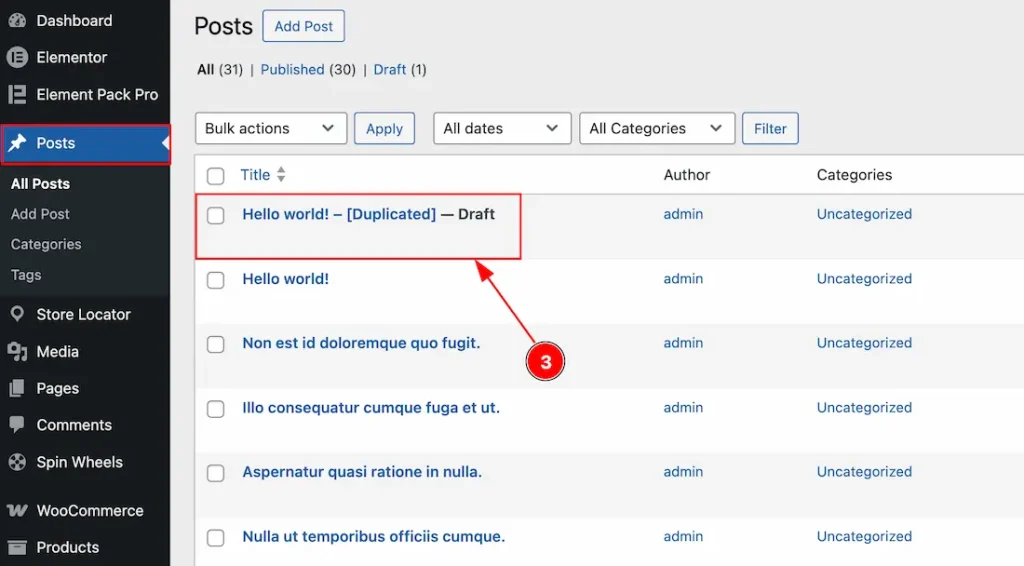
3. Now you can see the post that you have just duplicated. You will get the duplicate post as draft status. So, you can rename it or customize it as you want and then publish it.
Visual preview of the Pages Tab
Go to WP Dashboard → Pages
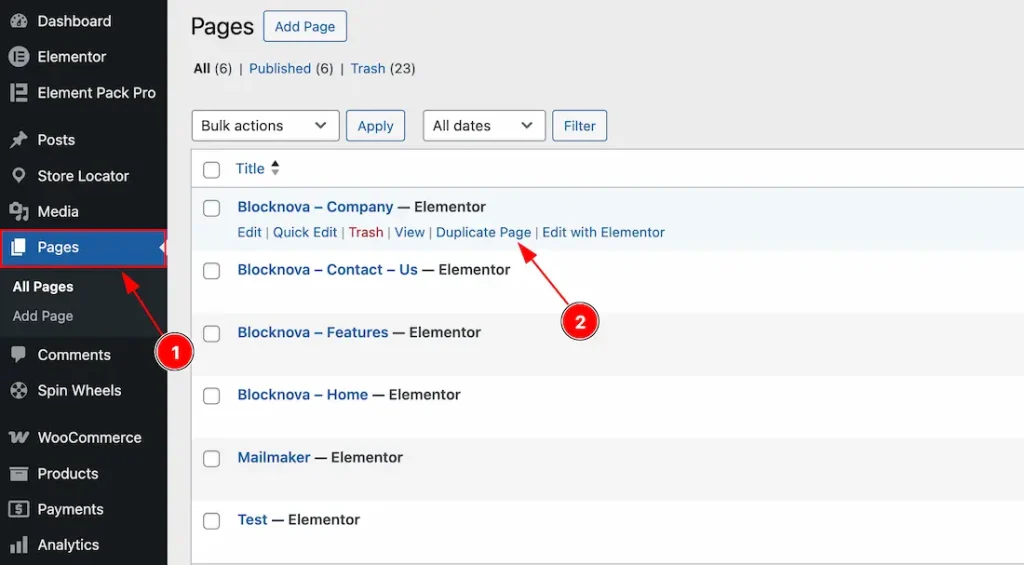
1. Go to the WP Dashboard and then click on Pages again.
2. Hover over a page, and now you will get to see the quick navigate menus such as Edit, Quick Edit, Trash, View, Duplicate Page & Edit with Elementor. Click on the Duplicate Page option to duplicate the page.
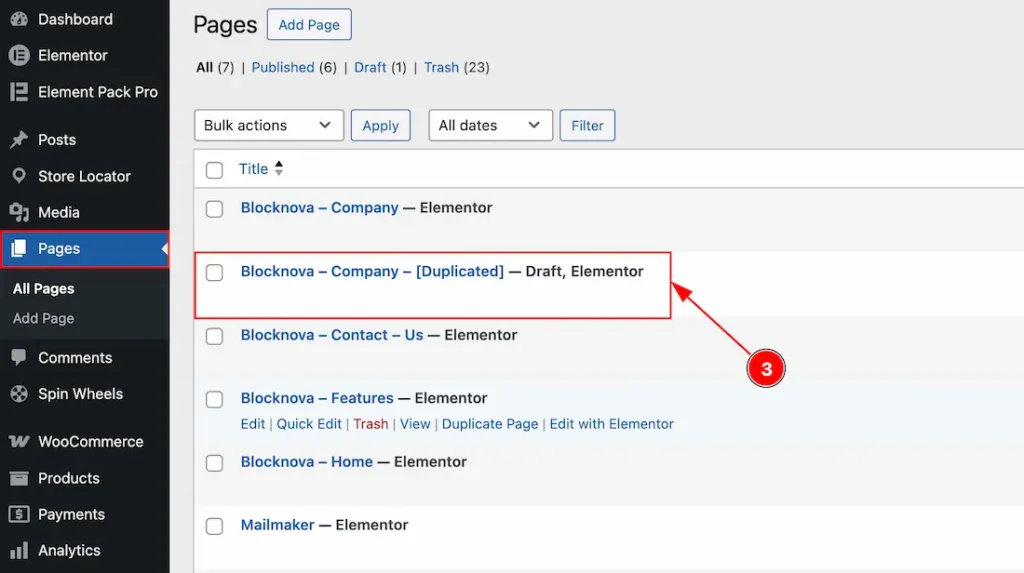
3. Now you can see the page that you have just duplicated. You will get the duplicate page in draft status. So, you can rename it or customize it as you want and then publish it.
Visual preview of the Templates Tab
Go to WP Dashboard → Elementor (Templates)
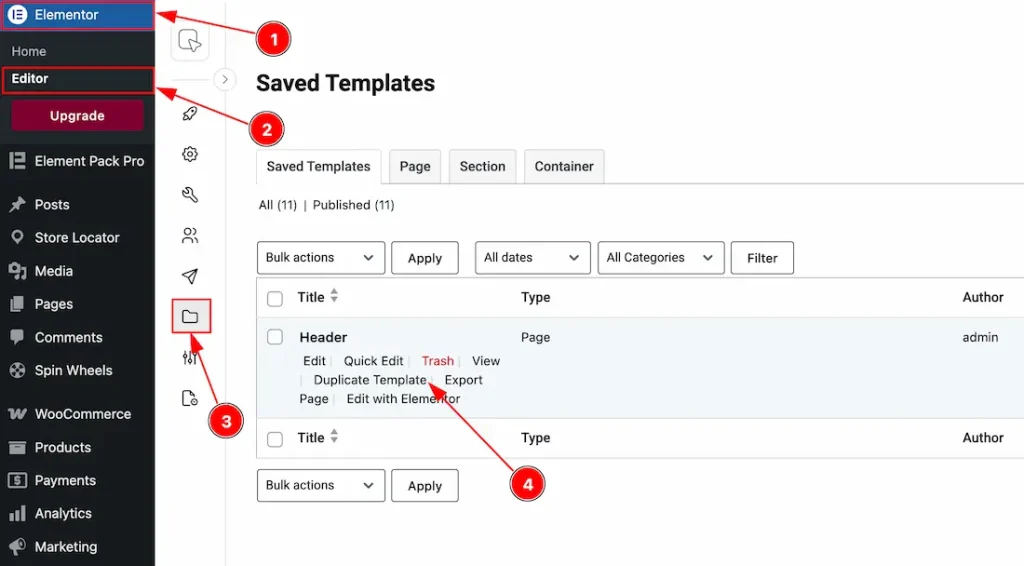
1. Go to the WP Dashboard and then click on Elementor.
2. After that, click on the Editor tab.
3. Then, click on the Templates option.
4. Below the template name, you will get to see the options named Edit, Quick Edit, Trash, View, Duplicate Template, Export Page & Edit with Elementor. Click on the Duplicate Template option to duplicate the template.
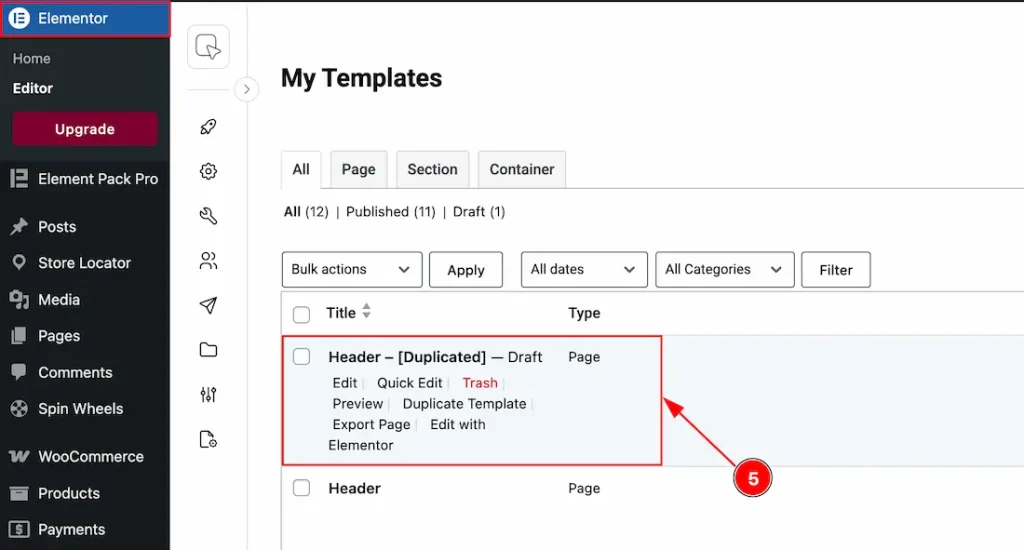
5. Now you can see the template that you have just duplicated. You will get the duplicate template in draft status. So, you can rename it or customize it as you want and then publish it.
All done! This is how you can use the Duplicator feature on your site.
Video Assist
You can also watch the video tutorial to learn more about the Duplicator feature. Also, visit the demo page for more examples.
Thanks for being with us.