

In this documentation, we will discuss the customization of the 360 Degree Product Viewer widget, brought to you by the Element Pack Pro addon.
Inserting the 360 Degree Product Viewer widget
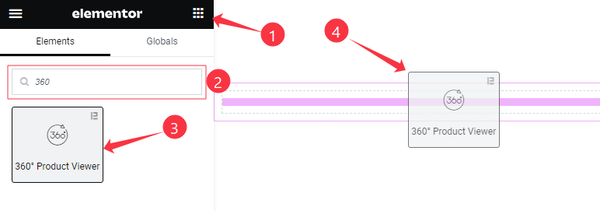
On the page in Elementor editor, search by the widget’s name and then drag-drop it on the page.
Content tab customizations
Layout Section
Go to Content > Layout
Step-1
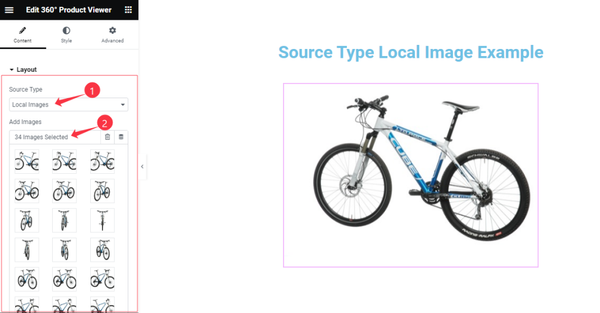
Come to the Layout section, Find the Source Type ( Local Images, and Remote Images), and Add Images options.
Step-2
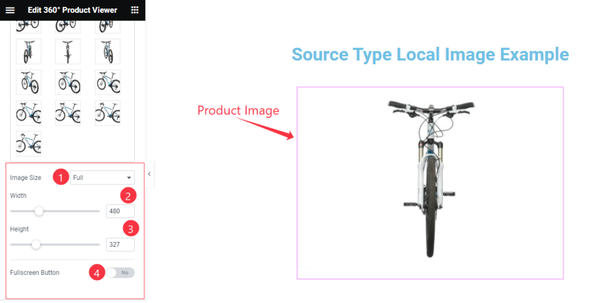
Here also find the Image Size, Width, Height, and Fullscreen Button options.
Additional Section
Go to Content > Additional
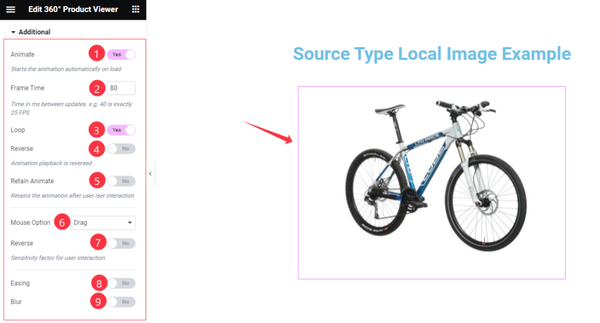
In this section, Find the Animate, Frame Time, Loop, Reverse, Retain Animate, Mouse Option( None, Drag, Move, and Wheel), Reverse, Easing, and Blur switchers options.
All done! You have successfully customized the 360 Degree Product Viewer widget on your website.
Video Assist
You can watch the quick video to learn about the 360° Product Viewer widget. Please visit the demo page for examples.
Thanks for being with us.