

In this documentation, we will show you how to customize the Exotic List widget presented by Ultimate Post Kit.
Inserting Exotic Widget
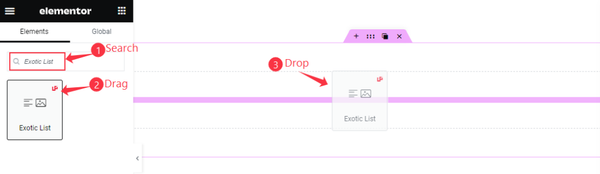
Search by Exotic List, then Drag and Drop it on the page.
Default View of the Exotic Widget
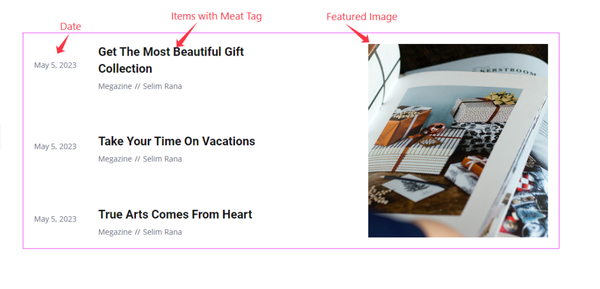
It shows the Title, Meta Tags, Date, and featured images.
Content Tab Customization
Layout Section
Go to Content > Layout
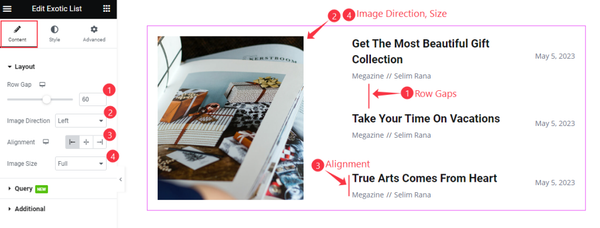
Find the Row Gap, Image Direction, Alignment, and Image Size options.
Query Section
Go to Content > Query
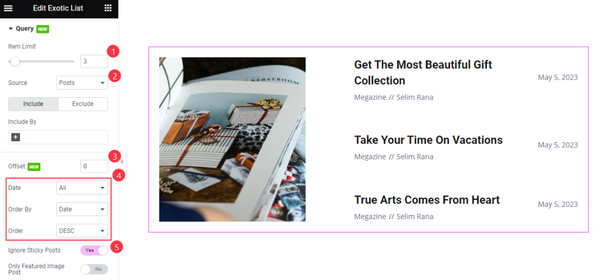
Find the Item Limit, Source, Include, and Exclude fields, Offset, Date, Order By, Order, and Ignore Sticky Posts switcher.
Additional Settings
Go to Content > Additional Settings
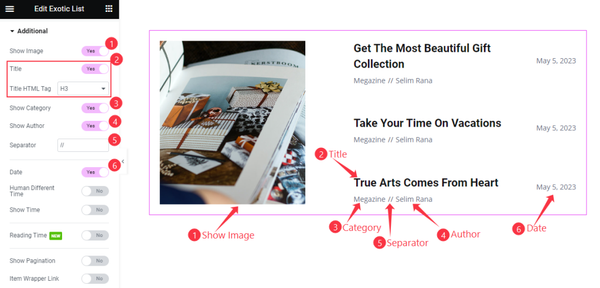
Find the Show Image, Title, and Title HTML Tag, Show Category, Show Author, Separator, Date, Human Different Time, Show Time, Reading Time, Show Pagination, and Item Wrapper Link.
Customization with Style Tab
Image Section
Go to Style > Image
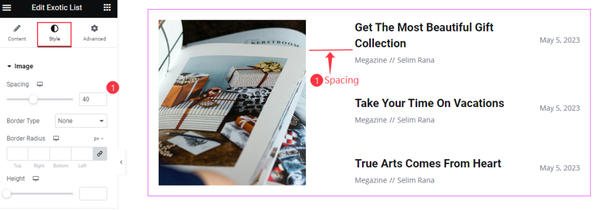
Find the Spacing, Border Type, Border Radius, and Height options.
Title Section
Go to Style > Title
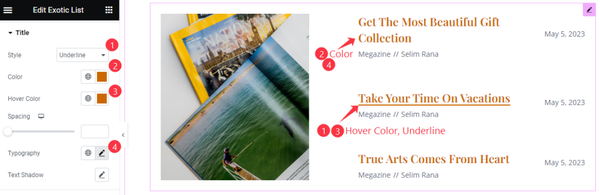
Find the Style, Color, Hover Color, Spacing, Typography, and Text Shadow options.
Date Section
Go to Style > Date
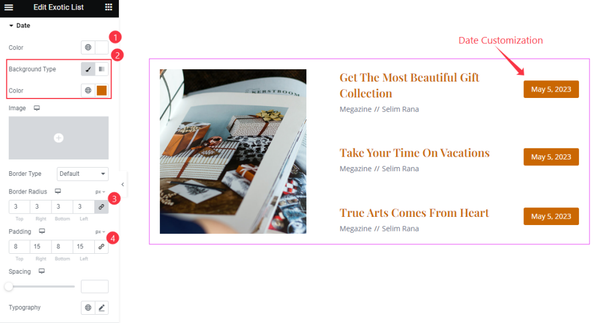
Find the text Color, Background Color, Border Type, Border Radius, Padding, Spacing, and Typography options.
Author Section
Go to Style > Author
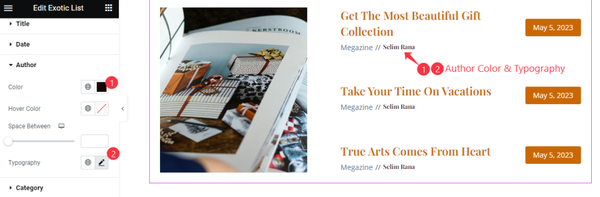
Find the text Color, Hover Color, Space Between, and Typography options.
Category Section
Go to Style > Category
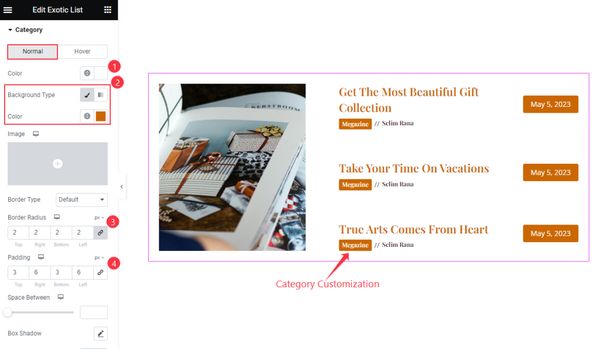
Find the text Color, Background Color, Border Type, Border Radius, Padding, Space Between, Box Shadow, and Typography options.
Video Assist
The Exotic List widget video tutorial coming soon. Please visit the demo page for examples.
Thanks for being with us.