

In this documentation, we will show you how to customize the Punch widget presented by the Pixel Gallery add-on.
Insert Punch Widget
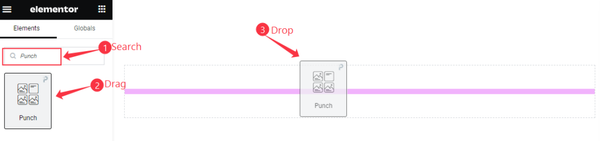
Open your page in Elementor editor, search by the Punch widget name, then drag and drop it.
The default view of Punch Widget
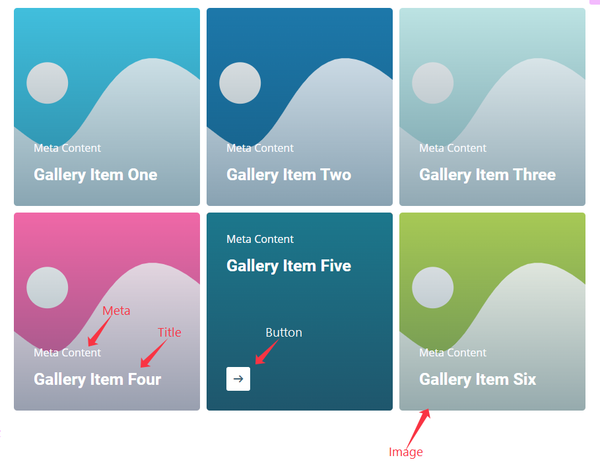
The Punch widget displays the Title, Meta Tag, Button, and Image.
Content Tab Customization
Layout Section
Go to Content > Layout
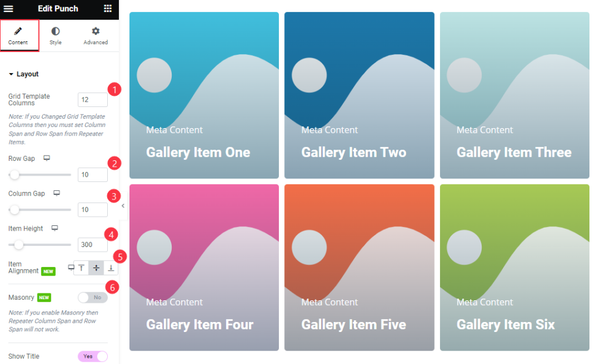
Find the Grid Template Columns, Row Gap, Column Gap, Item Height, and Item Alignment options.
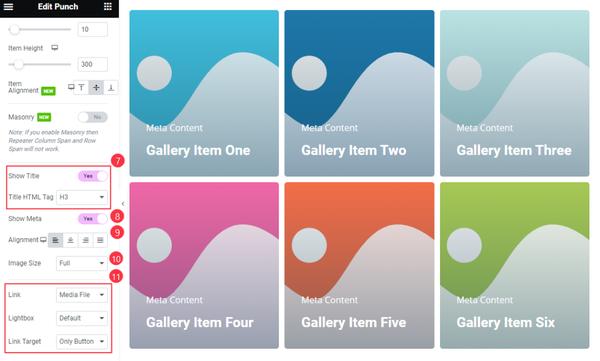
Then find the Show Title and Title HTML Tag, Show Meta, Alignment, Image Size, Link, Lightbox, and Link Target options.
Items Section
Go to Content > Items
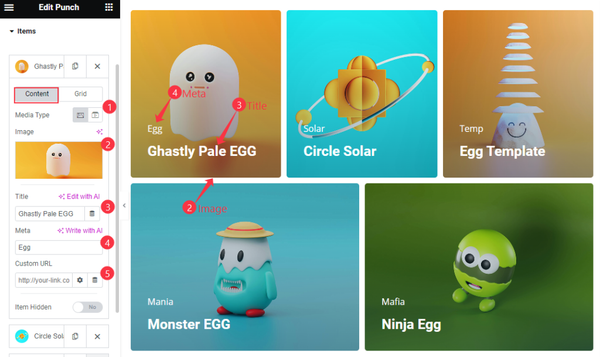
Find the Content > Media Type, Image, Title, Meta, Custom URL, and Item Hidden options.
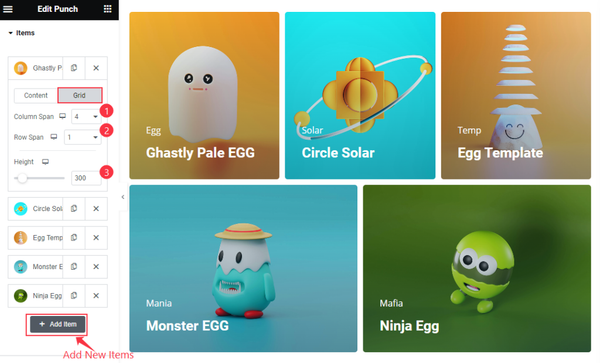
Then find the Grid > Column Span, Row Span, and Height options. To add new items click on the ” + Add Item ” button.
Entrance Animation
Go to Content > Entrance Animation
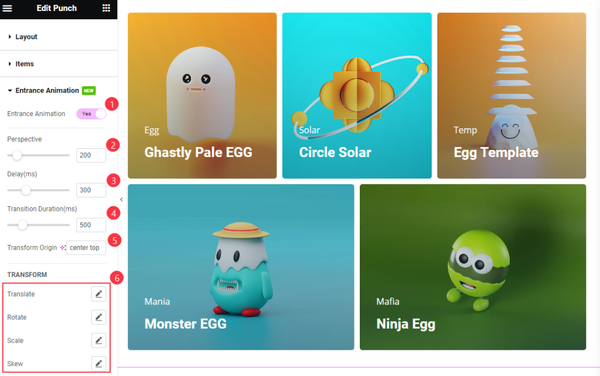
Find the Entrance Animation, Perspective, Delay, Transition Duration, Transform Origin, TRANSFORM > Translate, Rotate, Scale, and Skew options.
Style Tab Customization
Items Section
Go to Style > Items
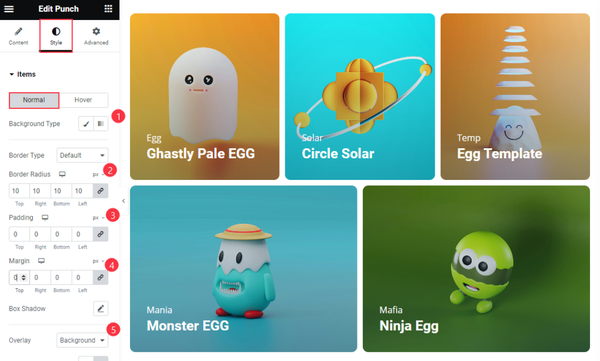
Find the Background Type, Border Type, Border Radius, Padding, Margin, Box Shadow, and Overlay options.
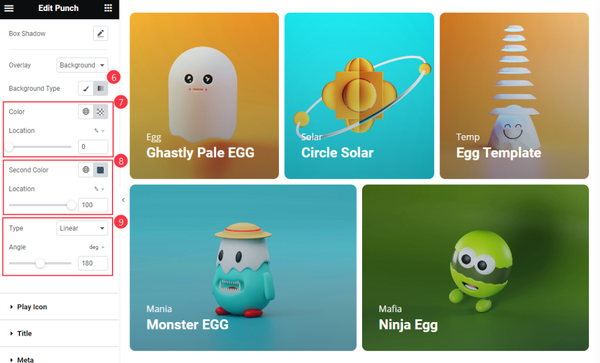
Also find the Background Type, Color and Location, Second Color and Location, Type and Angle options.
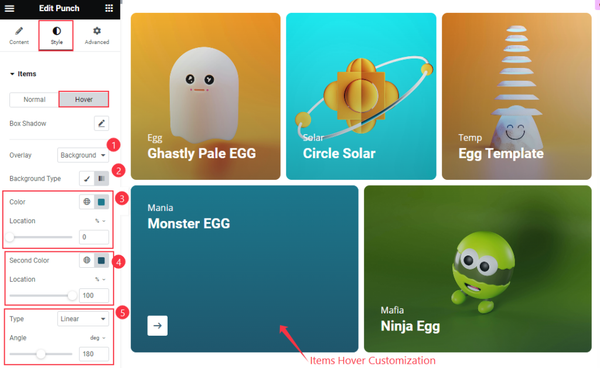
Then find the Hover > Box Shadow, Overlay, Background Type, Color and Location, Second Color, and Location, Type, and Angle options.
Title Section
Go to Style > Title
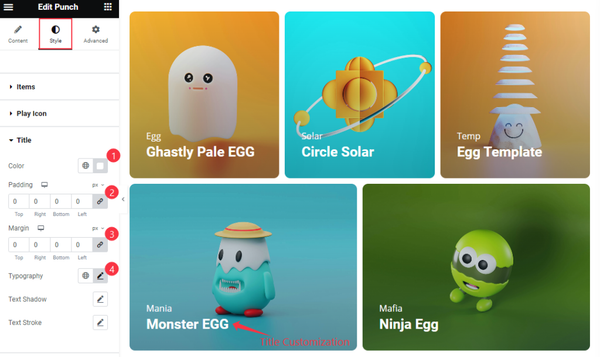
Find the Color, Padding, Margin, Typography, Text Shadow, and Text Stroke options.
Meta Section
Go to Style > Meta
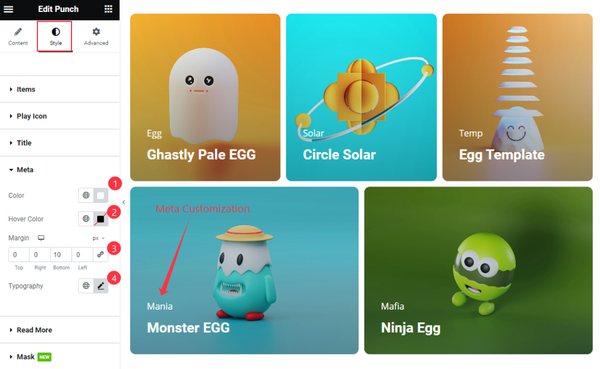
Find the Color, Hover Color, Margin, and Typography options.
Read More Section
Go to Style > Read More
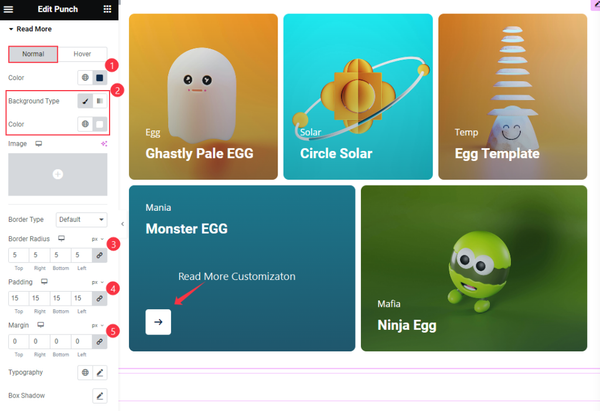
Find the Color, Background Type, Border Type, Border Radius, Padding, Margin, Typography, and Box Shadow options.
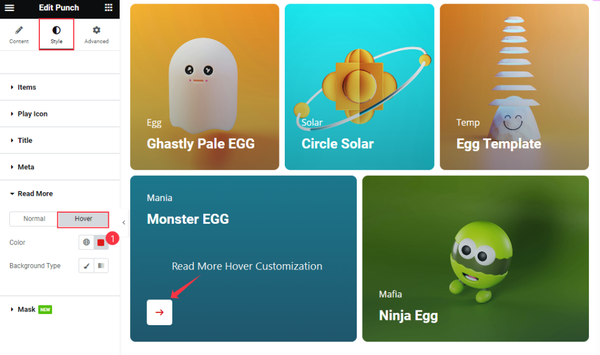
Then find the Hover > Color and Background options.
Mask Section
Go to Style > Mask
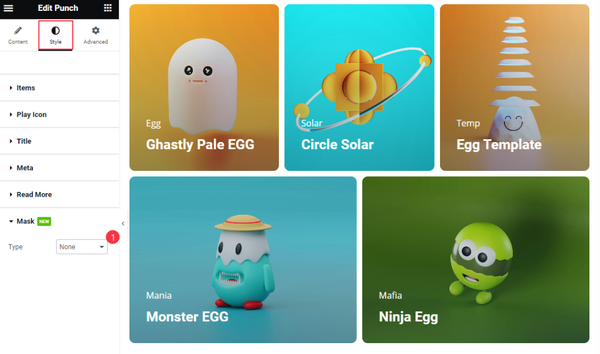
Find the Type option only.
Video Assist
The Punch Video Tutorial Coming Soon. Please visit the demo page for examples.
Thanks for being with us.