

The Product Table Widget is an easy-to-use WooCommerce product table WordPress addon presented by BDthemes and is a part of the Ultimate Store Kit. It lets your visitors manage their purchase options nicely to the end.
Let’s learn how to use the widget on your site.
Insert the Widget
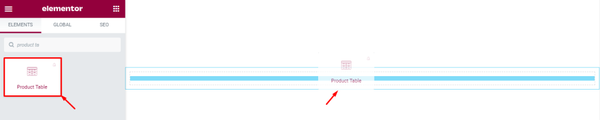
First, you have to insert the widget on your page. To do that, go to the widget menu, then search Product Table, then drag-drop the widget in the text area of your page.
Content tab customization
Change the Layout
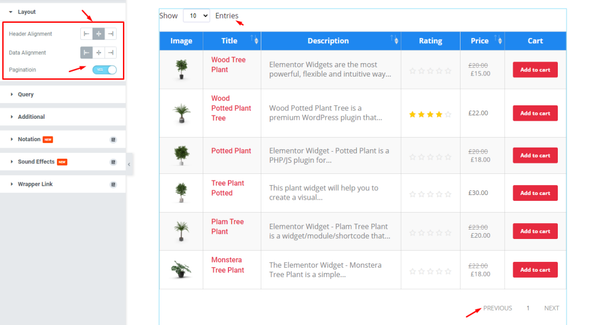
Now, we are going to customize the Layout under the Content tab. To do that, go to Content > Layout. Here, select the Header Alignment to the middle, then select the Data Alignment to the left, then enable the Pagination switcher.
Define the Query
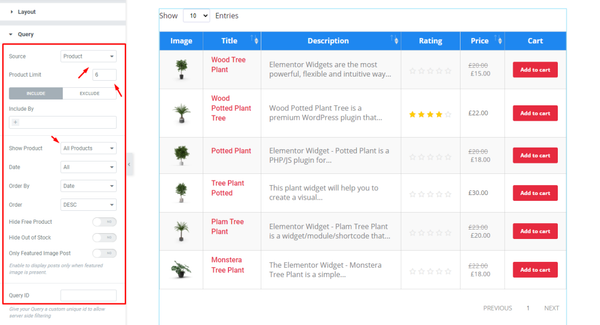
Next, go to Content > Query. Here, select the Source first, then set the Product Limit. After that, you can see two modes i.e.: INCLUDE and EXCLUDE. Now, for the INCLUDE mode, change the Show Product option. You can change the other options if needed.
Edit the Additional settings
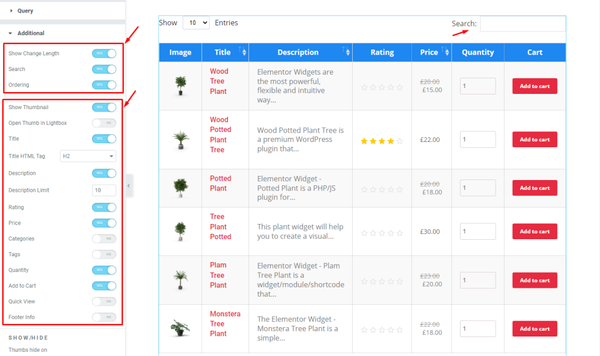
After that, go to Content > Additional. Here, you can see some switchers and fields. Enable the switchers and fill up the Description Limit field by 10, and see the result.
Define the SHOW/HIDE items
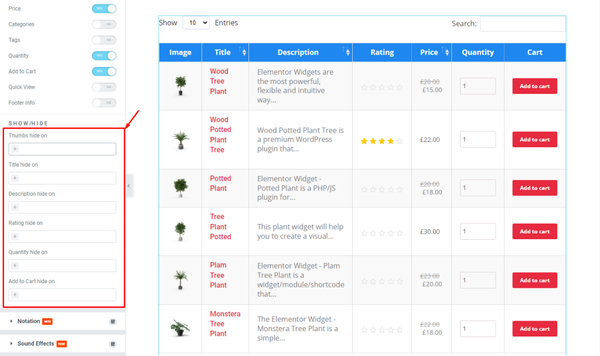
Now, for the SHOW/HIDE sub-section, change the options as you wish.
Style tab customization
Edit Table settings
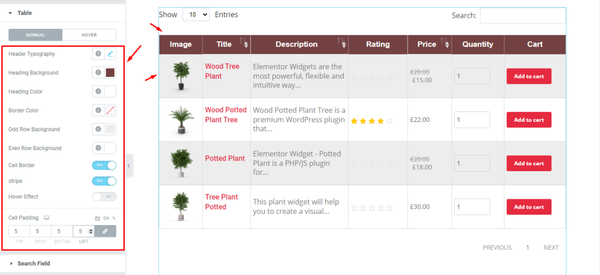
Next, we are going to customize the Table using the Style tab. To do that, go to Style > Table. Here, you can see two modes i.e.: NORMAL and HOVER. Now, for the NORMAL mode, change the Header Typography, then change the Heading Background Color, and see the result. You can change the other options if needed.
Change the Search Field options
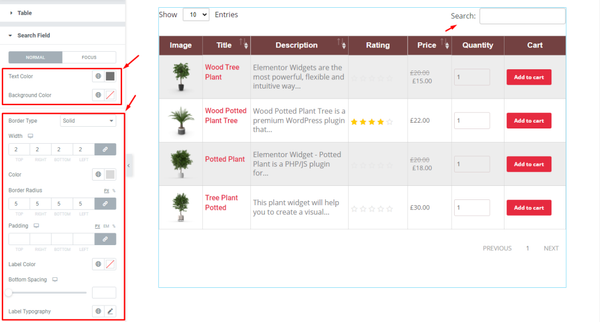
After that, go to Style > Search Field. Here, you can see two modes i.e.: NORMAL and FOCUS. For the NORMAL mode, first, change the Text Color, then change the Background Color. Next, set a thin Border, then, set the Border Radius, and see the result. You can change other options if you want.
Edit the Image
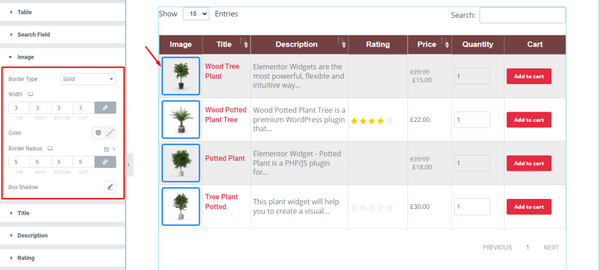
Now, go to Style > Image. Here, set a Border, then change the Color, then set the Border Radius, and see the result on the page.
Format the Title
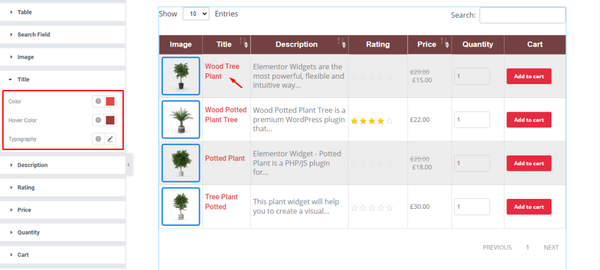
Next, go to Style > Title. Here, change the Color, then change the Hover Color, then change the Typography, and see the result.
Change the Description
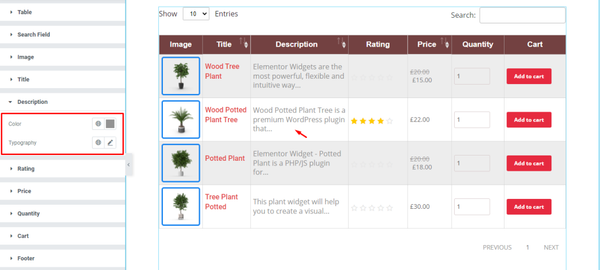
After that, go to Style > Description. Here, change the Color, then change the Typography, and see the result.
Edit the Rating
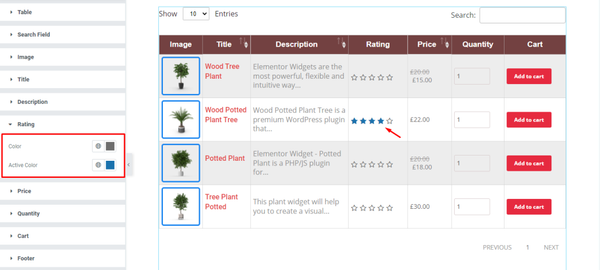
Now, go to Style > Rating. Here, change the Color, then change the Active Color, and see the result.
Set the Price
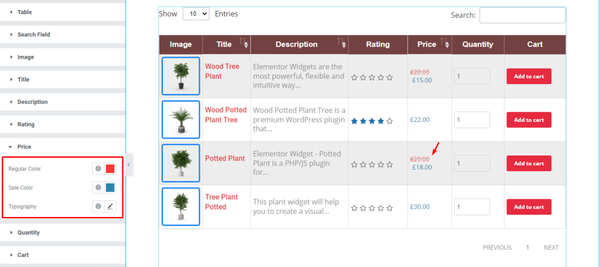
After that, go to Style > Price. Here, change the Regular Color, then change the Sale Color, then change the Typography, and see the result.
Edit Quantity
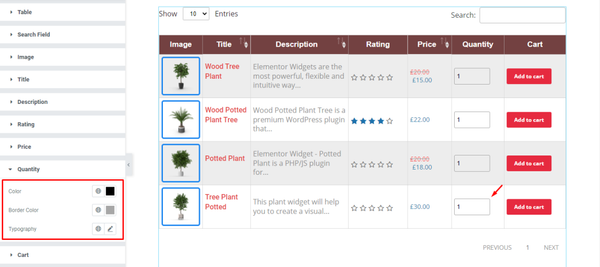
Next, go to Style > Quantity. Here, change the Color, then change the Border Color, then change the Typography, and see the result on the page.
Design the Cart
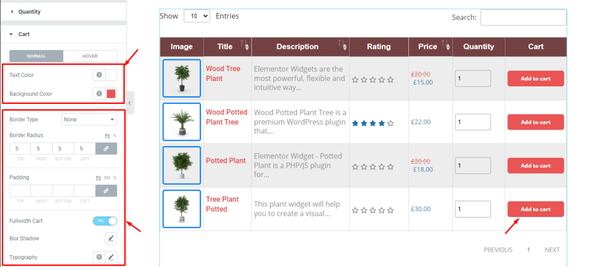
Now, go to Style > Cart. Here, you can see two modes i.e.: NORMAL and HOVER. For the NORMAL mode, change the Text Color, then change the Background Color. After that, enable the Fullwidth Cart switcher, and see the result. You can change the other options if needed.
Edit the Footer
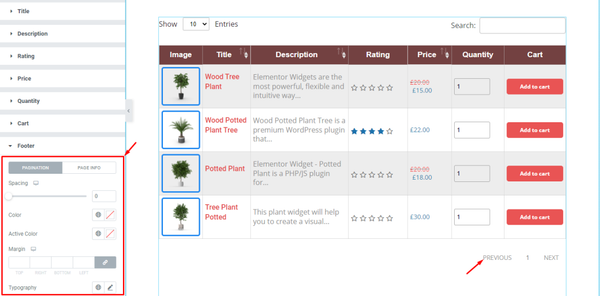
Lastly, go to Style > Footer. Here, you can see two modes i.e.: PAGINATION and PAGE INFO. For the PAGINATION mode, change the options as you need, and see the result on the page.
Final Result
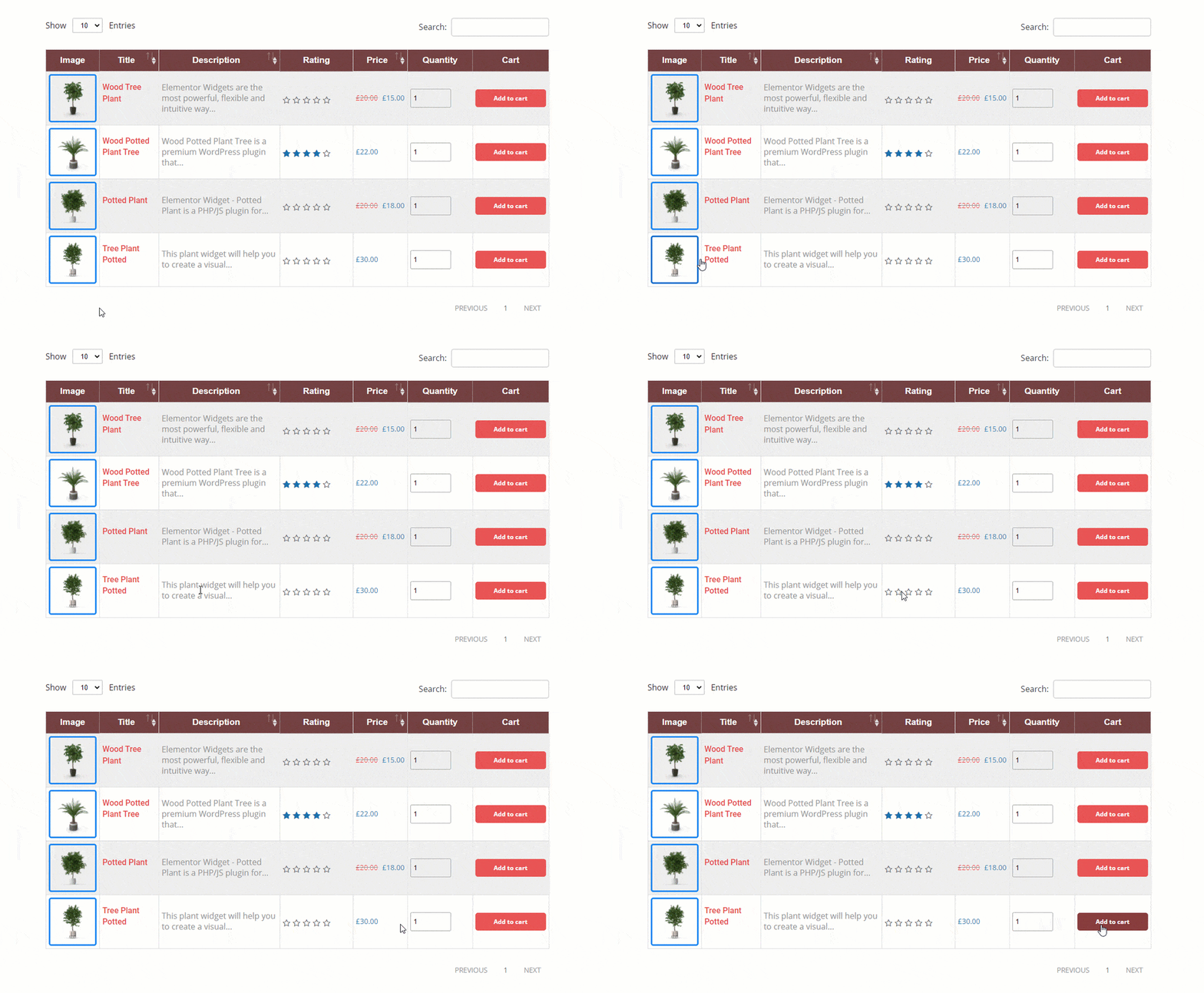
All done! Now, release your breath and enjoy the show.
Video Assist
If you have any queries about this widget, please watch this tutorial video.
You can also see our demo page to learn more.
Thank you very much.