
In this documentation, we will discuss the customization of the Advanced Google Map widget, brought to you by the Element Pack Pro addon.
Enable The Post Gallery Widget
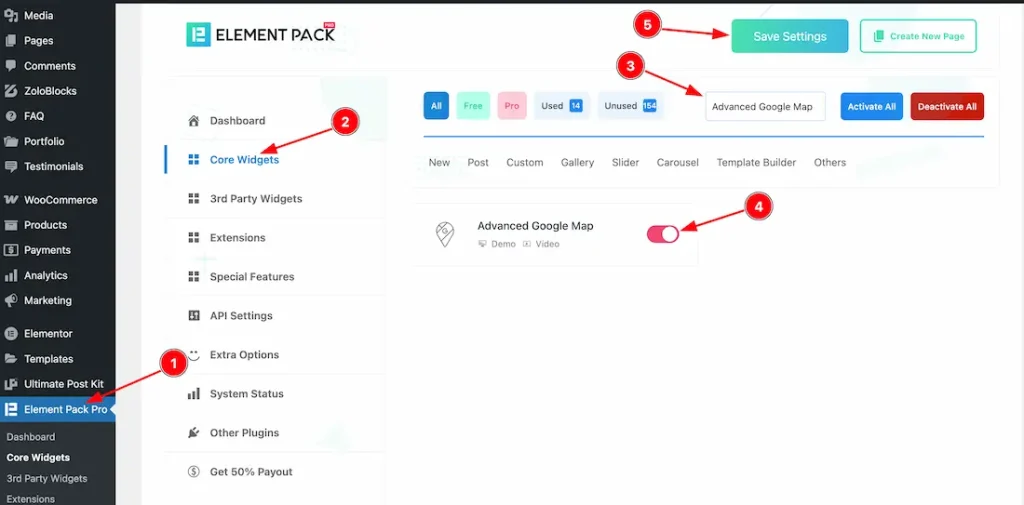
To use the Advanced Google Map widget from Element Pack Pro, first, you have to enable the widget.
- Go to WordPress dashboard → Element Pack Pro Plugin dashboard.
- Then, Click the Core Widgets Tab.
- Search the Advanced Google Map Widget Name.
- Enable the Advanced Google Map Widget.
- Hit the Save Settings Button.
Set The Google Map API Key
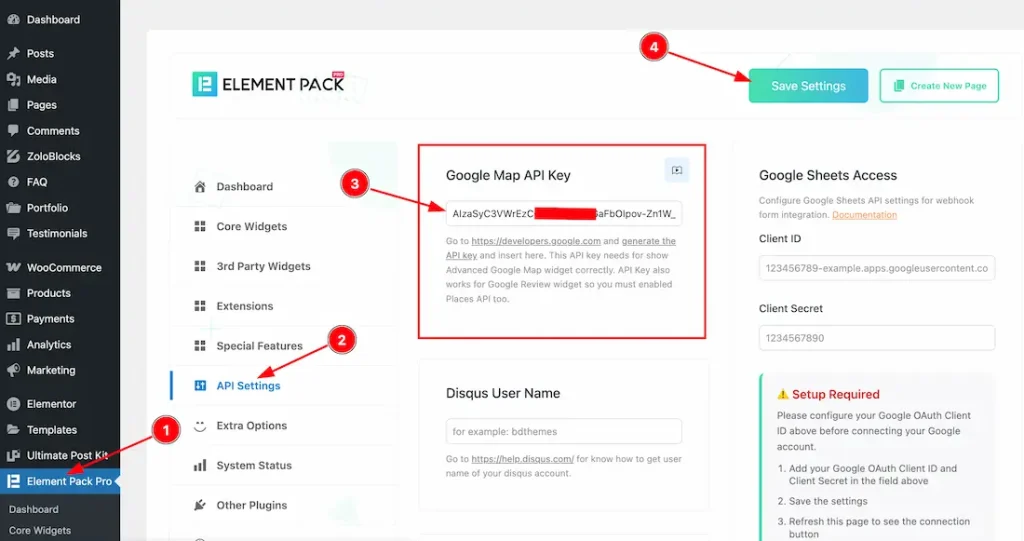
- Go to the Element Pack Pro plugin dashboard.
- Click on the API Settings tab.
- Go to the Google Map API Key section and keep your google map api key inside the API field.
- Click on the “Save Settings” button to save it.
If you didn’t know how to generate the Google Map API key, then you can see the video of How to Generate the Google Map API key that helps you properly to generate the Google Map API key.
Inserting the Advanced Google Map widget
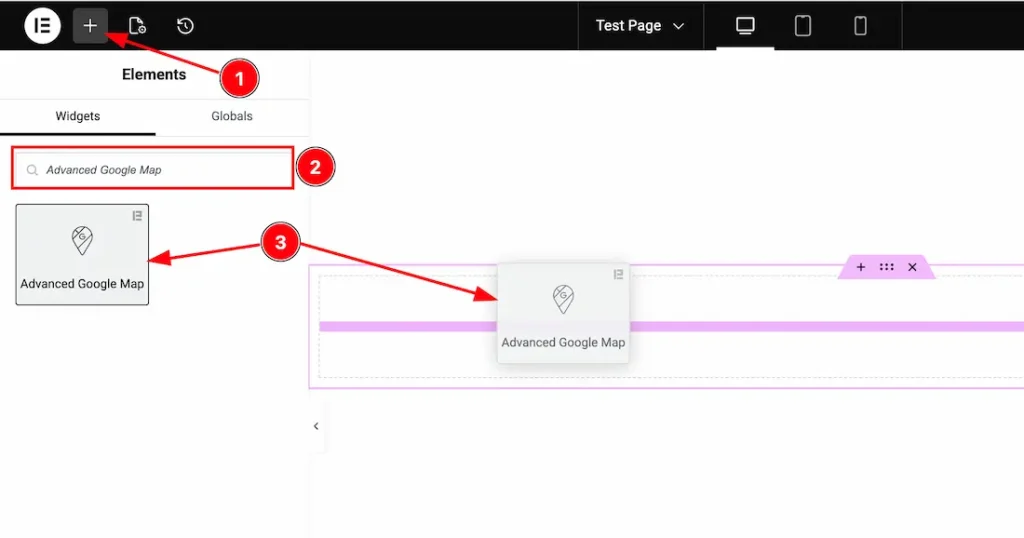
1. Go to the Elementor Editor Page and hit the “+” icon Button.
2. Search the Advanced Google Map widget.
3. Drag the widget and drop it on the editor page.
Work With The Content Tab
Google Map Section
Go to Content → Google Map
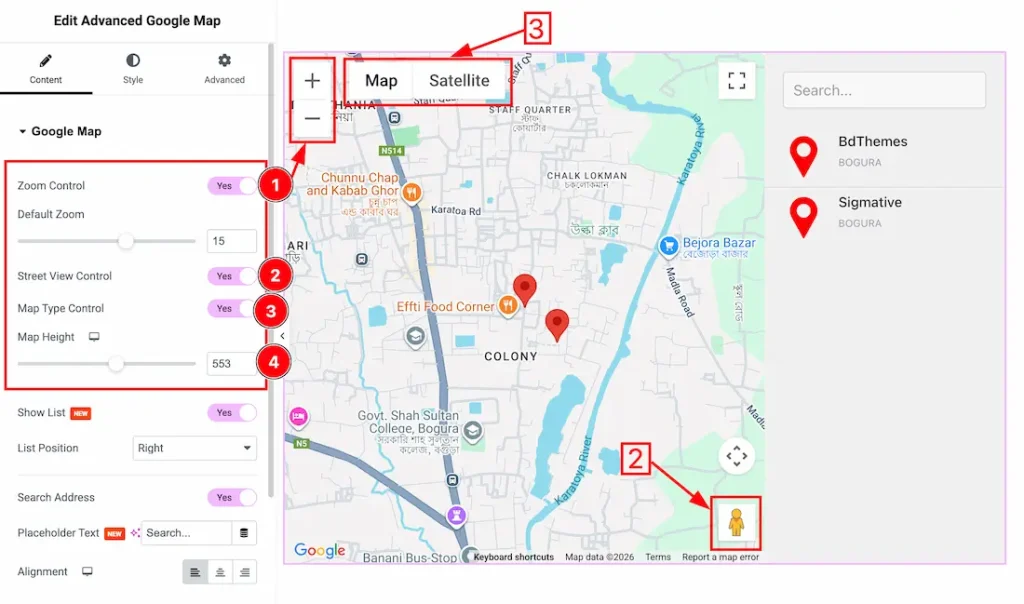
1. Zoom Control: Enable/disable the Zoom Control switcher button to show/hide the Zoom Control in the Google Map. From here, you can also set the default zoom value.
3. Street View Control: Enable/disable the Street View Control switcher button to show/hide the Street View Control from Google Map.
4. Map Type Control: Enable/disable the Map Type Control switcher button to show/hide the Map Type Control from Google Map.
5. Map Height: You can set the Map height from here.
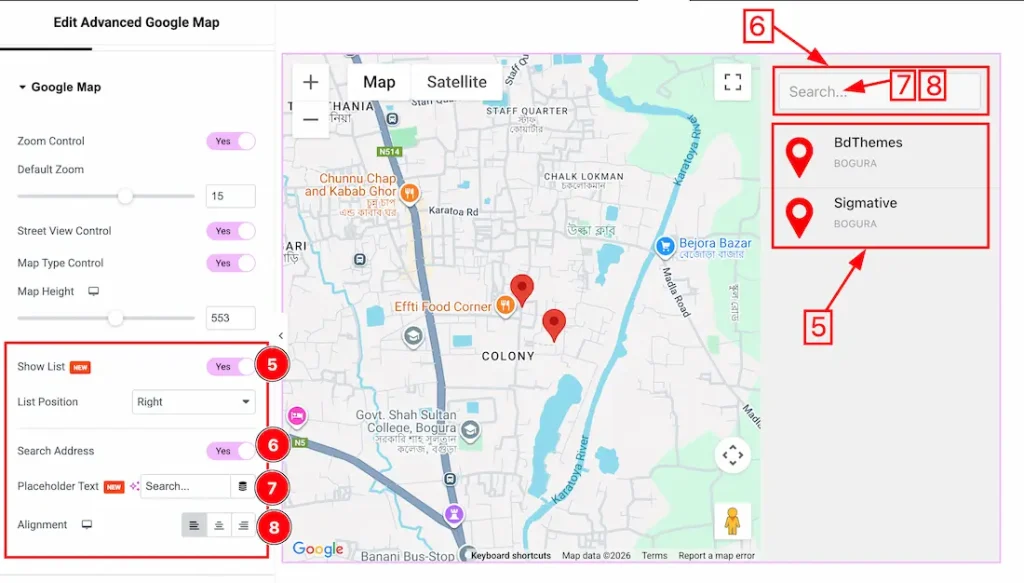
5. Show List: Enable/disable the show list switcher button to show/hide the Map list from Google Maps. From here, you can set the Map list position- left and right.
6. Search Address: Enable/disable the Search switcher button to show/hide the Search from Google Maps.
7. Placeholder Text: This option lets you change the search placeholder text.
8. Alignment: You can set the placeholder text alignment from here.
Marker Section
Go to Content → Marker
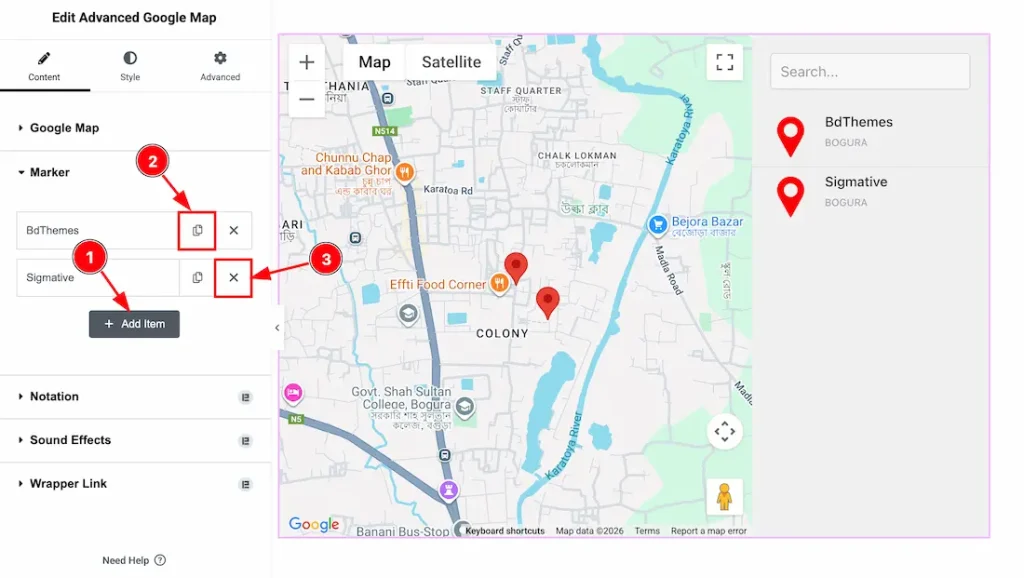
1. Add Item: You can add a Marker item by clicking the “Add Item” button.
2. Copy Item: You can copy/duplicate the Marker item by clicking the “copy” icon button.
3. Close item: You can close/delete the Marker item by clicking the “Cross” icon button.
Marker Content
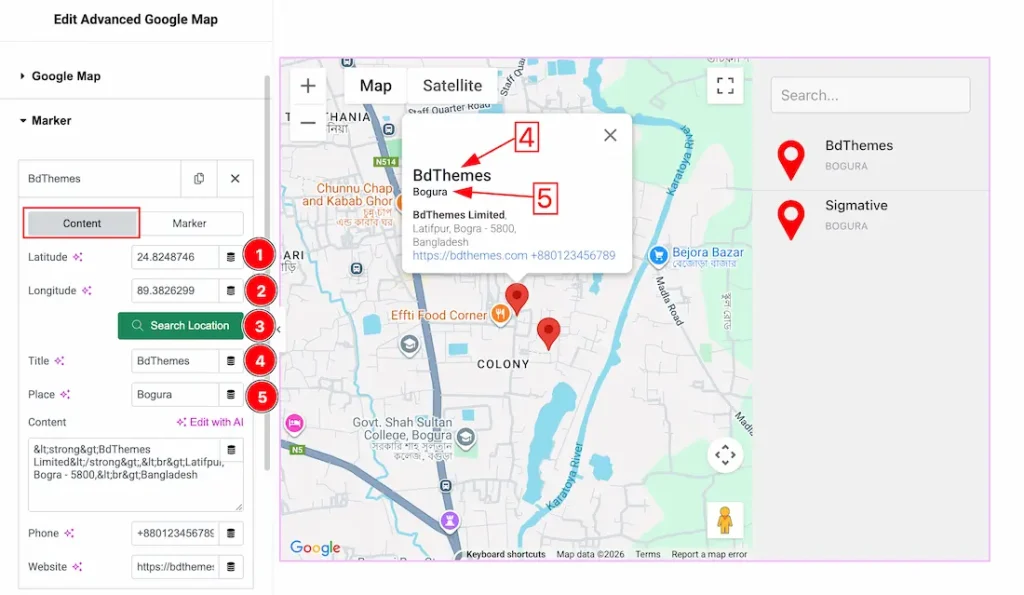
Come to the Marker section, you will get two tabs: Content and Marker.
Let’s proceed with the content tab-
1. Latitude: Set the Latitude inside the Latitude field.
2. Longitude: Set the Longitude inside the Longitude field.
3. Search Location: This option lets you search the map location.
4. Title: This option lets you set the Marker Title.
5. Place: This option lets you set the Marker Place.
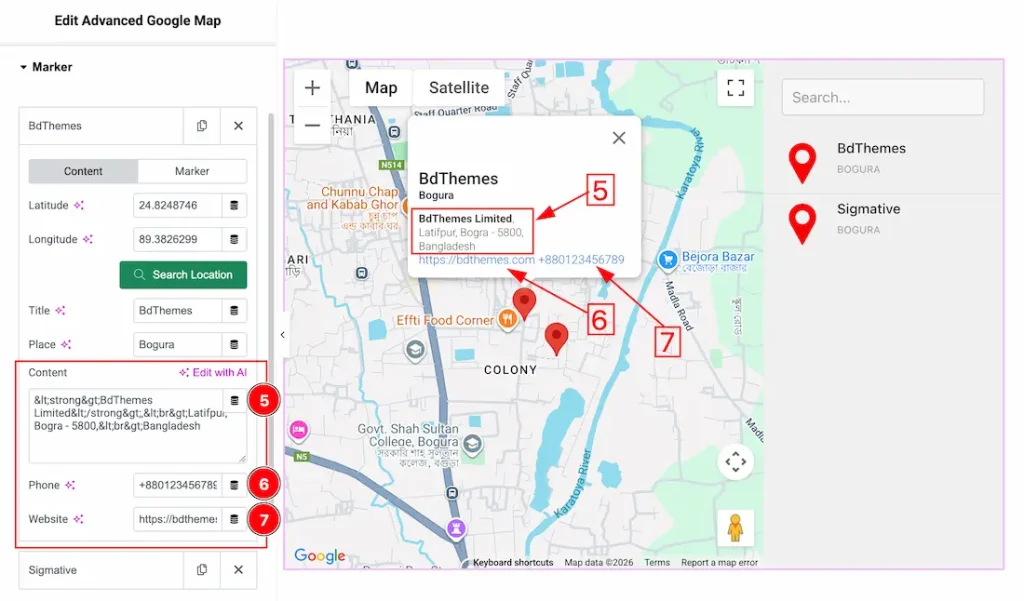
5. Content: Keep the Marker content inside the content field.
6. Phone: Keep the Phone number inside the phone field.
7. Website: Keep the website link inside the website field.
Marker subsection
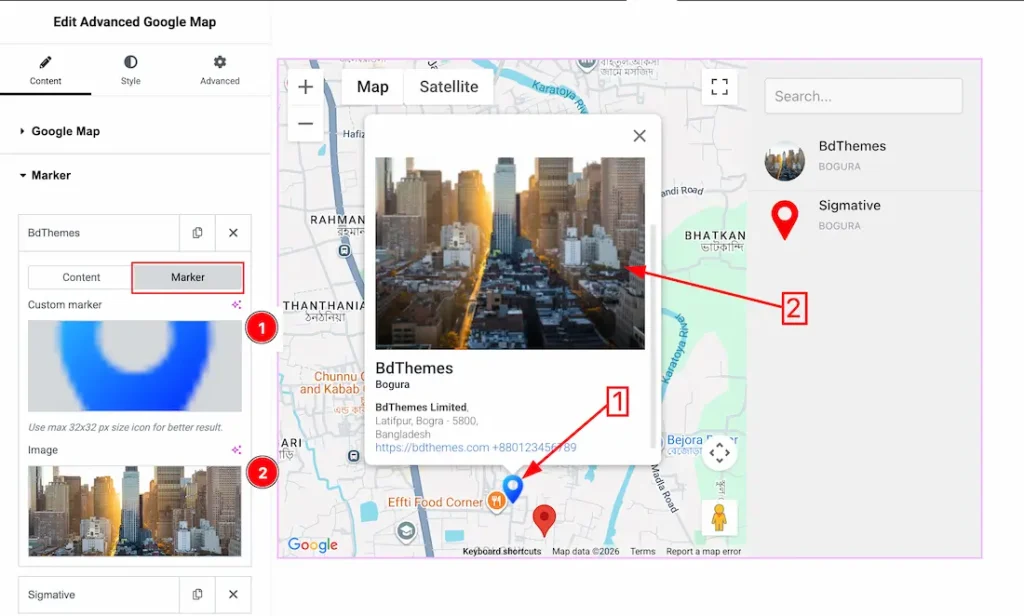
1. Custom Marker icon: You can set a custom marker icon from here.
2. Marker image: You can set a marker image that shows inside the Tooltip and Map List.
Work with The Style Tab
GMap Style Section
Go to Style → GMap Style
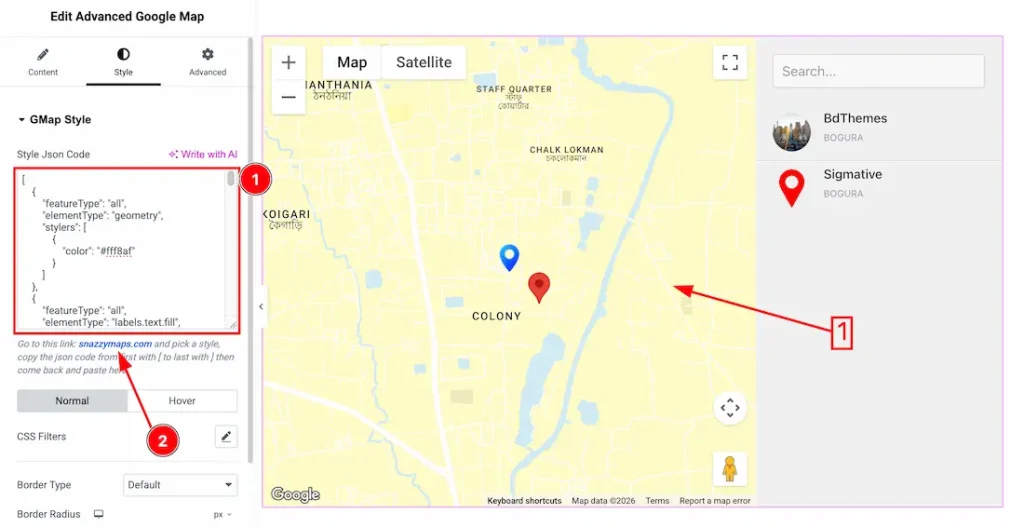
1. Style JSON Code: Just paste your prefer google map style custom JSON code inside the style JSON code box.
2. Just visit the snazzymaps.com site to get more custom JSON codes to style your Google Map.
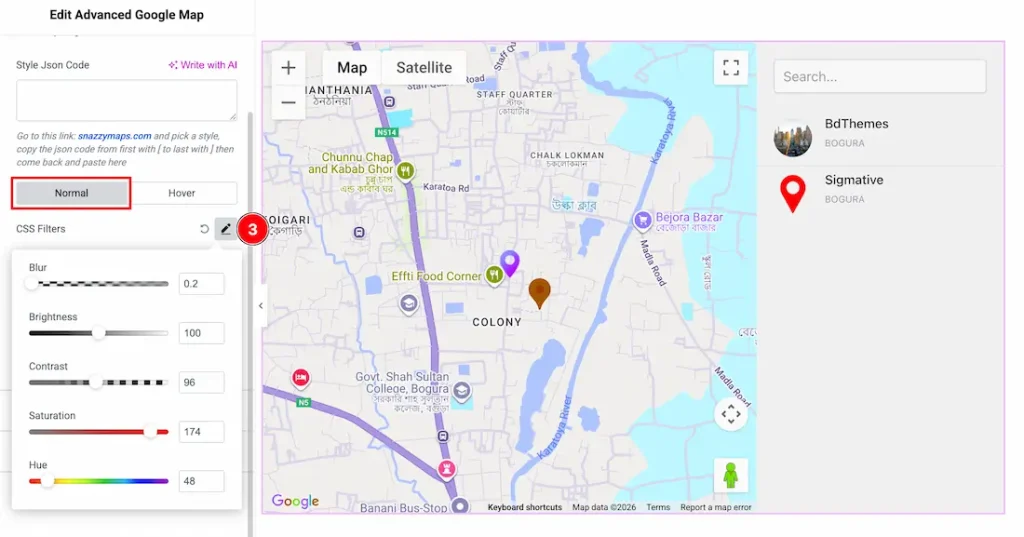
Come to the GMap Style section, you will get two tabs section; Normal and Hover. Let’s proceed with the Normal Tab-
3. CSS Filters: Inside the CSS Filter option, you will get these features- Blur, Brightness, Contrast, Saturation, and Hue. You can adjust these features to style your Google map.
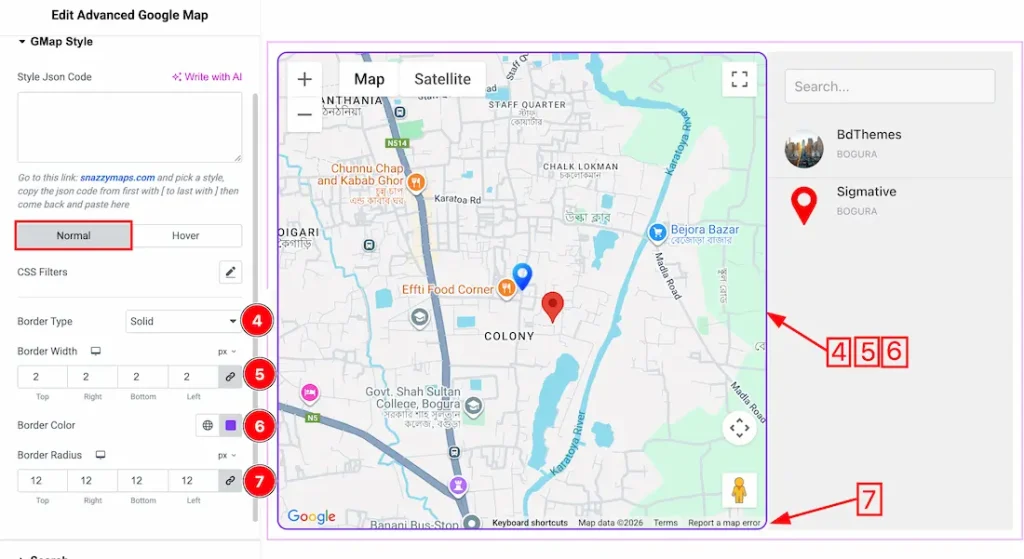
4. Border Type: You can set the Border Type to Default, None, Solid, Double, Dotted, Dashed, or Groove. We choose here the Border Type Solid.
5. Border Width: The border width property allows you to control how thick or thin the border is.
6. Border Color: This lets you change the Border normal color.
7. Border Radius: Customizes the border corners for roundness.
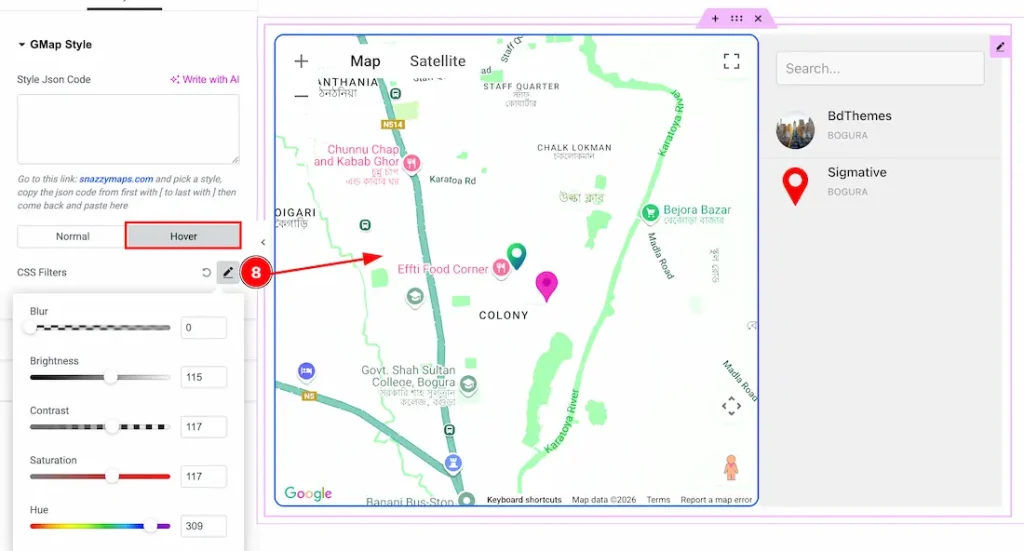
8. CSS Filters: You can set the CSS Filters for the hover mode.
Search Section
Go to Style → Search
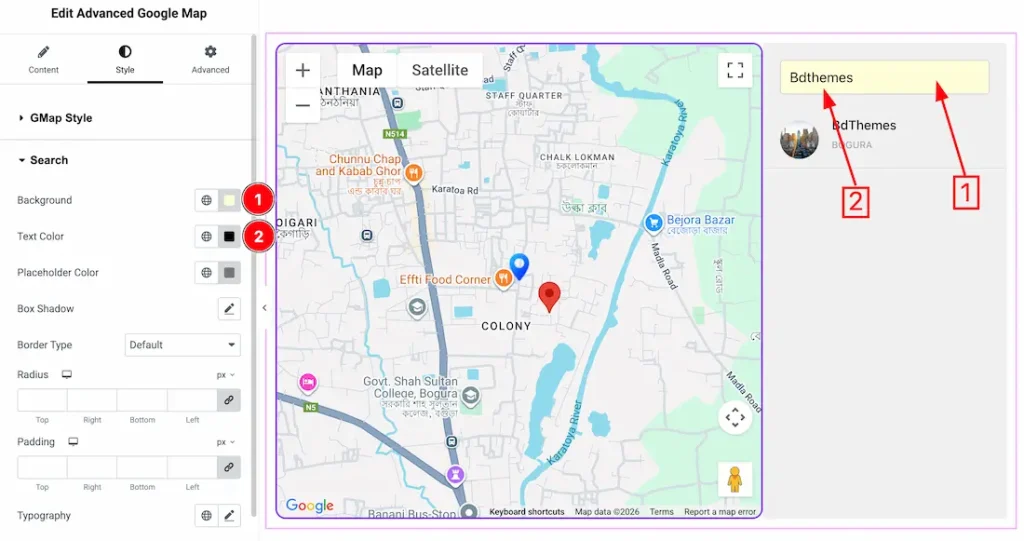
1. Background Color: This option lets you set the search background color.
2. Text Color: This option lets you set the Search Text color.
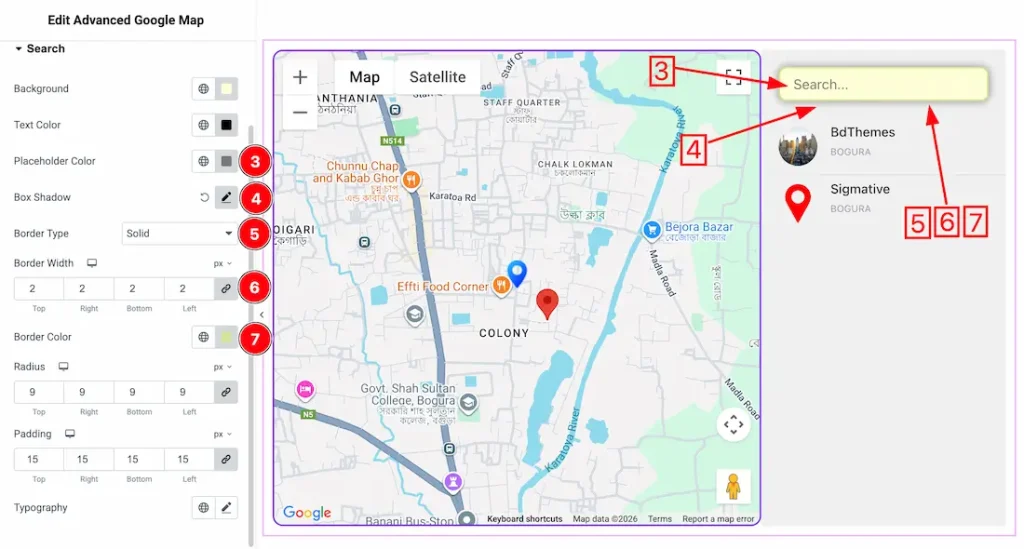
3. Placeholder Color: This option lets you change the search placeholder color.
4. Box Shadow: This option lets you add the box shadow for the search box.
5. Border Type: You can set the Border Type to Default, None, Solid, Double, Dotted, Dashed, or Groove. We choose here the Border Type Solid.
6. Border Width: This option lets you set the search border width.
7. Border Color: You can set the search bar border color from here.
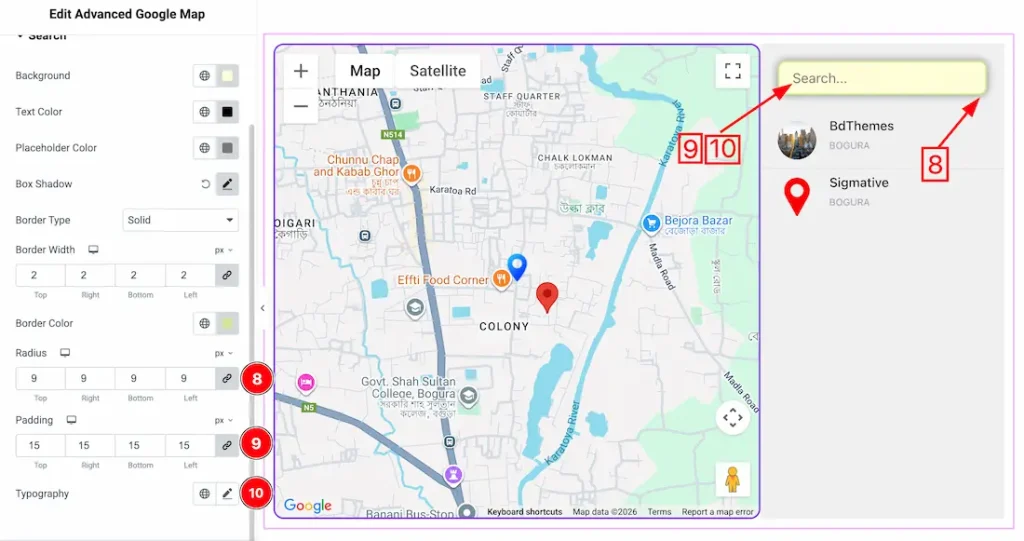
8. Radius: You can adjust the search bar border radius from here.
9. Padding: Add spaces around an object to increase the inner area. Padding allows you to control the internal space within an element.
10. Typography: Change the font family, size, weight, style, transform, decoration, line height, letter spacing, and word spacing from here.
Map List Section
Go to Style → Map List
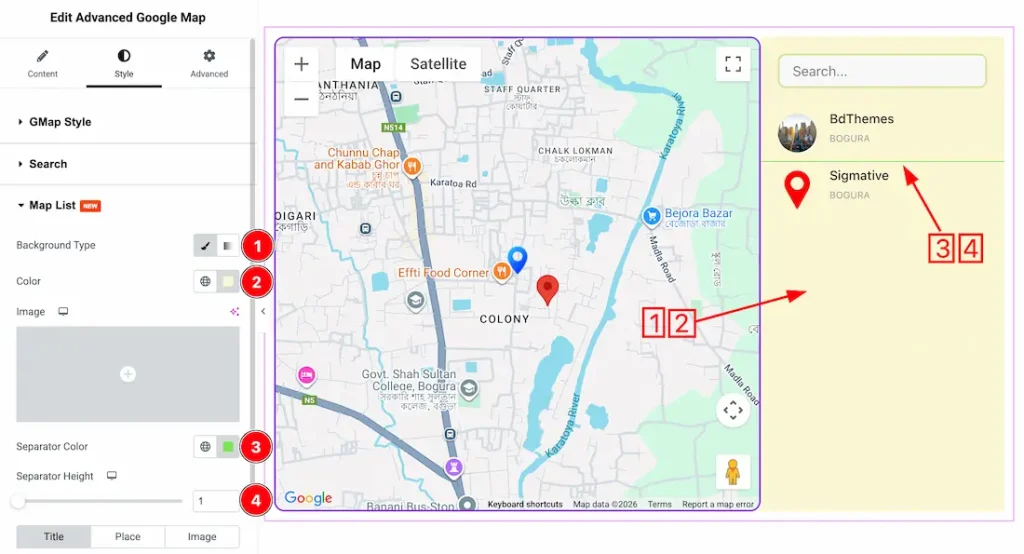
1. Background Type: You can change the color of any object’s background to classic or gradient. Here we choose the Background type Classic.
2. Background Color: This lets you change the Background color of the Map list. If you want, you can change an image to the Background.
3. Separator Color: This option lets you change the separator color.
4. Separator Height: This option lets you change the separator height.
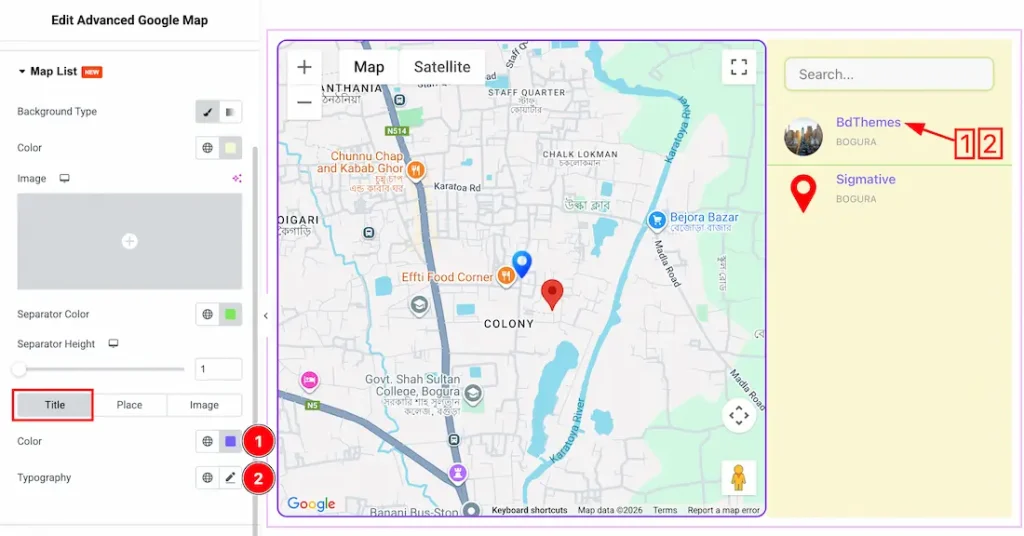
Come to the Map List section, you will get three sub-sections; Title, Place, and Image. Let’s proceed with the Map Title option-
1. Color: This option lets you change the Map List Title text Color.
2. Typography: Change the font family, size, weight, style, transform, decoration, line height, letter spacing, and word spacing from here.
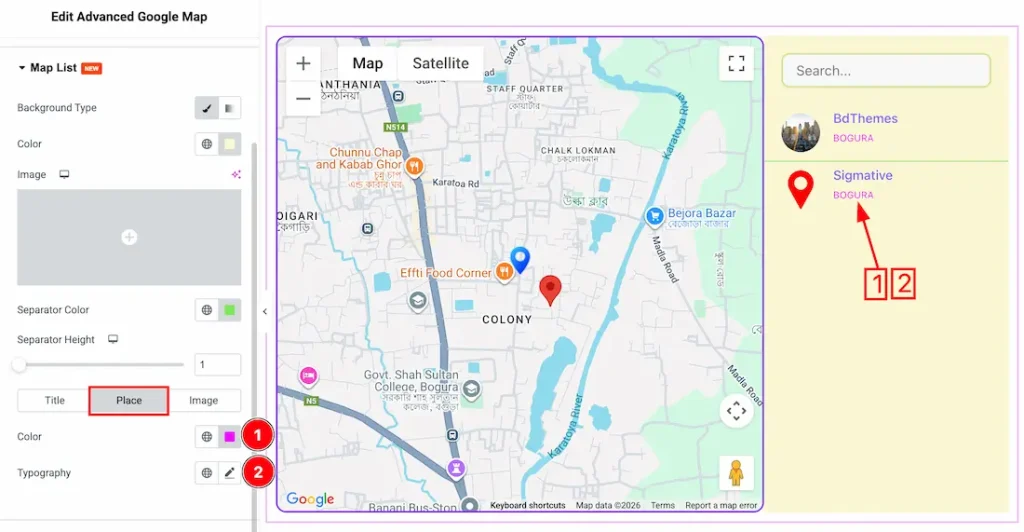
Let’s proceed with the Place tab section-
1. Color: This option lets you change the Map List place text Color.
2. Typography: Change the font family, size, weight, style, transform, decoration, line height, letter spacing, and word spacing from here.
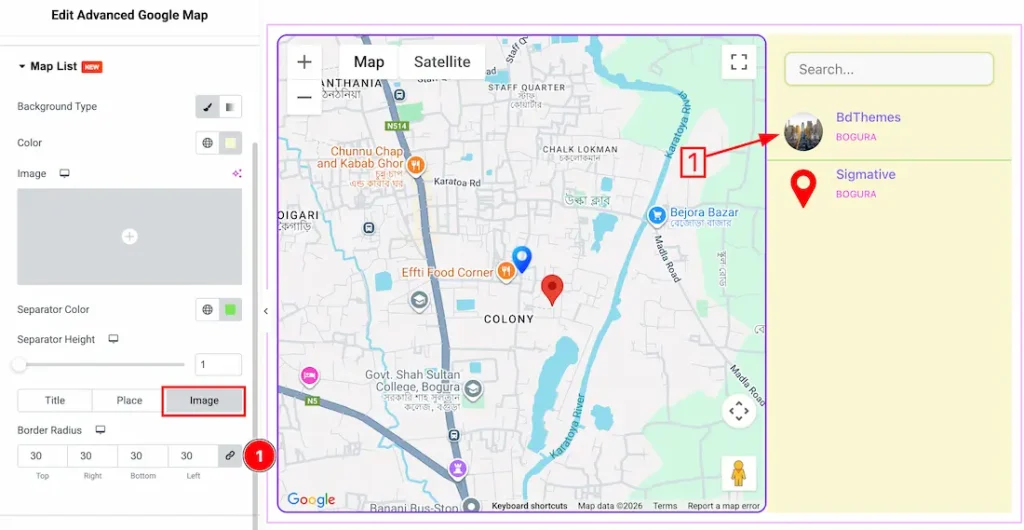
Let’s proceed with the Image tab section-
1. Border Radius: You can adjust the Map List image border radius from here.
Tooltip Section
Go to Style → tooltip
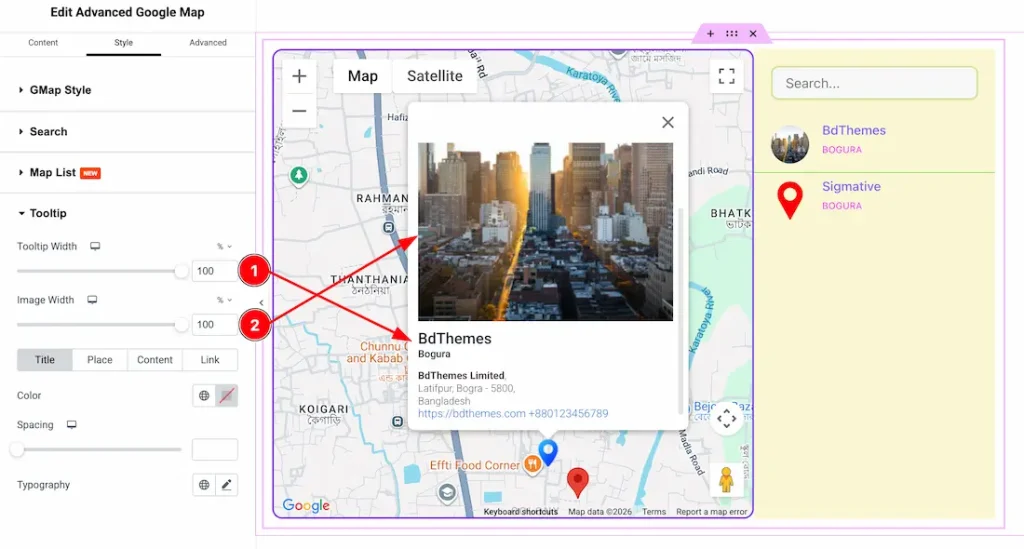
1. Tooltip Width: This option lets you set the tooltip width.
2. Image Width: This option lets you set the tooltip image width.
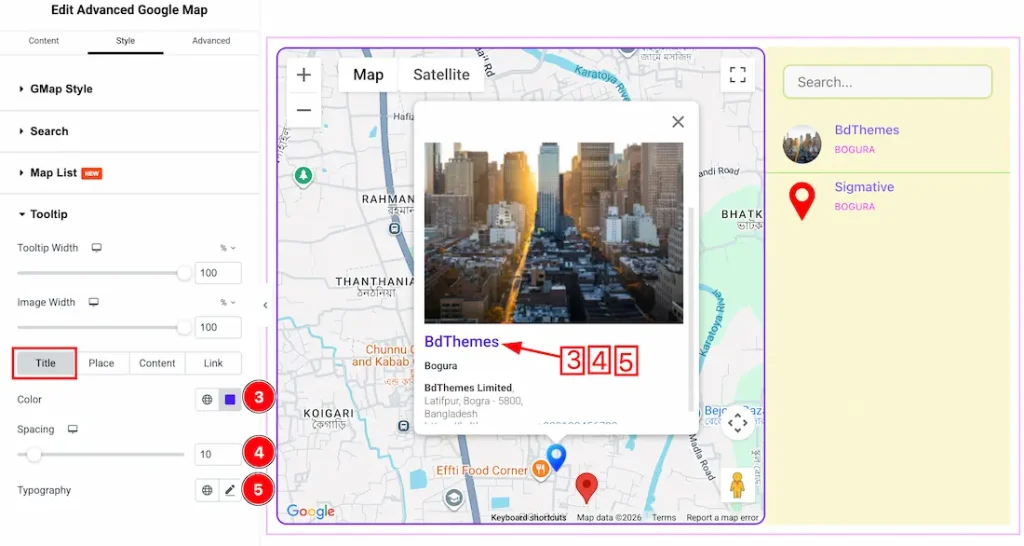
Come to the Tooltip section, you will get four sub-sections; Title, Place, Content, and Link. Let’s proceed with the Tooltip Title option-
1. Color: This option lets you change the Tooltip Title color.
2. Spacing: You can adjust the Title spacing from here.3. Typography: Change the font family, size, weight, style, transform, decoration, line height, letter spacing, and word spacing from here.
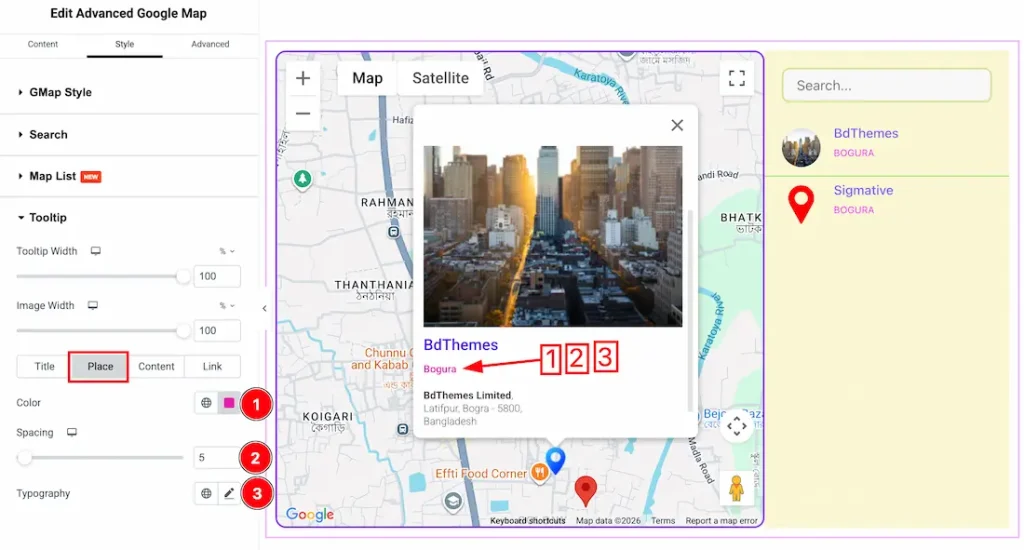
Let’s proceed with the Place sub-section-
1. Color: This option lets you change the Tooltip place text color.
2. Spacing: You can adjust the place spacing from here.3. Typography: Change the font family, size, weight, style, transform, decoration, line height, letter spacing, and word spacing from here.
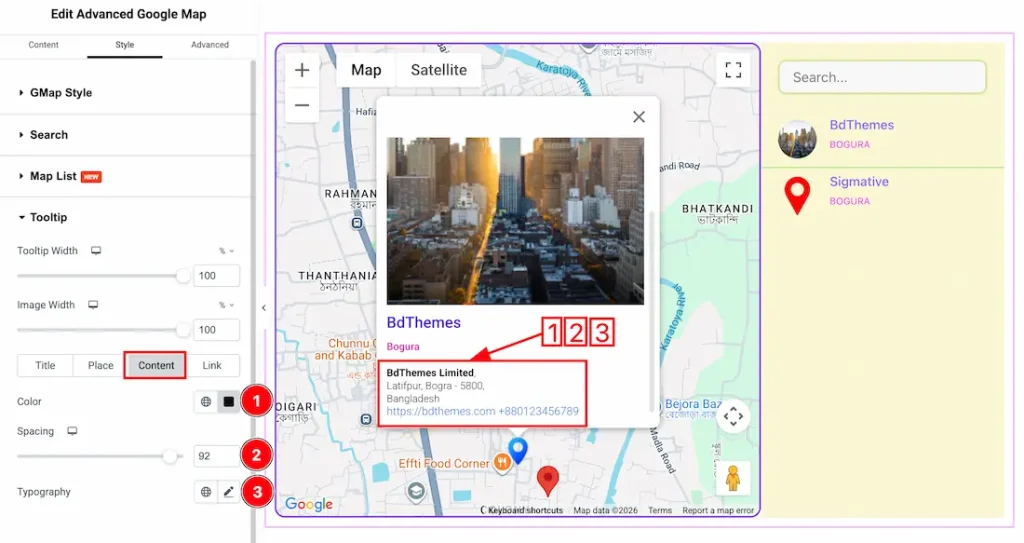
Let’s proceed with the Content sub-section-
1. Color: This option lets you change the Tooltip content text color.
2. Spacing: You can adjust the content spacing from here.3. Typography: Change the font family, size, weight, style, transform, decoration, line height, letter spacing, and word spacing from here.
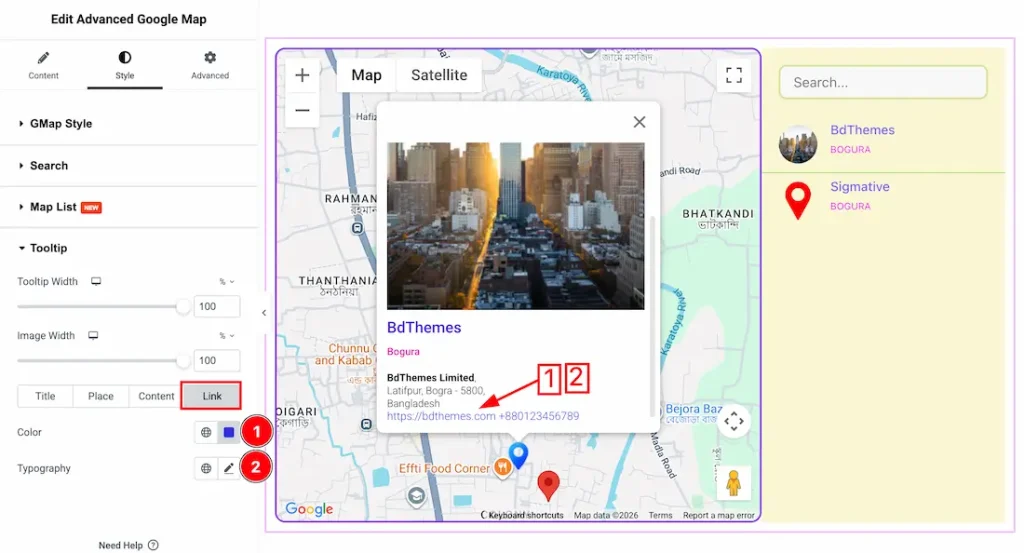
Let’s proceed with the Link sub-section-
1. Color: This option lets you change the Tooltip Link text color.
2. Typography: Change the font family, size, weight, style, transform, decoration, line height, letter spacing, and word spacing from here.
All done! You have successfully customized the Advanced Google Map Widget on your website.
Video Assist
You can also watch the video tutorial to learn more about the Advanced Google Map widget. Please visit the demo page for examples.
Thanks for being with us.

