
The Testimonial Grid widget from Element Pack is a powerful tool for displaying customer reviews and feedback in a clean, structured grid layout on your website. It allows you to showcase testimonials with flexible layout, styling, and content options, helping you build trust and credibility with your audience. With responsive controls and design customization, the Testimonial Grid widget makes it easy to present social proof effectively through Elementor. In this documentation, we will cover how to customize and use the Testimonial Grid widget provided by Element Pack Pro for Elementor.
Enable the Testimonial Grid Widget
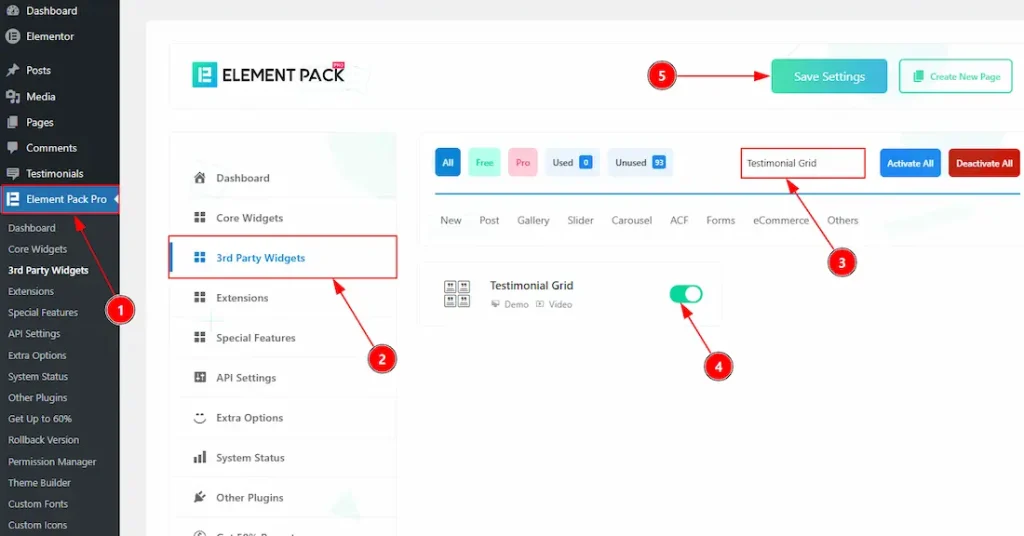
To use the Testimonial Grid by Element Pack, first, you have to enable the widget.
- Go to WordPress Dashboard → Element Pack Plugin dashboard.
- Then Click the 3rd Party Widgets Tab.
- Search the Testimonial Grid Widget Name.
- Enable the Testimonial Grid Widget.
- Hit the Save Settings Button.
Note: Please note that you need to install & activate the Testimonial Plugin first to use this widget.
Inserting the Testimonial Grid widget
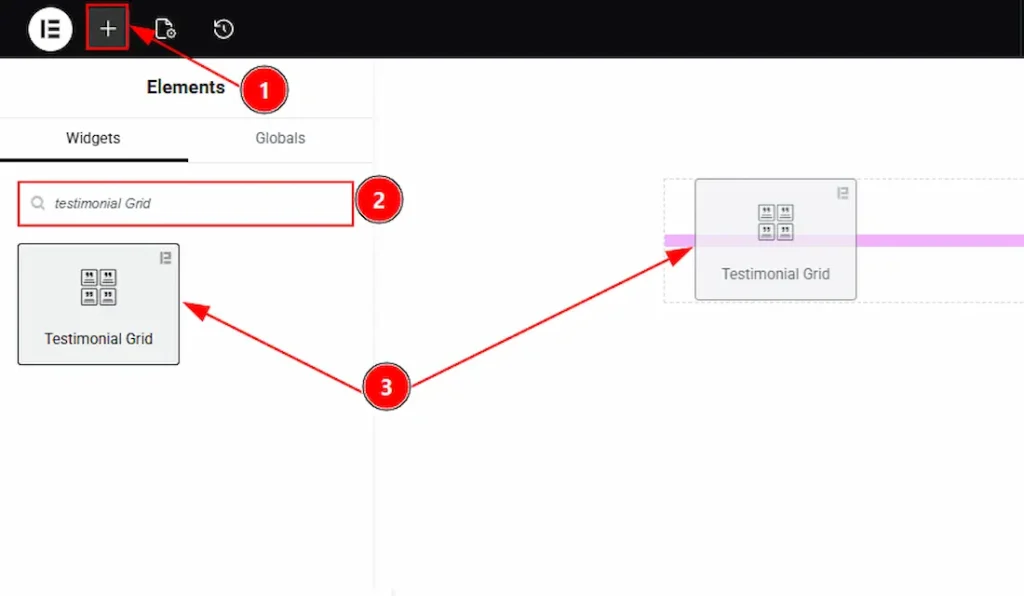
1. Go to the Elementor Editor Page and Hit the “+” icon Button.
2. Search the Testimonial Grid widget.
3. Drag the widget and drop it on the editor page
Note: Please ensure that testimonials are added from the WP Dashboard → Testimonials beforehand; otherwise, the Testimonial Grid widget will display no content after being dragged and dropped into the Elementor Editor.
Configuring the Content Tab
Layout Section
Go to Content → Layout
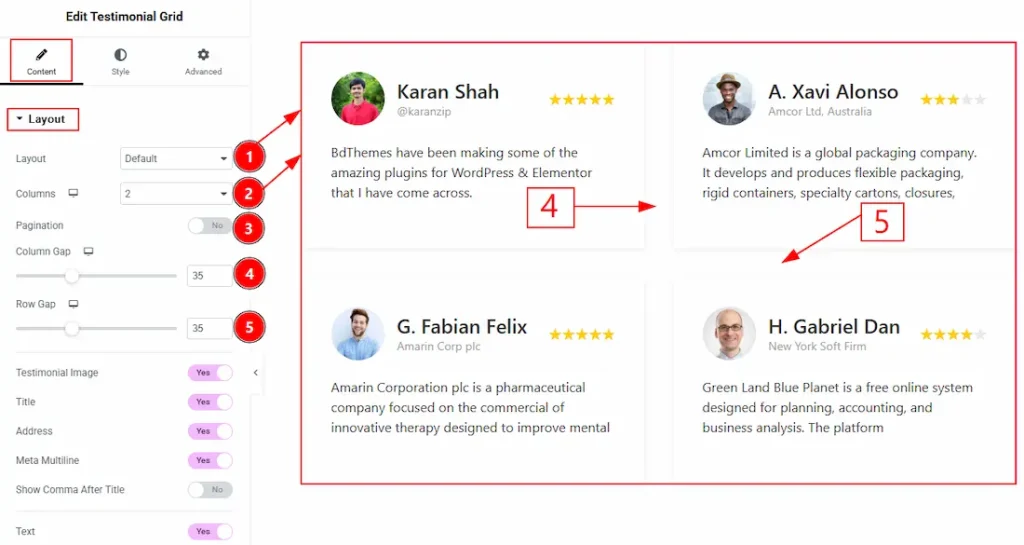
1. Layout: You can choose the grid layout as default, top avatar or bottom avatar with this option. Here, we have selected the layout as the default.
2. Pagination: You can split products into multiple pages by using this option. For this, you must have a lot of testimonials.
3. Columns: Set here how many columns you want to show in the layout to your audience with this option.
4. Columns Gap: You can adjust the space between columns using this option.
5. Row Gaps: You can adjust the space between rows using this option.
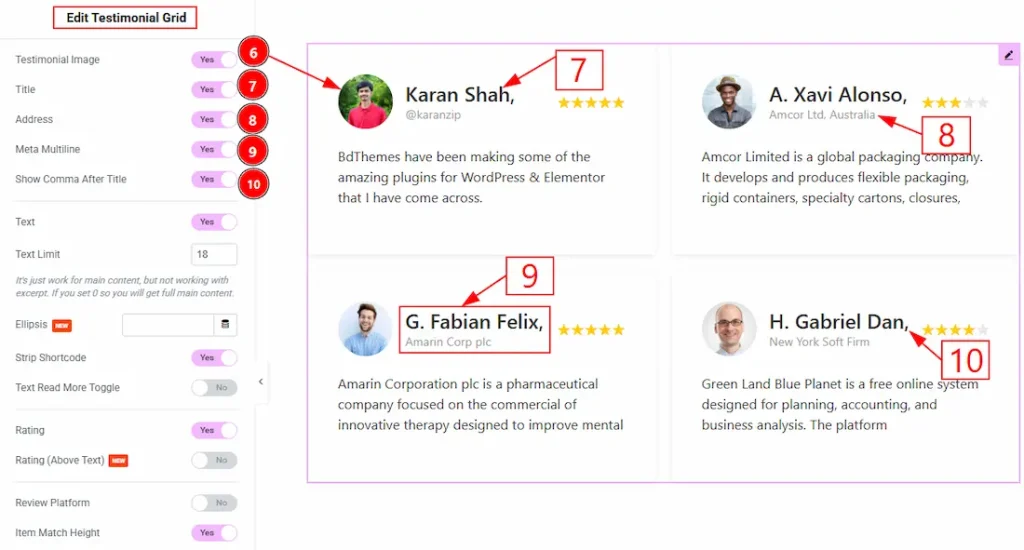
6. Testimonial Image: Enable the switcher to show the reviewer image to your audience.
7. Title: Enable the switcher to show the title to your audience.
8. Address: Enable the switcher to show the address of the reviewer with this option.
9. Meta Multiline: Enable the switcher to split the title and the address from inline to multiline.
10. Show Comma After Title: Enable the switcher to show a comma after the title.
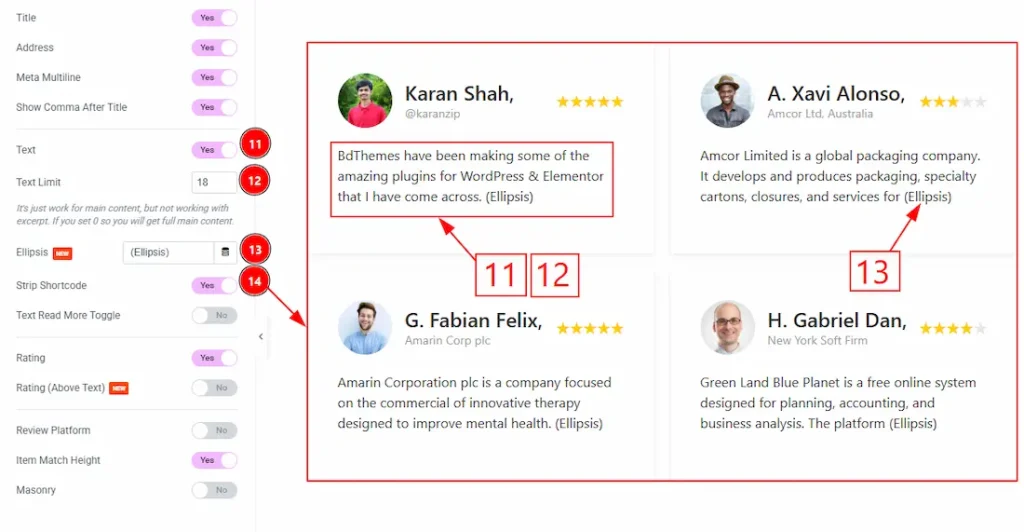
11. Text: Enable the switcher to show the text to your audience.
12. Text Limit: You can adjust the limit of text appearance in the grid layout with this option.
13. Ellipsis: You can add truncation dots (…) at the end of limited testimonial text with this option.
14. Strip Shortcode: Removes any shortcodes from the testimonial content before displaying it.
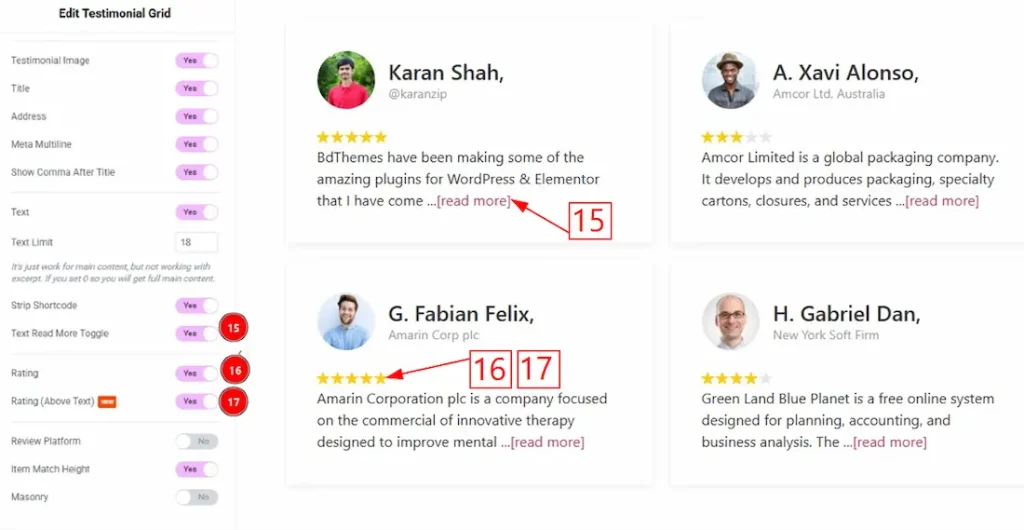
15. Text Read More Toggle: Enable the switcher to show the read more toggle button after the text with this option.
16. Rating: Enable the switcher to show the rating stars to your audience with this option.
17. Rating (Above Text): Enable the switcher to set the position of the ratings above the text.
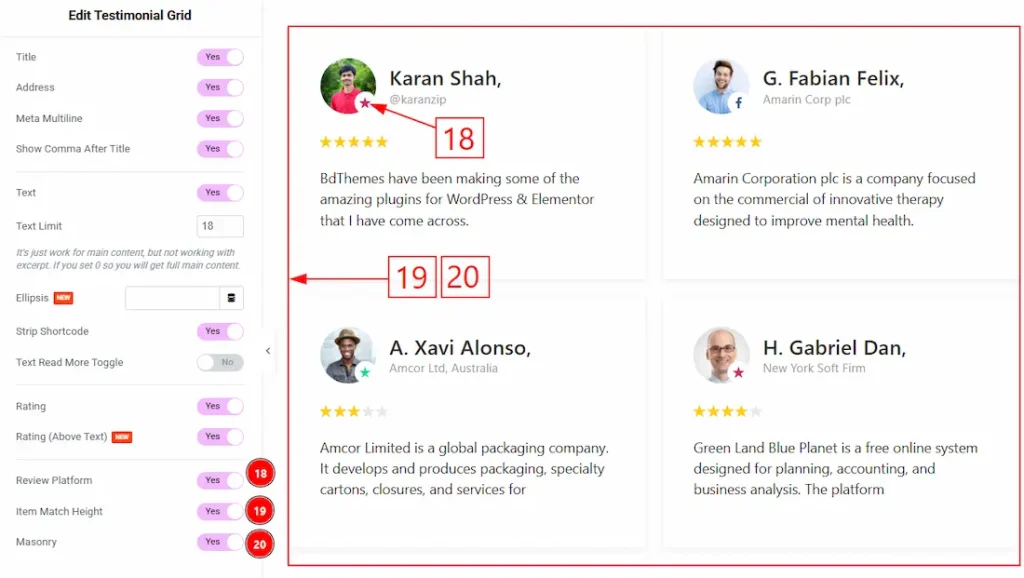
18. Review Platform: Enable the switcher to show the logo of the review platform where they have submitted their review.
19. Item Match Height: Enable the switcher to make the items’ height equal.
20. Masonry: Enables a masonry layout style that arranges testimonial items dynamically based on content height.
Query Section
Go to Content > Query
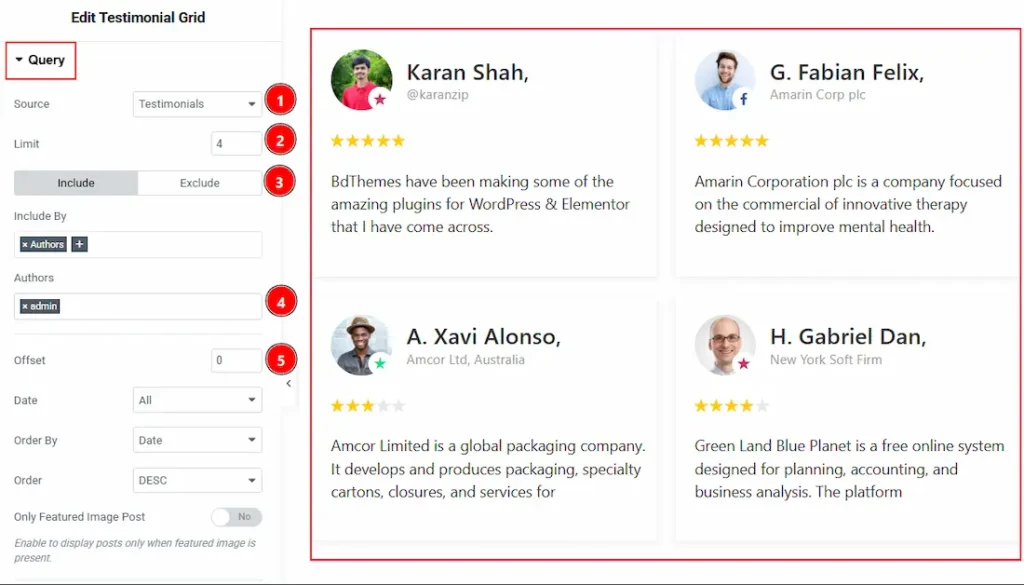
1. Source: Select the source for the slider from here. The types of sources are – Posts, Pages, Floating Elements, Testimonials, Template Items, Manual Selection, Current Query, and Related. Here, we selected the type as testimonials.
2. Limit: You can adjust the limit here of how many posts you want to show in the thumbs gallery.
3. Include/Exclude Selection: Select the Include / Exclude filter to show/hide specific posts by Terms (Tags/Categories) or Authors. Here, we selected the include field as Author.
4. Author: This option lets you select the author’s name whose post you want to add to the slider.
5. Offset: The Offset option lets you skip a certain number of posts from the start, so the display begins from the next post instead. Keeping it 0 means post without any exclusion.
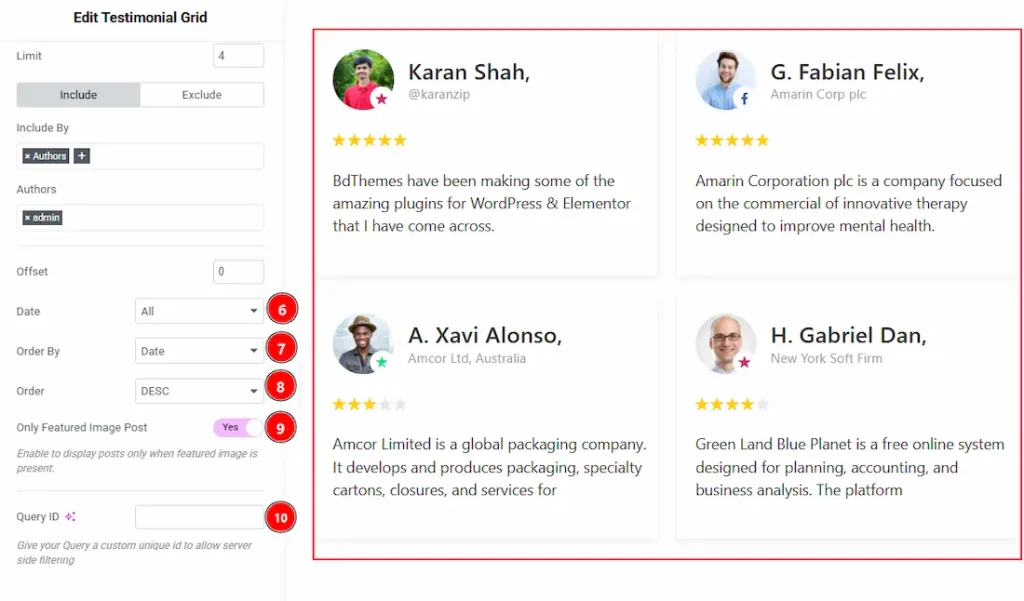
6. Date: You can select the post as per the date of creation with this option.
7. Order By: It controls the data you want to display through title, id, date, author, comment count, menu order & random. Here we selected the order as date.
8. Order: This option controls the order by which data is arranged. There are two types of order. Ascending Order (Starts from the smallest or lowest value and goes to the largest or highest.) & Descending Order (Starts from the largest or highest value and goes to the smallest or lowest.)
9. Only Featured Image Post: Enable or disable the switcher to show or hide the featured image post.
10. Query ID: Give your query a custom, unique ID to allow server-side filtering. Learn more about the Query.
Filter Bar Section
Go to Content → Filter Bar
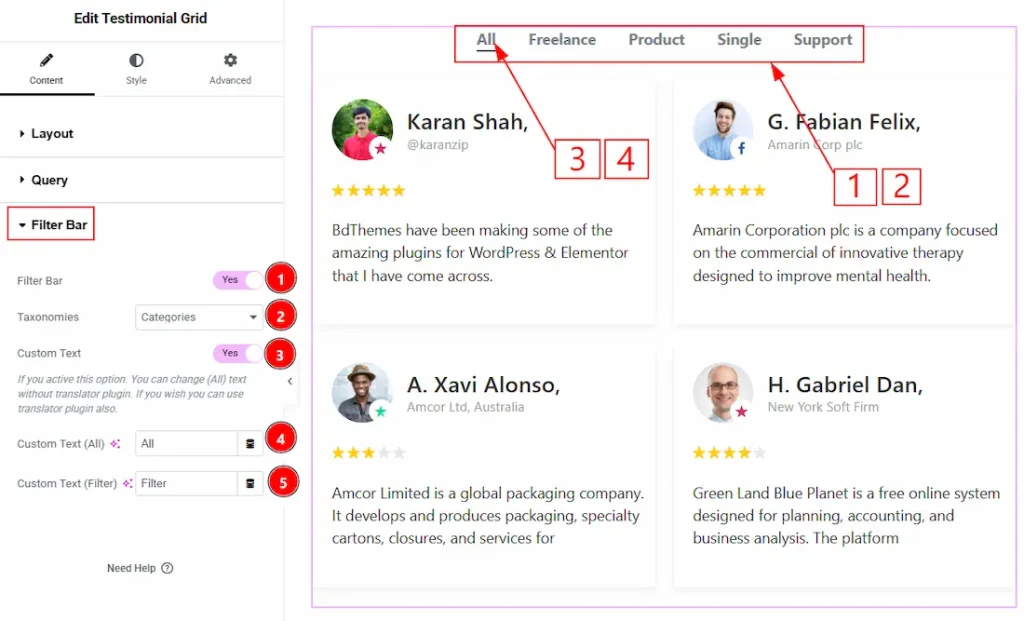
1. Filter Bar: Enable the switcher to show the category filter above of the testimonials with this option.
2. Taxonomies: You can select the testimonials by the categories or tags with this option.
3. Custom Text: Enable the switcher to make changes to the text default filter bar.
4. Custom Text (All): You can make changes to the custom text “All” with this option. This text shows on a desktop device.
5. Custom Text (Filter): You can make changes to the custom text “Filter” with this option. This text shows on tablets or mobile devices.
Work with The Style Tab
Item Section
Go to Style → Item
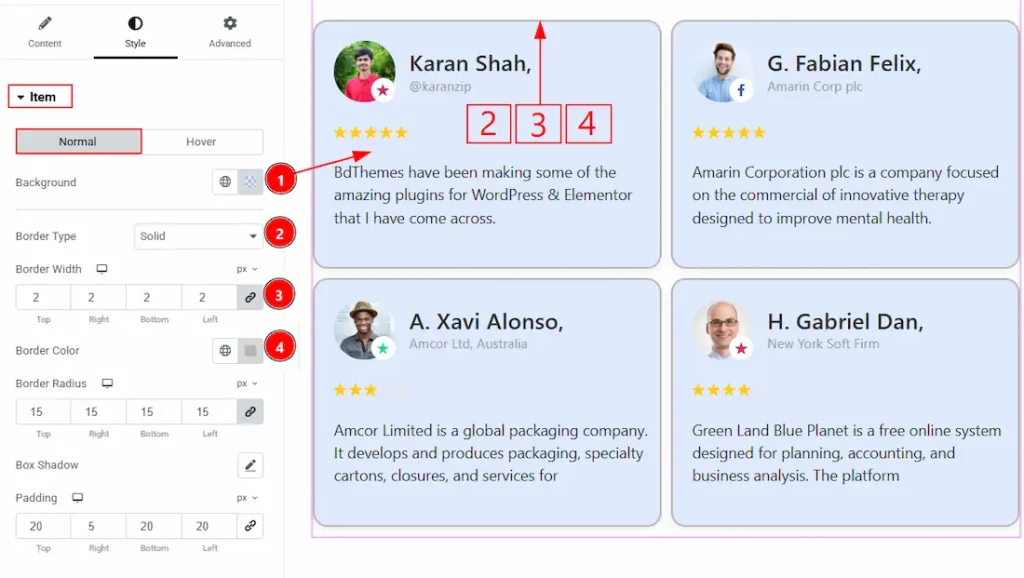
In this section, we have two tabs. One is Normal, and the other is Hover. Let’s start with the Normal tab –
1. Background: You can change the item background color with this option.
2. Border Type: This option allows you to add borders to your items. You can select various border types from this option. Such as Solid, Double, Dotted, Dashed, Groove.
3. Border Width: Set the thickness of the border by selecting the width.
4. Border Color: You can change the border color with this option.
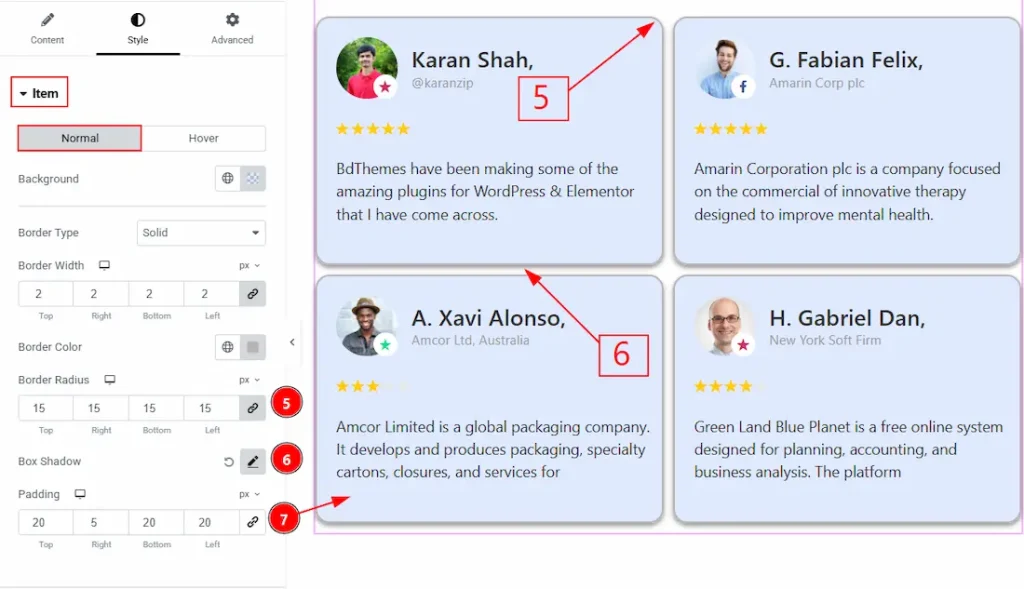
5. Border Radius: The Border Radius controls the roundness of the border.
6. Box Shadow: While working with this option, you will get three more options (Blur, Horizontal & Vertical). Blur Controls how sharp or soft the shadow will appear. By using the horizontal option, you can move the shadow left or right and by using the vertical option, you can move the shadow up or down.
7. Padding: Add spaces around an object to increase the inner area. Padding allows you to control the internal space within an element.
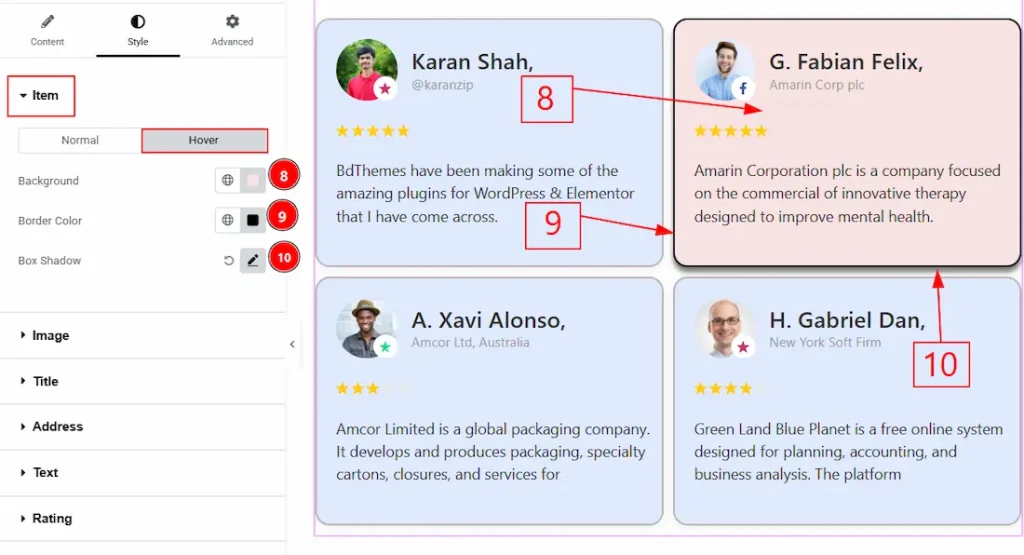
Now, let’s proceed to the Hover tab –
8. Background: This option allows you to change the background hover color.
9. Border Color: You can change the hover color of the border with this option.
10. Box Shadow: You can add a hover shadow effect to the item with this option.
Image Section
Go to Style → Image
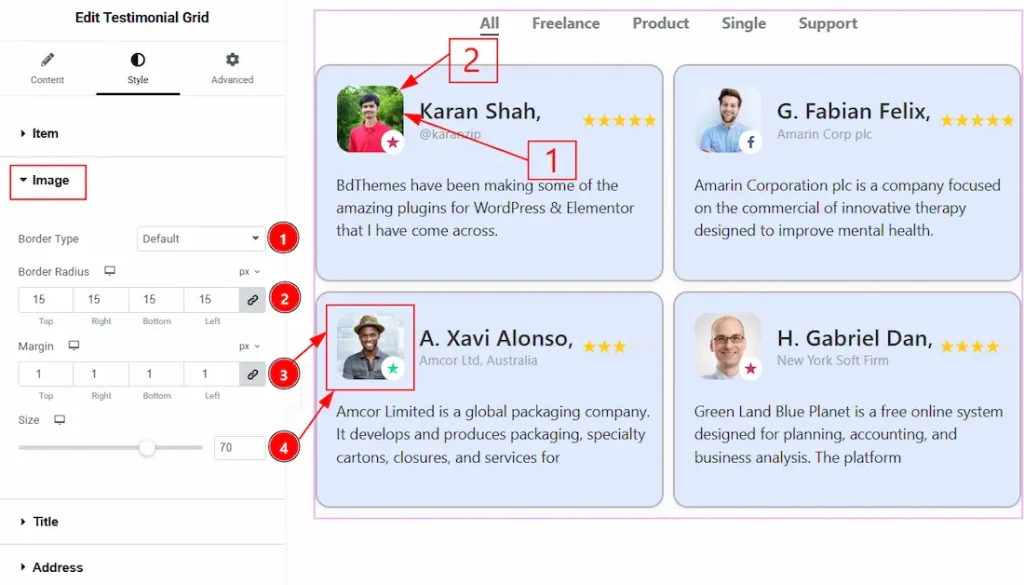
1. Border Type: You can add or change the border type with this option.
2. Border Radius: You can control the roundness of the border with this option.
3. Margin: You can control the space around the image with this option.
4. Size: You can make changes to the image with this option.
Title Section
Go to Style → Title
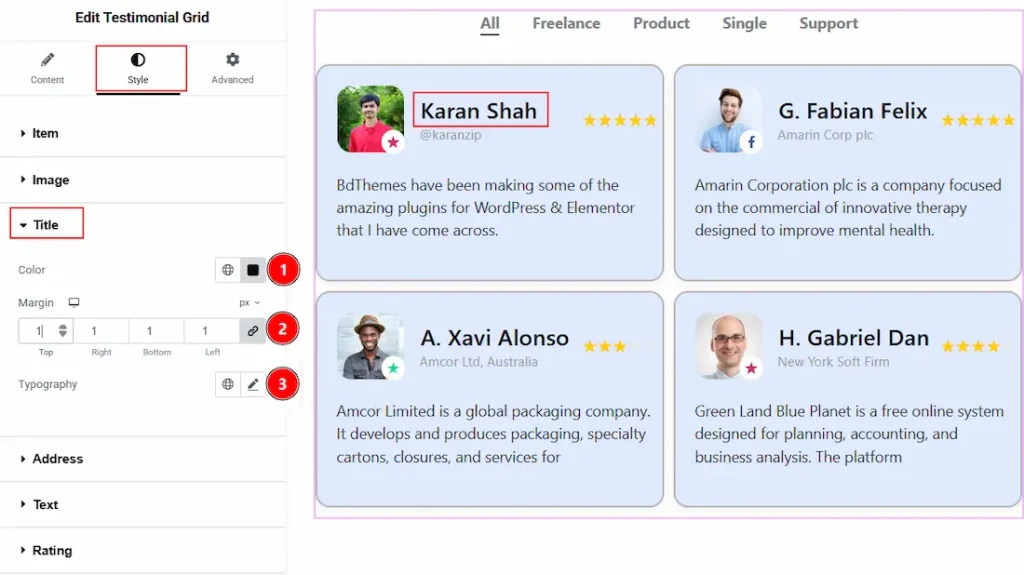
1. Color: This option allows you to change the title text color.
2. Margin: This option allows you to adjust the space & creating gaps around the title.
3. Typography: Change the title’s font family, size, weight, transform, style, decoration, line height, letter spacing, and word spacing from here.
Address Section
Go to Style → Address
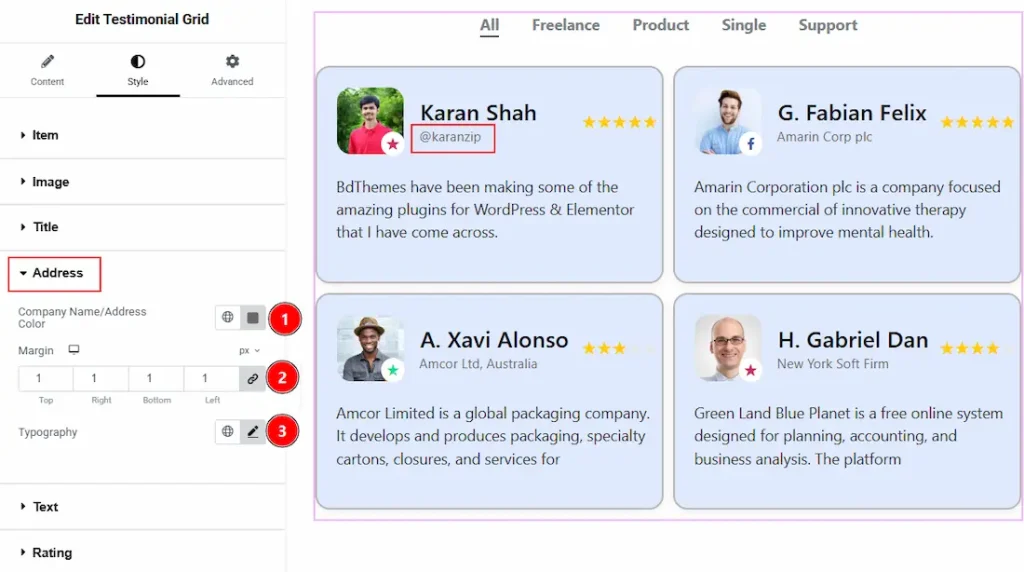
1. Company Name/Address Color: You can make changes to the company name/ address text color with this option.
2. Margin: You can adjust the space around the address field with this option.
3. Typography: Change the title’s font family, size, weight, transform, style, decoration, line height, letter spacing, and word spacing from here.
Text Section
Go to Style → Text
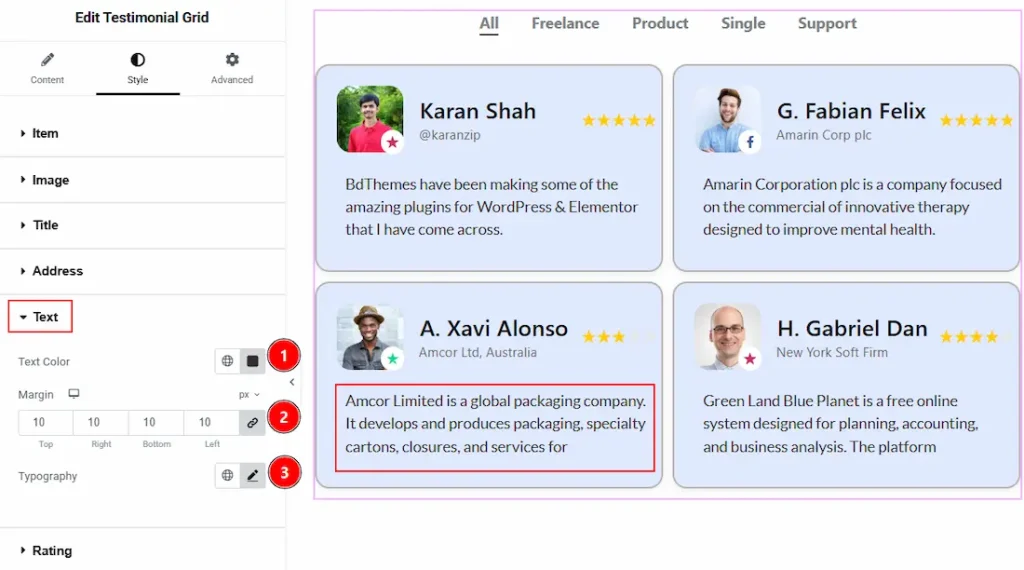
1. Text Color: You can change the text color with this option.
2. Margin: You can adjust the space around the text with this option.
3. Typography: Change the title’s font family, size, weight, transform, style, decoration, line height, letter spacing, and word spacing from here.
Rating Section
Go to Style → Rating
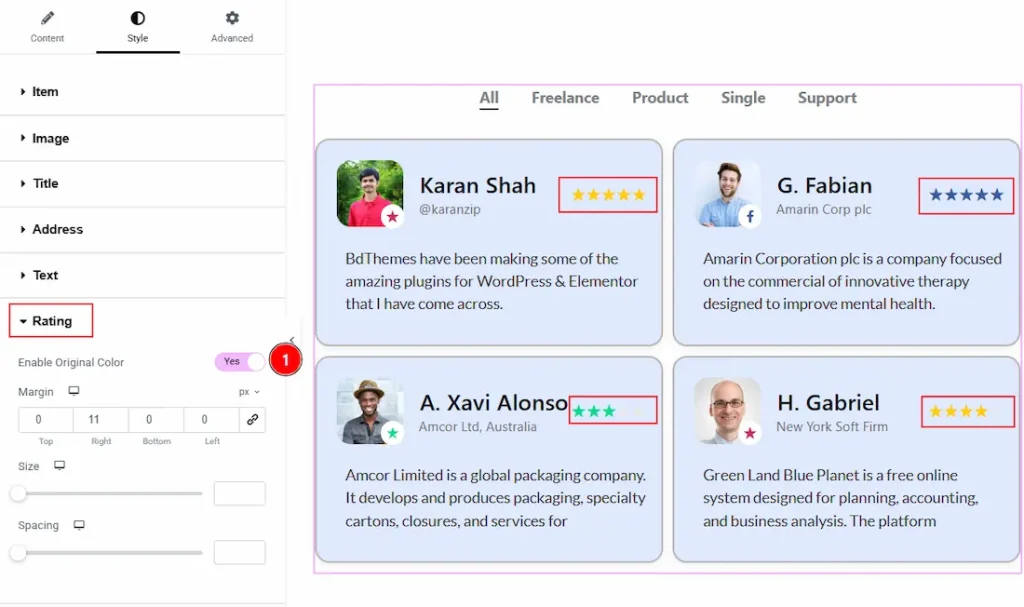
1. Enable Original Color: Enable the switcher to activate the original rating color for each platform with this option.
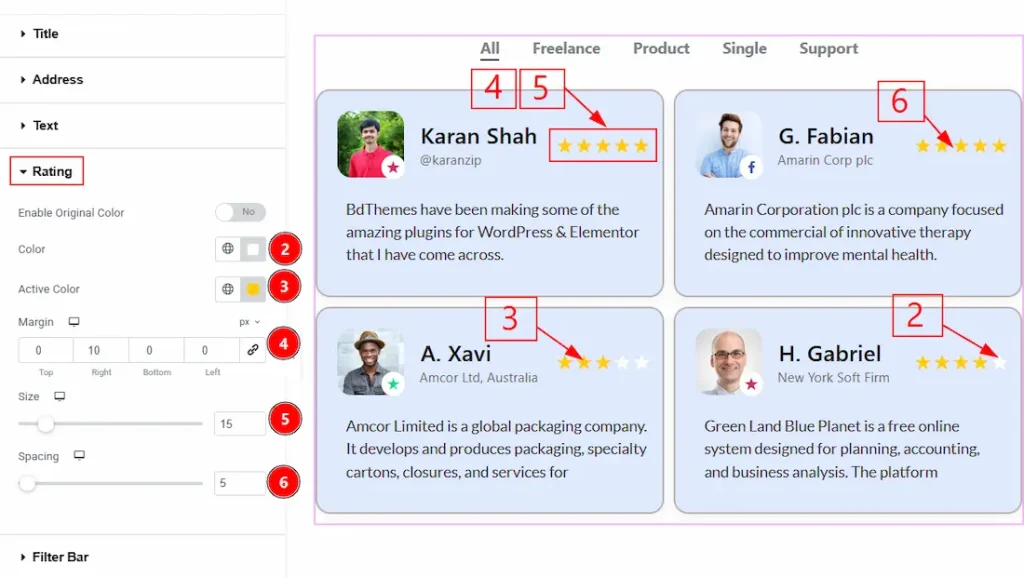
2. Color: You can change the rating color with this option.
3. Active Color: You can change the rating’s active color with this option.
4. Margin: You can adjust the outer space of the ratings with this option.
5. Size: You can make changes to the rating star’s size with this option.
Filter Bar Section
Go to Style → Filter Bar
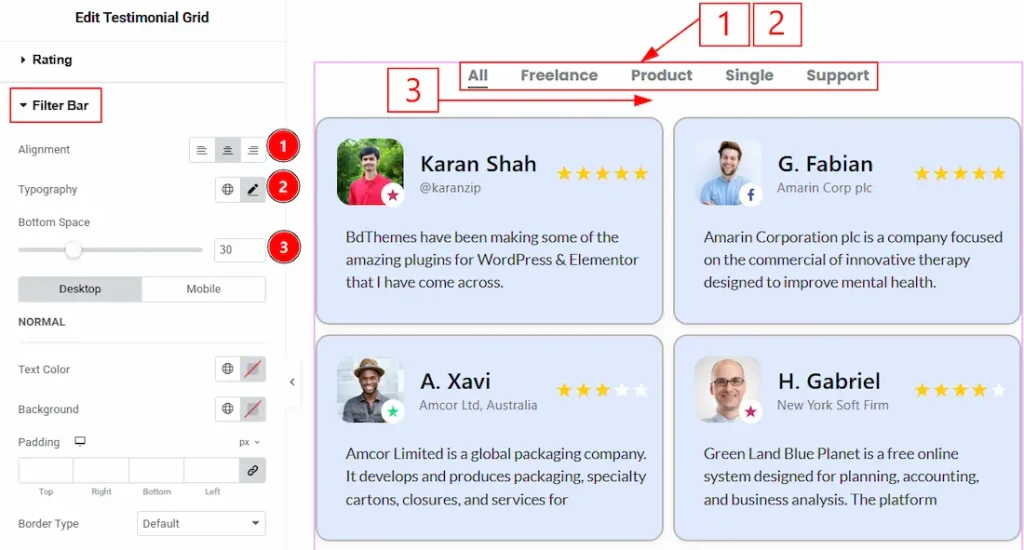
1. Alignment: You can adjust the position of the filter bar content with this option.
2. Typography: Change the title’s font family, size, weight, transform, style, decoration, line height, letter spacing, and word spacing from here.
3. Bottom Space: You can adjust the space between the filter bar & the testimonial items with this option.
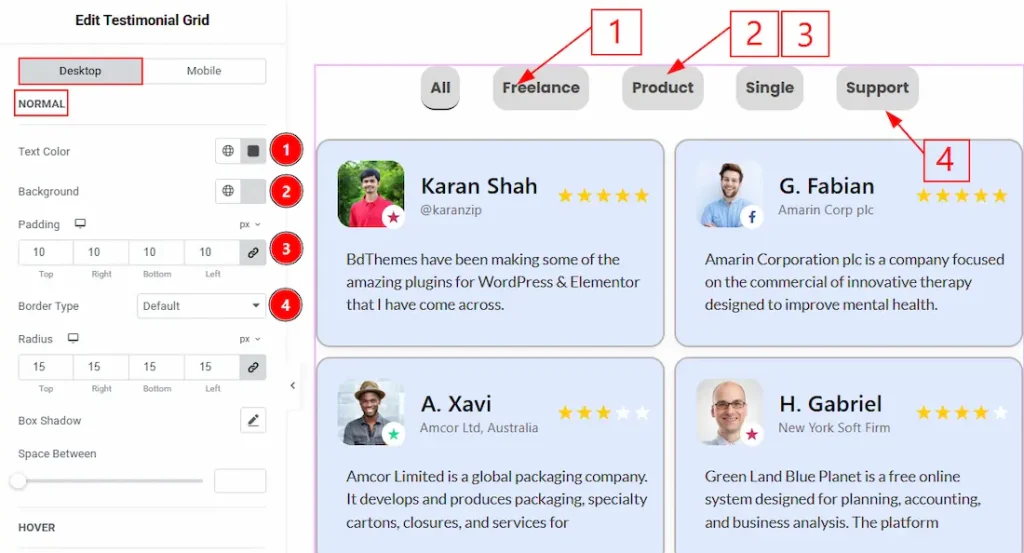
In this section, we have two more tabs. These are Desktop and Mobile. Let’s start describing the Desktop Tab first –
In the desktop tab we have three more subsections. These are Normal, Hover & Active. Let’s start with the Normal subsection –
1. Text Color: You can change the filter bar text color with this option.
2. Background: You can change the background color with this option.
3. Padding: You can adjust the inner space of the filter bar with this option.
4. Border Type: You can add or change the border type with this option.
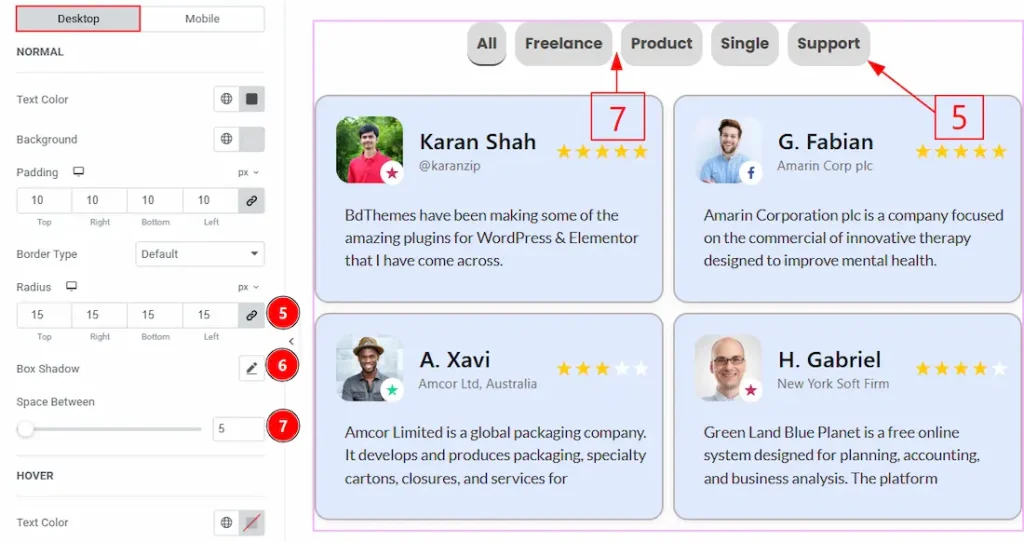
5. Radius: You can control the roundness of the border with this option.
6. Box Shadow: You can add a shadow effect to the filter bar with this option.
7. Space Between: You can add space between the categories with this option.
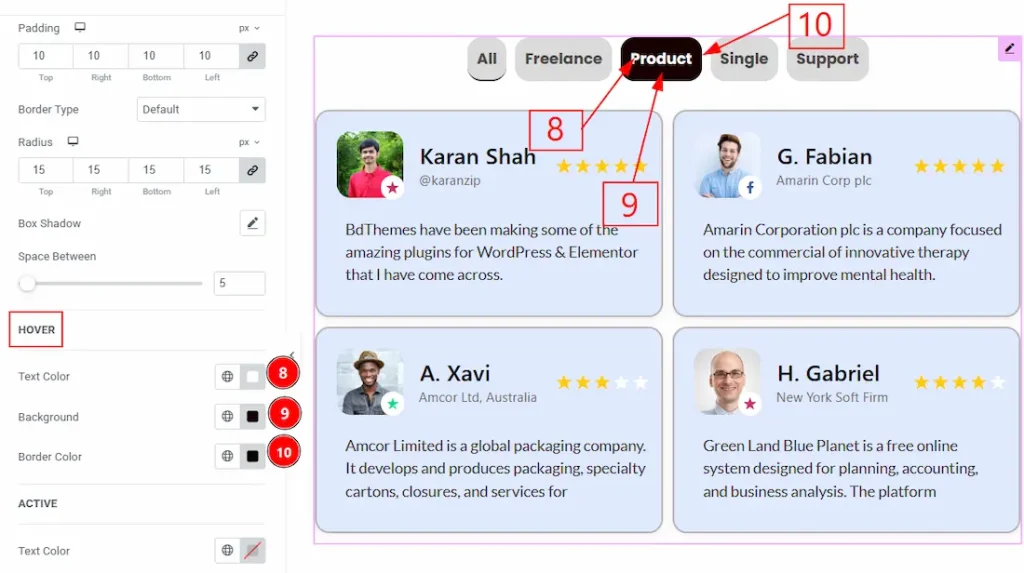
Now, let’s start describing the Hover subsection –
8. Text Color: You can change the filter bar text hover color with this option.
9. Background: You can change the background hover color with this option.
10. Border Color: You can change the border hover color with this option.
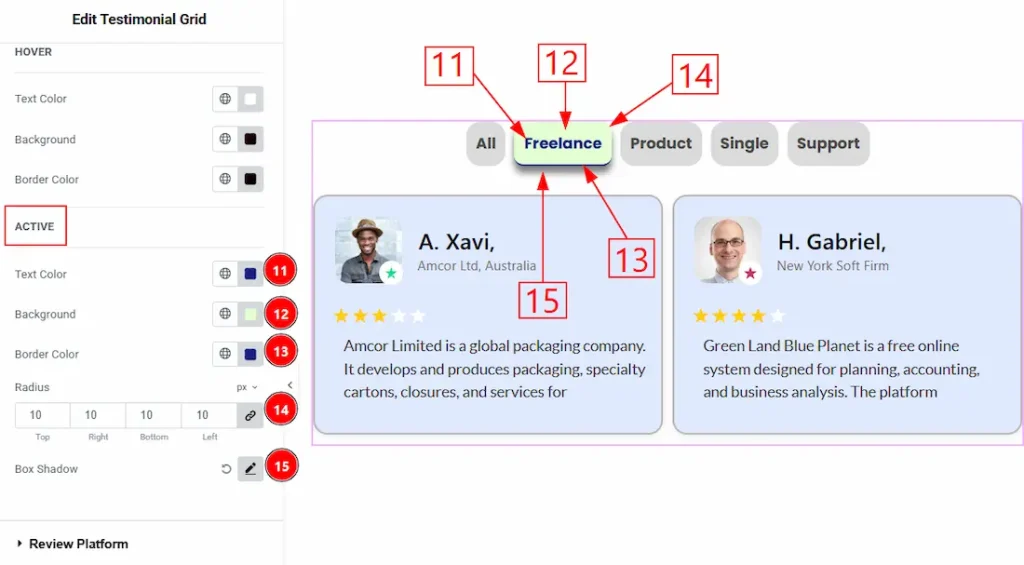
Now, let’s proceed to the Active subsection –
11. Text Color: You can change the active text color of the filter bar with this option.
12. Background: You can change the active background color of the filter bar with this option.
13. Border Color: You can change the active border color with this option.
14. Radius: You can control the roundness of the border with this option.
15. Box Shadow: You can add an active shadow effect to the filter bar with this option.
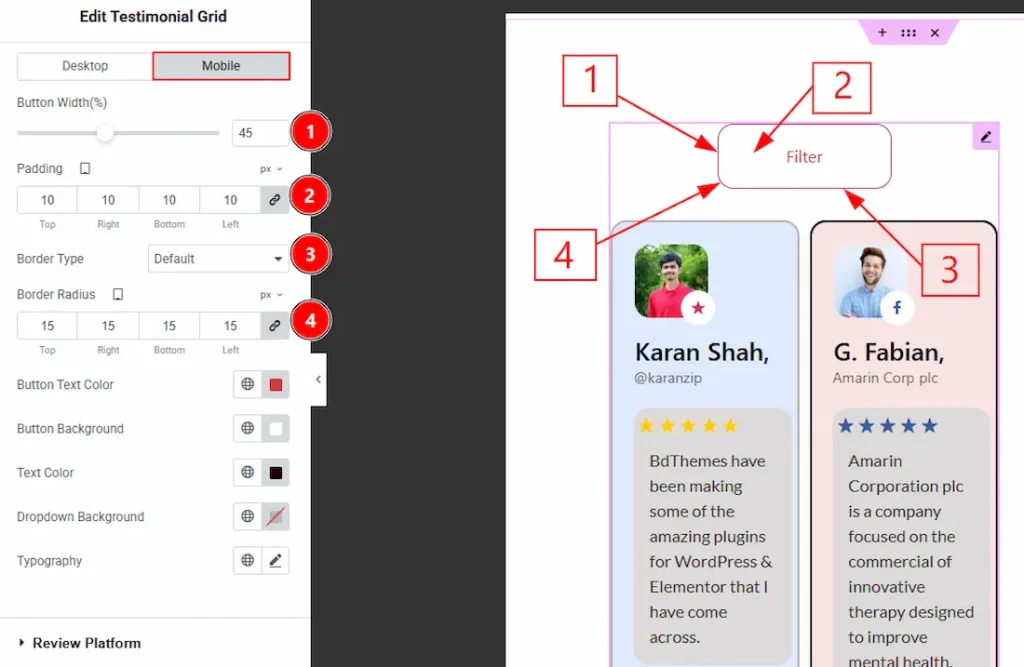
As the customization of the Desktop tab is completed now, let’s start customizing the Mobile Tab –
1. Button Width: You can make changes to the filter button width with this option.
2. Padding: You can adjust the inner space of the button with this option.
3. Border Type: You can add and change the border type with this option.
4. Border Radius: You can control the roundness of the border with this option.
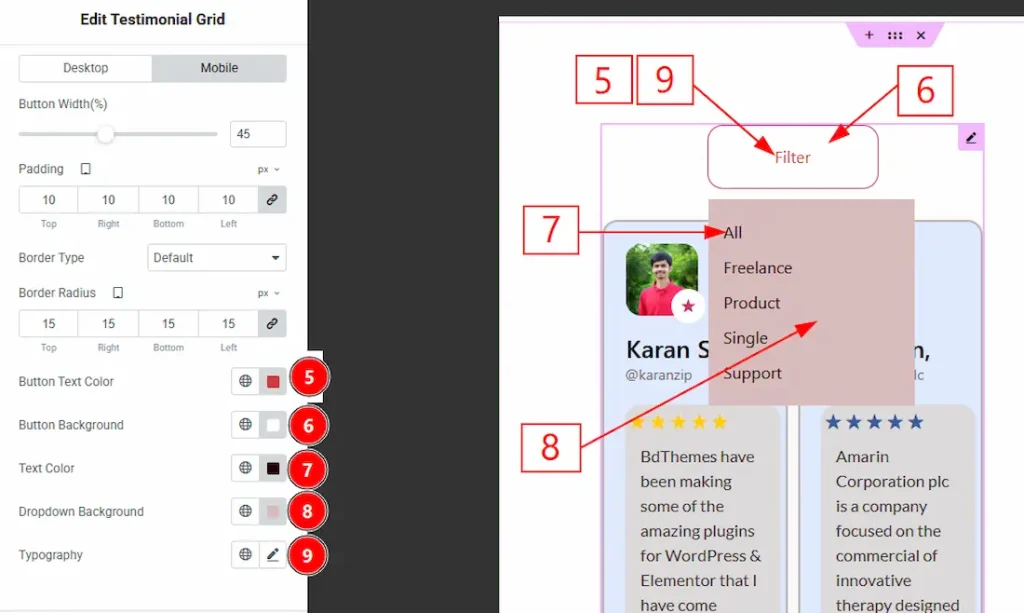
5. Button Text Color: You can change the button text color with this option.
6. Button Background: You can change the button background color with this option.
7. Text Color: You can change the dropdown categories’ text color with this option.
8. Dropdown Background: You can change the dropdown background color with this option.
9. Typography: Change the title’s font family, size, weight, transform, style, decoration, line height, letter spacing, and word spacing from here.
Review Platform Section
Go to Style → Review Platform
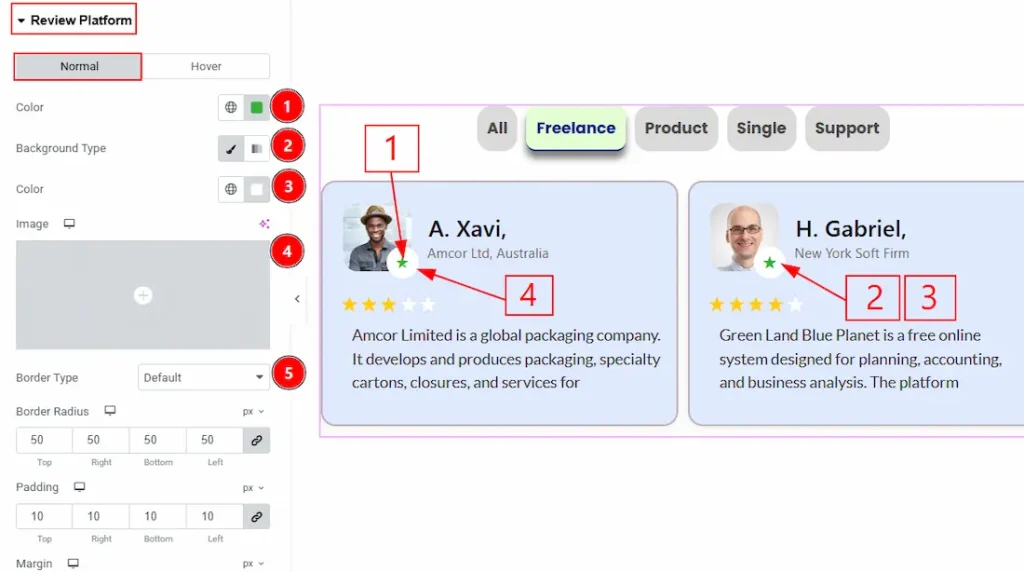
In this section, we have two more tabs. These are Normal & Hover. Let’s start describing the Normal Tab first –
1. Color: You can change the review platform icon color with this option.
2. Background Type: You can change the background type to be classic or gradient with this option.
3. Background Color: You can change the background color with this option.
4. Image: You can change the background image with this option.
5. Border Type: You can add or change the border type with this option.
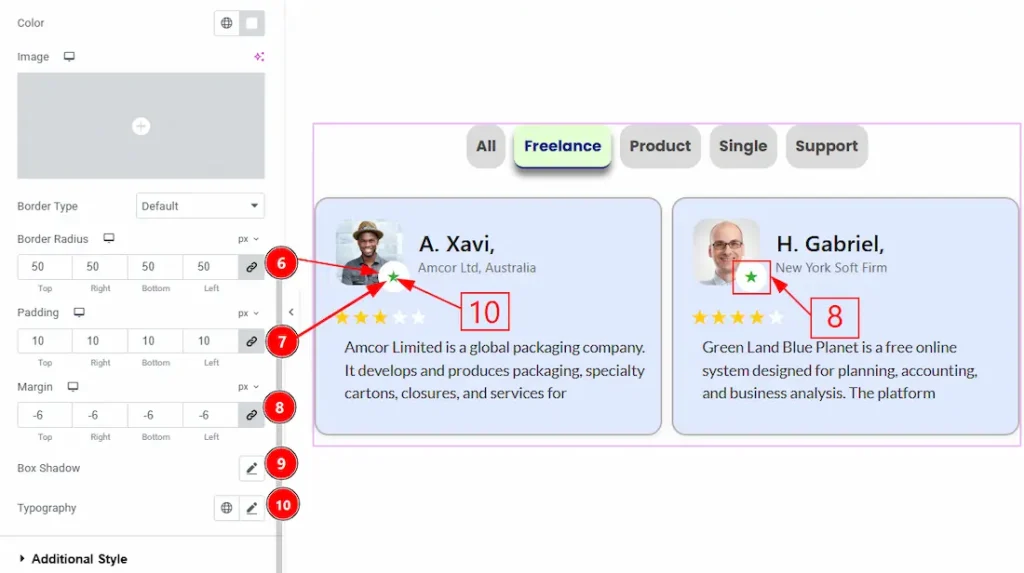
6. Border Radius: You can control the roundness of the border with this option.
7. Padding: You can adjust the inner space of the review platform field with this option.
8. Margin: You can adjust the outer space of the review platform field with this option.
9. Box Shadow: You can add a shadow effect to the review platform with this option.
10. Typography: Change the title’s font family, size, weight, transform, style, decoration, line height, letter spacing, and word spacing from here.
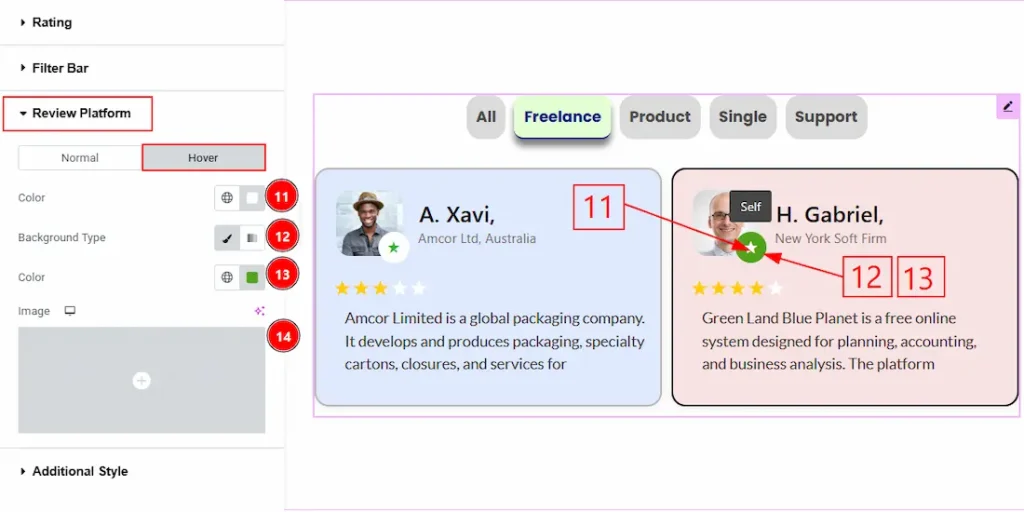
Now let’s proceed to the Hover Tab –
11. Color: You can change the review platform’s icon hover color with this option.
12. Background Type: You can select the background type to be classic or gradient with this option.
13. Color: You can change the background color with this option.
14. Image: You can change the background image with this option.
Additional Style Section
Go to Style → Additional Style
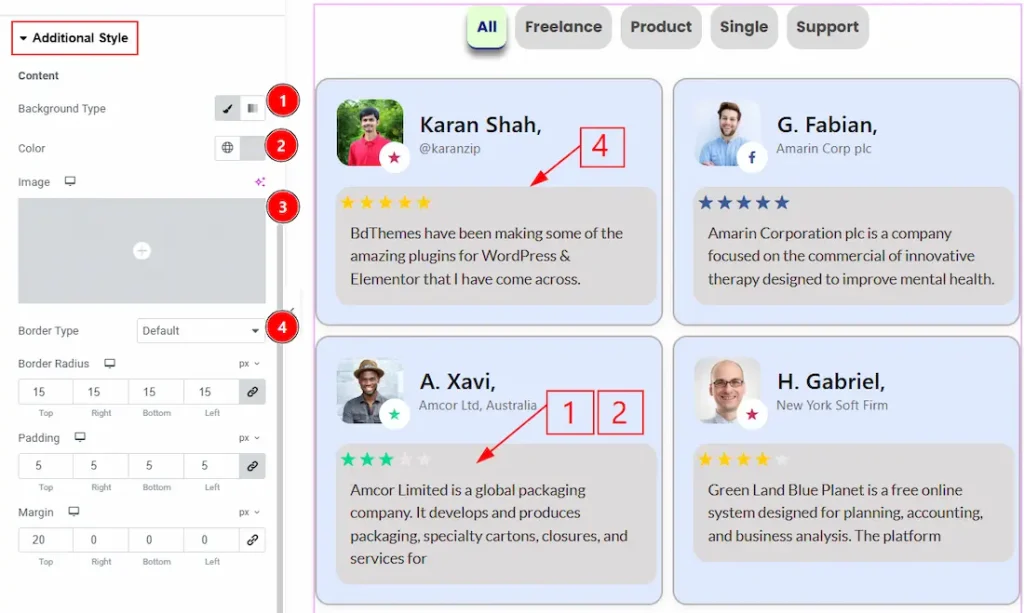
1. Background Type: You can change the background type to be classic or gradient with this option.
2. Color: You can change the background color with this option.
3. Image: You can change the background image with this option.
4. Border Type: You can add or change the border type with this option.
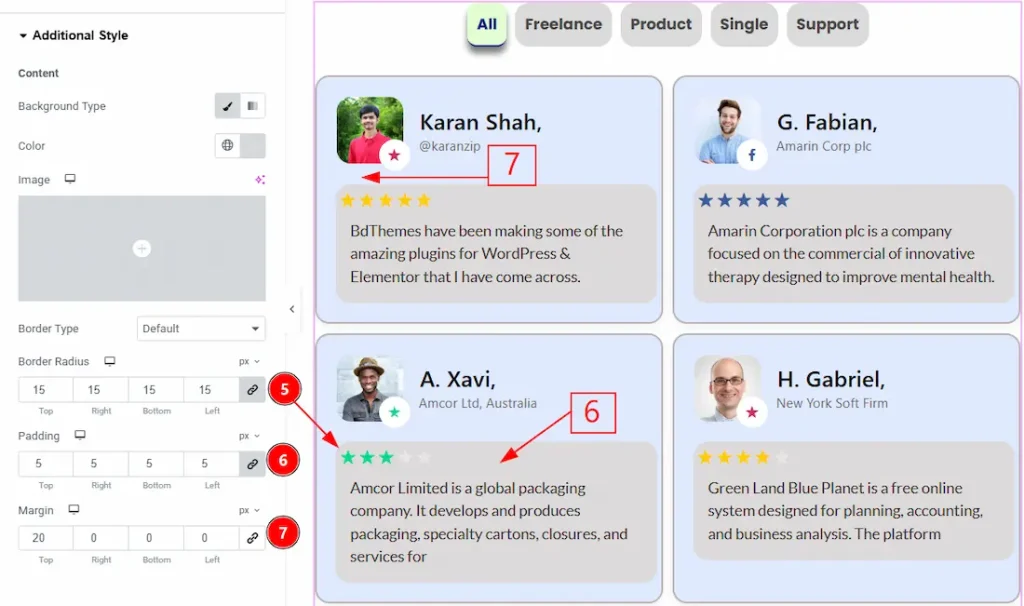
5. Border Radius: You can control the roundness of the border with this option.
6. Padding: You can adjust the inner space of the content field with this option.
7. Margin: You can adjust the outer space of the content with this option.
All done! You have successfully customized the Testimonial Grid widget on your website.
Video Assist
You can also watch the video tutorial to learn more about the Testimonial Grid Widget. Please visit the demo page for examples.
Thanks for being with us.

