
In this documentation, we will discuss the customization options of the Remote Fraction widget provided by Element Pack Pro for Elementor. Please note that Remote Fraction is compatible only with Swiper-based slider or carousel widgets. It functions as an independent fraction-style navigation element that can be customized and positioned separately from the main slider layout.
Enable The Remote Fraction Widget
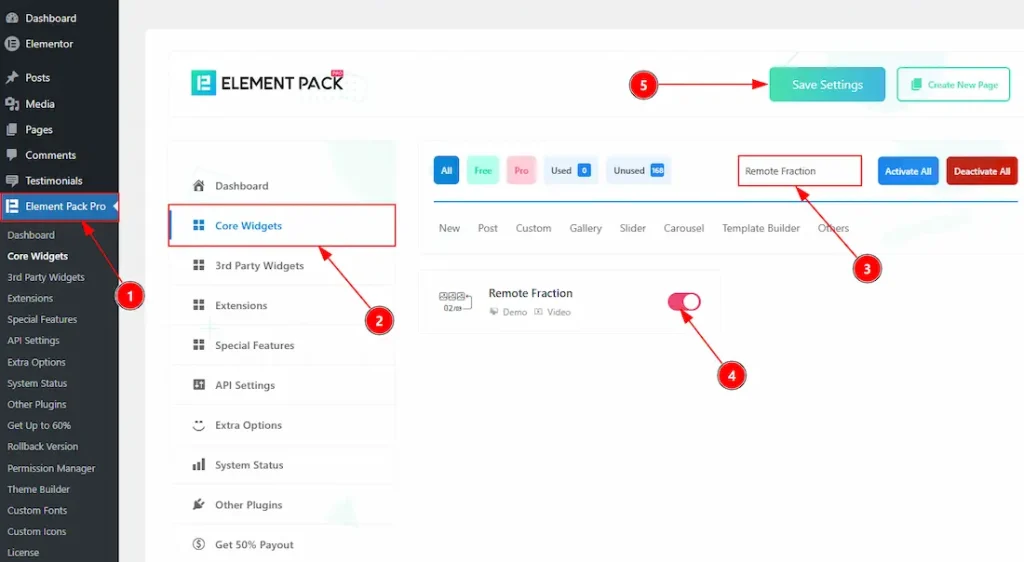
To use the Remote Fraction widget from Element Pack Pro, first, you have to enable the widget.
- Go to WordPress dashboard → Element Pack Pro Plugin dashboard.
- Then, Click the Core Widgets Tab.
- Search the Remote Fraction widget Name.
- Enable the Remote Fraction widget.
- Hit the Save Settings Button.
Inserting The Remote Fraction
To use a remote widget, first add a Swiper-based carousel like the Testimonial Slider (for example) to your page in Elementor, then link it to the remote widget.
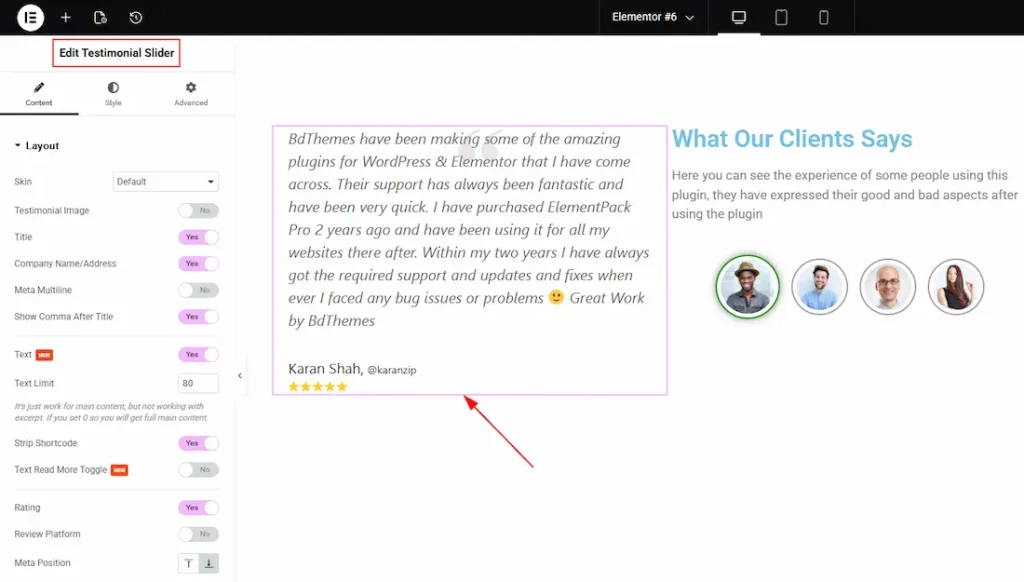
After dragging and dropping the Testimonial Slider widget, you need to add the images to the carousel items and then customize it as you prefer. Also, make sure to go to the Navigation section and select none as navigator.
Please note that, to use the Testimonial Slider, you need to download the Testimonials plugin and add the testimonials that you want to show to your audience. You will get the Testimonial plugin on the BdThemes Account.
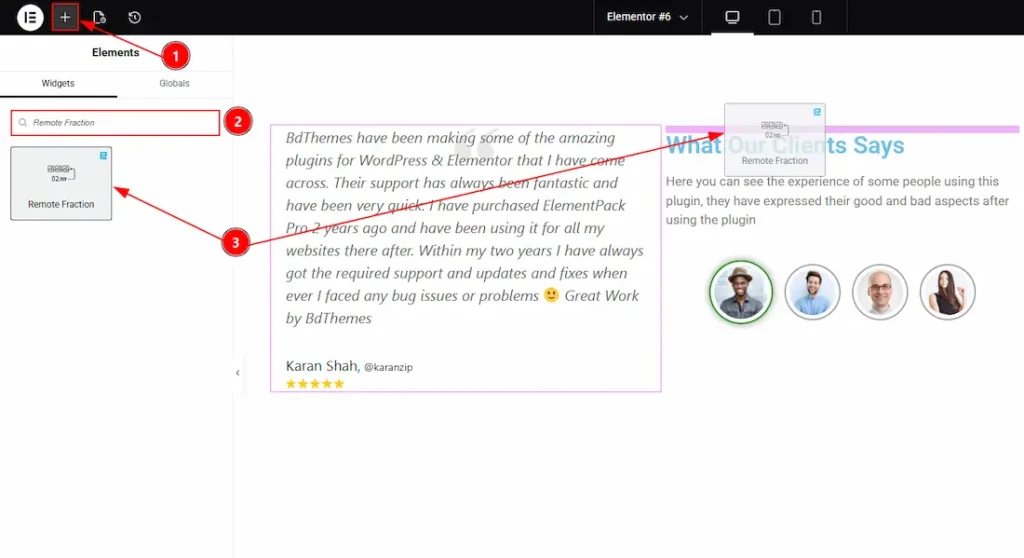
After adding the Testimonial Slider, insert the Remote Fraction widget anywhere on the page. It doesn’t need to be directly below the slider. It will work from any position.
4. Go to the Elementor Editor Page and hit the “+” icon Button.
5. Search the Remote Fraction widget.
6. Drag the widget and drop it on the editor page.
Linking the Remote Fraction with the Carousel
Set CSS ID for the Carousel
Select Testimonial Slider → Advanced → Layout → CSS ID
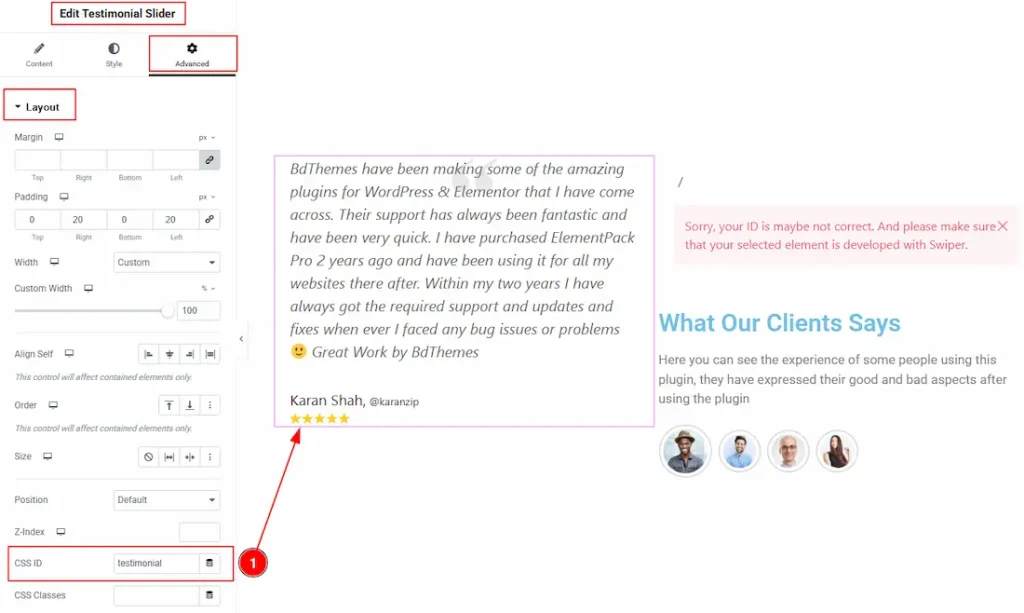
1. CSS ID: You have to assign a CSS ID to the slider to link up with the remote Fraction. For example, we have used the CSS ID as “testimonial” and copied it to use later on the remote Fraction widget.
Set CSS ID for the Widget
Go to Content → Remote Fraction
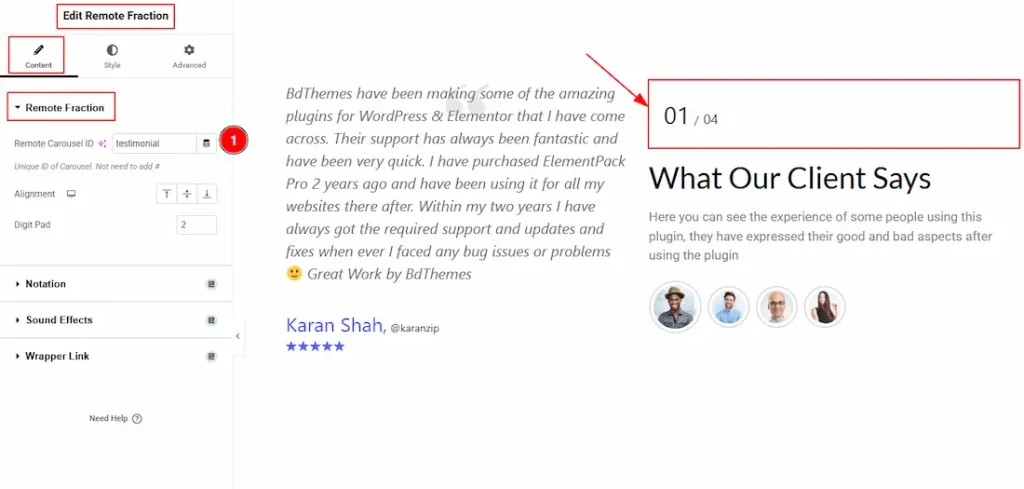
1. Remote Carousel ID: In this option, you have to paste the CSS ID that was already used and copied on the slider CSS ID option. (Note: Please remember that the CSS ID has to be the same on both the Carousel and the widget)
The link up with the Testimonial Slider and the Remote Fraction widget is done. Now let’s customize the Remote Fraction.
Work With The Content Tab
Remote Fraction Section
Go to Content → Remote Fraction
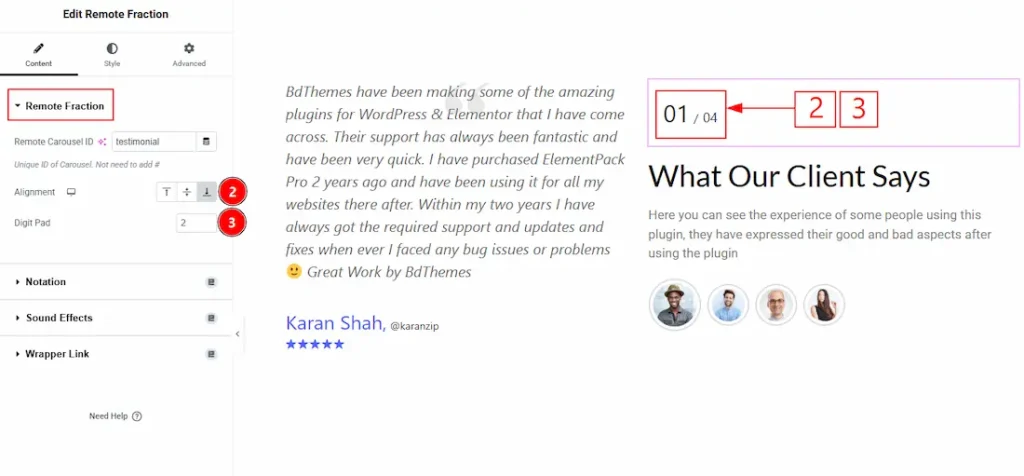
2. Alignment: You can adjust the remote fraction digits position to top, middle, or bottom with this option. Here, we have selected the position as the bottom.
3. Digit Pad: This option allows you to set how many digits are displayed in the fraction.
Work with The Style Tab
Remote Fraction Section
Go to Style → Remote Fraction
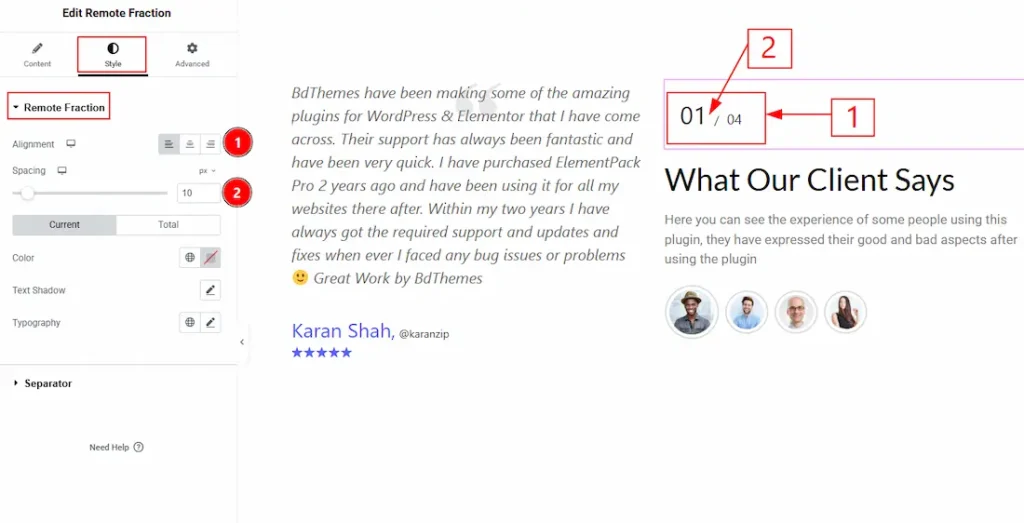
1. Alignment: You can move the Fraction position to left, center or right with this option. Here, we have selected the position as left.
2. Spacing: You can adjust the space between the fraction digits and separator with this option.
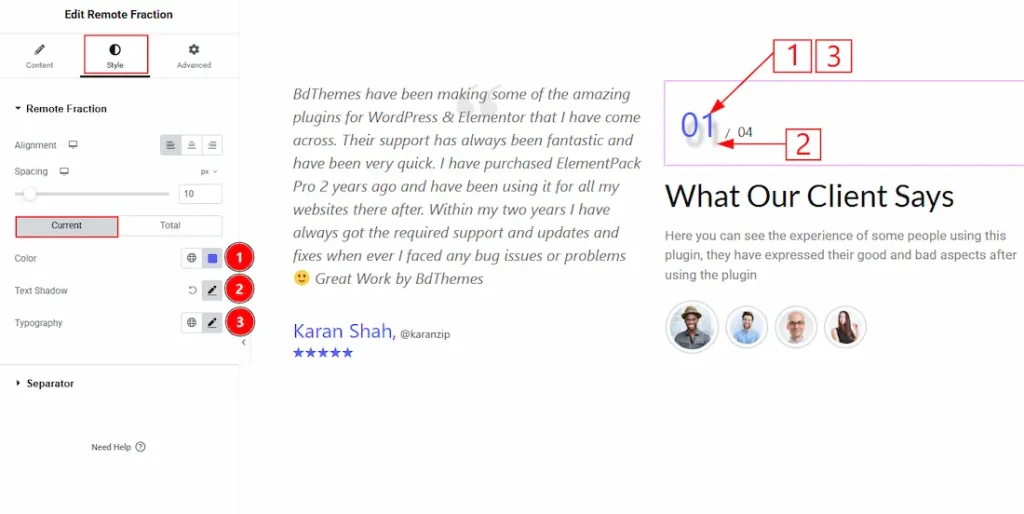
In this section, we have two more tabs. These are Current and Total. Let’s start with the customization of the Current Tab –
1. Color: You can change the current fraction number color with this option.
2. Text Shadow: You can add a text shadow effect to the current fraction digit with this option.
3. Typography: Change the font family, size, weight, transform, style, decoration, line height, letter spacing, and word spacing from here.
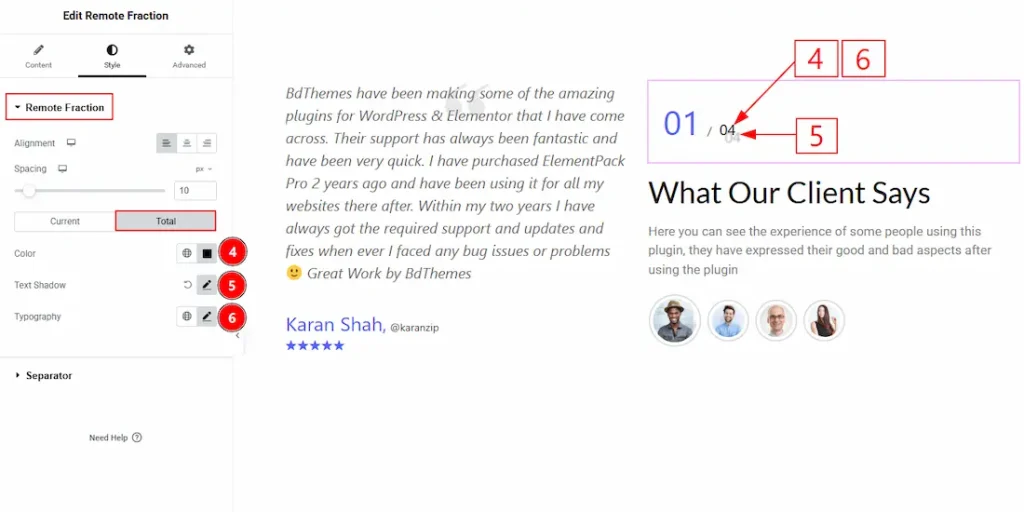
Now, let’s proceed to the customization of the Total Tab –
4. Color: You can change the total fraction number color with this option.
5. Text Shadow: You can add a text shadow effect to the total fraction digit with this option.
6. Typography: Change the font family, size, weight, transform, style, decoration, line height, letter spacing, and word spacing from here.
Separator Section
Go to Style → Separator
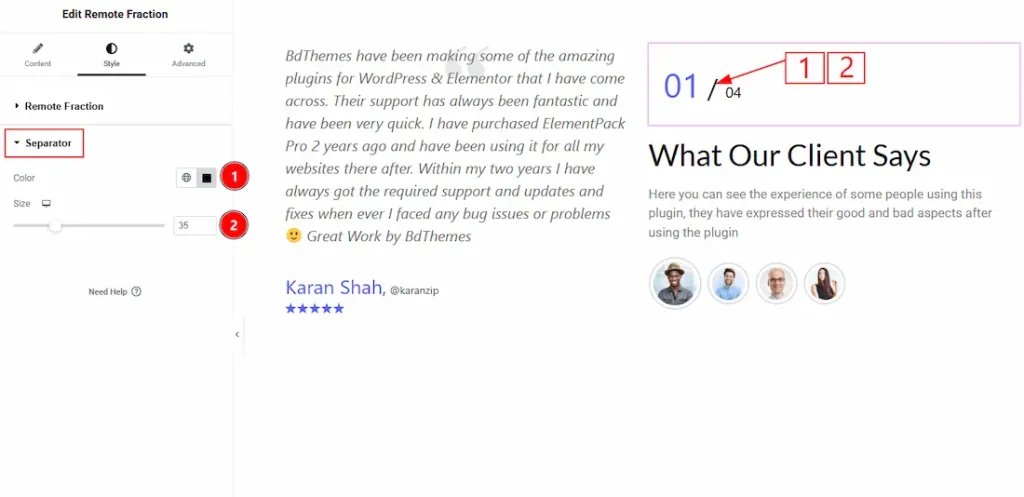
1. Color: You can change the separator color with this option.
2. Size: You can make changes to the separator size with this option.
All done! You have successfully customized the Remote Fraction widget on your website.
Video Assist
Please watch the video tutorial to use the widget. Please visit the demo page for examples.
Thanks for being with us.

