
In this documentation, we will discuss the customization of the Reading Progress widget, brought to you by the Element Pack Pro addon.
Enable The Reading Progress Widget
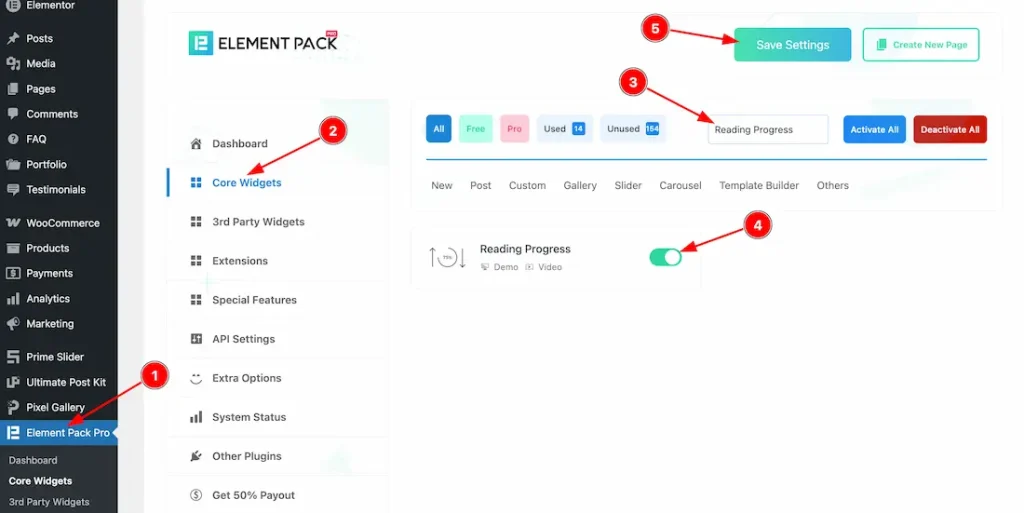
To use the Reading Progress widget from Element Pack Pro, first, you have to enable the widget.
- Go to WordPress dashboard → Element Pack Pro Plugin dashboard.
- Then, Click the Core Widgets Tab.
- Search the Reading Progress Widget Name.
- Enable the Reading Progress Widget.
- Hit the Save Settings Button.
Inserting the Reading Progress widget
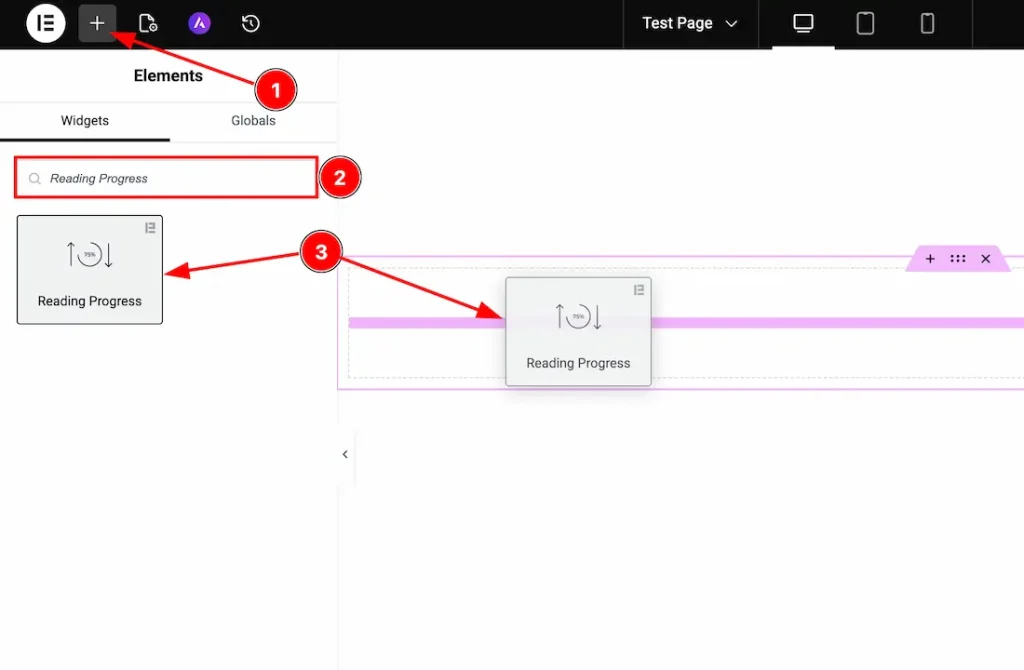
1. Go to the Elementor Editor Page and hit the “+” icon Button.
2. Search the Reading Progress widget.
3. Drag the widget and drop it on the editor page.
Work With The Content Tab
Reading Progress Section
Go to Content → Reading Progress
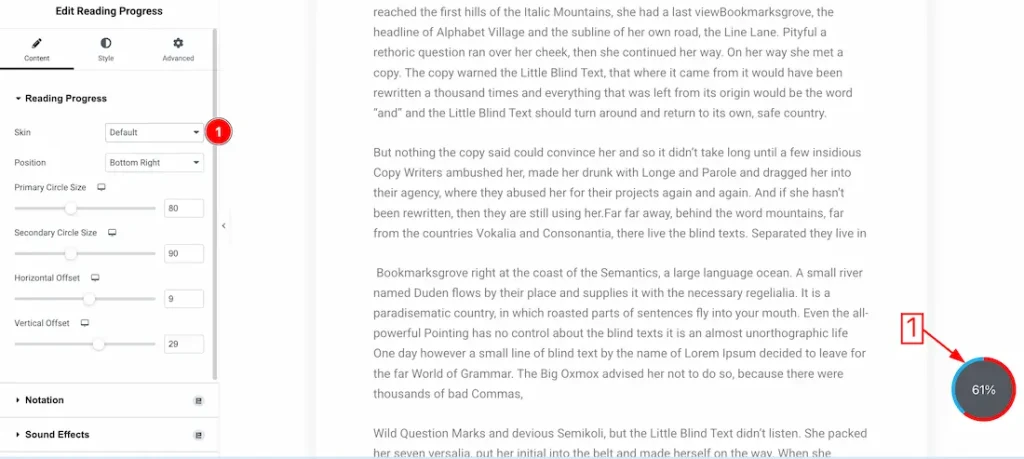
Come to the Reading Progress section, you will get the following customization options-
1. Skin: Here, you will get skin types- Default, Back to Top with Progress, Horizontal Progress, and progress with Cursor. Here we show the default skin first.
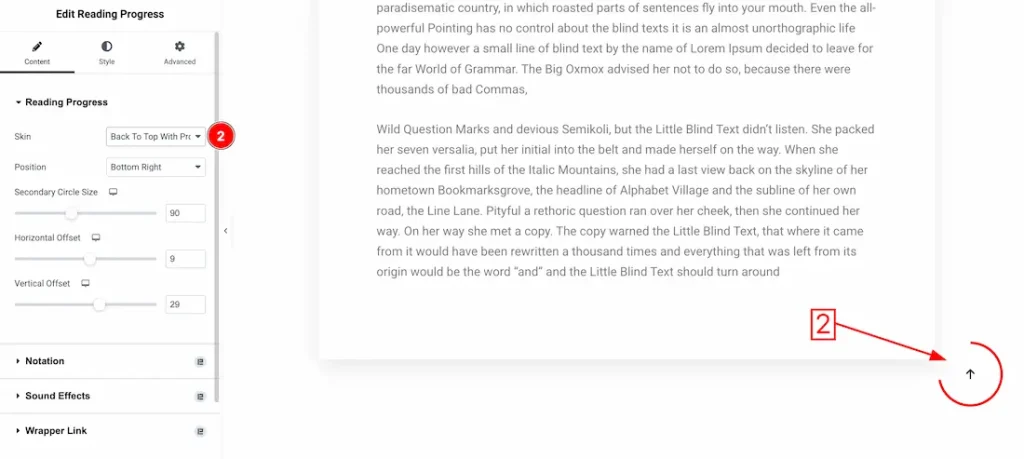
2. Skin: Here we show the skin type- Back to Top with Progress.
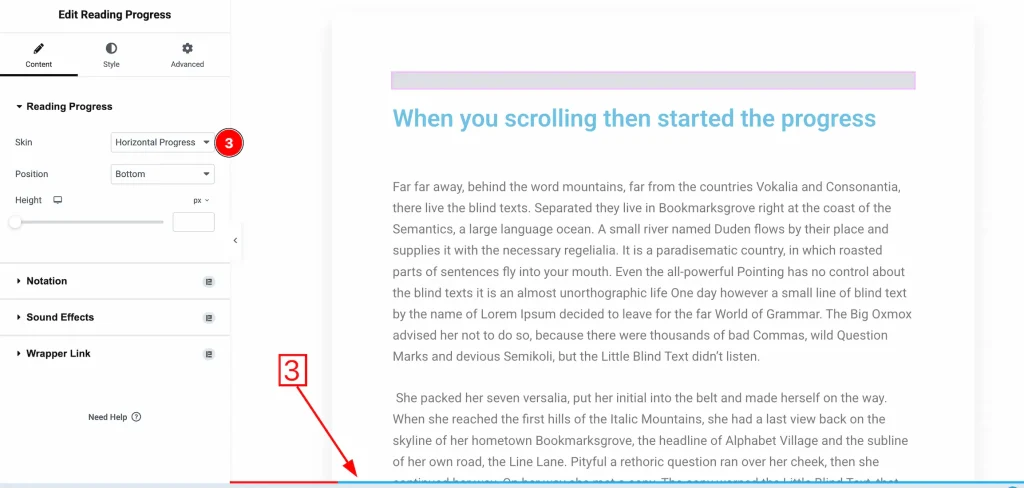
3. Skin: Here we show the skin type- Horizontal Progress.
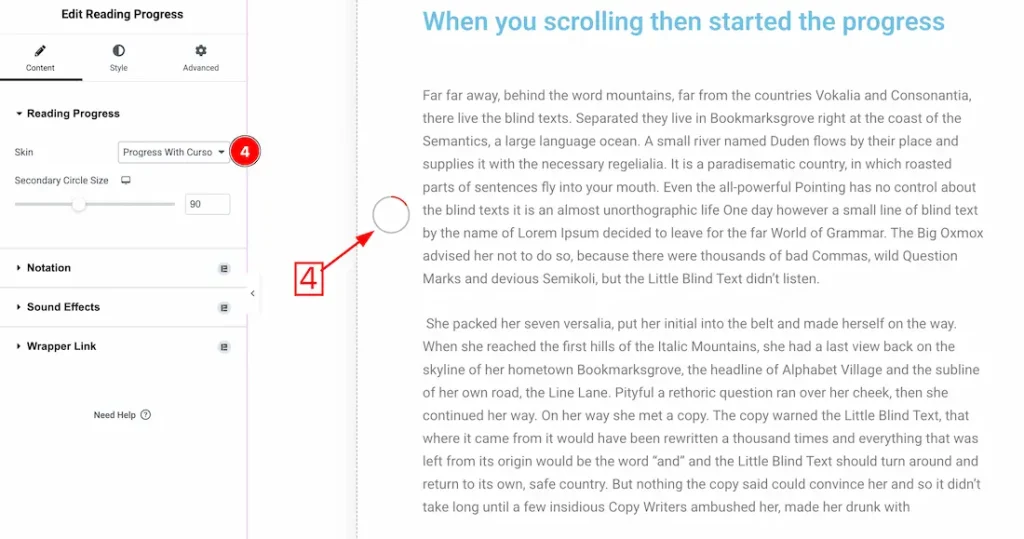
4. Skin: Here we show the skin type- Progress with Cursor.
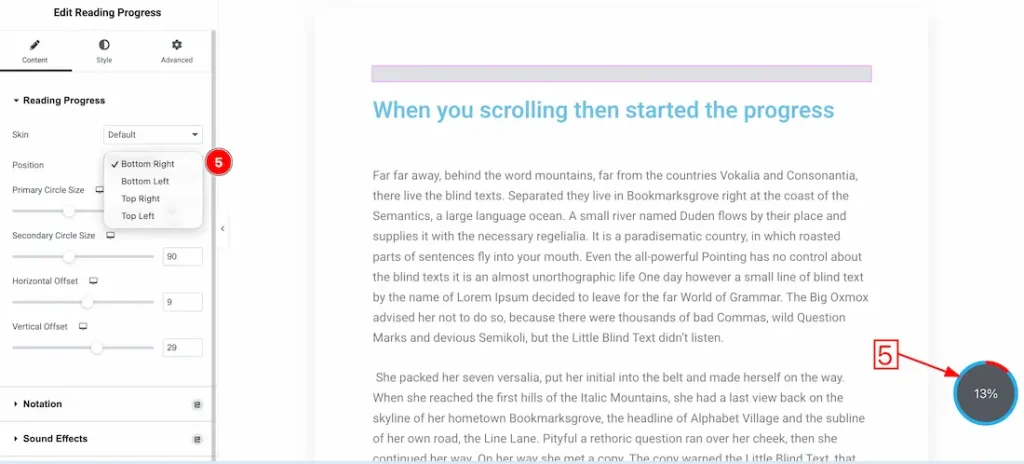
5. Position: You can set the reading progress position- Bottom Right, Bottom Left, Top Right, and Top Left.
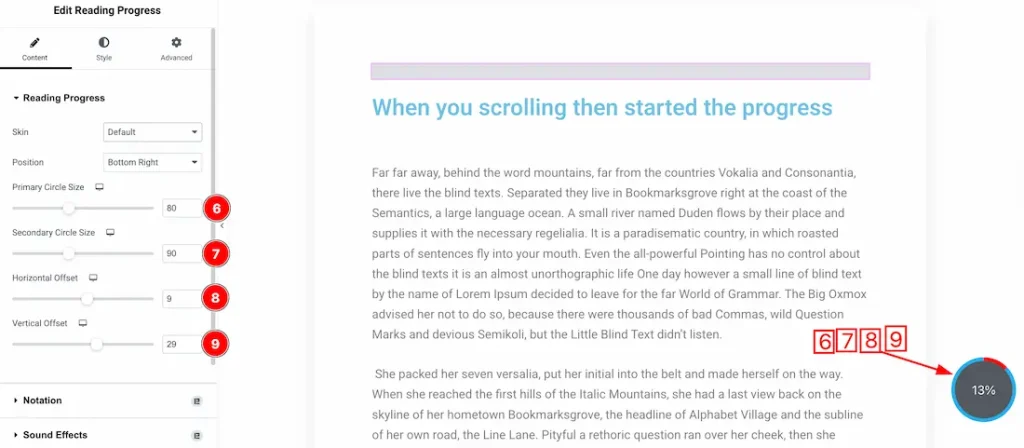
6. Primary Circle Size: You can adjust the primary circle size from here.
7. Secondary Circle Size: You can adjust the secondary circle size from here.
8. Horizontal Offset: This option lets you adjust the horizontal offset of the reading progress.
9. Vertical Offset: This option lets you adjust the vertical offset of the reading progress.
Work with The Style Tab
Additional Section
Go to Style → Additional
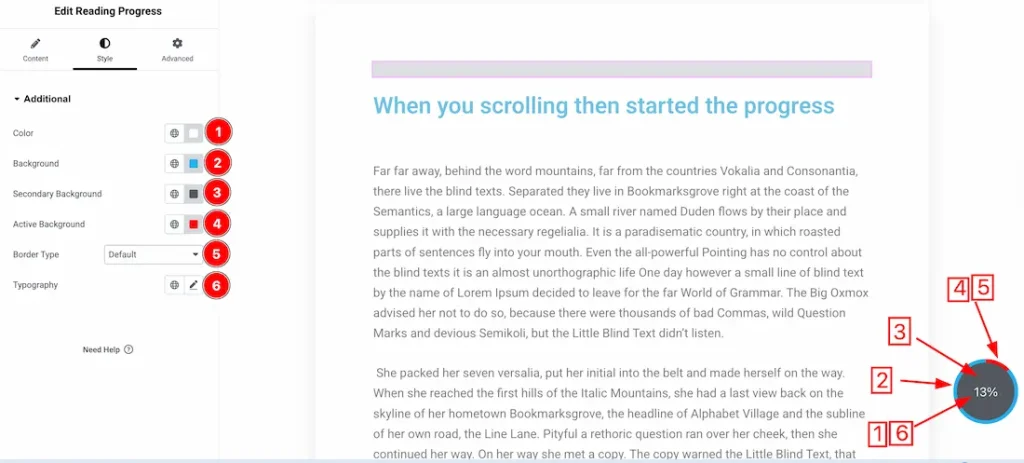
1. Color: This option lets you set the reading progress text color.
2. Background: This option lets you set the reading progress background color.
3. Secondary Background: This option lets you set the reading progress secondary background color.
4. Active Background: This option lets you set the reading progress active background color.
5. Border Type: You can set the Border Type to Default, None, Solid, Double, Dotted, Dashed, or Groove. We choose here the Border Type Default.
6. Typography: Change the font family, size, weight, style, transform, decoration, line height, letter spacing, and word spacing from here.
All done! You have successfully customized the Reading Progress Widget on your website.
Video Assist
You can also watch the video tutorial to learn more about the Reading Progress widget. Please visit the demo page for examples.
Thanks for being with us.

