
In the documentation, we will provide comprehensive guidance on the Element Pack Pro QR Code widget for Elementor. This widget enables you to generate and display customisable QR codes directly on your website, allowing users to quickly access links, contact details, WiFi credentials, and other information by scanning the code. It is a versatile and user-friendly widget designed for a wide range of marketing, business, and informational use cases across your website.
QR Code – Key Features
- Instant QR Code Generation
Create QR codes instantly for links, text, contact details, and more directly inside the builder. - Multiple Data Types Supported
Generate QR codes for URL, text, phone, email, SMS, WhatsApp, WiFi credentials, and vCard contact info. - Real-Time Preview
See the QR code update live as you enter or modify the data. - Custom Size & Alignment
Adjust width, height, and alignment to fit perfectly within any layout or section. - Color & Style Controls
Customize foreground and background colors, gradients, borders, and padding to match your design. - Logo/Image Inside QR
Add a logo or image at the center of the QR code for branding and recognition. - Download & Export Options
Allow users to download the generated QR code as PNG or SVG for print or offline use. - Dynamic Content Support
Use dynamic tags to generate QR codes based on dynamic URLs or content. - Responsive Ready
Ensure the QR code looks perfect across desktop, tablet, and mobile devices. - No Coding Required
Generate and style QR codes visually without writing any code. - Highly Versatile
Ideal for business cards, payment links, event check-ins, product pages, WiFi sharing, app downloads, and marketing materials.
Activate the QR Code widget
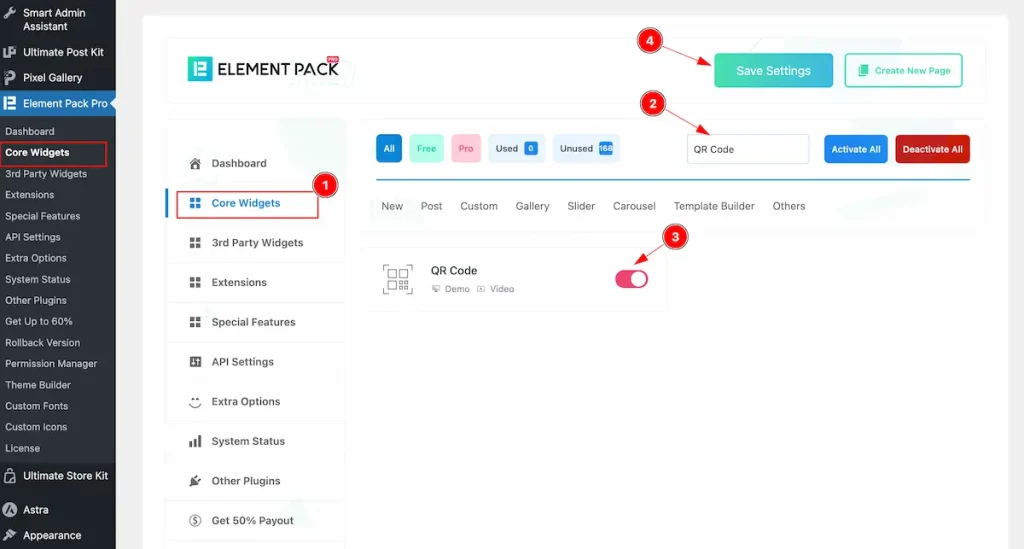
To use the QR Code widget from Element Pack Pro, first, you have to enable the Core Widgets. Navigate to the WordPress Dashboard.
- Go to Element Pack Pro > Core Widgets section.
- Search by the Widget Name ” QR Code ” and it will appear the.
- Now Enable the Switcher of the QR Code Widget.
- Hit the Save Settings button.
Insert QR Code Widget
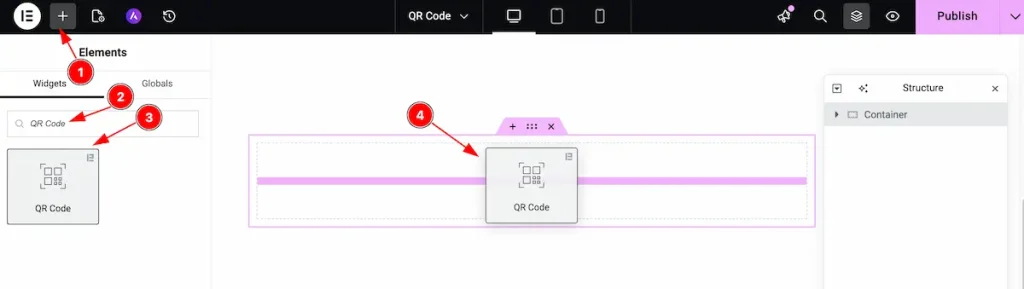
- Go to the Elementor Editor page and click the Add Element “+” icon.
- Search for the QR Code widget by name.
- The widget will appear — you can check the QR Code logo on the top-right corner.
- Select the widget, then drag and drop it onto the editor page.
Content Tab Customization
For almost all widgets, the Content tab holds all the base settings that will help your shift the content layout of this cost calculator widget. This is where we put all the required adjustments that you need to make variations to the default setup and make unique content out of it.
Let us briefly describe everything inside the content tab.
QR Code section
Go to Content > QR Code
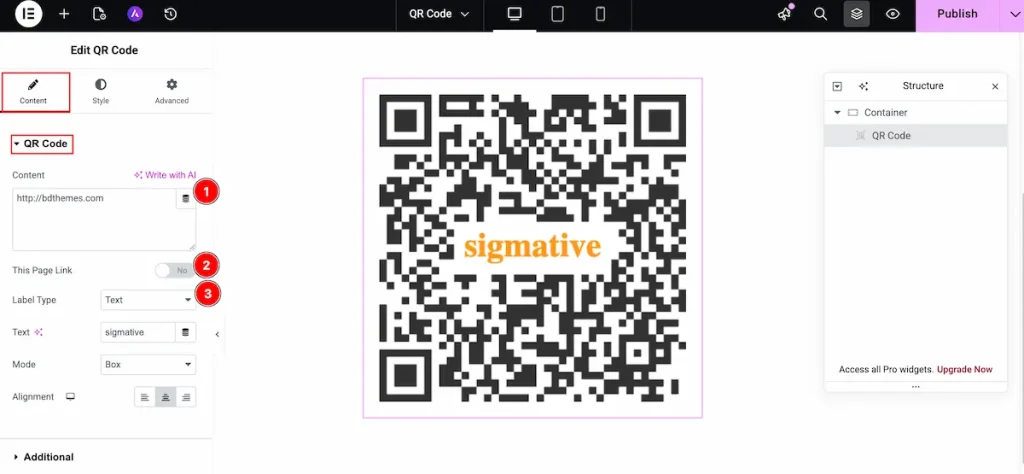
- Content: Set the content for the QR Code. The content will demonstrate while scan the code.
- This Page Link: To set the current page link, Enable the switcher and it will generate this page link.
- Label Type: Choose the label type.
None: It will not demonstrate any label on the QR Code.
Text: Set the text type it will display the text inside the QR Code.
Image: Set the image type it will display the image inside the QR Code.
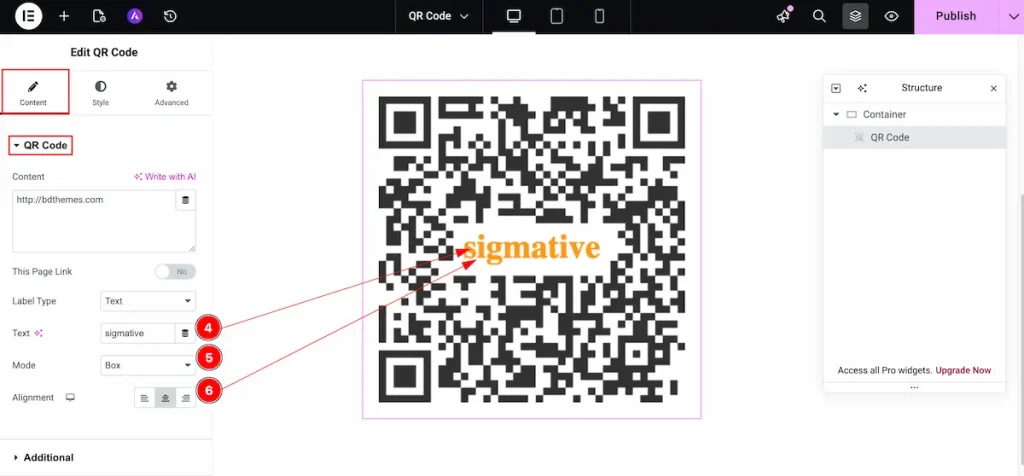
- Text: Set the text for demonstrating on the QR Code.
- Mode: choose the mode for demonstration.
Strip: It will strip whole qr code.
Box: it will appear as box. - Alignment: Choose the alignment of the QR code, Left, Right, Center.
Additional section
Go to Content > Additional
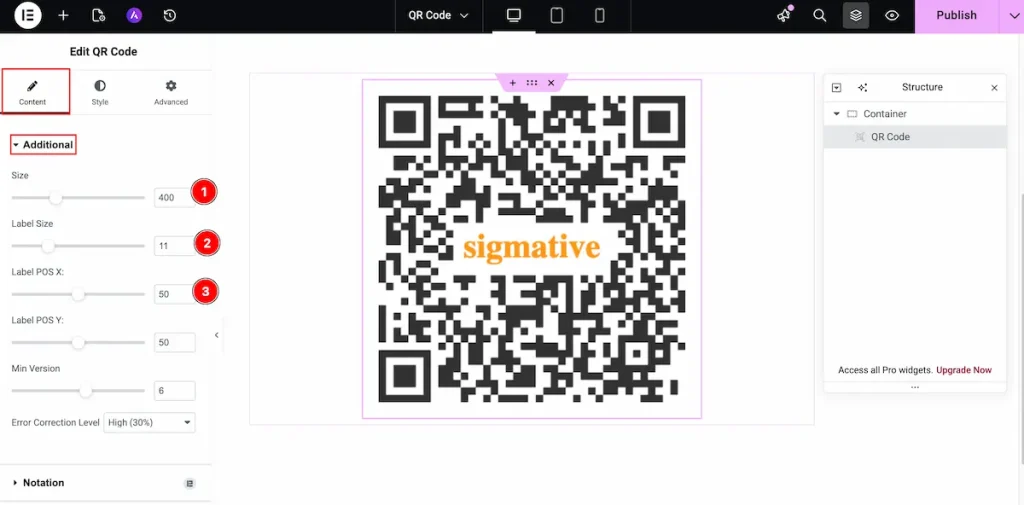
- Size: Set the size for the QR Code. The size measure in pixel.
- Label Size: Select the size of the label.
- Label POS X: Choose the position on the x-Axis. It refer Horizontal line position.
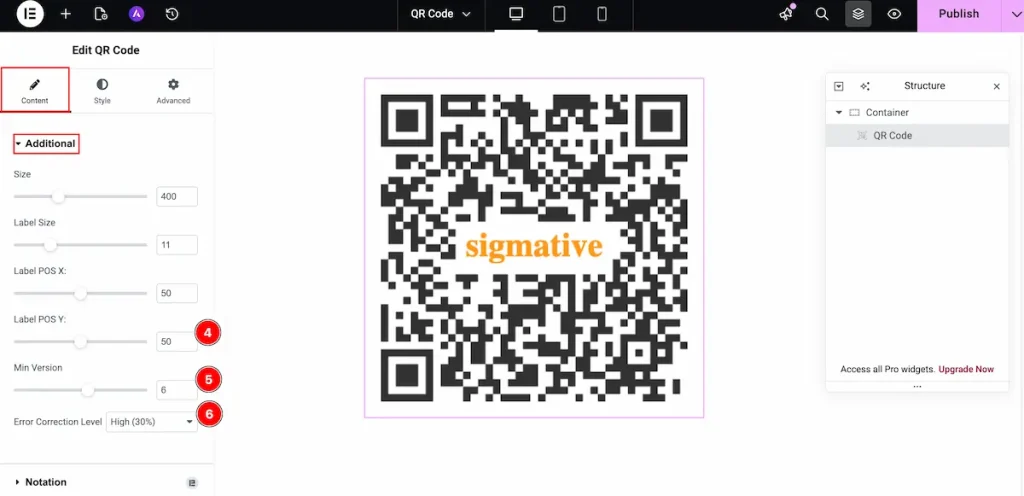
- Label POS Y: Choose the position on the y-Axis. It refer Vertical line position.
- Min Version: Choose the version of the QR Code.
- Error Correction Level: The level refer the correction of the QR Code.
Low ( 7% ) : Recovers data if up to 7% of the QR code is damaged or obscured. Best for clean environments and simple designs.
Medium ( 15% ): Recovers data if up to 15% is damaged. Balanced option for most general use cases.
Quartile (25% ): Recovers data if up to 25% is damaged. Suitable when adding logos or using the QR in slightly rough conditions.
High ( 30% ): Recovers data if up to 30% is damaged or covered. Ideal for QR codes with center logos, heavy styling, or outdoor/print usage.
Designing with the Style Tab
The Style Tab offers a range of options to enhance the visual appearance of elements, enabling precise adjustments and creative design possibilities. It helps create polished and engaging layouts effortlessly.
QR Code section
Go to Style > QR Code
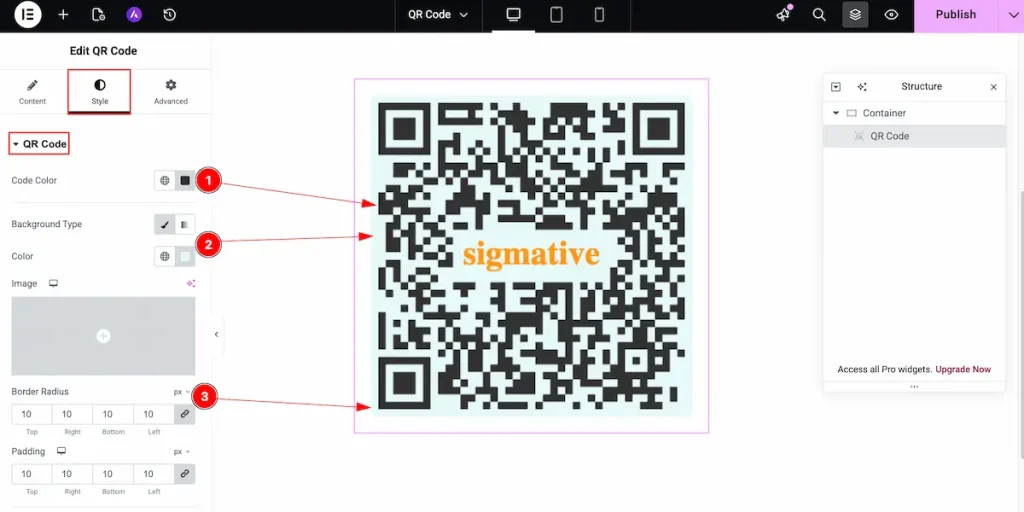
- Code Color: Choose the color for the QR code.
- Background Type: Select the background type color and choose the color from the section.
- Border Radius: Set the border corner edges rounded.
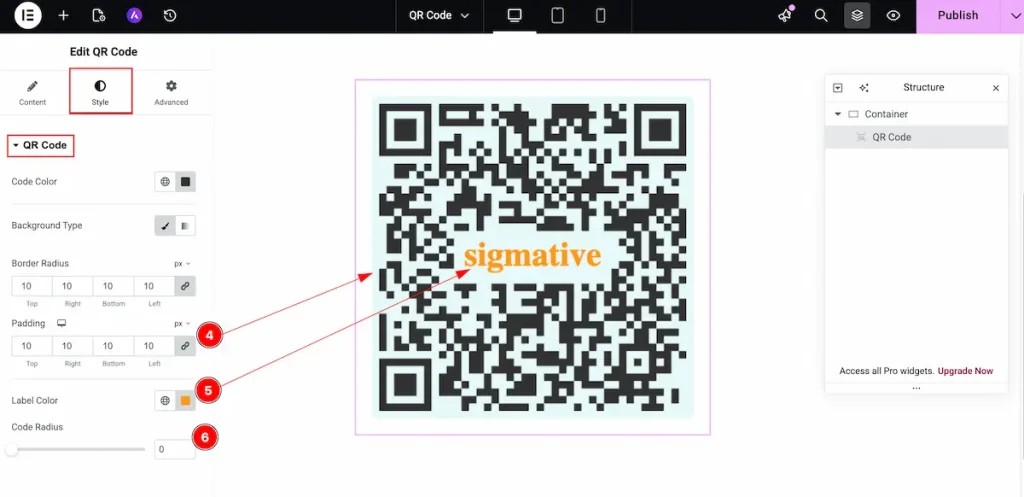
- Padding: Set the inner space of the padding.
- Label Color: Choose the color for the label.
- Code Radius: Make the code radius.
Video Assist
Watch the QR Code video tutorial here. Please visit the demo page for examples.
Thanks for being with us.

