
In this documentation, we will show you how to use the MultiSite Licensing Feature in Element Pack Pro. Let’s start with us.
What and why do you use the Multisite License System?
The Multisite License System is a WordPress plugin licensing method that allows a single license to be activated at the network level within a WordPress Multisite environment. Once activated, the license automatically applies to all subsites in the network, granting access to premium features, updates, and support without the need for individual license activation on each site.
Network administrators can manage license activation centrally from the Network Admin dashboard, ensuring consistent functionality across all subsites, simplified management, and full license compliance, eliminating the need to activate the license separately for each site.
This approach is especially useful for agencies, developers, and organizations managing multiple sites under one WordPress Multisite network.
Note: To use this Multisite licensing feature, you need to use the Developer or Agency Licenses.
How to Use the Multisite Licensing Feature
Create a Local Site from LocalWP
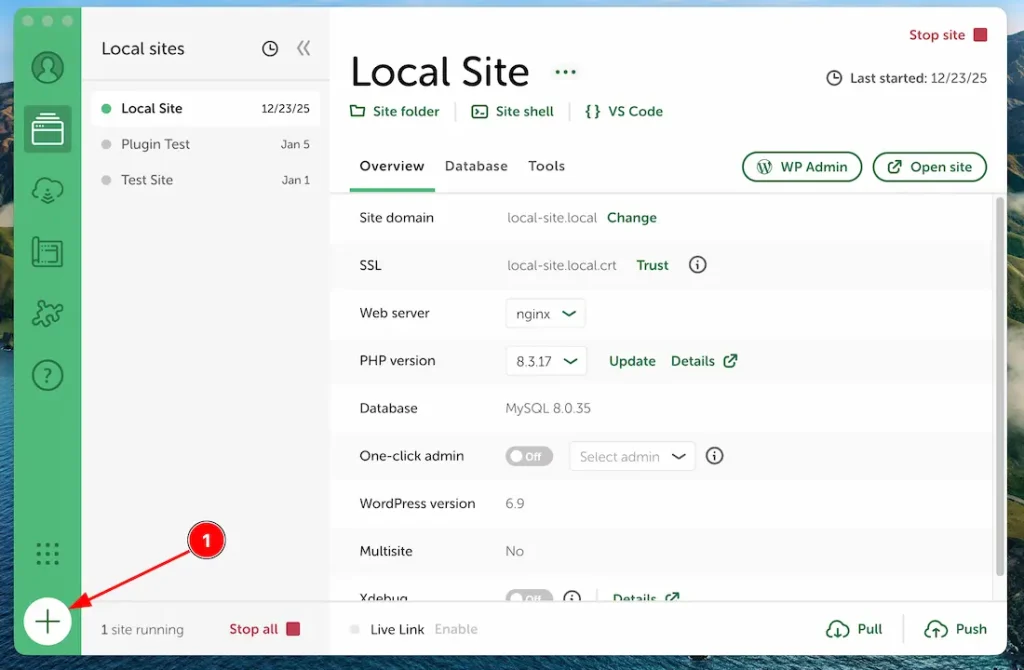
1. Just Open your LocalWP and Click the “+” button to create a new site.
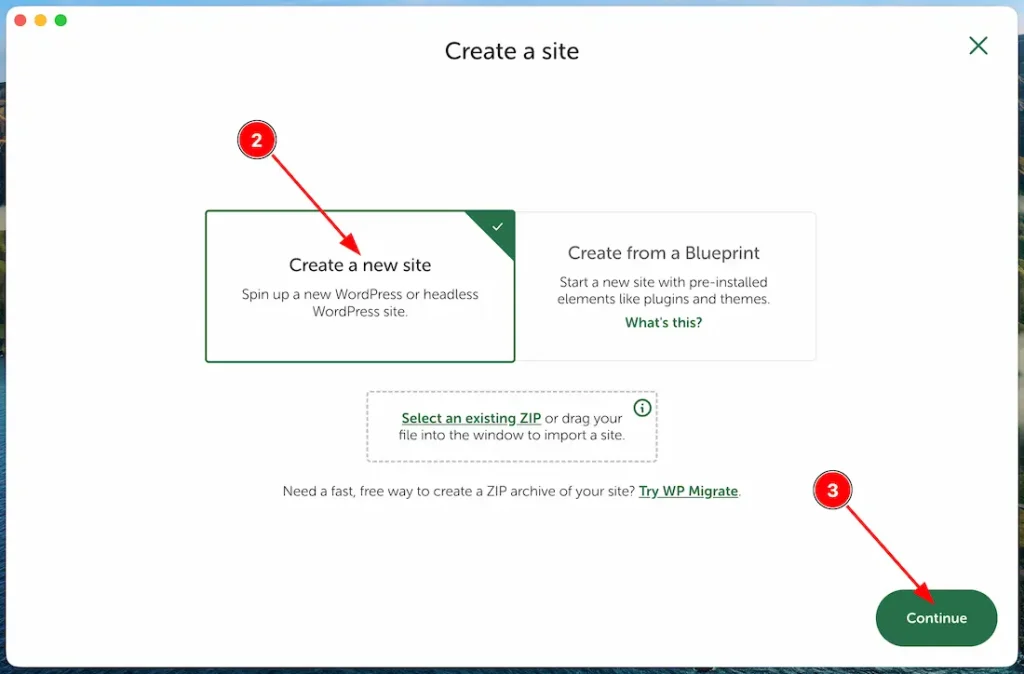
2. Select the “Create a new site” option.
3. Click the “Continue button” to continue the process.
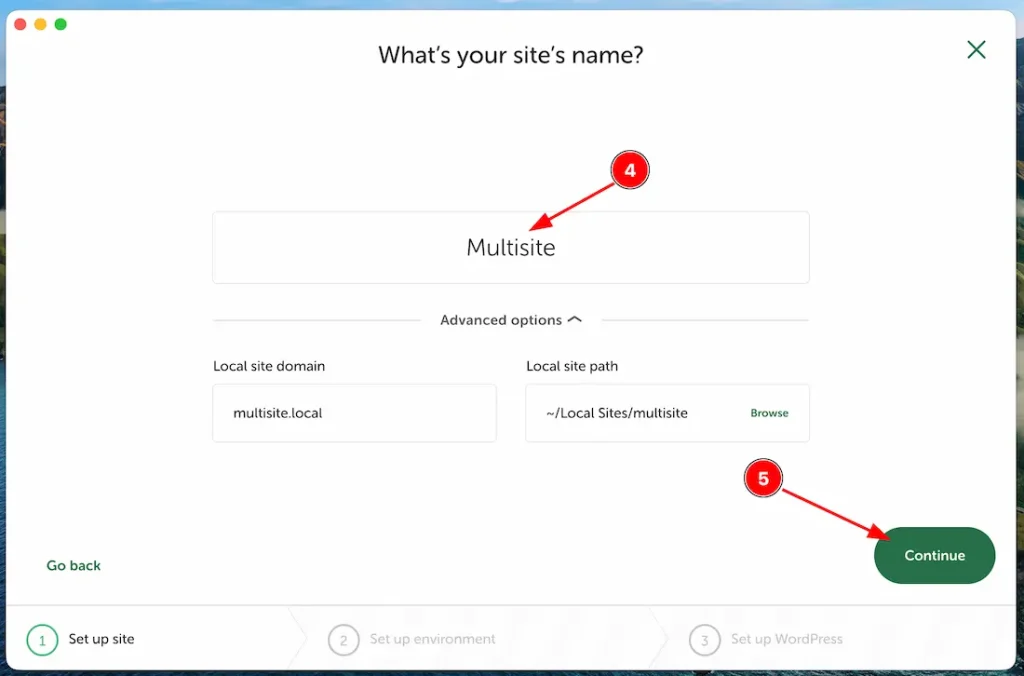
4. Set your preferred site name. Here, we create the site name as Multisite
5. Click the “Continue button” to continue the process.
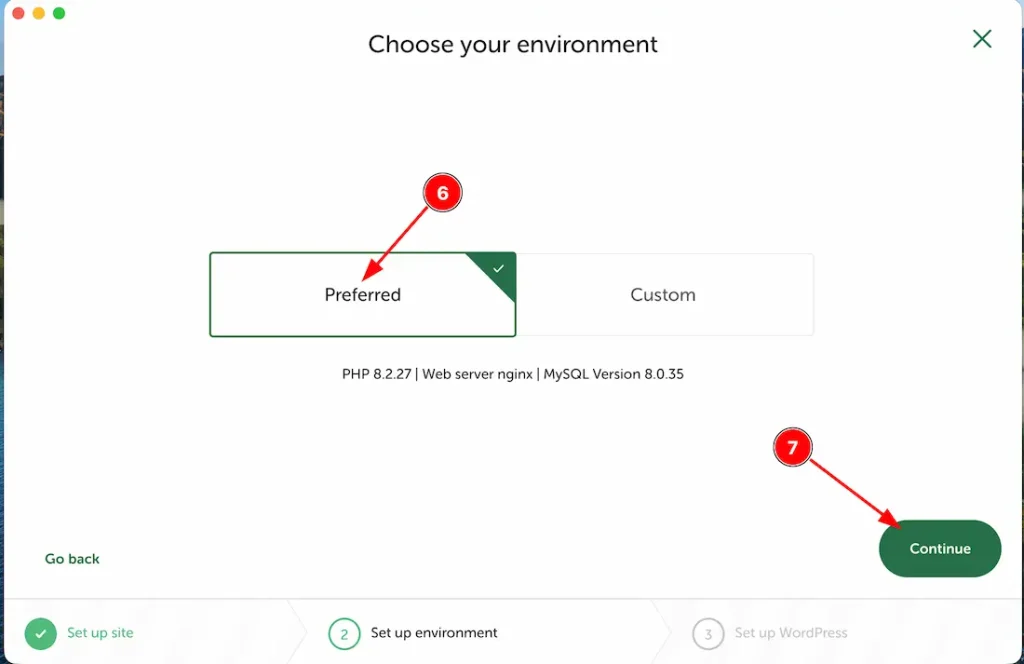
6. Select the “Preferred option” to set the default PHP and MySQL version. If you want, you can select the custom option to set the PHP and MySQL version manually.
7. Click the “Continue button” to continue the process.
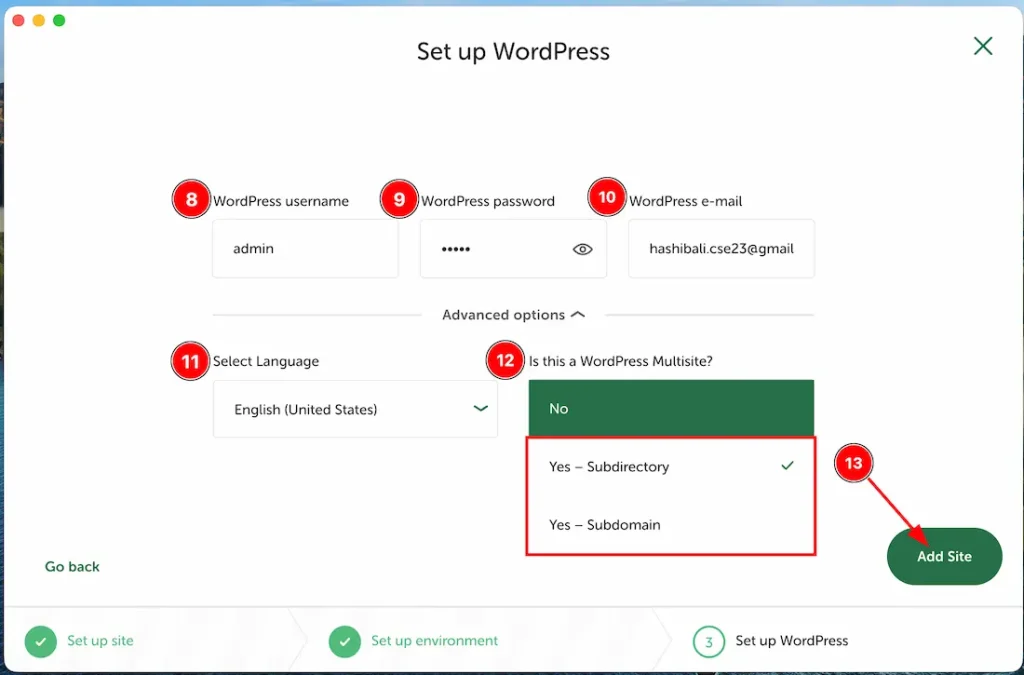
8. You can set the WordPress Username from here.
9. Set the WordPress Password.
10. Set the WordPress e-mail.
11. Select your preferred login language.
12. Set the multisite type- Yes. From here, you can select the multisite type- Sub Directory or Sub Domain. Just select one of them from here.
13. Click on the “Add Site” button to add your created site to your LocalWP.
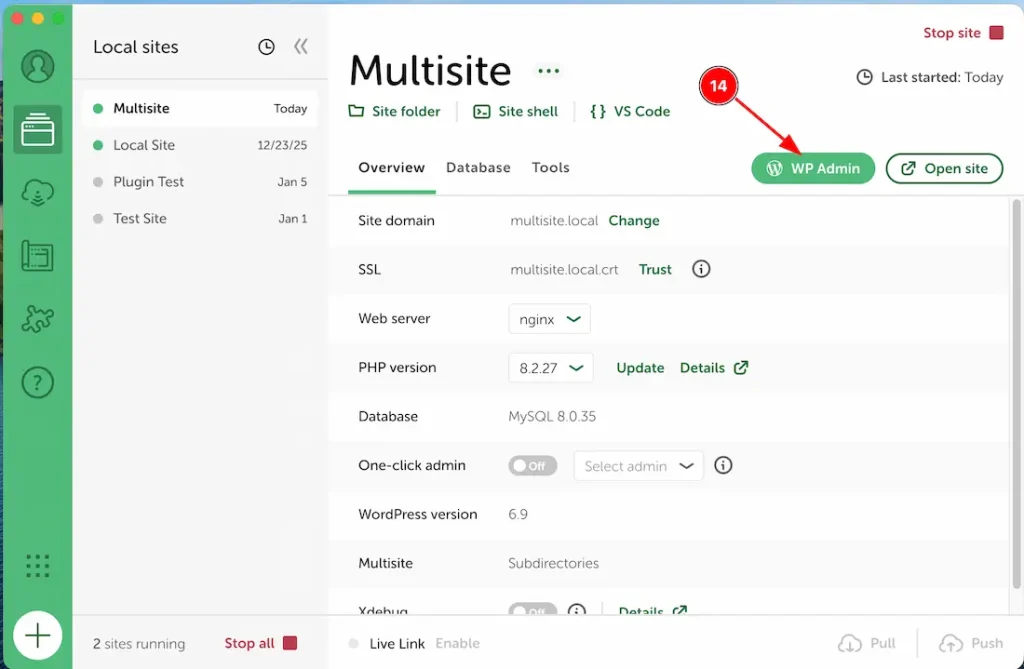
14. After creating the multisite, your created site will appear on the LocalWP site lists. From here, just select the multisite and click the “WP Admin” button to open your multisite.
Create Multiple Sites From WP Dashboard
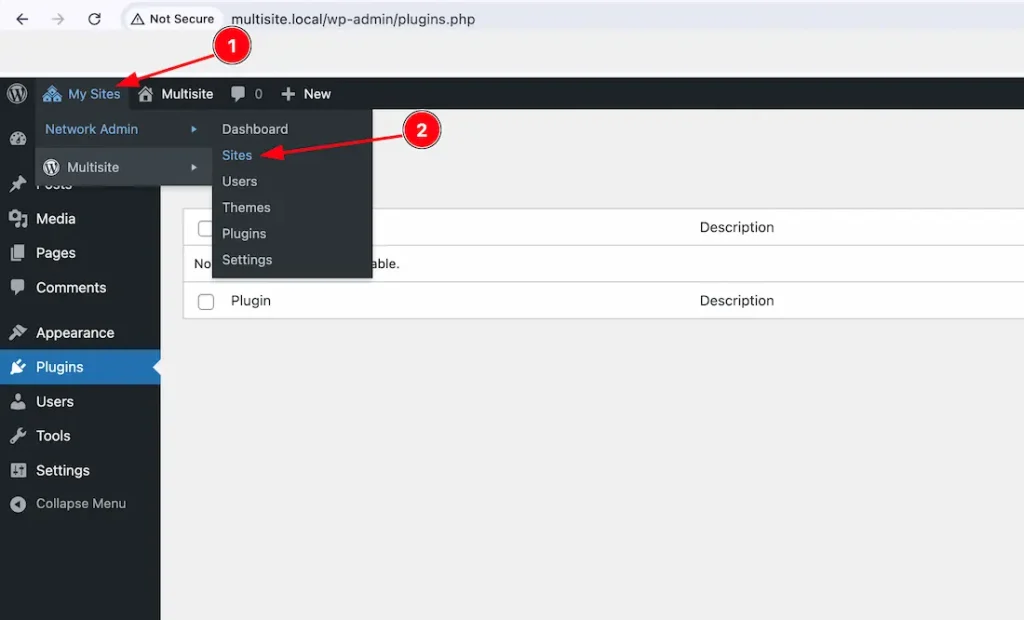
1. After logging in to your WP site, just go to the “My Sites” > Network Admin.
2. Click on the Sites option.
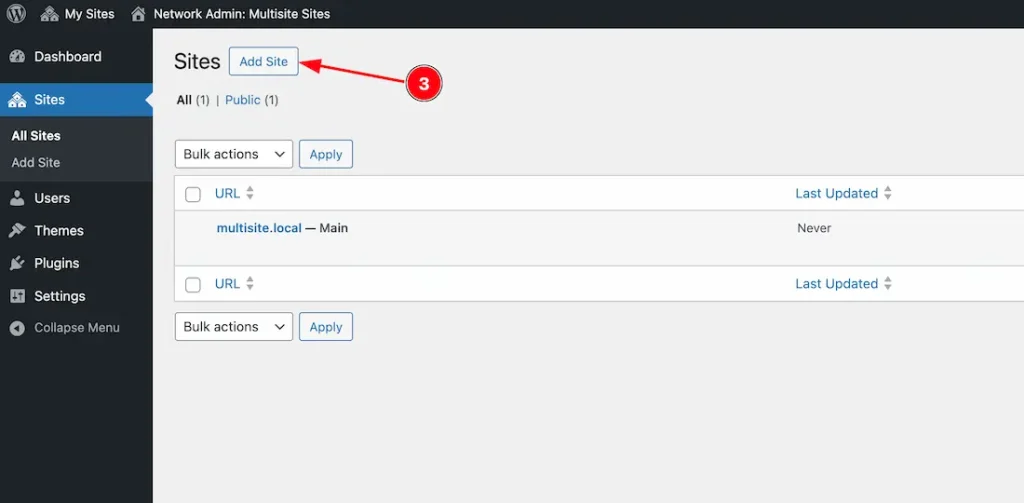
3. Click on the “Add Site” button to add your preferred Multisite.
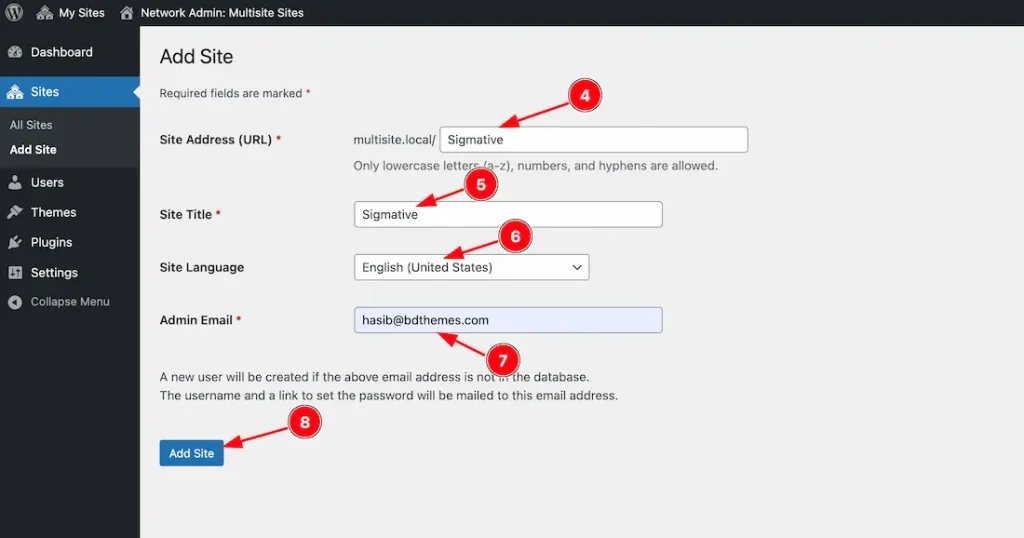
4. Add the Site Address(URL) inside the URL field.
5. Add the Site Title that you prefer.
6. Select the Site Language from the language field.
7. Add your Admin Email inside the email field.
8. Click on the “Add Site” button to add your site.

After adding your sites, your created all sites appear inside the “All Sites” option.
Element Pack Pro Plugin Install and Activation
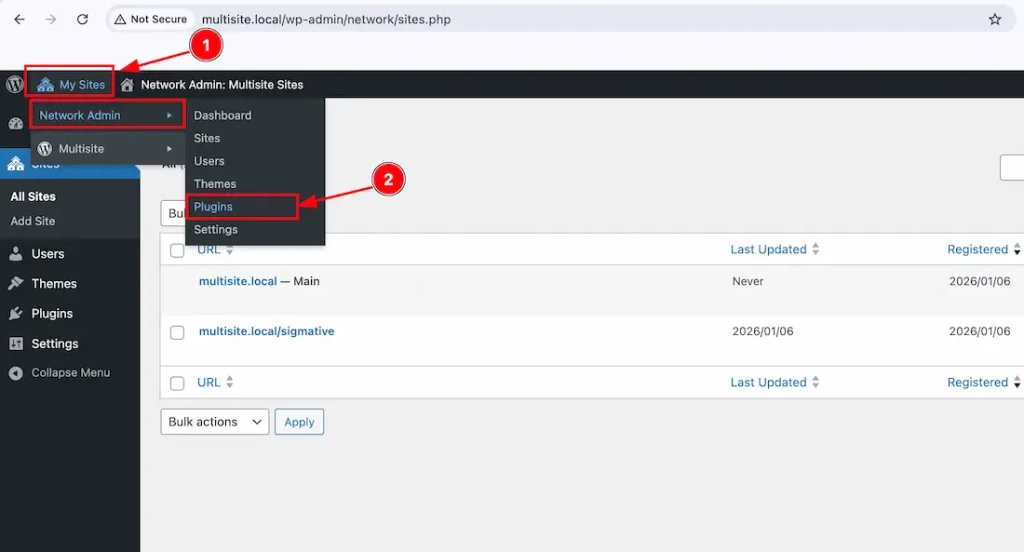
For installing the Element Pack Pro plugin, you need to install the Elementor free version plugin first. just follow the below instructions-
1. Navigate “My Sites” > Network Admin.
2. Network Admin > Plugins.
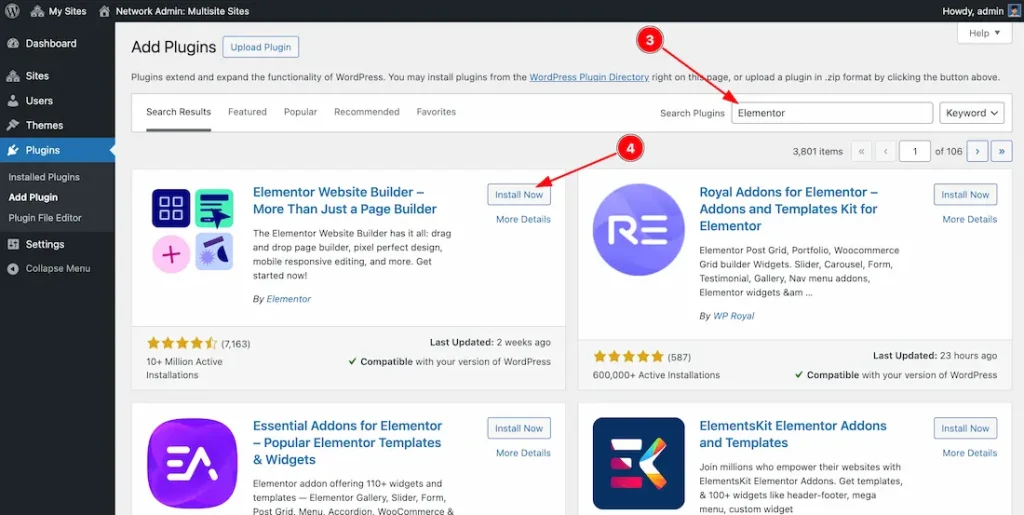
3. Search the “Elementor” keyword inside the search field and the Elementor free plugin will appear.
4. After that, just click on the “Install Now” button to install the free version plugin.
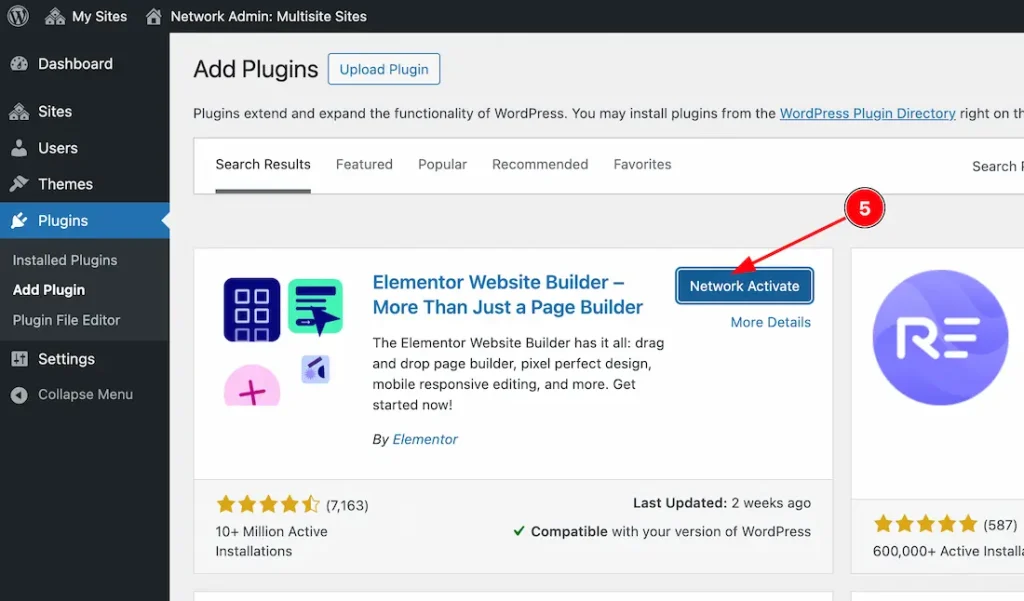
5. After installing the Elementor free version, just clcik on the “Network Activate” button to activate the free version plugin.
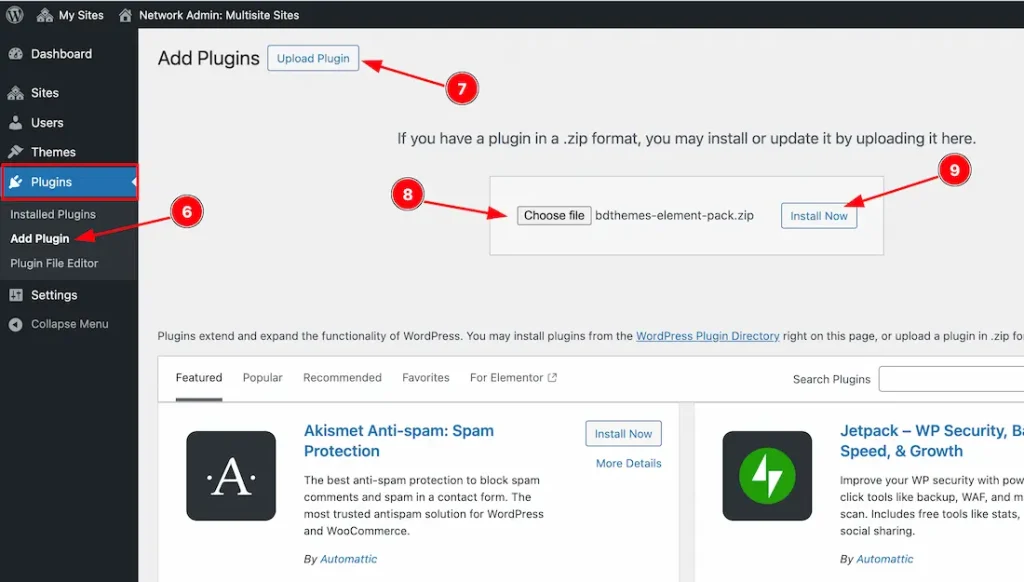
6. Go to the Plugins section > Click on the “Add Plugin” option.
7. Click on the “Upload Plugin” button to upload the Element Pack Pro plugin Zip File.
8. Click the “Choose file” button to choose the Element Pack Pro plugin Zip file.
9. After selecting the Element Pack Pro plugin zip file, just click on the “Install Now” button to install the Element Pack Pro plugin on your site.
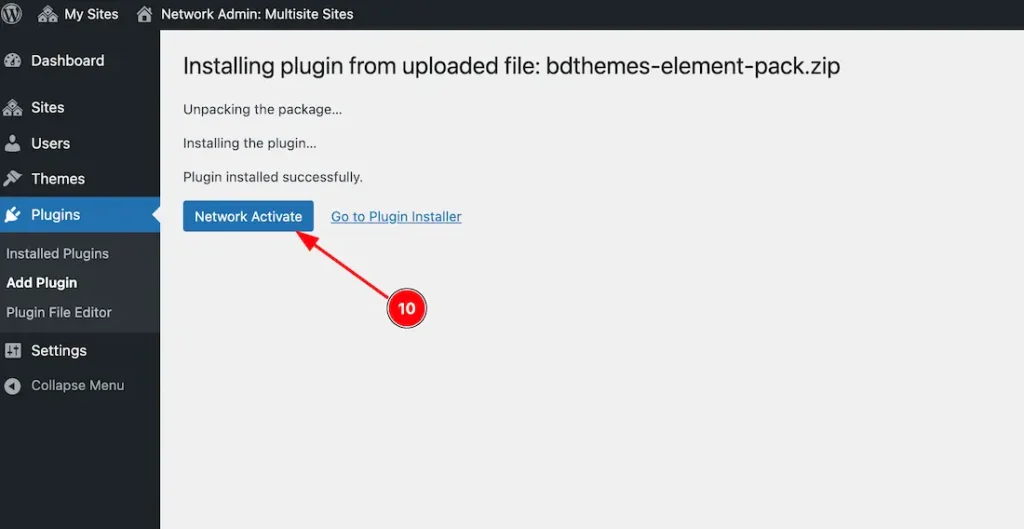
10. After installing the plugin, Just click on the “Network Activate” button to activate the plugin.
Element Pack Pro License Activation on Multisites

After activating the Element Pack Pro plugin, just follow the below instructions to activate the license key on multisites-
- Go to the Element Pack Pro plugin dashabord.
- Click on the License tab section.
- Enter your email address and Agency/Developer license key inside the email and license field.
- Click the “Activate License” button to activate the license key.
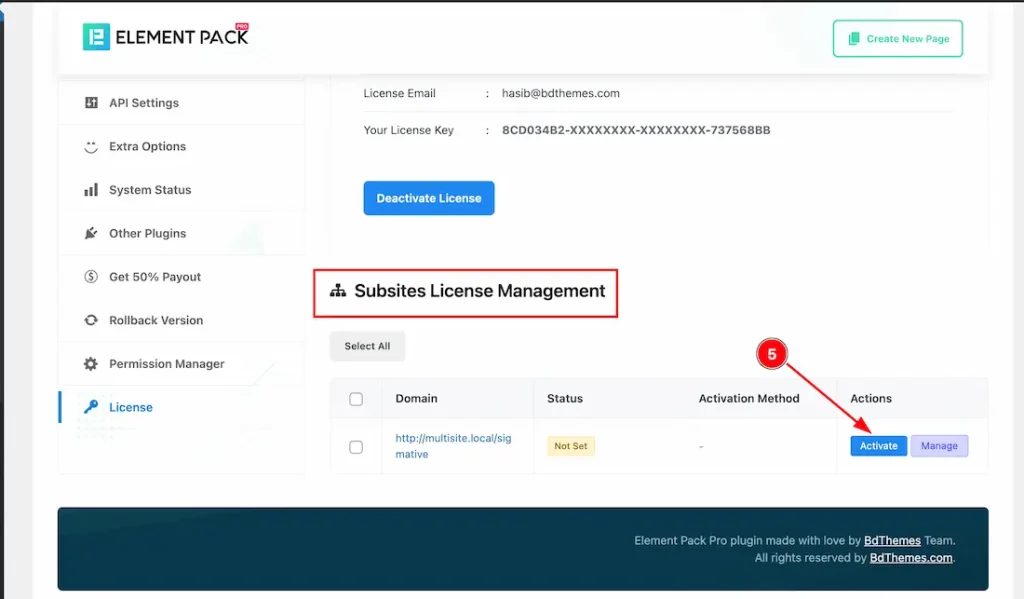
5. After activating the license key, your subsites will appear under the license section. Just click the “Activate” button to activate the license key to your subsites.

6. After clicking on the activate button, you will get the confirmation popup. Just click the “Ok” button to activate the license key to your subsites.
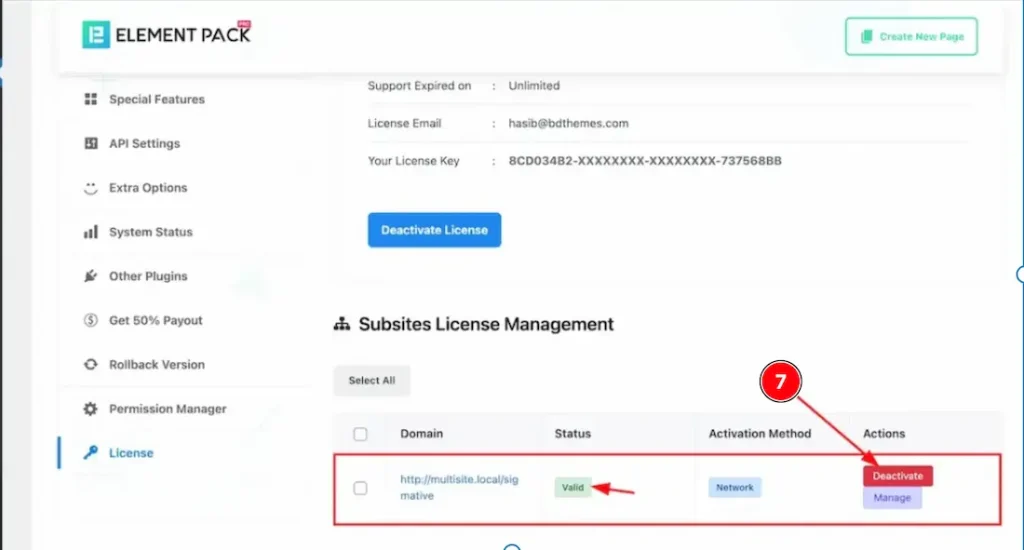
7. If you want, you can deactivate the license key from Subsites, just clcking on the “Deactivate” button.
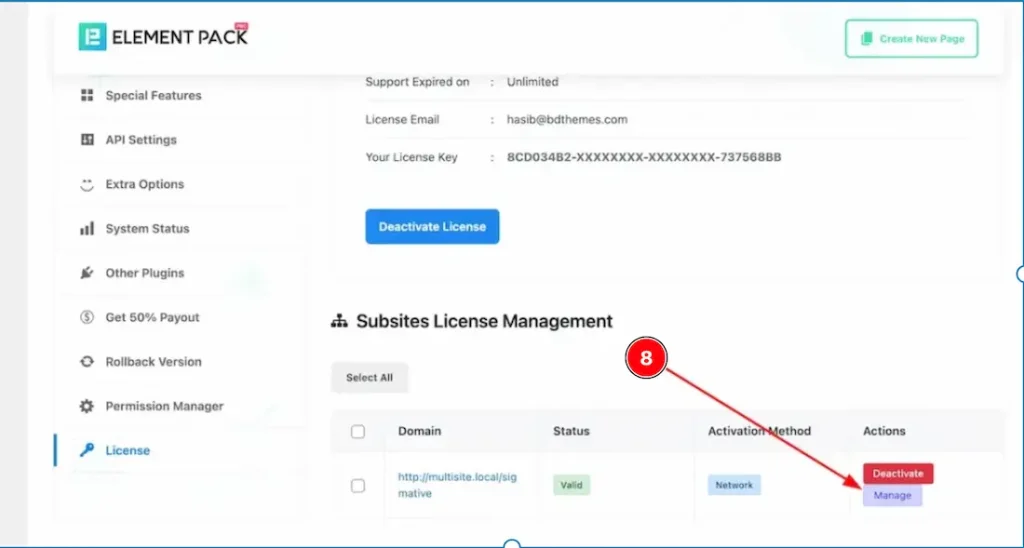
8. You also can manage your subsites from here. Just click on the “Manage” button to manage your subsites.
All done! You have successfully added your license key on your Subsites.
Video Assist
Please watch the video tutorial. I hope the video helps you to use the feature. Thanks for staying with us.

