

The Mega Menu widget allows you to create advanced and highly customizable navigation menus, fully integrated into Element Pack Pro. It helps organize complex site navigation by displaying multiple menu items, layouts, and content within a single dropdown, improving usability and user experience. In this documentation, we will explore the customization options of the Mega Menu widget provided by Element Pack Pro for Elementor.
Enable The Mega Menu Widget
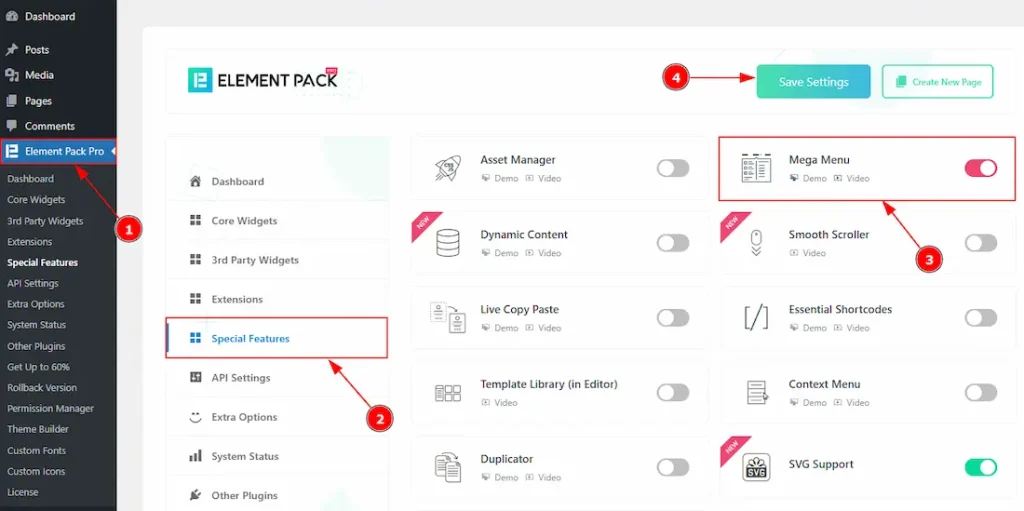
To use the Mega Menu widget from Element Pack Pro, first, you have to enable the widget. The Mega Menu is placed in two tabs of the Element Pack Pro dashboard. These are Special Features & Core Widgets. Let’s start with the Special Feature tab first –
- Go to WordPress dashboard → Element Pack Pro Plugin dashboard.
- Then, Click the Special Features Tab.
- Enable the Mega Menu Widget.
- Hit the Save Settings Button.
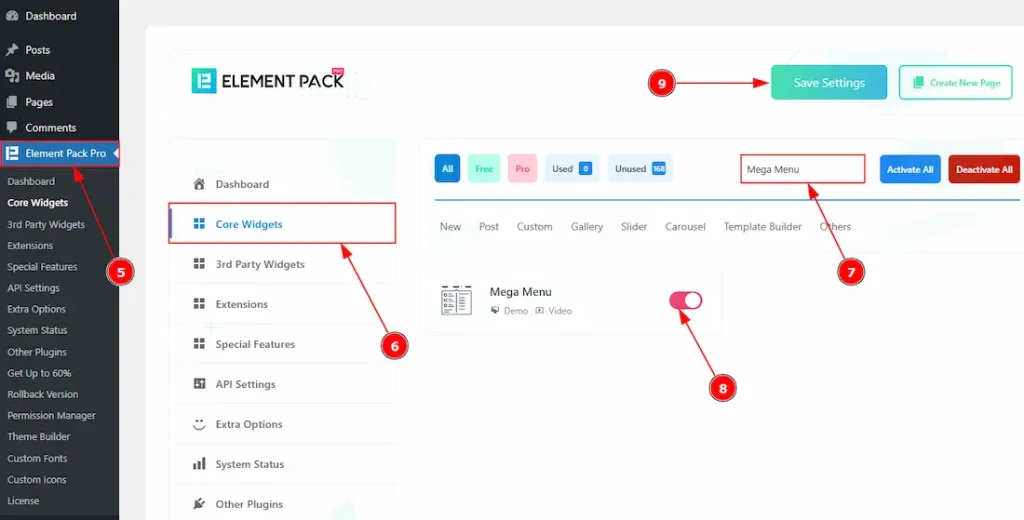
Now, let’s go to the Core Widgets tab –
- Go to WordPress dashboard → Element Pack Pro Plugin dashboard.
- Then, Click the Core Widgets Tab.
- Search for the Mega Menu widget.
- Enable the Mega Menu Widget.
- Hit the Save Settings Button.
Creating The Mega Menu
Go to Appearance → Menus
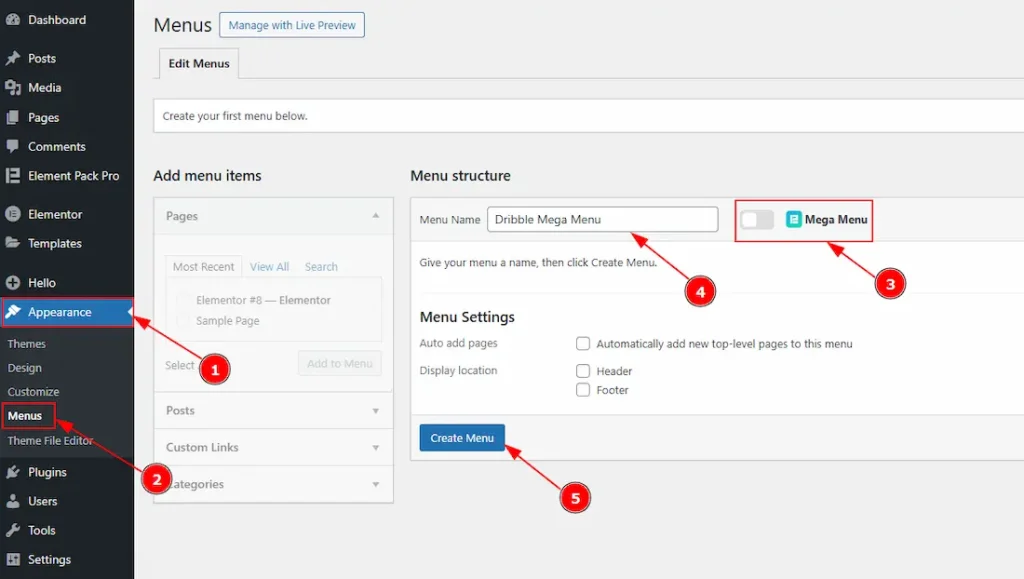
After enabling the Mega Menu widget, you need to create the Mega Menu first to make it visible on your editor. The menu must be created in themes. For creating the menu, please follow the steps below –
1. Go to WordPress dashboard → Appearance.
2. Then, Click on the Manus Tab.
3. The Mega Menu will appear here if you have enabled the widget on both the special features & core widgets tab from the Element Pack Pro dashboard.
4. Here, you can input the name of the menu that you want to create.
5. Click on the “Create menu” button to complete the creation of the menu.
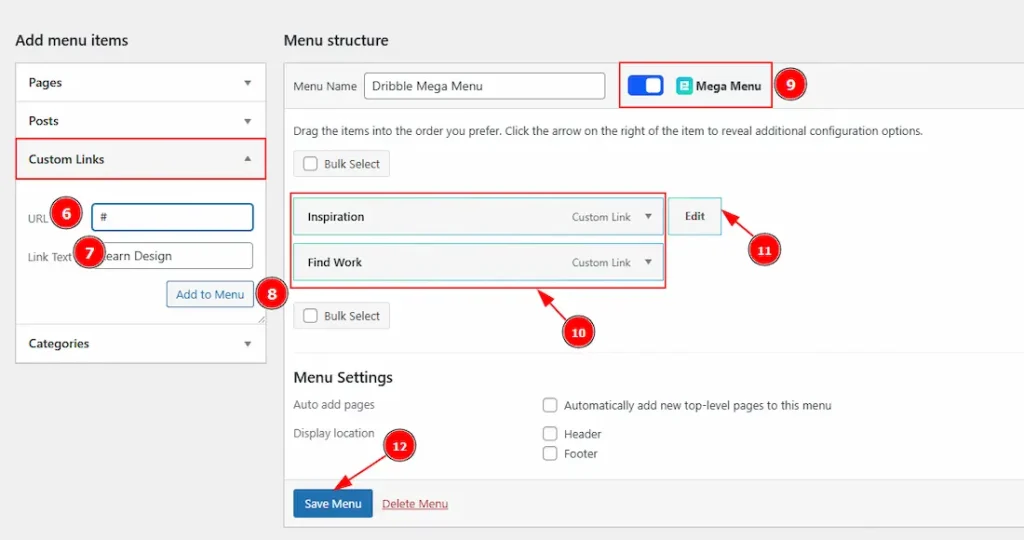
As the menu is created now, you have to create the items for the menu. Go to Custom Links & let’s see how to create the menu items –
6. URL: Here, you have to add the URL link of the item page that you want to add.
7. Link Text: You can add and make changes to the item title with this option.
8. Add to Menu: Click on the Add to Menu button to add the item to the menu that you have created.
9. Mega Menu: Enable the feature to get options to edit na menu items.
10. Items: These are the items that you have created on the custom links to show as menus.
11. Edit: You will get to customize the menu item with this option. This option will be visible only when the mega menu is enabled. (Please check number 9)
12. Save Menu: Click on the Save Menu button to apply the changes that you have made and save the changes.
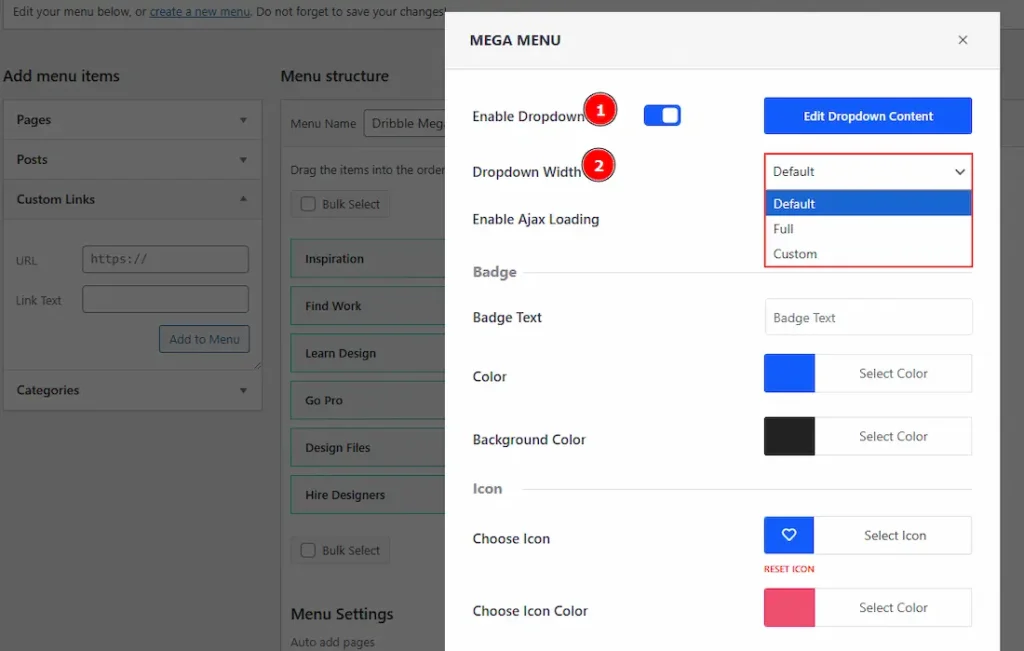
After clicking on the Edit button that is placed on the right of the item, you will see a pop up appearing with the customization option. Let’s see what options are available to customize –
1. Enable Dropdown: Enable the dropdown to add more items on this item. (By clicking on the Wdit Dropdown Content button a new editor will open to add sub menu to the items. We will discuss it below.)
2. Dropdown Width: You can select the dropdown bar width with this option. The available options are Default, Full & Custom. With the custom option, you can add the width value that you prefer for your dropdown content.
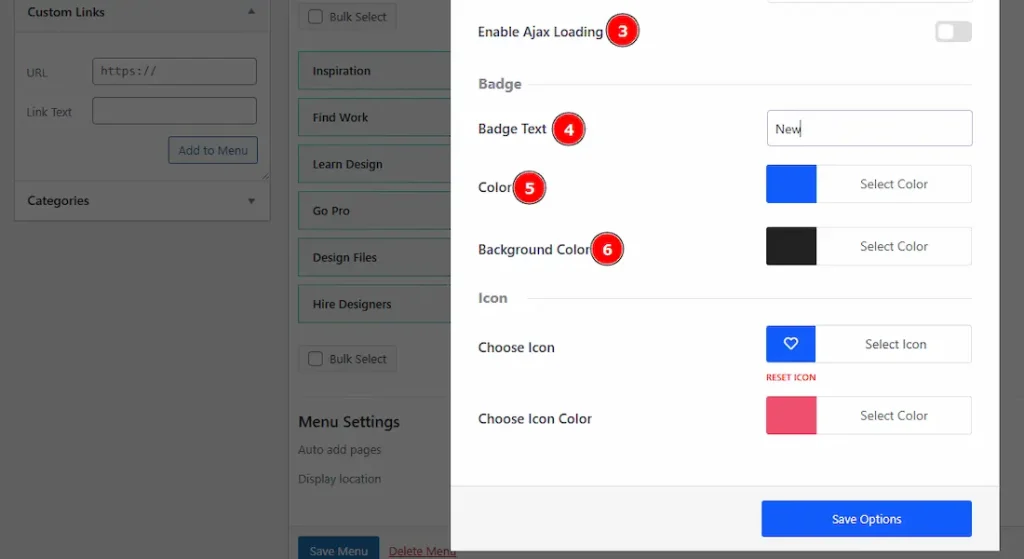
3. Enable Ajax Loading: Enable the switcher to work with the dropdown content to make the performance smooth and fast.
4. Badge Text: You can add & make changes to the badge text with this option.
5. Color: You can make changes to the badge text color with this option.
6. Background Color: You can make changes to the badge background color with this option.
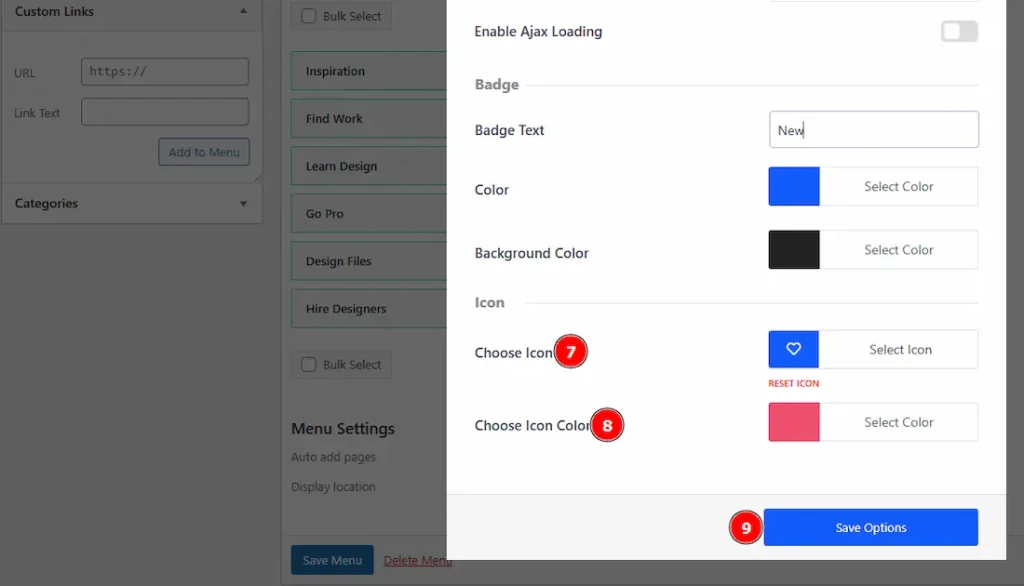
7. Choose Icon: You can select the icon that you want to show with the title here.
8. Choose Icon Color: You can make changes to the icon color with this option.
9. Save Options: Make sure to click on the save options button to apply the changes that you have made.
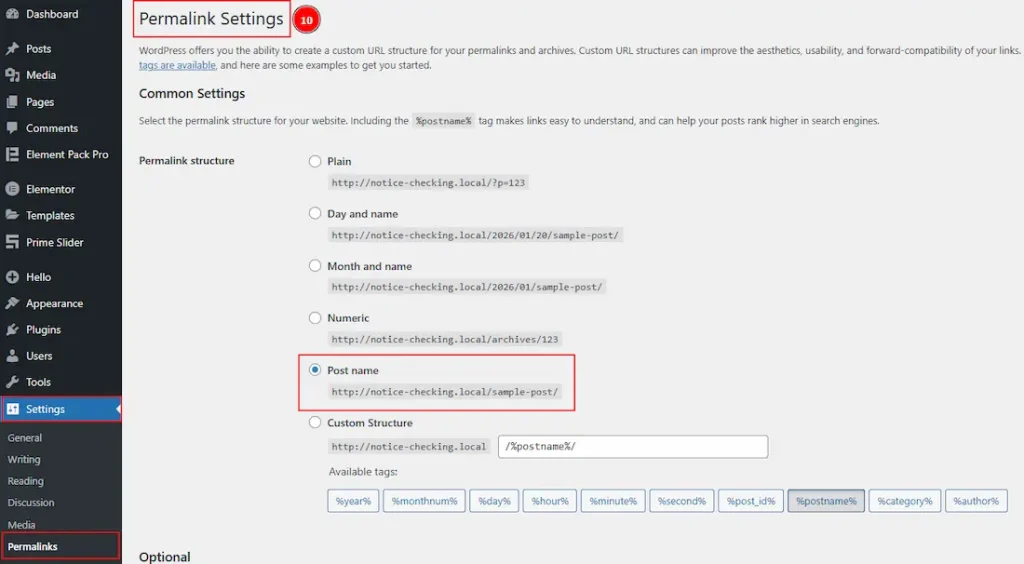
10. To avoid any issues like a 404 error or page can’t be reached while you click on the Edit Dropdown Content, make sure to go to Settings → Permalinks and reset the permalink to Post name option first.
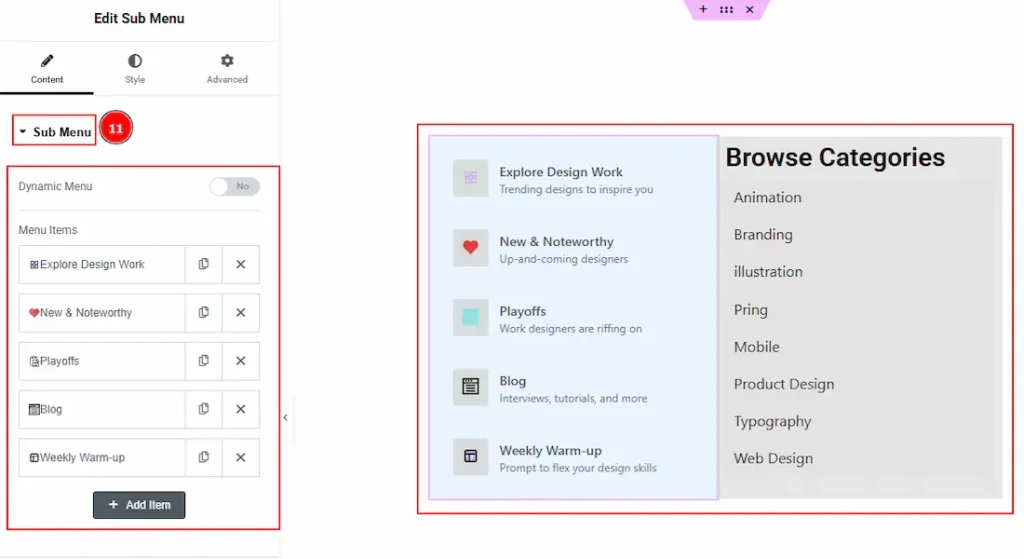
On the item editing pop-up, when you have clicked on the Edit Dropdown Content, a new editor will open and here you have to customize the content that you want to be visible under the item menu.
11. Here we have inserted & created the sub menu to add it as a dropdown content of the Inspiration menu item. If you want to know about the customization of the Sub Menu, please visit this doc.
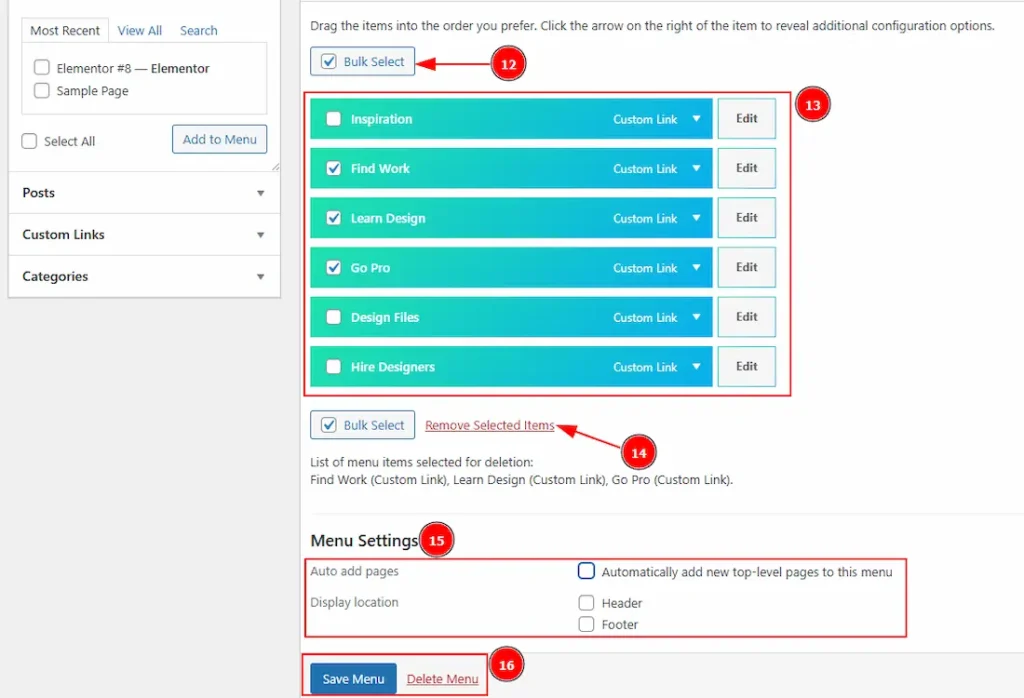
12. You can select all the items at once by clicking on this Bulk Select option.
13. This is the list of the items that will show as a mega menu item. As we have enabled the dropdown content, the items are showing decorative.
14. You can remove the selected items that you have selected by bulk selection with this option.
15. You can select the menu display location and the option to auto-add to the page in this field.
16. You can apply the changes that you have made to the items by clicking on the save menu button, and by clicking on the delete menu button, you can delete the items all at once.
Inserting The Mega Menu Widget
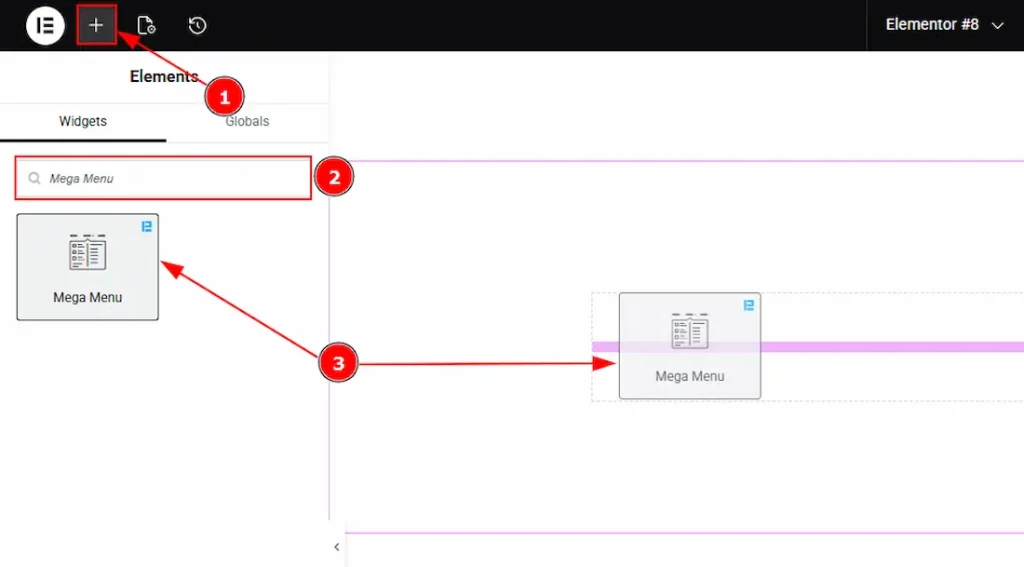
1. Go to the Elementor Editor Page and hit the “+” icon Button.
2. Search the Mega Menu name.
3. Drag the widget and drop it on the editor page.
Work With The Content Tab
Layout Section
Go to Content → Layout
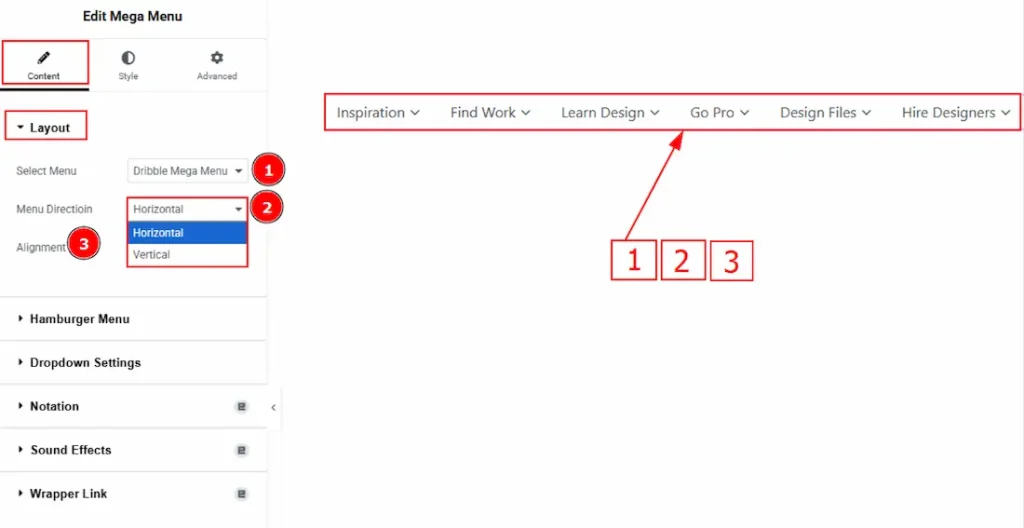
1. Select Menu: You can select the menu that you have created on the Appearance tab with this option.
2. Menu Direction: You can select the direction style of the menu with this option. The available directions are Horizontal & Vertical. If you select the horizontal menu direction, you will see the upper visual.
3. Alignment: You can set the horizontal menu position to left, center, or right with this option.
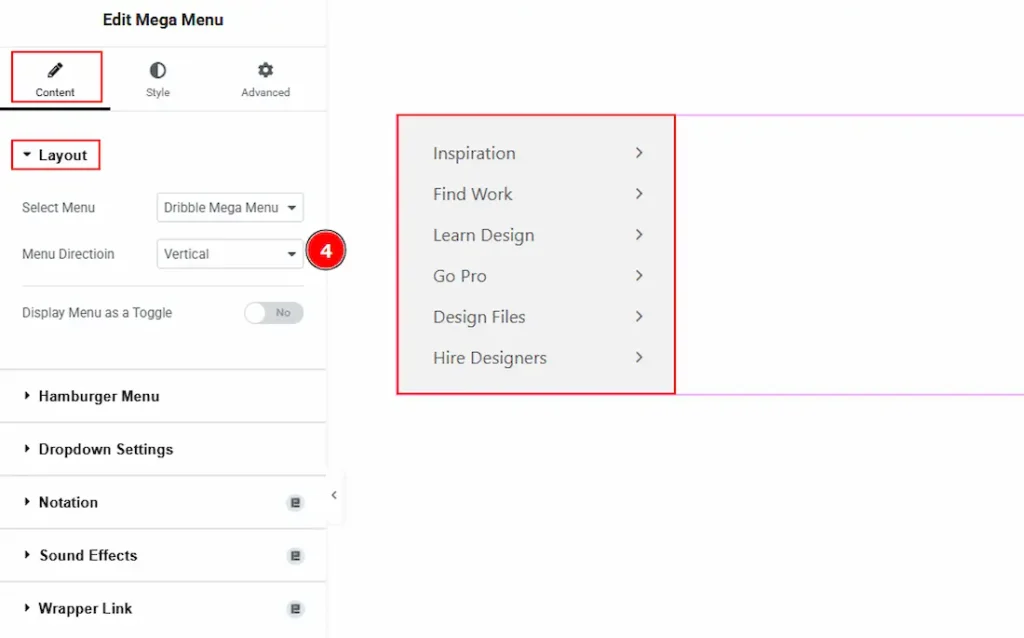
4. Menu Direction: If you have selected the menu direction as vertical, you will get to see the upper visual.
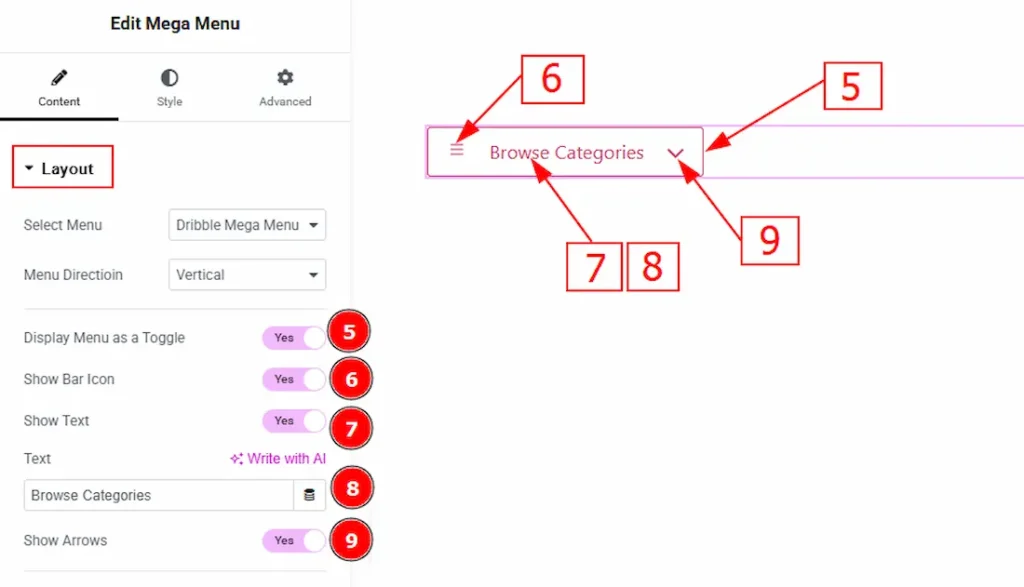
5. Display Menu as a Toggle: Enable the switcher to show the vertical menu as a toggle.
6. Show bar Icon: Enable the switcher to show the bar icon on the vertical toggle menu.
7. Show Text: Enable the switcher to show the text on the vertical toggle menu.
8. Text: You can make changes to the text that will be visible to the toggle vertical menu with this option.
9. Show Arrows: Enable the switcher to show the arrow icon on the toggle vertical menu.
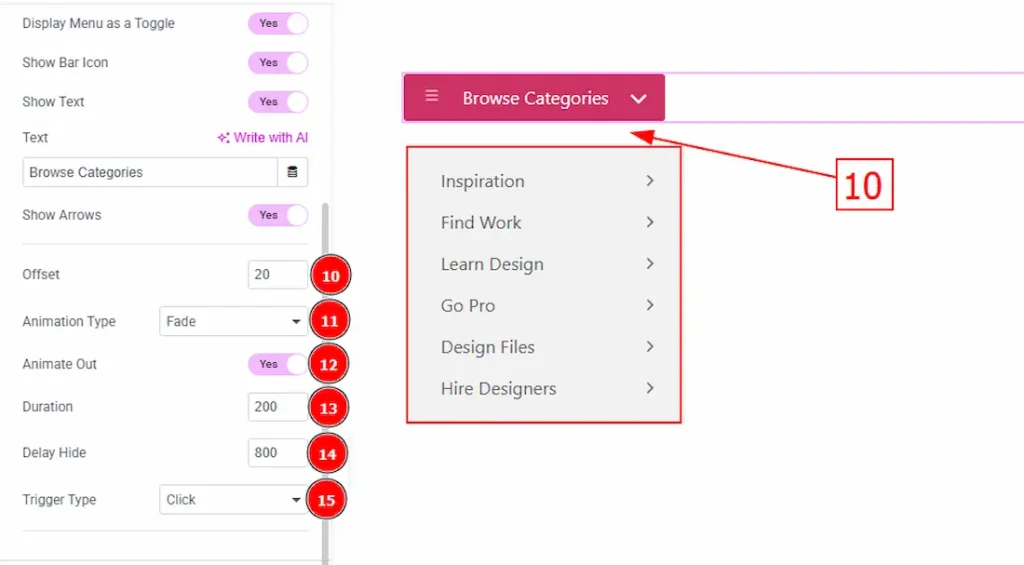
10. Offset: You can adjust the space vertically between the toggle and the dropdown content with this option.
11. Animation Type: You can select the animation type that will happen while the dropdown content is open.
12. Animate Out: Enable the feature to animate while closing the dropdown content.
13. Duration: This option defines how long the closing animation takes.
14. Delay Hide: You can add a delay time (in milliseconds) before the menu starts closing after the trigger is lost (e.g., mouse leaves).
15. Trigger Type: You can select how the dropdown content will appear with this option. The available trigger types are on click & on hover.
Hamburger Menu Section
Go to Content → Hamburger Menu
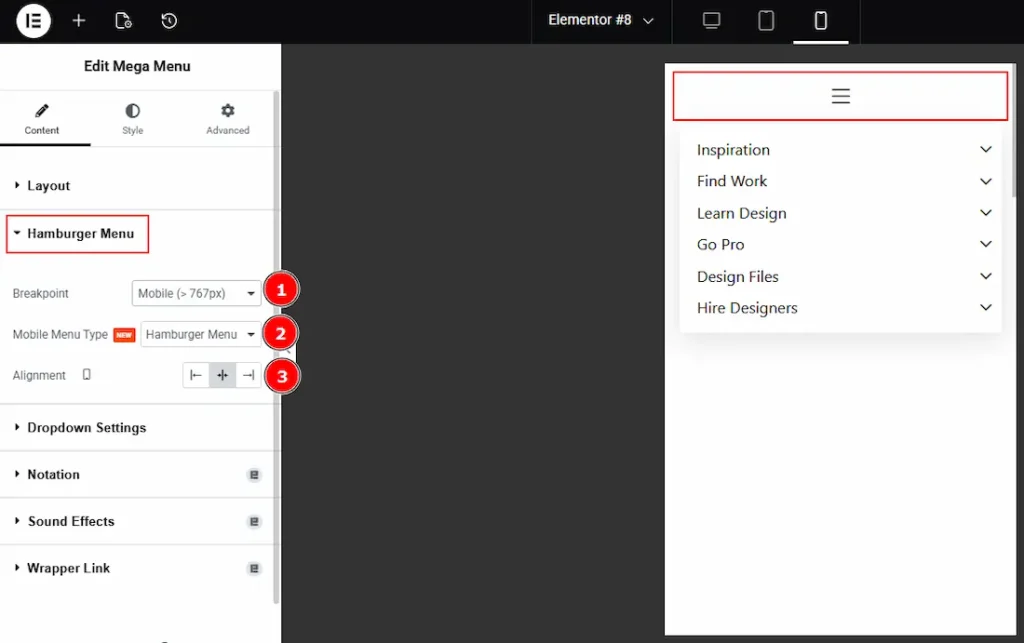
1. Breakpoint: This option defines the screen size at which the mega menu converts into a hamburger menu. You can select between the Tablet, Mobile & None.
2. Mobile Menu Type: This option allows you to choose the mobile menu type as Hamburger Menu or Offcanvas Menu. If you select the mobile menu type as Hamburger, you will see the upper visual.
3. Alignment: You can adjust the position of the hamburger menu icon with this option.
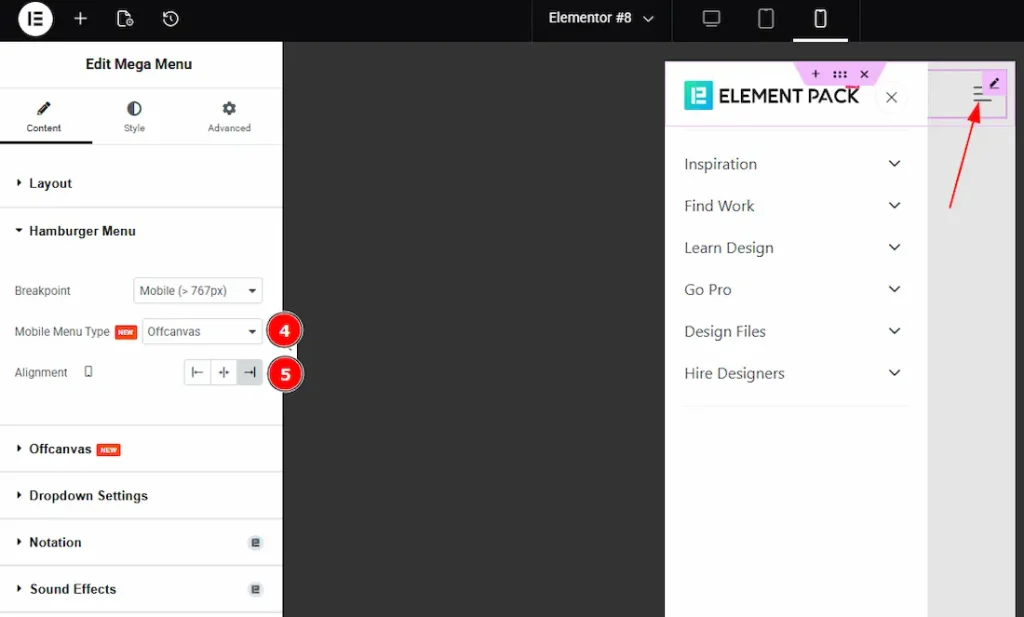
4. Mobile Menu type: If you select the mobile menu type as Offcanvas, you will see the upper visual of the menu bar.
5. Alignment: You can adjust the position of the off-canvas mobile menu icon with this option.
Offcanvas Section
Go to Content → Offcanvas
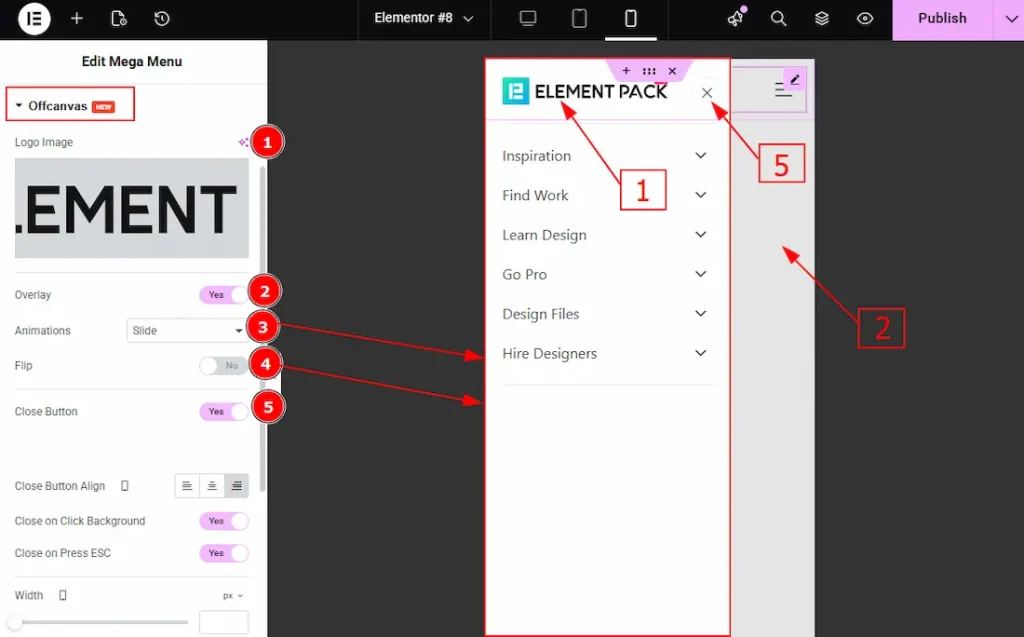
1. Logo Image: You can ad logo image to your offcanvas menu with this option.
2. Overlay: Enable the switcher to create a semi-transparent background overlay behind the off-canvas panel.
3. Animation: This option controls how the off-canvas menu enters and exits the screen. You can select the animation style between slide, push, reveal & none.
4. Flip: Enable the switcher to allow the off-canvas panel to open from the opposite direction (for example, right instead of left)
5. Close Button: Enable the switcher to show the close button to your audience.
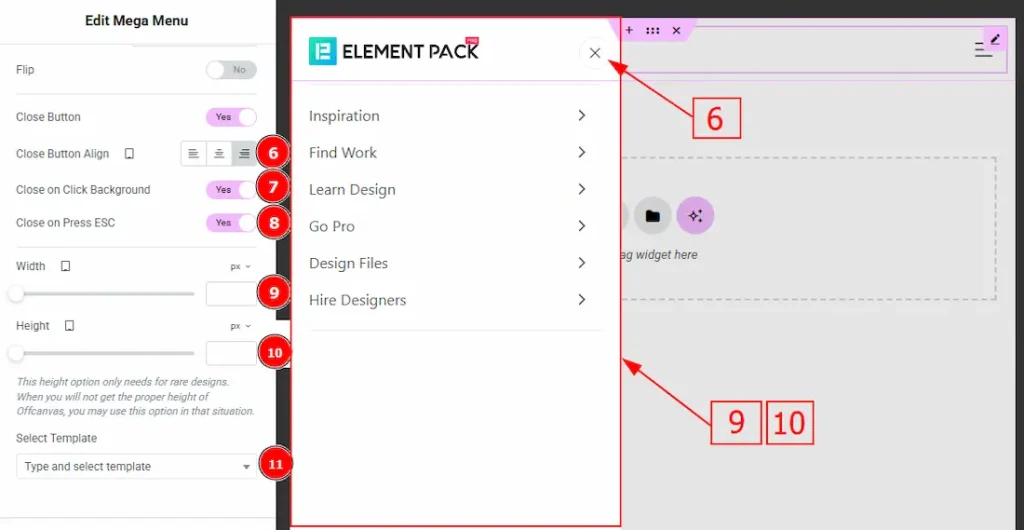
6. Close Button Alignment: This option defines the alignment of the close button within the off-canvas panel. You can choose between left, center, or right.
7. Close on Click Background: When enabled, clicking on the overlay/background outside the off-canvas panel will close the menu.
8. Close on Press Esc: Enable the switcher to allow users to close the off-canvas menu by pressing the Esc key on their keyboard.
9. Width: You can adjust the width of the off-canvas panel with this option.
10. Height: You can adjust the height of the off-canvas panel with this option.
11. Select Template: This option lets you choose an Elementor template to load inside the off-canvas menu.
Dropdown Settings Section
Go to Content → Dropdown Settings
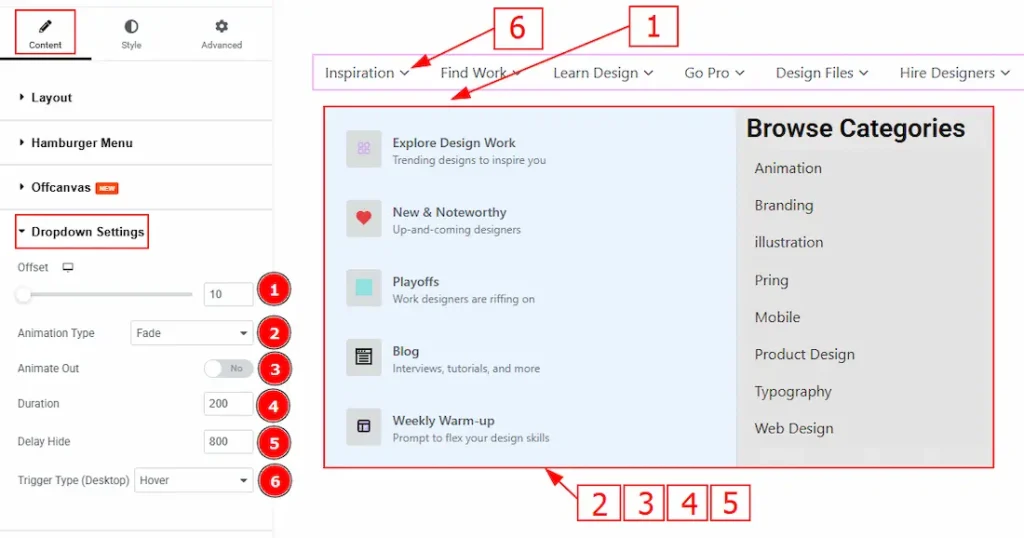
1. Offset: You can adjust the space vertically between the menu and the dropdown content with this option.
2. Animation Type: You can select the animation type that will happen while the dropdown content is open & close with this option. Choose the animation type from this option.
3. Animate Out: Enable the feature to animate while closing the dropdown content.
4. Duration: This option defines how long the closing animation takes.
5. Delay Hide: You can add a delay time (in milliseconds) before the menu starts closing after the trigger is lost (e.g., mouse leaves).
6. Trigger Type: You can select how the dropdown content will appear with this option. The available trigger types are on click & on hover.
Style Tab Customization
Menu Items Section
Go to Style → Menu Items
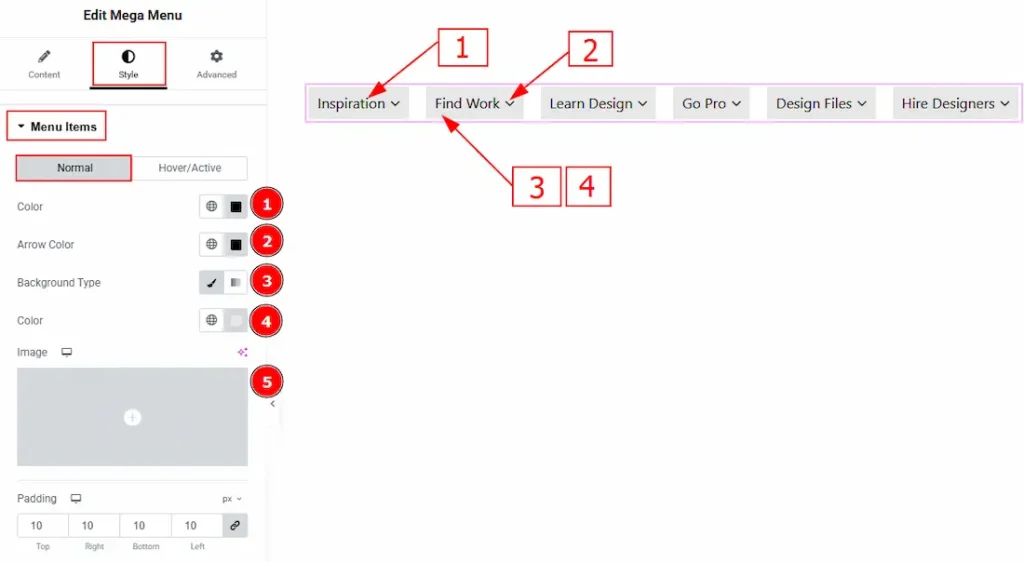
In this section, we have two more tabs. These are Normal & Hover. Let’s start describing the Normal Tab first –
1. Color: You can change the mega menu items text color with this option.
2. Arrow Color: You can make changes to the arrow color with this option.
3. Background Type: You can select the background type as classic or gradient with this option. Here we have selected the background type as classic.
4. Color: You can change the menu items background color with this option.
5. Image: You can add and make changes to the background image with this option.
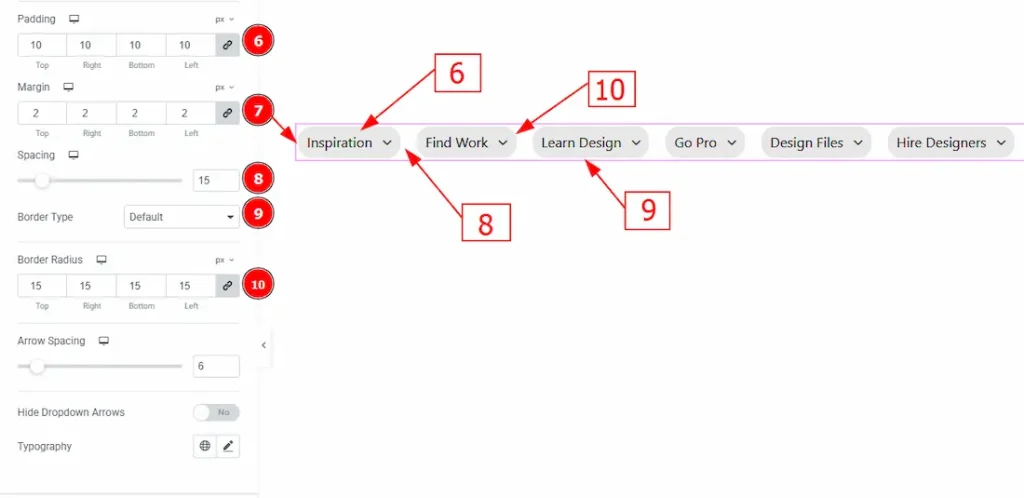
6. Padding: You can adjust the inner space of the menu items with this option.
7. Margin: You can adjust the space around the menu items with this option.
8. Spacing: You can adjust the space between the menu items with this option.
9. Border Type: You can add and change the border type of the menu items with this option.
10. Border Radius: This option controls the roundness of the border.
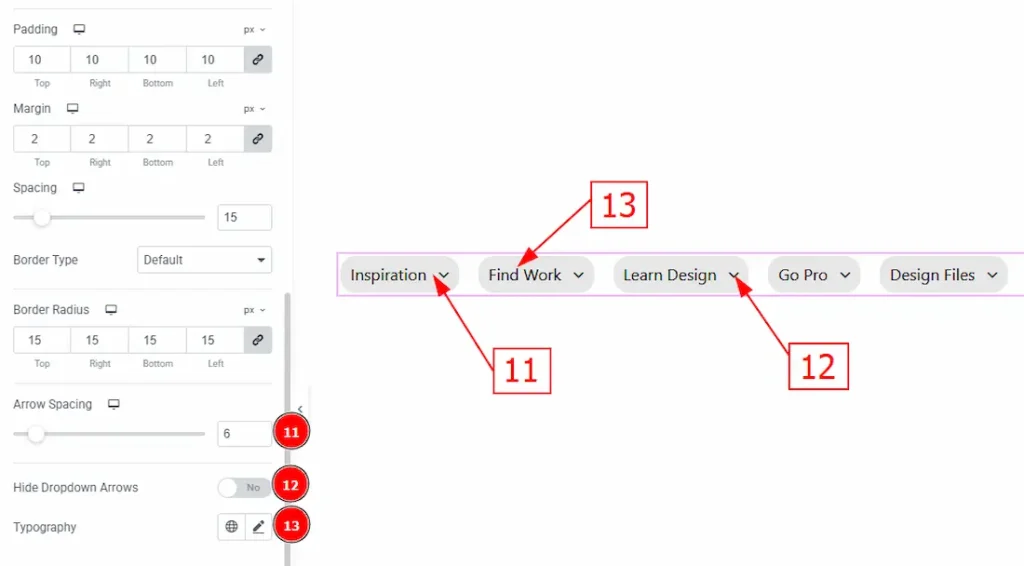
11. Arrow Spacing: You can adjust the space between the menu items and the dropdown arrow with this option.
12. Hide Dropdown Arrows: Enable the switcher to remove the dropdown arrow icon from the menu items.
13. Typography: Change the font family, size, weight, transform, style, decoration, line height, letter spacing, and word spacing from here.
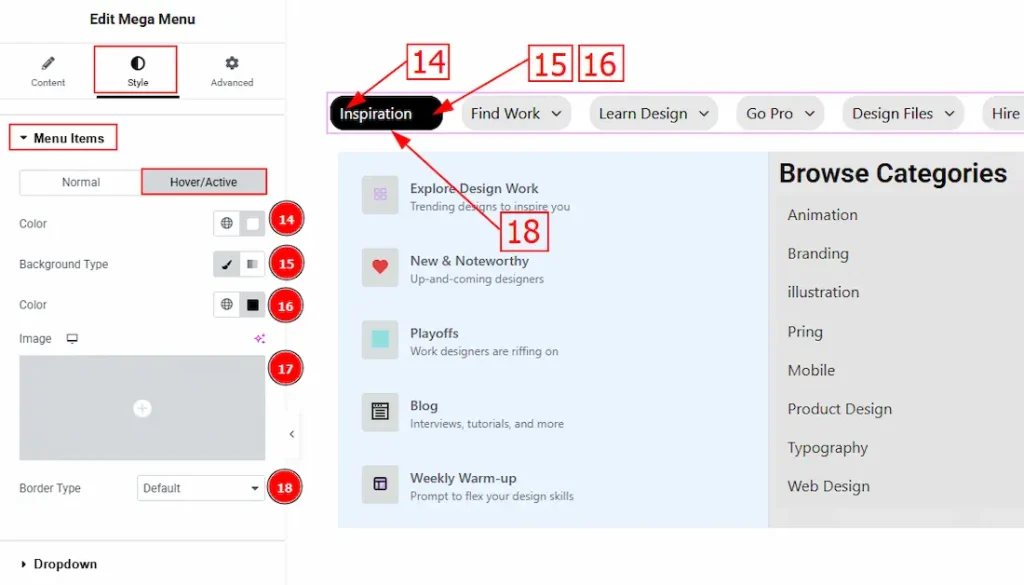
Now let’s proceed to the Hover Tab –
14. Color: You can change the menu items text hover color with this option.
15. Background Type: You can choose the background type from classic or gradient with this option.
16. Color: You can change the menu items background hover color with this option.
17. Image: You can add or change the background hover image with this option.
18. Border Type: You can add & customize the item border with this option.
Dropdown Section
Go to Style → Dropdown
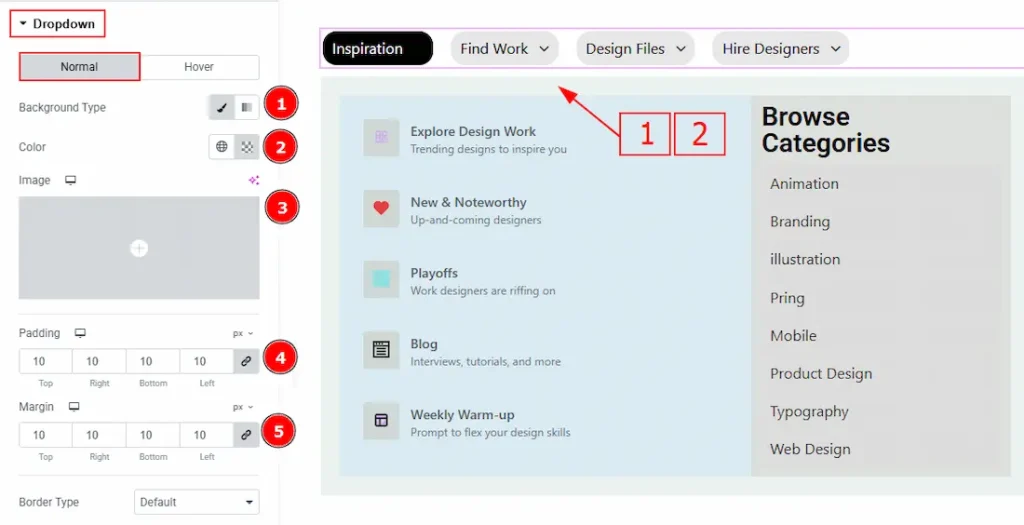
1. Background Type: You can change the background type to classic or gradient with this option.
2. Color: You can change the dropdown panel background color with this option.
3. Image: You can change the background image with this option.
4. Padding: You can adjust the inner space of the dropdown popup with this option.
5. Margin: You can adjust the space around the dropdown popup with this option.
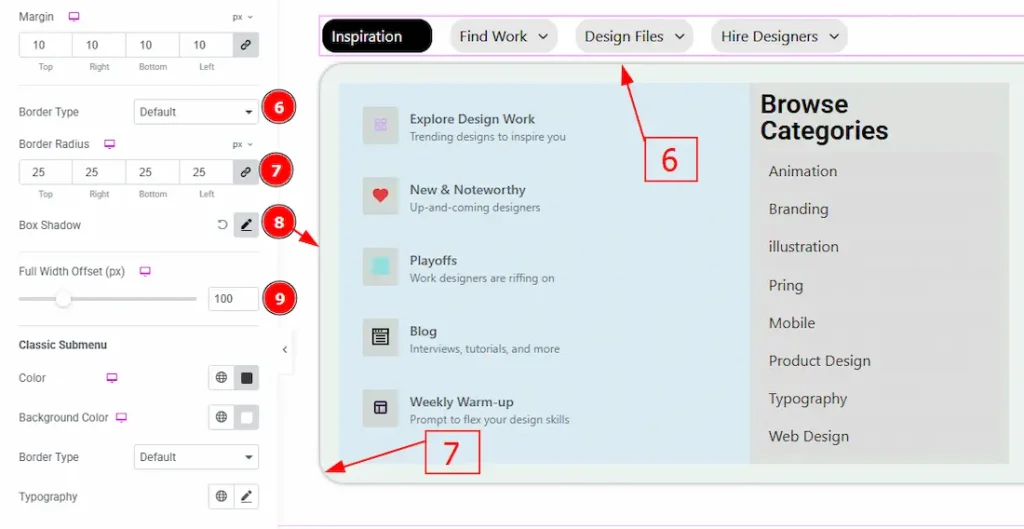
6. Border Type: You can add & customize the border of the dropdown panel with this option.
7. Border Radius: This option controls the roundness of the border.
8. Box Shadow: You can add a shadow effect to the dropdown content with this option.
9. Full Width Offset: You can move the dropdown content panel horizontally with this option.
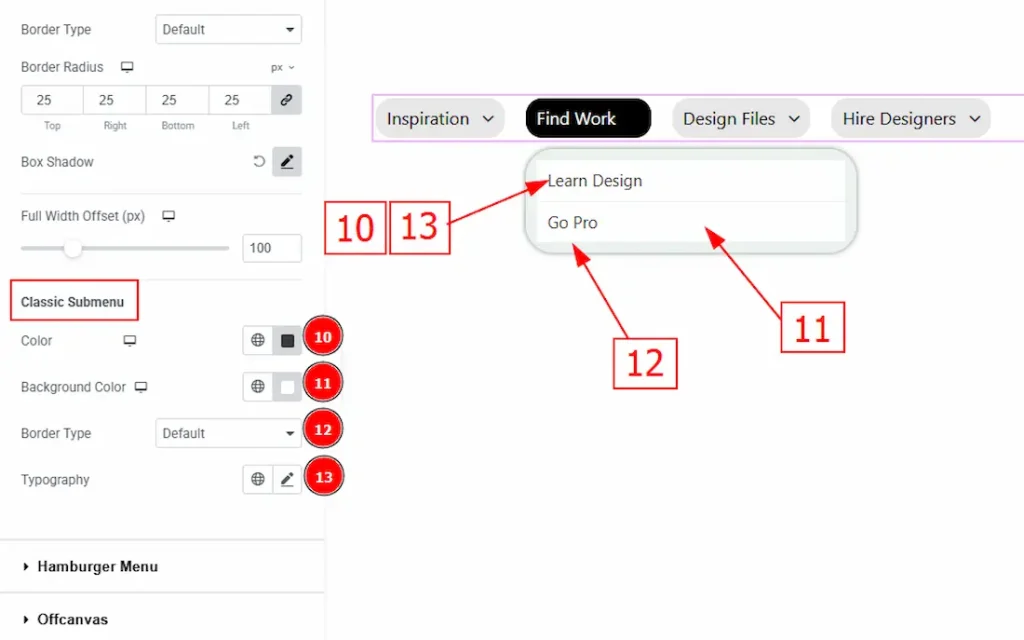
10. Color: You can make changes to the submenu text color with this option.
11. Background Color: You can change the background color of the submenu with this option.
12. Border Type: You can choose the border type of the submenu and change it’s type with this option.
13. Typography: Change the font family, size, weight, transform, style, decoration, line height, letter spacing, and word spacing from here.
Hamburger Menu Section
Go to Style → Hamburger Menu
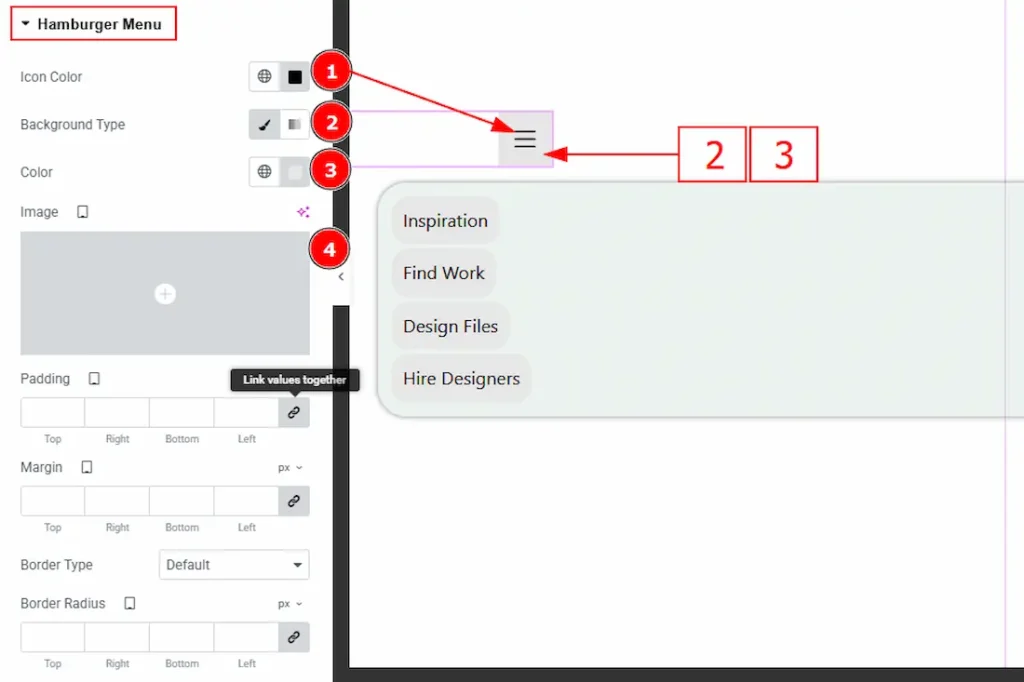
1. Icon Color: You can choose the icon color with this option.
2. Background Type: You can choose the background type as Classic or gradient with this option.
3. Color: You can choose the background color with this option.
4. Image: You can add a background image with this option.
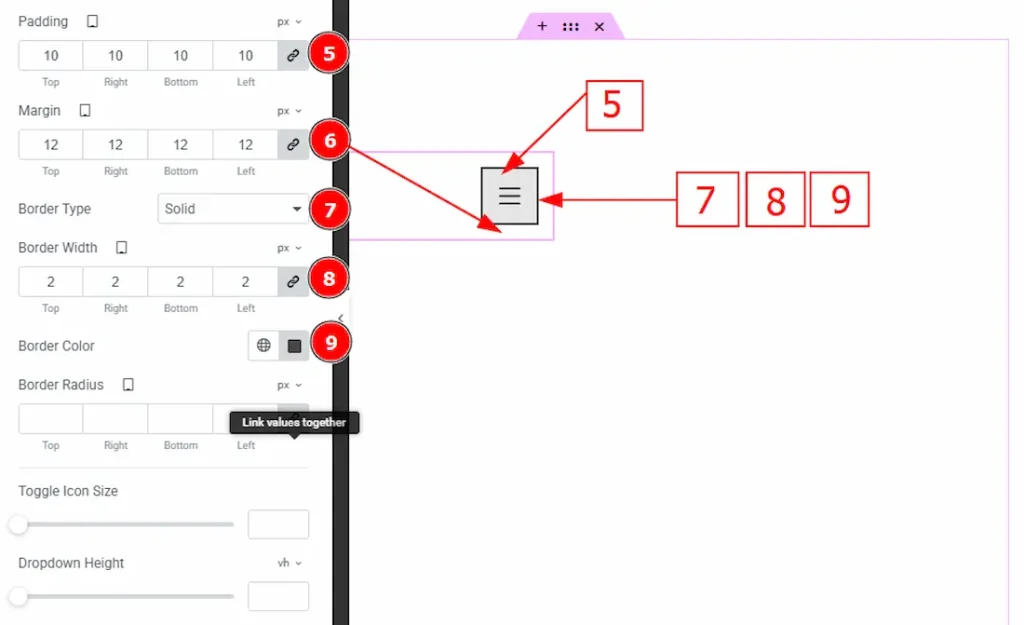
5. Padding: You can adjust the inner space of the hamburger icon with this option.
6. Margin: You can adjust the space of the hamburger icon’s outer space with this option.
7. Border Type: You can add and choose the border type with this option.
8. Border Width: You can adjust the thickness of the border with this option.
9. Border Color: You can change the border color with this option.
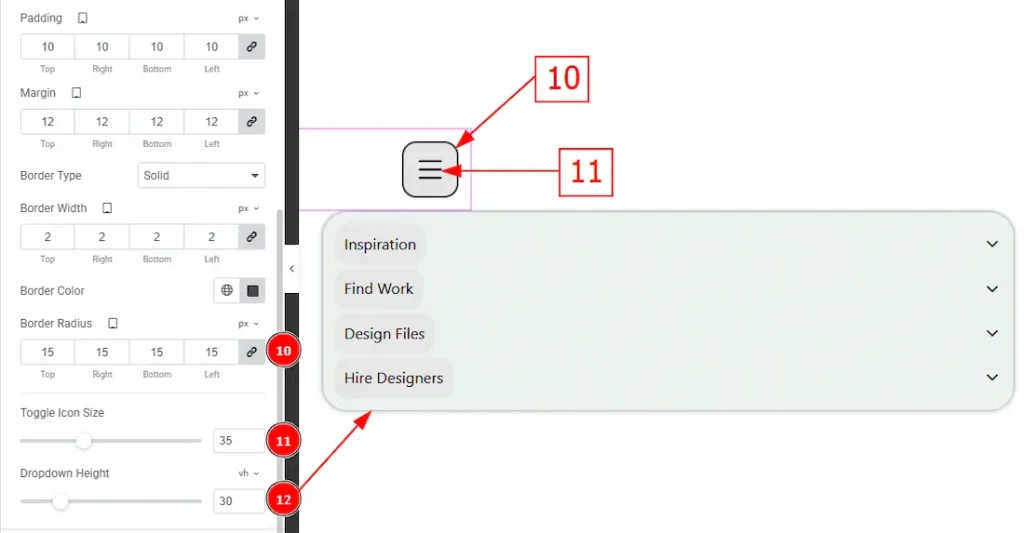
10. Border Radius: You can control the roundness of the border with this option.
11. Toggle Icon Size: You can adjust the hamburger toggle icon size with this option.
12. Dropdown Height: You can adjust the height of the hamburger dropdown content with this option.
Offcanvas Section
Go to Style → Offcanvas
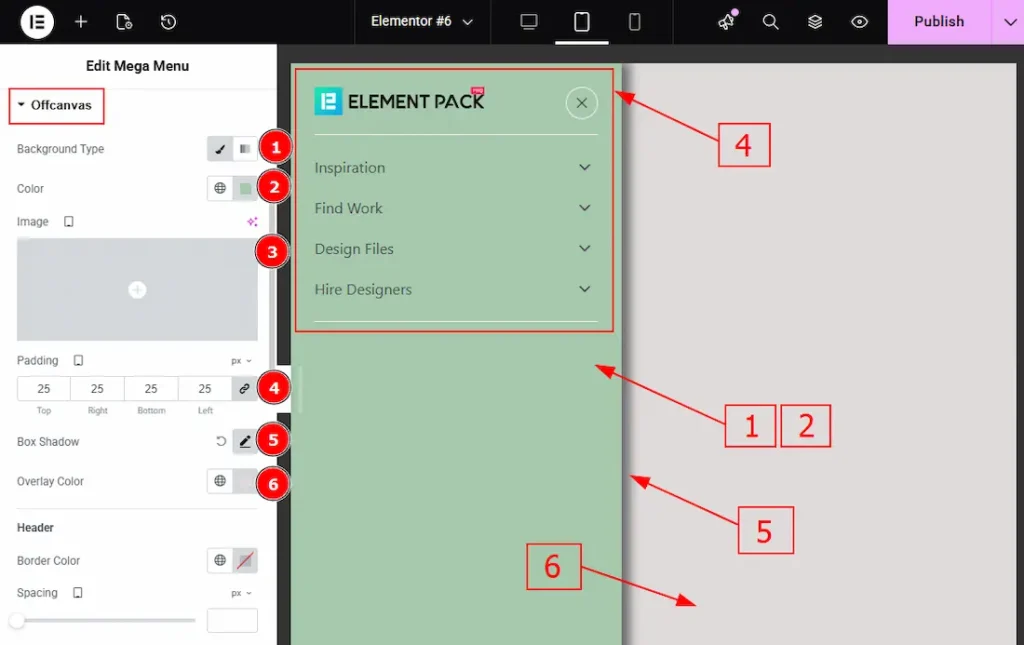
1. Background Type: You can choose the background type as classic or gradient with this option.
2. Color: You can change the background color with this option.
3. Image: You can change the background image with this option.
4. Padding: You can adjust the inner space of the off-canvas menu content with this option.
5. Box Shadow: You can add and customize the shadow effect to the off-canvas bar with this option.
6. Overlay Color: You can make changes to the overlay color with this option.
In this section, we have three more sub-sections. These are Header, Close Icon & Footer. Let’s start describing the sub-sections one by one.
Header Sub Section
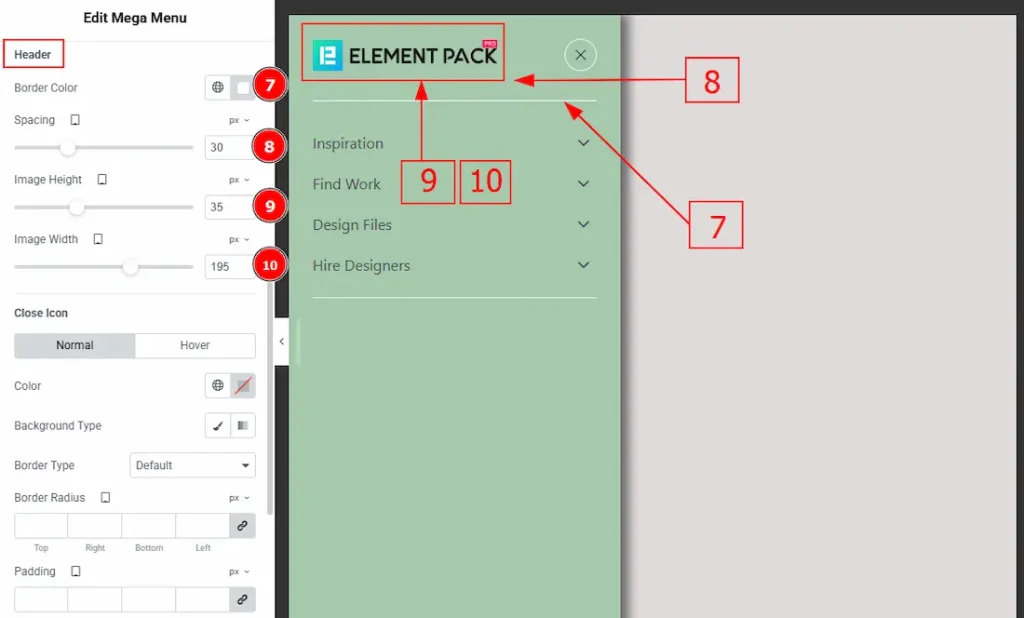
7. Border Color: You can make changes to the off-canvas border color with this option.
8. Spacing: You can adjust the space between the header border & the image with this option.
9. Image Height: You can adjust the height of the logo image with this option.
10. Image Width: You can adjust the width of the logo image with this option.
Close Icon Sub Section
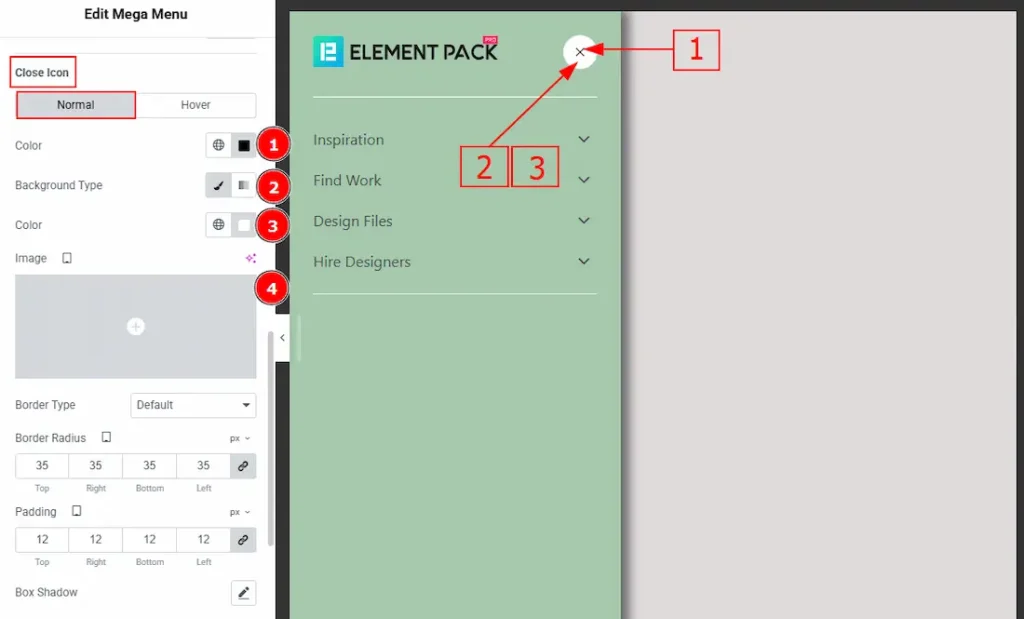
In this section, we have two more tabs. These are Normal & Hover. Let’s start customizing the Normal Tab first –
1. Color: You can make changes to the close icon color with this option.
2. Background Type: You can choose the background between classic or gradient with this option.
3. Color: You can change the background color of the close icon with this option.
4. Image: You can change the background image of the close icon with this option.
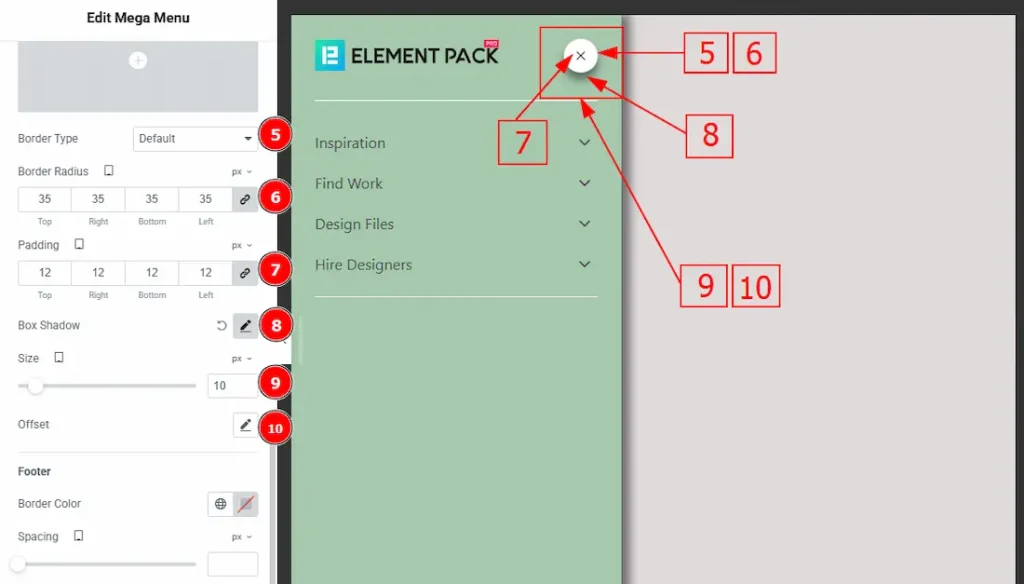
5. Border Type: You can add or change the border type with this option.
6. Border Radius: You can control the roundness of the border with this option.
7. Padding: You can adjust the inner space of the close icon button with this option.
8. Box Shadow: You can add & customize the shadow effect with this option.
9. Size: You can adjust the size of the close icon with this option.
10. Offset: You can move the close icon horizontally & vertically with this option.
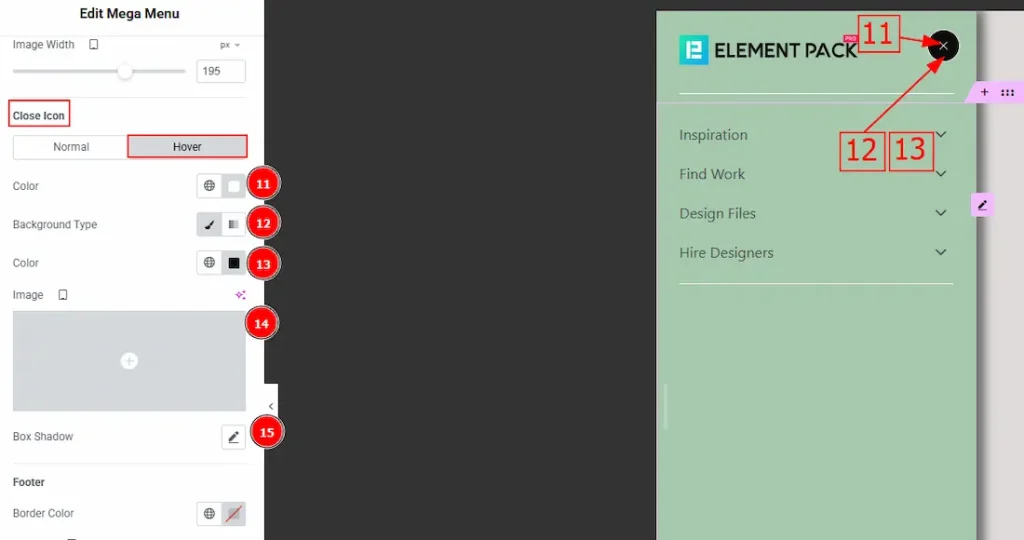
Now, let’s proceed to the Hover Tab –
11. Color: You can change the close icon hover color with this option.
12. Background Type: You can choose the background type between classic and gradient with this option.
13. Color: You can change the close icon background hover color with this option.
14. Image: You can change the background image with this option.
15. Box Shadow: You can add a hover shadow effect to the close icon with this option.
Footer Sub Section
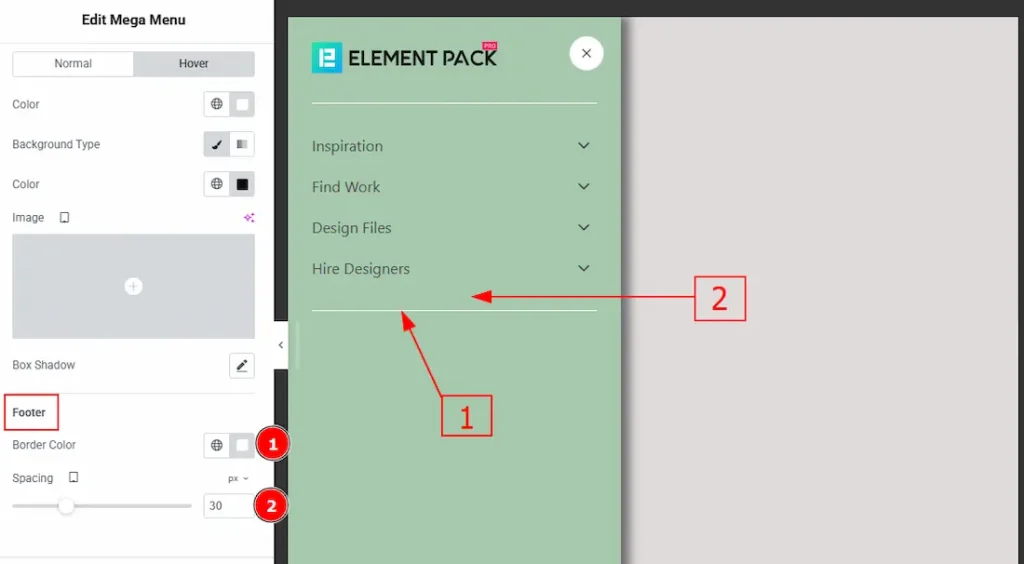
1. Border Color: You can change the footer border color with this option.
2. Spacing: You can adjust the space between the menu & footer border with this option.
Offcanvas Menu Section
Go to Style → Offcanvas Menu
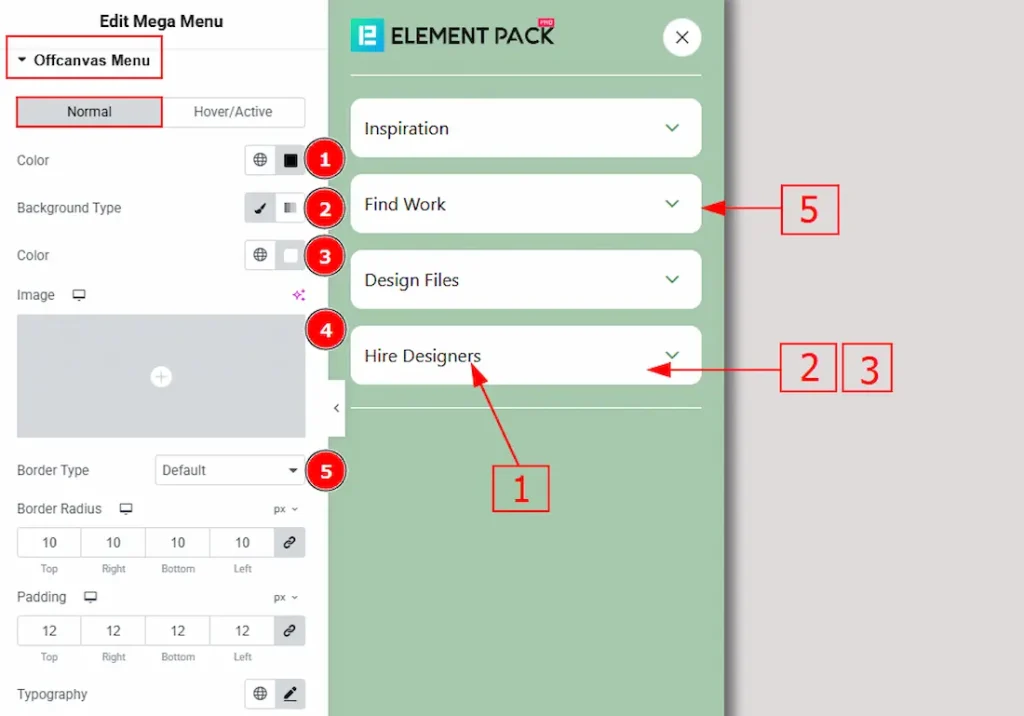
In this section, we have two more tabs. These are Normal & Hover. Let’s start with the Normal Tab first –
1. Color: You can change the off-canvas menu text color with this option.
2. Background Type: You can choose the background type between classic or gradient with this option.
3. Color: You can change the background color with this option.
4. Image: You can change the background image with this option.
5. Border Type: You can add and change border types with this option.
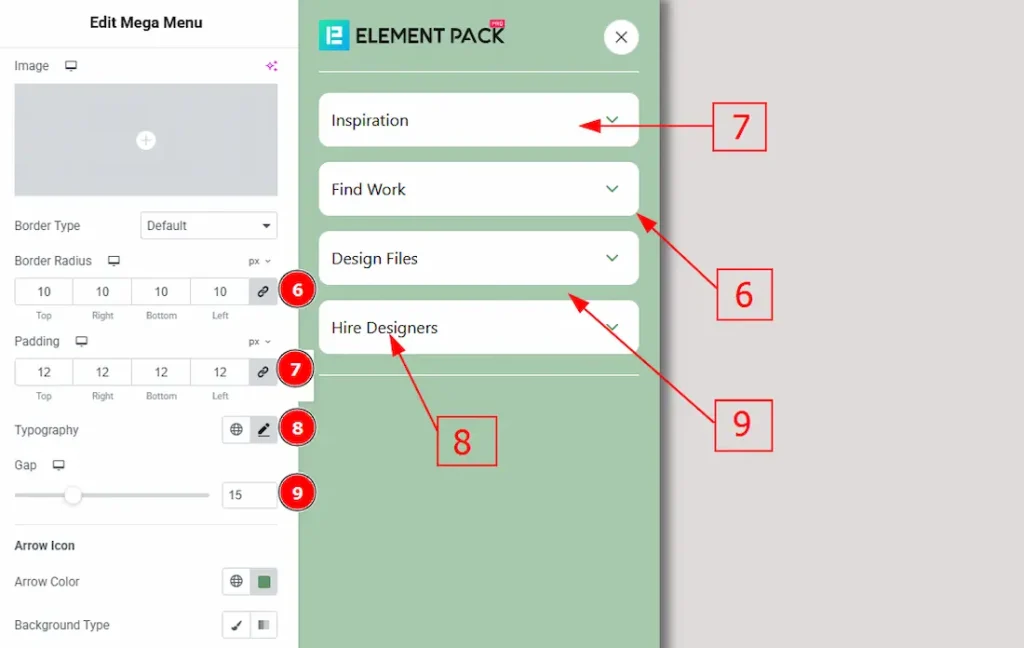
6. Border Radius: You can control the roundness of the border with this option.
7. Padding: You can adjust the inner space of the menu text field with this option.
8. Typography: Change the font family, size, weight, transform, style, decoration, line height, letter spacing, and word spacing from here.
9. Gap: You can adjust the space between each menu field with this option.
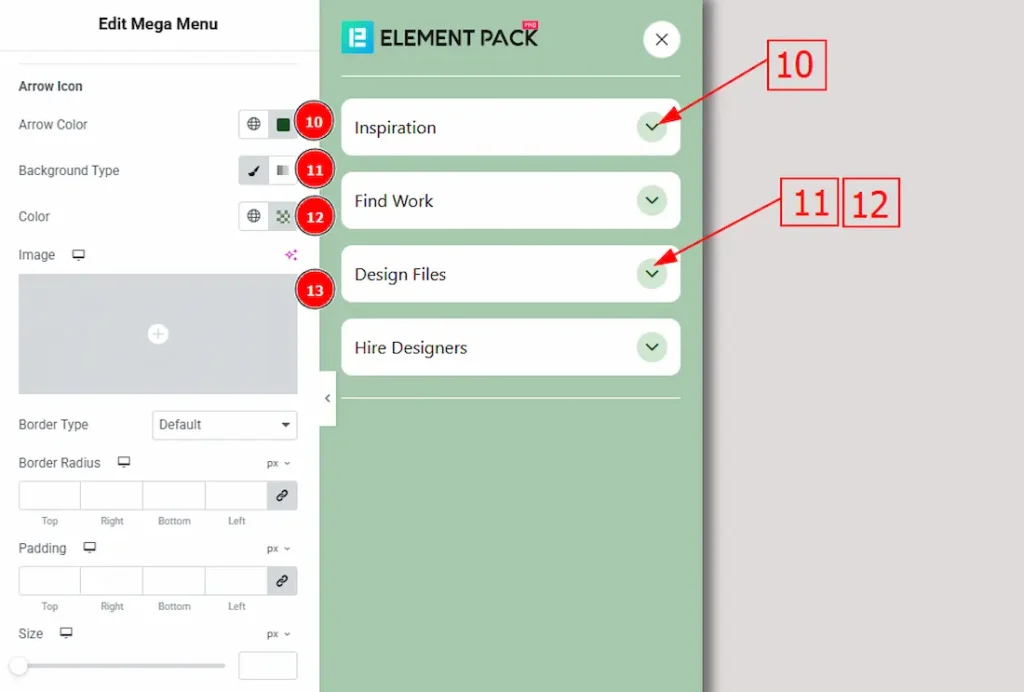
10. Arrow Color: You can change the arrow color with this option.
11. Background Type: You can select the background type between classic & gradient with this option.
12. Color: You can change the arrow icon background color with this option.
13. Image: You can change the background image with this option.
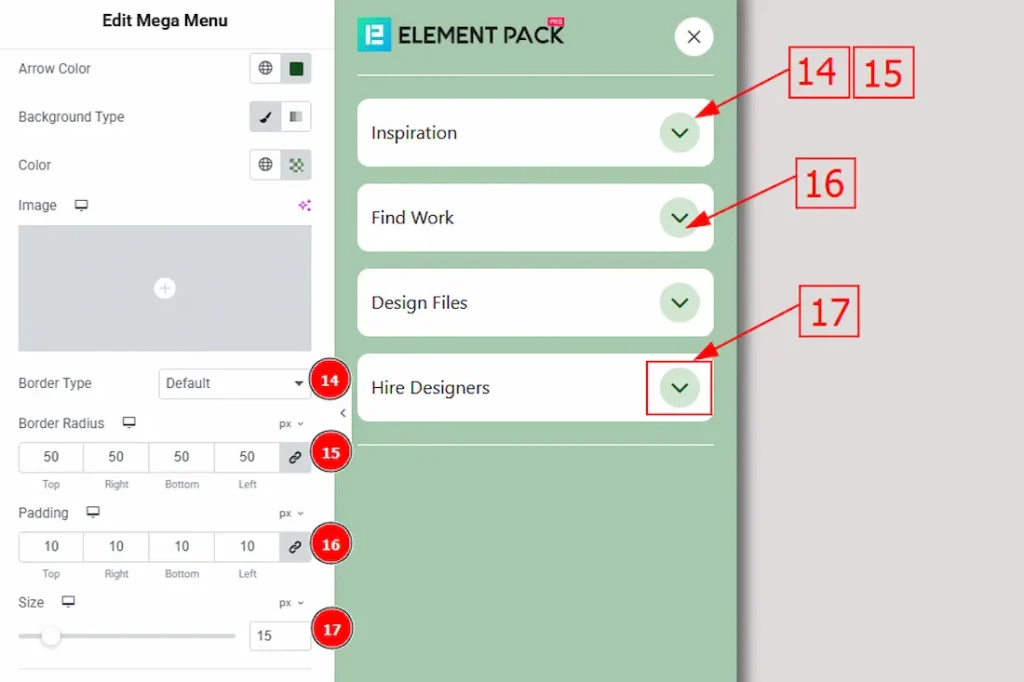
14. Border Type: You can add a border & change its type with this option.
15. Border Radius: You can control the roundness of the border with this option.
16. Padding: You can adjust the inner space of the arrow field with this option.
17. Size: You can adjust the arrow size with this option.
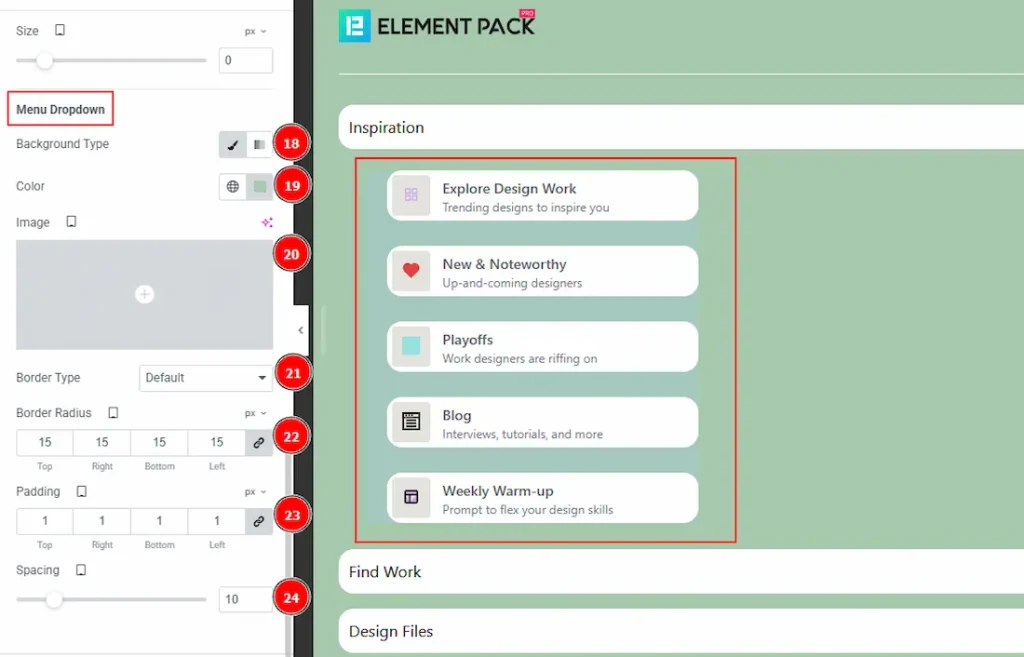
18. Background Type: You can change the background type to classic or gradient with this option.
19. Color: You can change the background color of the menu dropdown content with this option.
20. Image: You can change the background image with this option.
21. Border Type: You can add and change the border type with this option.
22. Border Radius: You can control the roundness of the border with this option.
23. Padding: You can adjust the inner space of the menu dropdown content field with this option.
24. Spacing: You can adjust the space between the menu dropdown items with this option.
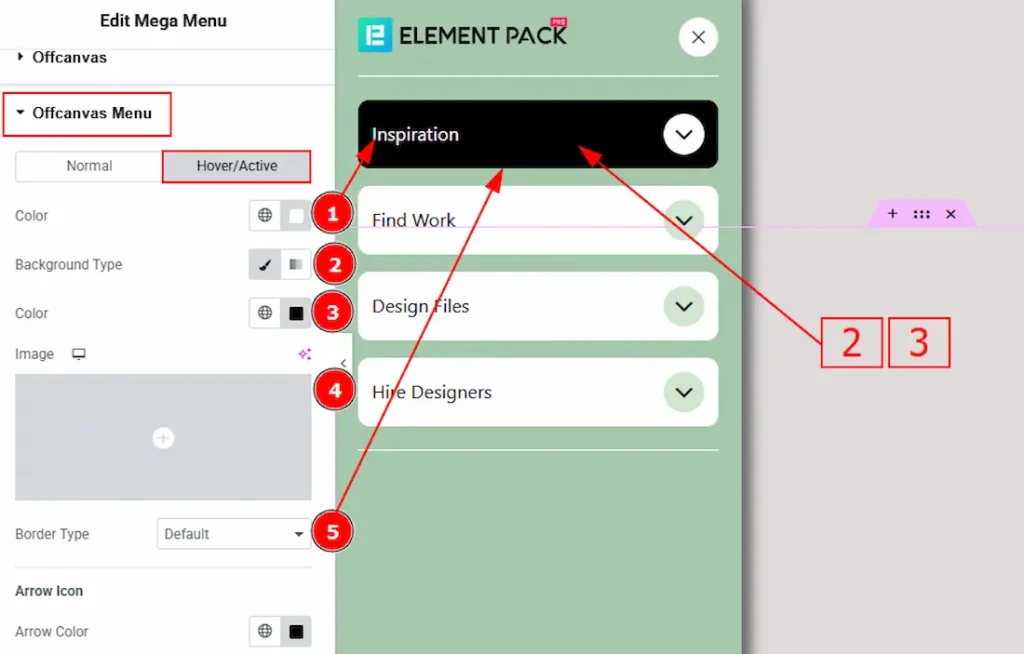
Now let’s proceed to the Hover tab –
1. Color: You can change the off-canvas menu text hover color with this option.
2. Background Type: You can choose the background type between classic & gradient with this option.
3. Color: You can change the background hover color with this option.
4. Image: You can change the background image with this option,
5. Border Type: You can change the border & it’s type with this option.
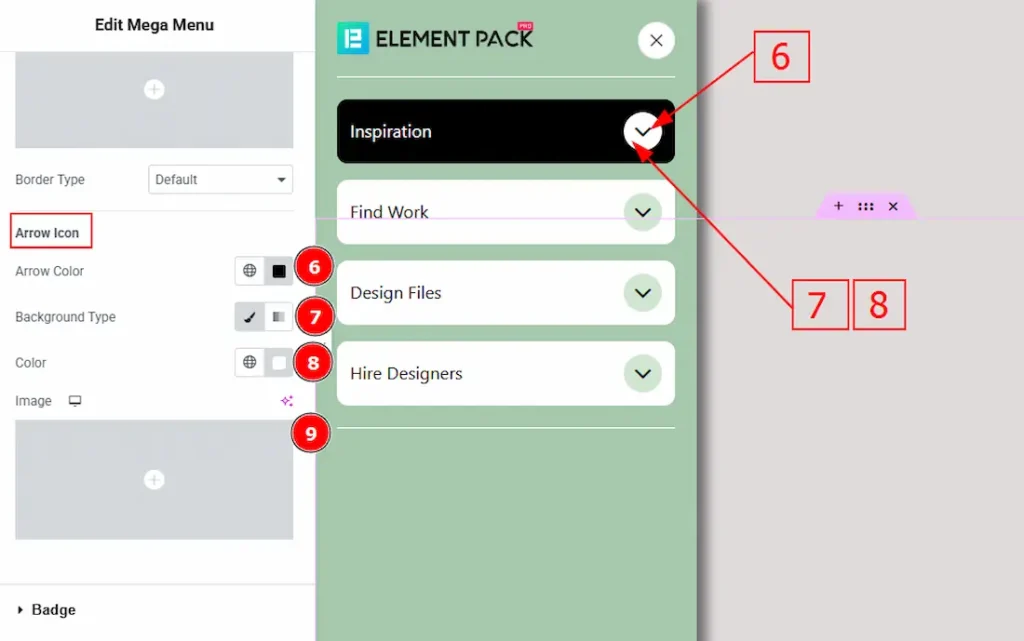
6. Arrow Color: You can change the arrow icon hover color with this option.
7. Background Type: You can choose the background type to classic or gradient with this option.
8. Color: You can change the arrow’s background hover color with this option.
9. Image: You can change the background hover image with this option.
Badge Section
Go to Style → Badge
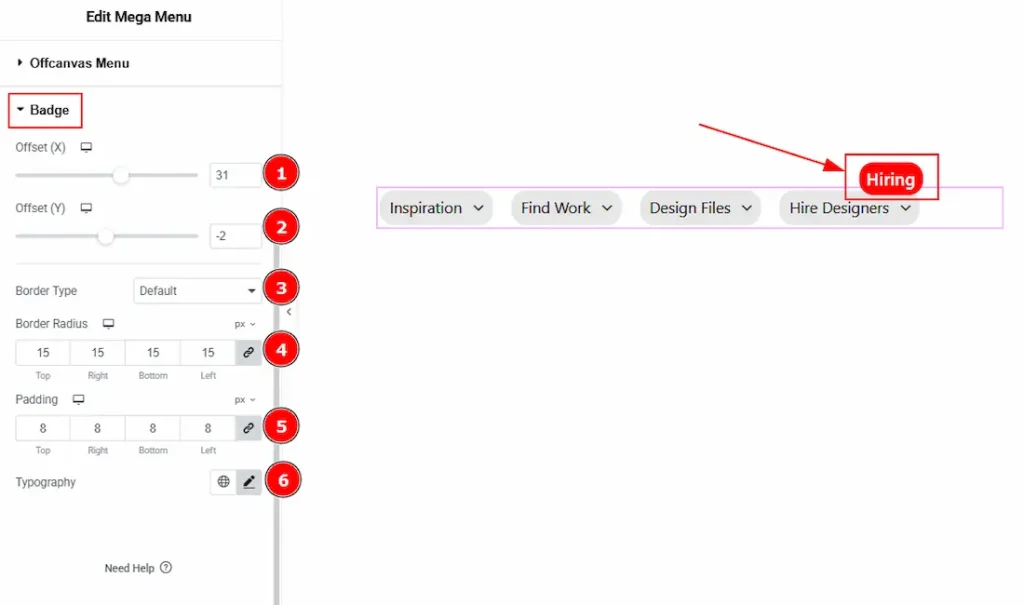
1. Offset (X): You can move the badge horizontally with this option.
2. Offset (Y): You can move the badge vertically with this option.
3. Border Type: You can add & change the border type with this option.
4. Border Radius: You can control the roundness of the border with this option.
5. Padding: You can adjust the inner space of the badge with this option.
6. Typography: Change the font family, size, weight, transform, style, decoration, line height, letter spacing, and word spacing from here.
All done! You have successfully customized the Mega Menu widget on your website.
Video Assist
You can also watch the video tutorial to learn more about the Mega Menu widget. Please visit the demo page for examples.
Thanks for being with us.

