
In this documentation, we will discuss the customization of the Widget Equal Height Extension, brought to you by the Element Pack Pro addon for Elementor.
Enabling the Widget Equal Height Extension
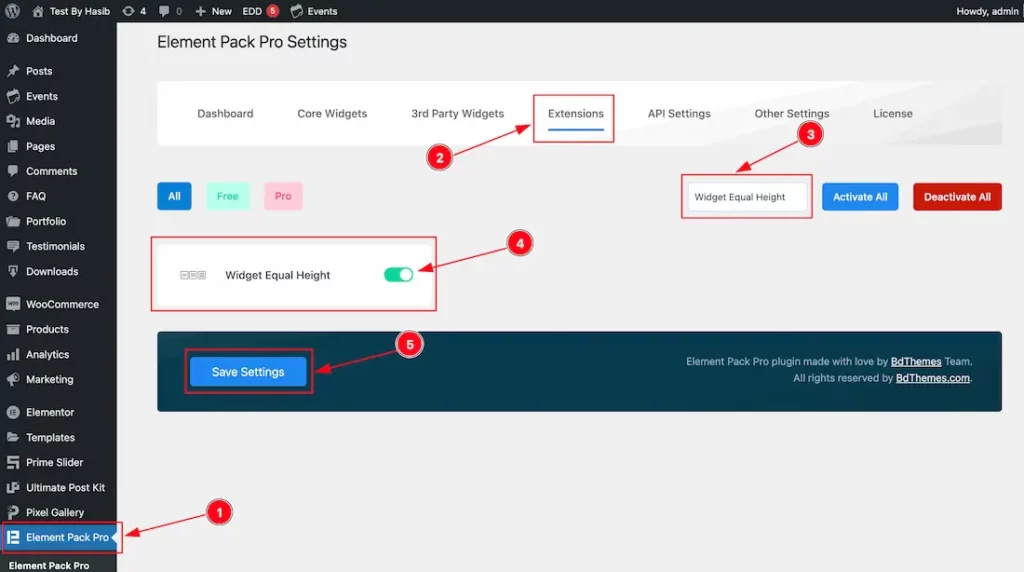
To use the Equal Height Extension from Element Pack Pro, first, you have to enable the widget.
- Go to WordPress dashboard → Element Pack Pro Plugin dashboard.
- Then, Click the Extension Tab.
- Search the Equal Height Extension Name.
- Enable the Equal Height Extension.
- Hit the Save Settings Button.
Start With Any Widget Or Design
To start with the feature, let’s first take an existing design or widget inside the page. This is for a better understanding of the functions of this feature. Here we have a designed section with the Advanced Icon Box widget to show you the Widget Equal Height feature. One more thing, this feature will not work in Editor Mode. Please check the Extension on the Preview Page.
Where Find The Extension
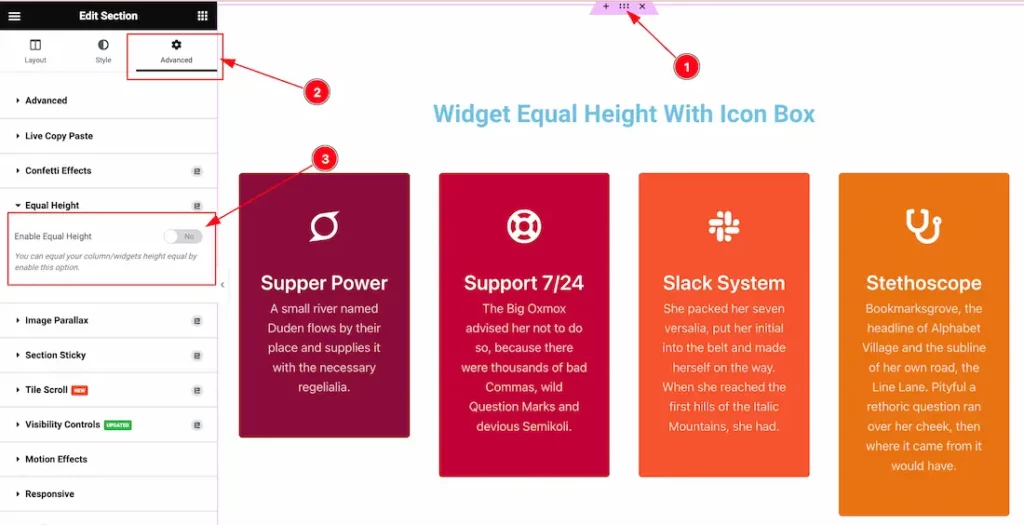
- Select the section/container.
- Go to the Advanced Tab.
- Navigate the Equal Height section and enable the switcher button.
Enable and Use the Feature
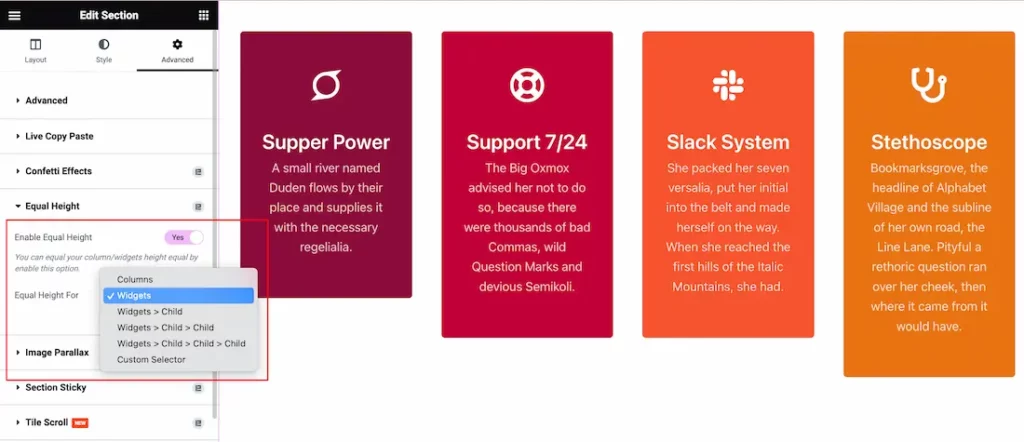
After enabling the Equal Height switcher button, you will get the Column, Widgets, Widgets > Child, Widgets > Child > Child, Widgets > Child > Child > Child, and Custom Selector options here.
Just select your preferred option to use the feature on your page. Here, I select the Widgets option to show you the feature.
After selecting the option, just hit the update button to save the option and go to the preview page to see the output.
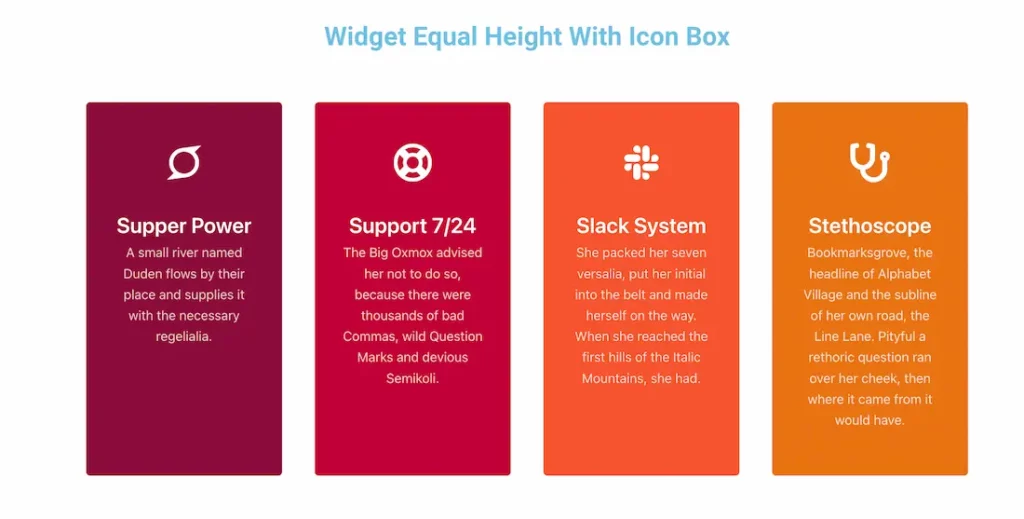
Here, All Icon Box widgets are shown as Equal Height.
Custom Selector for Equal Height
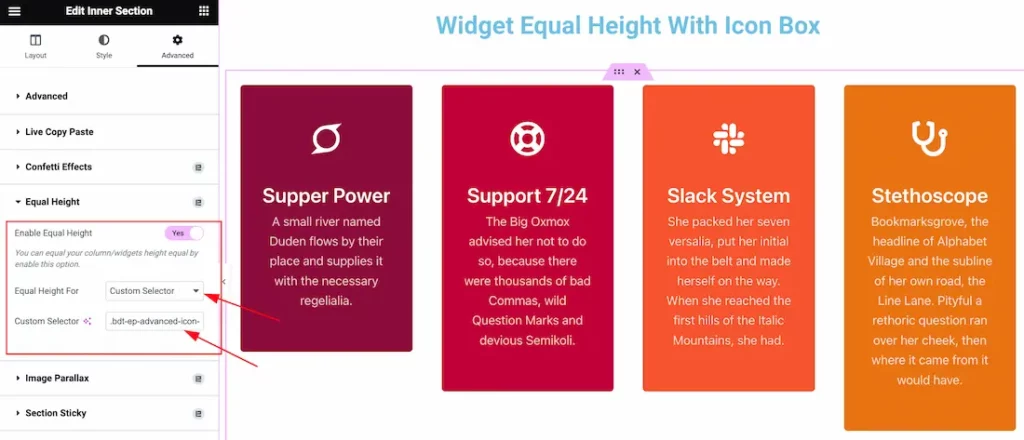
If you select the Equal Height for Custom Selector, then you should put the widget selector Class Name into the Custom Selector Box. Then hit the update button to save the option, and then the widgets are shown as Equal Height on your page.
After that, go to the preview page to see the output.
All done! You have successfully customized The Widget Equal Height Extension on your website.
Video Assist
You can also watch the tutorial video about the Widget Equal Height Extension. Please visit the demo page for examples.
Thanks for staying with us.

