

If you are adding video to your WordPress site for the first time, the process is not always obvious. You upload a video to the media library, open your post, and then realize you have no idea how to actually get it onto the page.
There is no drag-and-drop from the library, no automatic embed, and no clear prompt telling you what to do next.
This is where most beginners get stuck. The good news: WordPress has a built-in Video Block that makes embedding straightforward once you know where to find it.
And if your media library is already growing into a disorganized pile of files, this guide also covers how Sigma Media Manager brings real folder structure and search to your library, so finding any video takes seconds instead of minutes.
Why Embed Videos From the WordPress Media Library?

Video content is no longer optional for serious websites.
According to Wyzowl’s 2025 State of Video Marketing Report, 93% of businesses now use video as a marketing tool. Landing pages with video convert at rates up to 80% higher than those without. That conversion advantage is real, but it depends on the video being embedded correctly and loading reliably.
So why host videos in the WordPress media library instead of YouTube or Vimeo?
Benefits of Self-Hosted Videos
- Full content control: no algorithm changes, no platform restrictions, no third-party takedowns
- No external branding: YouTube branding, suggested videos, and competitor ads do not appear alongside your content
- Better content ownership: your media stays on your server or your cloud, not inside a platform you do not own
- Ideal for gated content: membership portals, client-only pages, and internal training resources stay private
When to Use the Media Library Instead of YouTube or Vimeo
Self-hosted WordPress media library video is particularly valuable for:
- Internal training videos and onboarding content
- Product demonstrations on ecommerce pages
- Membership site or course content behind a login
- Client-exclusive deliverables and project documentation
- Legal or compliance video content that cannot be hosted publicly
For a broader understanding of how the WordPress media library works and where video fits into your overall media strategy, the BdThemes guide on The Ultimate Guide to the WordPress Media Library covers the full picture in detail.
Before You Start
Before you embed an MP4 video in WordPress, two things need to be in order: your video needs to be uploaded, and you need to understand the storage and performance implications of self-hosting.
Uploading Videos to the WordPress Media Library
To add a video to your WordPress media library:
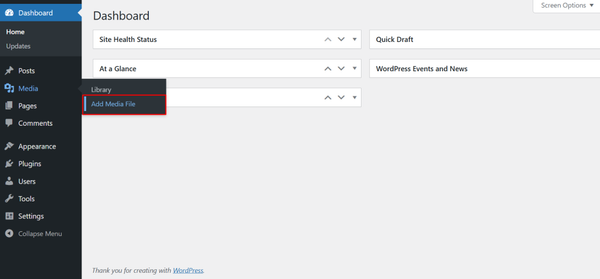
- Go to your WordPress dashboard and navigate to Media → Add New
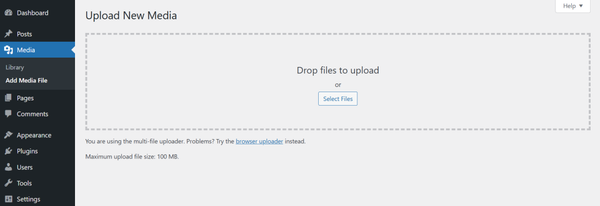
- Click Select Files or drag and drop your video file into the upload area
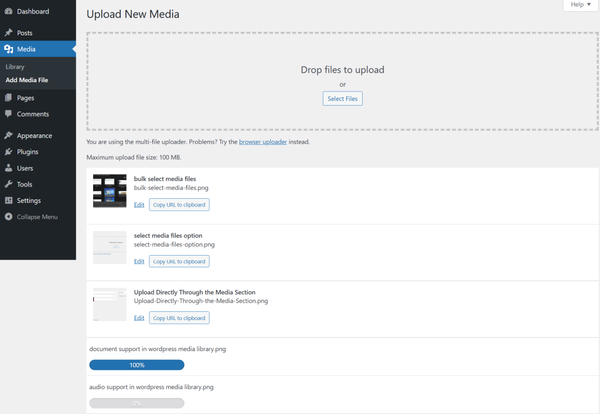
- Wait for the upload to complete. Progress is shown with a loading bar
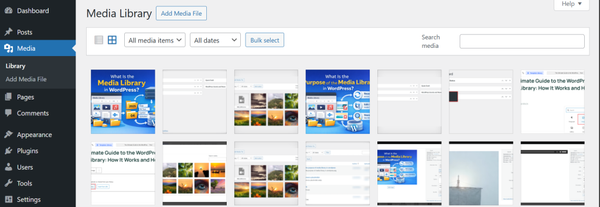
- Once uploaded, your video appears in the media library grid
Supported video formats in WordPress:
- MP4 (recommended: broadest browser support)
- MOV
- WMV
- AVI
- MPG
- OGG
- 3GP
- 3G2
MP4 is the most reliable format across devices and browsers. If your video is in another format, convert it to MP4 before uploading for the best results.
Things to Consider Before Hosting Videos in WordPress
Self-hosted video offers control, but it comes with real infrastructure considerations:
- Storage limitations: video files are large. A single 1080p video can easily be 500MB to 2GB, depending on length. Most shared hosting plans impose strict storage caps
- Bandwidth usage: Every time a visitor streams your video, bandwidth is consumed. High-traffic pages with video can quickly exhaust shared hosting bandwidth limits
- Performance impact: unoptimized video files increase page load times, which affects both user experience and Core Web Vitals scores
If storage is a concern, the BdThemes guide on how to reduce inodes in WordPress explains how video files contribute to inode usage and how to manage them effectively on shared hosting.
Method 1: How to Embed Video in WordPress From Media Library Using the Default WordPress Editor
WordPress’s built-in Video Block is the standard way to add video to WordPress posts and pages. It is available in both the Gutenberg block editor and the classic editor, and it requires no additional plugins.
Step 1: Open the Post or Page
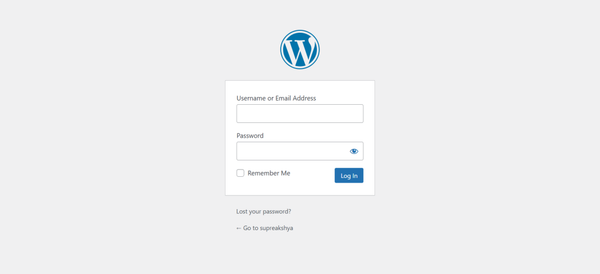
- Log in to your WordPress dashboard
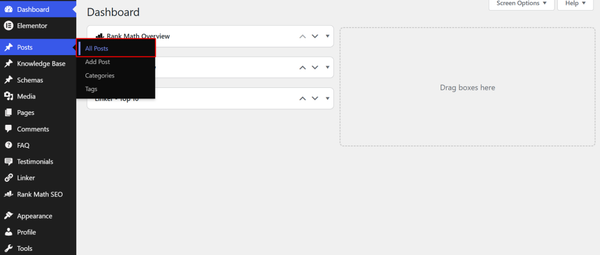
- Go to Posts → All Posts or Pages → All Pages
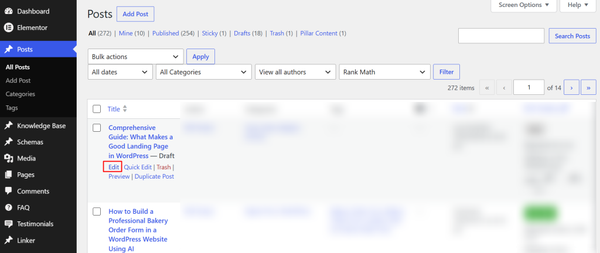
- Click Edit on the post or page where you want to add the video
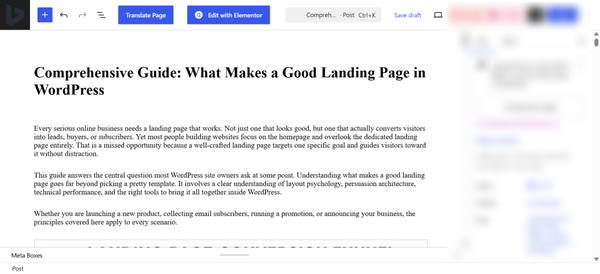
- The block editor opens.
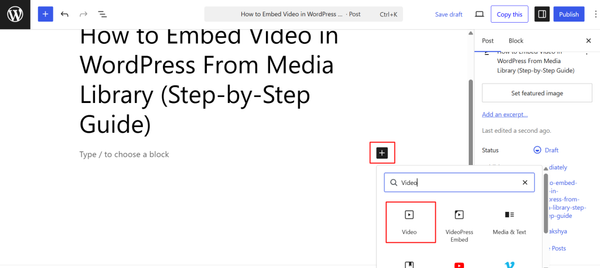
Step 2: Add a Video Block
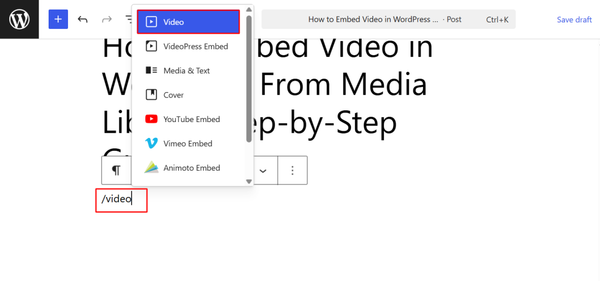
Two ways to add the video block WordPress widget:
- Click the + (Add Block) button in the editor toolbar and search for Video
- Or type /video directly in the editor and press Enter to insert the Video Block
Step 3: Select Media Library
Once the Video Block appears, you will see three options:
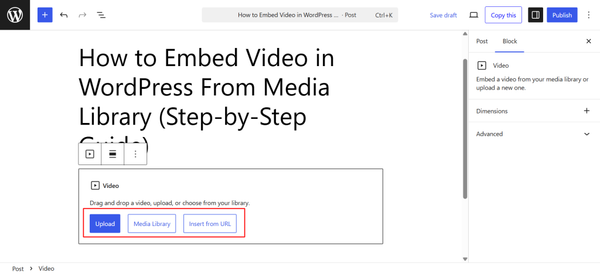
- Upload: upload a new file directly from this screen
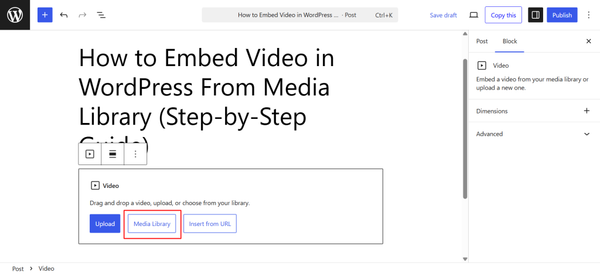
- Media Library: choose a file already uploaded to your WordPress media library
- Insert from URL: paste an external video URL
Click Media Library to access your uploaded videos.
Step 4: Choose Your Uploaded Video
- The WordPress media library pop-up opens
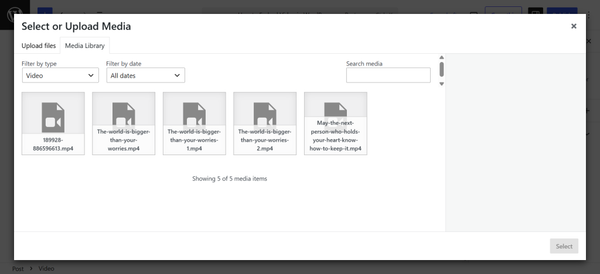
- Browse or search for the video you want to embed
- Click your video to select it. A blue checkmark appears in the corner
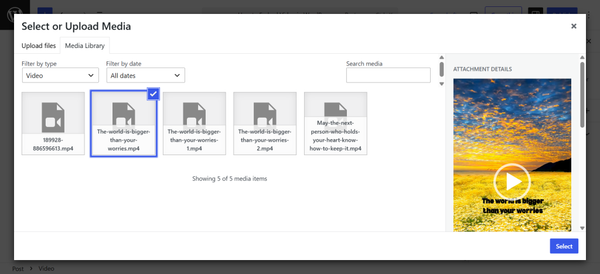
- Click Select to insert it into the block
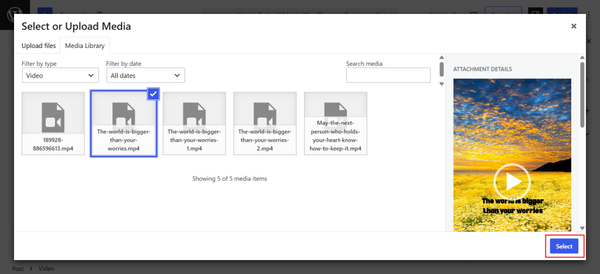
Your video now appears directly in the editor as an embedded player.
Step 5: Customize Video Settings
With the Video Block selected, the right-hand sidebar shows playback and display settings. Here is what each option does:
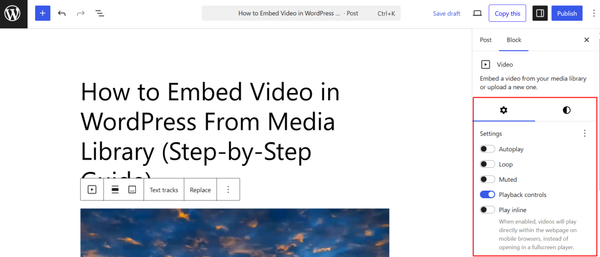
| Setting | What It Does |
| Autoplay | Video starts playing automatically on page load (use with caution: can harm UX and speed) |
| Loop | Video replays continuously after finishing |
| Controls | Shows or hides the play, pause, volume, and fullscreen controls |
| Muted | Video starts muted. Required for autoplay to work on most browsers |
| Preload | Controls how much of the video loads before user interaction. Options are Auto, Metadata, and None |
| Poster Image | Set a thumbnail image shown before the video plays |
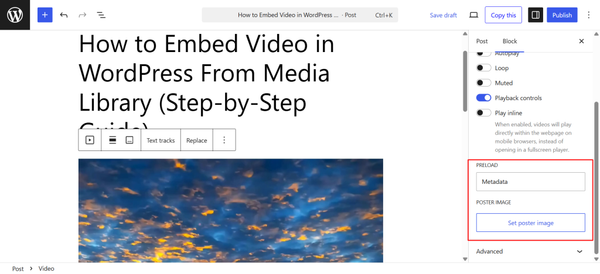
For most use cases, leaving Controls enabled and Autoplay off gives the best user experience. Setting Preload to Metadata loads only essential file information on page load rather than buffering the full video, which keeps your page speed healthier.
Step 6: Preview and Publish
- Click Preview in the top right corner to check how the video appears on your page
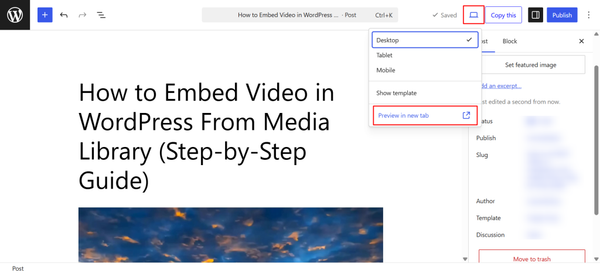
- Verify the video plays correctly, controls are visible, and the poster image displays if you set one

- Click Publish or Update to save your changes
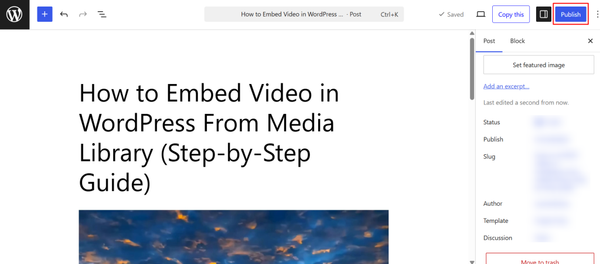
Your video is now embedded and live on your page. Visitors can play it directly without leaving the page or being redirected to a third-party platform.
Limitations of the Default WordPress Media Library
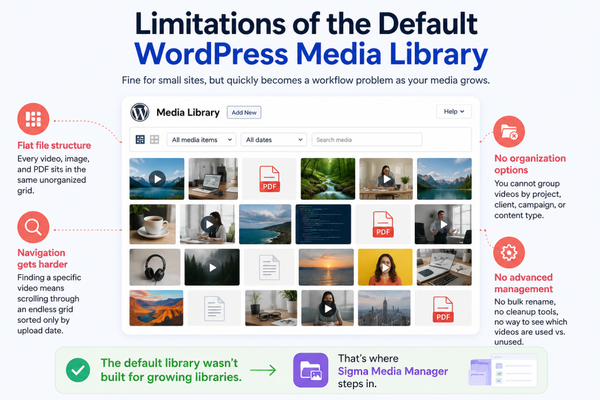
For a new site with a handful of videos, the built-in approach works fine. As your site grows, it runs into real problems.
- Flat file structure: every video, image, and PDF sits in the same unorganized grid with no folders, no categories, and no structure
- No organization options: you cannot group videos by project, client, campaign, or content type
- Navigation gets harder: with dozens or hundreds of media files, finding a specific video means scrolling through an endless grid sorted only by upload date
- No advanced management: there is no way to bulk rename videos, clean up unused files, or see which videos are attached to posts versus sitting unused in the library
If you upload videos regularly (product demos, tutorials, course content, client work), the default library becomes a genuine workflow problem. The BdThemes article on how to add images to the WordPress Media Library covers these limitations in depth and explains why organization matters from the first upload.
That is where Sigma Media Manager steps in.
Method 2: How to Embed Video in WordPress Using Sigma Media Manager
Sigma Media Manager is a WordPress plugin by BdThemes that transforms the default media library into a structured, organized workspace. Rather than replacing the native WordPress Media interface, it integrates directly into it, adding folder management, AI-powered automation, bulk cleanup, image optimization, and cloud storage support without changing how you already work.
For growing websites, it solves the exact limitations that the default media library cannot.
What Is Sigma Media Manager?
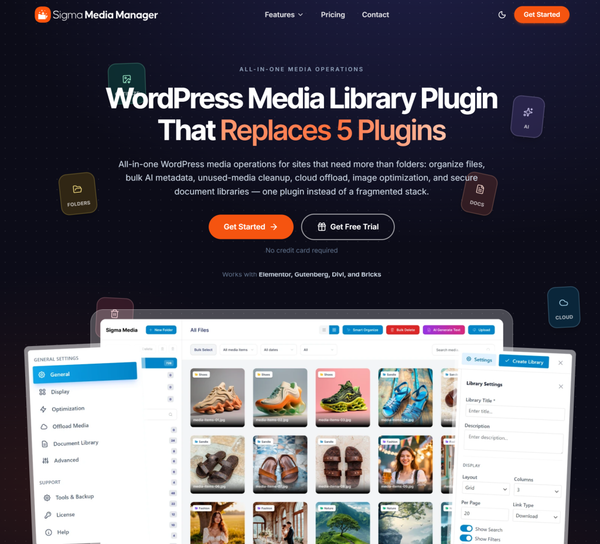
Sigma Media Manager sits inside the familiar WordPress Media section and adds:
- Unlimited folders and nested subfolders: organize videos by type, client, campaign, or any structure that fits your workflow
- AI-powered Smart Organize: automatically sorts your existing unorganized library into meaningful folders with one click
- Drag and drop file management: move videos between folders without editing each file individually
- Bulk unused media cleanup: scan, detect, and delete unused files to keep your library clean
- AI text generation: automatically creates titles, captions, and descriptions for media files
- Image optimization and compression: covers JPEG and PNG compression, auto-resize on upload, and EXIF metadata stripping
- Cloud storage integration: connect to Amazon S3, DigitalOcean Spaces, Google Cloud Storage, or Cloudflare R2 to offload media and reduce server storage
- Document Library: create password-protected file libraries with shortcode embedding for sharing downloadable content with users
For a detailed walkthrough of every feature, the Complete Guide to Using the Sigma Media Manager Plugin covers the full settings, panel, and workflow.
Step 1: Install and Activate Sigma Media Manager
Getting Sigma Media Manager running on your WordPress site takes less than five minutes. Here is the complete process from download to first use.
Before you can install Sigma Media Manager, you need to download it from your BdThemes account.
If you already have a BdThemes account, simply log in to https://account.bdthemes.com/ and proceed to download the latest version of the plugin. If you don’t have a BdThemes account yet, follow these steps:
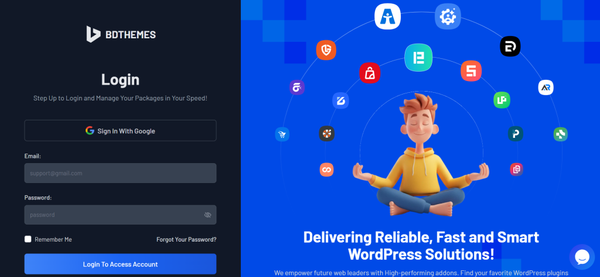
- Register using the email address you used for the purchase
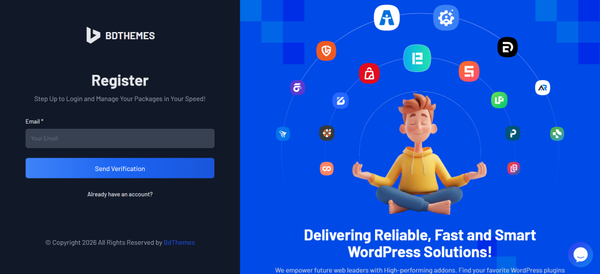
- Log in to your account after registration
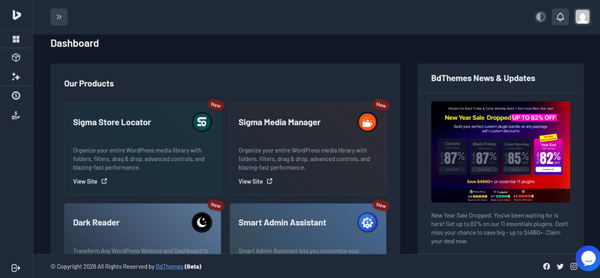
- Navigate to the Products section
- Find Sigma Media Manager in the products list
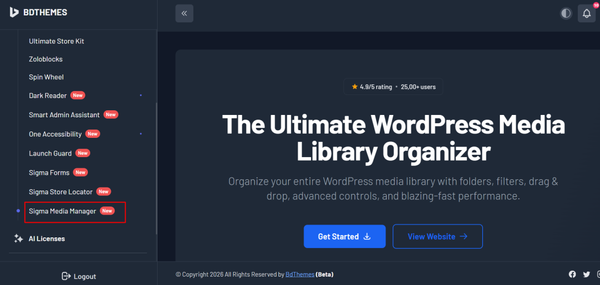
- Click on Sigma Media Manager, then click Download Files
- Download the Sigma Media Manager plugin .zip file to your computer
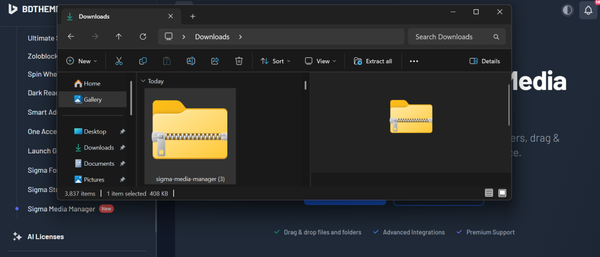
Keep this .zip file handy as you’ll need it in the next step.
Now that you have the Pro plugin file, you can install it on your WordPress site.
- Log in to your WordPress dashboard
- Navigate to Plugins → Add Plugin in the left sidebar
- At the top of the page, click Upload Plugin
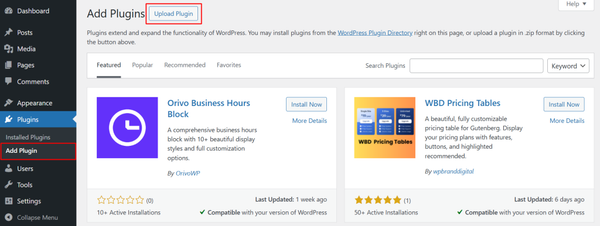
- Click Choose File
- Select the Sigma Media Manager .zip file you downloaded
- Click Install Now
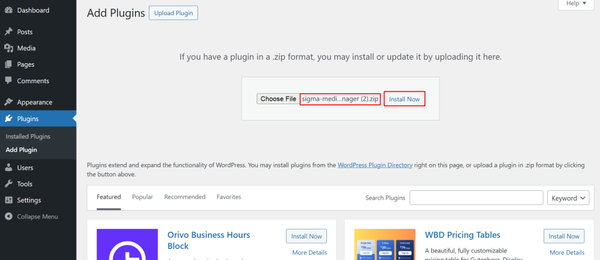
- Wait for the installation process to complete
- Once installation is finished, click Activate Plugin
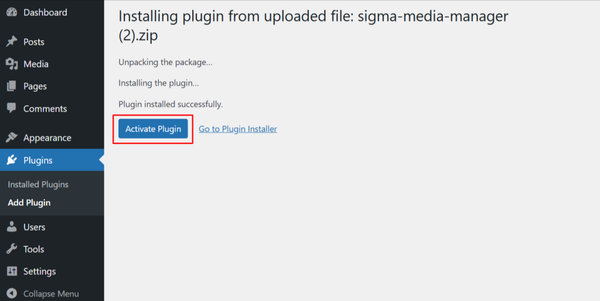
The Sigma Media Manager plugin is now active on your WordPress site. You should see Sigma Media Manager appear under Settings in the left sidebar.
To unlock all Pro features, you need to activate your license.
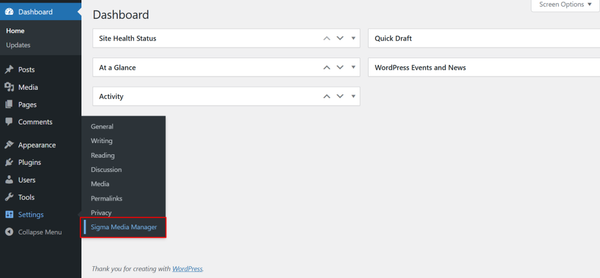
- In your WordPress dashboard, navigate to Settings → Sigma Media Manager in the left sidebar
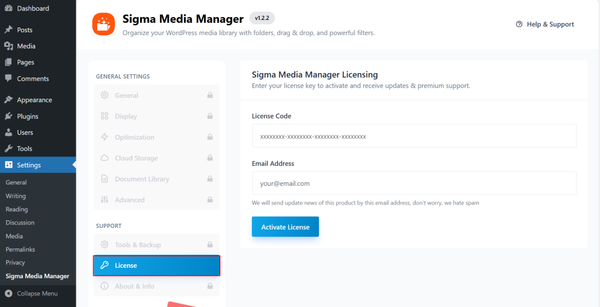
- Click on the License tab section at the bottom
- You’ll see two fields for license information:
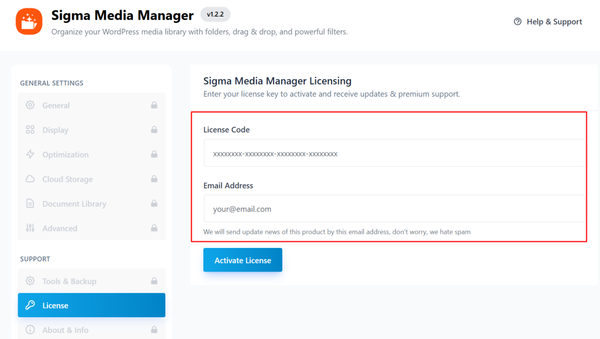
- License Key: Enter your license key (found in your BdThemes account or purchase confirmation email)
- Email: Enter the email address you used to purchase the plugin
- Click the Activate button
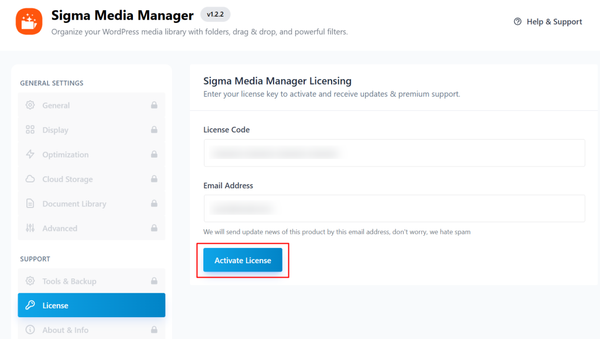
- Wait for the confirmation message that your license has been activated successfully
After activation, your Sigma Media Manager plugin is fully functional with all premium features unlocked.
You’ll also receive regular updates and have access to priority support from B
Step 2: Create Media Folders
Once activated, navigate to Media → Media Manager in your WordPress dashboard.
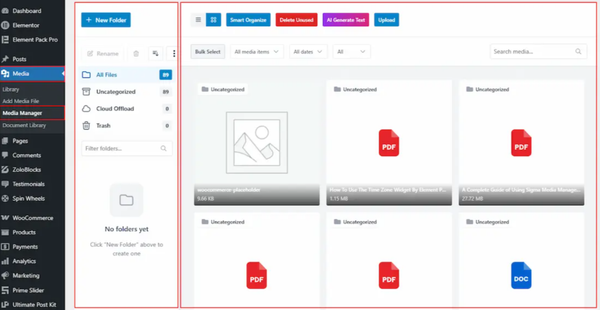
- Click New Folder in the left sidebar to create your first folder
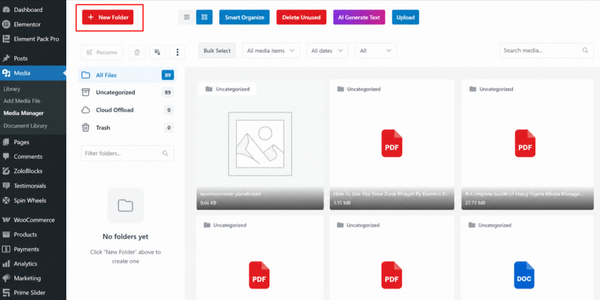
- Name it according to your workflow, for example: Product Videos, Tutorial Series, Client Demos, or Course Content
- Right-click any folder to create a subfolder, rename it, change its color for visual identification, or duplicate it
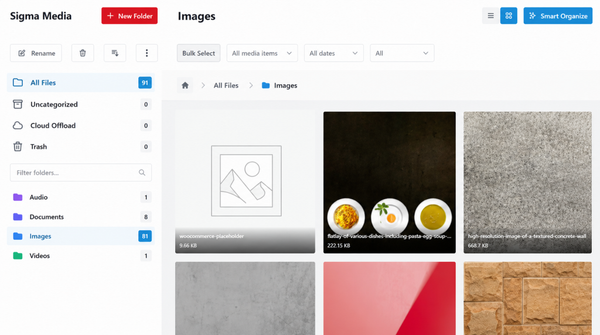
- To organize an existing unorganized library instantly, click the Smart Organize button and confirm.
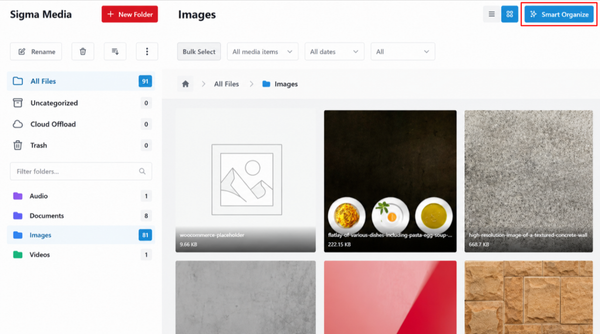
Sigma Media Manager uses AI to automatically sort all existing files into structured folders in seconds
Step 3: Upload Videos to Organized Folders
To upload a video directly into a specific folder:
- Click the target folder in the left sidebar to select it
- Click Upload on the right side of the media manager panel
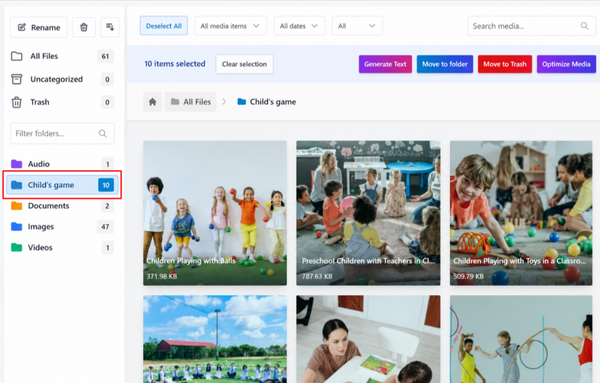
- Select your video file or drag and drop it into the upload area
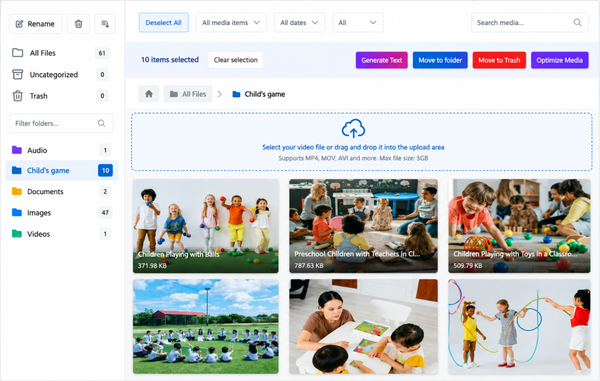
- The video uploads directly into the selected folder rather than the general uncategorized pile
This keeps every new upload organized from the moment it enters your library, eliminating the cleanup step that the default media library constantly creates.
Step 3: Embed Videos Into Posts and Pages
Embedding a video from a Sigma Media Manager folder into a post or page works through the same Video Block you use with the default method:
- Open a post or page in the block editor
- Add a Video Block using the + button or by typing /video
- Click Media Library in the Video Block options
- In the media library pop-up, navigate to the folder containing your video
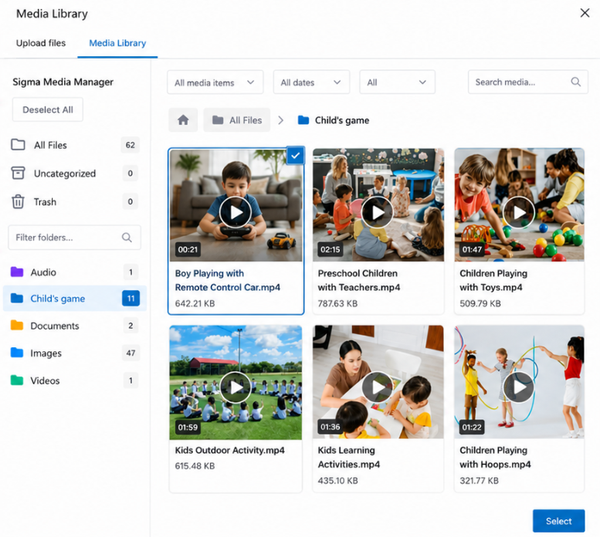
- Select the video and click Select
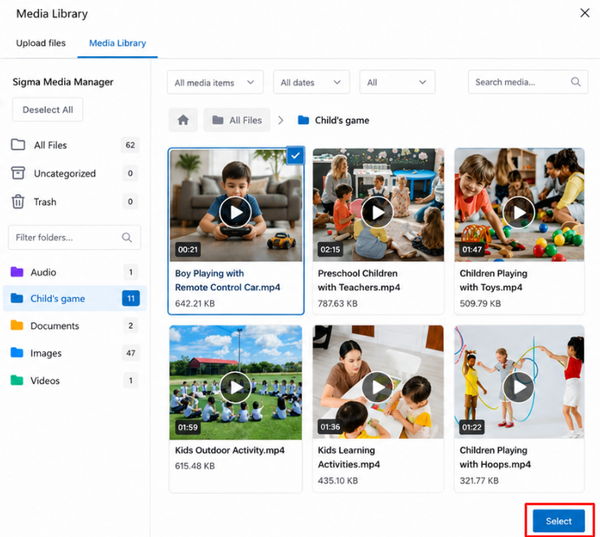
- The video embeds into your page with the same playback and customization settings as Method 1
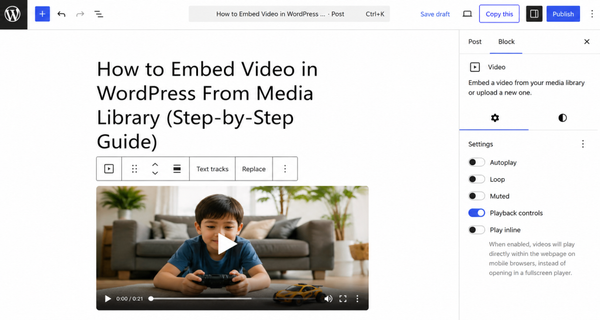
The key difference is that you find your video in seconds through a folder structure rather than scrolling through hundreds of unorganized files.
Step 4: Manage and Reuse Media Assets Efficiently
Sigma Media Manager makes ongoing video management significantly easier:
- Unused media cleanup: Click Delete Unused in the right panel, run a scan, and remove all videos that are not currently embedded in any post or page. This keeps your storage lean
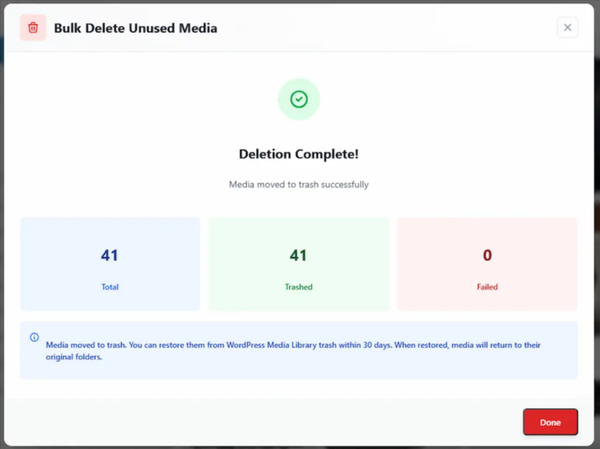
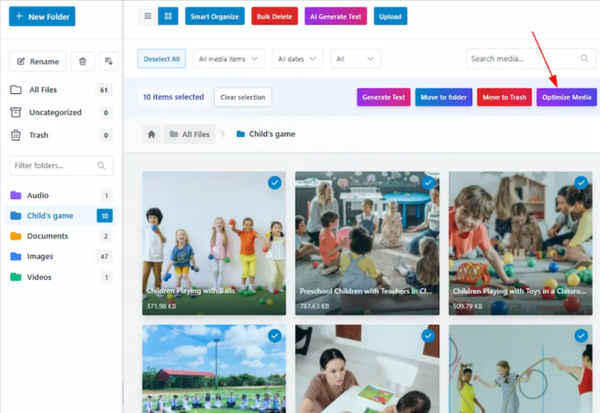
- Bulk file operations: Select multiple videos at once to move them to a new folder, send them to trash, or run AI text generation across all selected files
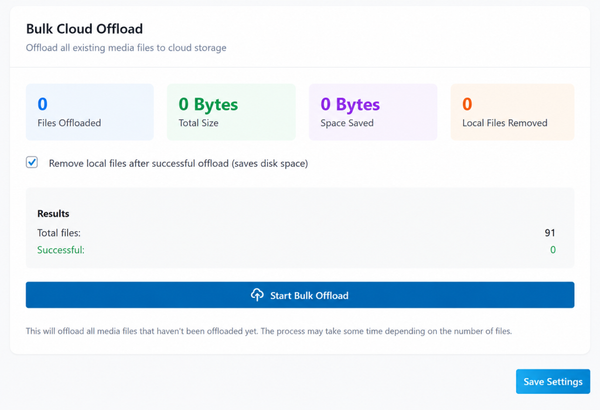
- Cloud offload: Once you connect a cloud storage provider under Settings → Media Manager → Cloud Storage, new uploads can automatically transfer to the cloud. Local files can be removed after offload to free server storage, and a custom CDN URL can serve media files faster to global visitors
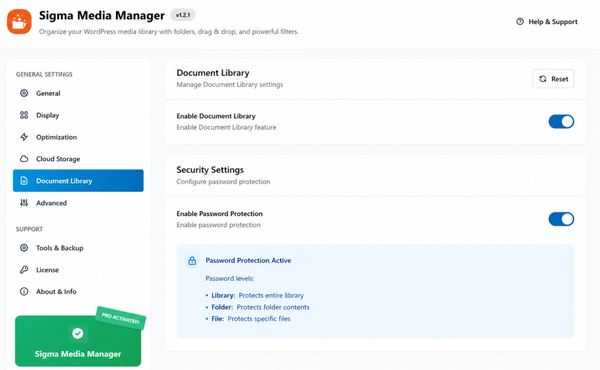
- Document Library: If you share video files as downloads rather than embedded players, the Document Library feature lets you create a password-protected library, embed it anywhere via shortcode, and control who can download which files
For websites managing large media libraries, the combination of folder organization, cloud offloading, and bulk cleanup from Sigma Media Manager replaces what would otherwise require three or four separate plugins.
Why Use Sigma Media Manager for Video Management?
| Feature | Default Media Library | Sigma Media Manager |
| File structure | Flat, date-sorted grid | Unlimited folders and subfolders |
| Navigation | Scroll through all files | Browse by folder, filter by type, search within folders |
| Organization | None | Drag and drop, color-coded folders, sort controls |
| Unused file cleanup | Manual, one by one | Automated scan and bulk delete |
| Cloud storage | Not supported | Amazon S3, DigitalOcean, Google Cloud, Cloudflare R2 |
| AI metadata generation | Not available | Bulk AI titles, captions, and descriptions |
| Image optimization | Not available | Compression, auto-resize, EXIF stripping |
| Document library | Not available | Password-protected, shortcode-embeddable |
| Best for | Small sites with few uploads | Growing sites with regular media uploads |
For a detailed comparison of what Sigma Media Manager adds beyond standard media organization plugins, the ultimate guide to the WordPress media library on BdThemes walks through every feature and explains exactly where the default library falls short.
Frequently Asked Questions
How do I embed a video from the WordPress Media Library?
Open a post or page in the block editor. Add a Video Block by clicking the + button and searching for Video, or by typing /video. Click Media Library in the block options, select your uploaded video, and click Select. The video embeds directly into the page with native playback controls.
What video formats does WordPress support?
WordPress supports MP4, MOV, WMV, AVI, MPG, OGG, 3GP, and 3G2. MP4 is the recommended format for the broadest browser and device compatibility. If your video is in another format, convert it to MP4 before uploading.
Can I upload MP4 videos to WordPress?
Yes. MP4 is the best format for self-hosted video on WordPress. It is widely supported across all browsers and devices and produces the smallest file sizes relative to quality. Navigate to Media → Add New and upload your MP4 file directly.
Is it better to host videos in WordPress or YouTube?
It depends on your use case. YouTube is better for public-facing content where reach and discoverability matter. Self-hosted video in the WordPress media library is better for membership content, private client resources, product demonstrations with no competitor ads, and any content where you need full control over access, branding, and availability.
How does Sigma Media Manager improve video management?
Sigma Media Manager adds folder-based organization to your media library, which means you can group videos by project, type, client, or campaign instead of scrolling through a flat grid. Its Smart Organize feature automatically sorts existing libraries with AI in one click. Unused media cleanup removes files that are not embedded in any post or page. Cloud storage integration offloads large video files to reduce server storage. Together, these features solve the main organizational and storage challenges that grow with your upload volume.
What is the maximum file size for video uploads in WordPress?
WordPress’s default maximum upload size is set by your hosting provider and PHP configuration, typically between 64MB and 256MB. Most video files exceed this limit. You can increase it by editing your php.ini file or by asking your hosting provider to raise the upload_max_filesize and post_max_size values. For large video libraries, cloud offloading through Sigma Media Manager is a more scalable long-term solution than increasing local upload limits.
Does self-hosting video in WordPress affect site speed?
Yes, it can. Large video files increase page weight and Time to First Byte if they begin loading immediately. To minimize the impact, set the Video Block’s Preload option to Metadata rather than Auto, use a poster image so the player looks complete before the video loads, and compress your video files before upload. If storage or bandwidth is a concern, Sigma Media Manager’s cloud offload feature moves video files to a CDN-backed cloud provider, which serves files faster to global visitors and reduces the load on your hosting server.
Conclusion
Embedding a video in WordPress from the media library comes down to two things: getting the process right and keeping your library organized as it grows.
The built-in WordPress Video Block handles the embedding process cleanly. Add the block, select your video from the media library, configure autoplay, loop, and preload settings, and publish. For a site with occasional video uploads, that is entirely sufficient.
For websites that publish video regularly, whether product demos, tutorials, membership content, or client work, the default media library becomes a real problem. No folders, no search filters, no cleanup tools, no way to organize by project or type. That is where Sigma Media Manager makes a measurable difference. It brings structure, automation, and storage efficiency to a part of WordPress that has always needed it.
If you want to explore more ways to optimize your WordPress workflow, the BdThemes guides on WordPress admin and site enhancements and the best plugins to optimize your WordPress website are worth reading alongside this one.
Supreakshya Shrestha
The BdThemes team builds WordPress plugins trusted by 3M+ users worldwide. We write about web accessibility, WCAG compliance, and inclusive design.