

Do you want your visitors to connect with you on social media but they simply can’t find your profiles on your WordPress website? This is a common issue for many site owners who don’t clearly display their social links.
Many WordPress websites either hide social media icons or don’t include them at all. As a result, visitors leave without following you on platforms like Facebook, Instagram, LinkedIn or YouTube. This means missed opportunities for engagement, repeat traffic and long-term audience growth.
The good news is that learning how to add social media icons to WordPress is simple and doesn’t require coding skills. You can use the default WordPress editor, Elementor or plugins to easily add clickable social icons to your header, footer or any part of your website.
In this guide, you’ll learn step-by-step methods to add and customize social media icons so your visitors can quickly find and follow your social profiles.
What Are Social Media Icons in WordPress?
Social media icons are small, clickable images that link your website to your social media profiles.
For example, you may see icons for Facebook, Instagram, LinkedIn or YouTube on a website. When users click these icons, they go directly to that platform.
In WordPress, you can easily add these icons without coding. They can be placed in different areas like the header, footer or inside pages.
These icons are not just for design. They play an important role in connecting your website with your online presence.
Why You Should Add Social Media Icons to Your Website
Adding social media icons is very useful for your website.
- It helps grow your audience. When users visit your website, they can quickly find your social profiles and follow you.
- It builds trust. When visitors see that your business is active on social platforms, they feel more confident.
- It increases engagement. Users can like, share and interact with your content on different platforms.
- It also helps bring more traffic to your website. Social media can send visitors back to your site again and again.
In simple words, social media icons help connect everything together.
Best Places to Add Social Media Icons on Your Website
Where you place your icons is very important. If users cannot see them, they will not click them. That is why you should place them in visible areas.
The header is one of the best places. Icons placed at the top are easy to find and always visible. The footer is another popular location. Many websites place icons at the bottom so users can find them after scrolling.
You can also add icons in the sidebar or contact page. These areas work well if you want more visibility. The key is to keep them easy to find but not too distracting.
In this blog, we will see how to add social media icons using two methods:
- Method 1: Add social media icons using the WordPress default editor
- Method 2: Add social media icons using Elementor
How to Add Social Media Icons to WordPress in 2 Methods
We will show two easy ways to add social media icons to WordPress. You can use the default editor or Elementor. Both are simple to use. Just follow the steps below.
Method 1: Add social media icons using the WordPress default editor
We will use the default WordPress editor for this.
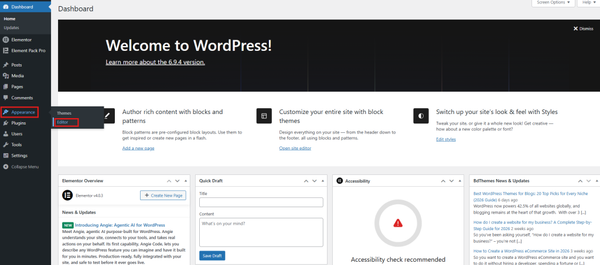
First, go to Appearance → Editor from your dashboard.
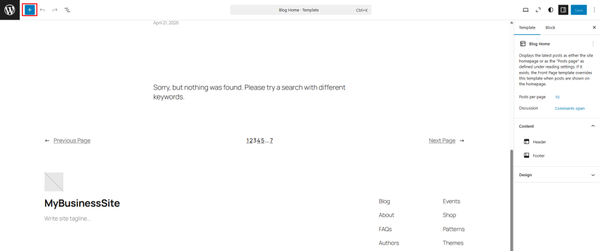
After that, click on the “+” (Add Block) icon to continue.
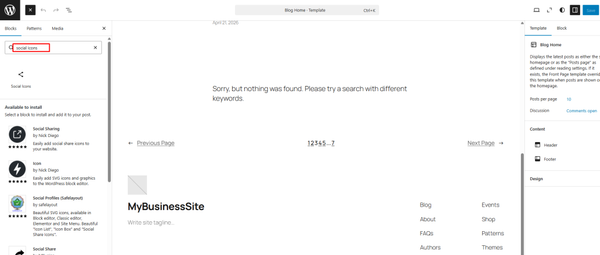
Next, search for “social icon” in the block search bar.
From the list, choose the Social Icons block.
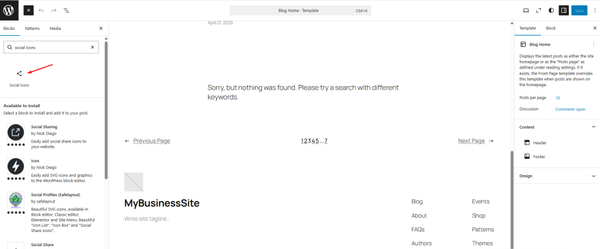
Selecting the Social Icons block will add it to your page..
Now, click on the “+” icon inside the block.
Then, choose the social platform you want to add, like:
- Twitter (X)
Once selected, the icon will appear in your section.
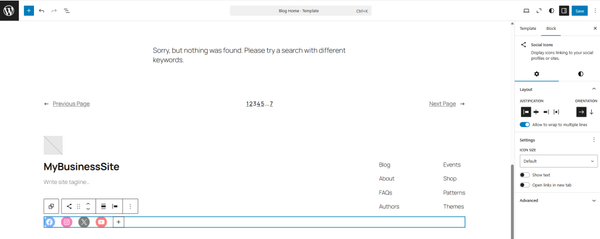
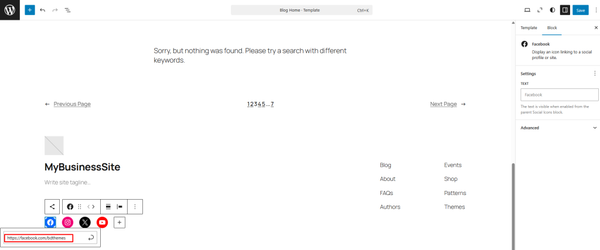
Now, click on the social icon you added.
After that, enter your social media link in the box. Once you add the link, press Enter.
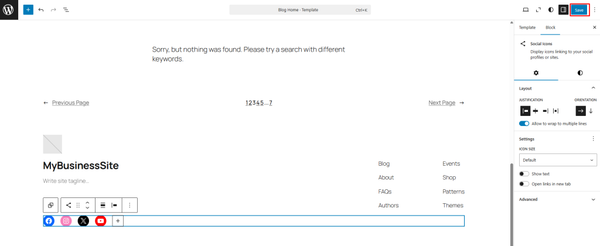
Finally, click the Save button in the top right.
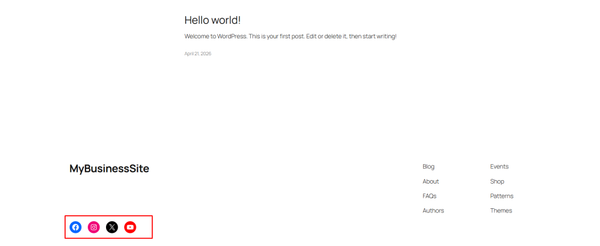
Your social media icon has now been added and is ready to use.
Method 2: Add Social Media Icons Using Elementor
Now, we will show you how to add social media icons to your WordPress website using the Elementor editor.
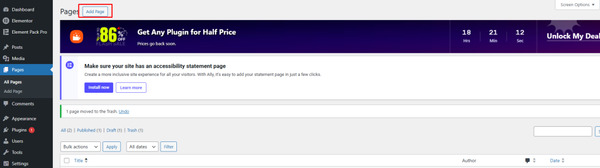
First, create a new page.
Go to Pages → Add Page.
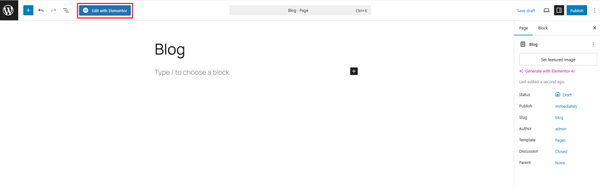
After creating the page, click on Edit with Elementor.
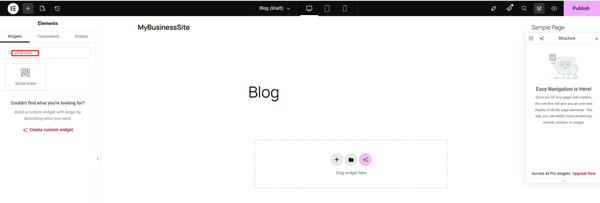
After opening Elementor, you will see the editor screen.
Now, search for the Social Icons widget in the left panel.
Drag and drop the Social Icons widget into your page. After that, you can see the icons appear on your screen.
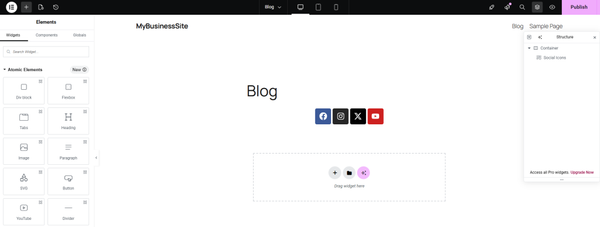
Add social links
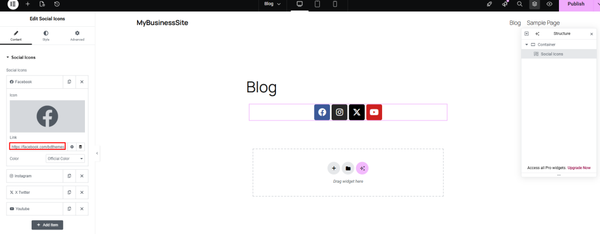
Publish page
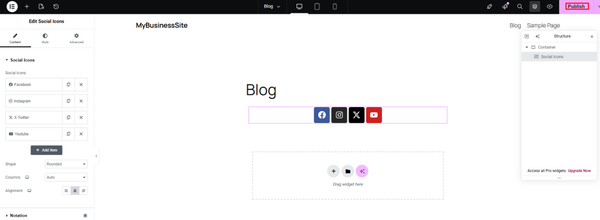
Your page is now live.

Bonus Tips
If you are not happy with your current media icons you can add or upload icons according to your preference.
You can also improve the default WordPress media management system by using a media organization plugin. You’ll find a plethora of media manager or organizer tools out there, but Sigma Media Manager can be particularly effective because it addresses a wide range of problems. It can literally act like a one-size-fits-all solution.
It not only helps you organize your images, videos and files in a simple way but also it will let you sort files, remove unused media and keep everything in the right place. This makes your media library clean, fast and easy to use.
Sigma Media Manager is an all-in-one tool for handling media files.
It does more than just create folders.
With this plugin, you can:
- Organize your files in a better way
- Add metadata using AI in bulk
- Remove unused media files
- Move files to cloud storage
- Optimize images for faster loading
- Create secure document libraries
Instead of using many different plugins, you can do everything with this one plugin.
First, visit the official Sigma Media Manager website.
Choose a license that fits your needs, whether for one site or multiple sites.
All plans include the full plugin features, regular updates and a 60-day money-back guarantee (on eligible purchases).
After completing your purchase, you will receive:
- A license key
- A ZIP file of the plugin
You will need these to install and activate the plugin in WordPress.
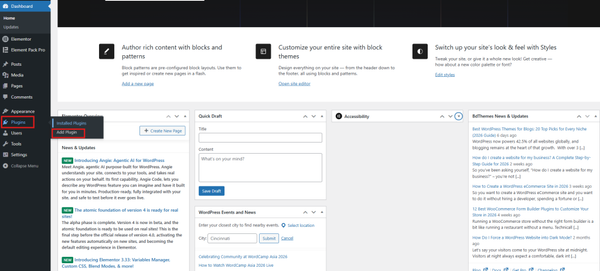
Now, go to your WordPress dashboard.
Click on Plugins → Add Plugin.
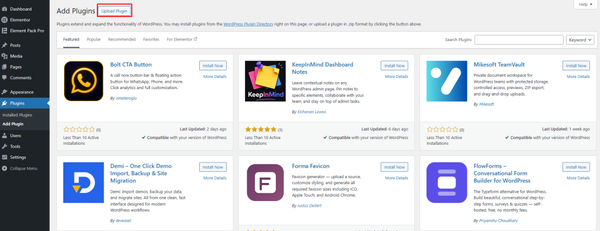
After that, click on the Upload Plugin button at the top.
Now, click on the Choose File button.
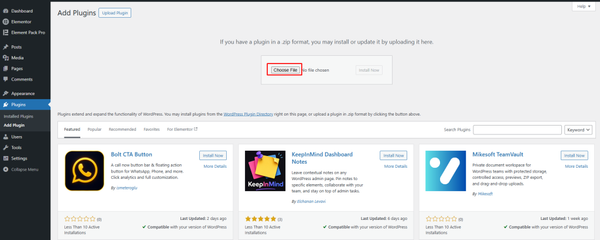
After that, select the plugin ZIP file from your computer.
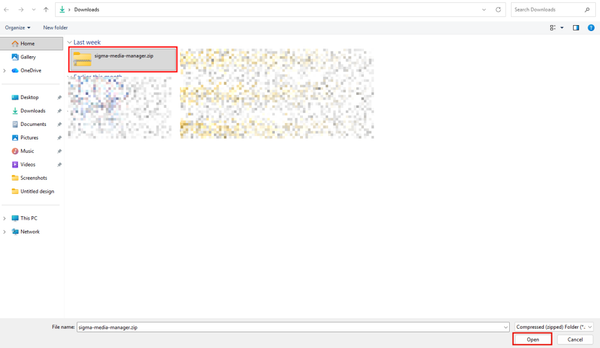
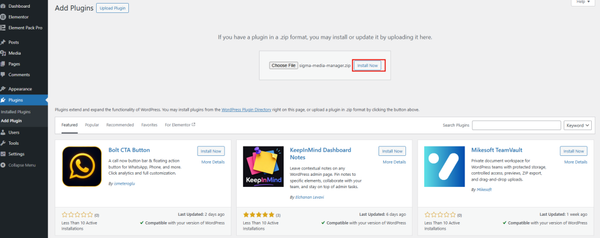
After uploading the file, click Install Now. Wait a few seconds for the installation to complete.
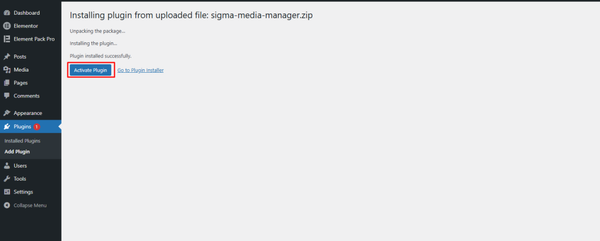
Once installed, click on the Activate Plugin button.
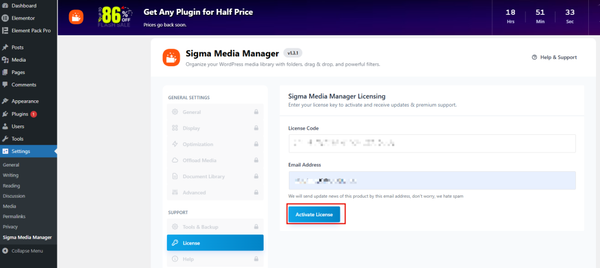
After activating the plugin, go to the Sigma Media Manager settings. Now, open the License section. Enter your license key and email address. Then, click on the Activate License button.
Your plugin is now successfully installed and ready to use.
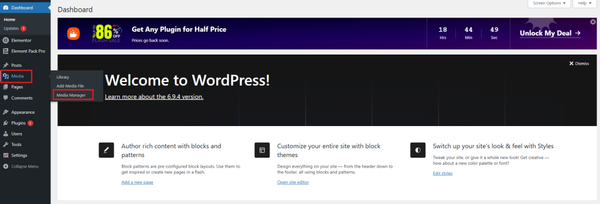
Now, go to the Media section from your WordPress dashboard.
Click on Media → Sigma Media Manager.
This will open the plugin dashboard, where you can manage your media files.
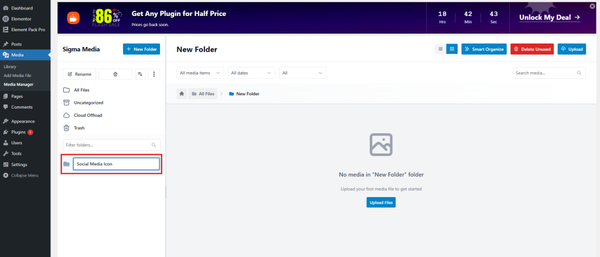
Now, click on the New Folder button.
Enter a name for your folder, for example: Social Media Icons. Then, create the folder.
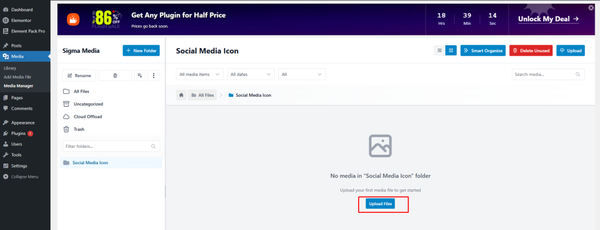
Now, open the folder you created. Click on the Upload Files button.
A pop-up will appear.
You can:
- Drag and drop your files, or
- Click to browse and select files from your computer
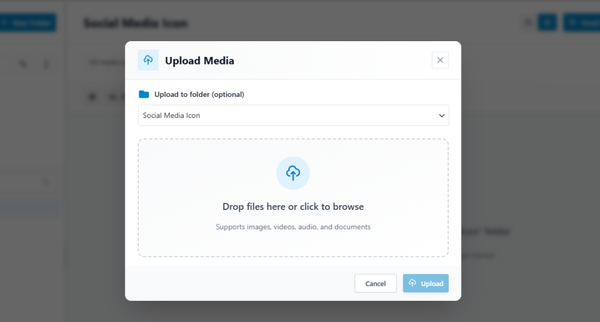
After selecting the files, click on Upload. Your media files will now be added to the folder.
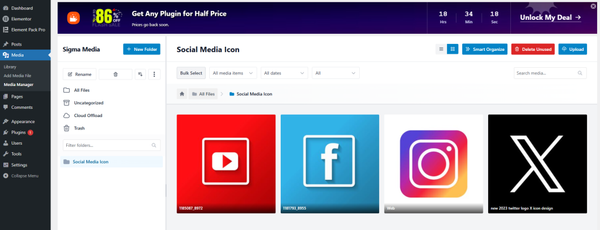
Now, go back to the page where you added the social icons.
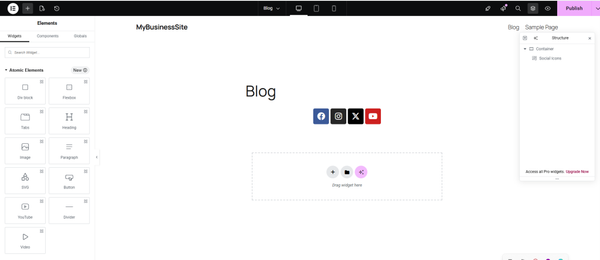
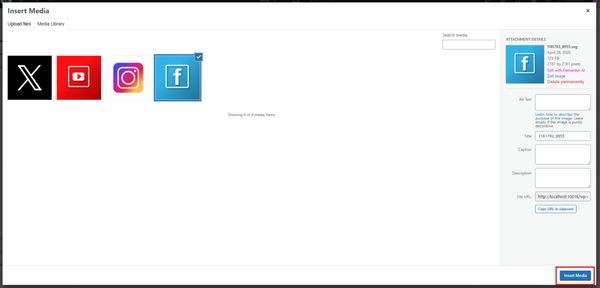
Click on the icon you want to update. Then, choose your uploaded image from the media library.
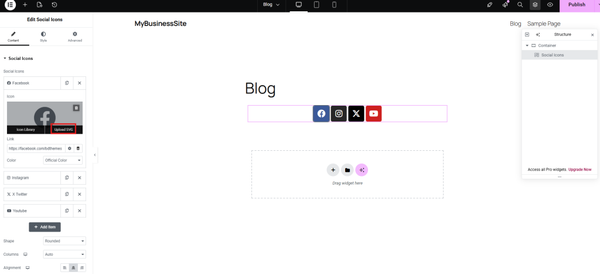
Now, select the icon image from your media library. After selecting, click on the Insert Media button. The icon will be added to your page.
Repeat the same steps to add more social media icons.
Finally, click on Publish to make your changes live.
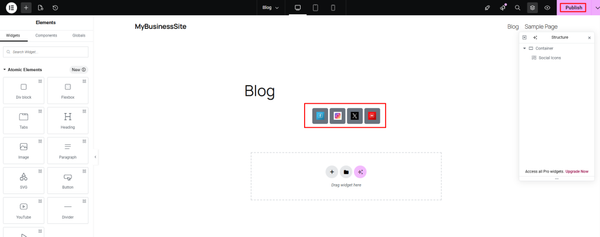
Now, you have successfully added your social media icons to your website.

FAQ
1. What is the easiest way to add social media icons in WordPress?
The easiest way is to use the Social Icons block in the WordPress editor or the Elementor Social Icons widget. Neither method requires coding.
2. Can I add social media icons without a plugin?
Yes, you can add them using the default WordPress block editor. Just search for the Social Icons block and add your links.
3. Where should I place social media icons on my website?
You can place them in the header, footer, sidebar, or inside pages. The best place is where users can easily see them.
4. How to add social media icons using Elementor?
Open your page with Elementor, drag the Social Icons widget, add your links and publish the page.
5. Why are my social media icons not showing?
This may happen if:
- The block or widget is not added correctly
- The page is not saved
- There is a caching issue
6. Can I customize the design of social media icons?
Yes, you can change:
- Size
- Color
- Shape
- Alignment
Both WordPress and Elementor allow customization.
7. How to link social media profiles to icons?
Click on the icon, paste your profile URL and press Enter. This connects the icon to your social page.
8. Can I use custom icons instead of default ones?
Yes, you can upload your own icons using the media library and use them in your design.
9. What is the benefit of adding social media icons?
It helps:
- Grow your audience
- Build trust
- Increase engagement
- Drive more traffic to your site
10. How to add social media icons using a plugin?
You can easily add social media icons in Elementor. First, open your page and click “Edit with Elementor.” Then search for the Social Icons widget. Drag and drop it onto your page. After that, select the social platforms you want and add your profile links. You can also customize the size, color, shape, and alignment of the icons from the Style settings. Once done, click Publish or Update. This method is simple and requires no coding.
Conclusion
Now you know how to add social media icons in WordPress. We showed how to create icons, link your profiles and display them in the right place.
These small changes can make a big difference for your website. Adding social icons helps visitors connect with you faster. It also improves trust and keeps users engaged with your content.
Take a few minutes to follow the steps and update your site today. Your audience will find it easier to reach you and stay connected.

Strategic Content Writer for WordPress, Semantic SEO, and SaaS Audiences