

If you have ever asked yourself, “Can I download images from WordPress media library?” the short answer is yes. Whether you are a blogger backing up your creative work, a developer migrating a site to a new host or an agency handing deliverables to a client, the ability to export your WordPress media library is a task every WordPress user will face sooner or later.
WordPress stores every image, video, PDF and document you upload inside the /wp-content/uploads/ folder on your server. By default, those files are sorted into subfolders organized by year and month. The built-in media screen in the WordPress dashboard provides a visual grid of all your files, but it lacks a single button to bulk download WordPress media library content. That gap is exactly where the four methods in this guide come in.
This article walks you through four practical, clearly explained ways to download images from a WordPress site to a computer, ranging from the simplest manual approach to fully technical server-side methods. Each option is written as a numbered step-by-step guide with screenshot spaces so you know exactly where you are in the process.
Can I Download Images From WordPress Media Library? 4 Ways to Download Images from WordPress Media Library
There are four proven methods to download images from the WordPress media library. Each one suits a different user type and a different scale of download.
A solo blogger grabbing a handful of images needs a different approach than a developer bulk-exporting thousands of product photos before a server migration.
Read through all four options and choose the one that best fits your situation.
Option 1: Download Single Images Manually
Best for: Quick downloads of one or two individual images with no plugins or server access required.
If you only need to download a single image from the WordPress dashboard, the manual method is the fastest path. No plugins, no FTP clients, no server access required. You only need your WordPress admin credentials and a browser. Follow the numbered steps below.
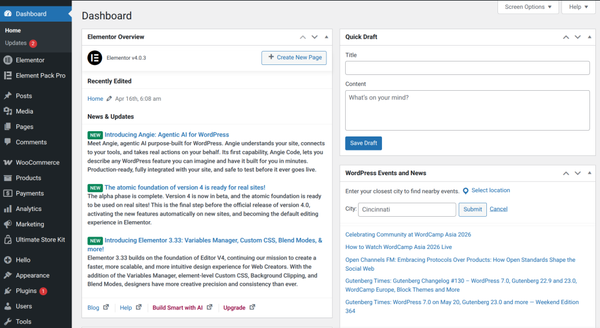
Step 1: Log in to your WordPress Dashboard
Open your browser and go to your site’s admin URL, typically yoursite.com/wp-admin. Enter your username and password to log in.
Step 2: Navigate to the Media Library
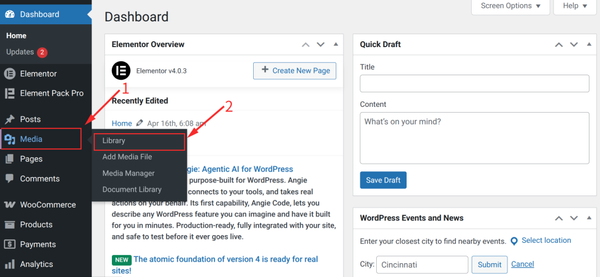
In the left-hand sidebar, click on Media, then select Library from the dropdown that appears. This opens the full media library grid.
Step 3: Switch to List View (optional)
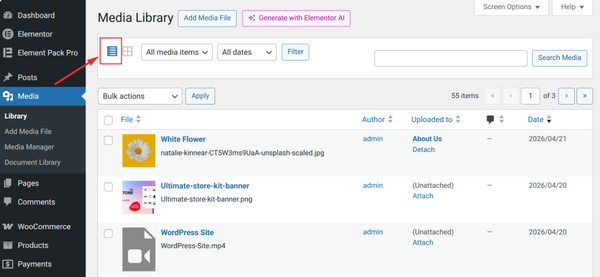
At the top right of the media library, you will see two small icons for toggling between Grid View and List View. Click the List View icon if you prefer a table layout where filenames and dates are clearly visible. This can make it easier to spot the exact image you need.
Step 4: Click on the Image You Want to Download
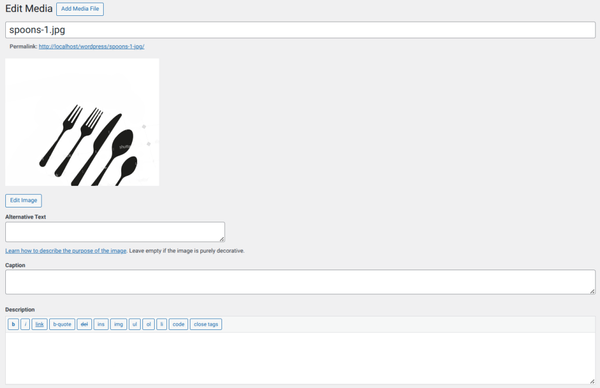
In Grid View, click directly on the image thumbnail. In List View, click on the image filename. Both actions open the Attachment Details panel on the right side of the screen, showing the file URL, file size, dimensions and other metadata.
Step 5: Copy the File URL
In the Attachment Details panel, on the right side or scroll down to find the Download file option.
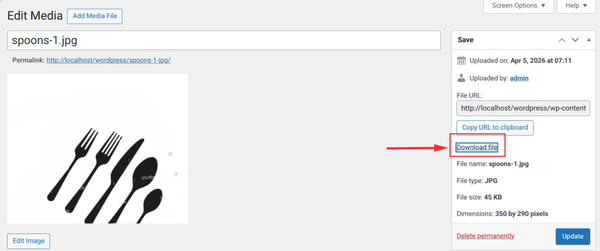
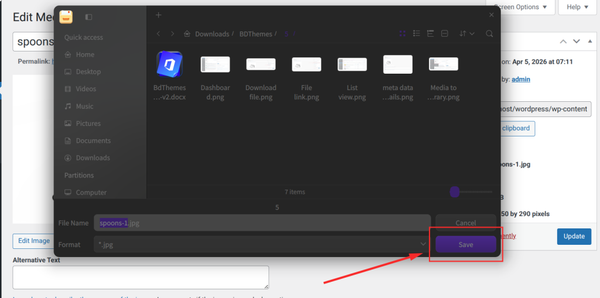
Step 6: Save the Image to Your Computer
Choose a folder on your computer and click Save.
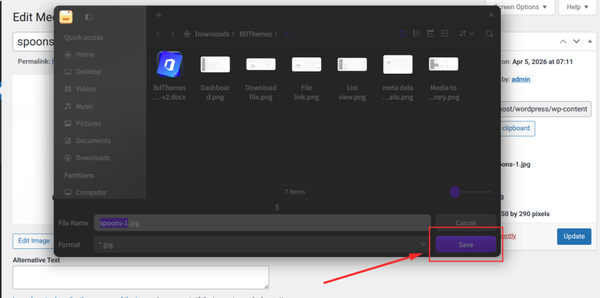
| Quick Tip: This method works perfectly for saving one image at a time. For anything beyond a handful of files, the methods below will save you significant time. |
When to use Option 1
- You need only one or two specific images.
- You do not have FTP access or technical server knowledge.
- You are on a managed hosting platform that restricts direct server access.
- Speed is your priority and you want to skip plugin installations entirely.
Option 2: Bulk Download via Plugins
Best for: Non-technical users who want to export the WordPress media library to a ZIP without touching server files.
For users who want to bulk-download WordPress media library content without editing server files, a plugin is the most beginner-friendly solution. The Sigma Media Manager plugin generates a complete ZIP archive of your media files straight from the WordPress dashboard. It is available in the BdThemes and requires zero technical knowledge to use.
Step 1: Go to Plugins in Your Dashboard
Log in to your WordPress dashboard and click Plugins in the left sidebar. Then click Add New Plugin at the top of the plugins page.
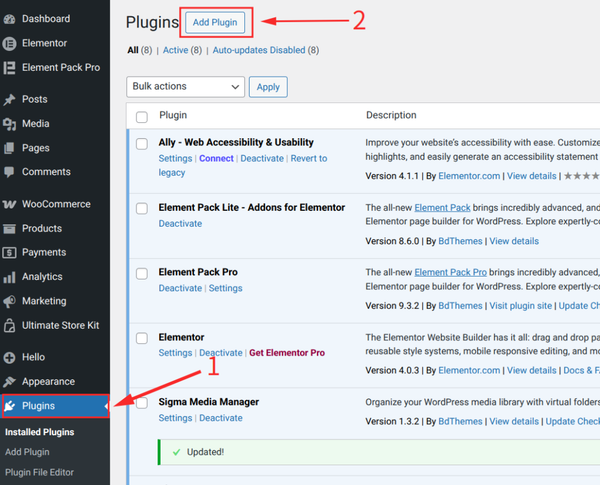
Step 2: Upload Sigma Media Manager Plugin
In the upload plugin at the top, upload the Sigma Media Manager Plugin zip file.
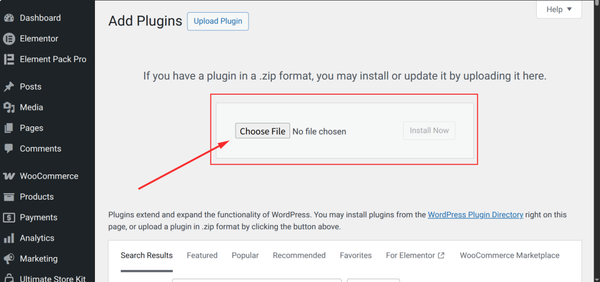
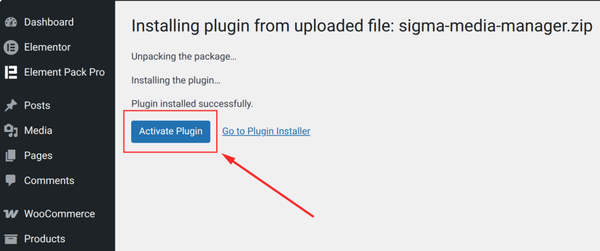
Step 3: Install and Activate the Plugin
Click Install Now. Once installation finishes, the button changes to Activate. Click Activate to enable the plugin on your site.
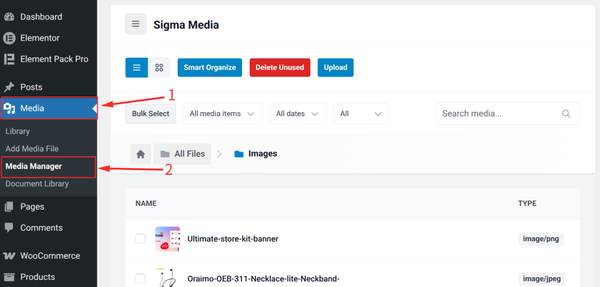
Step 4: Open the Sigma Media Manager
After activation, go to the Media > Media Manager menu in the sidebar. You will now see a new media manager dashboard.
Step 5: Choose Your Folder
Choose one folder and right-click and you will get a Download option
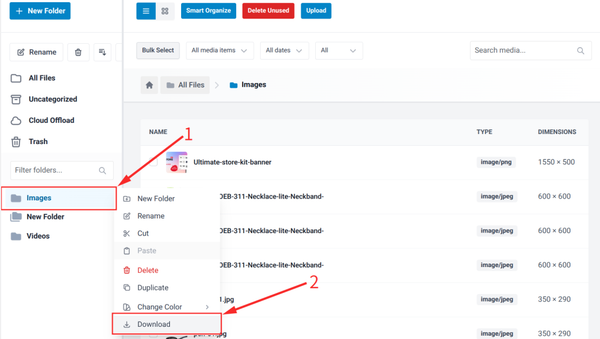
Step 7: Click Download
Click the Download option. WordPress will generate the ZIP file. Depending on your library size, this may take anywhere from a few seconds to a few minutes.
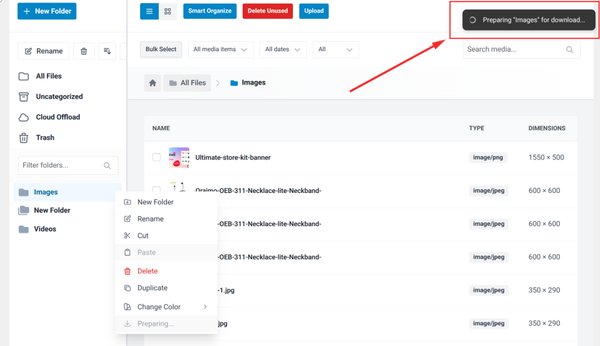
Then just choose the directory on your computer where you want to save the file.
| Pro Tip: Before running a bulk export organize your media library into folders first using Sigma Media Manager by BdThemes. With your files neatly grouped, you can export only a specific project folder instead of your entire library every time. |
When to use Option 2
- You want to bulk download all images without using FTP or cPanel.
- You are a non-technical user or content manager who prefers a dashboard-based workflow.
- You need a clean ZIP file of your media library for backup or client handoff.
- You want to migrate your media to a new site or staging environment.
Option 3: Server-Side Download (For Technical Users)
Best for: Developers and technically comfortable users who need a complete copy of all files, including every image size variant.
If you are comfortable working directly with your hosting account, the server-side approach is the most complete and reliable way to download the wp-content uploads folder. This method captures every file in your media library, including all image sizes WordPress automatically generates during upload, along with PDFs, audio files and video files. It gives you a perfect, unfiltered copy of everything stored in /wp-content/uploads/.
Method A: Using cPanel File Manager
Most shared hosting providers offer cPanel as their control panel and cPanel includes a browser-based File Manager. This approach compresses your entire uploads folder into a single ZIP on the server, then you download that one file. It is significantly faster than FTP for large libraries.
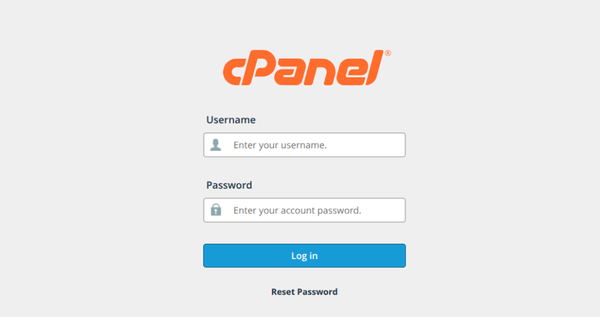
Step 1: Log in to cPanel
Open your hosting account and navigate to cPanel. The URL is typically yoursite.com/cpanel or accessible through your hosting dashboard. Enter your cPanel username and password.
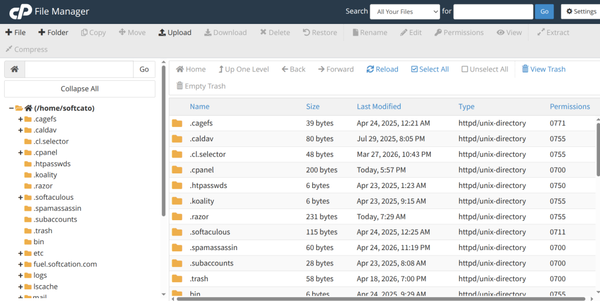
Step 2: Open File Manager
Inside cPanel, look for the Files section and click on File Manager. This opens a browser-based file explorer showing all files on your server.
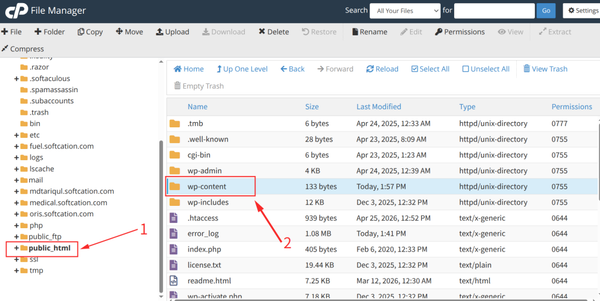
Step 3: Navigate to the Uploads Folder
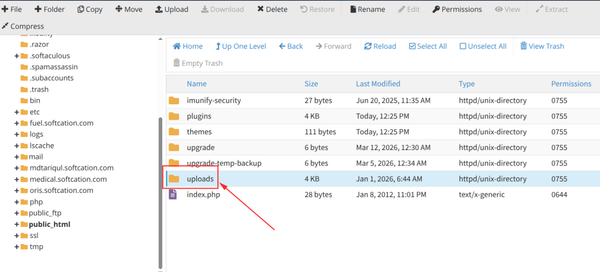
In File Manager, double-click public_html to open your site’s root directory. Then double-click wp-content to open it. Inside, you will see the uploads folder, which contains all your WordPress media files.
Step 4: Select the Uploads Folder
Click once on the uploads folder to highlight it. Do not double-click, as that would open the folder. You want to select the folder itself as the item to compress.
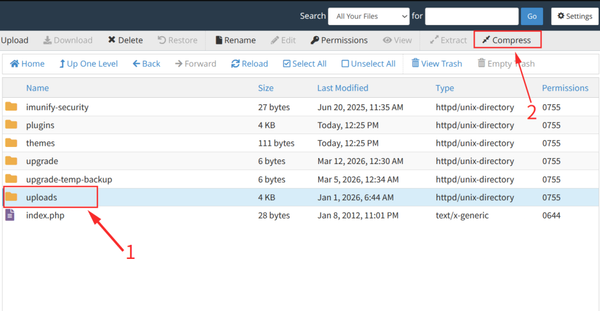
Step 5: Compress the Folder to a ZIP
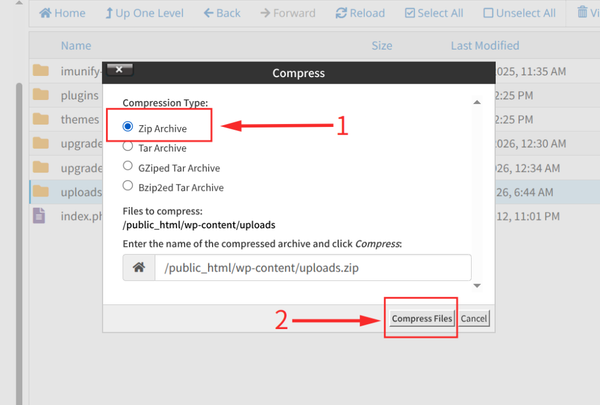
With the uploads folder selected, click the Compress icon in the top toolbar. A dialogue box will appear asking for the compression format. Select Zip Archive at the top of the list, leave the filename and save location as the defaults, then click Compress Files.
Step 6: Wait for Compression to Complete
cPanel will compress the files and display a Compression Results pop-up showing how many files were compressed and how much space was saved. Click Close once it finishes. The ZIP file has now been created in the wp-content folder.
Step 7: Download the ZIP File
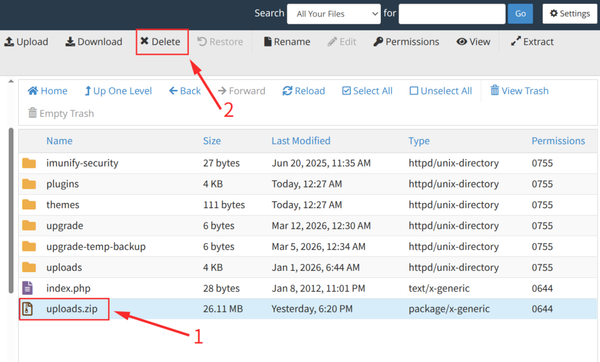
Navigate back to the wp-content folder. You will see a new file called uploads.zip. Click it once to select it, then click the Download button in the top toolbar. Your browser will save the ZIP to your computer.
Step 8: Delete the ZIP from the Server
After downloading, go back to File Manager, select the uploads.zip file and click Delete to remove it from the server. Leaving large ZIP files on your server wastes storage space.
| Important Note: Compressing a very large media library can briefly spike CPU usage on your server. If your site receives heavy traffic, schedule the compression during off-peak hours, such as late at night or early morning. |
When to use Option 3
- You want a complete copy of all image sizes and file variants, including WordPress-generated thumbnails.
- You are migrating your WordPress site to a new hosting provider.
- You are a developer setting up a full local development environment.
- You want to download the WordPress media library to cPanel as a reliable server-level backup.
- You are comfortable navigating your hosting control panel and using FTP tools.
Option 4: Built-in Export for Managed Platforms
Best for: WordPress.com users and sites on fully managed hosting platforms such as WP Engine, Kinsta or Flywheel, where direct server access is restricted.
If your WordPress site is hosted on a managed platform, the process for downloading your media library may differ from the steps above. These platforms often restrict direct server access in exchange for simplified management and security. Fortunately, most of them provide their own built-in tools for media export.
Method A: WordPress.com Sites
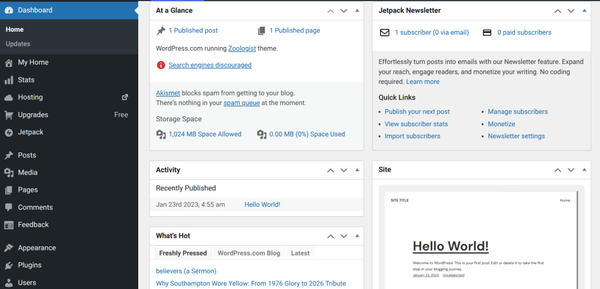
Step 1: Log in to Your WordPress.com Dashboard
Go to wordpress.com and sign in with your account credentials. Click on your site name to open the site dashboard.
Step 2: Go to Tools and then Export
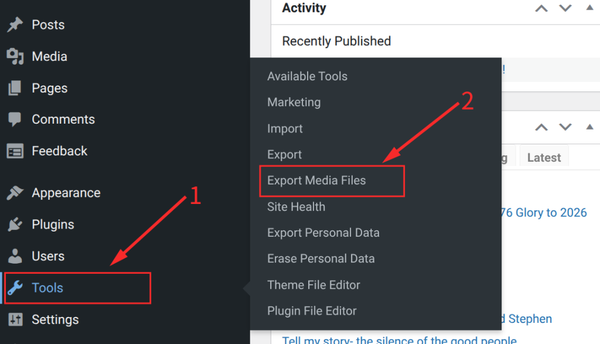
In the left sidebar, click on Tools, then select Export Media File from the dropdown. This opens the WordPress.com media file export page.
Step 4: Download the File
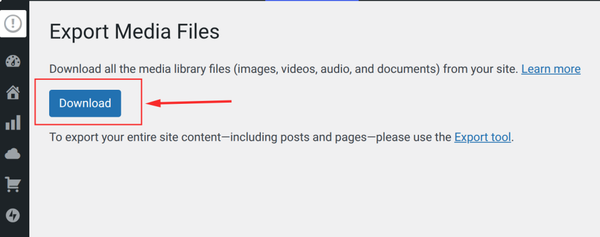
Now, a Download button will appear on the page. Click the button to save the file to your computer.
| Note for WordPress.com Business and Commerce Plan Users: On plans that support plugins, you can install the Export Media Library plugin described in Option 2 and follow the same steps for a more flexible ZIP download. |
When to use Option 4
- Your site is on WordPress.com or another fully managed hosting platform.
- You do not have standard cPanel or direct file manager access.
Bonus: How to Organize Your WordPress Media Library
Downloading your media library becomes much faster and cleaner when your files are well-organized before you export. A disorganized flat grid of thousands of images makes it hard to find specific files, export only what you need and maintain a clear record of your assets. Here are the most effective practices for keeping your WordPress media library in great shape.
Use Folders to Group Related Files
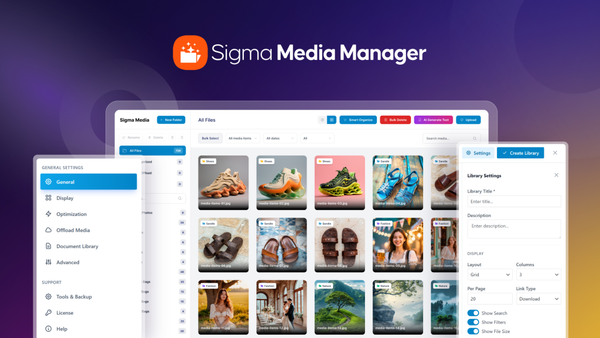
The default WordPress media library displays all uploads in a flat grid sorted by date, with no folder structure. For sites with more than a few dozen files, this makes finding anything specific frustratingly slow. Sigma Media Manager by BdThemes adds unlimited nested folders to your WordPress media screen, complete with drag-and-drop management, folder color coding and keyboard shortcuts. You can organize images by client, project, campaign or content type, making it easy to locate and export exactly the files you need at any time.
Add Alt Text and Descriptive Filenames Before Uploading
Every image you upload to WordPress should have a descriptive filename before it enters your media library. File names like IMG_4892.jpg are meaningless for search engines and for your own future reference. Rename your files to something descriptive, such as blue-hiking-boots-side-view.jpg, before uploading. Once inside the media library, fill in the Alt Text field in the Attachment Details panel.
Optimize Images Before and After Upload
Large, unoptimized images slow down your site, increase export file sizes and waste server storage. Always compress images before uploading using a tool like Squoosh, TinyPNG or ShortPixel. For images already in your library, use an image optimization plugin to bulk compress them. Properly optimized images produce smaller ZIP archives when you export, faster upload speeds when you restore files to a new host and a better experience for your visitors.
Leverage AI-Powered Metadata Generation
Writing descriptive titles, captions and alt text for hundreds of images manually is time-consuming. Sigma Media Manager includes an AI-powered bulk metadata generation feature that automatically creates professional titles, captions and descriptions for your images in just a few clicks. This saves hours of manual work while improving your site’s SEO and accessibility at scale.
Can I download images from the WordPress media library without a plugin?
Yes. You can download individual images manually through the WordPress dashboard without a plugin. For bulk downloads, you can use cPanel’s File Manager or an FTP client like FileZilla to download the entire /wp-content/uploads/ folder directly from your server. Plugins simply make the process easier and more beginner-friendly for users who prefer to stay inside the dashboard.
Where does WordPress store uploaded images on the server?
WordPress stores all uploaded media files in the /wp-content/uploads/ directory on your hosting server. By default, files are organized into subfolders by year and month. An image uploaded in April 2026, for example, would be stored at /wp-content/uploads/2026/04/.
Will downloading my media library affect my live website?
Generally, no. Downloading your media library creates a copy of the files and does not remove or alter anything on your live site. The only exception is when using cPanel to compress a very large library, which can briefly increase server CPU usage. For safety, run the compression during low-traffic hours.
What is the fastest way to bulk download WordPress media library content?
Using cPanel’s File Manager to compress the uploads folder into a ZIP archive and then downloading that single file is the fastest approach for most users. The Export Media Library plugin is the easiest option if you prefer to stay inside the WordPress dashboard. FTP is reliable for large libraries but slower because files are transferred one by one rather than as a single archive.
Can I download only specific images rather than the entire library?
Yes. For individual images, use the manual method through the WordPress dashboard. For targeted bulk downloads organize your library into folders first using Sigma Media Manager, then use cPanel or an FTP client to navigate directly to the specific subfolder you want and download only that folder.
Does the WordPress built-in export tool download my actual image files?
No. The built-in WordPress export tool found under Tools and then Export generates an XML file that contains links to your media files, not the actual image files themselves. To download the physical image files, use one of the four methods described in this guide.
How do I export the WordPress media library on WordPress.com?
On WordPress.com sites without plugin support, use the Site Tools export option and select Media as the export type. On sites with plugin support enabled on the Business or Commerce plan, install the Export Media Library plugin and follow the same steps as Option 2 for a flexible ZIP download. If you have Jetpack Backup active, you can also download the uploads folder directly from the Jetpack Backup file browser.
How can I keep my WordPress media library organized for easier future exports?
Use a dedicated media management plugin to add folder structure to your library. Sigma Media Manager by BdThemes adds unlimited nested folders, drag-and-drop management, AI metadata generation and unused media cleanup to your WordPress media screen. Keeping your library organized means any future export, migration or client handoff is faster, more targeted and far less stressful.
Conclusion
So, can you download images from the WordPress media library? Absolutely. Whether you are saving a single image for a quick edit, performing a full site migration, working within a managed hosting environment or building a clean local backup before a major update, there is a method in this guide that fits your exact situation.
To recap, the four methods covered here. For a single image, the manual right-click-and-save option in the dashboard is the quickest with no setup required. For a beginner-friendly bulk download, the Export Media Library plugin generates a clean ZIP archive of your entire library in just a few clicks. For a complete server-level export including every image size variant, cPanel File Manager or an FTP client gives you direct access to the /wp-content/uploads/ folder.
For managed WordPress platforms such as WordPress.com, WP Engine or Kinsta, the built-in export tools provided by your host or the Jetpack Backup browser offer a safe and fully supported path.
No matter which method you choose, having a local copy of your media library is good practice. It protects your creative assets, simplifies migrations and gives you peace of mind. Pairing regular exports with strong library organization using a tool like Sigma Media Manager means every future export or handoff will be faster and more precise.
For more WordPress tips, plugin guides and web design resources, visit the BdThemes blog and explore our full range of tools built to help you design, manage and grow your WordPress website with confidence.
Md Tariqul
The BdThemes team builds WordPress plugins trusted by 3M+ users worldwide. We write about web accessibility, WCAG compliance, and inclusive design.