

If you have just launched a WordPress website, uploading images is one of the first things every WordPress user does. Yet it is also one of the things that trips beginners up most often.
Where do you upload? What happens to the file after it lands? Why did the upload fail? Why can’t you find the image you just uploaded?
The WordPress media library is the answer to all of these questions. It is the built-in hub where every image, video, PDF and audio file on your website lives. Once you understand how to add images to the WordPress media library properly, the whole process starts to feel straightforward rather than confusing.
This guide walks you through every method for uploading images to WordPress, how to fill in the details that matter for SEO and accessibility, how to fix the most common upload errors and what to do when your library starts growing beyond what the default tools can handle.
What Is the WordPress Media Library?
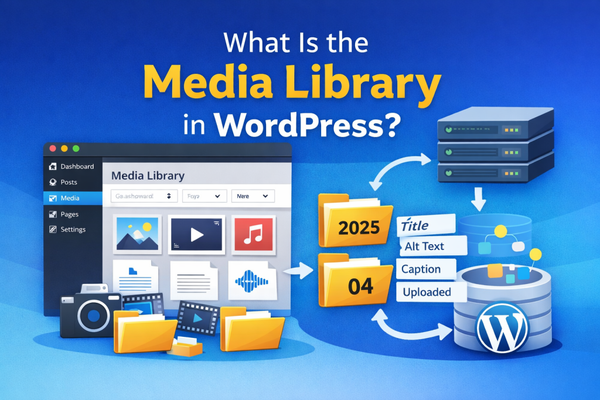
The WordPress media library is the centralized storage and management system for every file you upload to your site.
You access it from your admin dashboard by going to Media → Library.
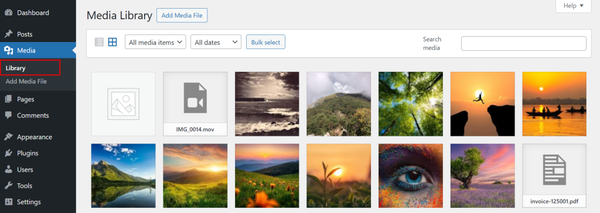
Everything from blog post header images to downloadable PDFs to background videos lives in there.
How WordPress Stores Your Files
When you upload a file, WordPress does two things simultaneously:
- It saves the physical file to your server inside the /wp-content/uploads/ folder, organized automatically into subfolders by year and month
- It creates a database entry called an attachment post type that stores the file’s metadata: title, alt text, caption, description, upload date and uploader
This two-layer system is what gives you a searchable, manageable library rather than just a raw folder of files.
Supported File Types
The default WordPress media library accepts the following file types:
- Images: JPEG, PNG, GIF, WebP, ICO, HEIC
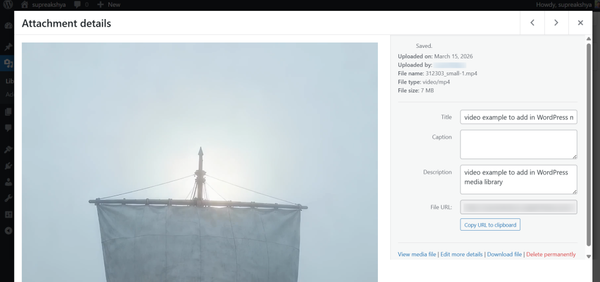
- Videos: MP4, MOV, AVI, WMV, MPG, OGV
- Audio: MP3, M4A, WAV, OGG
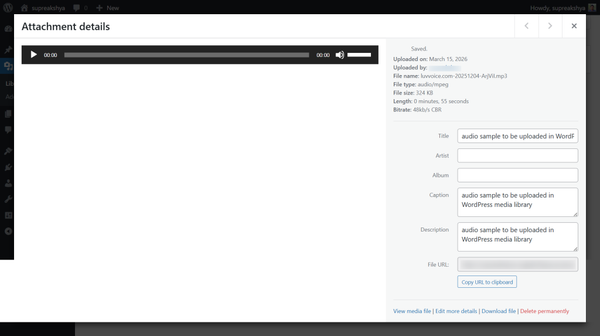
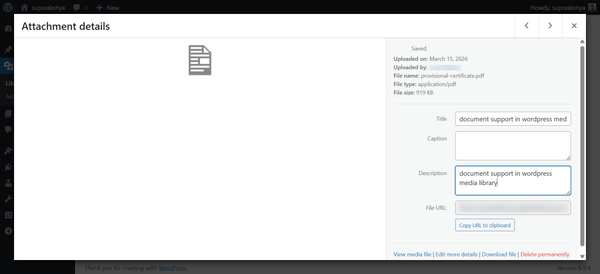
- Documents: PDF, DOC, DOCX, PPT, PPTX, XLS, XLSX
Grid View vs List View
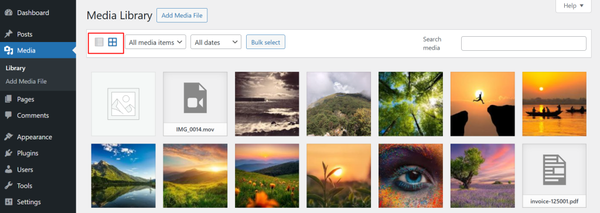
WordPress gives you two ways to browse your files inside the media library:
- Grid view: Shows thumbnail previews in a mosaic layout. Better for visually scanning images at a glance
- List view: Shows files in a table with columns for file name, author, attachment status and upload date. More practical for auditing or administrative work
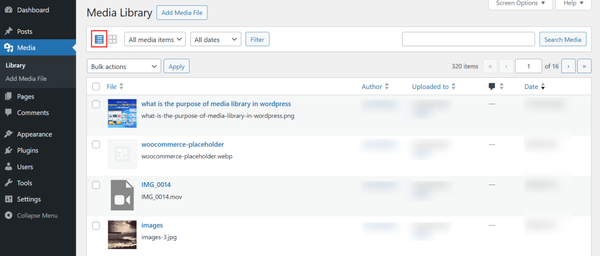
You switch between them using the small toggle icons in the top-right corner of the Media → Library page.
Why Your Media Library Affects Site Performance
According to Google’s Core Web Vitals documentation, image-related issues are among the most common causes of poor Largest Contentful Paint (LCP) scores. It directly affects your search rankings.
A well-managed library that properly sizes and optimizes images before upload is one of the most accessible performance improvements a non-technical site owner can make.
Before You Upload: Preparing Your Images the Right Way
One of the most common mistakes beginners make is uploading images straight from a phone or camera without any preparation. A photo taken on a modern smartphone can easily be 5MB to 8MB. Uploading those files without resizing or compressing them can make a website slow almost immediately.
Research from the HTTP Archive’s Web Almanac consistently shows that images account for the largest share of page weight on the web. Getting into good habits before you hit the upload button saves you significant cleanup work later.
Step 1: Rename Your File Descriptively
Your camera saves files as IMG_4893.jpg or DSC00421.jpg. These names mean nothing to search engines. Rename the file to something that describes what is in it before uploading:
- A product photo becomes red-running-shoes-womens.jpg
- A team headshot becomes sarah-jones-marketing-director.jpg
- A blog header becomes wordpress-media-library-guide-header.jpg
Descriptive filenames are a simple, free SEO improvement that most beginners skip entirely.
Step 2: Resize to Web-Appropriate Dimensions
Most website images do not need to be wider than 1920 pixels. Here are sensible size guidelines:
- Full-width hero images: 1440 to 1920 pixels wide
- Blog post body images: up to 1200 pixels wide
- Thumbnails and sidebar images: 400 to 600 pixels wide
Uploading a 4000-pixel-wide image when WordPress only displays it at 800 pixels wastes storage and slows your pages down unnecessarily.
Step 3: Compress Before Uploading
Free tools like TinyPNG, Squoosh and ImageOptim can reduce image file sizes by 60% to 80% with no visible loss in quality. This single step has the most immediate impact on page load speed.
If you prefer to handle compression automatically within WordPress, the best WordPress optimization plugins can also do the job for you.
Step 4: Choose the Right File Format
Picking the right format before upload keeps file sizes small and quality high:
- JPEG: Best for photographs and images with many colors or gradients
- PNG: Best for logos, icons and graphics with transparent backgrounds or flat colors
- WebP: Supported by all modern browsers, offers smaller file sizes than both JPEG and PNG at comparable quality and is increasingly the recommended format for new websites
How to Add Images to WordPress Media Library: 3 Methods
There are three distinct ways to upload images to WordPress and knowing when to use each one makes your workflow much more efficient.
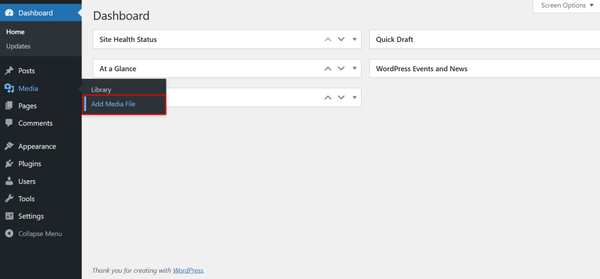
Method 1: Upload via Media → Add New Media File
This is the most straightforward method and the best option when you want to add images to your library in bulk before attaching them to any specific post or page.
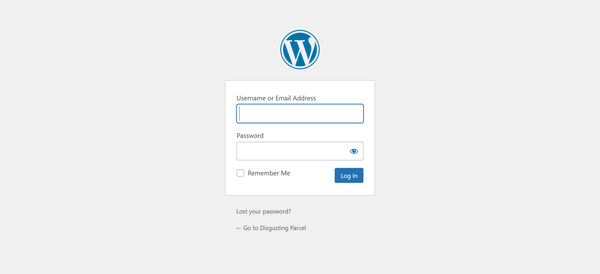
- Log in to your WordPress admin dashboard. The URL is typically your domain followed by /wp-admin.
- In the left sidebar, go to Media → Add New Media File.
On the upload screen, you have two options:
- Click Select Files to open your file browser and choose one or more images from your computer.
- Drag images directly from your desktop onto the upload area in your browser
WordPress accepts both approaches and begins uploading immediately.
- Watch the progress bar for each file. Do not close the browser tab until all uploads have finished.
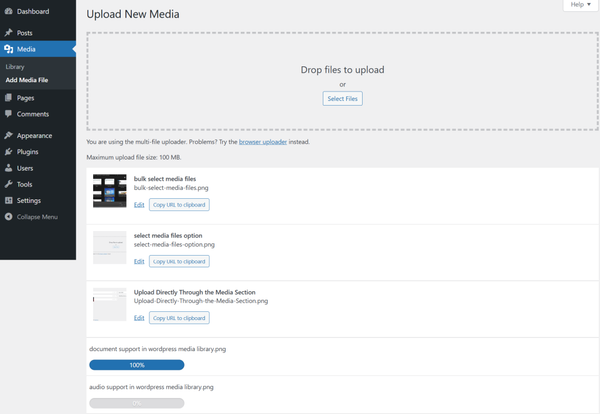
Once uploaded, each image appears as a thumbnail in the library.
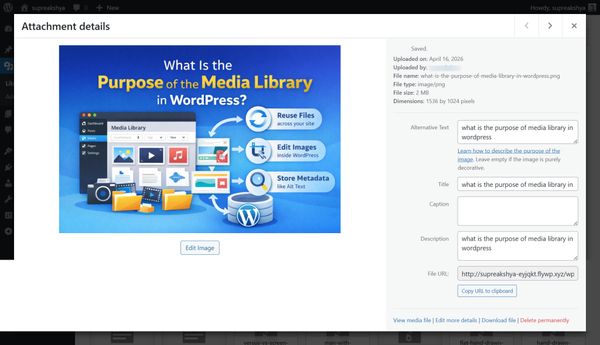
Click any thumbnail to open the attachment details panel on the right, where you can fill in alt text, title, caption and description.
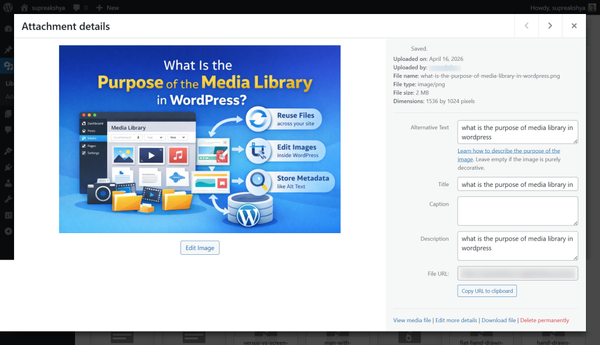
This method is particularly useful for bulk media uploads.
If you are setting up a new site and have 50 product images ready to go, uploading them all here before building your pages is far more efficient than uploading them one at a time from inside the editor.
Method 2: Upload Images Directly from the Block Editor
When you are actively writing or editing a post or page, you can upload images and insert them into content in a single step without leaving the editor.
- Open the post or page you want to edit, or create a new one via Posts → Add New or Pages → Add New.
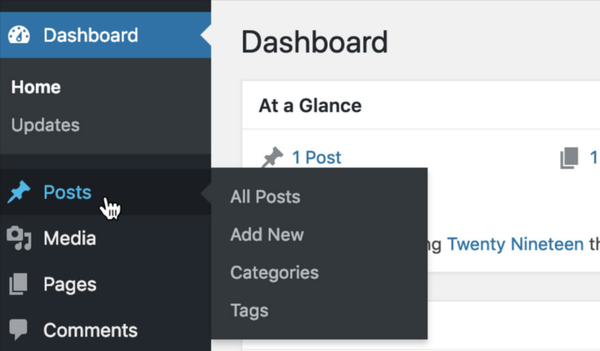
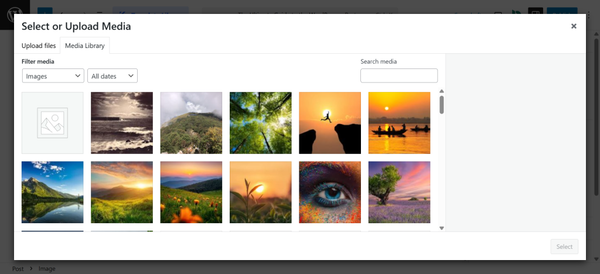
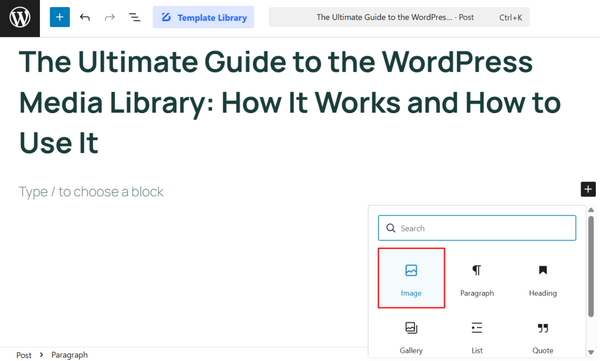
- In the Gutenberg block editor, click the blue “+” icon where you want to insert an image to open the block inserter panel.

- Search for “Image” and click the Image block to insert it at your cursor position.
Within the Image block, choose one of the following:
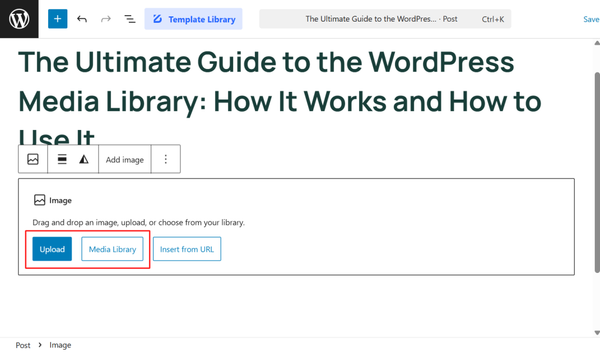
- Upload to add a new image directly from your computer
- Media Library to choose from the files you have already uploaded
- Insert from URL to embed an image hosted elsewhere
For featured images: Scroll to the “Featured Image” panel in the right sidebar, click “Set featured image.”

The same media library lightbox appears where you can upload or select an image.
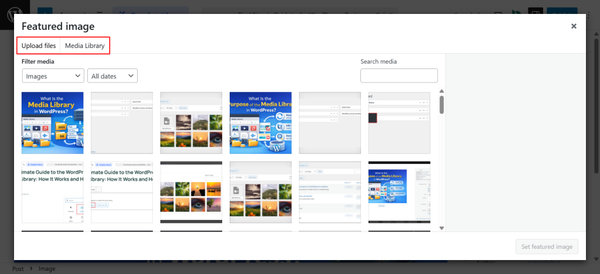
This is the method most WordPress users rely on day to day because it fits naturally into the content creation workflow.
Method 3: Drag and Drop in the Block Editor
This is the fastest method for single images when you already have the file visible on your desktop.
- Open the post or page editor in WordPress.
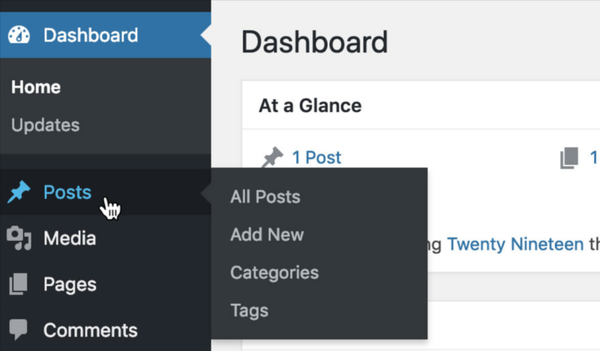
- Open your file manager or Finder in a separate window alongside your browser so both are visible on screen.
- Click the image file on your desktop, drag it across into the Gutenberg editor in your browser and drop it where you want it to appear.
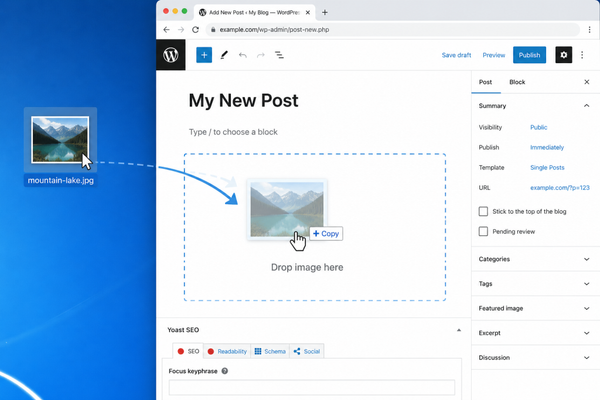
WordPress displays a blue-highlighted drop zone as you hover over the editor. When you release the file, it is automatically uploaded and inserted into the content at that position.
This method saves several clicks compared to using the block inserter and is particularly fast when you are writing quickly and want to drop images into the flow of an article without interrupting your train of thought.
How to Edit Image Details After Uploading
Uploading an image is only half the job. The other half is filling in the metadata that makes those images useful for SEO, accessibility and your own ability to find files later.
To edit image details, go to Media → Library, click the image to open the attachment details panel and review each of the following fields.
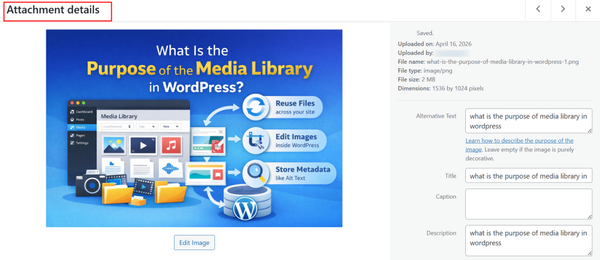
Adding Alt Text
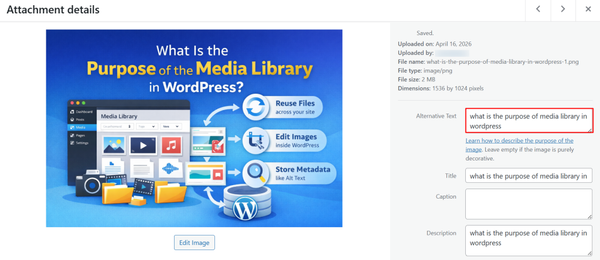
Alt text is the single most important field to fill in for every image. It serves two critical purposes:
- Accessibility: Screen readers read alt text aloud to describe images for users who cannot see them. The WebAIM accessibility standard specifies that every meaningful image should have alt text that conveys the content and purpose of that image
- SEO: Search engines use alt text to understand what an image depicts. Well-written alt text helps your images appear in image search results and adds relevance signals to your page
Write alt text as a natural, concise description:
- Good: “Red women’s running shoes with white sole, side view.”
- Avoid: “running shoes buy running shoes women cheap”. This is keyword stuffing and hurts more than it helps
Adding Title
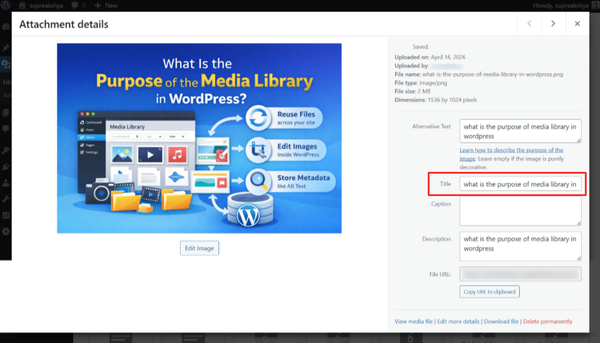
The title field defaults to your filename stripped of its extension and hyphens. Update it to something more human-readable. Some themes display this text when a user hovers over an image.
Adding Caption
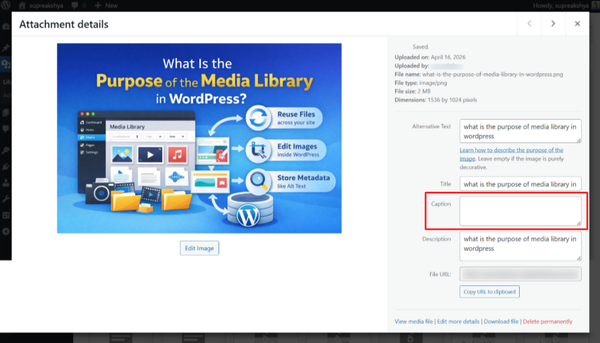
Captions appear directly below images in posts and pages. Multiple eye-tracking studies show captions are among the most-read text on any article page, making them a valuable opportunity to add context, attribution, or a supporting detail.
Adding Description
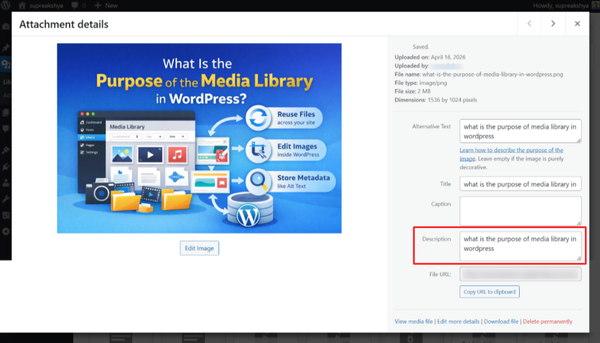
The description field appears primarily on the image’s attachment page and is less visible on the front end of most sites. It is worth filling in if you maintain a large library and want better internal searchability.
Basic Image Editing Tools
WordPress includes a built-in image editor accessible by clicking “Edit Image” from the attachment details panel.

From there you can:
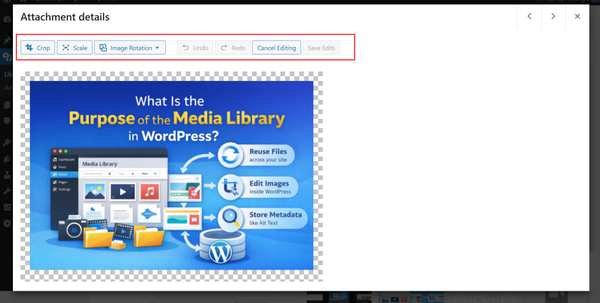
- Crop the image to a specific area
- Rotate left or right
- Flip horizontally or vertically
- Scale to different pixel dimensions
- Undo any changes back to the original
These tools handle quick fixes without requiring you to download and re-upload files.
Common Reasons Images Fail to Upload (and How to Fix Them)
Upload errors are one of the most common frustrations for WordPress beginners. The causes are well-documented and the fixes are usually straightforward.
The File Is Too Large
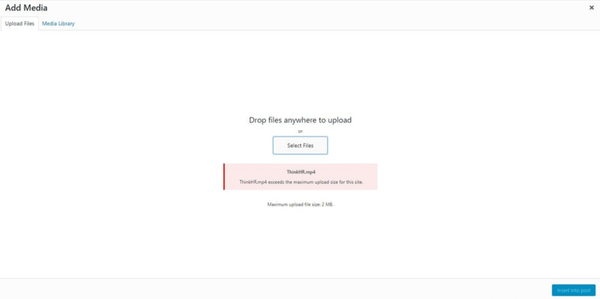
Problem: WordPress blocks the upload with a message like “exceeds the maximum upload size.”
Why it happens: Hosting environments impose a maximum file upload size. Shared hosting plans often default to 2MB.
How to fix it:
- Compress the image before uploading using TinyPNG or Squoosh. A 6MB photograph can often be reduced below 1MB with no visible quality loss
- Add php_value upload_max_filesize 64M and php_value post_max_size 64M to your .htaccess file to raise the server limit
- Alternatively, increase limits through your hosting control panel’s PHP settings
Unsupported File Format
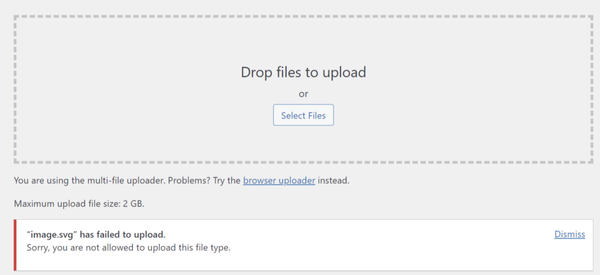
Problem: WordPress rejects the file with “Sorry, this file type is not permitted for security reasons.”
Why it happens: WordPress blocks certain formats by default, including SVG, ZIP and some uncommon image types. SVG files are blocked because they may contain embedded JavaScript, which can create a security vulnerability.
How to fix it:
- For SVG files, install a dedicated plugin that sanitizes SVGs before allowing them into the library. Several free options exist in the WordPress plugin repository
- For other blocked formats, additional MIME types can be added via a code snippet in your theme’s functions.php file, though you should understand the security implications before doing so
HTTP Error During Upload
Problem: An upload attempt fails with a vague “HTTP error” and no further explanation.
Why it happens: Common causes include a PHP memory limit that is too low, a server timeout during a large upload, or a security plugin blocking the upload request.
How to fix it:
- Refresh the page and try uploading again. Temporary server-side issues are a common cause and often resolve on retry
- Try uploading a smaller image to determine whether the file size is triggering the error
- Temporarily deactivate your security plugin to test whether it is the culprit
- Increase your PHP memory limit via wp-config.php or your hosting panel
Permission Errors
Problem: Uploads fail silently or with a vague error and images do not appear in the library.
Why it happens: WordPress cannot write to the /wp-content/uploads/ folder because the directory has incorrect file permissions. This typically happens after a server migration or a hosting configuration change.
How to fix it:
- The uploads folder should have permissions set to 755 in most server configurations
- Check and correct this via FTP using a client like FileZilla, or through your hosting control panel’s file manager
- If you are not comfortable adjusting file permissions manually, your hosting support team can fix this quickly
Images Not Showing After Upload
Problem: The upload appears to complete but the image does not appear in the media library grid.
Why it happens: Usually a browser cache issue. Occasionally, the attachment database entry is not created properly.
How to fix it:
- Try a hard refresh using Ctrl+F5 on Windows or Cmd+Shift+R on Mac
- Open the media library in an incognito or private browser window
- If the image still does not appear, use the built-in WordPress database repair tool to fix any database inconsistencies
Practical WordPress Media Library Tips for Better Image Management
Getting images into the library is just the start. Managing them well over time requires a few consistent habits.
Use Consistent Naming Conventions
Decide on a naming pattern before you start uploading and stick to it. A common format is topic-descriptor-size.jpg. For example:
- homepage-hero-1440.jpg
- blog-featured-wordpress-guide.jpg
- product-blue-tshirt-front.jpg
Fill In Alt Text Immediately After Upload
It is easy to skip this step when you are in a hurry and nearly impossible to go back and complete it retroactively for hundreds of images. Make it part of your upload workflow every single time.
Avoid Uploading Duplicate Files
Before uploading an image, use the media library search bar to check whether you have already uploaded the same or a very similar file. Duplicate images:
- Waste storage space you are paying for
- Slow down the admin interface
- Create confusion about which version is the current one
Delete Images You No Longer Use
Many WordPress users never delete anything from their media library. Over time, this creates bloat from:
- Images from posts that were later deleted
- Replaced product photos where the old version was never removed
- Test uploads and outdated banners
A lean library is faster to search, cheaper to host and much easier to navigate.
Use WebP Format for New Uploads
WebP files are typically 25% to 35% smaller than equivalent JPEG files, resulting in faster page loads. If your theme and page builder support WebP (most modern ones do), it is worth switching to this format for new image uploads going forward.
Limitations of the Default WordPress Media Library
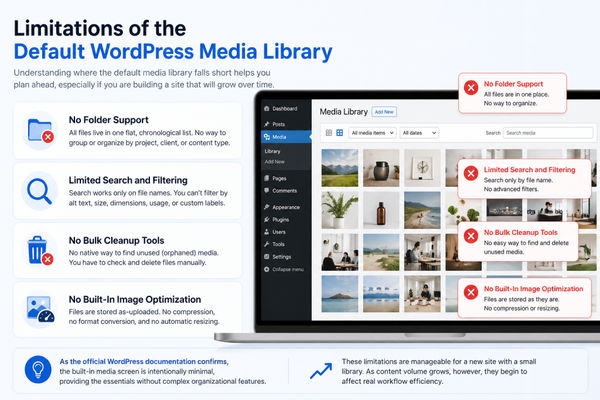
Understanding where the default media library falls short helps you plan ahead, especially if you are building a site that will grow over time.
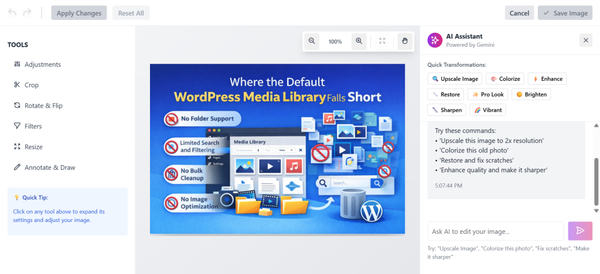
No Folder Support
- Every image you have ever uploaded sits in the same flat, chronological list
- There is no way to group product images separately from blog images, or keep client assets organized by client
- Scrolling through hundreds of thumbnails to find a specific file becomes genuinely inefficient as the site ages
Limited Search and Filtering
The search bar only matches against file names. You cannot search by:
- Alt text or caption content
- File dimensions or size
- Whether a file is currently attached to any content
- Any custom tag or label
No Bulk Cleanup Tools
- There is no native way to identify which uploaded files are no longer attached to any content
- Finding and deleting orphaned media requires checking files manually, one by one
No Built-In Image Optimization
- WordPress stores uploaded files exactly as they arrive. A 4MB PNG stays a 4MB PNG in storage
- No automatic compression, no format conversion and no size enforcement beyond the upload limit
As the official WordPress documentation confirms, the built-in media screen is intentionally minimal, providing the essentials without complex organizational features.
These limitations are manageable for a new site with a small library. As content volume grows, however, they begin to affect real workflow efficiency.
A Smarter Way to Manage Media in WordPress
As your website grows, managing hundreds of images in the default media library becomes inefficient and time-consuming.
Searching through an unsorted library of 500 files, repeatedly uploading duplicates because you cannot find the original, and never being sure which images are still in active use are all indications that a library has outgrown the default tools.
To overcome these limitations, tools like Sigma Media Manager provide advanced media organization features without complicating your workflow.
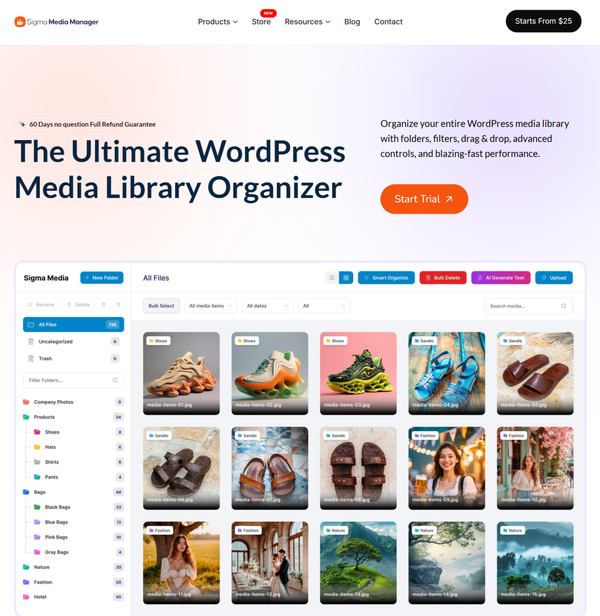
It works inside the native WordPress media interface rather than replacing it, so there is no learning curve and no disruption to how you already work.
Key Features of Sigma Media Manager
Here is what Sigma Media Manager specifically adds to the standard WordPress media library experience.
Folder-Based Organization
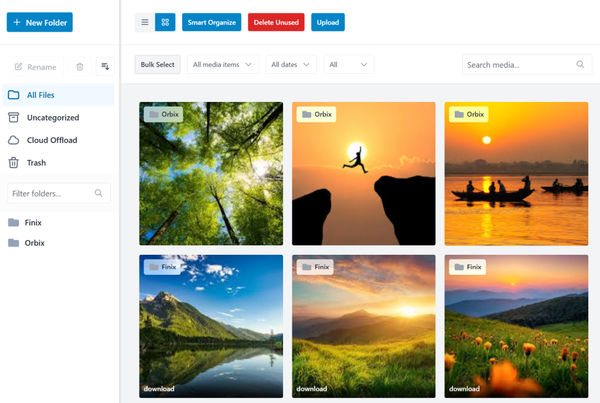
- Create unlimited folders and subfolders to organize media the same way you organize files on your desktop.
- Use the Smart Organize feature, which uses AI to automatically sort your existing unorganized library into meaningful folders in a single click.
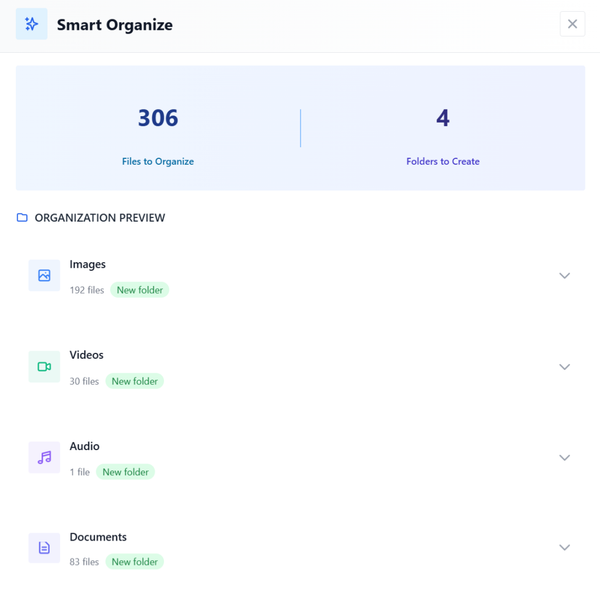
- Files are organized within the WordPress database without physically moving them on the server, so all existing image URLs remain intact with no broken links
Drag and Drop File Management
- Move files between folders by dragging a thumbnail from one location and dropping it into another
- Assign files to a specific folder during upload, keeping everything organized from the moment it arrives
Advanced Search and Filtering
- Filter by file type, date, folder and attachment status
- Quickly narrow results to specific subsets like “unattached images from 2023” or “all PDFs in the Documentation folder.”
- Scan your entire library to find files not referenced in any posts or pages, then delete them in bulk
Cleaner Workflow for Content Teams
- Shared folder structures mean everyone on the team knows where to find assets without asking each other
- Agencies managing multiple client sites benefit from consistent folder structures across all of them
- The BdThemes blog on best WordPress plugins covers more workflow-improving tools across different areas of site management
AI-Powered Text Generation
- Connect a Gemini API key to generate alt text, titles and captions for multiple images in bulk
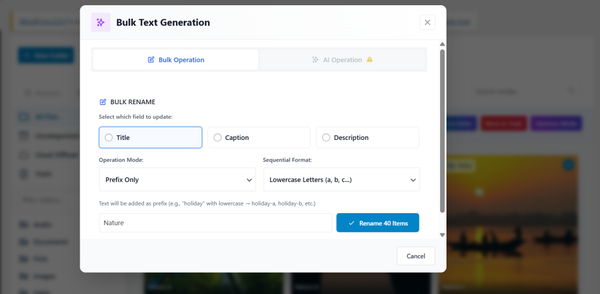
- Choose from tones including Professional, Creative, SEO-focused and Descriptive
- Particularly useful during site migrations or large content pushes, where filling in hundreds of metadata fields manually is not realistic
Seamless Integration
- Works inside the existing WordPress Media section rather than creating a separate dashboard
- No separate app to learn, no file migration needed and no compatibility concerns with your theme or page builders like Elementor or Gutenberg
When Should You Consider Adding a Media Manager Plugin?
The default WordPress media library is adequate for small sites, but there are clear signals that it is time to add a dedicated organization tool. Consider it if any of the following apply to you:
- Your site has more than 100 uploaded images and finding a specific file takes more than a few seconds of scrolling
- You manage one or more client websites and need to keep client assets separate and organized
- You run an eCommerce store with a large number of product images organized by category, season, or collection
- Your site is content-heavy, with multiple blog posts published per week and multiple images per post
- You work with a team and need a consistent media organization so everyone can find files independently
For photographers and visual artists, where image galleries are a core part of the site, pairing organized media management with a dedicated gallery tool like Pixel Gallery can significantly improve the efficiency of the visual side.
Any one of these situations is a signal that the default media library is creating friction that a plugin can eliminate.
Frequently Asked Questions
Do I need to be in the media library to upload images to WordPress?
No. You can upload images from inside the block editor while writing a post or page by inserting an Image block and clicking Upload. The file is automatically added to your media library. Visiting Media → Add New is simply the more direct route when you want to upload files in bulk without attaching them to specific content first.
Can I upload multiple images at once in WordPress?
Yes. In Media → Add New, hold Ctrl on Windows or Command on Mac while clicking each file in your browser to select multiple images, then upload them all together. WordPress processes them in sequence and adds each one to your library.
Why is my image not showing up after I upload it?
Try a hard browser refresh first. If the image still does not appear, check that the upload completed without an error message. In rare cases the attachment database entry is not created properly and a database repair may be needed.
How do I find an image I uploaded a long time ago?
Use the search bar in Media → Library and search by the filename. You can also use the “All Dates” dropdown to filter results to the month and year you remember uploading it. If your library is large and unsorted, this can still take time, which is one of the main reasons folder-based organization tools are worth considering.
Does uploading unoptimized images affect page speed?
Yes, directly. Unoptimized images are one of the most common causes of slow page load times. Compressing and resizing images before upload and using modern formats like WebP, are the most effective habits you can build to keep your site fast.
Can I upload images to WordPress via FTP?
Yes, though this is primarily for advanced users or bulk migrations. Upload files directly to the /wp-content/uploads/ folder on your server using an FTP client like FileZilla. These files will not appear in your media library automatically because WordPress has not created database entries for them yet. You need a plugin to scan and import FTP-uploaded files into the library.
Final Thoughts
Adding images to the WordPress media library is genuinely simple once you know which method fits your situation:
- Use Media → Add New for bulk uploads before you start building content
- Use the block editor Image block for images you are inserting as you write
- Use drag and drop in the editor for the fastest single-image workflow
What matters just as much as the upload itself is the preparation that comes first. Descriptive filenames, appropriate dimensions, compressed file sizes and the right file format are the habits that keep your site fast and your library manageable from day one.
As your content grows, so does the need for a more organized approach. The default WordPress media library provides a solid foundation, but it was not built for scale. When managing hundreds or thousands of files starts creating friction in your workflow, the right tools make a real difference.
Sigma Media Manager is built specifically for that transition: from a basic library that works for a new site to a structured, searchable, organized media workspace that grows alongside your content.
Supreakshya Shrestha
The BdThemes team builds WordPress plugins trusted by 3M+ users worldwide. We write about web accessibility, WCAG compliance, and inclusive design.