

Every WordPress website, no matter how simple or complex, relies on media. Blog post thumbnails, product images, downloadable PDFs, background videos, audio clips all pass through one central place before they appear on your site. That place is the WordPress media library.
Here is the problem most website owners run into: WordPress ships with a media library that does just enough to get you started, but not quite enough to keep things manageable as your site grows.
You upload images without a naming system, add dozens of PDFs over a few months, never delete anything and then one day you are scrolling through a wall of unorganized thumbnails trying to find that one product photo from last spring. Sound familiar?
This guide covers what the media library is, why it matters, how to use every feature it offers, where it falls short and how to fix those shortcomings so you can manage images in WordPress with actual efficiency.
By the end, you will understand the system well enough to get the most out of it and know exactly what to reach for when the default experience is not enough.
What Is the Media Library in WordPress?
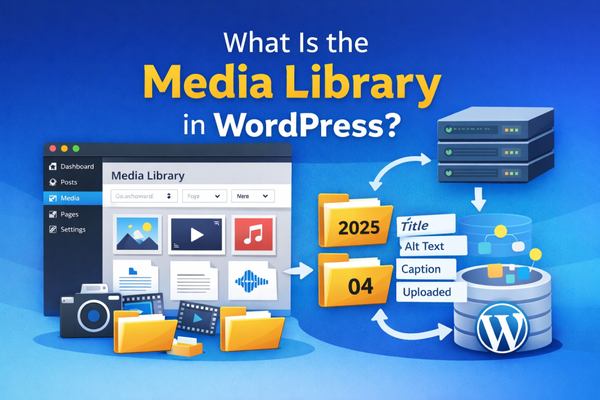
The WordPress media library is the built-in content management system for every file you upload to your website.
It lives inside your admin dashboard and acts as a centralized hub where you can store, browse, edit and reuse images, videos, audio files and documents without ever leaving WordPress.
At its core, the media library is a database-backed file manager.
When you upload a file, WordPress stores it physically on your server’s /wp-content/uploads/ directory, organized automatically into subfolders by year and month (for example, /uploads/2026/04/).
At the same time, WordPress creates what is called an attachment post type in its database: a record that stores metadata like the file’s title, alt text, caption, description, upload date and who uploaded it.
This is what connects your physical file on the server to the visual interface you see inside the dashboard.
To access the media library:
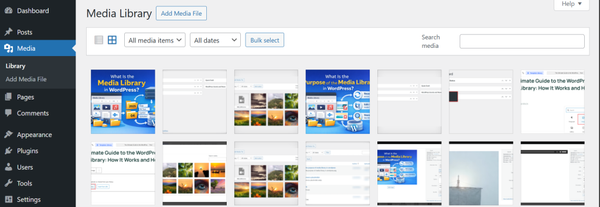
- Go to your WordPress admin dashboard and navigate to Media → Library.
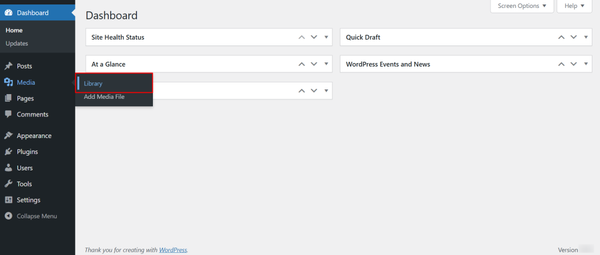
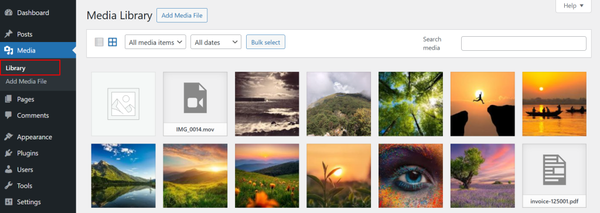
Everything you have ever uploaded to your site is waiting for you there.
What Is the Purpose of the Media Library in WordPress?
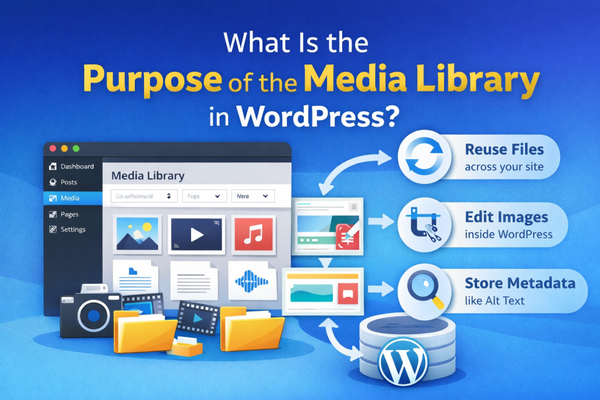
The purpose of the media library in WordPress is broader than simple storage. It is designed to be the single source of truth for all multimedia assets on your website.
- When you write a blog post and insert a featured image, that image comes from the media library.
- When you embed a downloadable PDF on a page, the URL you are linking to points to a file in the media library.
- When a page builder widget pulls an image from your uploads, it is fetching it from there too.
- Every visual element on your site ultimately traces back to a file that was uploaded and stored there.
Beyond storage, the media library serves several practical purposes.
It lets you reuse files across multiple posts and pages without uploading duplicates. It provides a basic editing interface where you can crop, rotate, resize and flip images without leaving WordPress.
It stores SEO-critical metadata like alt text and file descriptions. And it gives you a searchable, filterable view of everything you have uploaded, so you can find what you need when you need it.
For small sites just getting started, this is entirely sufficient. For growing sites with hundreds or thousands of files, it quickly becomes a bottleneck but more on that shortly.
How to Access the Media Library in WordPress?
There are two main ways to access the WordPress media library and knowing both will make your workflow considerably smoother.
From the admin sidebar:
- Log in to your WordPress dashboard, look at the left-hand navigation menu.
- Click Media.
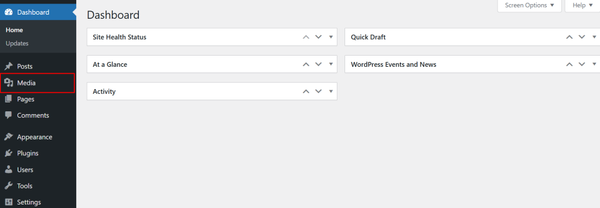
- From there, you can go to the
- Library to view all uploaded files, or Add Media File to upload something new.
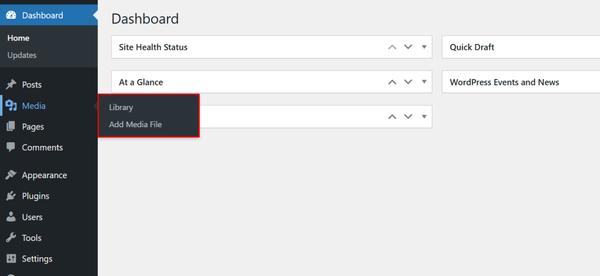
This takes you to the full-screen media management view where you have access to every filter, search tool and editing option available.
From inside the block editor:
When you are writing or editing a post or page, you do not need to go to the media section to add an image.
- Simply insert an Image block, a Gallery block, or any other media block
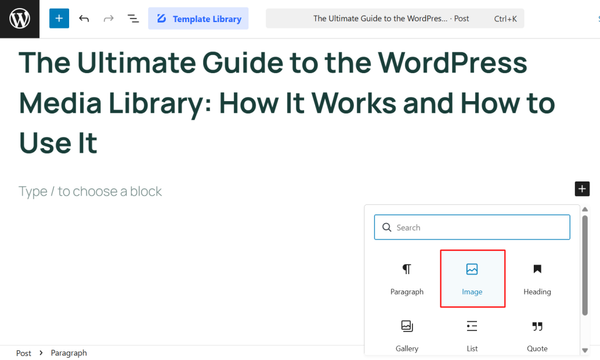
- Click the option to open the media library.
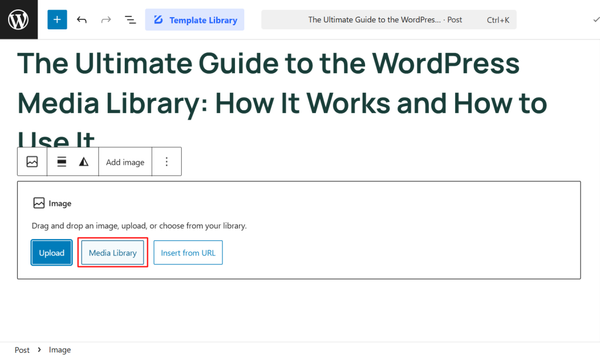
- A lightbox version of your library appears without pulling you away from your editing screen.
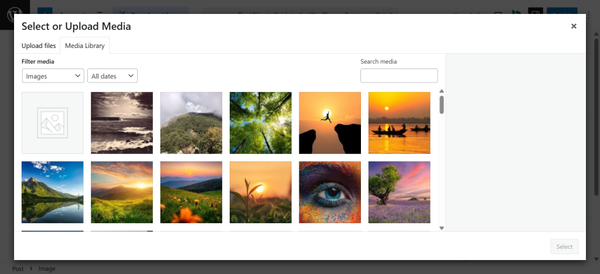
This is the fastest workflow for inserting images into content.
Understanding the Two Views: Grid and List
Once you are inside Media → Library, WordPress offers you two ways to browse your files.
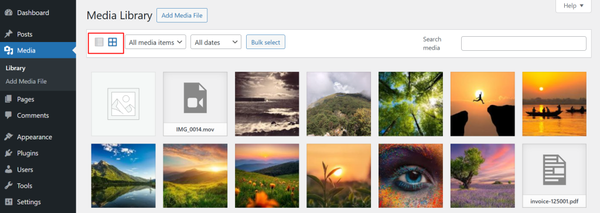
The grid view is the default and the more visual of the two.
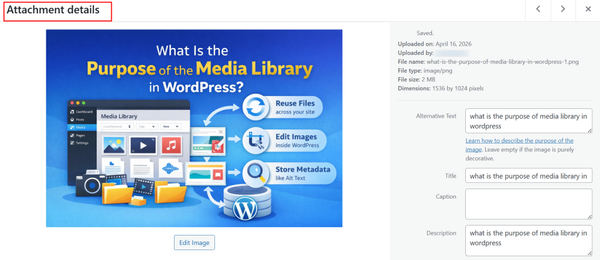
Your files appear as thumbnails in a mosaic layout. You can click any thumbnail to open a details panel on the right that shows the file name, URL, alt text, caption, description, upload date and dimensions.
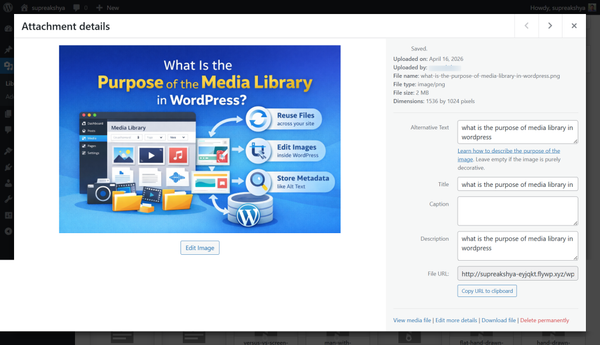
This view is great for quickly scanning a library visually.
The list view shows your files in a table format with columns for the thumbnail, file name, author, attachment status (whether it is attached to a post or not), date and a comment count.
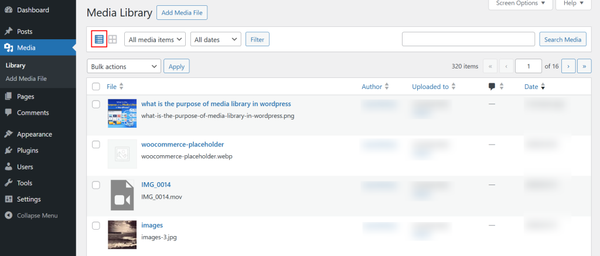
This view is more practical when you need to see metadata at a glance or when you are auditing your library systematically.
You can switch between the two views using the small icons in the top-right area of the media library page.
What File Types Does the WordPress Media Library Support?
Understanding which file types WordPress accepts by default helps you plan your content and avoid unexpected upload errors.
Images
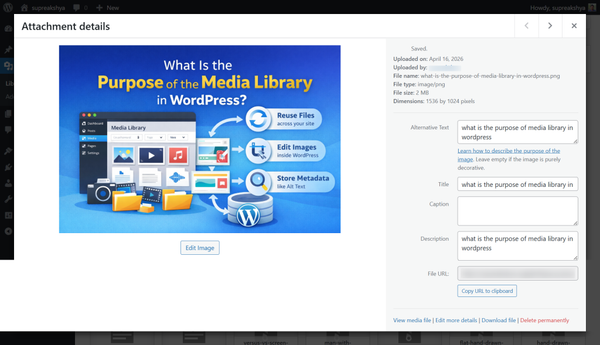
WordPress natively supports JPEG, PNG, GIF, WebP, ICO and (as of recent versions) HEIC on some server configurations.
JPEG remains the most common format for photographs, while PNG is used for graphics that require transparency. WebP offers superior compression with comparable quality and is increasingly the recommended format for web images.
Video
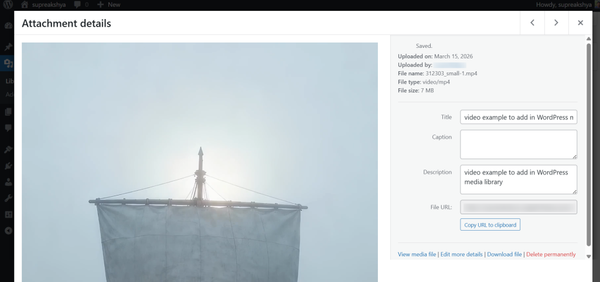
MP4, M4V, MOV, WMV, AVI, MPG, OGV and 3GP are supported. That said, it is generally not recommended to host large video files directly in your media library.
Video files are large, they consume significant server bandwidth and WordPress does not include a video delivery network.
For most use cases, hosting videos on YouTube or Vimeo and embedding them on your pages is the better approach. Reserve the media library for short clips, background loops, or downloadable video files.
Audio
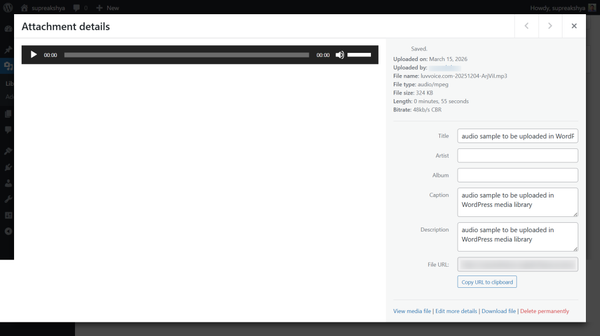
MP3, M4A, OGG, WAV and WMA are all accepted. WordPress includes a built-in HTML5 audio player, so you can embed audio directly into posts without needing a separate plugin.
Documents
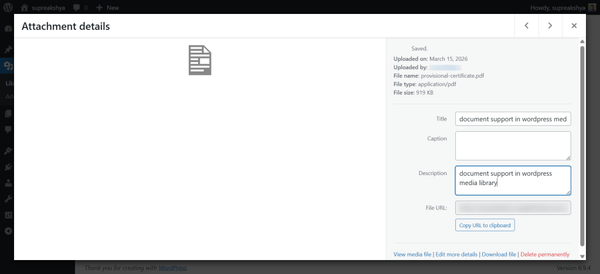
PDF, DOC, DOCX, PPT, PPTX, ODT, XLS and XLSX can all be uploaded and linked or embedded in your content. These work well for downloadable resources like case studies, white papers, product documentation and forms.
There are notable exclusions.
By default, WordPress does not allow SVG uploads (due to potential security concerns), ZIP files, or many other archive formats.
If you need to allow additional file types, you can do so through a plugin or a small code snippet, but this carries certain security considerations.
Upload size is another common constraint. Shared hosting environments often limit uploads to 2MB by default, though managed WordPress hosts typically allow much larger files.
If you encounter an “exceeds the maximum upload size” error, you can increase this limit through your server’s PHP settings, your hosting control panel, or by adding a line to your .htaccess file.
How to Add Media in WordPress – 3 Methods
Adding files to your WordPress media library is straightforward, but there are three distinct methods worth knowing. Each has its place depending on what you are doing.
Method 1: Upload Directly through the Media Section
This is the most direct route and the best option when you want to add multiple files to your library without immediately attaching them to any specific post.
- From your WordPress dashboard: go to Media → Add Media File.
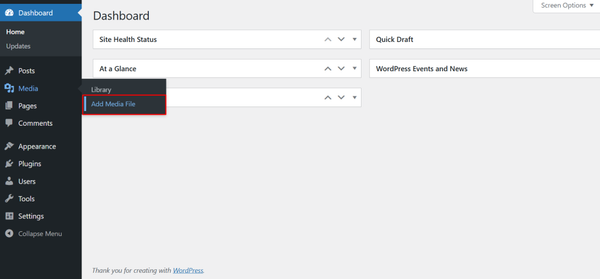
You will see a large upload area with a “Select Files” button.
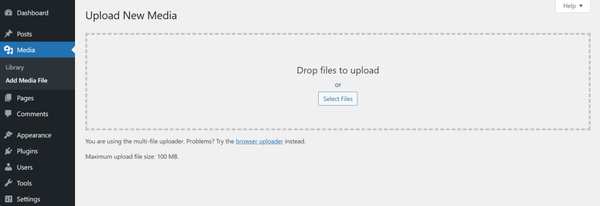
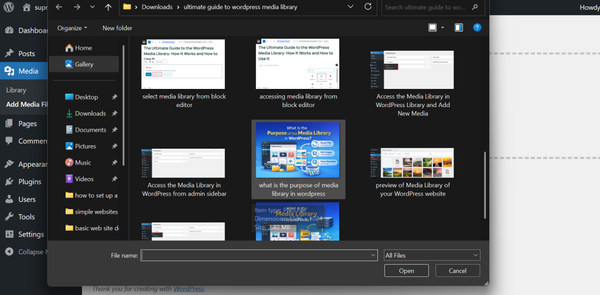
- Click it to open your file browser and select one or more files, or simply drag files from your desktop directly onto that area.
WordPress will begin uploading immediately, showing you a progress bar.
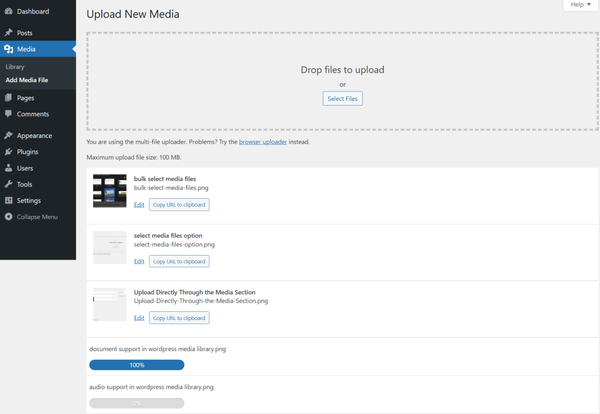
- Once the upload completes, your files are in the library and ready to use anywhere on your site.
This method is particularly well-suited for bulk media uploads when you are doing an initial content migration or want to upload a batch of product images before creating the pages that will use them.
Method 2: Upload from Inside the Block Editor
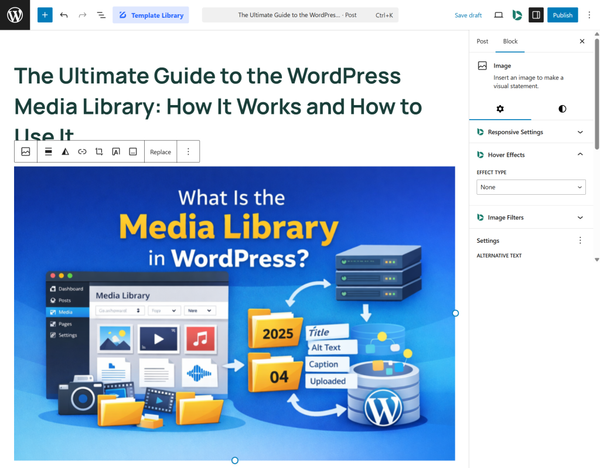
When you are actively writing or editing a post or page in the Gutenberg block editor, you can add images without leaving the editing screen.
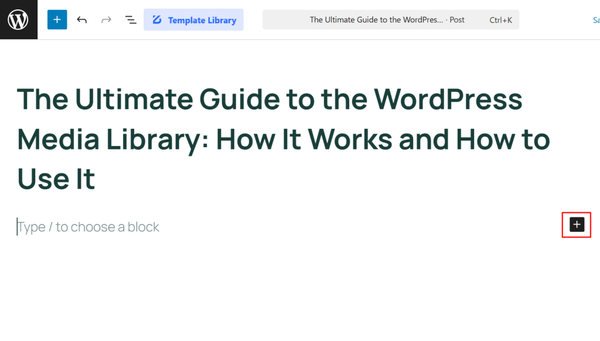
- Click the “+” icon to add a new block.
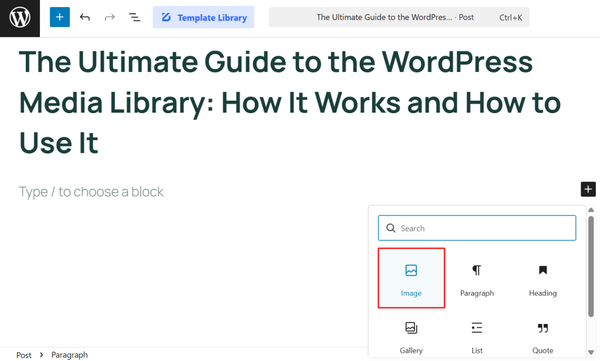
- Select Image, Gallery, Video, Audio, or File depending on what you want to insert.
- Within the block, click “Upload” to upload a new file directly from your computer, or click “Media Library” to choose from files you have already uploaded.
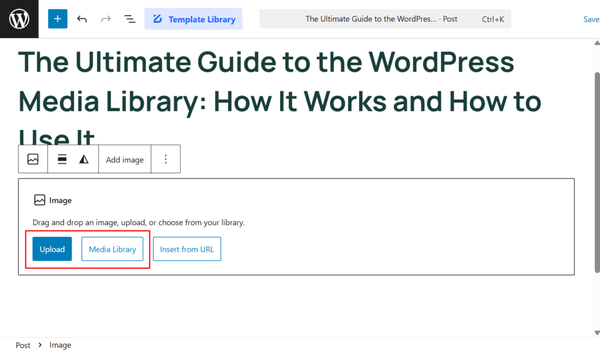
The file is added to your media library and inserted into your content simultaneously.
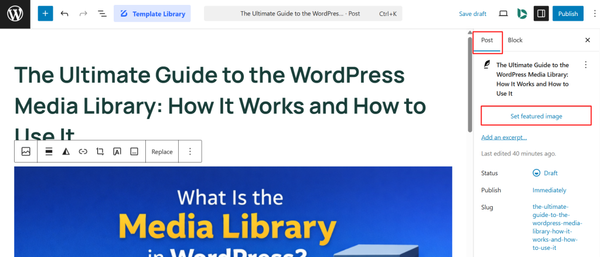
For featured images:
- Select the Post option on the right sidebar and click on the “Set Featured Image” button.
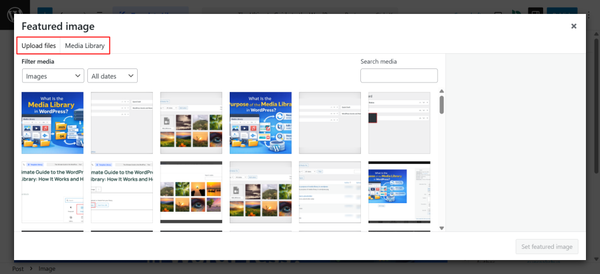
- You will see the same media library interface from where you can either select from media library or upload a new file (image).
This is one of the most common ways people upload images in WordPress day to day.
Method 3: Upload via FTP or SFTP
For bulk uploads involving hundreds or thousands of files, uploading through the browser can be impractically slow.
In these cases, the right approach is to upload files directly to your server using an FTP or SFTP client like FileZilla.
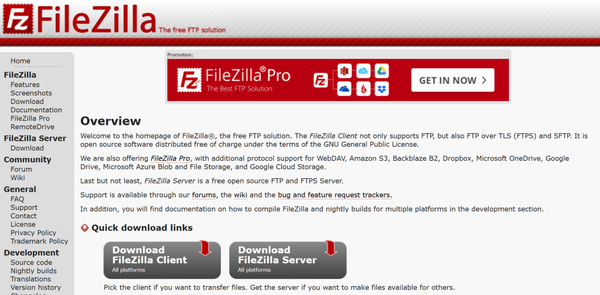
Connect to your server using the hosting credentials that you can ask from your hosting company. You will need your hostname, username, password and port.
- After connecting, navigate to /wp-content/uploads/
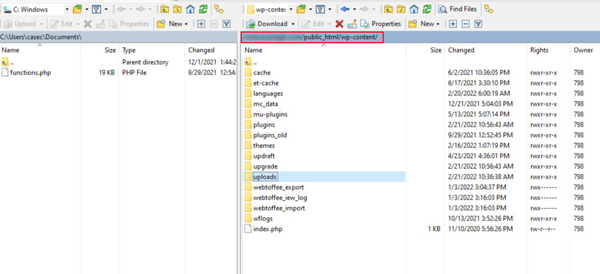
- Transfer your files into the appropriate year/month subdirectory.
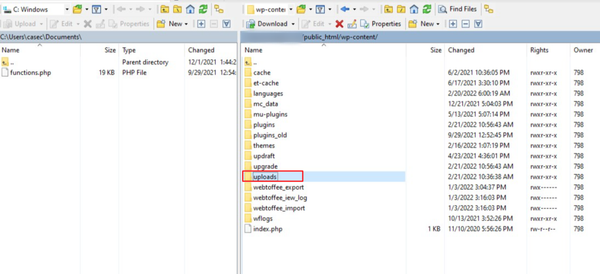
Once the files are on the server, they will not automatically appear in the WordPress media library because WordPress has not yet created database records for them.
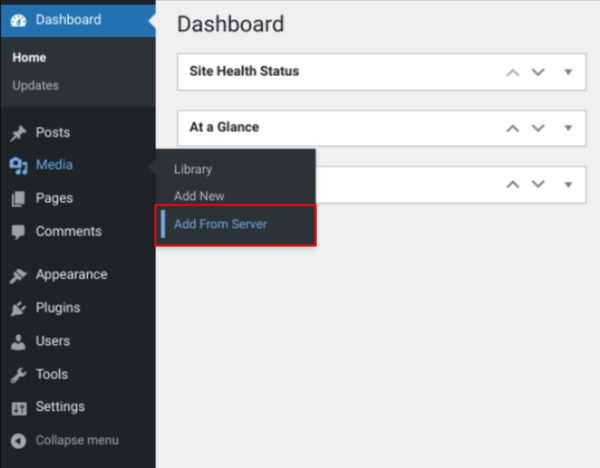
You will need a plugin to scan and import them: Bulk Media Register is commonly used for this purpose.
Once the plugin is installed and activated, navigate to Media → Add From Server to access the file upload via STP.
This method is best reserved for large migrations or situations where you have hundreds of files ready to import at once.
Key Features of the Default WordPress Media Library
The built-in media library is more capable than many people realize. Here is a complete breakdown of what it offers out of the box.
Search and filtering
The search bar at the top of the media library lets you find files by name.
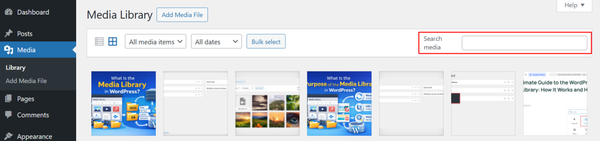
The filter dropdowns let you narrow the view by media type (images, audio, video, documents or spreadsheets) and by upload date.
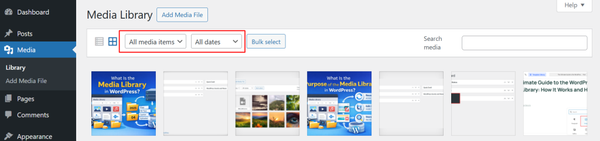
While these filters are basic compared to what a dedicated media manager plugin offers, they cover the essentials for smaller libraries.
Metadata editing
Clicking any file opens a details panel where you can edit the title, alt text, caption and description.
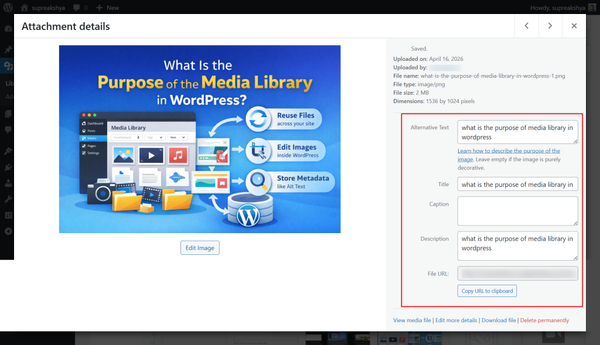
Alt text is particularly important. It is the text screen readers use to describe images for visually impaired users and it is one of the factors search engines use to understand what an image depicts.
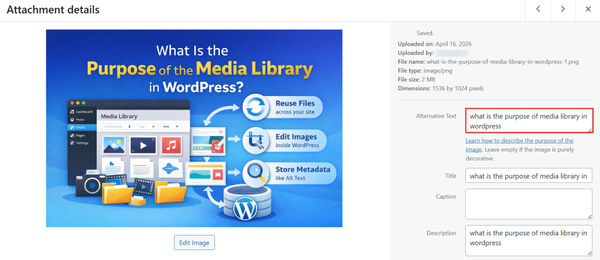
Filling in alt text for every image is both an accessibility best practice and a low-effort SEO improvement.
Image editing
WordPress includes a basic image editor accessible by clicking Edit Image from within the file details view.
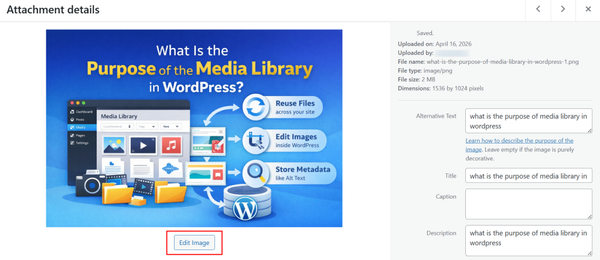
You can crop, rotate, flip and scale images. You can also choose whether the edits apply to the original file, all derived sizes (thumbnail, medium, large), or a custom set of sizes.
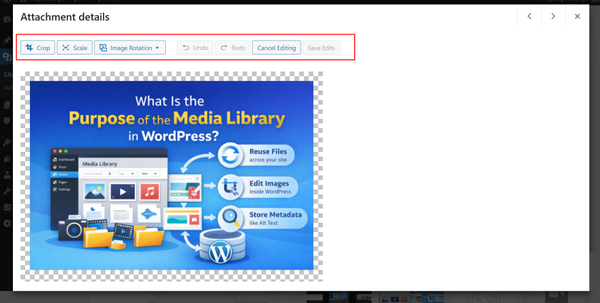
These tools are not a substitute for dedicated photo editing software, but they handle quick adjustments without requiring you to download and re-upload files.
Automatic thumbnail generation
Every time you upload an image, WordPress automatically generates multiple resized versions of it:
- a thumbnail (150×150)
- a medium size (300px wide)
- a medium-large (768px wide)
- a large size (1024px wide).
These different sizes exist so WordPress can serve the most appropriately sized version for each context. For example, a small thumbnail in a sidebar widget versus a full-width hero image. Your theme may register additional custom sizes on top of these defaults.
Bulk selection
The Bulk Select button in the top-right corner of the media library lets you select multiple files at once.
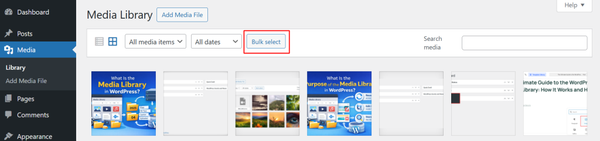
From a bulk selection, you can delete all selected files simultaneously. This is the extent of native bulk operations. It doesn’t offer bulk moving and bulk editing of metadata.
Attachment page
Every uploaded file in WordPress automatically has its own URL called an attachment page.
This is a publicly accessible page that displays just the media file.
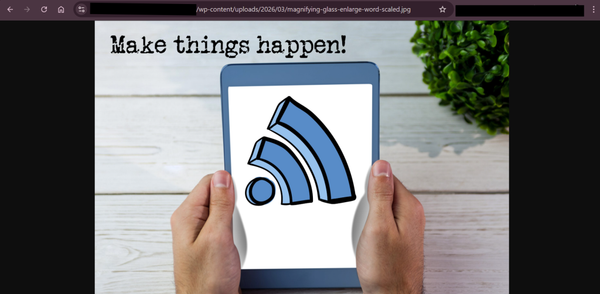
Most sites do not need these pages and should redirect them to the parent post or the homepage to avoid thin content issues. This is usually handled within an SEO plugin.
Where the Default WordPress Media Library Falls Short
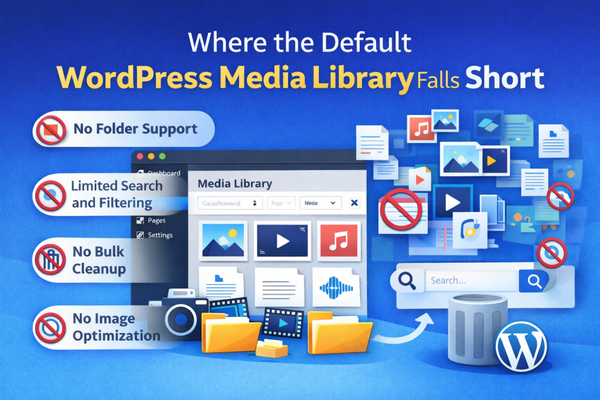
For a site with fifty images, the default media library is entirely adequate.
For a site that has been running for two years with hundreds of blog post images, product photos, PDF guides and videos, it becomes a serious organizational problem.
These are the limitations that drive people to look for better tools.
- No folder support: The WordPress media library does not support folders of any kind. Every file, regardless of type, project, date, or client, sits in the same flat, chronological list. For anyone managing a site with more than a few hundred files, this makes it genuinely difficult to find what you need.
- No way to organize media library WordPress without a plugin: There is no native organizational structure beyond the date-based folder hierarchy on the server, which is entirely invisible from the dashboard.
- Limited search and filtering: You cannot search by file size, dimensions, whether a file is attached to content or not, or any custom tag. The filter by type and date is helpful but limited for large libraries with nuanced organizational needs.
- No bulk cleanup tools: There is no native way to find or delete unused media. WordPress provides this as a native feature. You have to either manually hunt for orphaned files or install a plugin.
- No image optimization: WordPress does not compress images during upload. Unoptimized images are one of the most common causes of slow page load times and slow pages directly impact both user experience and search rankings.
- No cloud storage integration: If your hosting plan has limited storage, the media library offers no built-in way to offload files to cloud services like Amazon S3, Google Cloud Storage, or Cloudflare R2.
These are not minor inconveniences for growing websites. They are real workflow bottlenecks that compound over time.
Why the WordPress Media Library Needs Better Organization at Scale
The limitations described above have measurable consequences for site performance and team efficiency.
Google’s Core Web Vitals, which directly influence search rankings, penalize pages with slow load times.
Large, unoptimized images are one of the most common contributors to poor Core Web Vitals scores.
According to Google’s PageSpeed Insights documentation, properly sizing and compressing images can reduce page weight by a substantial amount.
From a workflow perspective, a disorganized media library costs real time. Developers, content editors and designers working on the same site waste minutes every day searching for files that should be immediately accessible. Multiply that across a team over a year and the productivity cost is significant.
For agencies managing multiple client sites, the problem is amplified. Without a systematic approach to media organization including folders, bulk operations and cleanup tools, media management becomes one of the most frustrating parts of ongoing site maintenance.
This is the gap that a dedicated WordPress media manager plugin addresses.
Introducing Sigma Media Manager: The Smarter Way to Manage WordPress Media
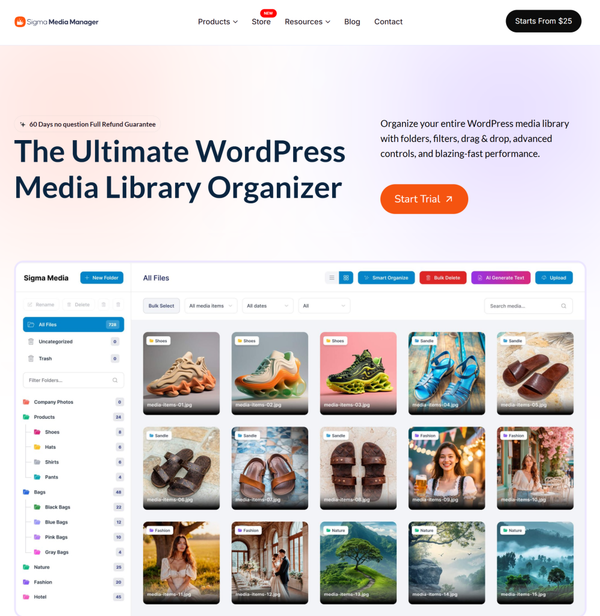
Sigma Media Manager is a WordPress plugin by BdThemes built specifically to solve the organizational and management challenges the default media library cannot handle.
It transforms the native media section into a fully-featured workspace with folder management, AI-powered automation, bulk cleanup tools, image optimization, cloud storage support and a document library.
It is all integrated directly into the familiar WordPress Media interface rather than replacing it.
What makes it worth highlighting over other options is the combination of features it brings together. Most media organization plugins stop at the folder level.
Sigma Media Manager adds AI text generation, bulk unused file detection, a full image editor, cloud offloading and a document library with shortcode embedding in a single package.
How Sigma Media Manager Improves the WordPress Media Library
Here is a detailed look at the specific capabilities Sigma Media Manager adds to your WordPress installation.
Smart AI-Powered Folder Organization
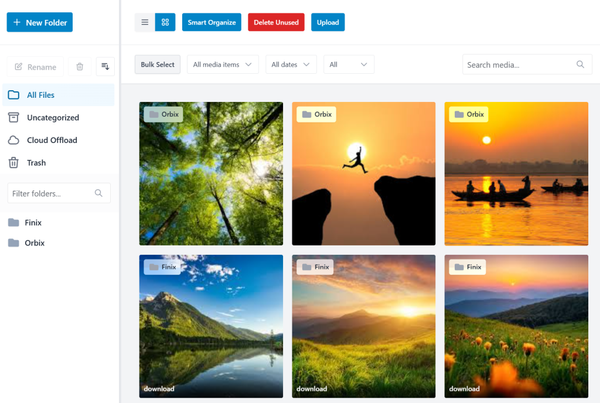
The most time-consuming part of organizing an existing media library is the initial sort. If you have two years of uploads sitting in a flat, unsorted pile, manually dragging files into folders can take hours.
Sigma Media Manager includes a Smart Organize feature that uses AI to analyze your existing media files and automatically sort them into meaningful folders based on their content categories.
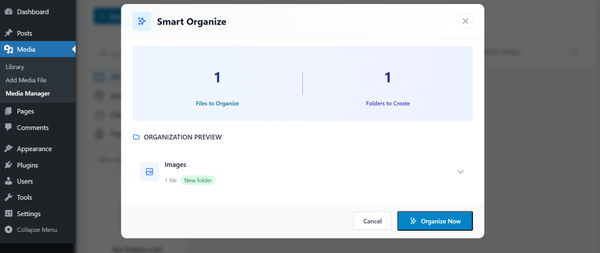
A single click triggers the process and within moments, your library is organized. You can preview the proposed folder structure before confirming, see the total number of files being organized and the folders being created and cancel at any point. For large libraries, this alone can save hours of manual work.
After the initial sort, you can create, rename, delete and rearrange folders manually.
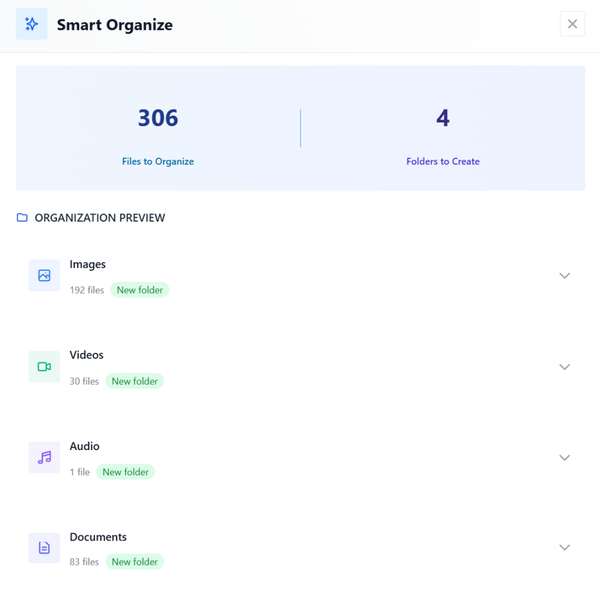
A right-click context menu on any folder gives you quick access to options like creating subfolders, cutting and pasting folders under new parent folders, duplicating folder structures, assigning custom colors to folders for visual differentiation and downloading the contents of a folder.
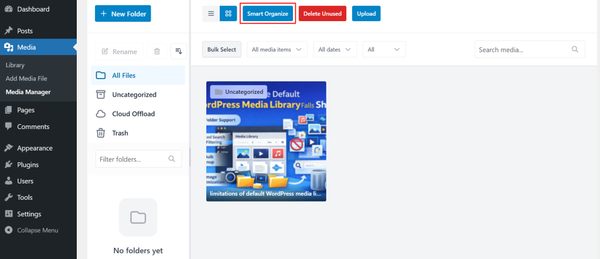
The folder tree on the left side of the media manager includes dedicated entries for All Files, Uncategorized, Cloud Offload (when enabled) and Trash, giving you a clear picture of everything in your library at any time.
AI-Generated Titles, Captions and Descriptions
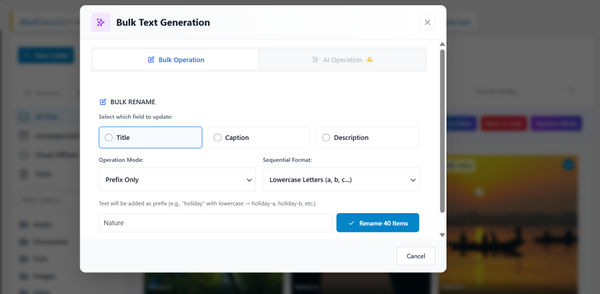
Filling in alt text, titles, captions and descriptions for every image in a library of hundreds of files is tedious enough that most people skip it entirely. Sigma Media Manager’s AI generation feature changes this.
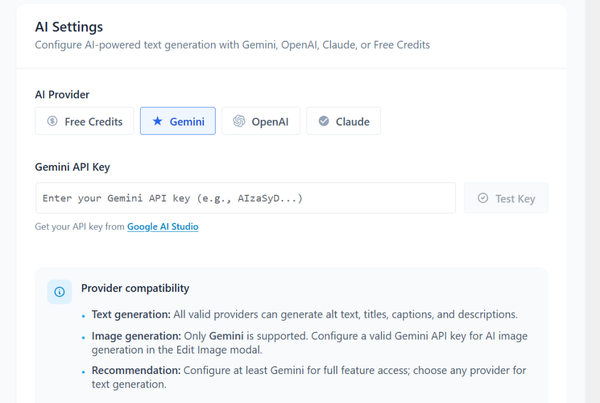
By connecting your Google Gemini API key in the plugin settings (Settings → Media Manager → General), you unlock the ability to automatically generate titles, captions and descriptions for your images using AI.
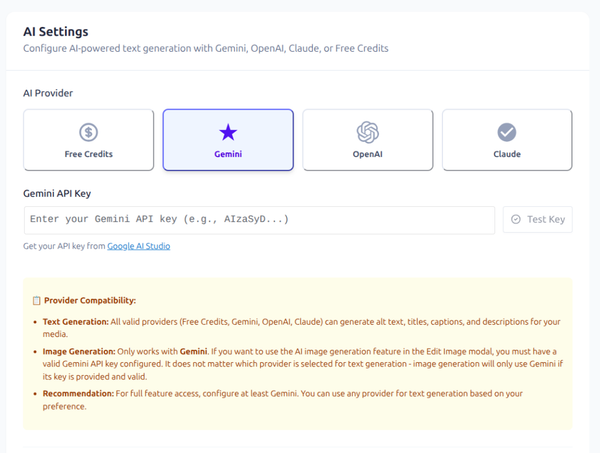
You can select files in bulk and choose which fields to generate, select the tone and style (Professional, Creative, SEO-focused, or Descriptive) and let the plugin do the work. The plugin shows you an estimated time for the process and processes your files within that window.
For the metadata fields themselves, you can also use the Bulk Operation mode (which works without an API key) to apply consistent prefixes or standardized text across multiple files simultaneously.
Bulk Unused Media Detection and Deletion
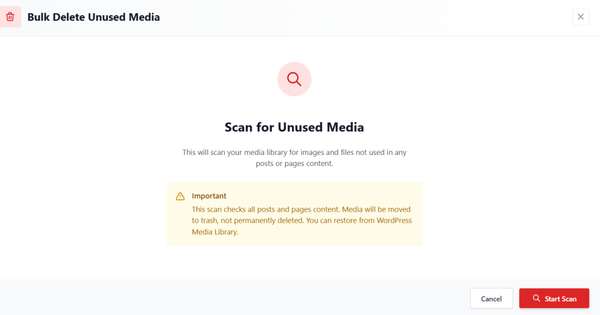
Over time, WordPress sites accumulate files that are no longer referenced anywhere in the site’s content. Old featured images from deleted posts, images from redesigns and test uploads. They all sit in the library, taking up space and adding noise to your search results.
Sigma Media Manager includes a Delete Unused feature that scans your entire media library, identifies files that are not attached to or referenced by any posts or pages and presents them to you for review.
You can select which files to remove, deselect any you want to keep and move them to trash in bulk. The plugin shows you the result count after scanning and after deletion, so you always know exactly what was found and removed.
This is one of the more useful capabilities for anyone maintaining a site that has been running for more than a year. Keeping your media library lean reduces server storage costs, speeds up the admin interface and makes finding current, relevant files much easier.
Full Image Editor with AI Enhancement
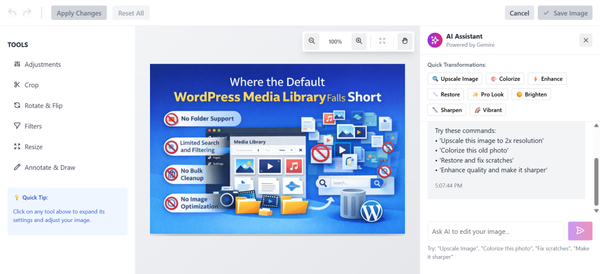
Clicking Edit Image on any file in Sigma Media Manager opens a full editing dashboard with manual and AI-assisted tools.
Manual editing tools include brightness, contrast, saturation and blur adjustments; cropping with apply/cancel controls; rotate and flip options; filter presets (Grayscale, Sepia, Invert, Vintage, Cold, Warm); and resize by custom dimensions or percentage with optional aspect ratio lock. You can undo and redo any change and reset all edits to return to the original.
On the right side of the editing dashboard, an AI assistant allows you to apply AI-powered transformations with a custom prompt or by selecting predefined options. This is useful for quick edits like background removal, enhancement, or style adjustments that would otherwise require external tools.
Every image you optimize can also be restored to its original using the Restore Original option, so there is no risk of permanently altering files you might want to recover.
Image Optimization Built In
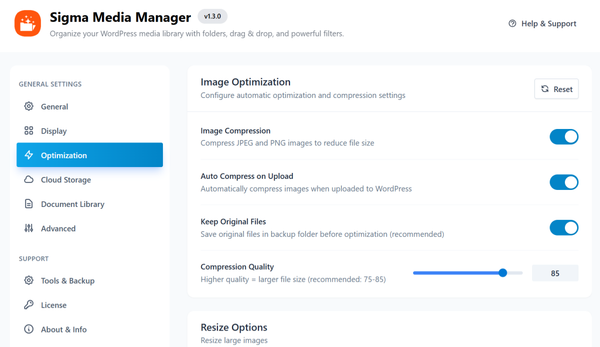
Rather than relying on a separate optimization plugin, Sigma Media Manager includes its own image compression toolset.
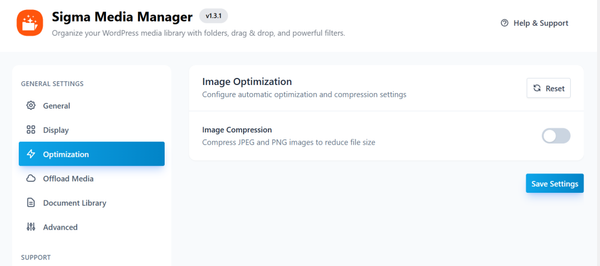
You can configure compression settings in Settings → Sigma Media Manager → Optimization, with options to compress JPEG and PNG images, automatically compress new uploads, resize images that exceed maximum dimensions and strip EXIF metadata (camera data, GPS location, copyright information) to further reduce file size.
The “Keep Original Files” option saves a backup of each original before optimization, so you can restore if needed. Compression quality is adjustable, giving you control over the trade-off between file size and image quality.
Bulk optimization works directly from the media manager: select files, click Optimize Media, confirm and the plugin processes your selection. Individual file optimization is accessible from the file detail view.
Cloud Storage Integration
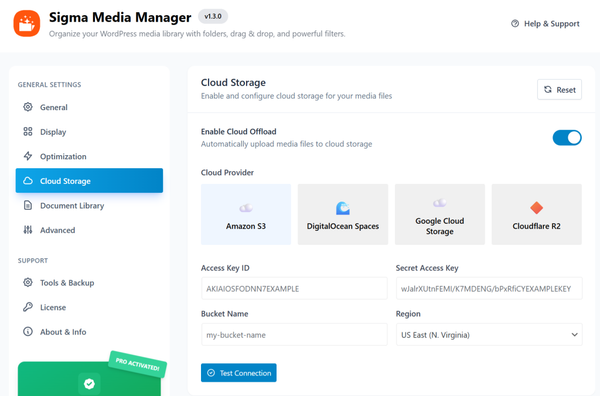
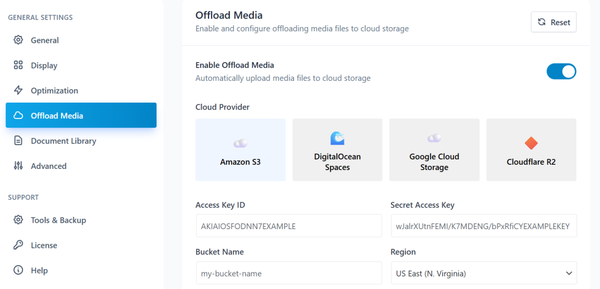
For sites that need to reduce local server storage, Sigma Media Manager integrates with major cloud storage providers: Amazon S3, DigitalOcean Spaces, Google Cloud Storage and Cloudflare R2.
After connecting your cloud provider credentials in Settings → Sigma Media Manager → Cloud Storage, you can enable Auto-Offload to automatically move new uploads to cloud storage. You can also choose to remove local copies after successful offload to save disk space, set a custom CDN URL for serving media files and run a bulk offload of all existing media in your library.
This is a significant feature for sites with large media libraries hosted on plans with limited storage, or for organizations that want their media assets in a controlled cloud environment.
Document Library with Shortcode Embedding
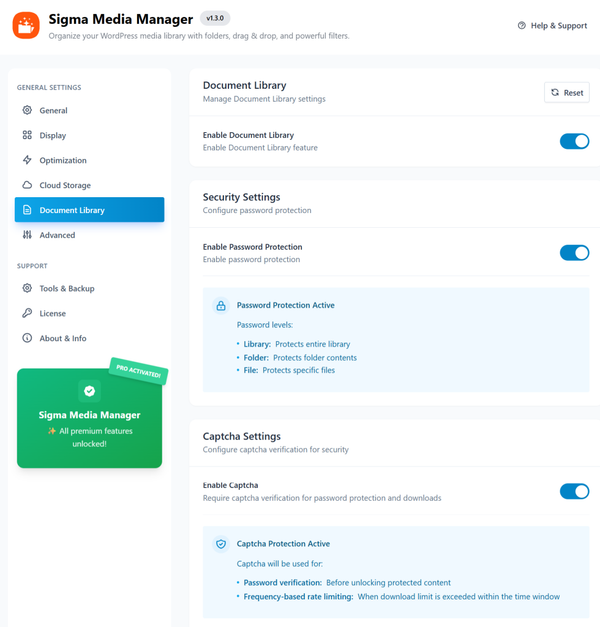
Beyond image management, Sigma Media Manager includes a Document Library module that lets you create organized repositories of files for your visitors to browse and download.
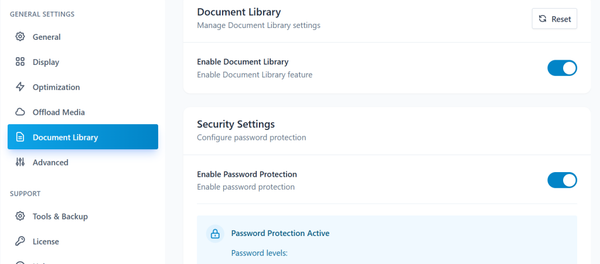
After enabling the feature in Settings → Sigma Media Manager → Document Library, you can create libraries with custom titles and descriptions, set grid or list layouts, configure the number of columns and items per page, choose link behaviors (download, open in new tab, or lightbox) and control which metadata columns appear (file size, upload date, file type, download count, favourites).
Password protection can be applied at the library level, the folder level, or to individual files. You can also configure CAPTCHA verification to limit download frequency before requiring human verification. You can embed the document library anywhere on your site using a shortcode, making it usable inside Gutenberg, Elementor, or any page builder that supports shortcodes.
This feature is particularly useful for businesses that distribute documentation, contracts, design assets or downloadable guides to their customers.
Settings Backup and Restore
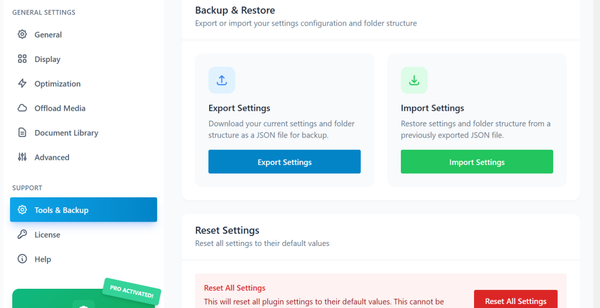
Sigma Media Manager includes an export and import system for your plugin settings.
From Settings → Sigma Media Manager → Tools and Backup, you can download your current configuration as a JSON file for safekeeping or for migrating settings to another site. Restoring is a single-click import from that same JSON file.
How to Install and Set up Sigma Media Manager
Getting Sigma Media Manager running on your WordPress site takes less than five minutes. Here is the complete process from download to first use.
Step 1: Access Your BdThemes Account and Download the Plugin
Before you can install Sigma Media Manager, you need to download it from your BdThemes account.
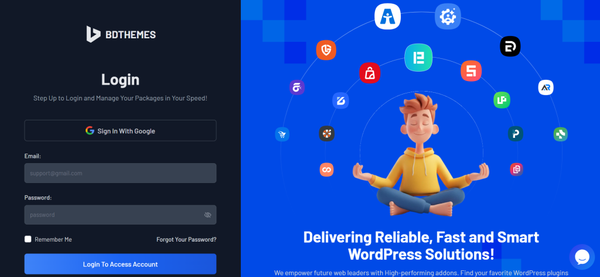
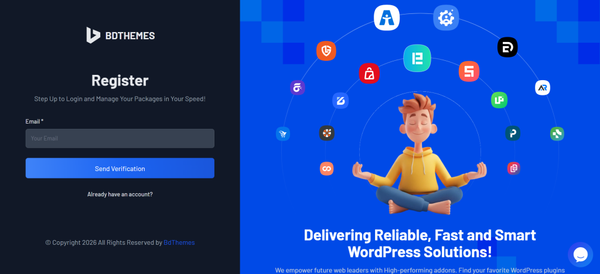
If you already have a BdThemes account, simply log in to https://account.bdthemes.com/ and proceed to download the latest version of the plugin. If you don’t have a BdThemes account yet, follow these steps:
- Register using the email address you used for the purchase
- Log in to your account after registration
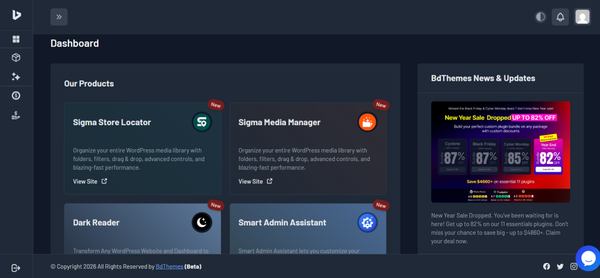
- Navigate to the Products section
- Find Sigma Media Manager in the products list
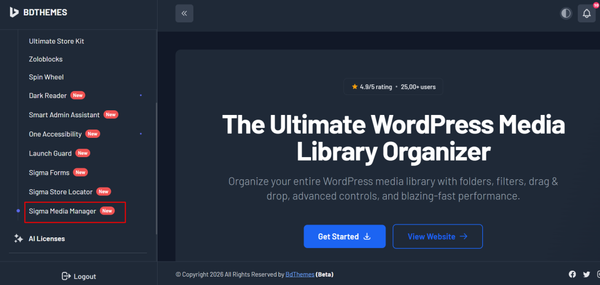
- Click on Sigma Media Manager, then click Download Files
- Download the Sigma Media Manager plugin .zip file to your computer
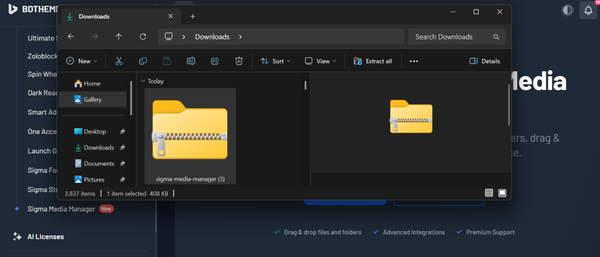
Keep this .zip file handy as you’ll need it in the next step.
Step 2: Upload and Install Sigma Media Manager Plugin
Now that you have the Pro plugin file, you can install it on your WordPress site.
- Log in to your WordPress dashboard
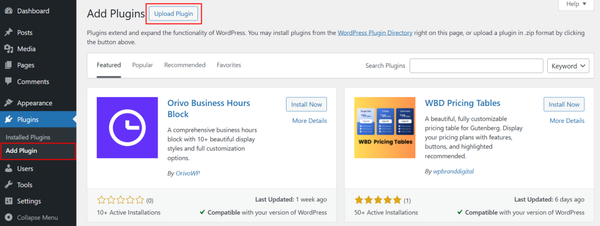
- Navigate to Plugins → Add Plugin in the left sidebar
- At the top of the page, click Upload Plugin
- Click Choose File
- Select the Sigma Media Manager .zip file you downloaded
- Click Install Now
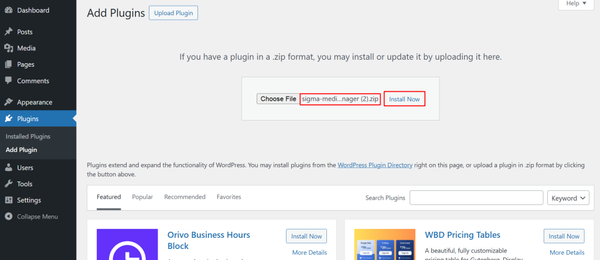
- Wait for the installation process to complete
- Once installation is finished, click Activate Plugin
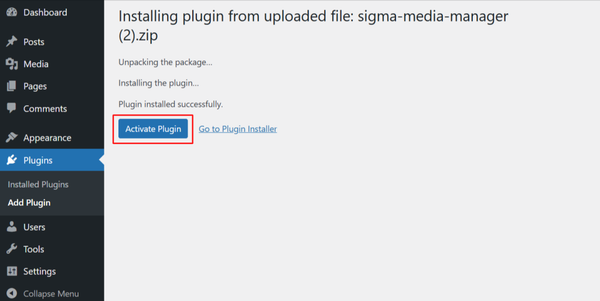
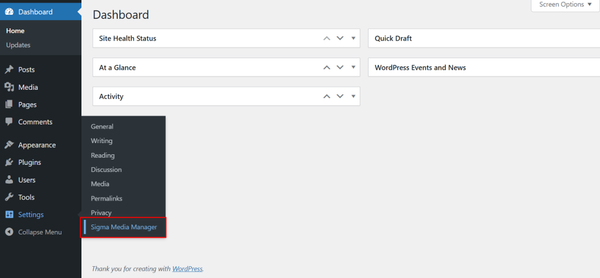
The Sigma Media Manager plugin is now active on your WordPress site. You should see Sigma Media Manager appear under Settings in the left sidebar.
Step 3: Activate Sigma Media Manager with License Key
To unlock all Pro features, you need to activate your license.
- In your WordPress dashboard, navigate to Settings → Sigma Media Manager in the left sidebar
- Click on the License tab section at the bottom
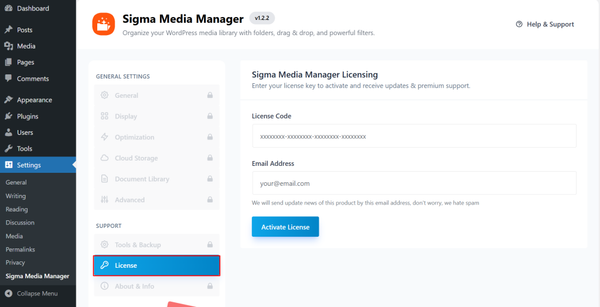
- You’ll see two fields for license information:
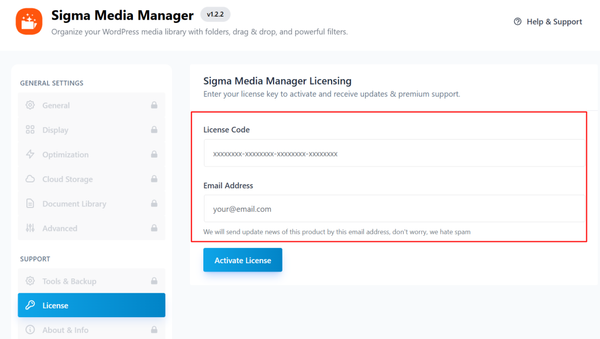
- License Key: Enter your license key (found in your BdThemes account or purchase confirmation email)
- Email: Enter the email address you used to purchase the plugin
- Click the Activate button
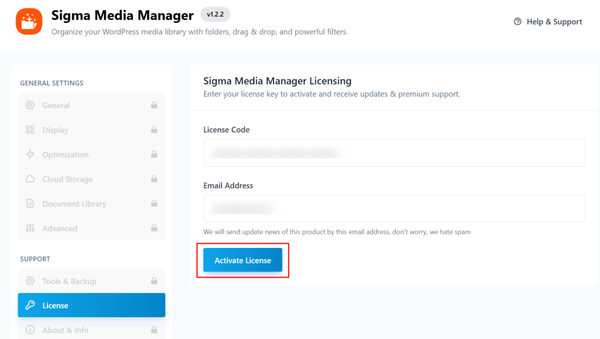
- Wait for the confirmation message that your license has been activated successfully
After activation, your Sigma Media Manager plugin is fully functional with all premium features unlocked.
You’ll also receive regular updates and have access to priority support from BdThemes.
Step 4: Configure Your Settings
Before you start organizing your media, it is worth spending a few minutes configuring the plugin to match your workflow.
- Navigate to Settings → Sigma Media Manager and work through the available tabs.
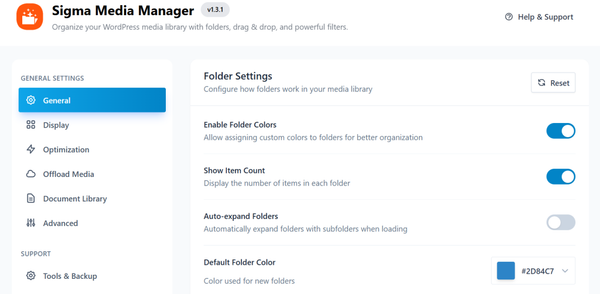
In the General tab:
- Configure your folder display preferences (item count, folder colors, auto-expand)
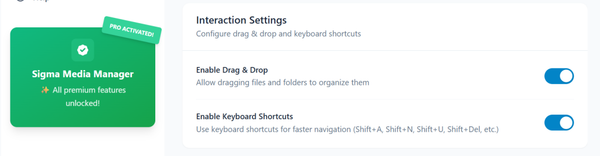
- Enable drag and drop if you want it (it is on by default)
- Add your Gemini API key if you plan to use the AI text generation features.
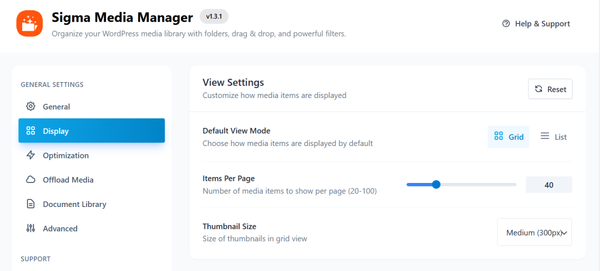
In the Display tab:
- Set your preferred default view (grid or list), the number of items you want to see per page and your preferred thumbnail size.
In the Optimization tab:
- Decide whether you want automatic compression enabled for new uploads and configure your quality settings.
In the Offload Media tab:
- If you plan to use cloud storage, configure your provider credentials and test the connection before enabling auto-offload.
In the Document Library tab:
- If you want to use the Document Library feature, enable it before proceeding.
Step 5: Organize Your Existing Media
With the plugin configured,
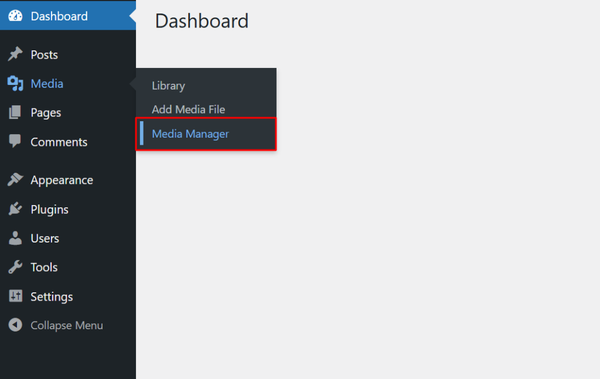
- Go to Media → Media Manager from your WordPress dashboard.
If your library is currently unsorted:
- Click the Smart Organize button in the top-left area of the folder panel.
A preview will appear showing you how many files will be organized, how many folders will be created and a preview of the proposed folder structure.
- Review the preview, then click the Organize Now button to proceed.
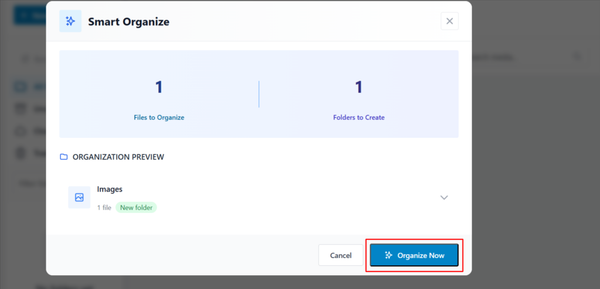
Once the smart organize process completes, your files will be sorted into folders.
You can then refine them creating additional subfolders, renaming folders, reassigning files and customizing folder colors.
For any new files you upload going forward, you can drag them directly into the appropriate folder from the upload interface, or move them after upload using the right-click context menu or the Move to Folder option in the bulk action bar.
Final Thoughts
The WordPress media library is a capable foundation for media management on small and mid-sized sites, but it was not designed to scale. The absence of folder support, the limited filtering, the lack of any cleanup tools and the absence of built-in image optimization all become real problems as a site grows.
For day-to-day media habits, descriptive file naming, consistent alt text and pre-upload compression go a long way toward keeping your library functional even with the default tools.
Sigma Media Manager addresses every major gap in the default experience: folders with AI-powered auto-organization, AI-generated metadata, bulk unused file detection, a full image editor, built-in compression, cloud offloading and a document library with shortcode embedding. It does all of this inside the familiar WordPress media interface, without disrupting any existing file URLs or breaking compatibility with your theme or page builder.
If media management has been a source of friction on your site, this is the most complete solution available for WordPress.
Frequently Asked Questions
Can you create folders in the WordPress media library without a plugin?
No. The WordPress media library does not include any native folder functionality. Files are stored on the server in year/month subfolders, but this structure is invisible in the dashboard. Every file appears in the same flat list. To add folder organization, you need a media library plugin like Sigma Media Manager.
How do I organize images in WordPress when I already have thousands of uploaded files?
The most efficient approach is to use a plugin with a bulk organization tool. Sigma Media Manager’s Smart Organize feature can automatically sort your existing files into meaningful folders in one click, using AI to categorize files by content type. After the initial sort, you can manually refine the structure. Trying to organize a large library manually, file by file, is not a realistic option.
Is there a better media manager plugin for WordPress?
The best WordPress media manager plugin depends on what you need beyond basic folder support. If you want a tool that combines folder management with AI text generation, image optimization, bulk unused file detection, a document library and cloud storage integration in one plugin, Sigma Media Manager is one of the most comprehensive options available. It is built by BdThemes, the same team behind Element Pack and integrates seamlessly with the native WordPress media interface.
How do I delete unused media in WordPress?
With the default media library, there is no straightforward way to identify which files are unused. You need to manually check each file. Sigma Media Manager includes a dedicated Delete Unused feature that scans your library, identifies unattached and unreferenced files and lets you review and delete them in bulk.
Does Sigma Media Manager break existing image URLs when it organizes files?
No. The plugin organizes files visually within the WordPress database without physically moving them on the server. Your existing file URLs remain exactly as they were, so no links break and no images on your live site are affected.
What is the Document Library feature in Sigma Media Manager?
The Document Library is a module that lets you build file repositories for your visitors. You can organize files into folders, apply password protection, enable CAPTCHA for download gating and embed the library anywhere on your site using a shortcode. It is useful for businesses that share documentation, downloadable guides, templates, or any other files with their customers or team.
Do I need a Gemini API key to use Sigma Media Manager?
The core features like folder management, drag and drop, bulk operations, image optimization, cloud storage and the document library work without an API key. The Gemini API key is only required for the AI text generation feature that automatically creates titles, captions and descriptions for your images.
Supreakshya Shrestha
The BdThemes team builds WordPress plugins trusted by 3M+ users worldwide. We write about web accessibility, WCAG compliance, and inclusive design.