

Every WordPress site owner knows the feeling. You log into your dashboard and face a cluttered workspace with widgets, notices, menu items and settings you never use. Managing a WordPress site should empower you, not overwhelm you.
WordPress admin and site enhancements solve this problem. Whether you run a personal blog, a WooCommerce store, or manage client sites, you can fine-tune your backend to improve your workflow.
Declutter your dashboard, strengthen security and boost performance. The right enhancements save time, reduce frustration and keep your site running smoothly.
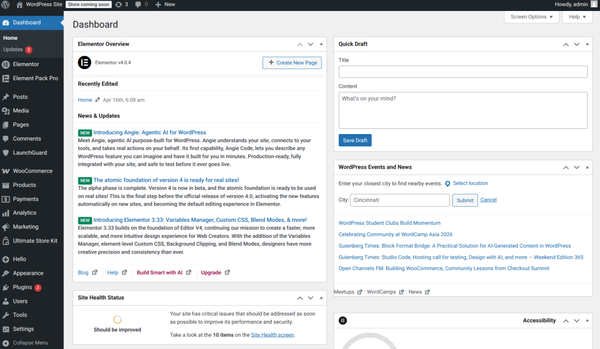
In this guide, you will walk through practical, proven techniques to customize your WordPress admin dashboard, streamline content management, enhance security and optimize site performance.
Along the way, you will discover how a smart, well-designed plugin can handle most of these tasks from a single, unified interface.
Declutter the Dashboard and Admin Area
The WordPress dashboard is your control center, but by default, it is packed with content that most users simply do not need.
Widget boxes from hosting providers, news feeds, quick draft areas and activity logs pile up quickly. A cluttered dashboard slows you down and makes it harder to find what actually matters.
Custom WordPress dashboard setups are increasingly popular among developers and agencies because they create a more professional, focused environment. Below are the most impactful ways to declutter your admin area.
Remove Unnecessary Widgets
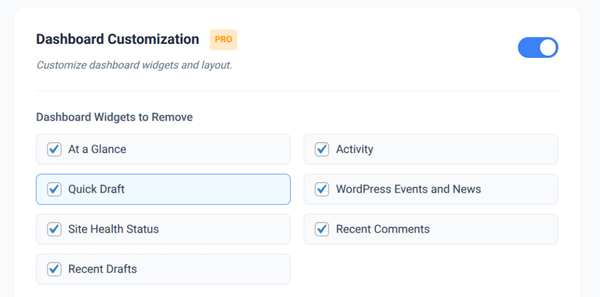
The default WordPress dashboard ships with several widgets out of the box, including At a Glance, Activity, Quick Draft, WordPress Events and News and often additional widgets are added by themes or plugins you have installed.
Most of these add visual noise without enhancing your daily workflow.
Disabling WordPress dashboard widgets gives you a cleaner, faster-loading admin home screen. You can choose to hide specific widgets globally (for all users) or on a per-user basis, depending on their role.
This is especially helpful when you hand over a site to a client and want them to see only what is relevant to their work.
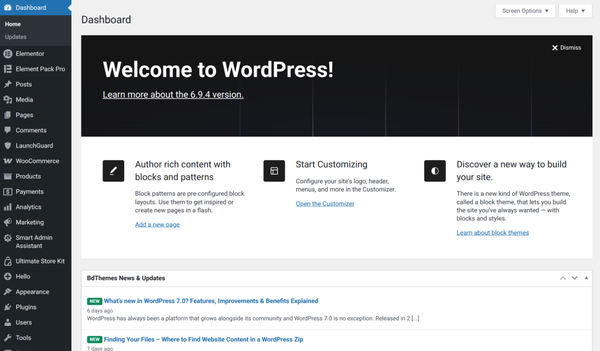
Tools like the Smart Admin Assistant make this process very straightforward. Instead of writing custom PHP functions in your theme files, you can toggle dashboard widgets on or off directly from a settings panel.
This approach is much safer and easier to maintain, especially when switching themes.
Hide Admin Notices
Admin notices are the banners that appear at the top of your WordPress dashboard. Update reminders, plugin activation prompts, review requests and promotional messages from plugin developers all compete for attention across the top of your screen.
While some notices are genuinely important, most are noise. They push your actual content down the page and make the admin area feel chaotic. Hiding admin notices selectively or completely can dramatically improve the cleanliness of your backend.
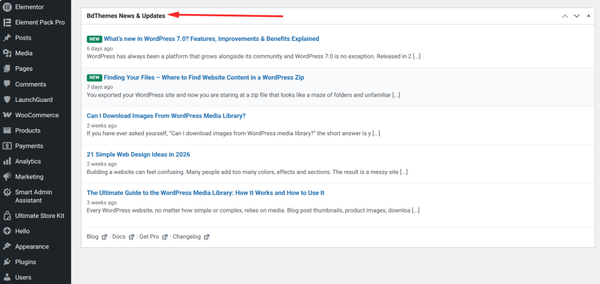
A refined approach is to suppress notices from specific plugins rather than hiding all of them. This way, you still see critical WordPress core messages but avoid being bombarded by every plugin’s marketing or update nudges.
Simplify the Admin Bar
The WordPress admin bar appears at the top of both the backend and frontend of your site when you are logged in.
By default, it includes links to your site name, updates, comments, new content and your user profile. If you have a complex setup, it can also get crowded with items added by plugins and themes.
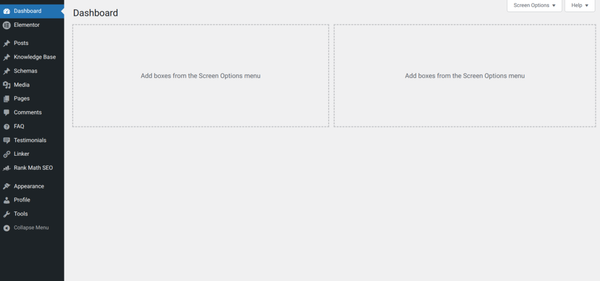
Cleaning up the WordPress admin bar involves removing items that are not useful to your workflow. For clients and contributors who do not need access to technical menus, simplifying the admin bar helps prevent confusion and accidental changes.
You can also clean up the admin bar and restrict certain items based on user role, keeping the experience appropriate for different user types.
Widen the Menu
This is one of those small WordPress backend customization tweaks that makes a surprisingly big difference. The default WordPress admin sidebar menu has a fixed width.
When plugin names are long or menu labels wrap to a second line, the sidebar becomes hard to read and navigate quickly.
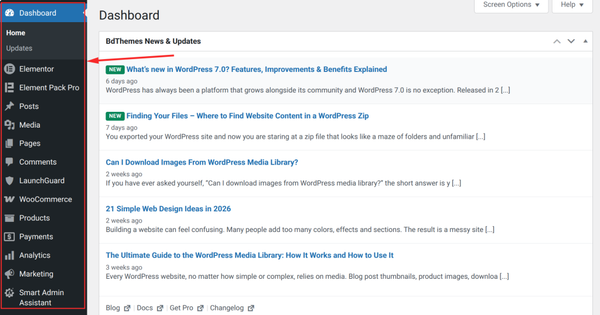
Widening the admin menu gives menu items more breathing room. Text stops wrapping, labels remain readable at a glance and the overall admin experience feels more polished.
This is a simple CSS-level change, but having it available through a settings interface means you do not need to touch any code.
Security and Content Management
Beyond aesthetics, the admin area is where you control who can access your site, how content gets published and how protected your login system is.
WordPress security is a topic that deserves serious attention because it sits at the intersection of custom WordPress dashboard configuration and backend protection.
Hide Login URL
By default, every WordPress site uses the same login URL pattern. This predictability is a gift to bots and malicious actors who run automated scripts targeting wp-login.php and wp-admin across millions of sites simultaneously.
Changing or hiding the default login URL is one of the most effective first-line defenses against brute force attacks.
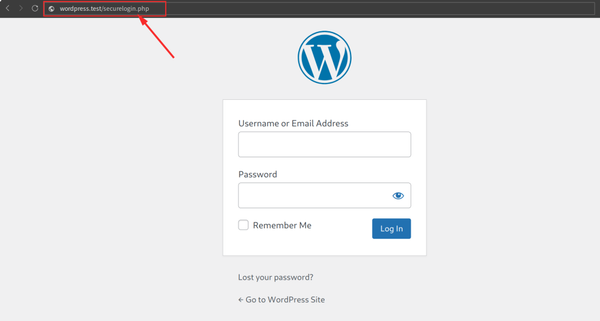
When you hide the login URL, visitors and bots attempting to access the default address will either see a 404 error or get redirected elsewhere.
Only people who know the custom login address can reach the login form. This simple step dramatically reduces the volume of automated login attempts hitting your site.
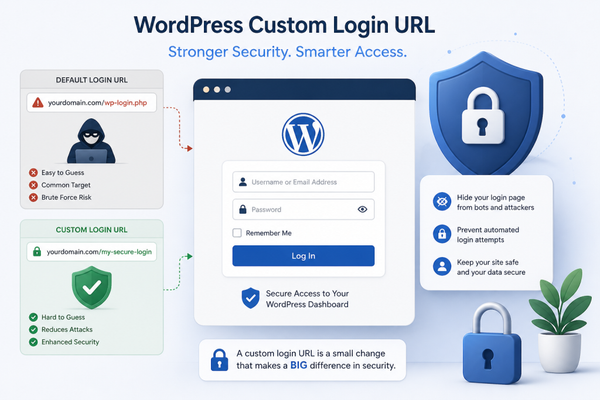
This is one of the features built into the Smart Admin Assistant plugin. You can set your own custom login URL directly in the plugin settings without needing additional security plugins or manual code edits.
Limit Login Attempts
Brute force attacks work by trying thousands of username and password combinations until one succeeds. By default, WordPress allows unlimited login attempts, which means nothing is stopping an automated bot from hammering your login page indefinitely.
Limiting login attempts adds a lockout mechanism. After a specified number of failed attempts, the IP address or user is temporarily blocked from trying again.
This effectively neutralizes brute force attacks because even if an attacker keeps trying, they cannot submit enough guesses to succeed before the lockout kicks in.
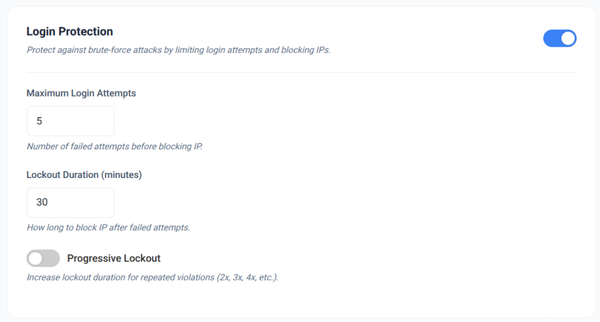
You can configure the number of allowed attempts, the lockout duration and whether to notify the site admin when a lockout occurs. Combining this with a hidden login URL gives you two solid layers of protection without requiring complex security infrastructure.
Manage User Roles
WordPress comes with a set of built-in user roles, including Administrator, Editor, Author, Contributor and Subscriber. Each role comes with a predefined set of capabilities.
However, the default role definitions are often either too permissive or too restrictive for real-world sites with specific workflows.
Managing user roles properly is a core part of both security and content management. An editor should not have access to plugin settings.
A contributor should not be able to publish posts without review. A client should only see the dashboard areas that pertain to their content.
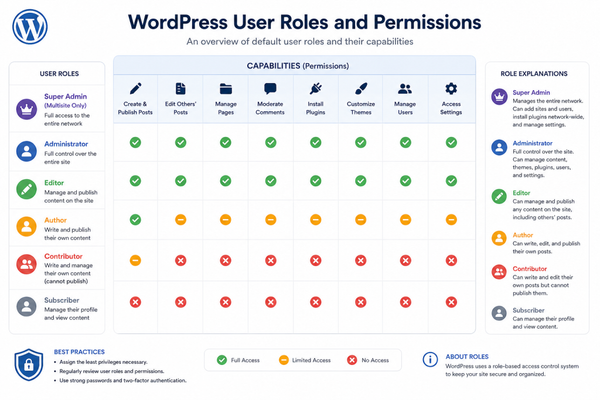
Fine-grained role management becomes especially important when you manage multiple users on the same site.
The complete guide to Smart Admin Assistant covers how to configure role-based visibility so that different user types see a tailored admin experience appropriate to their responsibilities.
Automate Scheduled Posts
Content scheduling is a fundamental part of any consistent publishing strategy. WordPress has a built-in scheduled posts feature, but it relies on WP-Cron, which only fires when someone visits your site. On low-traffic sites, this can cause scheduled posts to publish late or not at all.
Automating scheduled posts reliably usually involves configuring a real server-side cron job or using a tool that addresses WP-Cron’s timing issues. When posts are published on time, your editorial calendar stays on track and your audience receives content consistently.
Beyond scheduling accuracy, automation tools let you set up content workflows that match your team structure. Content can move through draft, review and publishing stages with appropriate notifications and permissions at each step, reducing the need for manual oversight.
Site Enhancements and Performance Tips
A fast, well-optimized WordPress site delivers a better experience for visitors and ranks higher in search results. WordPress site optimization tips tend to overlap with general web performance best practices, but there are several WordPress-specific approaches worth implementing.
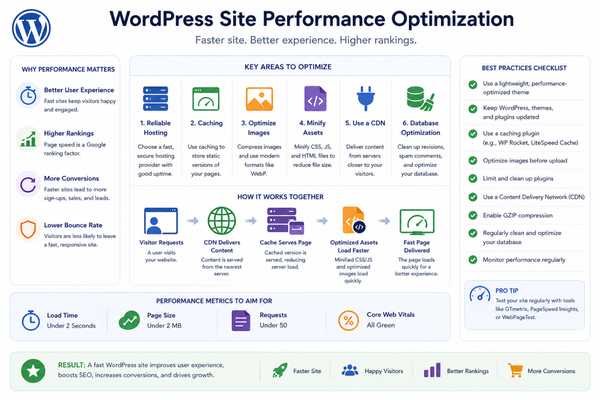
The relationship between your WordPress admin setup and your site’s front-end performance is closer than many people realize. Poorly configured plugins, unnecessary scripts loading on every page and bloated database tables all have their roots in admin-level decisions.
Understanding which plugins and features are active and necessary is step one. The BdThemes knowledge base provides in-depth guidance on configuring Smart Admin Assistant for optimal performance, covering everything from script loading to feature activation.
Here are the key performance areas every WordPress site owner should address.
Optimize Database Performance
WordPress stores everything in its database, from posts and pages to settings, revisions, transients and plugin data. Over time, especially on active sites, this data accumulates and the database grows with unnecessary records that slow down queries.
Regular database optimization involves removing post revisions beyond a set limit, clearing expired transients, cleaning up orphaned metadata and removing spam comments and trashed content.
These WordPress performance tweaks directly affect how quickly your site responds to both visitor requests and admin actions.
Control Script Loading
One of the most impactful WordPress speed enhancements is controlling which scripts and stylesheets load on which pages. Every active plugin typically enqueues its own CSS and JavaScript files across your entire site, even on pages where that plugin has no functionality.
For example, a contact form plugin may load its scripts on every blog post, product page and archive page, even though the form only exists on one page.
This unnecessarily inflates page weight and slows load times. Selectively dequeuing scripts from pages where they are not needed can significantly reduce page load time.
White Label WordPress Admin for Client Sites
If you build WordPress sites for clients, white-label WordPress admin options are a professional necessity. White labeling allows you to replace the WordPress logo, customize the login page, add your own agency branding and create a cohesive experience that feels like a purpose-built platform rather than a generic CMS.
Clients who see a branded, streamlined admin experience tend to feel more confident in the product they have received. It also reduces support requests because the admin area shows only what they need to use, without the complexity of a full developer setup being visible.
Explore the full range of white-label and branding options available through the Smart Admin Assistant to see how agencies use it to deliver polished client handoffs.
Audit and Streamline Your Plugin Stack
Every plugin you install adds weight to your WordPress installation. Some add front-end scripts. Others run database queries on every page load. A few may conflict with each other, creating subtle performance issues.
Auditing your plugin stack means reviewing every active plugin and asking what it does, whether you are actually using all its features and whether a single, more capable plugin could replace two or three narrowly focused ones.
Tools like the Smart Admin Assistant consolidate many common admin customization tasks into one well-built plugin, reducing the total number of plugins needed for admin and site enhancements. Fewer plugins generally means a leaner, faster site with fewer compatibility issues.
Leverage Caching Effectively
Caching is one of the most impactful WordPress site-optimization tips. When a visitor requests a page, WordPress queries the database, runs PHP and assembles the HTML before sending it to the browser.
Caching stores a pre-built version of that page so subsequent requests can be served much faster.
Page caching, object caching and browser caching each address different bottlenecks. Combining them creates a multi-layered performance improvement that reduces server load and improves perceived load time for visitors worldwide.
Optimize Images Before Upload
Images are typically the largest files on any WordPress page. Uploading uncompressed images directly from a camera or design tool is one of the most common causes of slow page load times.
Optimizing images before or at the point of upload keeps file sizes manageable without sacrificing visual quality.
Modern image formats, appropriate dimensions for the display context and lazy loading all contribute to a leaner image strategy. WordPress now includes native lazy loading for images, but ensuring images are properly sized and compressed in the first place remains essential.
Frequently Asked Questions
What are WordPress admin and site enhancements?
WordPress admin and site enhancements refer to modifications made to the WordPress backend interface and site functionality that improve usability, security, performance and overall user experience. These enhancements range from cosmetic changes like removing clutter from the dashboard to functional improvements such as limiting login attempts and optimizing database performance.
Do I need to know how to code to implement these enhancements?
Not at all. While many of these customizations can be done through code, purpose-built tools are specifically designed to make them accessible without technical knowledge. The Smart Admin Assistant plugin handles a wide range of dashboard and admin enhancements through a clean settings interface, so no PHP, CSS or JavaScript knowledge is required.
Will hiding the login URL completely protect my site?
Hiding the login URL is an effective deterrent against automated attacks but it is not a complete security solution on its own. It works best when combined with other measures like limiting login attempts, using strong passwords, keeping WordPress and plugins updated and enabling two-factor authentication. Think of it as one layer in a broader security strategy.
How often should I optimize my WordPress database?
For active sites that publish content regularly, a monthly database optimization is a reasonable starting point. Sites with high traffic or frequent user interactions, like WooCommerce stores, may benefit from more frequent optimization. Tools that allow you to schedule automatic database cleanups reduce the need to remember this task manually.
What is white-label WordPress admin and who needs it?
White-label WordPress admin refers to replacing default WordPress branding in the admin area with custom branding, typically that of a web agency or developer. It is most useful for agencies that build client sites and want to deliver a polished, branded experience. It creates a more professional handoff and reduces client confusion by hiding developer-facing complexity.
Can removing dashboard widgets improve site performance?
Removing dashboard widgets does not directly improve front-end site performance for visitors, but it does improve the admin experience. Some widgets make external API calls or run database queries when the dashboard loads, so disabling them can speed up the admin area itself and reduce unnecessary server requests.
Is Smart Admin Assistant compatible with all WordPress themes?
Yes, Smart Admin Assistant operates at the WordPress admin level and is theme-agnostic. Since it modifies backend functionality rather than front-end theme templates, it works alongside virtually any WordPress theme. You can review compatibility details and feature documentation in the Smart Admin Assistant knowledge base.
Conclusion
A well-configured WordPress admin area is not a luxury; it is a foundation. When your backend is clean, organized and secure, everything else becomes easier. Content creation flows without distraction. Security measures work quietly in the background. Performance stays strong because you have made deliberate choices about what runs and what does not.
The good news is that none of the enhancements covered in this guide requires deep technical expertise. From removing unnecessary dashboard widgets and hiding your login URL to managing user roles and optimizing your database, these are practical changes any site owner can implement with the right tools.
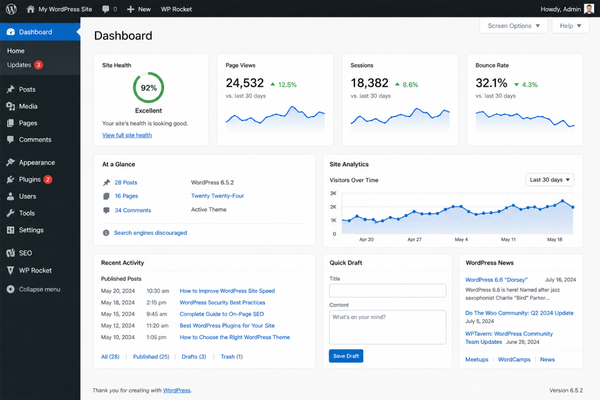
For those who want a unified solution that addresses both admin and site enhancements from a single, well-designed interface, the Smart Admin Assistant by BdThemes is built exactly for this purpose. It brings together dashboard customization, security features, user role management, white labeling and performance tools under one roof.
Explore the full feature set and documentation to see how it can simplify the way you manage your WordPress site. Whether you are a solo blogger, a growing business or a web agency managing dozens of client sites, a smarter admin experience is always worth investing in. Start with one change today and notice how much more focused and efficient your WordPress workflow becomes.
Md Tariqul
The BdThemes team builds WordPress plugins trusted by 3M+ users worldwide. We write about web accessibility, WCAG compliance, and inclusive design.