

The Sigma Media Manager plugin offers a direct folder structure import feature from the WP Media Folder plugin. In this documentation, we will guide you through the process of importing your WP Media folder structure directly into Sigma Media Manager.
Let’s Start Importing the WP Media Folder Structure Step by Step
Step-01
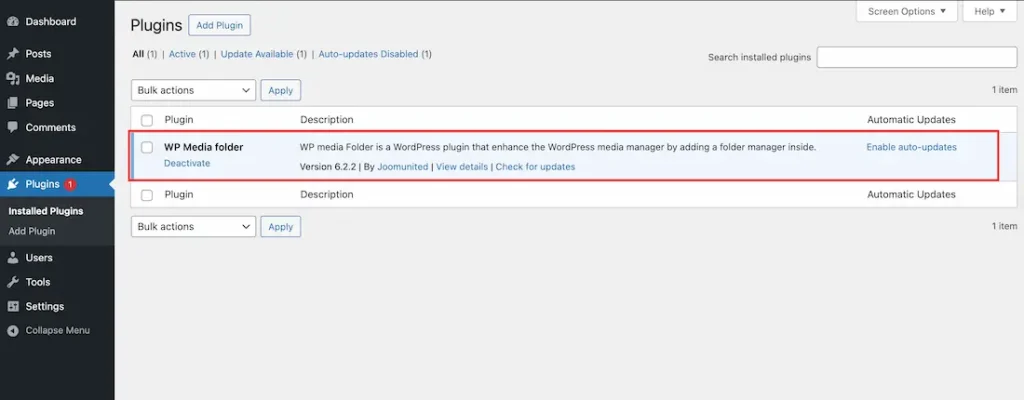
To import the WP Media plugin folder structure, first, you need to check that your WP Media Folder plugin is installed and activated on your site.
Step-02
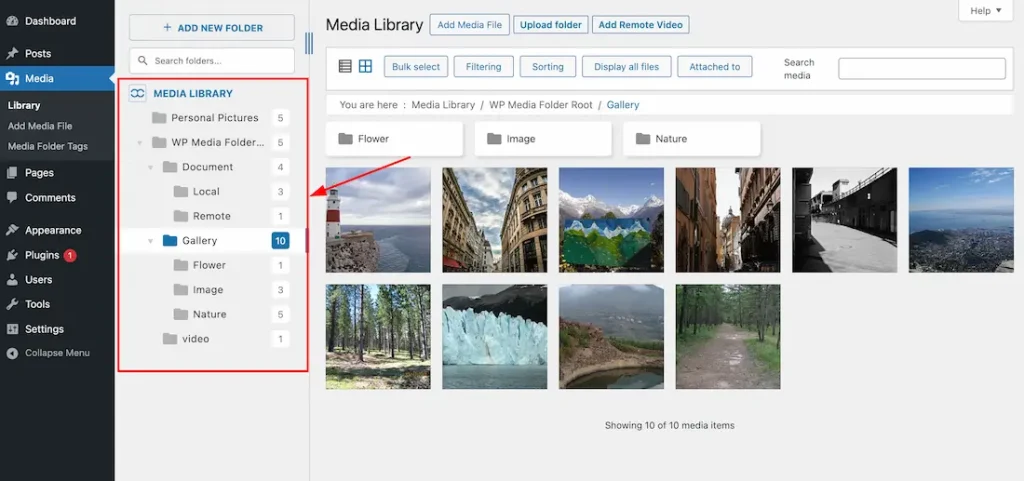
After checking the installation and activation process, navigate to WP Dashboard > Media. Then, create some folders or review your existing folder structure, similar to the screenshot provided.
Step-03
Install and activate the Sigma Media Manager plugin
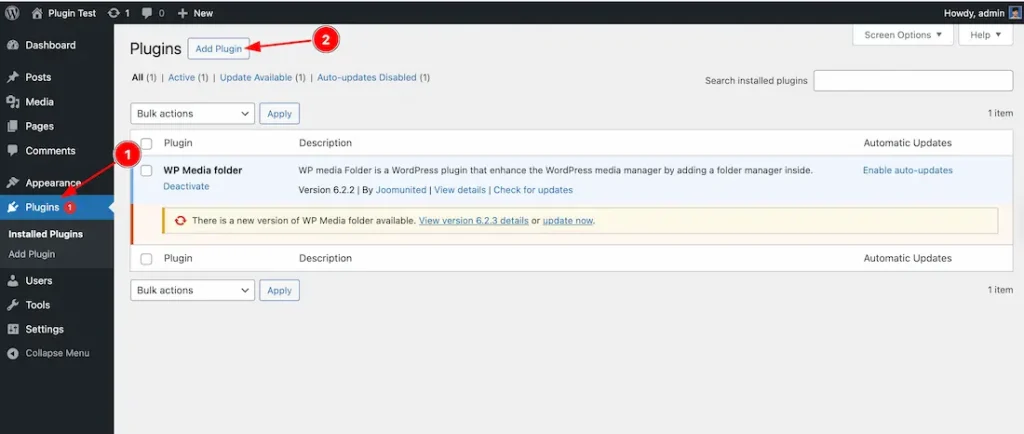
- From the WP Dashboard, click on the Plugins tab.
- JusClick on the Add Plugin button to add the plugin ZIP file.
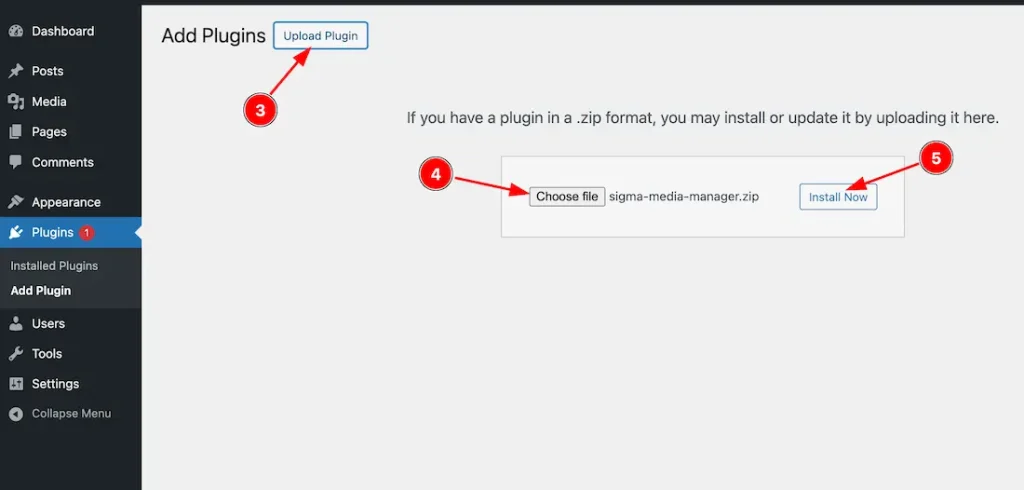
3. Then, click the Upload Plugin button to upload the plugin ZIP file.
4. Click the Choose File button to select the plugin file from your device.
5. Finally, click the Install Now button to install the plugin.
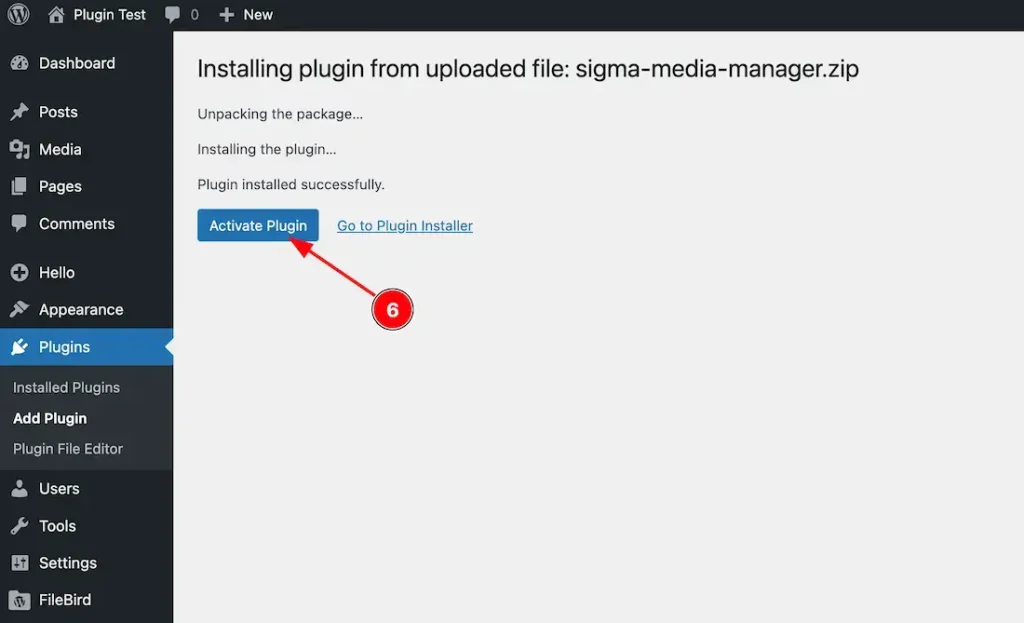
6. After installing the plugin, just click on the Activate Plugin button to activate the plugin.
To download the latest pro version of the Sigma Media Manager plugin. Just follow the documentation from here.
Step-04
Import the WP Media plugin Folder Structure
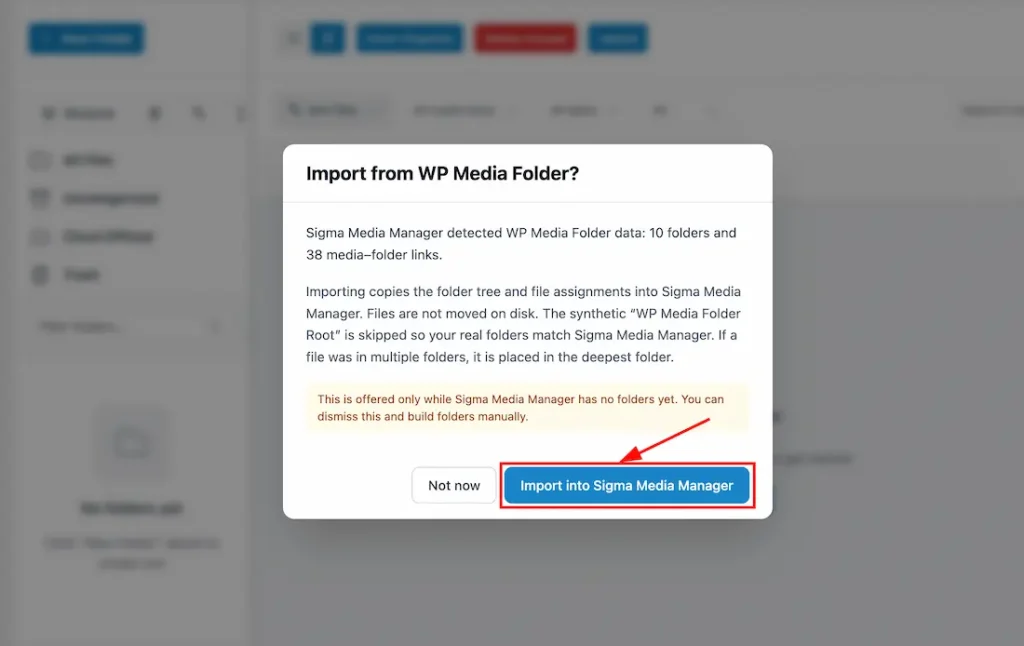
After installing and activating the Sigma Media Manager plugin, navigate to WP Dashboard > Media > Sigma Media Manager. Once you click on Sigma Media Manager, a pop-up will appear, similar to the screenshot above.
If you want to import the WP Media folder structure directly into Sigma Media Manager, simply click on the Import into Sigma Media Manager button. The folder structure import process will then begin automatically.
If you want to skip the import process for now, simply click on the Not Now button to ignore the import process.
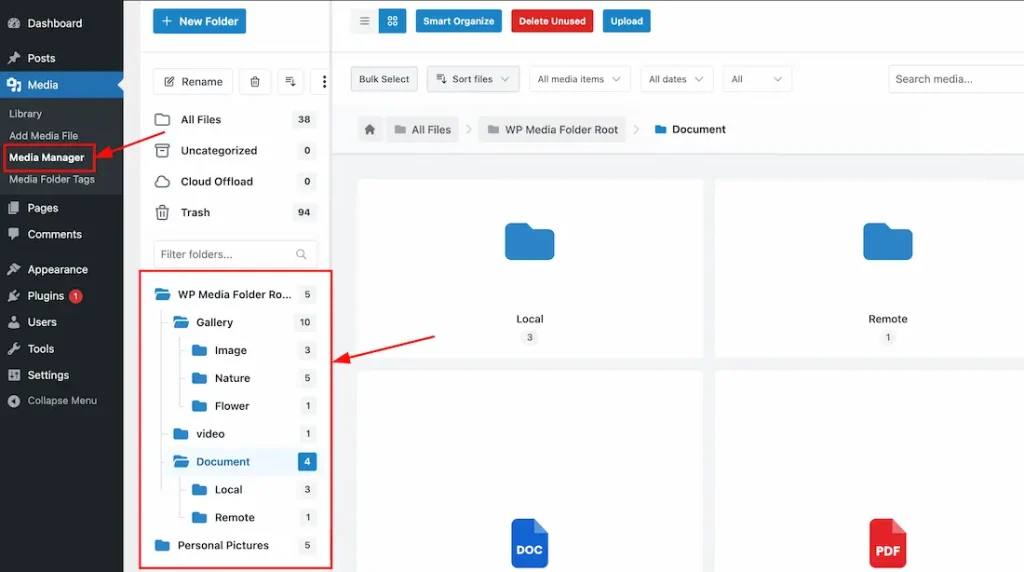
To view the imported folder structure, navigate to WP Dashboard > Media > Sigma Media Manager. Here, you will find your WP Media folder structure successfully imported into Sigma Media Manager.
Step-05
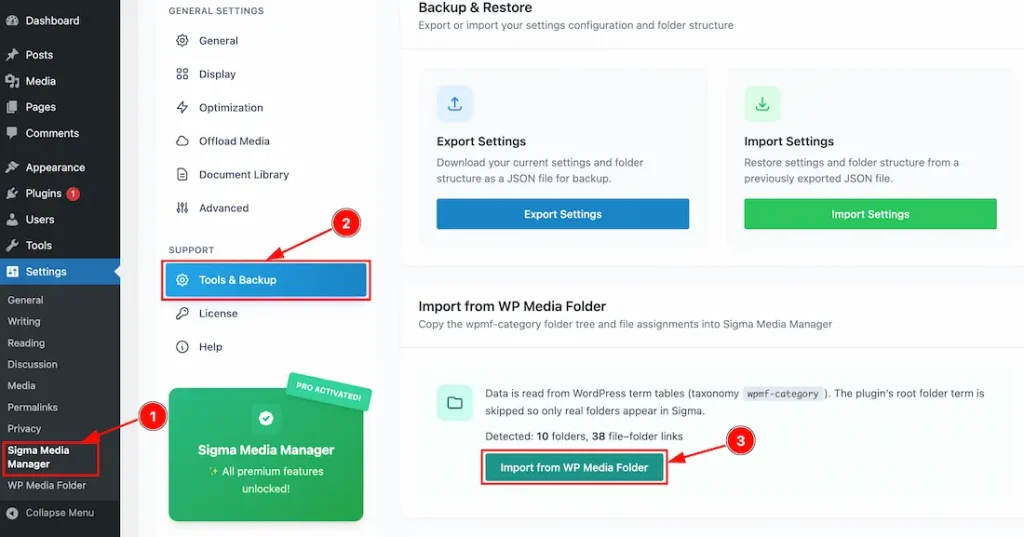
If you click the Not Now button to skip the import process, you can still import the WP Media folder structure later.
Just follow the steps below:
- Navigate to Settings and click on Sigma Media Manager.
- Then go to the Tools & Backup section.
- Finally, click on the Import from WP Media Folder button to start importing the WP Media folder structure.
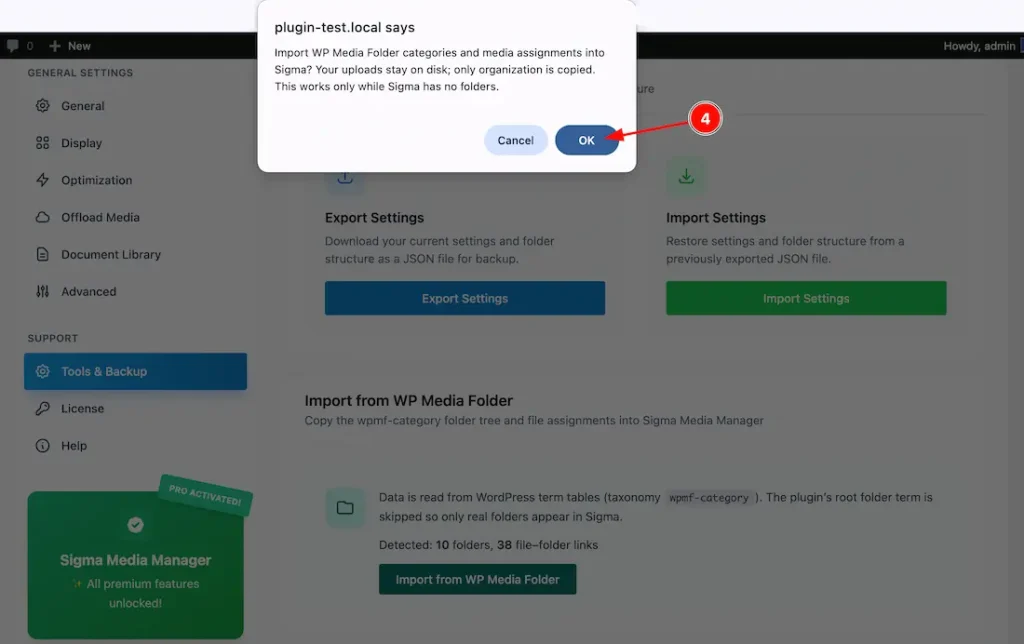
4. Click on the OK button to confirm and proceed with the import process.
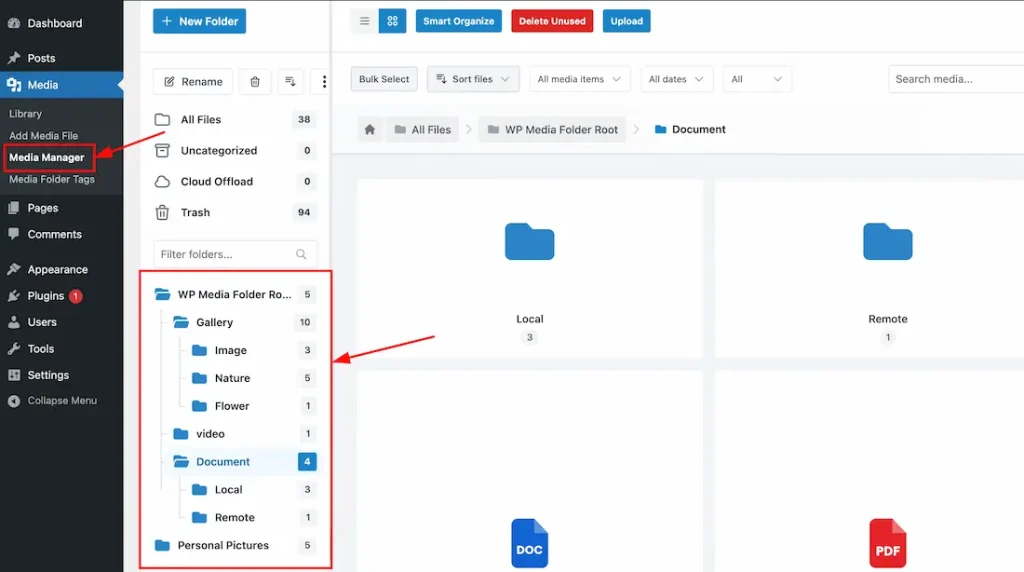
To view the imported folder structure, navigate to WP Dashboard > Media > Sigma Media Manager. Here, you will find your WP Media folder structure successfully imported into Sigma Media Manager.
Video Assist
The video will come soon. If you want, you can try the Pro plugin features directly from here.
Thanks for staying with us.