

Your eyes did not sign up for a flashlight at midnight. Yet here you are, browsing a bright white website at 11 PM, squinting at your screen while the rest of the room sits in darkness.
If this sounds familiar, you are not alone. Research published in the British Journal of Ophthalmology found that more than 50% of regular screen users experience some form of digital eye strain, and a significant portion trace it to prolonged exposure to bright white interfaces.
Chrome users, especially, run into a frustrating pattern: even when their device is set to dark mode, many websites still blast bright light because they simply do not offer a native dark theme.
This guide walks you through every method to turn on force dark mode in Chrome, desktop and mobile, so your browsing sessions are actually comfortable.
What Is Force Dark Mode in Chrome?
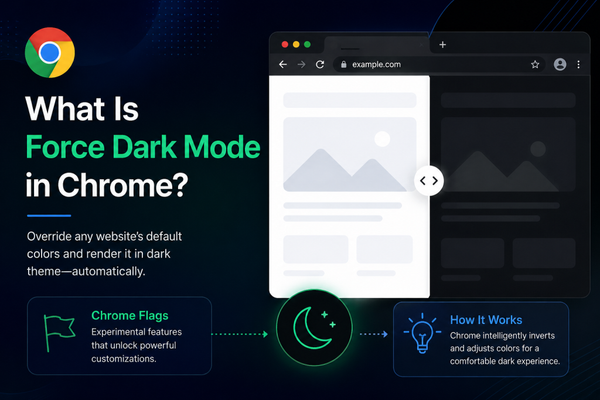
Chrome force dark mode is exactly what it sounds like: a way to override the default color scheme of any website and render it in a dark theme, regardless of whether that website was designed with a dark version.
To understand why this matters, it helps to know what Chrome Flags are and how this feature actually works under the hood.
How Chrome Force Dark Mode Works
Chrome Flags are experimental features baked into the browser that are not yet part of the stable, default experience.
Google uses them to test new functionality before rolling it out publicly. The “Auto Dark Mode for Web Contents” flag is one such experiment.
When enabled, Chrome runs a CSS filter-based algorithm across every webpage you visit, inverting or darkening background colors, adjusting text contrast, and converting light surfaces into darker equivalents.
This is fundamentally different from your operating system’s dark mode setting.
The OS-level dark mode only affects apps and native interfaces that have been coded to respond to a prefers-color-scheme: dark media query.
Most websites do not implement this. Chrome’s force dark approach bypasses that requirement entirely and applies the transformation regardless of whether the developer built dark mode support into the site.
The result is a consistent dark rendering across virtually every website you visit, including those that would otherwise ignore your system preference.
Difference Between Browser Dark Mode and Website Dark Mode
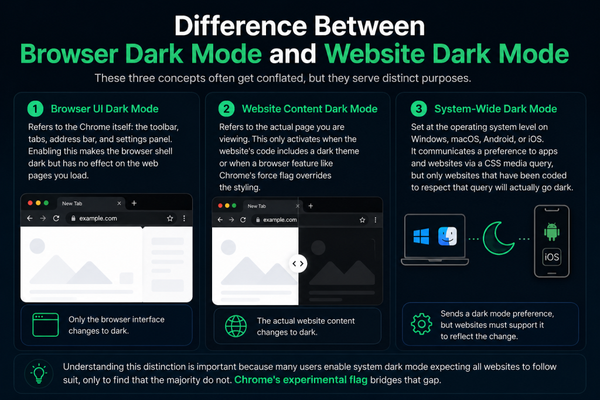
These three concepts often get conflated, but they serve distinct purposes:
- Browser UI dark mode refers to the Chrome itself: the toolbar, tabs, address bar, and settings panel. Enabling this makes the browser shell dark but has no effect on the web pages you load.
- Website content dark mode refers to the actual page you are viewing. This only activates when the website’s code includes a dark theme or when a browser feature like Chrome’s force flag overrides the styling.
- System-wide dark mode is set at the operating system level on Windows, macOS, Android, or iOS. It communicates a preference to apps and websites via a CSS media query, but only websites that have been coded to respect that query will actually go dark.
Understanding this distinction is important because many users enable system dark mode, expecting all websites to follow suit, only to find that the majority do not. Chrome’s experimental flag bridges that gap.
Why More Users Are Enabling Dark Mode
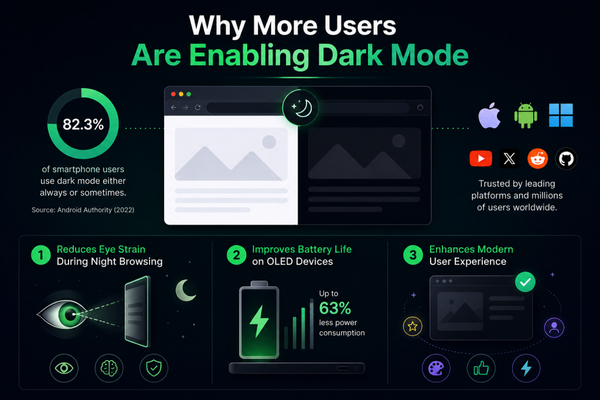
Dark mode was once a preference for developers and night owls. Today, it is a mainstream expectation.
A 2022 survey conducted by Android Authority found that 82.3% of smartphone users either always or sometimes use dark mode. That number has only grown since. Three primary drivers explain this shift.
Reduces Eye Strain During Night Browsing
The human eye is not built for sustained exposure to bright light sources in dark environments.
When you browse a white-background website at night, your eyes are essentially staring at a light source, and the surrounding darkness makes the contrast even more severe.
Research published in Ergonomics suggests that dark-on-light text (the standard white background with black text) causes the iris to constrict more than light-on-dark text, increasing muscular fatigue over time.
Switching to dark mode reduces this strain significantly during extended sessions, particularly those occurring after sunset.
Improves Battery Life on OLED Devices
This is one of the most concrete, measurable benefits of dark mode and applies specifically to modern smartphones with OLED and AMOLED displays.
On these screens, each pixel generates its own light. A black pixel is literally turned off, consuming zero power.
Google’s Android engineering team published research showing that dark mode can reduce display power consumption by up to 63% on OLED screens at full brightness.
In practical terms, a browsing session that might drain 20% of a phone’s battery on a bright white site might drain only 8 to 10% in dark mode. For mobile Chrome users, that translates directly into longer sessions without needing to charge.
Enhances Modern User Experience
Beyond comfort and battery life, dark mode has become a design standard across the technology industry.
Operating systems from Apple, Google, and Microsoft all ship with dark mode options. Major platforms, including YouTube, Twitter/X, Reddit and GitHub, have made dark themes a core feature.
The expectation among users, particularly developers, designers, and gamers, is that any well-maintained product offers a dark option.
When websites do not meet that expectation, they create a subtle but real friction in the user experience.
This is part of why good UX and UI design matters so much in web development today.
Dark Mode Usage Statistics and Trends
The numbers behind dark mode adoption tell a clear story:
- 82.3% of smartphone users prefer dark mode at least some of the time (Android Authority, 2022).
- 50% of computer users experience digital eye strain linked to bright screen exposure (British Medical Journal).
- 91.8% of users prefer dark mode whenever it is available (Polar, 2021).
- 63% reduction in display power consumption on OLED screens at full brightness when using dark mode (Google Android Team).
- 2.2 billion people worldwide live with some form of vision impairment (World Health Organization), making low-strain interfaces an accessibility concern, not just a preference.
These figures explain why dark mode has shifted from a niche setting to a baseline expectation. They also make a strong case for why website owners need to go beyond relying on Chrome’s browser-level flag, something we will address later in this guide.
Method 1: How to Turn On Force Dark Mode in Chrome Using Chrome Flags
This is the most direct way to enable dark mode for all websites in Chrome without installing anything. It uses Chrome’s built-in experimental features panel.
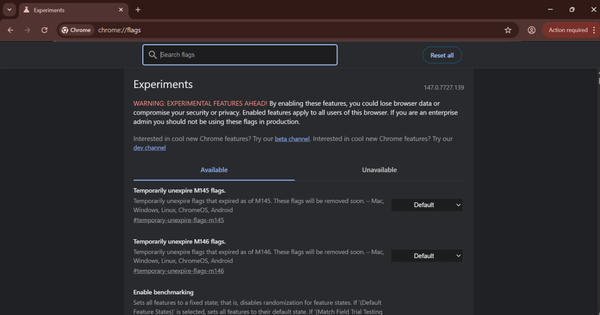
Step 1: Open Chrome Flags
- Open Google Chrome on your desktop or laptop. In the address bar at the top, type the following exactly and press Enter: chrome://flags
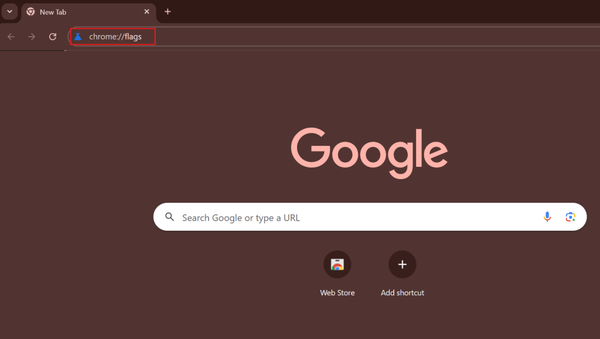
This opens the Chrome Experiments page, a hidden panel where you can enable and disable experimental browser features.
The page will display a search bar at the top and a long list of toggles below it.
Step 2: Search for “Auto Dark Mode for Web Contents”
- Click on the search bar inside the flags page and type: Auto Dark Mode for Web Contents
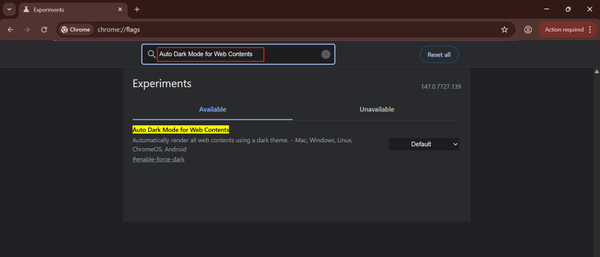
Chrome will filter the list and surface the relevant flag at the top.
You may see it labeled as “Auto Dark Mode for Web Contents” with a brief description noting that it enables automatic dark mode on web content.
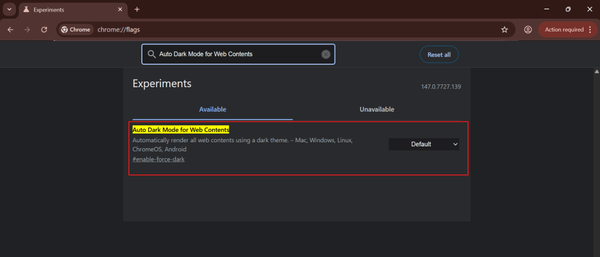
Step 3: Enable the Feature
Next to the flag entry, you will see a dropdown menu currently set to “Default.” Click this dropdown to see the available options:
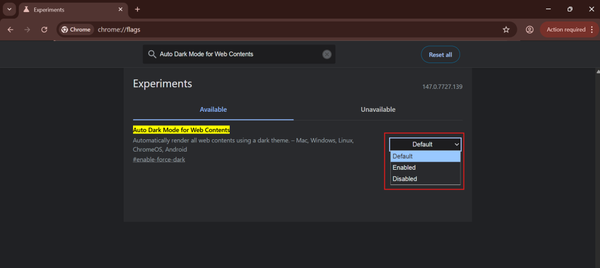
- Default (follows system behavior, off for most users)
- Enabled (turns on force dark mode)
- Disabled (keeps it permanently off)
For most users, selecting Enabled is the right starting point.
If you find that certain websites render incorrectly, such as images appearing inverted or text becoming unreadable, try the more specific rendering options.
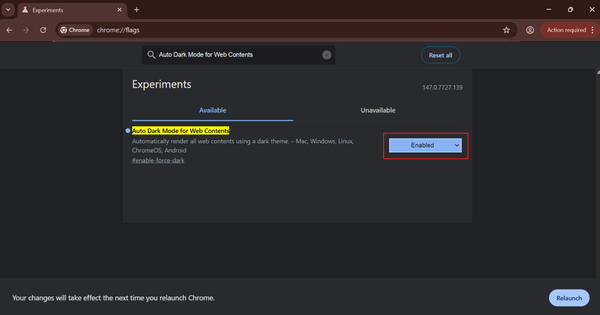
Step 4: Relaunch Chrome
After selecting your preferred option, a blue Relaunch button will appear at the bottom of the screen. Click it. Chrome will close and reopen automatically, applying the new setting.
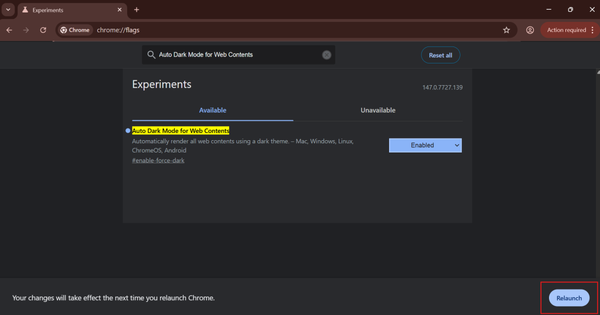
Step 5: Test Dark Mode on Websites
Once Chrome relaunches, visit a few websites to see the force dark mode in action.
Try a news site, a documentation page, or any site you know does not have a native dark theme. You should see the backgrounds converted to dark gray or black, with text adjusted for contrast.

Pros of This Method
- Built directly into Chrome with no extension required
- Works across a wide range of websites automatically
- Requires no ongoing maintenance or updates
- Free and available on all desktop Chrome versions
Limitations
- This is an experimental feature, meaning Google can remove or change it without notice
- Some websites render incorrectly, with color distortions, broken gradients, or hard-to-read text
- Does not offer per-site control or scheduling options
- Limited customization compared to extensions
Method 2: Enable Dark Mode in Chrome Using Device Settings
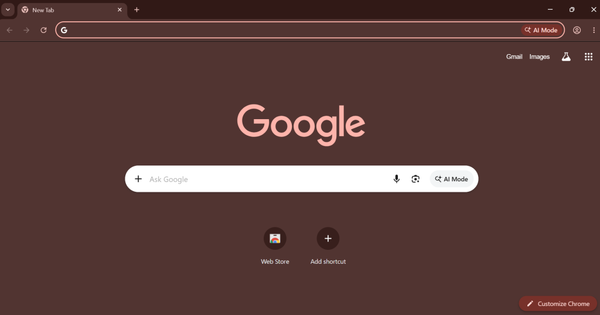
This method does not force dark mode on individual web pages, but it does switch Chrome’s own interface, including its toolbar, menus, and settings, to a dark theme.
It also allows websites that support prefers-color-scheme: dark to respond appropriately.
On Windows
- Open the Start Menu and go to Settings.
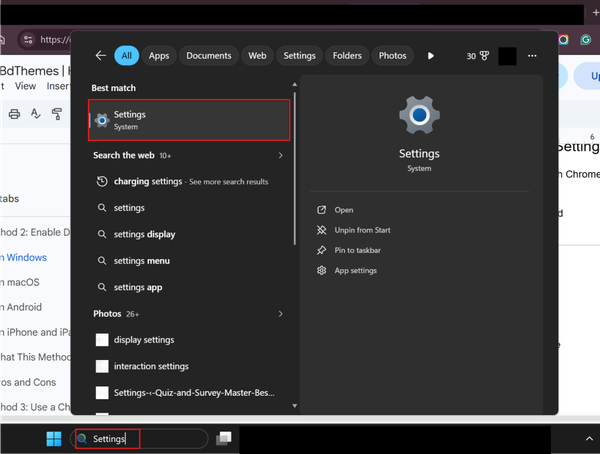
- Select Personalization, then click Colors.
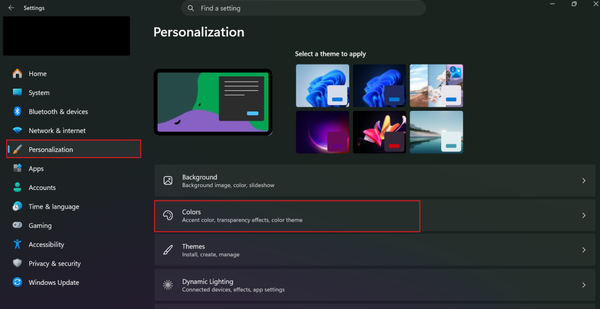
- Under “Choose your mode,” select Dark.
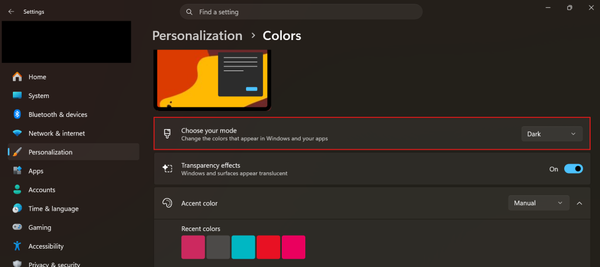
- Open Chrome. The browser interface will now reflect the dark theme.
On macOS
- Click the Apple menu in the top-left corner of your screen.
- Go to System Settings (or System Preferences on older macOS versions).
- Select Appearance.
- Choose Dark.
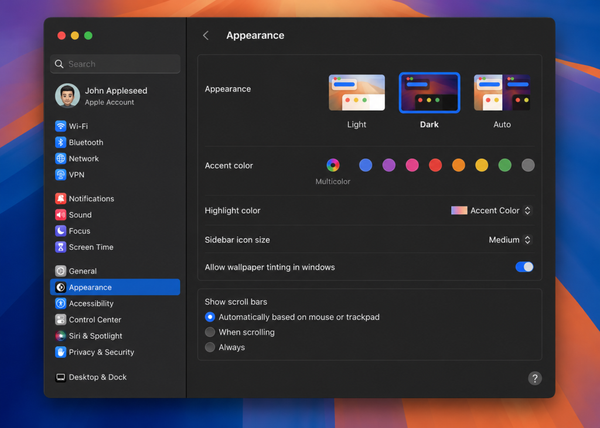
- Chrome’s interface will automatically switch to a dark theme.
On Android
- Open the Settings app on your Android device.
- Go to Display (the label may vary by manufacturer).
- Toggle on Dark Theme or Dark Mode.
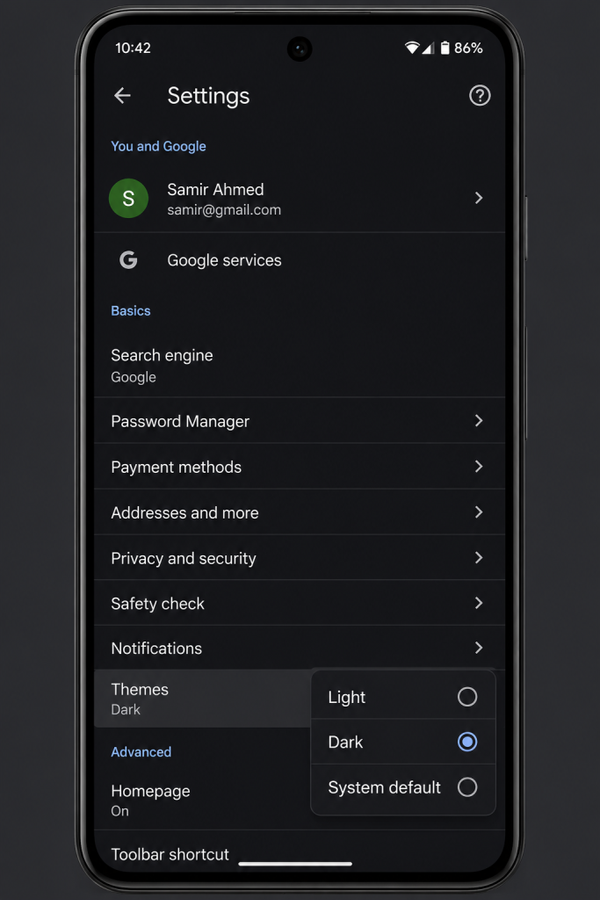
- Open Chrome. The browser interface will follow the system settings.
On iPhone and iPad
- Open the Settings app.
- Tap Display & Brightness.
- Select Dark under Appearance.
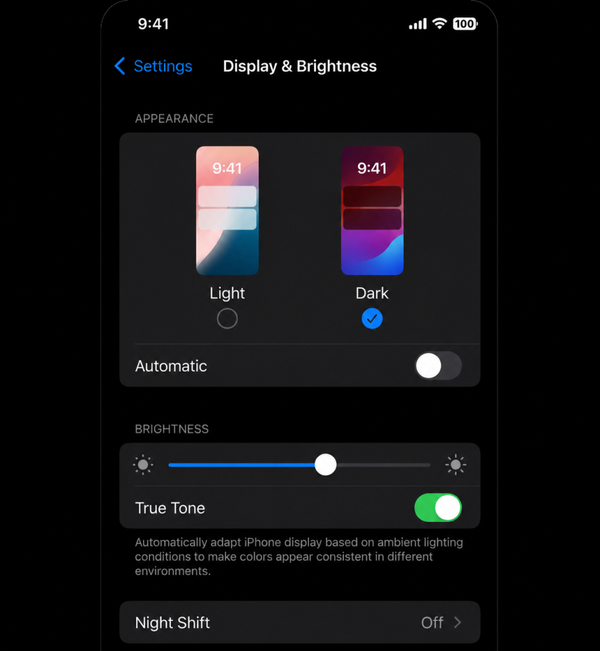
- Open Chrome. The browser will apply a dark interface.
Pros of This Method
- Stable, officially supported behavior with no experimental flags
- Works reliably across all websites that support prefers-color-scheme
- Consistent and polished dark interface for the browser itself
Limitations
- Does not convert websites that have not built dark mode support into their design
- Gives you no control over websites that ignore the system preference
Method 3: Use a Chrome Extension to Force Dark Mode
Chrome extensions that apply dark mode work differently from the flags approach.
Instead of a blanket CSS filter, many extensions inject custom stylesheets on a per-site basis, giving you far more control over the output.
How Dark Mode Extensions Work
When you install a dark mode extension, it intercepts page loads and applies modified CSS rules before the page fully renders.
This allows it to selectively darken backgrounds, adjust text colors, and handle images and media separately from the rest of the layout.
Better extensions also store per-site preferences, so you can exclude certain sites from dark mode while keeping it active everywhere else.
Popular Dark Mode Extensions for Chrome
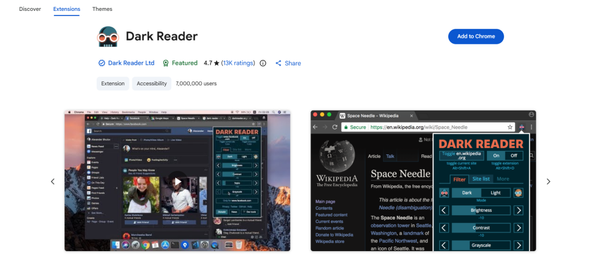
- Dark Reader is the most widely used dark mode extension in the Chrome Web Store, with tens of millions of active installs. It applies smart filtering algorithms that analyze each page’s CSS and generates a custom dark theme rather than simply inverting colors. The result is one of the cleanest dark-mode renderings available in a browser extension.
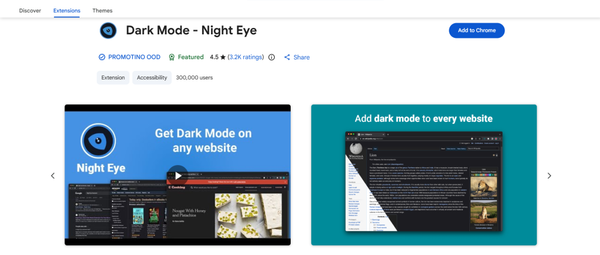
- Dark Mode is a color-scheme customization tool that goes beyond dark mode, allowing granular control over hue, saturation, and contrast. It is more complex to configure but highly powerful for users who want precise adjustments.
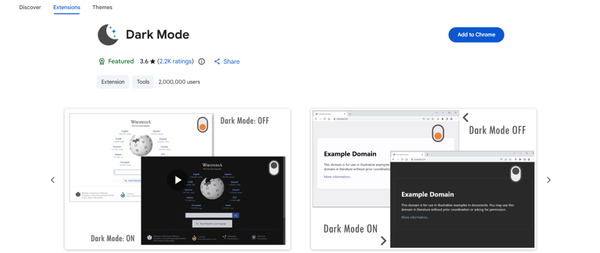
- Dark Mode – Night Eye is a lightweight option for users who want a simple, single-toggle solution without a complex settings panel.
Step-by-Step: How to Use Dark Reader Extension in Chrome
Dark Reader is the recommended choice because it offers the best balance of quality rendering and usable controls without requiring any technical knowledge. Here is exactly how to get it running.
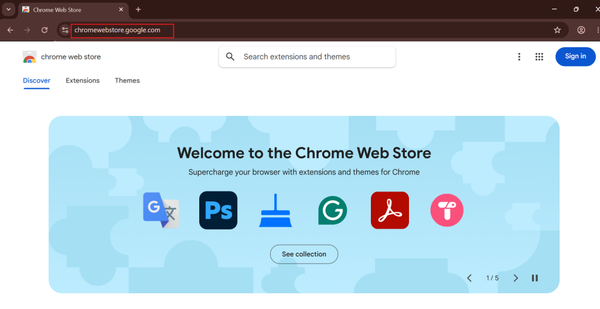
Step 1: Open the Chrome Web Store
- Open Google Chrome on your computer.
- In the address bar, go to https://chromewebstore.google.com, or simply search for “Dark Reader Chrome extension” in Google.
Step 2: Find and Install Dark Reader
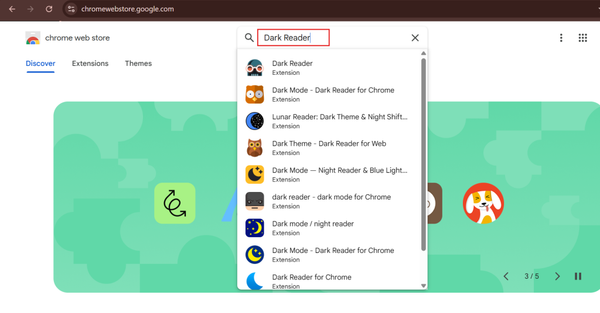
- In the Chrome Web Store search bar, type Dark Reader and press Enter.
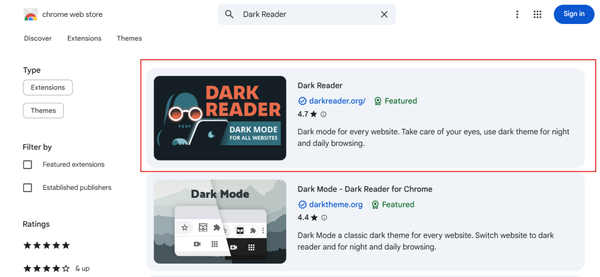
- Click on the Dark Reader extension from the results. It shows tens of millions of users and a four-star-plus rating.
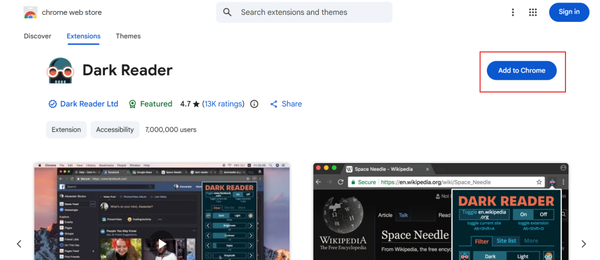
- Click the Add to Chrome button in the top-right of the extension page.
- A confirmation pop-up will appear listing the permissions the extension needs. Click Add extension.
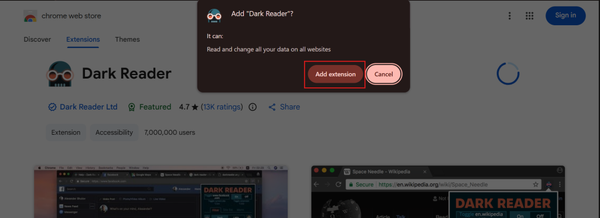
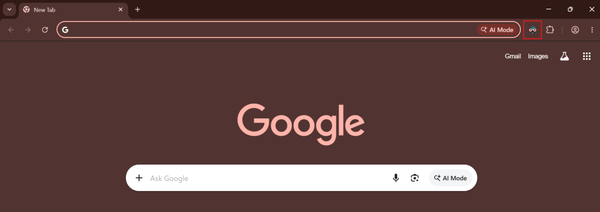
- Chrome will download and install it automatically. You will see a confirmation message and the Dark Reader icon appear in your browser toolbar.
Step 3: Activate Dark Mode
- Click the Dark Reader icon in your Chrome toolbar. A control panel will appear as a popup.
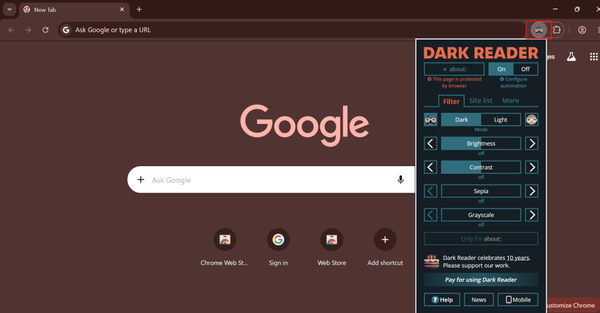
- At the top of the popup, you will see an On/Off toggle. If it is not already enabled, click it to switch it on.
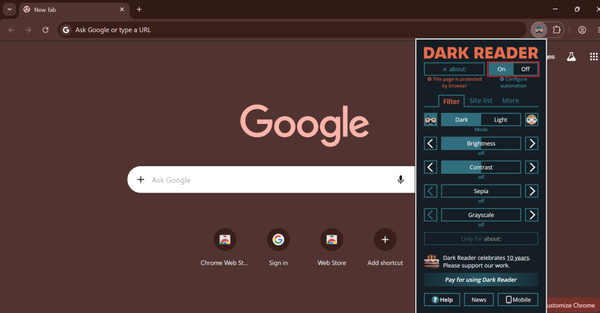
The current website will immediately switch to dark mode.
- You can also use the keyboard shortcut Alt + Shift + D (Windows) or Cmd + Shift + D (Mac) to toggle it without opening the pop-up at all.
Step 4: Adjust Brightness and Contrast
- In the Dark Reader pop-up, the Filter tab is shown by default.
- You will see three sliders: Brightness, Contrast, and Sepia.
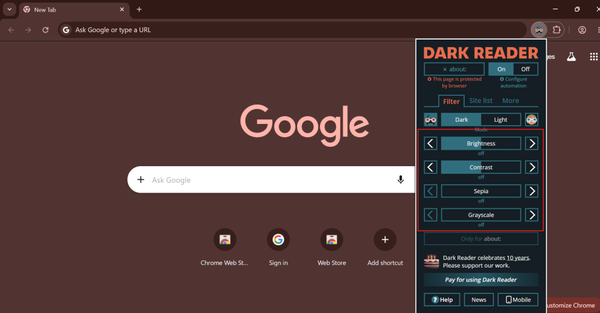
- Drag Brightness left to darken the page further or right to lighten it. Around 100 is a neutral starting point.
- Drag Contrast to around 90 to 100 to sharpen text readability against the dark background.
- Leave Sepia at 0 for accurate colors, or raise it slightly for a warmer, less blue-heavy tone.
Why Extensions Offer Better Control
Extensions outperform Chrome’s experimental flag in several practical ways:
- Brightness adjustment: Fine-tune the overall luminance of the dark rendering, useful when the flags output is either too dark or not dark enough.
- Contrast control: Dial in exactly how much contrast exists between backgrounds and text for comfortable readability.
- Per-site settings: Exclude specific sites from dark mode while keeping it active everywhere else.
- Scheduling features: Time-based activation switches to dark mode automatically after sunset and back to light mode during the day.
For Chrome users who want the most consistent and polished dark mode experience across all websites, a well-maintained extension remains the most reliable long-term solution.
How to Enable Dark Mode on a WordPress Website
Browser-based dark mode methods are useful for your own browsing experience, but they do not solve the problem for your website’s visitors.
Every person who visits your site has their own browser setup. Some will have force dark enabled via Chrome flags.
Others will be on Safari, Firefox, or Edge.
Many will have no dark mode configuration at all. If you own a WordPress website, relying on the visitor’s browser to handle dark mode is not a strategy. It is a gamble.
Visitors increasingly arrive with a genuine expectation of a polished dark experience built directly into the sites they browse.
This is why adding dark mode to your WordPress website through a dedicated plugin is the right approach for site owners. You can also go a step further and learn how to force a WordPress website into dark mode by default so that every visitor lands on the dark version automatically.
Why WordPress Websites Need Native Dark Mode
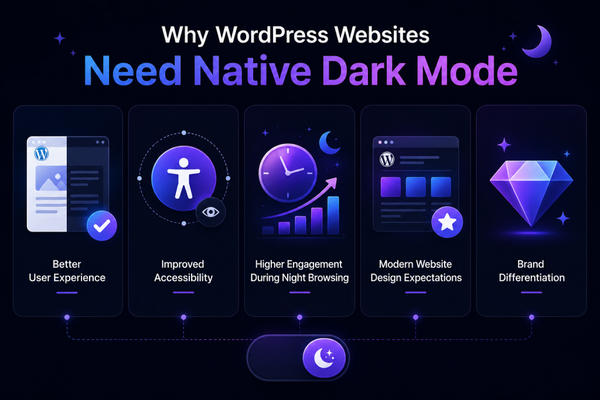
- Better User Experience: A native dark mode that your site provides feels intentional and polished. Browser-forced dark modes sometimes produce visual glitches, inverted images, or broken gradients because they apply generic CSS transforms to a page that was not designed with them in mind.
- Improved Accessibility: According to the World Health Organization, approximately 2.2 billion people worldwide live with a vision impairment of some kind. Many of these users rely on dark interfaces to reduce visual fatigue or because bright backgrounds are genuinely painful for them.
- Higher Engagement During Night Browsing: Research from Contentsquare shows that peak online shopping and content consumption happen between 8 PM and 11 PM, precisely the hours when bright interfaces are most uncomfortable. Sites that offer comfortable dark browsing during these hours keep visitors engaged longer.
- Modern Website Design Expectations: The best WordPress themes for blogs and professional sites now account for design flexibility that includes dark mode. Offering it natively keeps your site aligned with where the web is heading. Whether you are using a free WordPress theme or a premium setup, dark mode is becoming table stakes for any site that cares about its visitors.
- Brand Differentiation: Most small and medium-sized WordPress sites still do not offer native dark mode. Being one that does creates a memorable experience that visitors associate with professionalism and attention to detail.
Add Dark Mode to WordPress Using Dark Reader by BdThemes
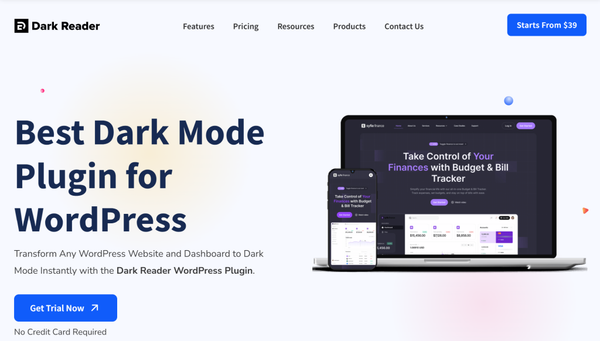
Dark Reader by BdThemes is a dedicated WordPress plugin built to deliver a clean, fully customizable dark mode experience for your visitors and your admin dashboard. It works without touching any theme code, requires no developer involvement, and takes minutes to set up.
If you have been reading about the best WordPress dark mode plugins available, Dark Reader consistently stands out for the depth of its visual controls, its Elementor compatibility, and its lightweight architecture. You can get a full overview of everything it offers on the Dark Reader feature page.
Key Features of Dark Reader
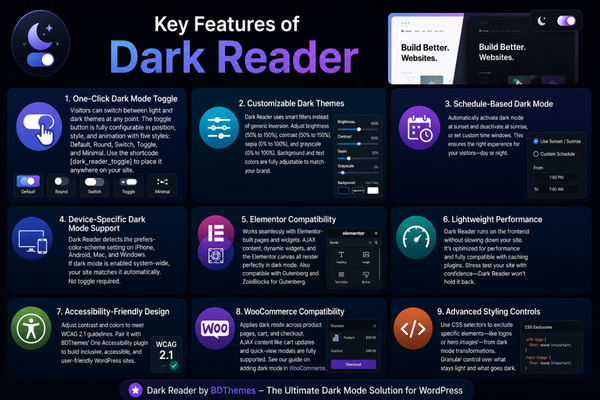
Here is what makes Dark Reader different from basic color-inverting alternatives.
- One-Click Dark Mode Toggle: Visitors can switch between light and dark themes at any point during their session. The toggle button is configurable in terms of position, style, and animation. You can also use the shortcode [dark_reader_toggle] to place the toggle precisely within your page layout using the Elementor shortcode widget.
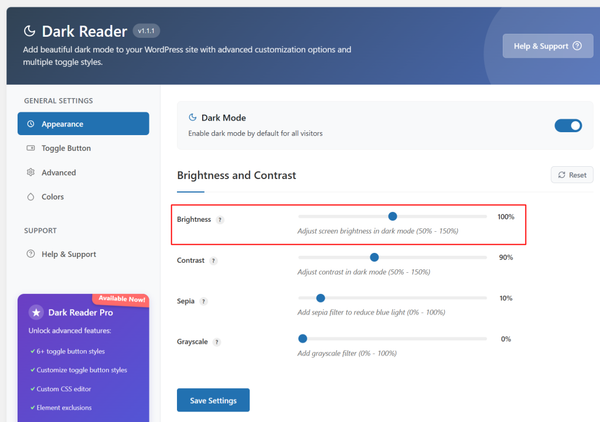
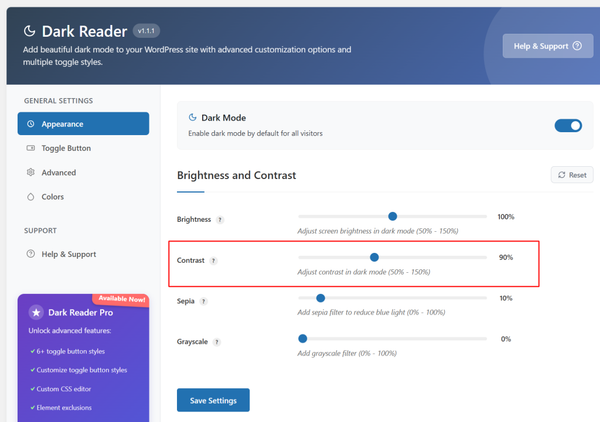
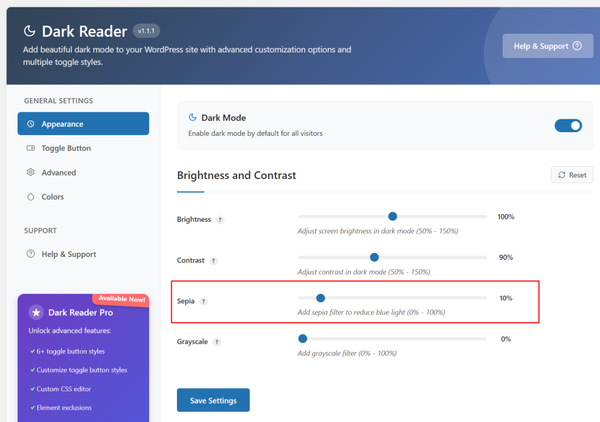
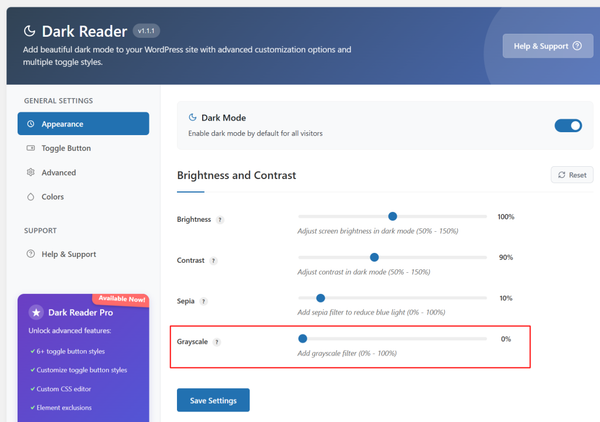
- Customizable Dark Themes: Unlike extensions that apply a generic inversion, Dark Reader uses smart filters. You can control brightness (50% to 150%), contrast (50% to 150%), sepia (0% to 100%), and grayscale (0% to 100%) to produce a dark mode that complements your brand rather than fighting it.
- Schedule-Based Dark Mode: Set dark mode to activate automatically at sunset and deactivate at sunrise, or define custom time windows. This ensures that visitors arriving during the day see your site as designed, while evening visitors automatically get the eye-friendly dark experience.
- Device-Specific Dark Mode Support: The plugin detects the prefers-color-scheme media query from the visitor’s operating system. If a visitor has enabled system-wide dark mode on their iPhone, Android phone, Mac, or Windows machine, your site matches that preference the moment they land on it. No toggle required.
- Elementor Compatibility: Dark Reader works seamlessly with Elementor-built pages, making it a natural companion for sites built using Element Pack Pro or other BdThemes tools. AJAX-powered content, dynamic widgets, and Elementor’s canvas all render correctly in dark mode.
- Lightweight Performance: The plugin applies its styling on the frontend without adding meaningful overhead to server response times or page load performance. If you are already following WordPress performance optimization practices, Dark Reader will not undo that work. It is also compatible with caching plugins. You can even stress test your WordPress website to confirm it holds up under load with Dark Reader active.
- Accessibility-Friendly Design: Contrast ratios remain controllable through the plugin settings, so you can follow WCAG 2.1 guidelines. This is an important consideration if you are also working with BdThemes’ One Accessibility plugin for a fully compliant, inclusive site.
- WooCommerce Compatibility: Dark Reader applies dark mode across WooCommerce product pages, cart, and checkout flows. AJAX-triggered content, such as cart updates and quick-view modals, is covered by the “Apply Immediately” setting in the Advanced tab. This is detailed in BdThemes’ dedicated guide on adding dark mode in WooCommerce.
- Advanced Styling Controls: The plugin includes a CSS exclusion system. You can exclude specific elements, such as your logo or hero images, from dark mode transformations using CSS selectors. This gives you granular control over exactly which elements go dark and which stay in their original colors.
Step 1: Install the Dark Reader Plugin
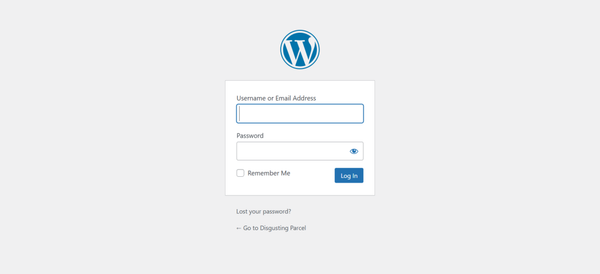
- Log in to your WordPress dashboard.
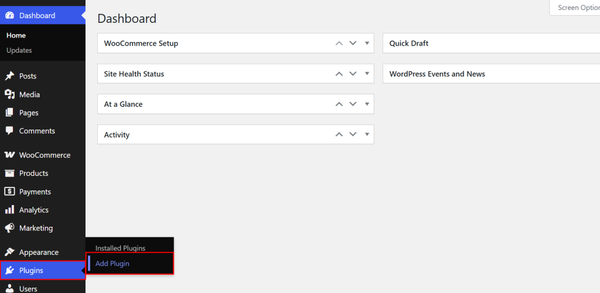
- Navigate to Plugins → Add New Plugin.
- In the search bar, type Dark Reader.
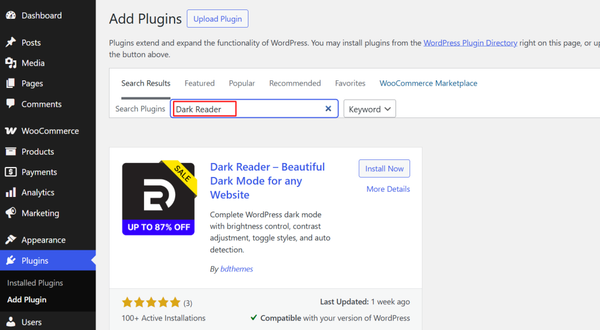
Look for the official plugin by BdThemes.
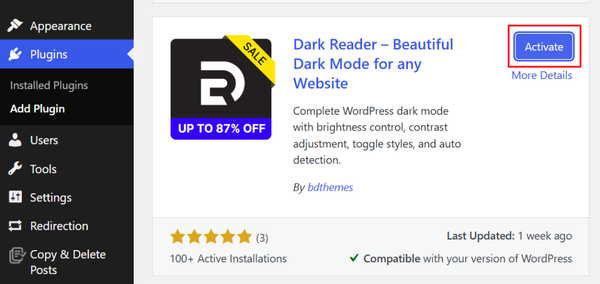
- When you find it, click Install Now.
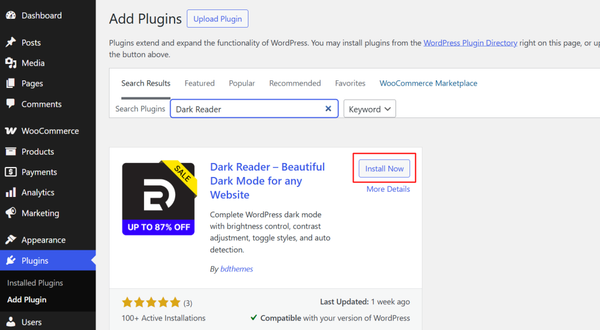
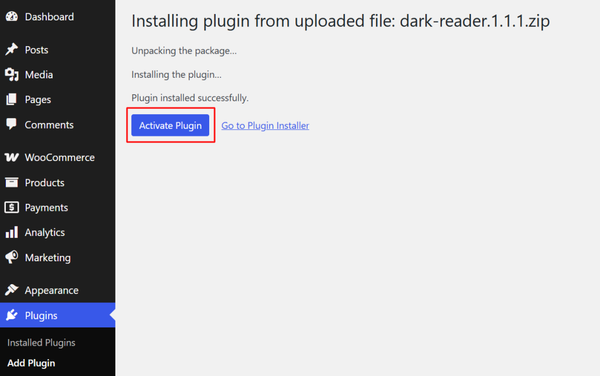
- Activate once the installation completes.
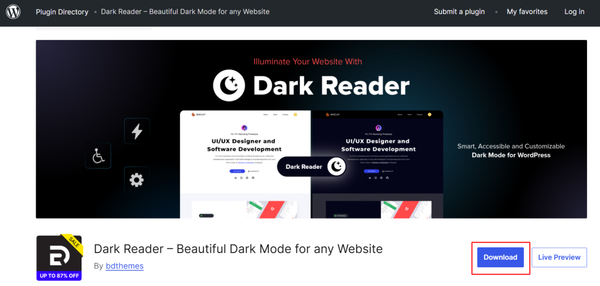
Alternatively, you can download the plugin zip file directly from the BdThemes Dark Reader plugin page.
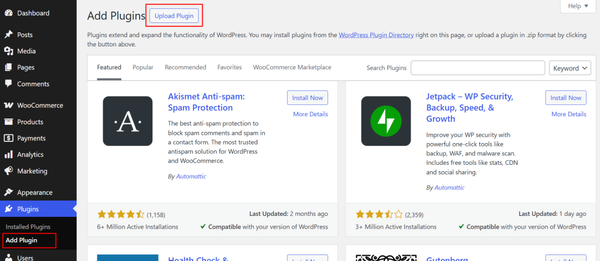
- Then go to Plugins → Add New Plugin → Upload Plugin.
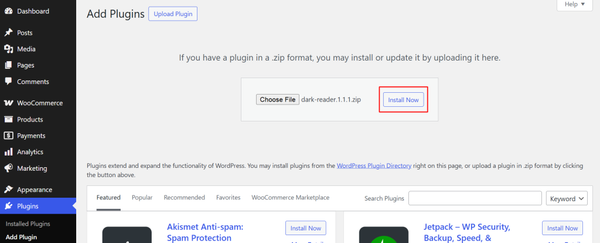
- Choose the zip file from your computer, and click Install Now.
- Activate Plugin.
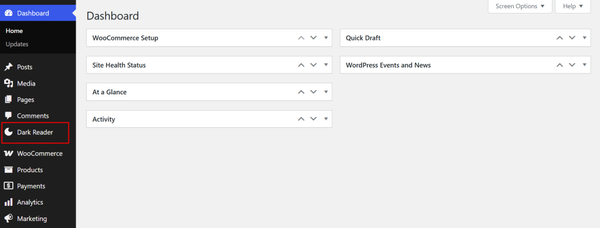
Once activated, Dark Reader appears in your WordPress sidebar.
Step 2: Activate Dark Mode
Navigate to Dark Reader in your WordPress admin sidebar to open the settings panel.
You will find five organized tabs: Appearance, Toggle Button, Advanced, Colors, and Help and Support.
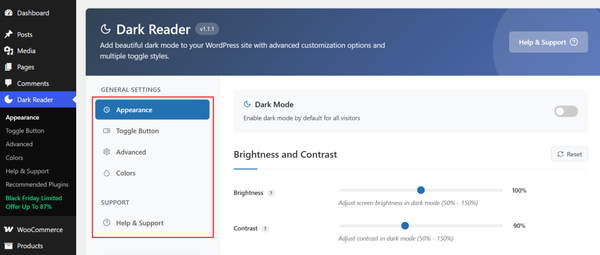
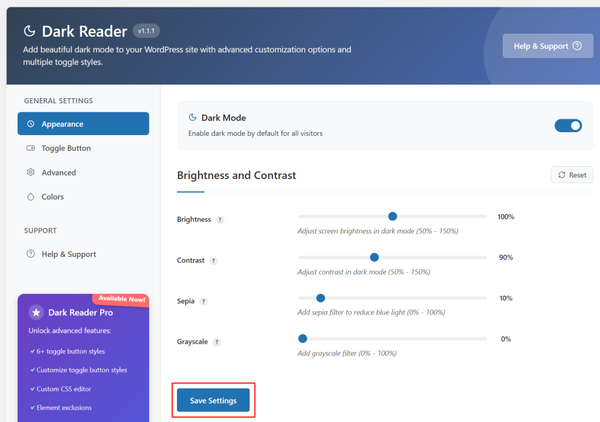
- Open the Appearance tab.
You will see a Dark Mode switcher at the top.
- Toggle this on to enable dark mode by default for all visitors across your site.
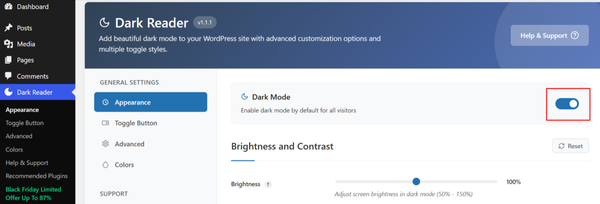
If you prefer to let visitors choose, leave it off and rely on the toggle button instead.
Step 3: Customize Dark Theme Settings
In the Appearance tab, adjust the visual filters to match your site’s look and feel:
- Brightness (50% to 150%): For most sites, a setting between 90% and 110% produces the most natural result. Sites with darker photography may benefit from going slightly higher.
- Contrast (50% to 150%): A value between 100% and 110% keeps text crisp and readable without feeling harsh.
- Sepia (0% to 100%): Leave this at 0% for accurate color rendering. A slight sepia tint can make the dark mode feel warmer if your brand calls for it.
- Grayscale (0% to 100%): Leave at 0% for normal color rendering. Use only for specific accessibility requirements.
- Click Save Settings after making your adjustments.
Step 4: Add a Dark Mode Toggle Switch
Navigate to the Toggle Button tab.
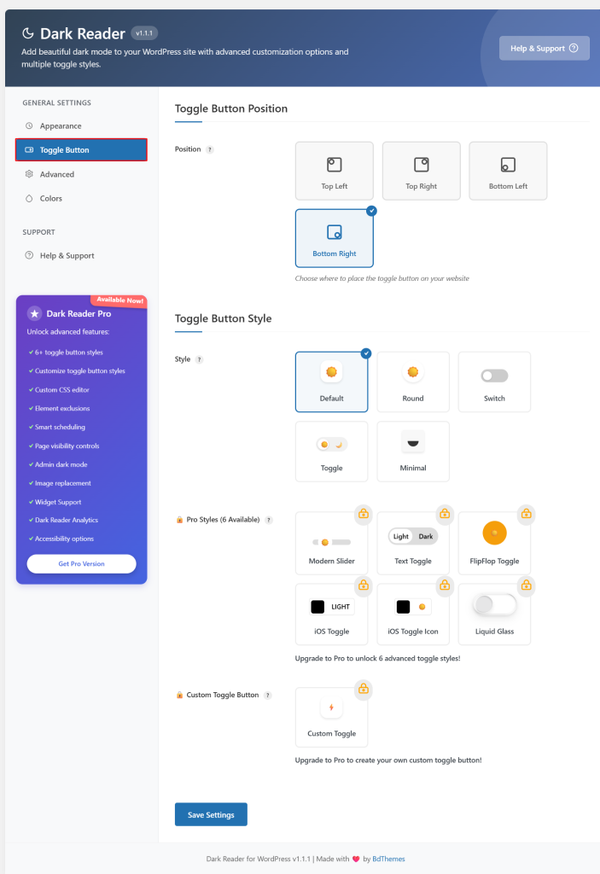
Here, you choose where the toggle appears on your site and what it looks like.
Position options:
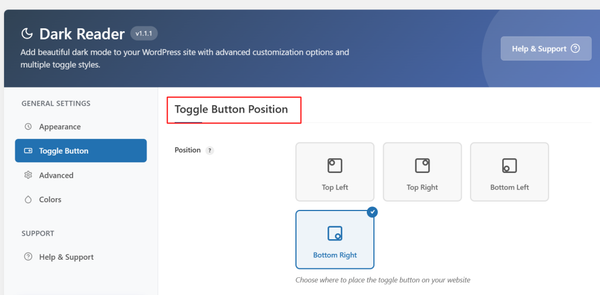
- Top Left
- Top Right
- Bottom Left
- Bottom Right (recommended for most layouts, as it avoids conflicting with navigation and header elements)
Style options:
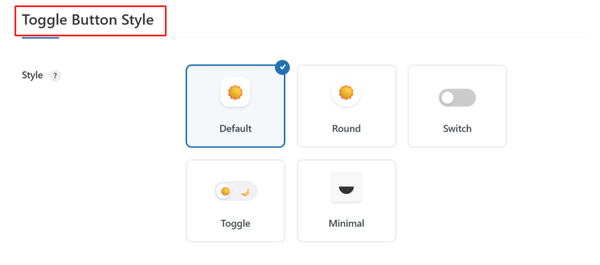
- Default (icon-based)
- Round (icon in a circular container)
- Switch (familiar mobile-settings style)
- Toggle (compact switch)
- Minimal (icon only, no background)
Choose the style that best fits your theme. For sites built with tools like Elementor or ZoloBlocks, the Minimal or Round styles tend to integrate most cleanly.
- Click Save Settings.
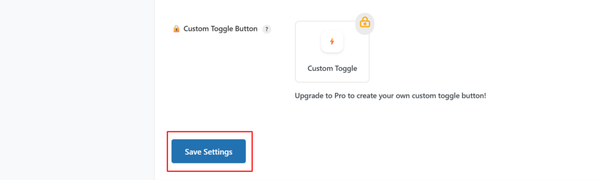
Step 5: Optimize User Experience
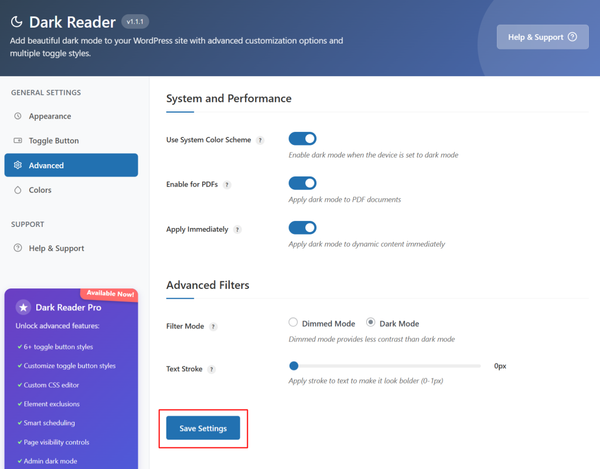
Open the Advanced tab to configure the settings that handle system integration and dynamic content.
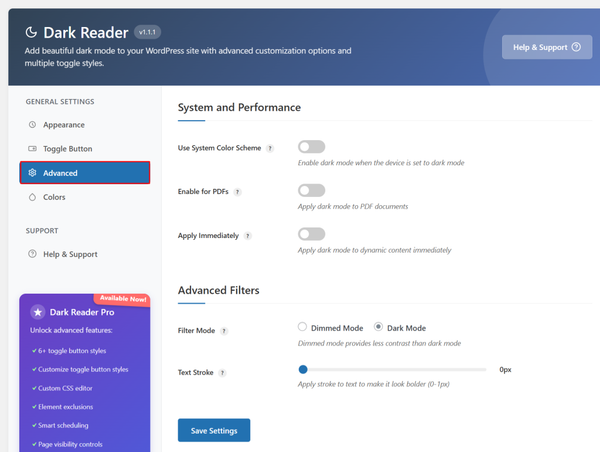
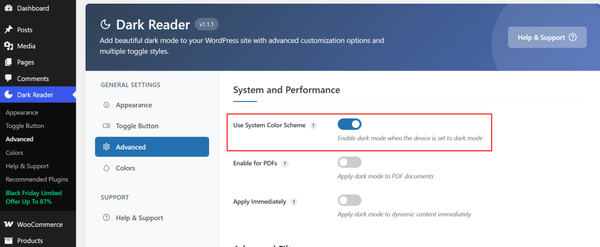
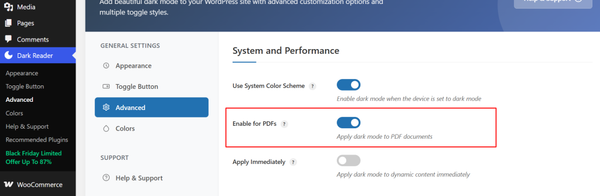
- Enable Use System Color Scheme so that visitors who already use dark mode on their devices land on your site in dark mode automatically.
- Enable Apply Immediately to ensure that dark mode applies to AJAX-loaded content, including WooCommerce cart updates, quick-view modals, and any dynamically loaded widgets.
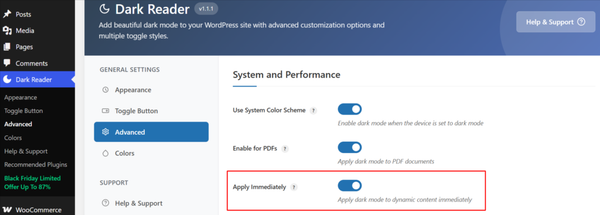
Without this, some content may flash in light mode before the dark theme takes effect.
If your site includes downloadable PDF documents or embedded PDFs, such as product manuals or spec sheets:
- Enable Enable for PDFs to maintain dark mode consistency within those documents.
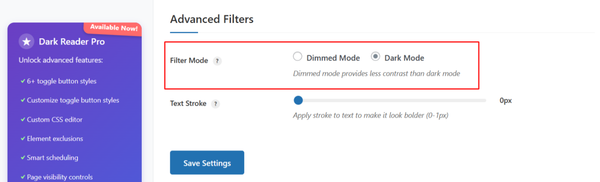
- Set Filter Mode to Dark Mode for the fullest, cleanest result. The Dimmed Mode option is available if you prefer a softer effect.
- Click Save Settings once all Advanced settings are configured.
Step 6: Fine Tune the Dark Mode Palette
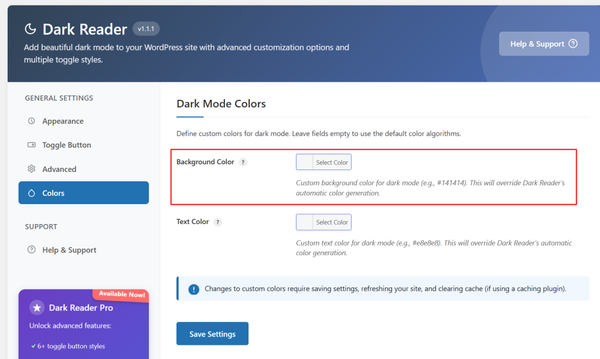
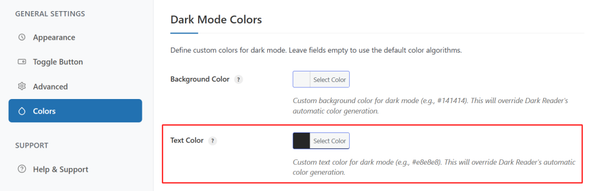
Open the Colors tab to fine-tune the dark mode palette:
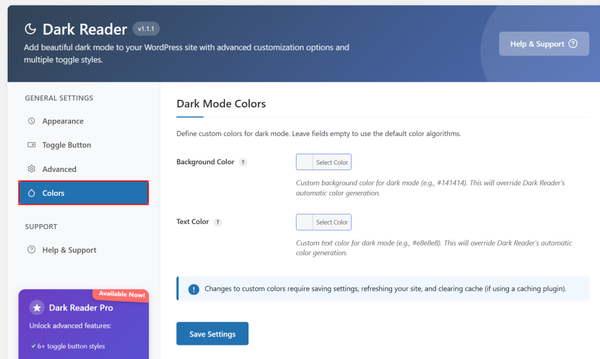
- Background Color: The default dark gray works well for most sites. Adjust to a dark navy or charcoal tone if your brand calls for it.
- Text Color: The default light gray provides strong readability. Keep contrast ratios above 4.5:1 per WCAG 2.1 guidelines.
For a more detailed walkthrough of the plugin’s free and Pro settings, BdThemes maintains dedicated documentation on how to use the Dark Reader Free Plugin and the Dark Reader Pro Plugin.
Chrome Force Dark Mode vs Native Website Dark Mode
Understanding what each approach actually delivers helps you decide which combination makes sense for your situation.
| Feature | Chrome Force Dark Mode (Flags) | Native Website Dark Mode (Plugin) |
| Implementation | Browser-level CSS filter | Site-specific, plugin-driven styling |
| Coverage | All websites the user visits | Only the site where it is installed |
| Visual accuracy | Varies; may distort colors or images | Consistent and brand-aligned |
| User control | Set once in Chrome flags | Per-visit toggle for each visitor |
| Accessibility | Limited; no contrast control | Fully configurable to WCAG standards |
| Performance impact | Minimal on browser; none on server | Lightweight; compatible with caching |
| Branding consistency | None; applies generic transformation | Fully controllable |
| WooCommerce support | Partial; may break checkout styling | Full support with Apply Immediately |
| Scheduling | Not available | Time-based scheduling available |
| Stability | Experimental; subject to removal | Stable, maintained plugin |
The difference comes down to intent.
Chrome Force Dark Mode is a personal browsing tool. It makes your own experience darker but has no effect on how your site appears to others. Native dark mode through a plugin like Dark Reader is a feature you build into your website for every visitor, regardless of their browser or device settings.
For developers, designers, and agencies building sites on Elementor, a dedicated dark mode plugin paired with Element Pack Pro or Prime Slider creates a cohesive, modern result that browser-level flags simply cannot replicate.
Conclusion
Chrome’s force dark mode feature solves a real and common problem for people who spend long hours browsing websites that refuse to go dark on their own. Whether you use the Chrome flags method, adjust your device’s system settings, or reach for a browser extension like Dark Reader, the browser gives you workable options that are quick to set up and cost nothing.
That said, if you run a WordPress website, none of these methods helps your visitors. Browser-level dark mode is a personal tool; it does not replace a properly built native dark mode that your site provides out of the box.
The Dark Reader plugin by BdThemes is built specifically for this gap. It turns a personal browsing preference into a site-wide feature that every visitor gets to use, on any browser, on any device, in a way that reflects your brand rather than fighting it.
If you are building a complete WordPress toolkit, it sits naturally alongside other BdThemes plugins like Sigma Forms for form building, One Accessibility for WCAG compliance, and Element Pack Pro for Elementor design work. Download Dark Reader, configure it in minutes, and give your visitors the dark experience they are already looking for.
FAQ Section
How do I turn on force dark mode in Chrome?
Go to chrome://flags in your Chrome address bar, search for “Auto Dark Mode for Web Contents,” change the dropdown from Default to Enabled, and click the Relaunch button that appears at the bottom of the page. Chrome will restart with force dark mode active across all websites.
Is Chrome Force Dark Mode safe to use?
Yes, it is safe in the sense that it does not expose you to security risks. The main caveat is that it is an experimental feature. Google can change or remove it in any Chrome update, and some websites may display visual glitches such as inverted images or unusual text colors because the feature applies a generic CSS transformation rather than a website-specific dark theme.
Why does forcing dark mode break some websites?
Chrome’s force dark mode uses a broad CSS filter to convert light surfaces to dark ones. When a website uses complex gradients, custom image backgrounds, or CSS variables that the filter does not handle gracefully, you can end up with color distortions, unreadable text, or inverted product images. This is an inherent limitation of applying a generic transform to a page that was not designed with dark mode in mind.
Can I enable dark mode for all websites in Chrome?
Yes. The Chrome Flags method described in Method 1 above applies dark mode across all websites automatically. For more control over specific sites, a browser extension like Dark Reader offers per-site toggle options so you can exclude certain pages from the dark transformation while keeping it active everywhere else.
Does Chrome dark mode save battery?
Yes, but only on devices with OLED or AMOLED screens, which include most modern Android smartphones. On these displays, dark pixels are physically turned off, consuming no power. Google’s Android team found that dark mode can cut display power draw by up to 63% at full brightness on OLED screens. On LCD screens found in most laptops and older phones, the power savings are minimal because the backlight stays on regardless of what color is displayed.
How do I turn on dark mode in Chrome on Android?
Open Chrome on your Android device, tap the three-dot menu in the top-right corner, go to Settings, then Themes, and select Dark. This switches Chrome’s interface to dark mode. To force dark mode on all websites, you need to enable it via Chrome’s flags: go to chrome://flags, search for “Auto Dark Mode for Web Contents,” and enable it.
What is the best dark mode plugin for WordPress?
Dark Reader by BdThemes is among the top options for WordPress site owners. It offers granular control over brightness, contrast, sepia, and grayscale; a configurable toggle button in five styles; schedule-based dark mode activation; system color scheme detection; WooCommerce compatibility; and Elementor support, all in a lightweight package with no coding required. You can explore the full feature set on the Dark Reader plugin page.
Can I add dark mode to Elementor websites?
Yes. Dark Reader by BdThemes is fully compatible with Elementor. The plugin’s toggle can be placed using the Elementor shortcode widget, and the Advanced tab’s “Apply Immediately” setting ensures that AJAX-powered Elementor widgets and dynamic content render correctly in dark mode. BdThemes also offers a Dark Mode widget within Element Pack Pro for users who want even tighter integration within the Elementor editor.
Does dark mode improve accessibility?
For many users, yes. People with light sensitivity, migraines, photophobia, or certain visual impairments find dark interfaces significantly more comfortable and usable. Reducing harsh contrast between a bright white background and dark text also lowers visual fatigue for neurotypical users during extended sessions. However, dark mode should be paired with proper contrast ratio controls. The WCAG 2.1 standard requires a minimum contrast ratio of 4.5:1 for normal text, which applies to dark mode just as much as light mode. The Dark Reader plugin gives you the controls needed to meet this standard while maintaining a comfortable dark experience. For a broader accessibility approach, BdThemes’ One Accessibility plugin covers additional WCAG requirements beyond color scheme.
Is Dark Reader compatible with WooCommerce?
Yes. Dark Reader applies dark mode across all WooCommerce pages, including product listings, single product pages, cart, and checkout. Enabling “Apply Immediately” in the plugin’s Advanced tab ensures that dynamically loaded WooCommerce content, such as AJAX cart updates and quick-view modals, transitions smoothly into dark mode without light-mode flashes. A full walkthrough is available in BdThemes’ guide on how to add dark mode in WooCommerce.
Supreakshya Shrestha
The BdThemes team builds WordPress plugins trusted by 3M+ users worldwide. We write about web accessibility, WCAG compliance, and inclusive design.