

This documentation provides comprehensive insights into Install Axvart Theme process step by step.
Download Axvart Theme
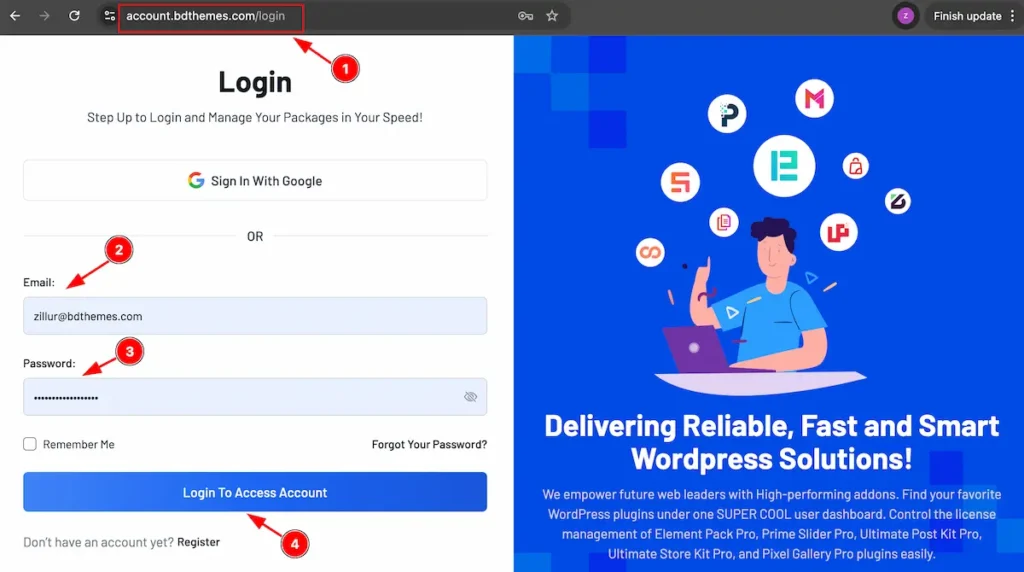
- Go to the link accounts.bdthemes.com
- Enter the Purchase email ( The email used for purchasing the Zoloblocks Pro ).
- Enter the password.
- Click on the ” Login To Access Account “ button to login to your license managements dashboard.
After successfully login, you will see the dashboard.
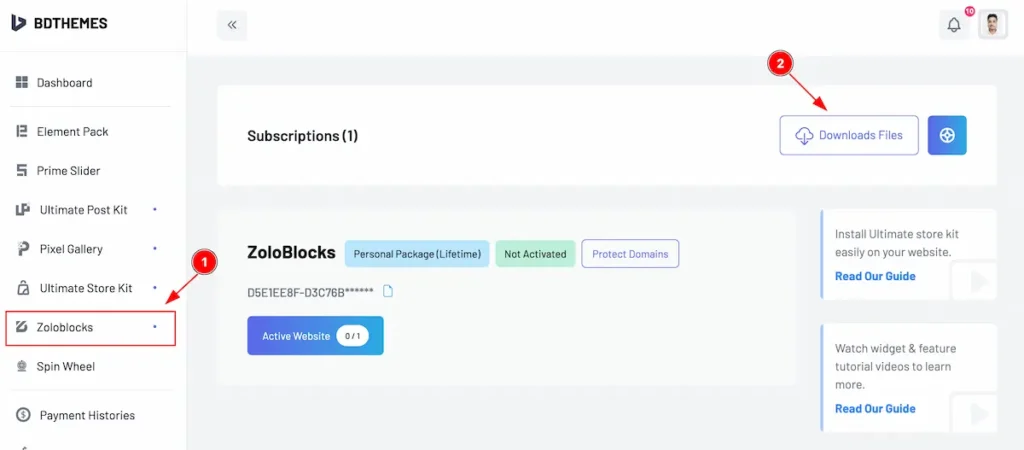
- Select the “ Zoloblocks ” tab from left side bar. It will appear the Zoloblocks information.
- Find the ” Download Files ” button on the right top side and click on it.
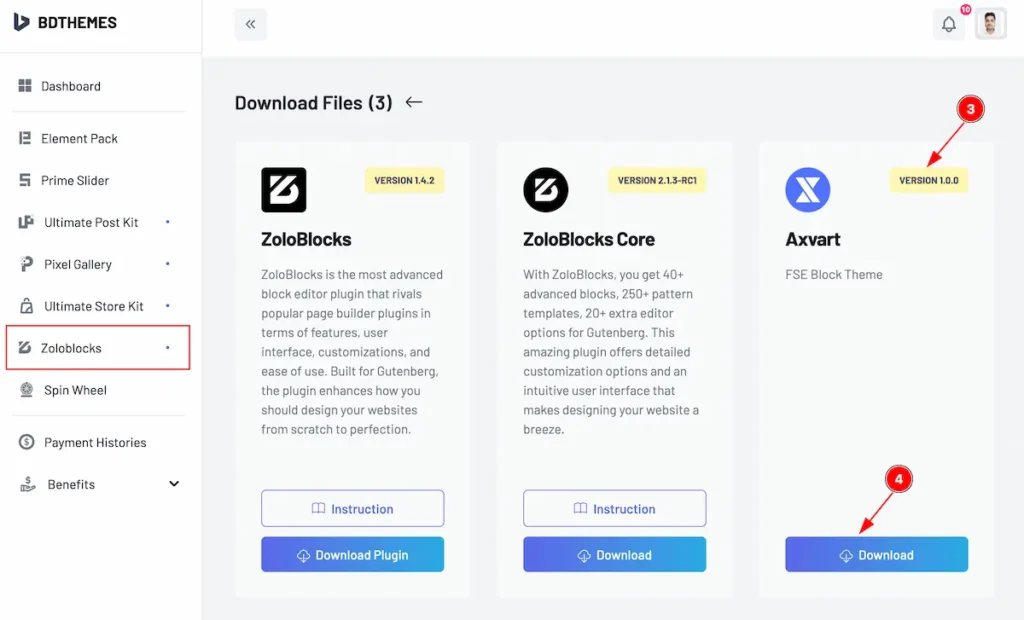
- Top right corner the latest version will appear there.
- Now you will see the Axvart plugin just click on the ” Download ” button and it will start to download.
Note: Need the Zoloblocks Pro to get the Axvart Theme.
Install Axvart Theme
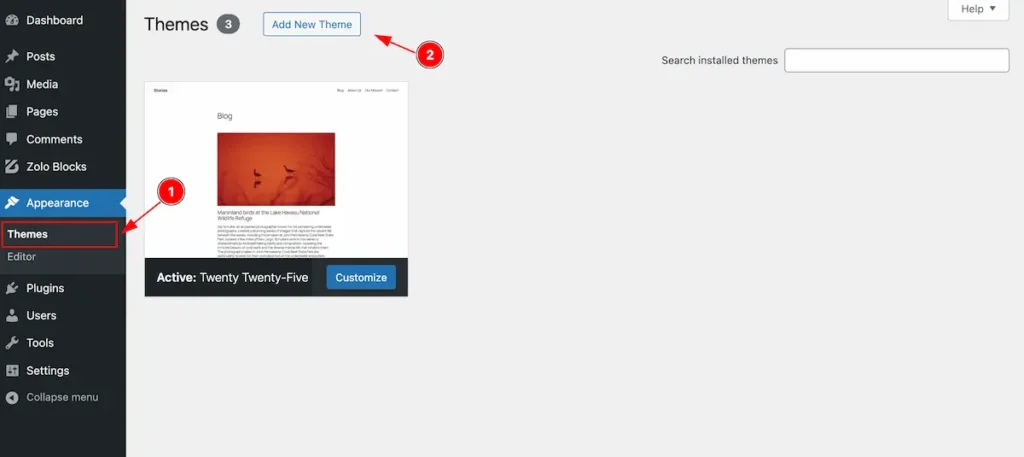
Log in your WordPress Dashboard and Navigate to Appearance from sidebar menu.
- Select the Themes tab, It will open the themes page.
- Click on the ” Add New Theme ” button to add new themes.
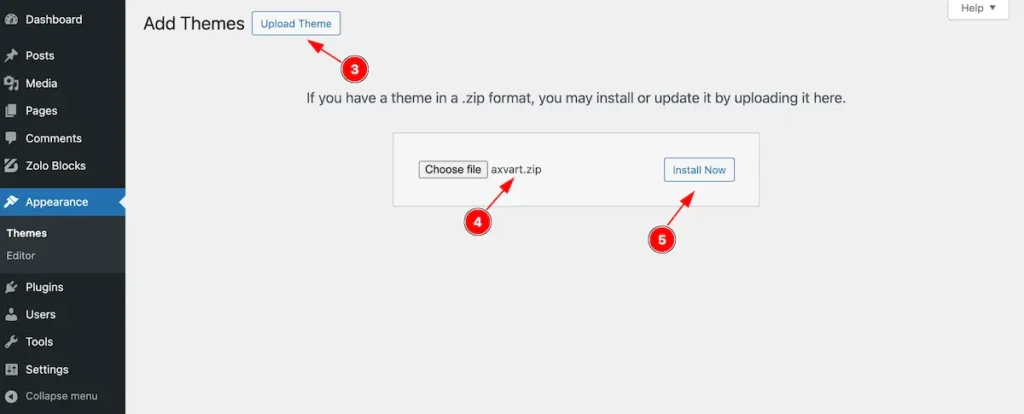
- Now click on the ” Upload Theme ” button and it will open file option.
- Choose file from your desire location and select the ” axvart.zip ” file.
- Click on the ” Install Now ” button to install it.
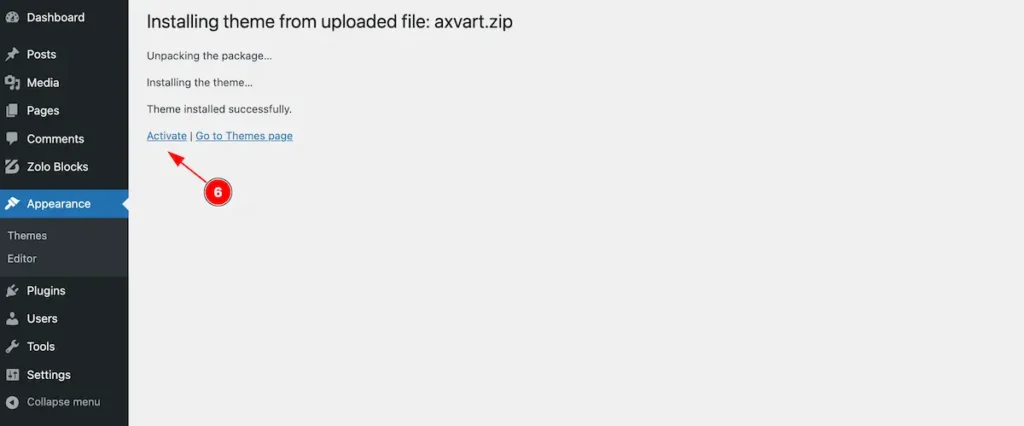
- After successfully install Click on the ” Activate ” link to activate the Axvart Theme.
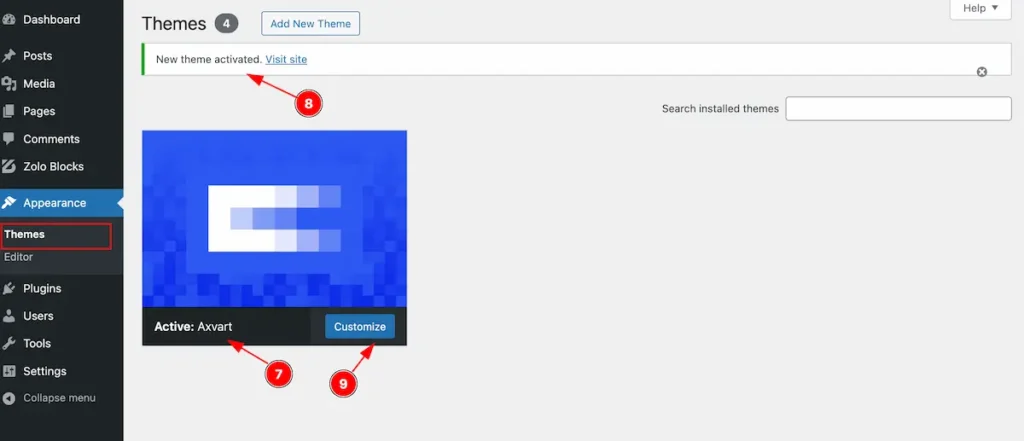
Now go to Themes tab and check theme installed.
- Activate : Axvart, The current theme is axvart.
- The new theme activate message will appear, Click on the link to check website.
- Click on the ” Customize ” button to set the settings of the theme.
By following this you can install and activate the Axvart theme. It’s block theme based on Gutenburg plugin.