

Do you want to grow your online presence but do not know how to add links to social media on WordPress? Many website owners face this problem. Your visitors may like your content, but they cannot find your social profiles easily. This means you lose opportunities to gain followers, traffic and engagement.
Without visible social media links, your website feels incomplete. People may leave your site without connecting with your brand. Over time, this can slow down your growth and reduce trust.
The good news is that it is very simple to fix. In this guide, you will learn how to add links to social media on WordPress using simple methods. You will see how to use widgets, Elementor and basic code to place social icons on your site.
By the end, you will be able to connect your website with your social platforms and make it easier for visitors to follow you.
Why Adding Social Media Links Matters
In today’s hyper-connected digital landscape, having a WordPress website without social media links is like owning a shop with no signage. Your visitors are already on Instagram, Facebook, X (formerly Twitter), LinkedIn, YouTube and Pinterest and they want a quick way to follow you there, share your content and stay in the loop.
Here’s what strategically placed social media links can do for your site:
- Grow Your Following: Every visitor is a potential follower. Make it effortless for them to click through.
- Boost Your SEO: Social signals contribute to domain authority and organic discoverability.
- Build Trust: An active social presence signals credibility to first-time visitors.
- Drive Return Traffic: Followers who engage on social come back to your site again and again.
Whether you run a blog, an e-commerce store, a portfolio or a business website, integrating your social media profiles is a non-negotiable step in your web strategy.
Overview of All Methods
WordPress is wonderfully flexible. There are several ways to add social media links depending on your theme, technical comfort level and where you want the icons to appear. Here’s a quick summary before we dive in:
| Method | Best For | Cost |
| Navigation Menu | Header social links | Free |
| Plugin (Social Media) | Full-featured icon sets | Free / Pro |
| Widgets (Sidebar/Footer) | Sidebar & footer areas | Free |
| Gutenberg Block Editor | Page-level social links | Free |
| Custom Code (functions.php) | Full theme control | Free |
We’ll walk through every single method in detail. Start with whichever matches your comfort level. There’s no wrong answer here.
How to add links to social media on WordPress
Method 1: Adding Links to the Navigation Menu
The WordPress navigation menu is the most visible part of your site. Many modern themes support adding custom links, including social media URLs, directly into your header menu. This is perfect if your theme displays icons in the nav bar.
Follow these Steps:
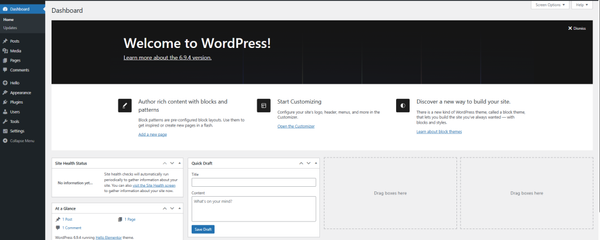
- Log in to Your WordPress Dashboard
Navigate to yourdomain.com/wp-admin and sign in with your administrator credentials.
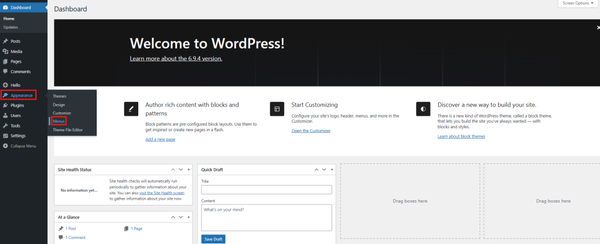
- Go to Appearance → Menus
In your left-hand sidebar, hover over Appearance and click Menus from the dropdown.
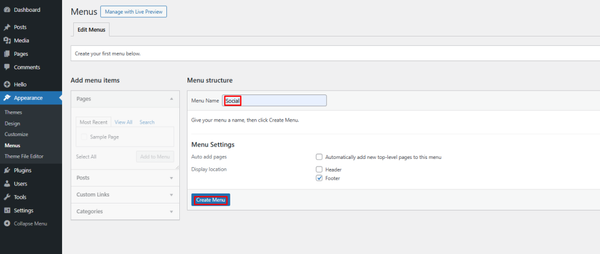
- Select or Create a Menu
Choose an existing menu from the dropdown list or create a new one by entering a menu name and clicking the Create Menu button.
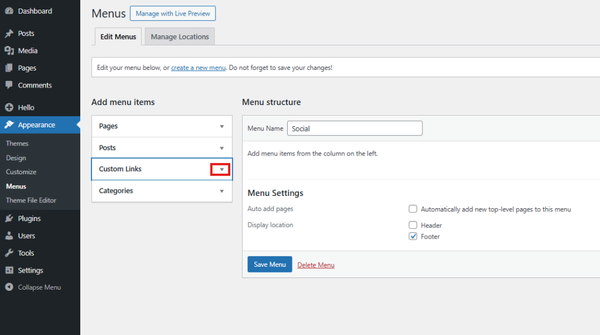
- Expand “Custom Links” in the Left Panel
On the left side of the Menus page, you’ll see a box called Custom Links. Click the arrow to expand it.
- Enter Your Social Media URL and Label
In the URL field, paste your social media profile URL (e.g., https://www.facebook.com/yourpage). In the Link Text field, type the platform name (e.g., Facebook). Then click Add to Menu.
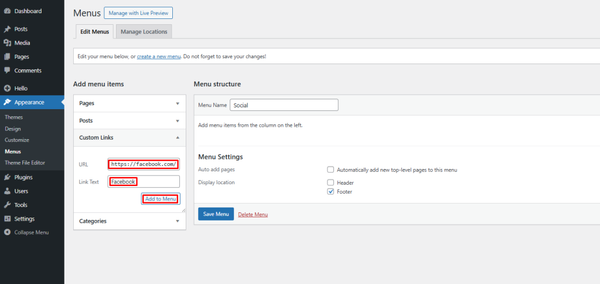
- Repeat & Save
Repeat steps 4-6 for each social platform. When done, click Save Menu in the top-right corner.
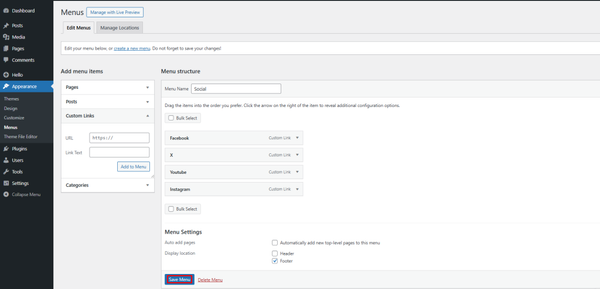
Now, you have successfully added your social media links to your website.

Pro Tip: Some themes automatically replace text labels like “Facebook” or “Twitter” with their official brand icons. If yours doesn’t, check the theme’s documentation or use a plugin (Method 2) to get icon support.
Method 2: Add Social Media Links Using Elementor
We will show you how to add social media links to your WordPress website using the Elementor editor.
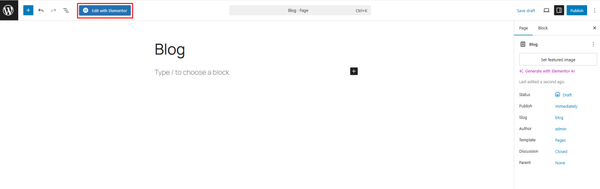
Open your page and click Edit with Elementor.
In the left panel, search for Social Icons.
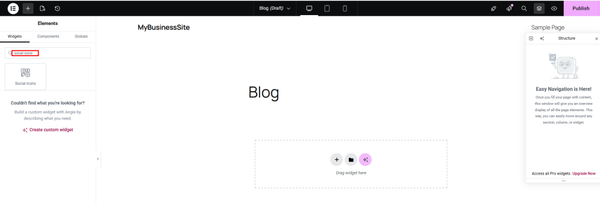
Drag and drop the widget into your page where you want it.
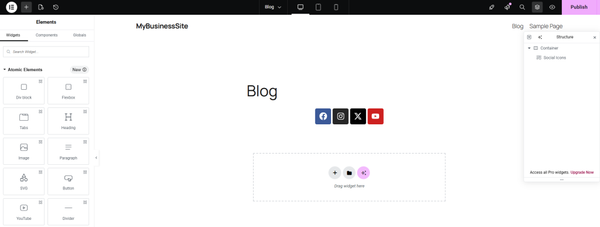
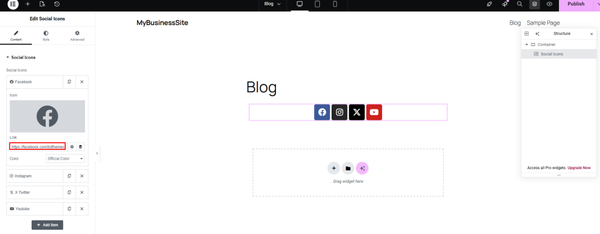
Click each icon and add your social media links.
You can change the colors, size, shape and alignment to match your design.
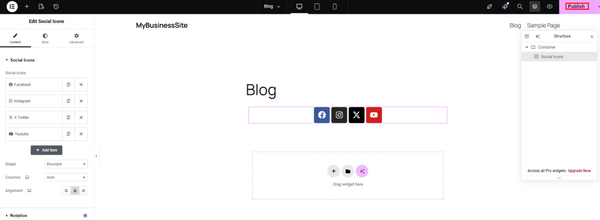
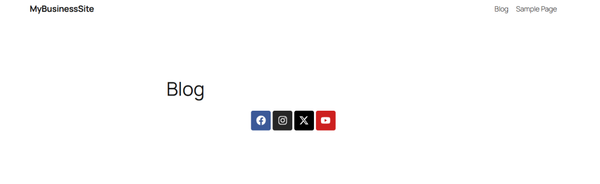
Click Update to save your changes.
Bonus Tips
If your visitors like your content, they may want to share it. To make this easier, you can use a media management plugin.
You can also use Element Pack, an Elementor addon, to improve your website. It helps you add social media icons and share buttons easily. You can place them in your header, footer or pages without coding.
Element Pack also helps improve your design and user experience. It gives you many useful widgets and features in one place. You can create better layouts, add animations and make your website look more professional.
It also helps with basic optimization. This can improve your website speed and performance.
Instead of using many different plugins, you can manage design, social features and more with one tool.
How to Install Element Pack
We will use the free version of Element Pack.
First, install and activate Elementor.
After that, go to your WordPress dashboard and click Plugins → Add Plugin.
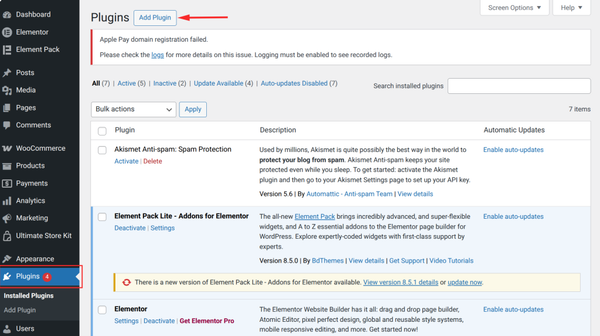
In the search box, type Element Pack.
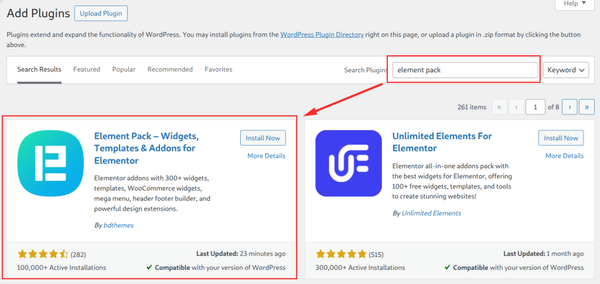
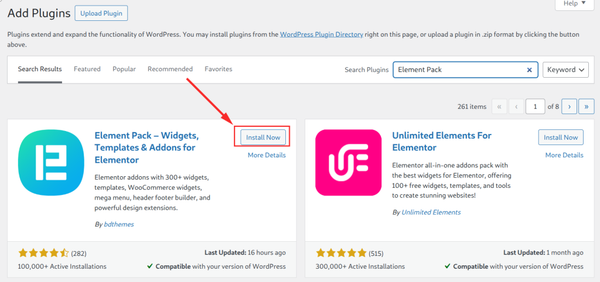
When it appears, click Install Now.
Then click Activate.
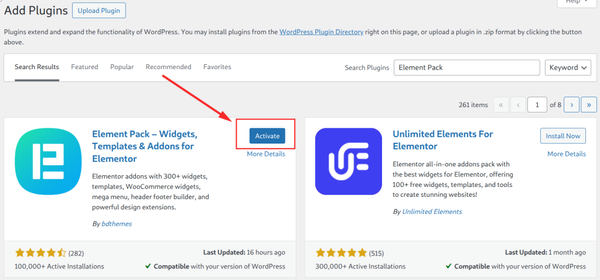
Your plugin is now active.
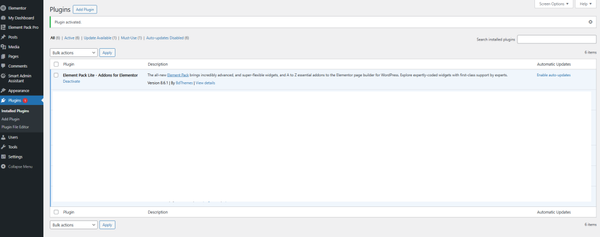
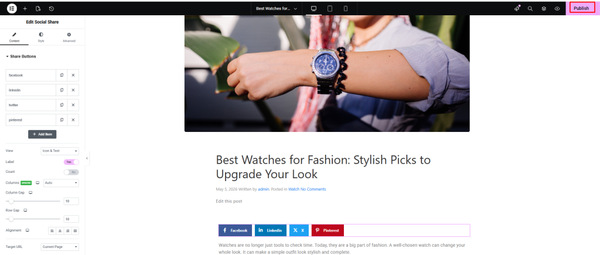
Now go to the blog page where you want to add social media share links, then click Edit with Elementor.
In the left panel, search for Social Share.
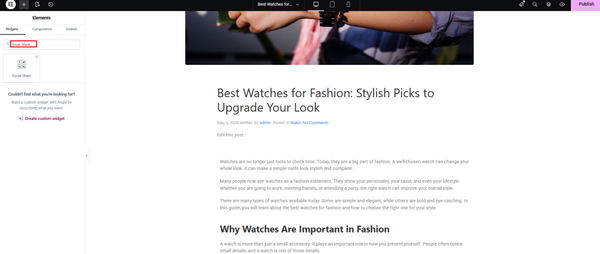
Drag and drop the widget to the place where you want to show the share links.
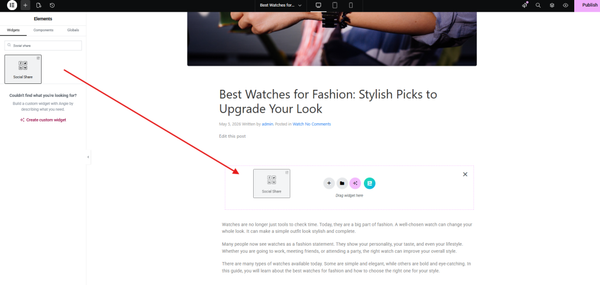
Now the social share links are added to your blog page.
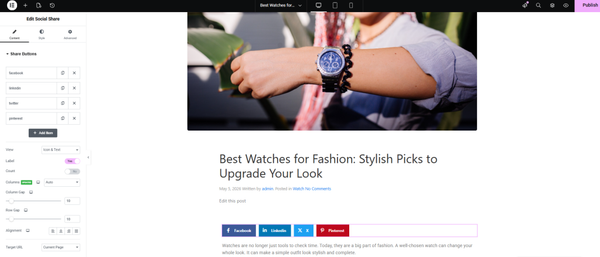
Click the Publish button to make the page live on the web.
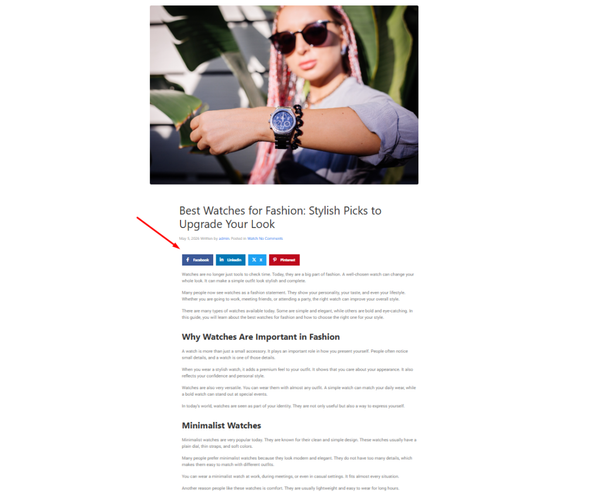
The front-end result will look like this…
Method 3: Using the Widget Area (Footer & Sidebar)
WordPress widgets let you add content blocks to specific areas of your theme, most commonly the sidebar and footer. Adding social links to your footer is especially popular because it appears site-wide without cluttering your navigation.
Website footer design with social media links
A clean footer with social media icons is a web design staple. Visitors know exactly where to look.
Using the Classic Widget Editor
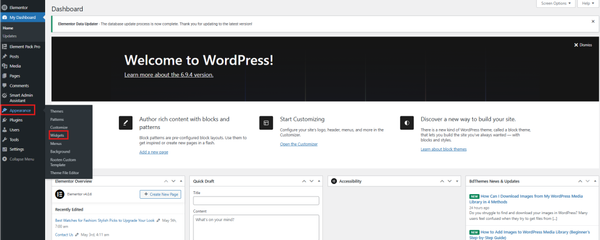
1. Go to Appearance → Widgets
From your WordPress dashboard sidebar, navigate to Appearance → Widgets.
2. Find Your Target Widget Area
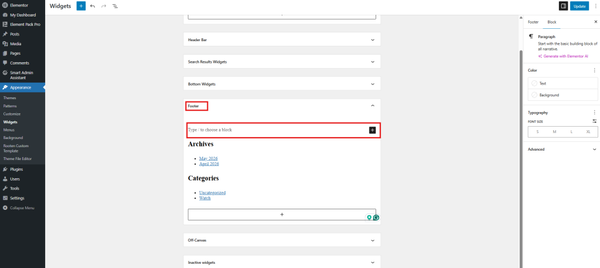
Look for widget areas labeled Footer, Sidebar or similar. These vary by theme.
3. Add a Text or HTML Widget
Drag a Text widget or Custom HTML widget into your selected area.
Switch to HTML mode and paste your social media links code.
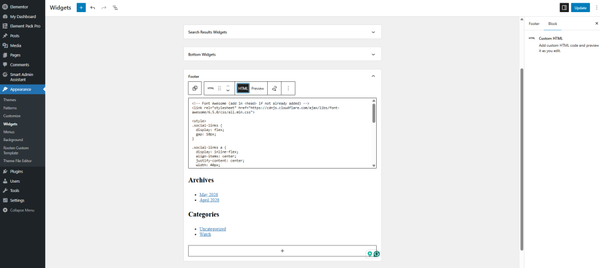
4. Update the widget when done.
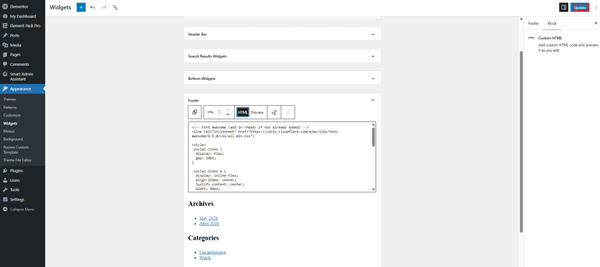
5. The front-end will look like this…
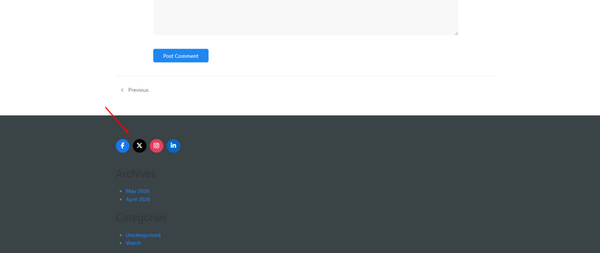
Here’s a simple HTML snippet you can drop into a Custom HTML widget:
<!-- Font Awesome (add in <head> if not already added) -->
<link rel="stylesheet" href="https://cdnjs.cloudflare.com/ajax/libs/font-awesome/6.5.0/css/all.min.css">

<style>
.social-links {
  display: flex;
  gap: 10px;
}

.social-links a {
  display: inline-flex;
  align-items: center;
  justify-content: center;
  width: 40px;
  height: 40px;
  border-radius: 50%;
  color: #fff;
  font-size: 18px;
  text-decoration: none;
}

/* Background colors */
.social-links a.facebook { background: #1877f2; }
.social-links a.twitter { background: #000000; }
.social-links a.instagram { background: #e4405f; }
.social-links a.linkedin { background: #0a66c2; }

.social-links a:hover {
  opacity: 0.8;
}
</style>

<div class="social-links">
  <a href="https://facebook.com/yourpage" target="_blank" class="facebook">
    <i class="fab fa-facebook-f"></i>
  </a>
  <a href="https://twitter.com/yourhandle" target="_blank" class="twitter">
    <i class="fab fa-x-twitter"></i>
  </a>
  <a href="https://instagram.com/yourhandle" target="_blank" class="instagram">
    <i class="fab fa-instagram"></i>
  </a>
  <a href="https://linkedin.com/in/yourprofile" target="_blank" class="linkedin">
    <i class="fab fa-linkedin-in"></i>
  </a>
</div>
Tip: Many themes include a built-in Social Icons widget. Check your widget panel first; you may already have one available without writing any code.
Method 4: Adding Links Manually with Code
If you’re a developer or feel comfortable editing theme files, you can hard-code social media links directly into your theme’s template files. This gives you maximum control over design and positioning. Always use a child theme so your changes aren’t overwritten by theme updates.
Warning: Editing theme files incorrectly can break your site. Always back up your WordPress installation before making code changes and work in a child theme rather than the parent theme.
Adding Links to header.php
Open your child theme’s header.php file via Appearance → Theme Editor (or via FTP). Add the following snippet where you want the social icons to appear:
<!-- Font Awesome (add this in <head> if not already added) -->
<link rel="stylesheet" href="https://cdnjs.cloudflare.com/ajax/libs/font-awesome/6.5.0/css/all.min.css">

<!-- Social Media Links in Header -->
<style>
.social-links {
  display: flex;
  gap: 10px;
}

.social-links a {
  display: inline-flex;
  align-items: center;
  justify-content: center;
  width: 38px;
  height: 38px;
  border-radius: 50%;
  color: #fff;
  font-size: 16px;
  text-decoration: none;
}

/* Background colors */
.social-links a.facebook { background: #1877f2; }
.social-links a.instagram { background: #e4405f; }
.social-links a.twitter { background: #000000; }
.social-links a.linkedin { background: #0a66c2; }

.social-links a:hover {
  opacity: 0.85;
}
</style>

<div class="social-links">
  <a href="https://facebook.com/yourpage" target="_blank" rel="noopener noreferrer" aria-label="Facebook" class="facebook">
    <i class="fab fa-facebook-f"></i>
  </a>
  <a href="https://instagram.com/yourhandle" target="_blank" rel="noopener noreferrer" aria-label="Instagram" class="instagram">
    <i class="fab fa-instagram"></i>
  </a>
  <a href="https://twitter.com/yourhandle" target="_blank" rel="noopener noreferrer" aria-label="X" class="twitter">
    <i class="fab fa-x-twitter"></i>
  </a>
  <a href="https://linkedin.com/in/yourprofile" target="_blank" rel="noopener noreferrer" aria-label="LinkedIn" class="linkedin">
    <i class="fab fa-linkedin-in"></i>
  </a>
</div>
Registering Social Links via functions.php
For a cleaner approach, you can register social links as a custom menu location in your functions.php:
// Register Social Media Menu
function register_social_menu() {
    register_nav_menus(array(
        'social-links-menu' => __('Social Links Menu', 'your-theme'),
    ));
}

add_action('after_setup_theme', 'register_social_menu');
After adding this code, a new menu location called “Social Links Menu” will appear under Appearance → Menus → Menu Settings, letting you assign social links just as you would in Method 1.
Best Practice: Always include rel=”noopener noreferrer” on external links that open in a new tab. This prevents potential security vulnerabilities (tabnapping) and is an SEO best practice.
Best Practices & Pro Tips
Getting social links onto your site is step one. Making them work hard for you requires a bit of strategic thinking. Here are the most important best practices followed by successful WordPress site owners:
1. Always Open in a New Tab
Social media links should always open in a new browser tab (use target=”_blank”). If clicking Facebook takes users away from your site entirely, you’ve lost them. A new tab keeps your site alive in the background, ready for them to return.
2. Use Recognizable Icons, Not Just Text
Text links like “Follow us on Instagram” work, but branded icons are recognized instantly without reading. Users scan pages rather than read them. Icons communicate in milliseconds. Most plugins handle this for you beautifully.
3. Only Link to Active Profiles
A ghost account with three posts from 2019 does more damage than no account at all. Only link to social profiles you actually maintain. If you’re not active on Pinterest, don’t link to it. Quality over quantity every time.
4. Place Icons in Multiple Locations Strategically
Don’t limit yourself to one spot. Consider placing social links in your:
- Header: catches first-time visitors immediately
- Footer: converts engaged readers who scroll to the bottom
- About Page: builds personal connection
- Blog Post End: capitalizes on readers who just finished an article
- Contact Page: gives visitors multiple ways to reach you
5. Keep Styling Consistent with Your Brand
Social icons that clash with your site’s design look amateurish. Match the icon style (flat, outlined, filled, colored, monochrome) to your overall aesthetic. Many plugins let you choose a color scheme; pick one that complements your theme.
FAQ
1. What is the easiest way to add social media links in WordPress?
The easiest way to learn how to add links to social media on WordPress is by using a plugin or Elementor. These tools let you add social icons without coding. You can simply drag and drop the icons, add your links and publish your page.
2. Can I add social media links without using a plugin?
Yes, you can add social media links without a plugin. WordPress allows you to use menus, widgets or custom code. This method gives you more control, but it may require basic knowledge of HTML or theme settings.
3. Where should I place social media links on my website?
You can place social media links in the header, footer, sidebar or inside blog posts. The header and footer are the most common places because visitors can easily find them on every page.
4. How to add links to social media on WordPress using Elementor?
To understand how to add links to social media on WordPress with Elementor, open your page and click Edit with Elementor. Search for the Social Icons widget, drag it to your page, add your links and click update to save your changes.
5. Do social media links help improve SEO?
Social media links can help bring more traffic to your website. They also improve your online presence and build trust. While they are not a direct ranking factor, they support your overall SEO strategy.
6. Should social media links open in a new tab?
Yes, it is best to open social media links in a new tab. This keeps your website open in the background so visitors can come back after visiting your social profile.
7. Can I use icons instead of text for social media links?
Yes, using icons is a better option. Icons are easy to recognize and improve your website design. Most plugins and page builders provide ready-made social icons.
8. What are the best plugins for adding social media links?
Some popular plugins include Simple Social Icons and Elementor addons like Element Pack. These tools help you add stylish icons, customize design and place them anywhere on your site.
9. Can I add social media links to my WordPress navigation menu?
Yes, you can add social links to your menu using the Custom Links option. Some themes even show icons automatically when you add social media URLs.
10. Why are my social media icons not showing properly?
If your icons are not showing, it may be due to missing styles or scripts like Font Awesome. It can also happen if the plugin is not activated or the code is not added correctly.
Conclusion
Now you understand how to add links to social media on WordPress in a simple way. We covered different methods like using widgets, Elementor and custom code, so you can choose what works best for your site.
If you do not add social media links, you may miss out on valuable traffic and audience growth. Visitors need an easy way to connect with you beyond your website.
Start adding your social media icons today. Even a small step can improve your visibility and engagement. When you make your social profiles easy to find, you create more opportunities to grow your brand and build trust with your audience.

Strategic Content Writer for WordPress, Semantic SEO, and SaaS Audiences