

If your website was built with WPBakery, you already have one of the most flexible and widely trusted page builders in the WordPress ecosystem working for you. But there is one area where even the most beautifully designed WPBakery site can fall short: accessibility.
Web accessibility is no longer optional. Globally, over 1.3 billion people live with some form of disability. Regulations like the ADA, EN 301 549 and EAA (European Accessibility Act) increasingly hold websites to a legal standard. And beyond compliance, an accessible site simply reaches more people.
This is where One Accessibility by BdThemes comes in. It is a purpose-built WordPress accessibility plugin that integrates directly with WPBakery to help your site meet modern accessibility standards, without rebuilding your pages or touching your existing design.
What is One Accessibility?
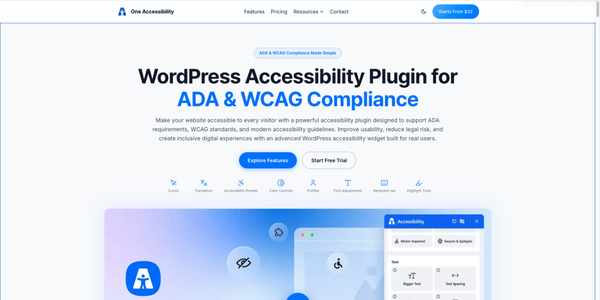
One Accessibility is a WordPress accessibility plugin developed by BdThemes. It adds a customizable accessibility toolbar to any WordPress website, giving visitors control over how they experience your content regardless of their disability or assistive technology.
The plugin can work alongside your existing page builder, not against it. That compatibility-first approach is why it pairs so well with WPBakery.
Key Features of One Accessibility
Some salient features of the web accessibility plugin include:
- Accessibility toolbar with adjustable font size, contrast, cursor size and more
- Screen reader optimization for better assistive technology support
- Keyboard navigation enhancement for users who cannot use a mouse
- WCAG 2.1 AA compliance support across color contrast, focus indicators and text alternatives
- Content scaling, dyslexia-friendly fonts and reading guide overlay
- Works with any WordPress theme and major page builders including WPBakery
Unlike some accessibility overlays that conflict with custom layouts, One Accessibility is built to complement WPBakery’s shortcode-based structure. It does not alter your page’s design, but it adds a layer of user-controlled accessibility on top.
| 📌 Quick TakeWPBakery powers over 6 million websites worldwide. One Accessibility gives every one of them a practical, non-disruptive path to WCAG compliance and inclusive design. |
Setting up One Accessibility with WPBakery
Getting One Accessibility running on a WPBakery site is straightforward. Here is how the setup works in practice.
Step 1: Installing and Activating One Accessibility
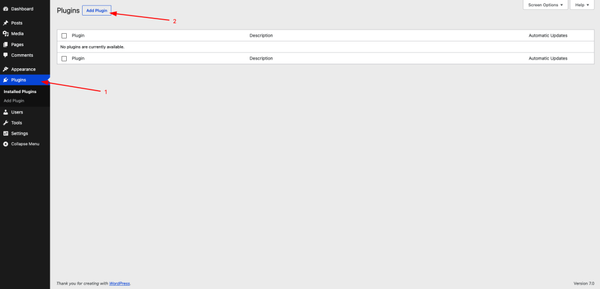
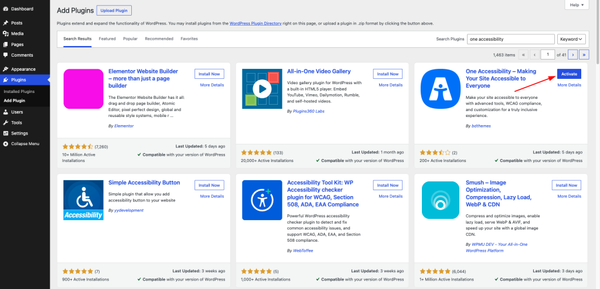
Go to your WordPress dashboard and navigate to Plugins > Add New.
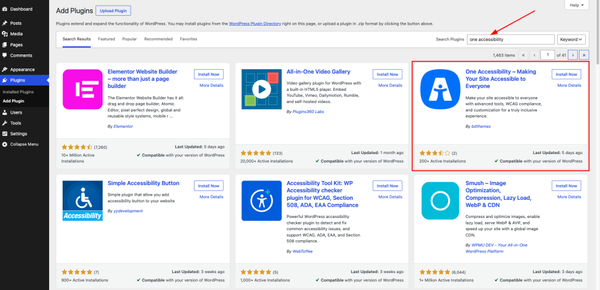
Search for the keyword “One Accessibility”.
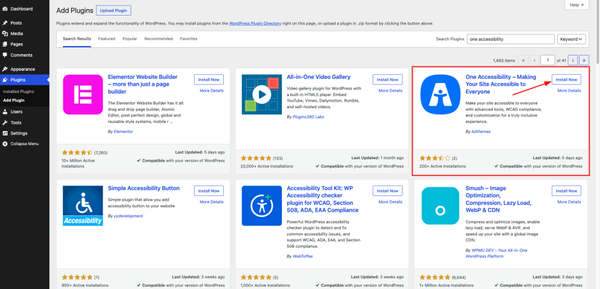
Hit the Install Now button.
Click on the Activate button.
Step 2: Configuring One Accessibility with a Wizard
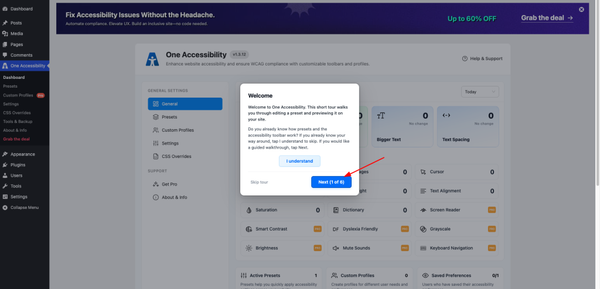
Now, you’ll be redirected to a short tour wizard. This short tour walks you through editing a preset and previewing it directly on your site.
If you already know your way around, you can click the I understand button or the Skip tour link to bypass the walkthrough entirely.
If you would like a guided walkthrough, click the blue Next (1 of 6) button to proceed to the first instructional step.
Step 3: Using the Presets option to Manage Accessibility Toolbars
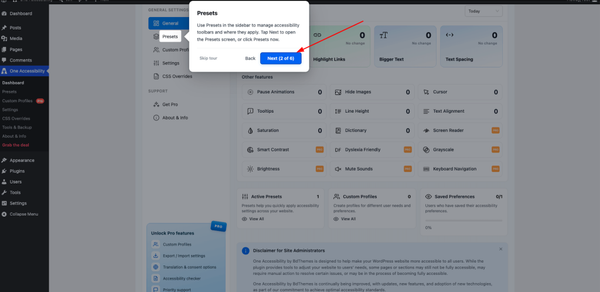
Now you can use the Presets option located in the left sidebar menu to manage your accessibility toolbars and control exactly where they apply across your website.
To move forward to the Presets screen, you have two options:
- Click the blue Next (2 of 6) button to automatically open the screen.
- Alternatively, click directly on the Presets menu item in the sidebar right now.
At this stage, you can also click Back to return to the initial welcome message, or click the Skip tour link to exit the guided walkthrough entirely.
Now let’s click on the blue Next (2 of 6) button to move on to the next step.
Step 4: View Included Presets
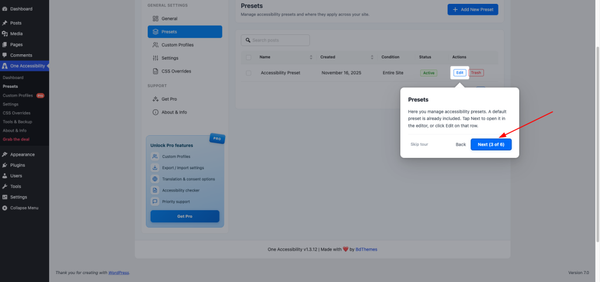
This screen is where you manage your accessibility presets. You will notice that a default preset is already included and active for the entire site.
To open the default preset in the editor and customize it, you have two options:
- Click the blue Next (3 of 6) button to have the tour open it automatically for you.
- Click the Edit button directly on that preset’s row in the table.
If you need to review the previous information, click Back. If you no longer need the guided walkthrough, click the Skip tour link.
Now let’s click on the blue Next (3 of 6) button to go ahead.
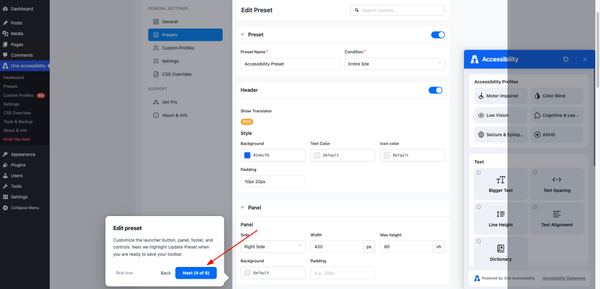
On the Edit Preset screen, you can customize various elements of your accessibility tool. Use the available settings to adjust the launcher button, panel, footer and individual controls to match your site’s design and needs.
If you need to return to the presets list, click Back. If you want to finish customizing without the guide, click the Skip tour link to close the walkthrough.
Click the blue Next (4 of 6) button to proceed. The next step in the tour will highlight the Update Preset button, showing you exactly where to go when you are ready to save your customized toolbar.
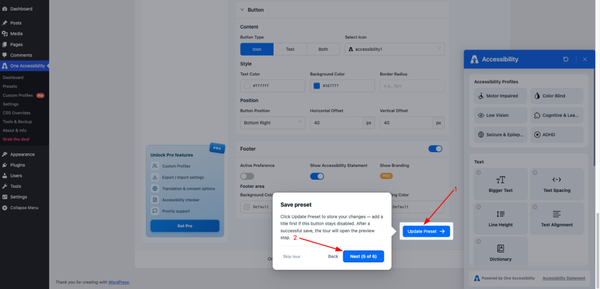
Once you are happy with your configurations, click the blue Update Preset button to store your changes.
Note: If the Update Preset button appears disabled, double-check that you have added a title for your preset first.
After you successfully save your preset, the tour will automatically open the preview step. You can also manually advance by clicking the blue Next (5 of 6) button.
If you need to make further adjustments to your settings, click Back. If you are finished and want to exit the guided walkthrough entirely, click the Skip tour link.
Step 5: Configure the Accessibility Toolbar
To configure the accessibility toolbar, navigate to One Accessibility > Presets.
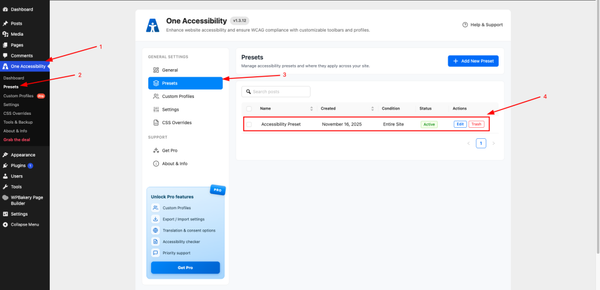
Now hit the Edit button.
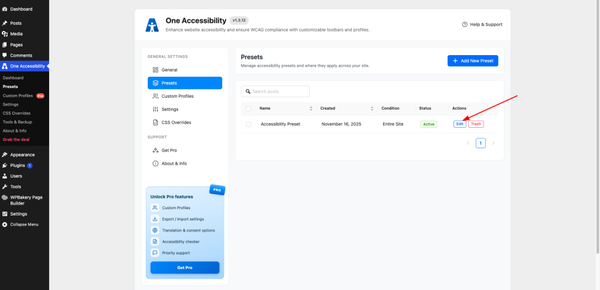
The Edit Preset screen lets you configure the appearance and functionality of the accessibility widget in depth.
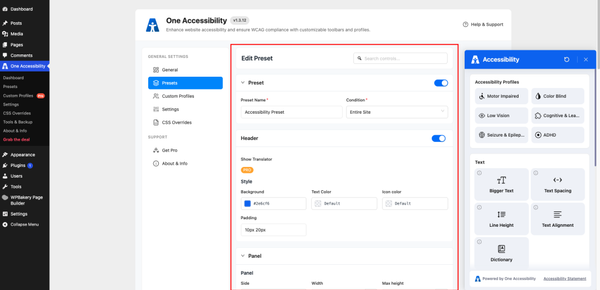
The settings are divided into several expandable sections, allowing you to tailor the experience to your site’s needs.
Some of the key sections include:
- Preset Configuration: Define the Preset Name and set the Condition (e.g., “Entire Site”) to determine exactly where this specific toolbar configuration will be active.
- Header & Footer: Customize the background, text and icon colors of the toolbar’s header and footer areas. In the footer, you can also toggle the display of the accessibility statement and application branding.
- Panel Layout: Adjust the physical dimensions of the open accessibility menu, including its Width and Max height and choose which side of the screen it anchors to (e.g., “Right Side”).
- Profiles & Features: These control the widget’s core functionality. Use the toggle switches to enable or disable specific accessibility bundles (like “Motor Impaired,” “Low Vision,” or “ADHD”) and individual tools (like “Bigger Text,” “Contrast +,” or “Dictionary”).
- Profiles & Features Styling: Fine-tune the aesthetic of inner menu items by adjusting background, text and border colors for different groups and feature tiles.
- Launcher Button: Configure the floating trigger button that users click to open the accessibility menu. You can select the content type (Icon, Text, or Both), choose a specific icon, customize its colors and set its exact screen position (e.g., “Bottom Right”) using horizontal and vertical pixel offsets.
Note: A live preview panel on the right side of the screen updates in real time as you adjust these settings, so you can visualize your changes before saving.
Step 6: Check Compatibility with Your WPBakery Layout
To check the compatibility between One Accessibility and WPBakery layout check these:
- Open a WPBakery-built page using the frontend editor
- Activate the accessibility toolbar and test each control: font scaling, contrast toggle and cursor options should apply cleanly across WPBakery rows, columns and elements
- Check that focus rings are visible on WPBakery interactive elements such as buttons, forms and accordions
- Run a quick keyboard navigation test: tab through the page to confirm the focus order matches the visual layout
Here’s a video from the frontend showing whether One Accessibility is compatible with WPBakery and working properly.
Bonus Tip: Test with Screen Reader Tools
You can also use the following dev tools to test if there are any issues lurking:
- Use a browser extension like axe DevTools or WAVE to scan for accessibility issues
Review any flagged items and use One Accessibility’s ARIA enhancement settings to address them. You can recheck after any major WPBakery layout change
| 💡 Pro Tip: WPBakery’s backend editor gives you a structured schematic view of your layout, making it easier to review the reading order and heading hierarchy that screen readers follow. Use it alongside One Accessibility for a cleaner, more audit-ready page structure. |
WPBakery Page Builder: A Brief Overview
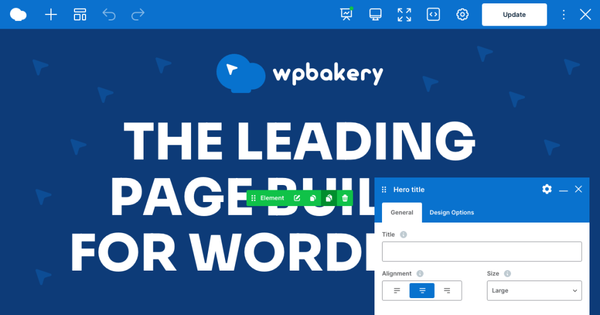
WPBakery Page Builder is one of the most established and widely used page builders in WordPress, powering over 6 million websites worldwide.
It works on top of any WordPress-standard theme, meaning agencies and developers are not locked into a single design system.
Dual Editor Mode
WPBakery gives users two ways to build and manage layouts. The frontend editor offers a visual editing experience, so users can work directly on the page and see changes as they build.
The backend editor provides a cleaner structural view of the page layout, which can be useful for larger or more complex builds where keeping rows, columns, and content elements organized is important.
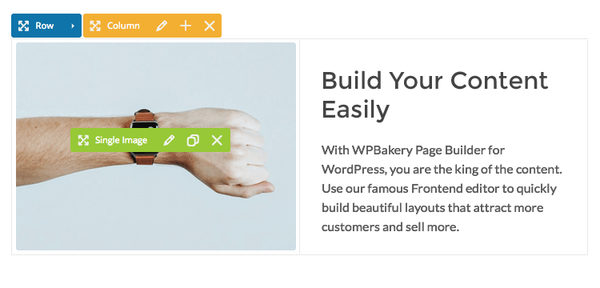
It’s a true WYSIWYG experience where you can drag elements onto the canvas and see the results immediately.
Whereas the backend editor presents a clean, structured grid of your layout without the visual weight of the live preview.
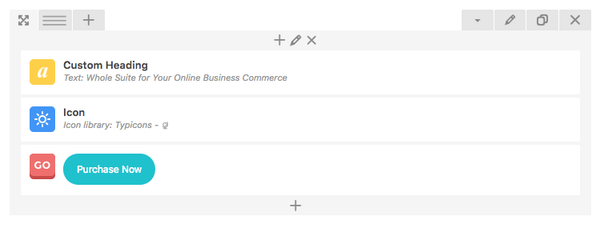
Many developers prefer the backend editor for complex builds because it keeps the structure organized and navigable.
Performance
Performance is often raised as a concern with WPBakery, but the truth is – it depends on how a site is built, hosted, optimized and maintained, so no page builder should be judged by reputation alone.
Independent reviewers, including Remkus de Vries and Page Builder FightClub have tested WPBakery in real-world conditions, not polished internal benchmarks and the results hold up well.
In a direct DOM comparison with Elementor on identical page builds, WPBakery produced 229 DOM elements versus Elementor’s 274.
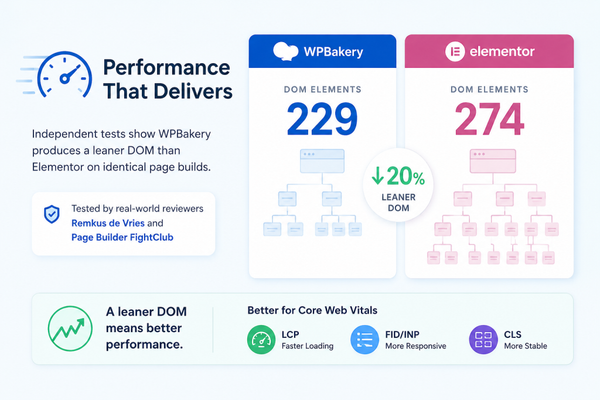
That is roughly a 20% leaner DOM baseline, which matters for Core Web Vitals on complex layouts with many nested sections.
AI Integration
WPBakery’s shortcode-based PHP architecture works well with AI tools, including ChatGPT, Claude and Gemini. Developers can generate custom WPBakery blocks from a text description or an image without running into the compatibility issues that can arise with block-based builders.
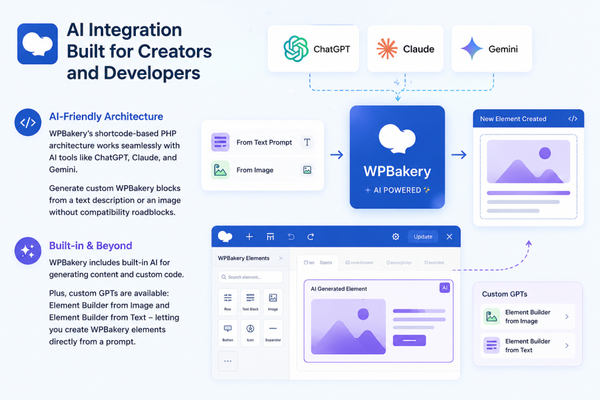
WPBakery also ships with built-in AI inside the plugin for generating content and custom code. They have also released custom GPTs: a free Element Builder from Image and an Element Builder from Text that lets you generate WPBakery elements directly from a prompt.
Key Features at a Glance
- Drag and Drop Builder with Dual Editor (Frontend + Backend)
- To: over 100 content elements and 80+ predefined layouts and templates
- Advanced Grid Builder and built-in Skin Builder
- 250+ add-ons available
- 100% responsive with RTL support
- WooCommerce compatible
- Custom CSS support
- Built-in AI for content and code generation
Pros
- Powers 6M+ websites and works with any properly coded WordPress theme
- Dual editor with a frontend WYSIWYG view and a structured backend schematic view
- Performance backed by independent third-party testing
- Shortcode/PHP architecture works well with AI tools for custom block generation
- Built-in AI for content and code generation
- Lifetime license with no recurring fees for the core product
- Strong backward compatibility is good for long-term client projects
Cons
- Takes some adjustment if you are coming from a block editor-style builder
- No free version, though a live demo is available at wpbakery.com/try
- Not ideal if you want to drag, drop, and publish without any setup
Pricing
WPBakery lifetime plans start from $82. There is no recurring subscription fee for the core product; you pay once and the builder is yours. Support and cloud features are time-limited and can be extended separately. A live demo is available at wpbakery.com/try if you want to explore the interface before buying.
Why WPBakery + One Accessibility is the Right Combination
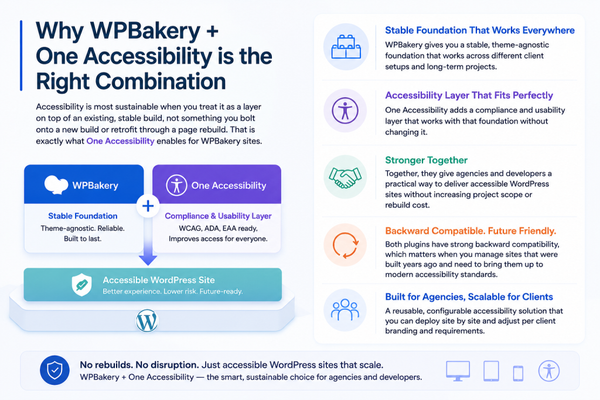
Accessibility is most sustainable when you treat it as a layer on top of an existing, stable build, not something you bolt onto a new build or retrofit through a page rebuild. That is exactly what One Accessibility enables for WPBakery sites.
- WPBakery gives you a stable, theme-agnostic foundation that works across different client setups and long-term projects
- One Accessibility adds a compliance and usability layer that works with that foundation without changing it
- Together, they give agencies and developers a practical way to deliver accessible WordPress sites without increasing project scope or rebuild cost
- Both plugins have strong backward compatibility, which matters when you manage sites that were built years ago and need to bring them up to modern accessibility standards
For agencies managing multiple client sites on WPBakery, this combination is especially valuable. You get a reusable, configurable accessibility solution that you can deploy site by site and adjust to each client’s branding and requirements.
Frequently Asked Questions
Is WPBakery Page Builder easy to use for beginners with no coding experience?
WPBakery does not require coding experience. The drag-and-drop editor lets you place, arrange and customize elements on your page without writing a single line of code. That said, WPBakery has a short learning curve. Most users find the workflow clicks after a few hours. Over 100 ready-made page templates mean beginners can start from a working layout and customize from there rather than building from a blank page.
Does WPBakery Page Builder have a drag-and-drop editor?
Yes. The frontend editor shows a live preview as you build. You can drag elements onto the canvas and see the result in real time. WPBakery also includes a backend editor that supports drag-and-drop but presents your page as a structured layout grid, which many developers prefer for complex builds. Between the two modes, you get over 50 built-in elements, including buttons, text blocks, image galleries, sliders and grids.
Can I use WPBakery Page Builder to build an e-commerce website?
Yes. WPBakery is WooCommerce-friendly and works well for building eCommerce websites. You can use it to design product pages, store layouts and promotional landing pages on top of any WooCommerce setup. Because WPBakery works with any properly coded WordPress theme, it does not lock you into a specific storefront design. Over 200 add-ons and support for custom CSS give you the flexibility to meet most eCommerce design requirements.
How much does WPBakery Page Builder cost and is there a subscription fee?
WPBakery lifetime plans start from $82. There is no recurring subscription fee for the core product. Support and cloud features are time-limited and you can extend them separately if needed. There is no free version, but a live demo is available at wpbakery.com/try.
Can WPBakery Page Builder create high-converting landing pages?
WPBakery includes over 100 page templates, many of which are built specifically for landing pages. The Advanced Grid Builder and built-in Skin Builder give you control over layout, spacing and visual design. Built-in AI also lets you generate custom elements and content directly inside the plugin from a text description or image. Whether a page converts depends on strategy and copy. WPBakery gives you the design control to build the page however you want.
Is WPBakery Page Builder a good choice for web design agencies?
WPBakery is a strong fit for agencies. It works with any properly coded WordPress theme, so it does not lock you into one design system across client projects. The lifetime license removes recurring fees for the core product, making costs predictable across multiple clients. Strong backward compatibility means pages built years ago still work, which matters when handing off sites to clients who will not actively update their tools.
How does WPBakery compare to Elementor on DOM size and performance?
In a direct comparison of identical page builds, WPBakery produced 229 DOM elements and 458 total nodes, while Elementor produced 274 elements and 548 total nodes, resulting in a roughly 20% smaller DOM in favor of WPBakery. A leaner DOM means the browser does less work to parse, style and repaint. On complex layouts with many nested sections, that difference compounds and can influence Core Web Vitals scores.
Does WPBakery Page Builder automatically make websites mobile responsive?
es. WPBakery is 100% responsive and pages adapt automatically to mobile and tablet screen sizes without requiring a separate mobile build. WPBakery also supports RTL (right-to-left) text for Arabic, Hebrew and other right-to-left languages.
Does One Accessibility work with WPBakery-built pages?
Yes. One Accessibility is fully compatible with WPBakery. It adds its accessibility toolbar and compliance features on top of your existing WPBakery layout without modifying page structure, shortcodes or design. The plugin works at the WordPress output layer, making it compatible with any valid WPBakery build regardless of how you constructed the pages.
Will installing One Accessibility change the look of my WPBakery site?
No. One Accessibility does not alter your WPBakery page design. It adds a user-controlled accessibility toolbar, typically a small icon at the edge of the screen, that visitors can activate and configure to their own accessibility needs. Your layouts, fonts, colors and branding remain exactly as you designed them in WPBakery.
What accessibility standards does the WPBakery + One Accessibility combination help meet?
One Accessibility supports WCAG 2.1 AA compliance, the standard that most accessibility regulations reference, including the ADA (United States), EN 301 549 (Europe) and the upcoming European Accessibility Act (EAA). It addresses key WCAG criteria, including colour contrast, keyboard navigation, focus visibility, text alternatives and screen reader compatibility. For formal legal compliance, we recommend pairing the plugin with a professional accessibility audit.
Does WPBakery work with AI tools like ChatGPT?
Yes. WPBakery’s shortcode-based PHP architecture works well with AI tools including ChatGPT, Claude and Gemini. Developers can describe a custom element in text or share an image and generate WPBakery-compatible code directly. WPBakery has also released free custom GPTs, an Element Builder from Image and an Element Builder from Text, that let you generate WPBakery elements without touching code.
Can I use WPBakery across multiple websites with a single license?
WPBakery lifetime licenses vary by plan in terms of site usage. You can check the exact site limits and plan options on the WPBakery website. The core builder does not require an annual renewal, which makes costs predictable for agencies managing multiple client sites over time.
Is WPBakery still actively developed and maintained?
Yes. WPBakery is actively developed and receives regular updates. The team has updated it significantly in recent years, adding built-in AI tools, new elements and performance improvements. The performance concerns that were commonly criticised a few years ago do not reflect where the plugin stands today.
What should I do if One Accessibility conflicts with a WPBakery add-on or custom element?
One Accessibility is non-destructive and works at the CSS and JavaScript layer without modifying WPBakery’s shortcode output. In the rare case of a visual conflict with a specific add-on or custom element, the plugin’s settings panel gives you granular control over which features are active, letting you disable individual toolbar modules that might be causing the issue.
Do I need to know CSS or code to use One Accessibility with WPBakery?
No. Both WPBakery and One Accessibility work without coding knowledge. WPBakery provides a visual drag-and-drop builder and One Accessibility provides a settings panel where you configure accessibility features through checkboxes and dropdowns. That said, both tools support custom CSS for users who want to go further.
The Bottom Line
Building a great website in WPBakery is already a strong starting point. Making it accessible is the next step and with One Accessibility, it does not have to mean starting over or adding significant complexity to your project.
The combination of WPBakery’s flexible, theme-agnostic page building and One Accessibility’s non-disruptive compliance layer gives developers, freelancers and agencies a practical path to inclusive web design. You keep the build you have. You add the accessibility layer on top. All your visitors get a better experience.
Ready to try WPBakery? Explore the WPBakery live demo to get a hands-on experience. And to see how One Accessibility works with your existing WPBakery site, you can try out the One Accessbility demo.

Senior Content Strategist & Editor, BdThemes