

In this documentation, we will show you how to download your purchase plugins Invoice. You can download any invoice of your plugins ( Element Pack Pro, Ultimate Post Kit, Ultimate Store Kit, Pixel Gallery, and Zolo blocks).
Log In Dashboard
Go to the link BDThemes Account
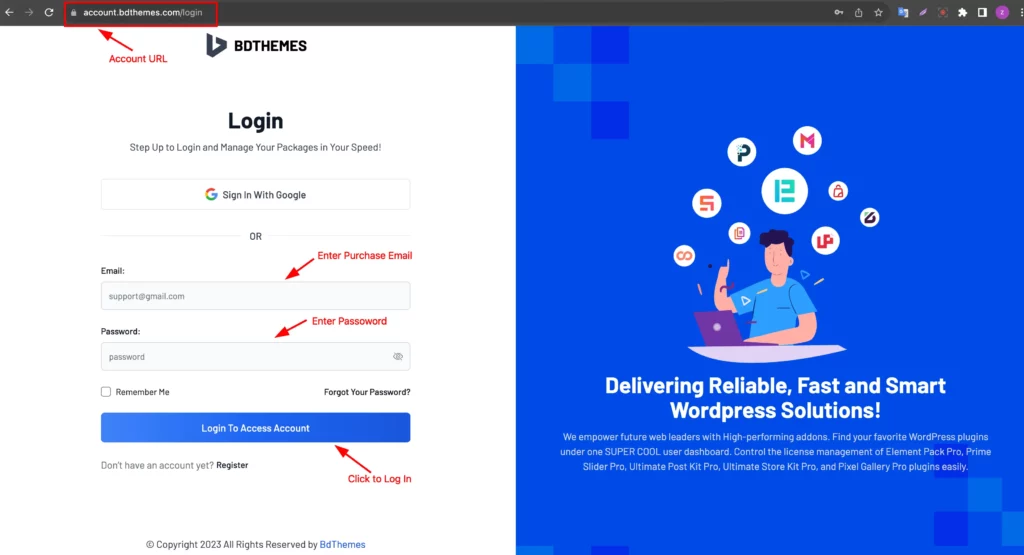
There you can log in with your Purchase email and Password. Make sure you create an account with the Purchase email.
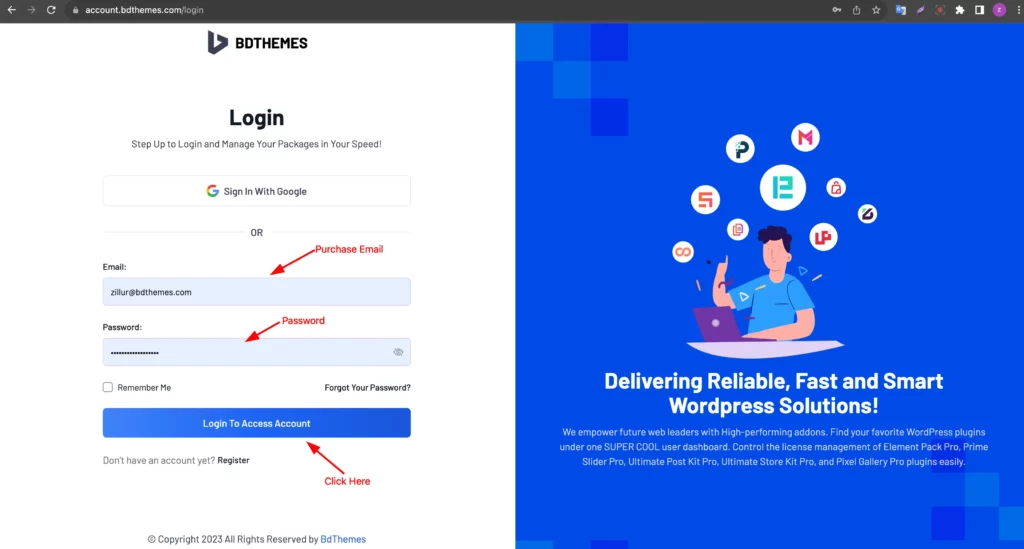
Enter your Purchase Email and Password then click on the “Login To Access Account ” Button.
Payment Histories Tab
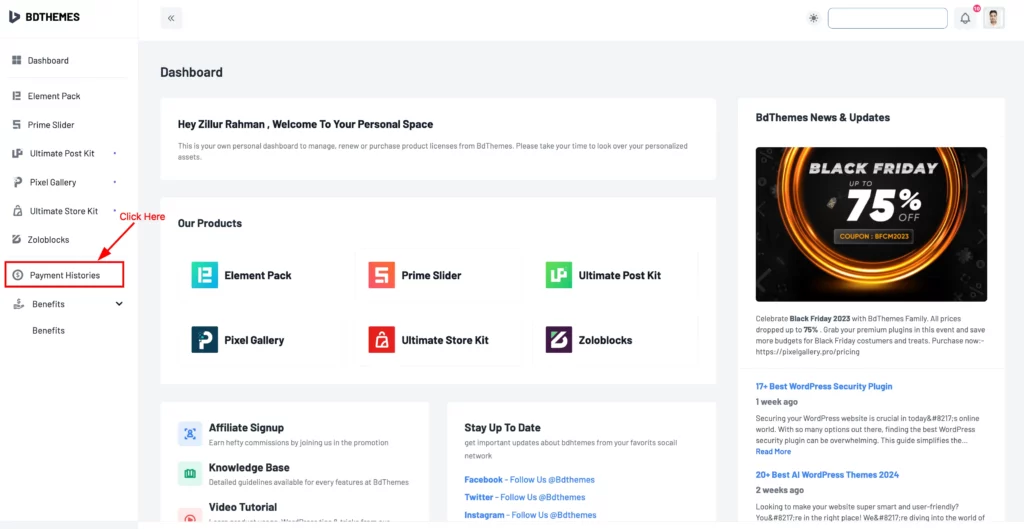
Welcome to your Account Dashboard! On the left side, Find the ” Payment Histories ” Tab and click on it.
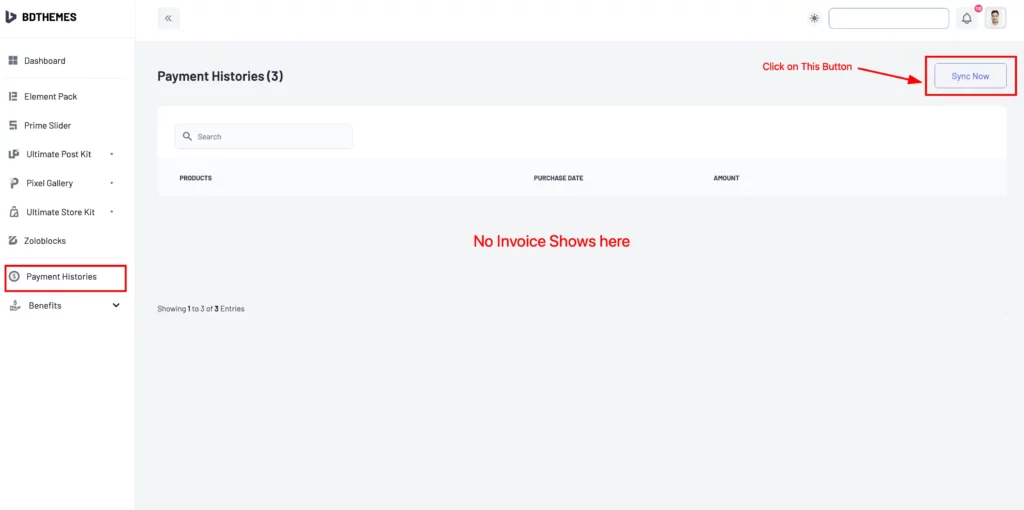
If you found nothing here, Now click on the ” Sync Now ” button top right corner to synchronous your package information.
View Invoice
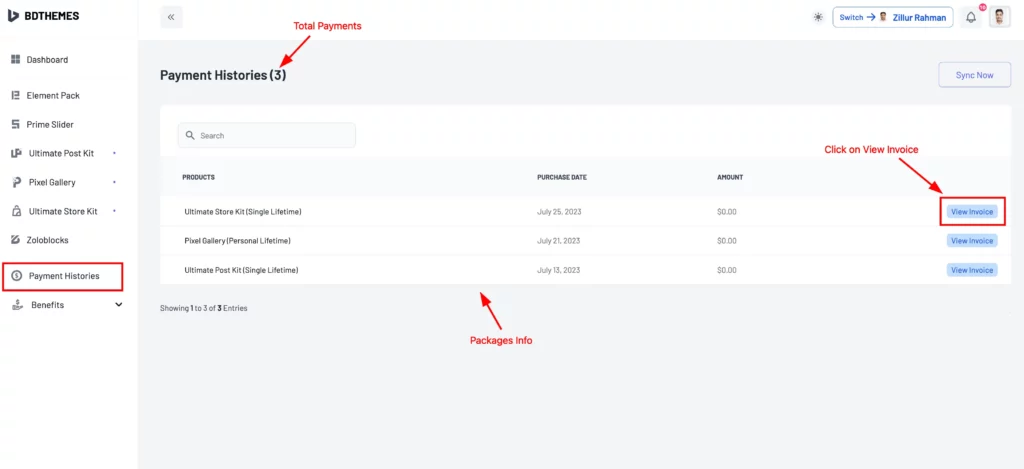
Here are all your package invoices shows ( if you have more packages ). Now Click on the “ View Invoice ” button to get details info.
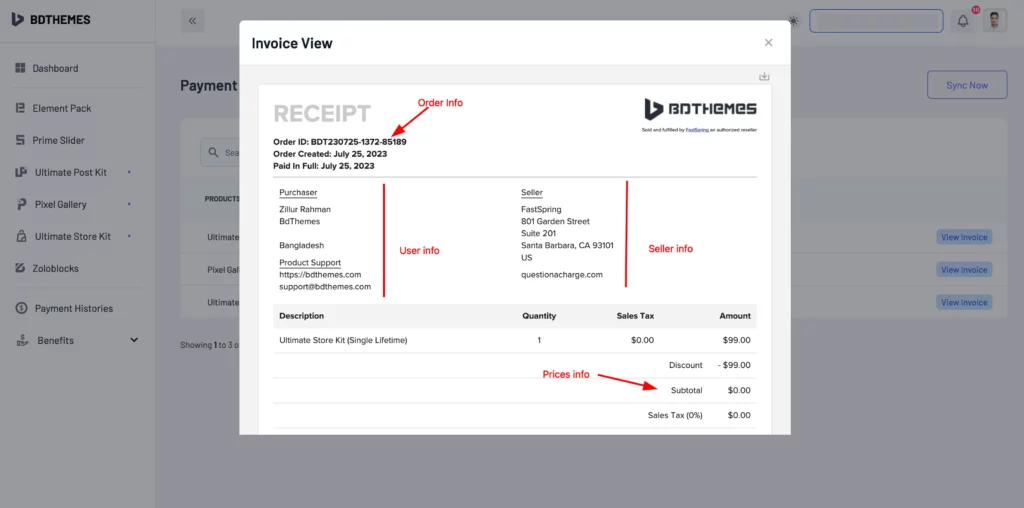
A popup window will appear and you will see your package Order Info, User Info, Seller info, and Package Prices Info.
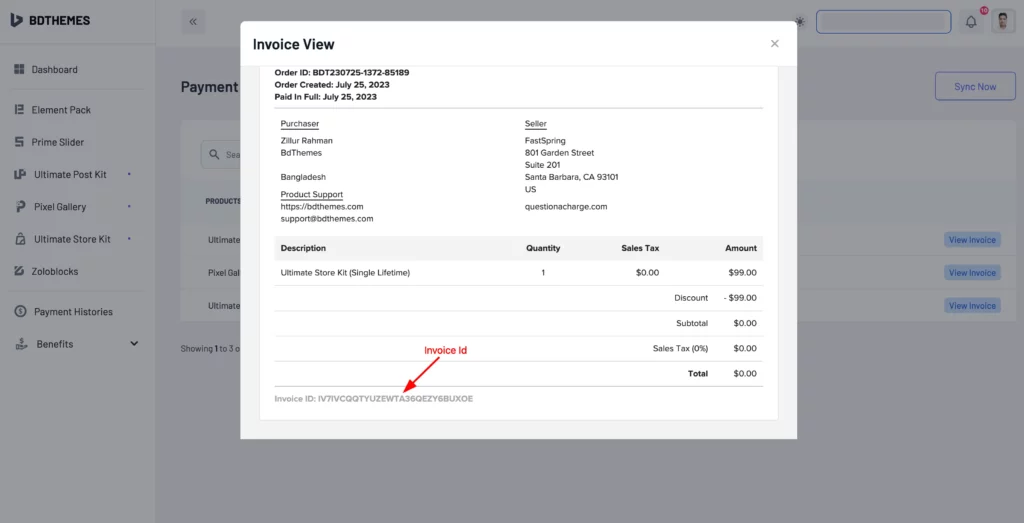
Scroll a little bit you will find the Invoice ID of your purchase plugins.
Download Invoice
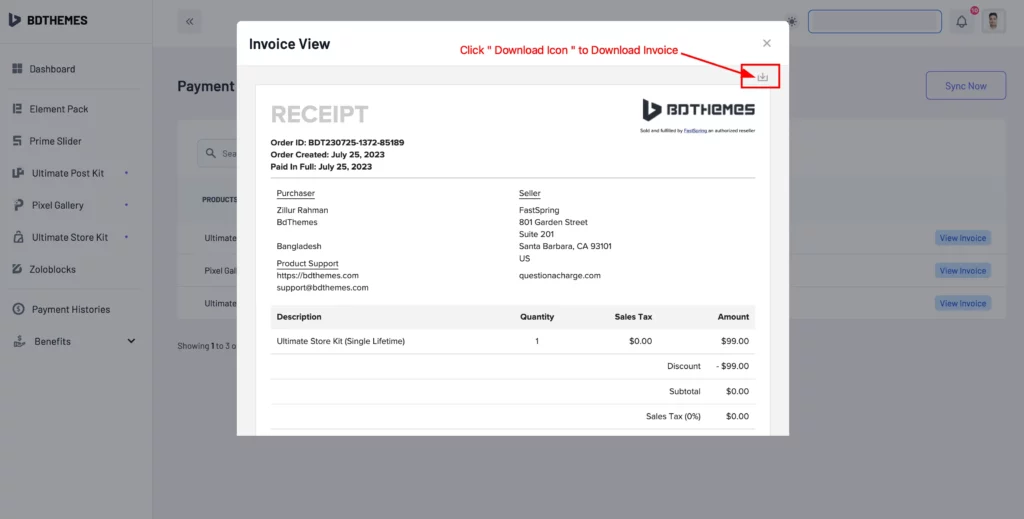
On the Top Right Corner, you will see a Download Icon just click on it to download the Invoice.
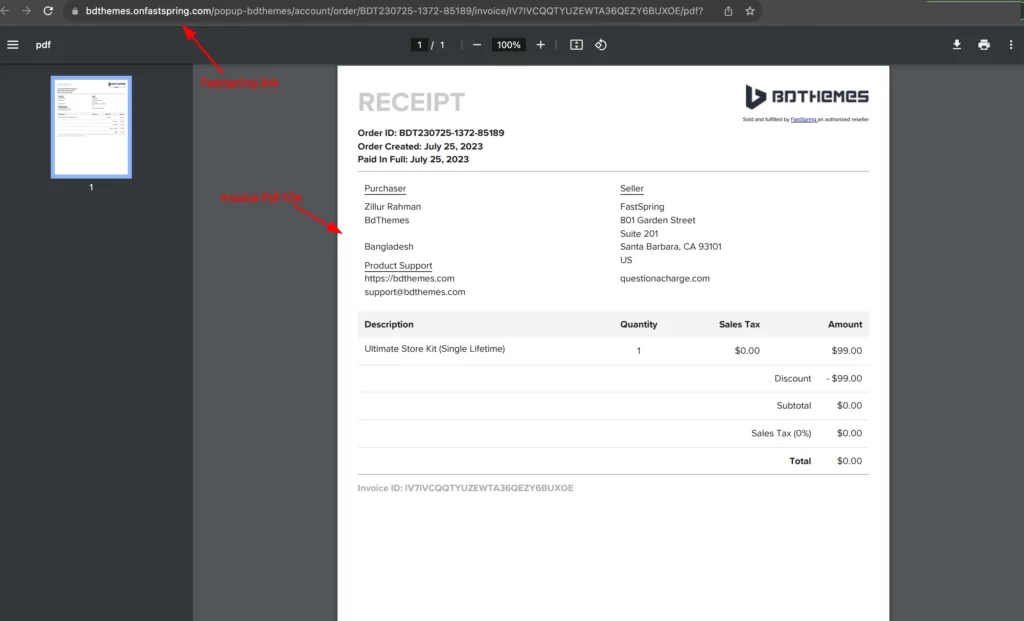
The invoice is in pdf format. You can save it or print it.