

Many website owners believe that creating a professional slider is complicated and requires coding or advanced design skills.
Because of this, they often settle for basic sliders with limited customization or avoid using them altogether. A poorly designed slider can reduce user engagement, make your website look outdated and miss valuable opportunities to highlight important content.
Fortunately, there is a much easier solution. With Prime Slider, you can create a beautiful and responsive Carousel Slideshow without writing a single line of code. This step-by-step guide will show you how to build, customize and optimize your slider so it looks great on every device and delivers a better user experience.
Why Add a Carousel to Your WordPress Website?
A carousel is a powerful design element that helps you display multiple pieces of content in a single, organized section. Instead of showing everything at once and making the page too long, you can present content in slides that users can view one at a time.
- Saves space: A carousel lets you display multiple messages, images, or offers in a small space. This keeps your website clean and easy to scroll without overwhelming visitors.
- Increases engagement: Moving slides naturally grabs attention. Visitors are more likely to stay longer on your site when they see interactive, changing visuals rather than static content.
- Boosts conversions: You can highlight important items like special offers, services, or call-to-action buttons. This helps guide users toward taking action, such as buying a product or contacting you.
- Improves aesthetics: A well-designed carousel makes your website look modern and professional. It adds smooth visual flow and improves overall design quality.
- Works for any niche: Whether you run a blog, online store, agency, or portfolio site, a carousel can help present your content in a more attractive and user-friendly way.
How to Create a Carousel Slideshow in WordPress Using Prime Slider
Creating a carousel slideshow is a great way to showcase images, featured content, products, testimonials, or promotions in an engaging and space-efficient layout. With Prime Slider, you can build fully responsive and visually appealing carousel sliders directly in Elementor, without writing a single line of code.
This step-by-step guide will walk you through the entire process, from installing the required plugins to customizing and publishing your carousel slideshow.
Prerequisites
Before you start, make sure you have:
- A WordPress website (any theme)
- Elementor (free version works) installed and activated
- A modern browser (Chrome or Firefox recommended)
Step 1: Install Elementor (If Not Already Installed)
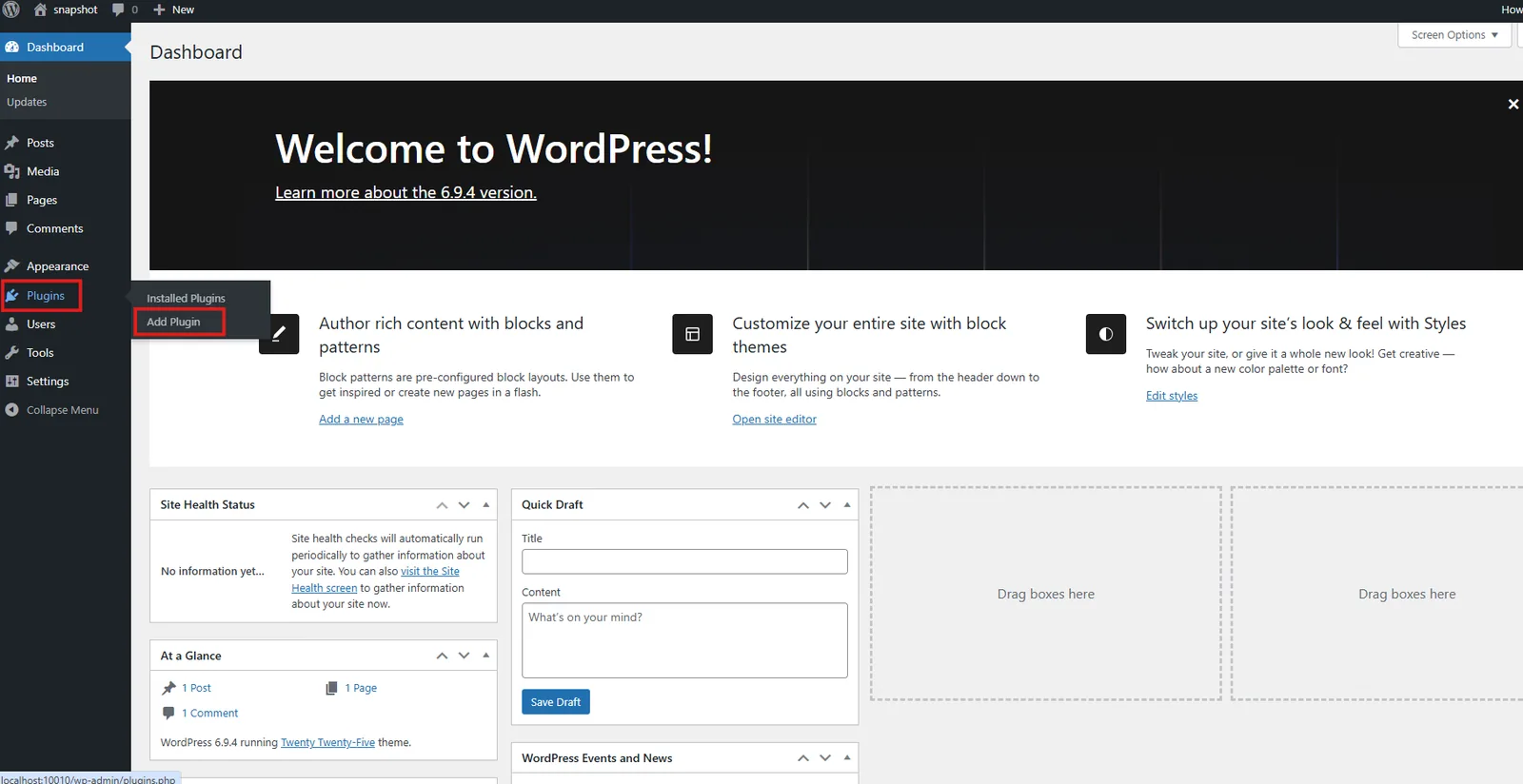
- Go to your WordPress Dashboard and navigate to Plugins → Add Plugin.
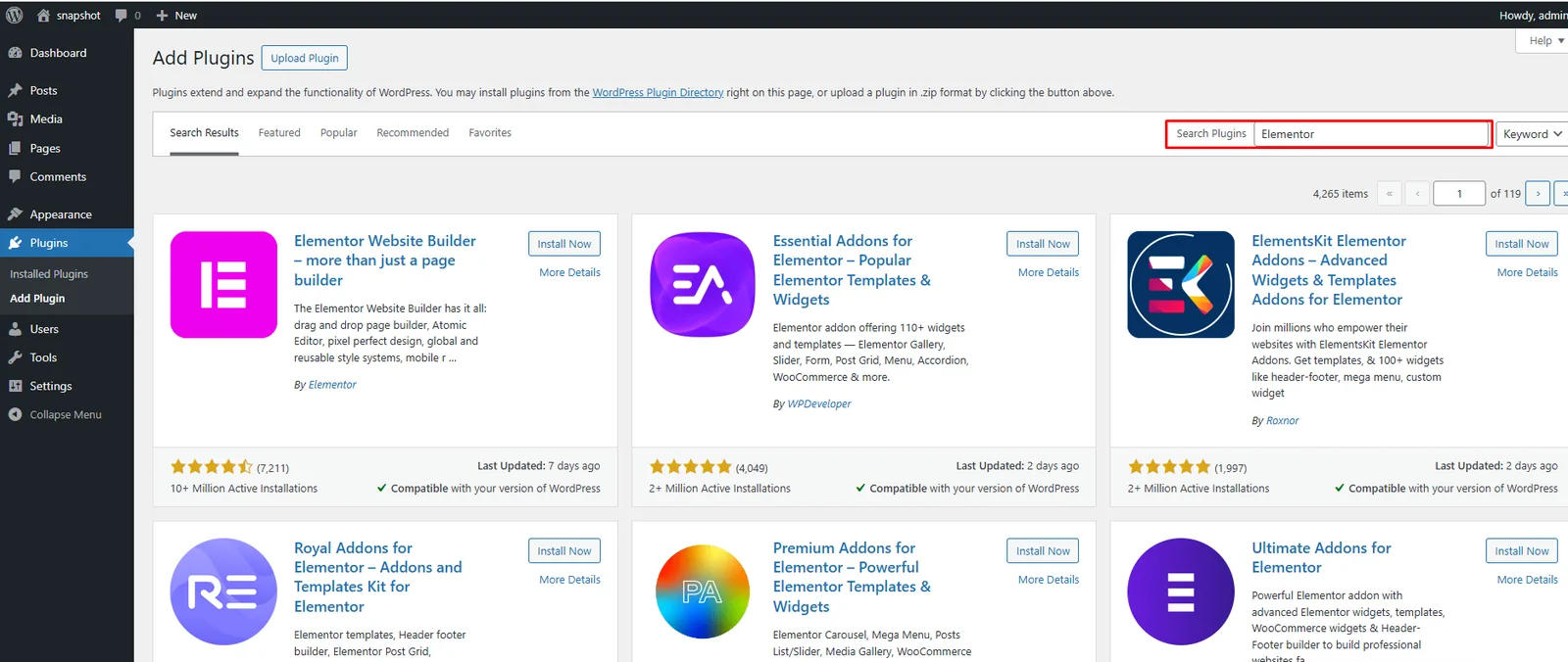
- Search for "Elementor".
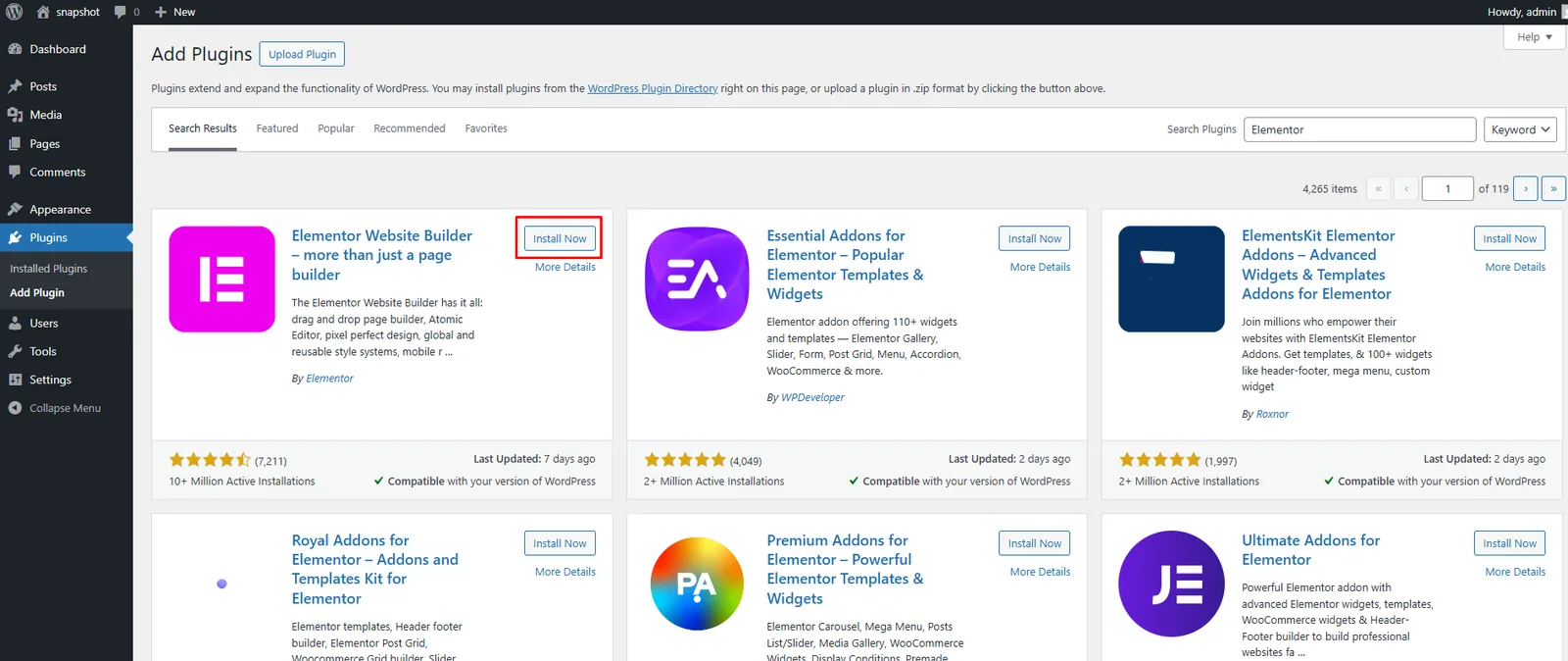
- Click Install Now.
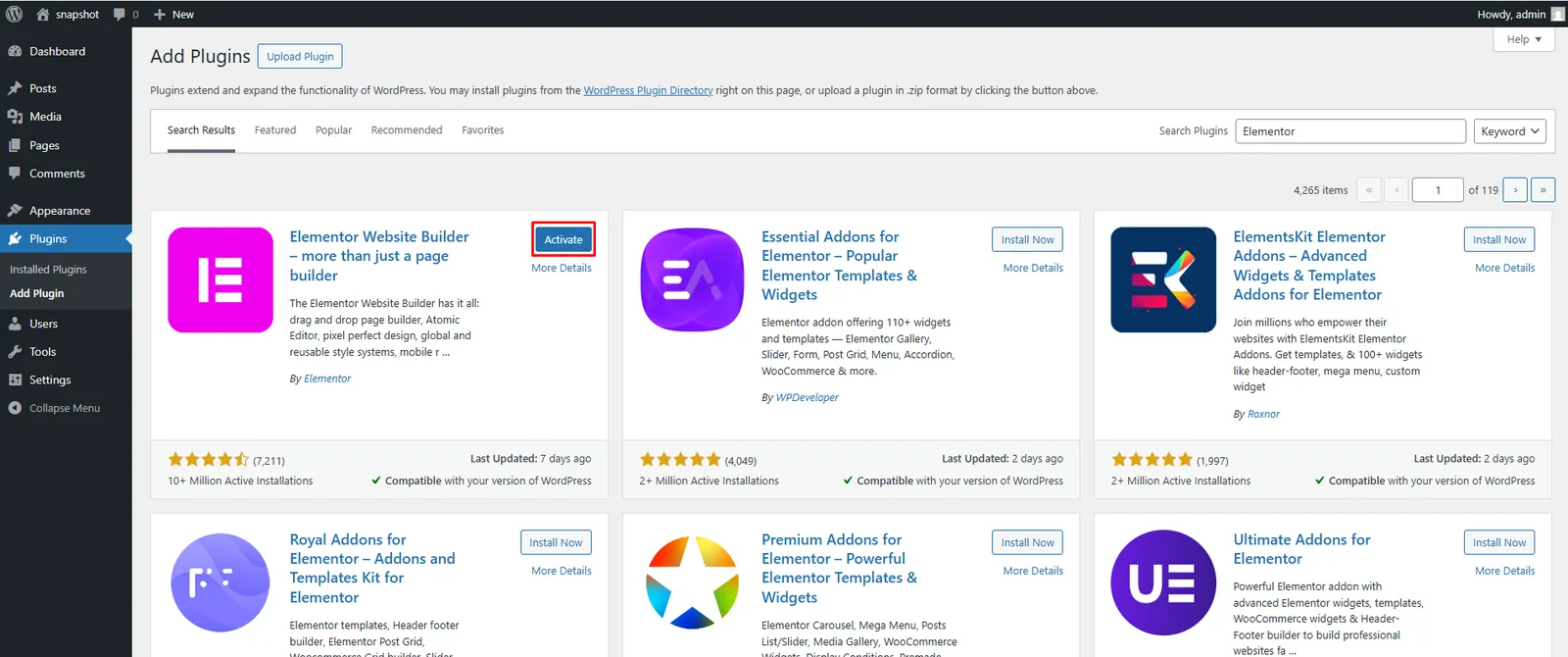
- Then click Activate.
Step 2: Install Prime Slider
Option A: Free Version (from WordPress.org)
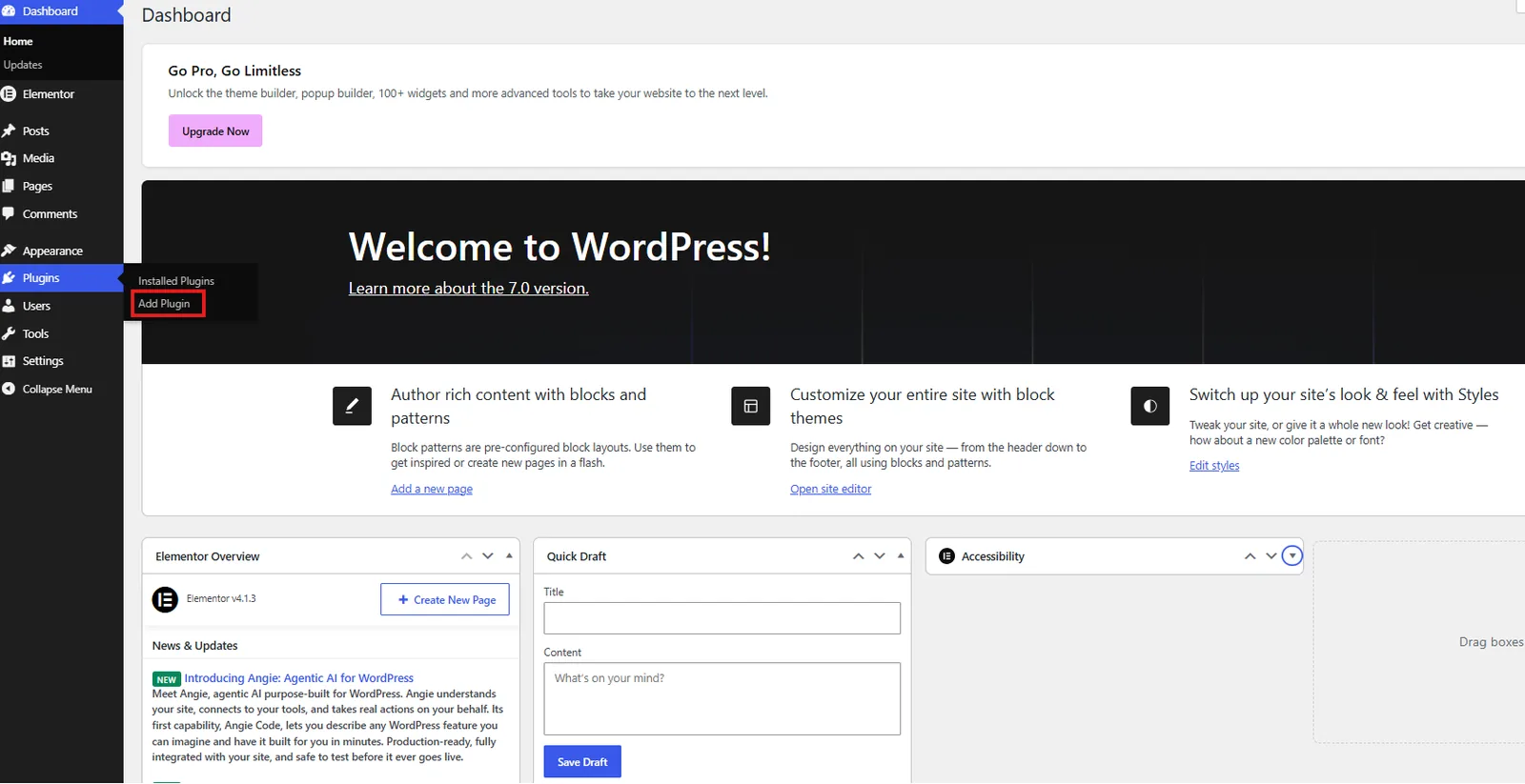
- Go to Plugins → Add Plugin.
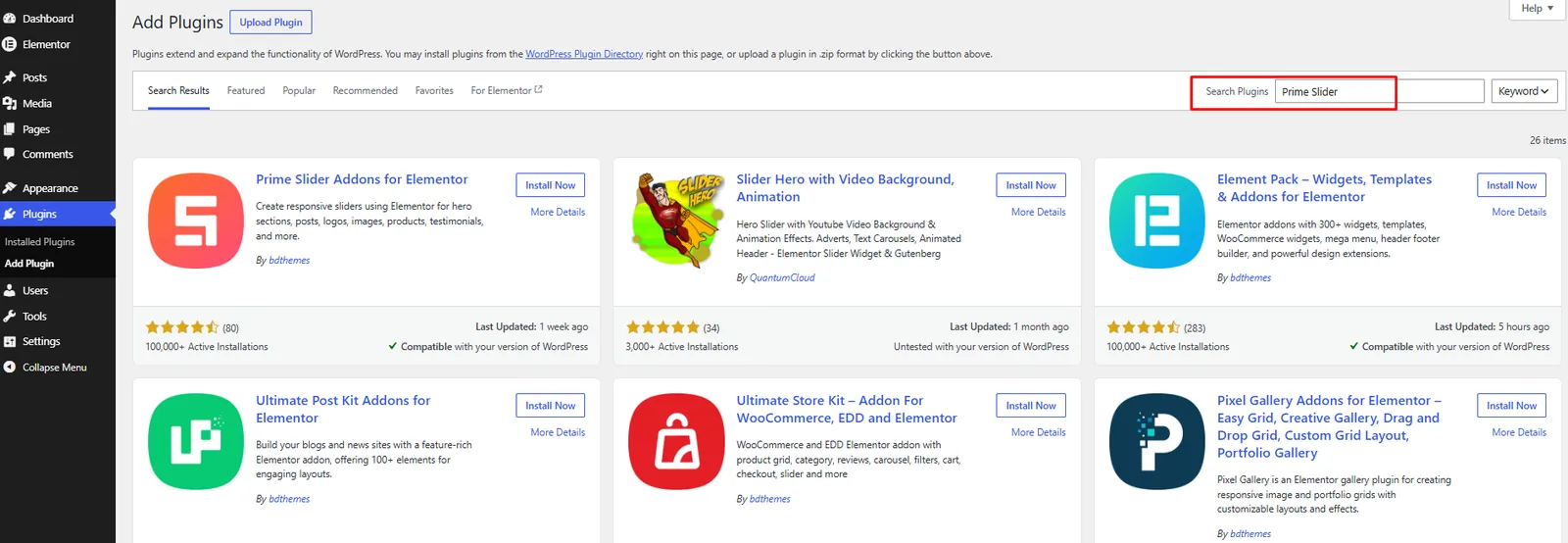
- Search for "Prime Slider".
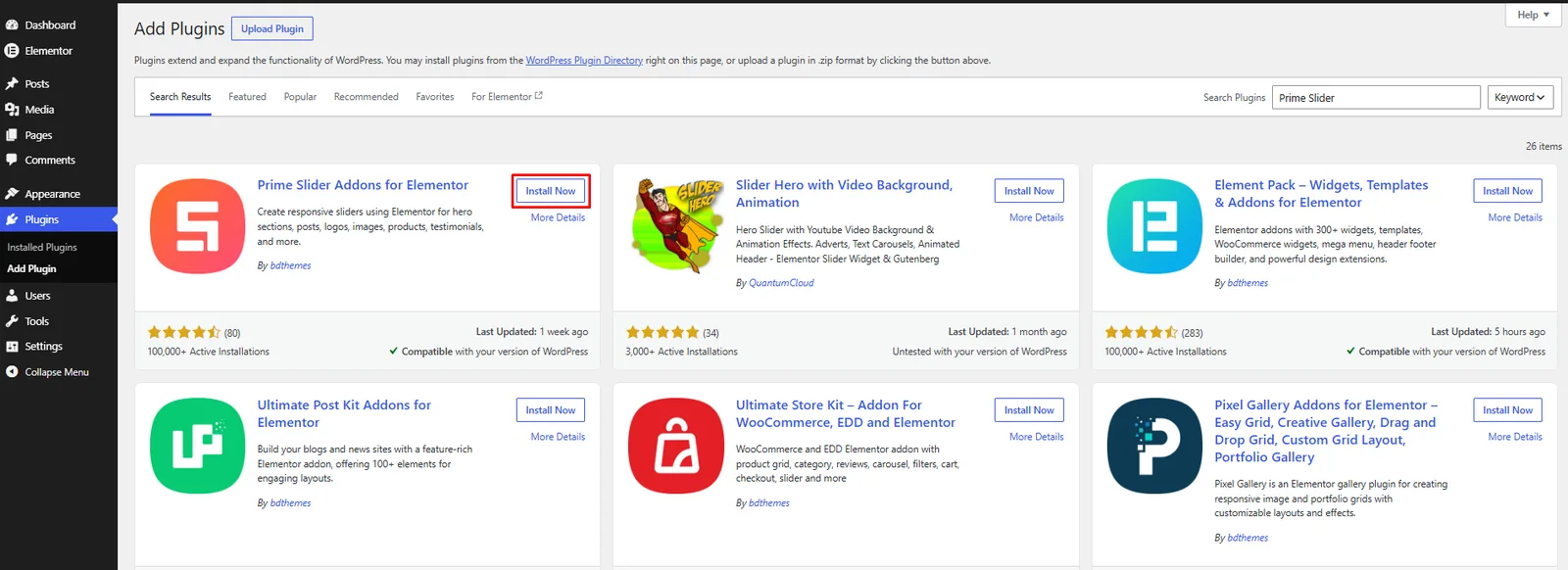
- Click Install Now on the "Prime Slider – Addons For Elementor" plugin.
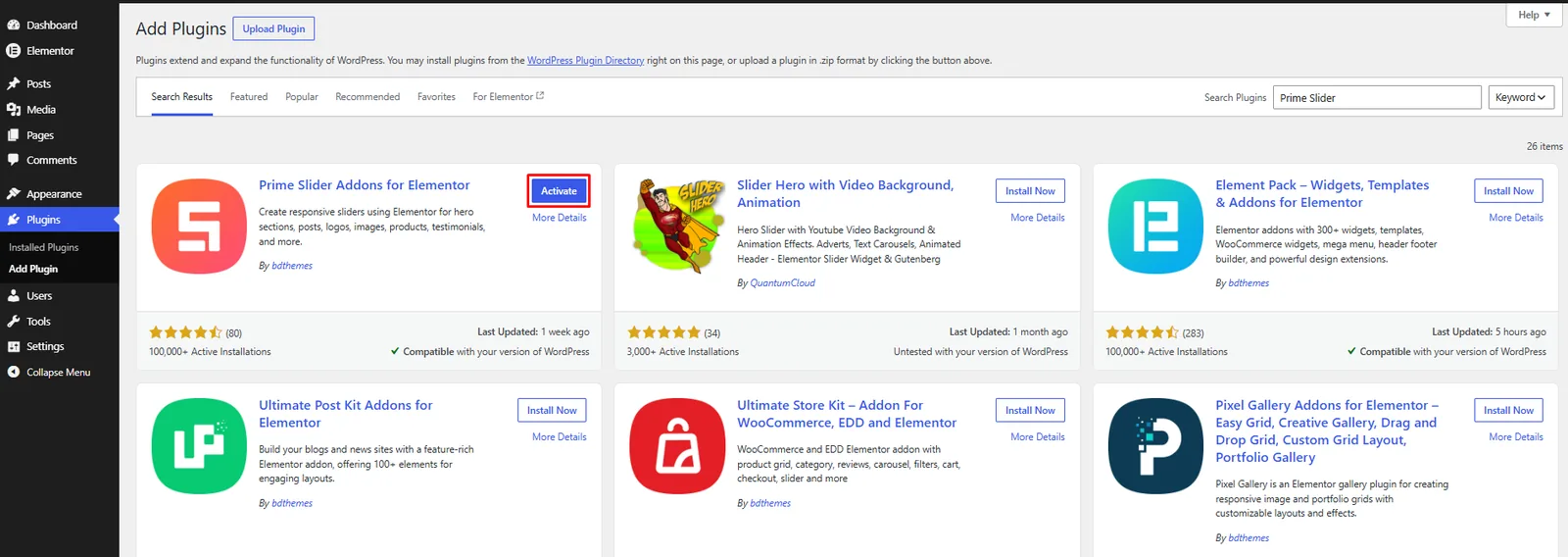
- Click Activate.
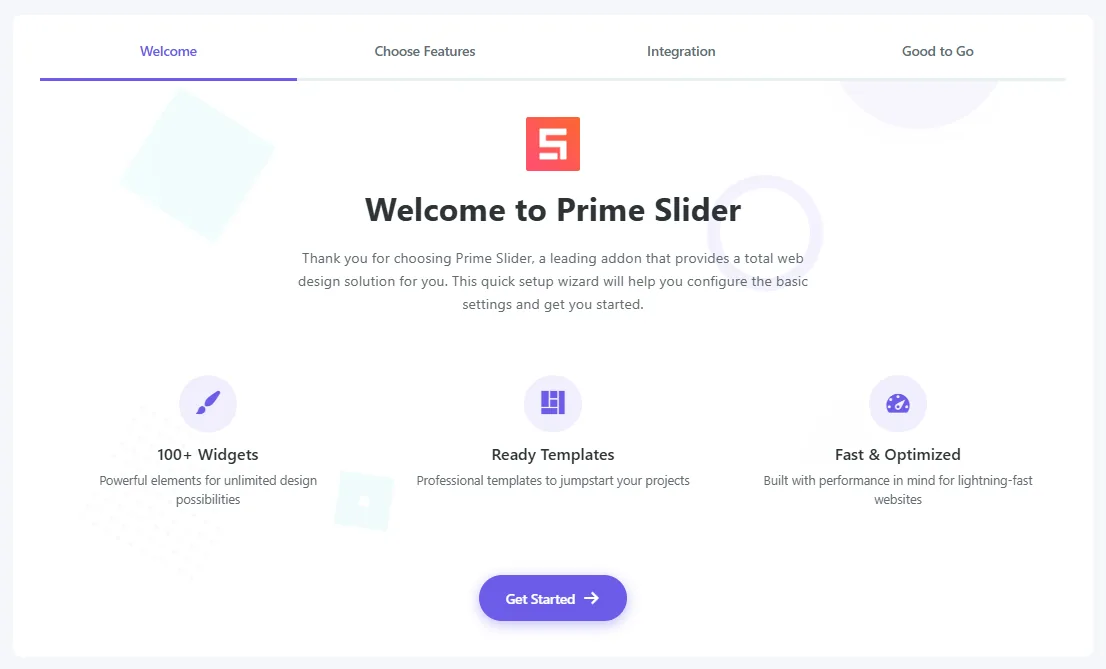
Option B: Pro Version
- Go to primeslider.pro/pricing and choose a plan (starts from $29).

- After purchase, download the
.zipfile from your account. - In WordPress, go to Plugins → Add Plugin → Upload Plugin.
- Choose the downloaded
.zipfile and click Install Now. - Click Activate Plugin.
- Go to Prime Slider → License and enter your license key to unlock all Pro widgets.
Still need help? Watch the video below to see the complete installation process step by step.
Prime Slider installation tutorial on YouTube
Step 3: Enable the Carousel/Slider Widget You Want
Prime Slider includes a wide range of free and Pro slider widgets. Before using any widget in Elementor, you need to enable it.
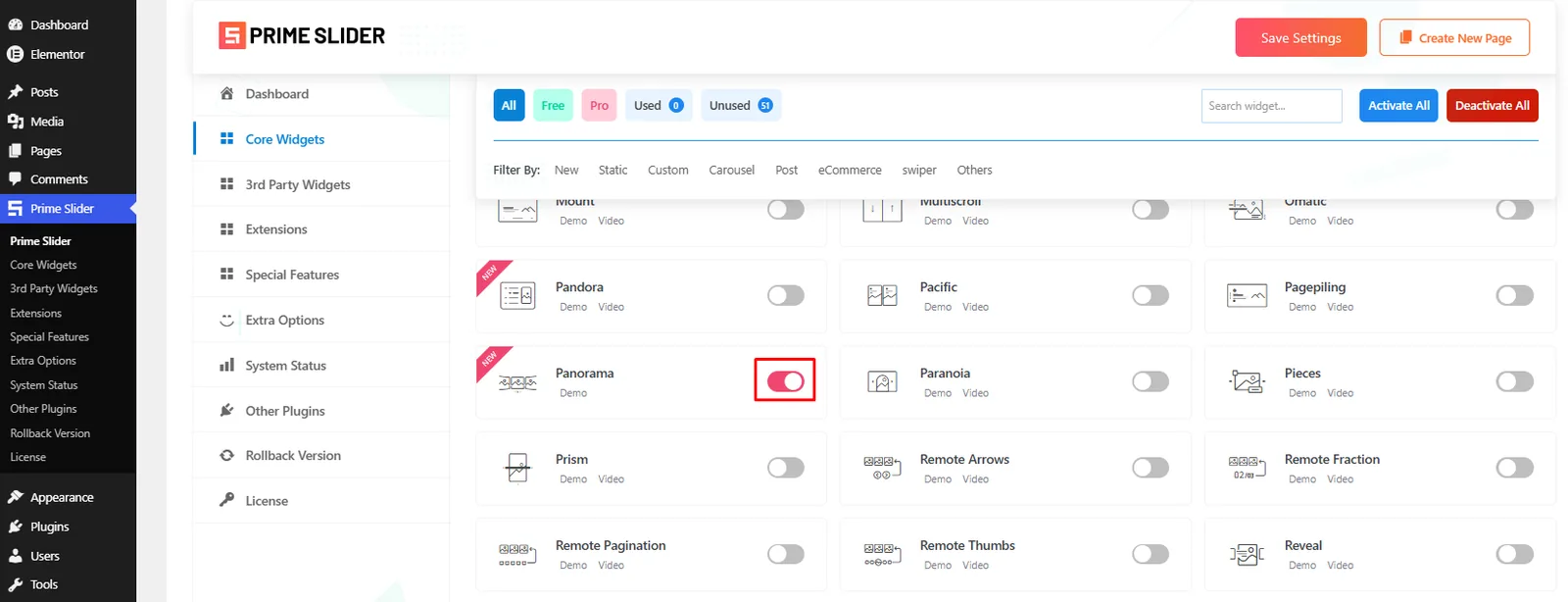
- In your WordPress dashboard, go to Prime Slider → Core Widgets.
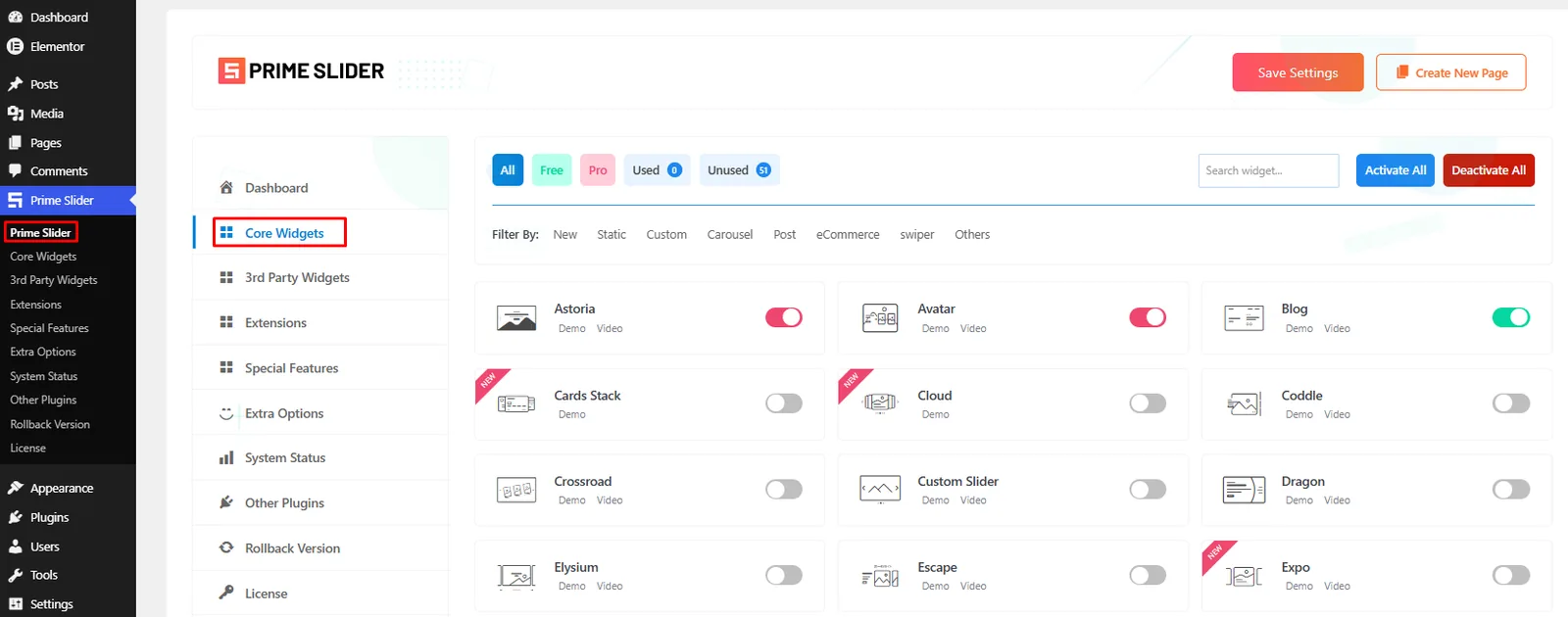
- You'll see a list of all available slider widgets, organized by category (Free, Pro, Used, Unused, etc.).
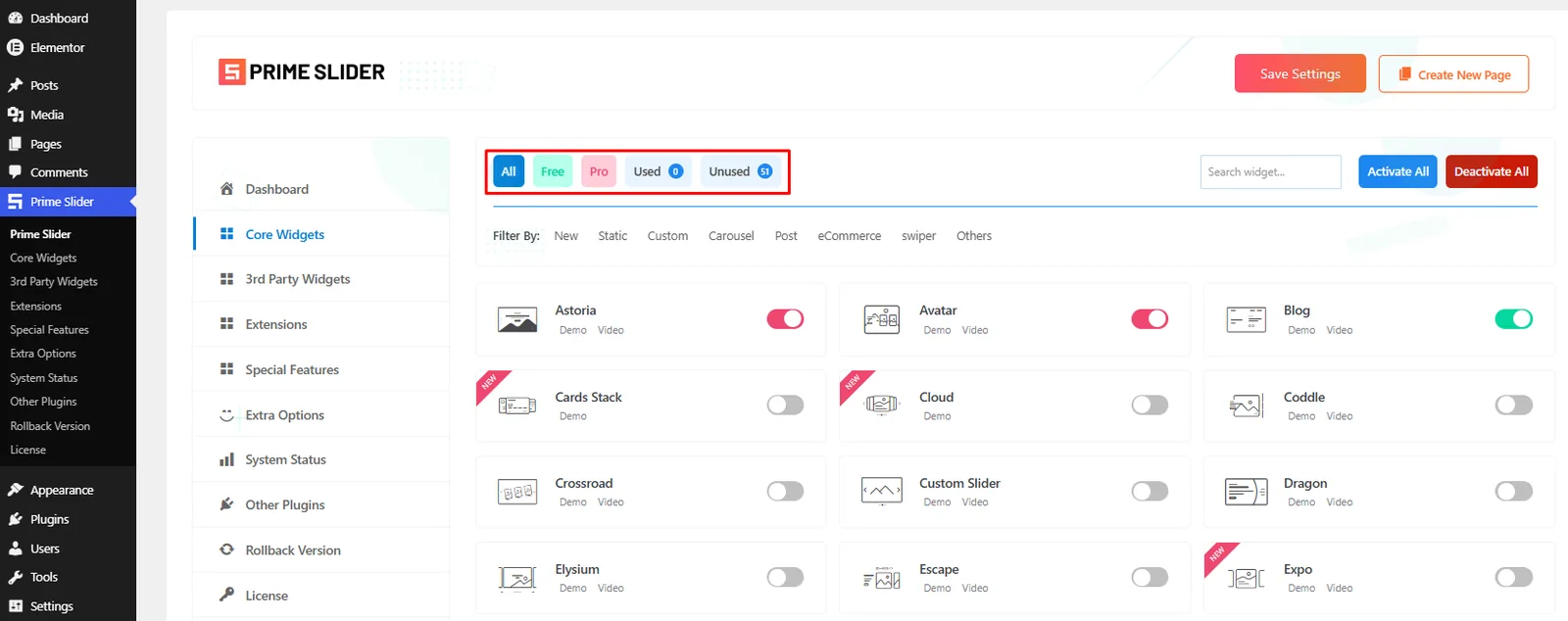
- Find the widget you want to use (such as Mount, Omatic, Remote Thumbs, or any other slider widget).
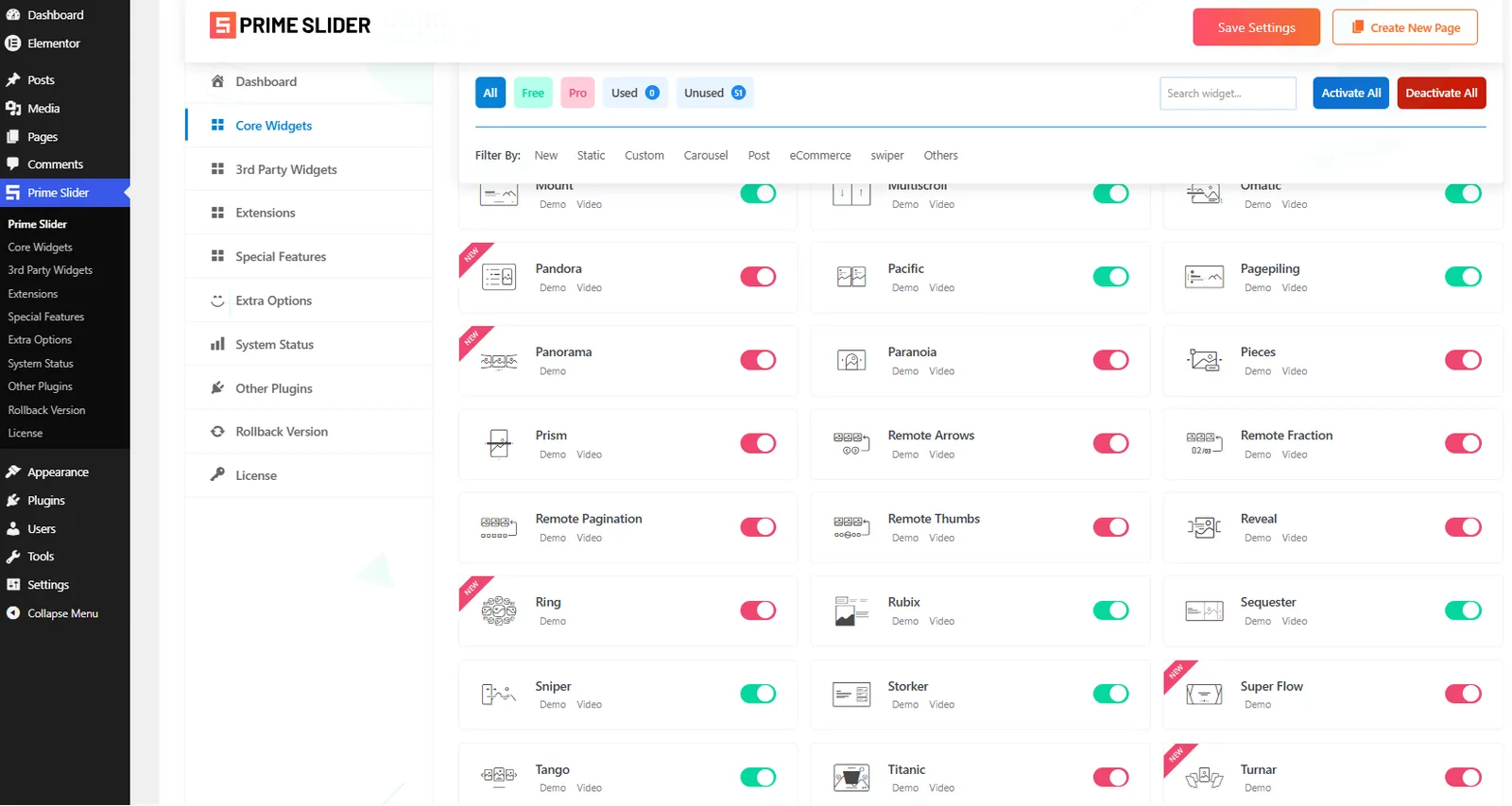
- Toggle the switch ON to enable the widget.
- Click Save Settings in the top-right corner to apply your changes.
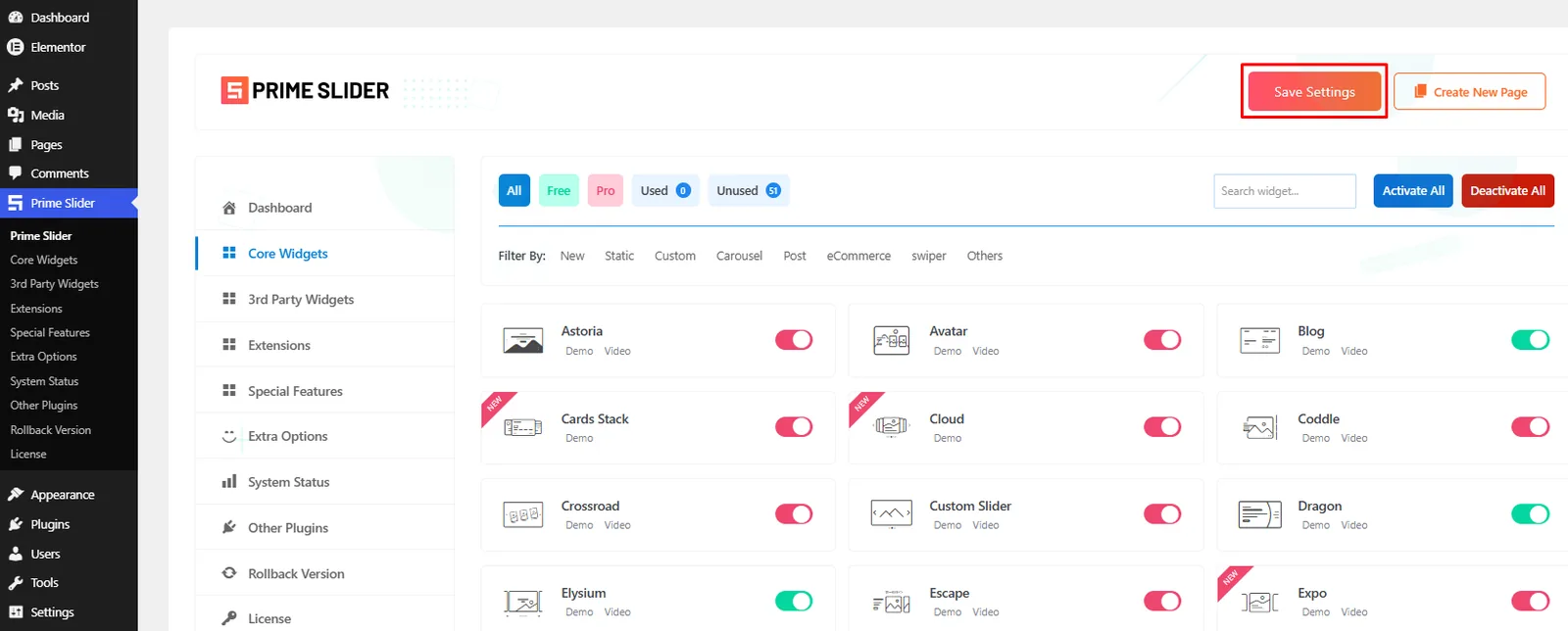
Tip: Use the search box at the top to quickly find a specific widget.
Step 4: Create or Edit a Page with Elementor
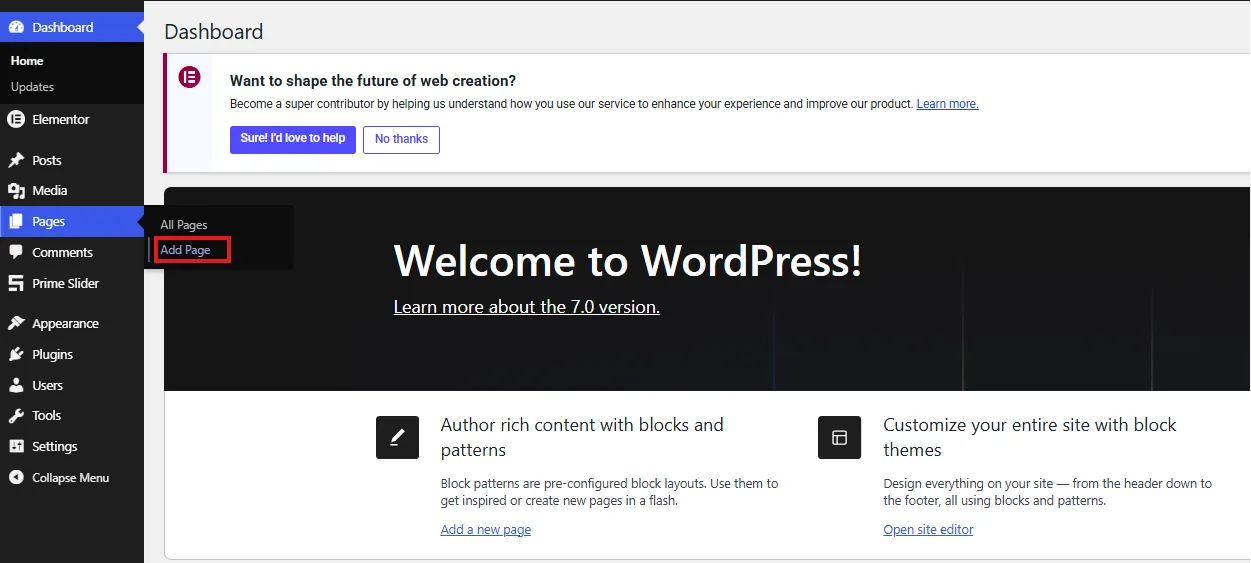
- Go to Pages → Add Page (or edit an existing page).
- Click Edit with Elementor.
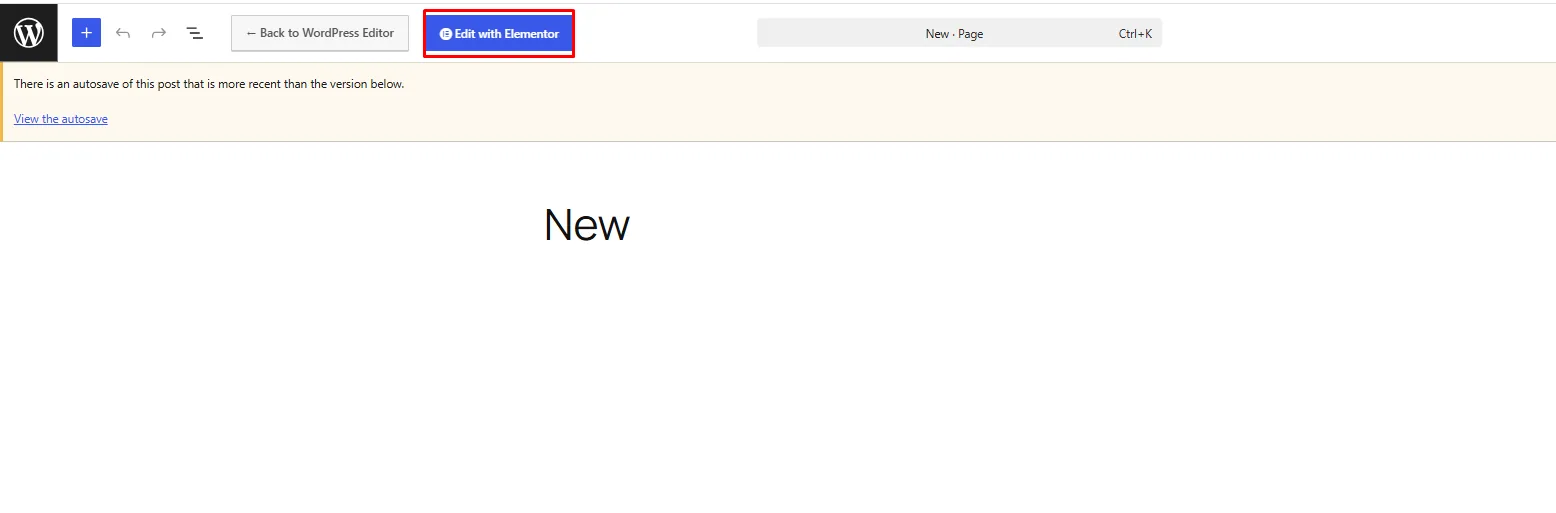
- The Elementor editor will open.
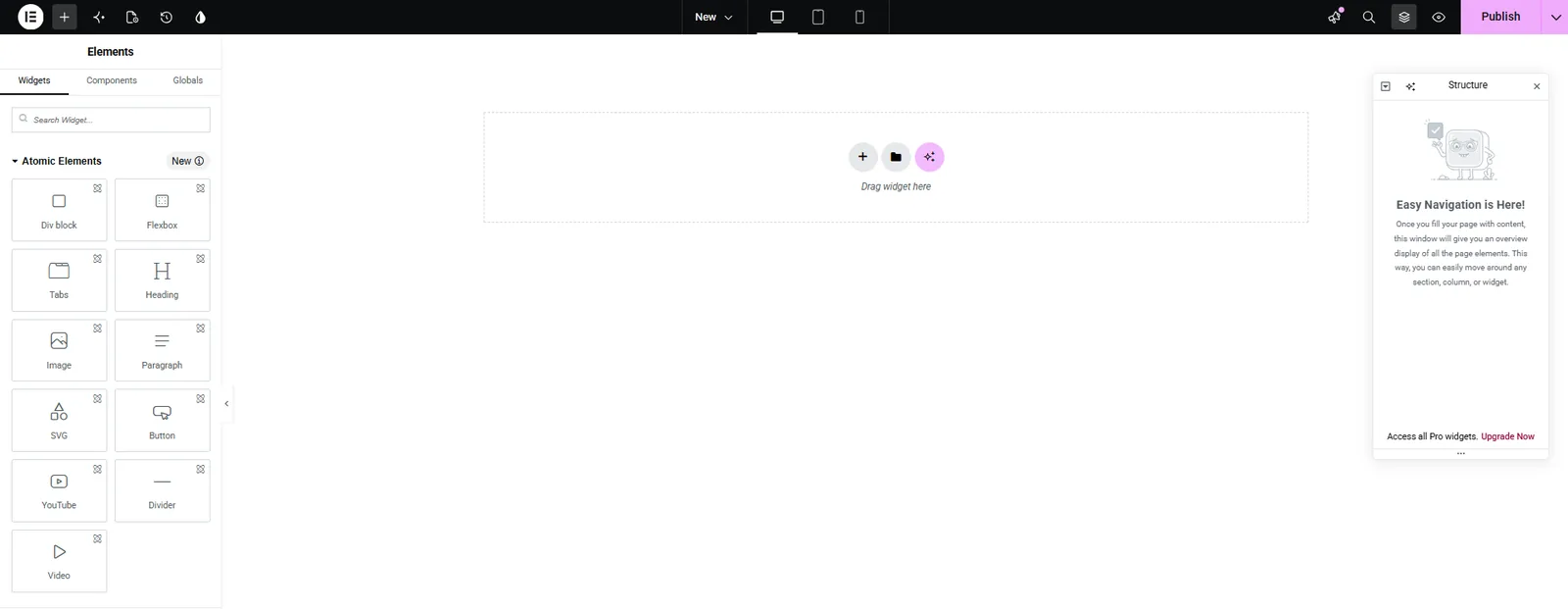
Step 5: Add a Carousel Slider Widget
- In the Elementor left panel, search for "Prime Slider" or the widget name (e.g., "General", "Material").
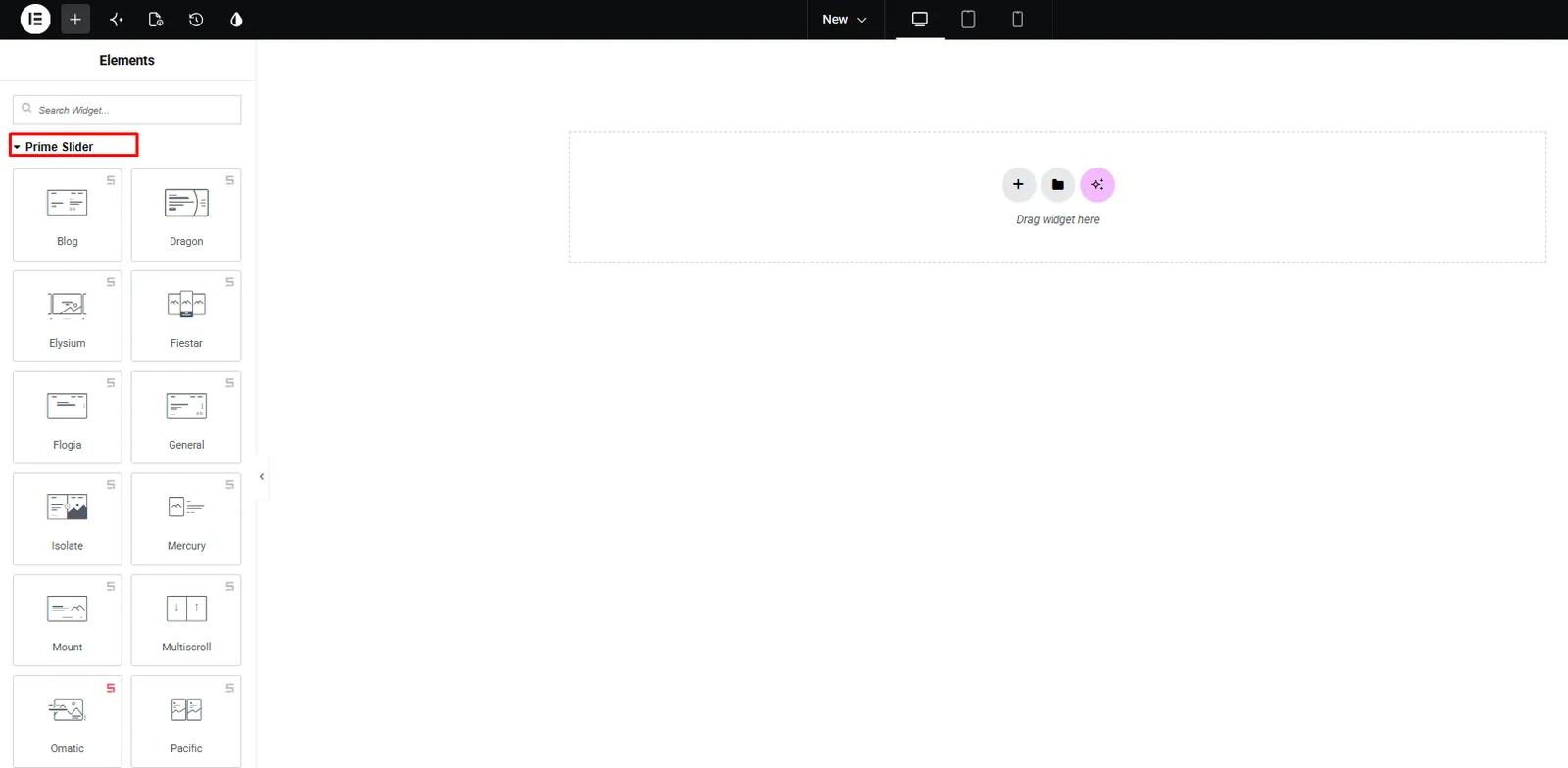
- Click or drag and drop the slider widget onto your page canvas.
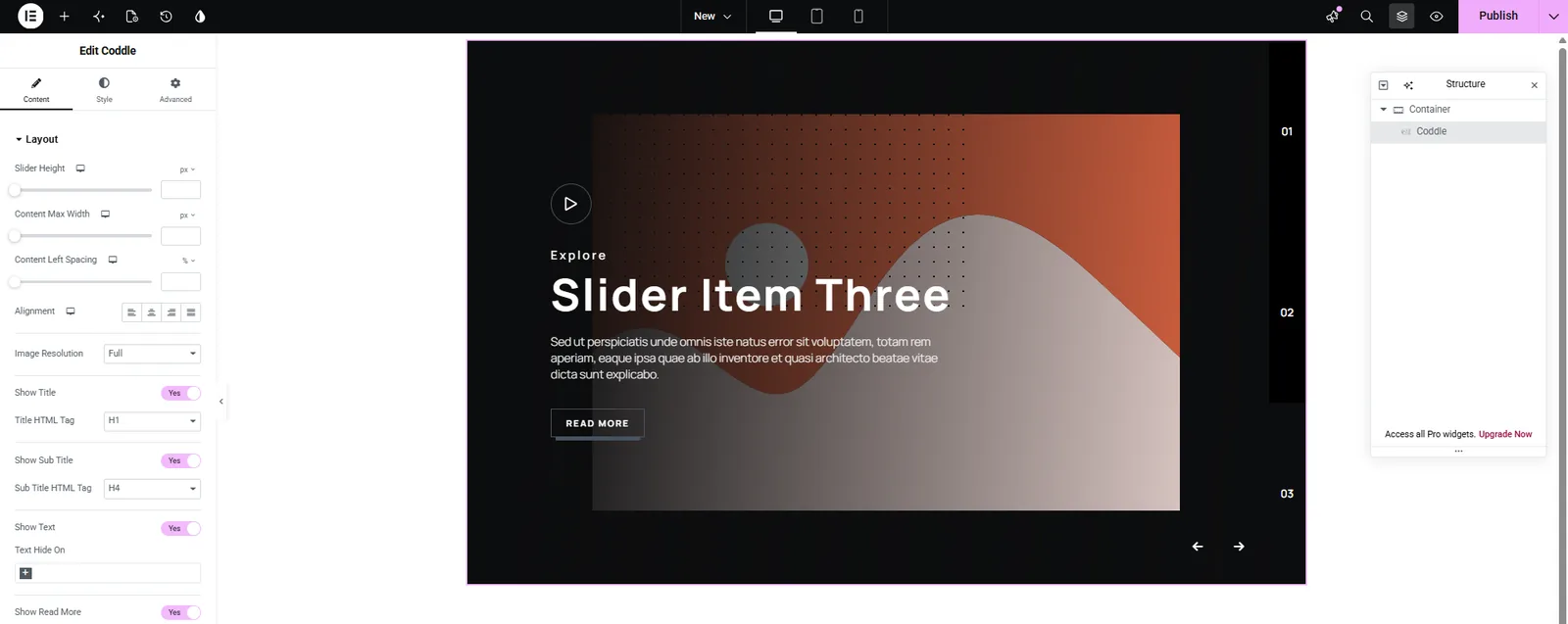
- The default slider will appear instantly with sample content.
Step 6: Configure Your Slides
Once the widget is placed, you'll see settings in the left panel:
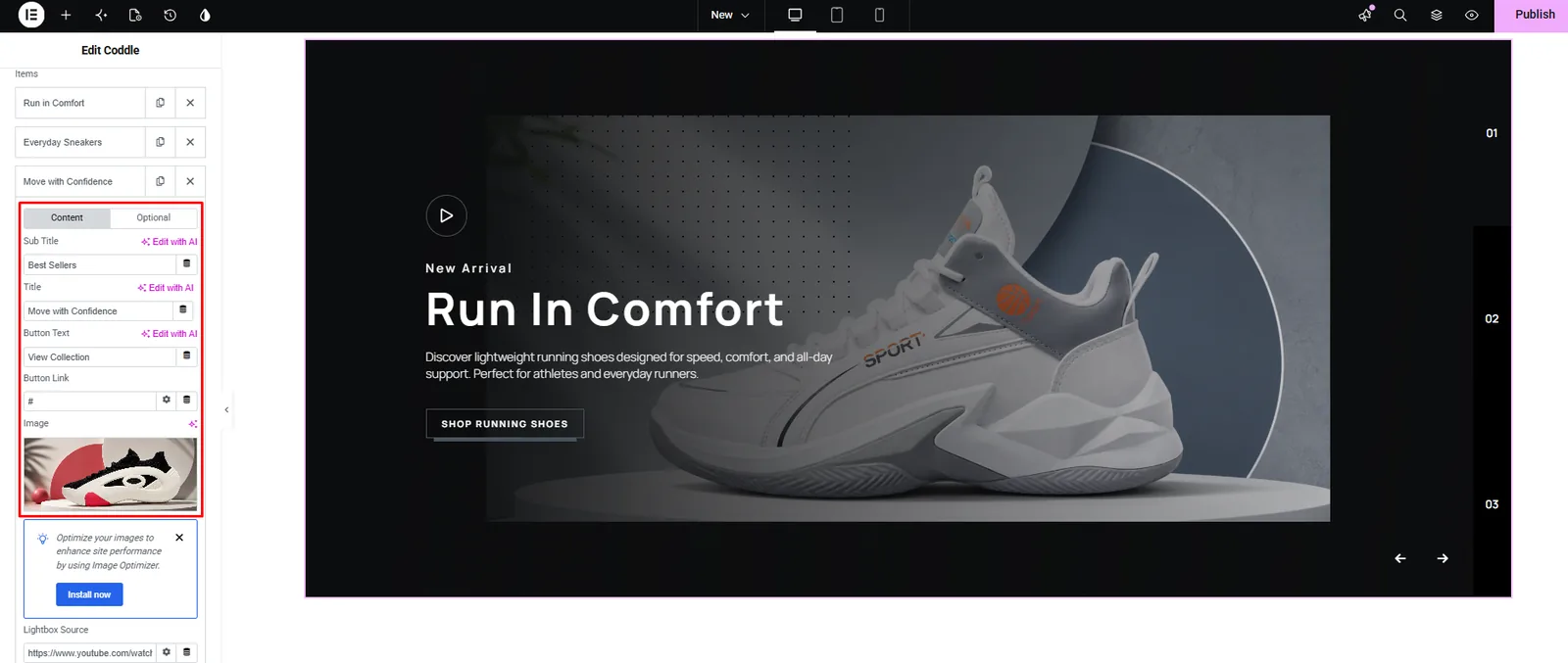
Content Tab
- Click Add Item to add new slides.
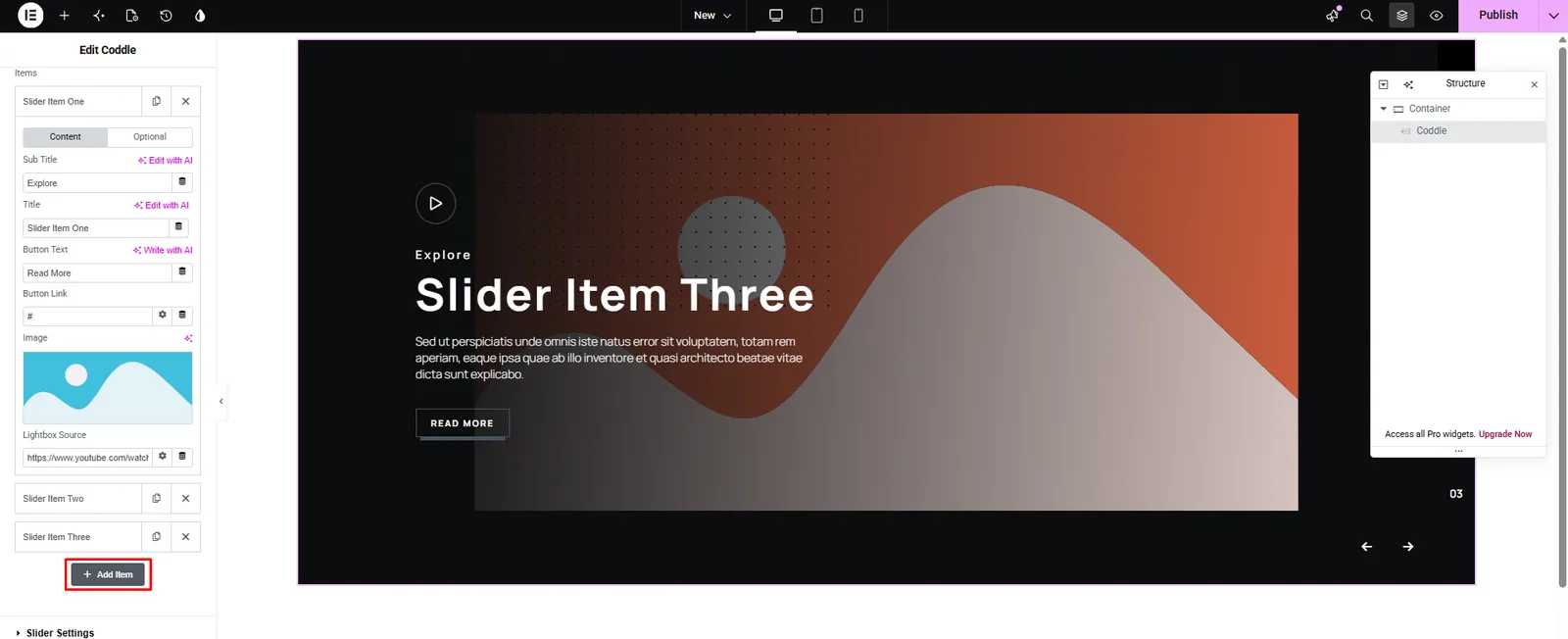
- For each slide, you can set:
- Image: upload your slide background image
- Title: main heading text
- Sub Title: supporting text
- Button Text & Link: CTA button
- Badge Text: optional label
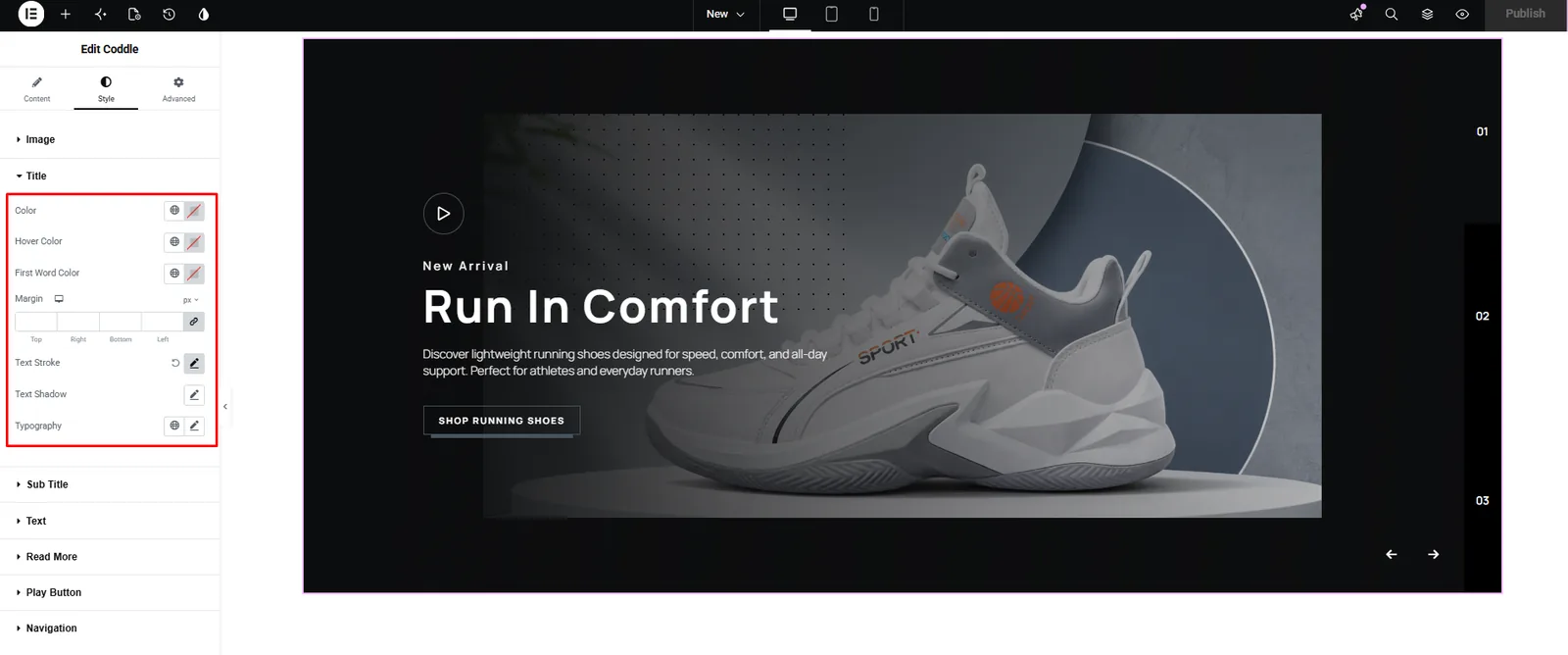
Style Tab
- Customize fonts, colors, button styles, and text alignment
- Adjust the overlay color on the background image
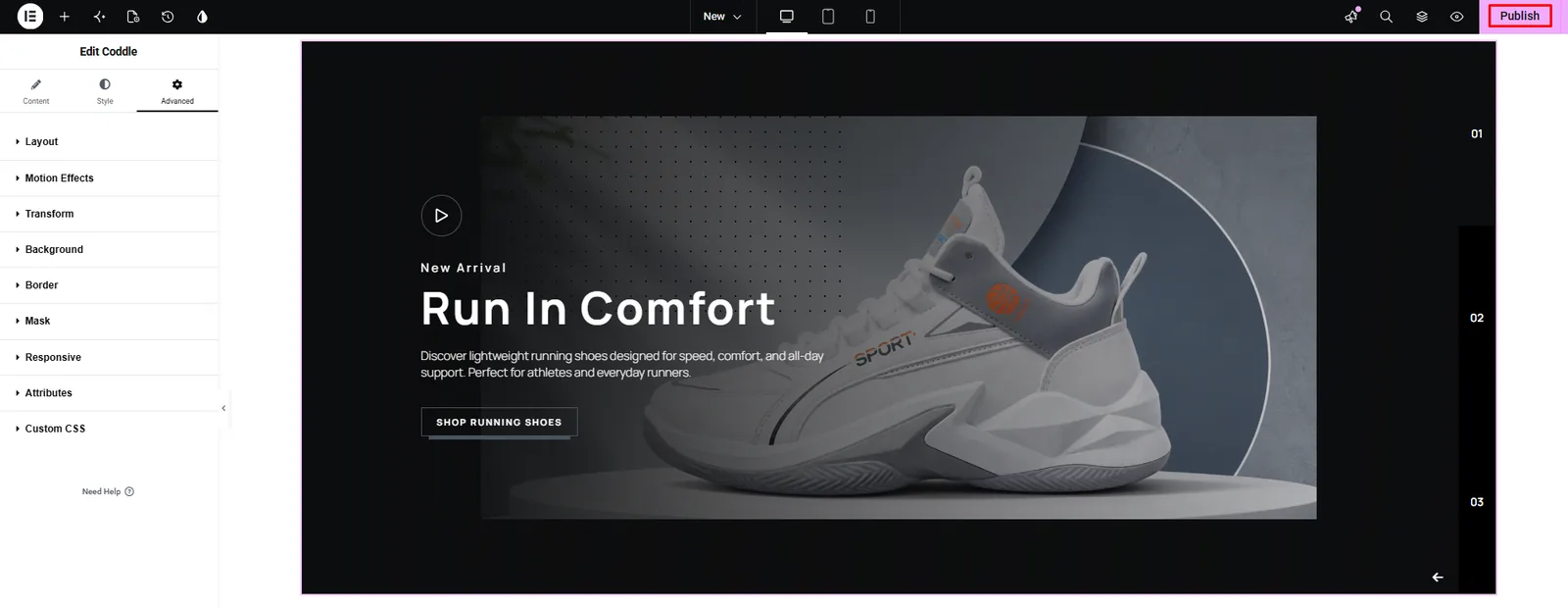
Additional/Advanced Tab
- Style the play button for both Normal and Hover states
- Set play button color and background
- Configure border type and border radius
- Adjust padding and margin
- Control the play button icon size
- Customize navigation styles
- Responsive styling for desktop, tablet, and mobile
Step 7: Explore the Different Slider Types
Prime Slider has a rich library of carousel and slider styles. Here's a brief overview of the key ones:
Free Slider Widgets
| Widget Name | Style |
|---|---|
| General | Clean, minimal carousel — great for hero sections |
| Blog | Blog post spotlight slider |
| Omatic | Auto-motion, animated carousel |
| Pacific | Wave motion effect slider |
| Sniper | Focused, cinematic zoom slider |
| Elysium | Elegant, minimal hero slider |
| Fiestar | Festival-style animated carousel |
| Mercury | Fluid, smooth transition slider |
| Rubix | Puzzle grid layout slider |
| Tango | Motion slider with bold visuals |
| Vertex | 3D corner animation slider |
| Mount | Layered parallax effect |
| Storker | Scroll-reveal style slider |
| Dragon | Scrolling narrative slider |
| Isolate | Split hero slider (two-panel layout) |
| WooCommerce | Free product slider for WooCommerce |
| WooCircle | Product circle carousel |
| Woolamp | Product showcase slider |
| Pagepiling | Full-page scroll slider |
| Multi Scroll | Dual-panel scroll slider |
| Flogia | Fluid page flow effect |
Pro Slider Widgets
| Widget Name | Style |
|---|---|
| Motion | Motion effects with cinematic animations |
| Turnar | 3D flip/turn slider |
| Pandora | Parallax showcase slider |
| Titanic | Floating animation slider |
| Coddle | Smooth fade carousel |
| Reveal | Reveal animation slider |
| CrossRoad | Dual path slider |
| Paranoia | Deep parallax slider |
| Pieces | Split-piece animation slider |
| Fortune | Rotating carousel |
| Prism | Prism visual showcase |
| Avatar | Profile/team showcase slider |
| Remote Thumbs | Thumbnail navigation carousel |
| Remote Pagination | Paginated slider with dot/number nav |
| Remote Arrows | External arrow navigation slider |
| Remote Fraction | Fraction counter slider (e.g., 1/5) |
| Material | Material design-style slider |
| Astoria | Classic hero carousel |
| Marble | Soft transition slider |
| Knily | Kinetic movement slider |
| Custom | Fully custom motion slider |
| Monster | Bold, high-impact animation |
| Fluent | Flow animation carousel |
| Flexure | Flexible layout slider |
| Woo HotSpot | Product hotspot slider |
| Wooexpand | Product expander carousel |
| Woostand | Product stand/pedestal slider |
| Event Calendar | Event scheduling slider |
| Escape | Signature-style slider |
Step 8: Publish Your Page
- Click the Publish or Update button at the bottom-left of Elementor.
- Click View Page to see your live carousel slider.

Pro Tips for Creating Better Carousel Sliders
Creating an engaging carousel is about more than adding beautiful images. Follow these best practices to improve user experience, increase engagement, and achieve better results.
- Limit the number of slides: Keep your slider to 3–7 slides to maintain user attention and avoid overwhelming visitors.
- Use high-quality images: For full-width hero sliders, use images with a minimum resolution of 1920×1080px for the best visual quality.
- Choose the right autoplay speed: Set autoplay between 4000–6000ms so visitors have enough time to read your content.
- Optimize images for SEO: Always include descriptive alt text to improve accessibility and search engine visibility.
- Include a strong CTA: Add a clear Call-to-Action (CTA) button on every slide to encourage clicks and conversions.
- Test on mobile devices: Since most visitors browse on mobile, make sure your slider looks and performs well on smaller screens.
Why Choose Prime Slider?
Prime Slider is built to help you create beautiful, high-performance sliders without sacrificing website speed or flexibility.
- Lightweight & Fast: Optimized for performance to keep your website loading quickly.
- SEO-Friendly Performance: Designed to support better Core Web Vitals and search engine rankings.
- WooCommerce Compatible: Showcase products and enable Add to Cart functionality directly from your sliders.
- AI-Assisted Design: Smart alignment and animation timing help you create professional-looking sliders effortlessly.
- RTL & Translation Ready: Build multilingual websites with full RTL language support.
- Works with Any WordPress Theme: Enjoy seamless compatibility with virtually all WordPress themes.
- Dedicated Customer Support: Get help whenever you need it via live chat, WhatsApp, and Zoom.
- 60-Day Money-Back Guarantee: Try Prime Slider with confidence, backed by a risk-free refund policy.
Frequently Asked Questions (FAQs)
1. What is a Carousel Slideshow in WordPress?
A Carousel Slideshow is a slider that displays multiple images, videos or content blocks in a rotating format. It helps you showcase featured content while saving space on your website.
2. Do I need Elementor to create a Carousel Slideshow?
Yes. Prime Slider is an Elementor addon, so you need Elementor installed and activated before using its carousel and slider widgets.
3. Can I create a Carousel Slideshow without coding?
Absolutely. Prime Slider lets you build and customize responsive carousel slideshows using Elementor's drag-and-drop editor. No coding is required.
4. Is Prime Slider compatible with all WordPress themes?
Yes. Prime Slider works with most modern WordPress themes that support Elementor.
5. Is Prime Slider mobile responsive?
Yes. All carousel sliders created with Prime Slider are fully responsive and can be customized separately for desktop, tablet and mobile devices.
6. Can I add buttons and links to each slide?
Yes. You can add titles, subtitles, CTA buttons, badges and custom links to every slide, making it easy to drive traffic and increase conversions.
7. What is the ideal number of slides in a carousel?
For the best user experience, keep your carousel between 3 and 7 slides. This helps maintain visitor attention without overwhelming them.
8. Can I use Prime Slider for WooCommerce websites?
Yes. Prime Slider includes dedicated WooCommerce slider widgets that let you showcase products, featured items and promotions in an attractive carousel layout.
9. Does a Carousel Slideshow affect SEO?
A well-optimized Carousel Slideshow can support SEO by improving user engagement. Use optimized images, descriptive alt text and fast-loading settings to achieve the best results.
10. Which is the best WordPress plugin for creating a Carousel Slideshow?
If you use Elementor, Prime Slider is a great choice because it offers responsive slider widgets, advanced customization options and WooCommerce integration without requiring coding.
Final Thoughts
Creating a Carousel Slideshow in WordPress does not have to be difficult. By following the steps in this guide, you can build a responsive and visually appealing slider that captures attention and showcases your most important content.
With the right settings and thoughtful design, your slider can improve user engagement while keeping your website clean and professional.
Now it is your turn to put these ideas into practice. Experiment with different layouts, images, animations and calls to action to create a slider that matches your brand. A well-designed carousel not only enhances your website's appearance but also encourages visitors to explore more pages and take meaningful action.
Ready to create stunning Carousel Slideshows? Try Prime Slider today and build beautiful responsive sliders with ease.

Strategic Content Writer for WordPress, Semantic SEO, and SaaS Audiences