

So you’ve been asking yourself, “How do I create a website for my business?” – you’re not alone. Millions of entrepreneurs, freelancers and small business owners ask this exact question every day. The good news? Building a professional business website has never been more accessible, even if you have zero coding experience.
Your website is your 24/7 digital storefront. It’s where potential customers find you, learn what you offer and decide whether to trust you enough to buy. A well-built business website builds credibility, drives leads and multiplies your revenue – all while you sleep.
In this complete guide, we’ll walk you through everything – from choosing a domain name and hosting plan to designing beautiful pages and launching your site to the world. Whether you’re building a simple landing page or a full-blown e-commerce store, this guide has got you covered.
How Do I Create a Website for My Business in 6 Steps?
Below is how to create a business website using just 6 steps, so let’s get started without delay:
Step 1: Planning Your Business Website
Before you register a domain or install a single plugin, planning is the most important step most beginners skip. A clear plan saves you weeks of rework later.
Define Your Goals
Ask yourself, What do you want your website to do? Common goals include:
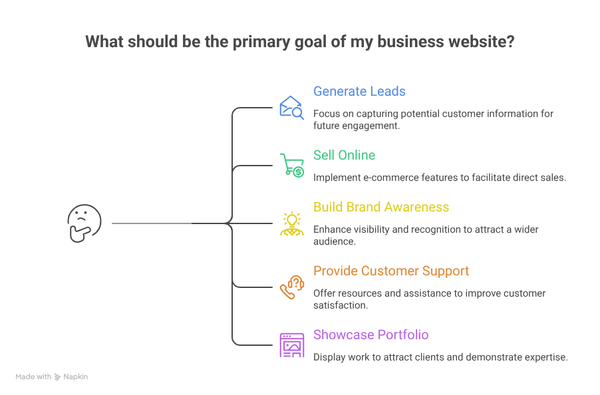
Your goals directly influence every decision – from the platform you choose to the pages you create. A freelance photographer has entirely different needs than a retail shop owner.
Know Your Target Audience
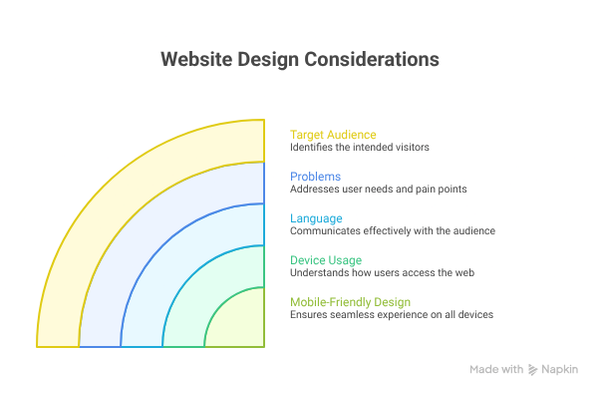
Think about who will visit your website. What problems do they have? What language do they speak? What devices do they use? Building a mobile-friendly web design is no longer optional – over 60% of all web traffic now comes from smartphones. Any business website you build must look and function perfectly on both desktop and mobile.
Set a Budget
Website development costs can range from almost free (using open-source tools like WordPress) to thousands of dollars for fully custom builds. A realistic budget breakdown for a small business website might look like this:
- Domain name: $10–$20/year
- Web hosting: $5–$30/month
- WordPress theme: Free or $30–$100 one-time
- Premium plugins: $0–$200/year
- Professional copywriting or design: Optional, $200–$2,000+
With the right tools, a polished, professional website can be live for well under $100/year in total costs.
Step 2: Getting Started – Domain, Hosting & WordPress Setup
The important steps to run a website are Domain, Hosting and setting up a builder. Let’s start with how to choose a domain:
Choose and Register a Domain Name
Your domain name is your web address (e.g., yourbusiness.com). Here are the key rules to follow:
- Keep it short, memorable and easy to spell
- Use your business name if possible
- Prefer .com – it’s still the most trusted extension
- Avoid hyphens and numbers – they look spammy
Popular domain registrars include Namecheap, GoDaddy and Google Domains. Many hosting providers also include a free domain for the first year.
Pick a Hosting Provider
Web hosting is where your website’s files live. For a business website, you’ll want reliable uptime, fast speeds and good customer support. Popular beginner-friendly options include:
- Hostinger – budget-friendly with strong value
- SiteGround – excellent performance and security
- WP Engine – premium managed WordPress hosting
- Bluehost – officially recommended by WordPress.org
- RSH Web Services – affordable hosting since 1997
Step 3: Pick a Website Builder
When it comes to building your business website, you have several options. Here’s a quick comparison of the most popular business website builders:
- WordPress (Self-hosted): The most powerful and flexible option. Used by over 43% of all websites on the internet. Free software, endless customization and a massive ecosystem of themes and plugins.
- Wix: Drag-and-drop simplicity, great for beginners. Limited flexibility as your site grows.
- Squarespace: Beautiful templates, ideal for creatives. More restrictive than WordPress.
- Shopify: Purpose-built for e-commerce. Excellent for online stores but less flexible for non-shop pages.
- Webflow: Designer-friendly with a steeper learning curve. Great for visually complex sites.
Why WordPress Is the Best Choice for Most Businesses
For the vast majority of small and medium businesses, WordPress is the clear winner. Here’s why:
- Open-source and free to use
- Thousands of free and premium themes
- Powerful plugin ecosystem – over 59,000 free plugins available
- Full control over your data and design
- Scales from a simple blog to a multi-million dollar e-commerce empire
- Huge community, tutorials and support resources
Install WordPress
Once you have hosting, installing WordPress takes less than 5 minutes. Most hosting providers include a one-click WordPress installer in their control panel (cPanel). Simply click “Install WordPress,” fill in your site name and admin credentials and you’re ready to log in to your WordPress dashboard.
| 💡 Pro Tip: Always install an SSL certificate (HTTPS) right after setting up your site. Most hosts provide free SSL via Let’s Encrypt. Google ranks HTTPS sites higher and visitors trust sites with the padlock icon. |
The Easy Way: One-Click Install
Most hosting providers (like Hostinger or SiteGround) let you install WordPress in just a few clicks right from your hosting account:
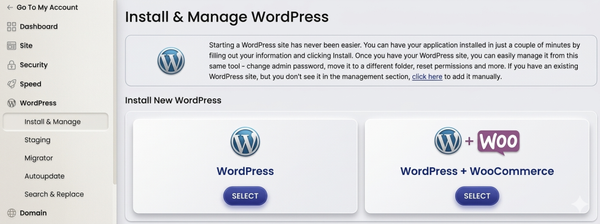
- Log in to your hosting account.
- Look for a “WordPress” or “Autoinstaller” section.
- Choose your domain and hit Install.
- When asked to create login credentials, don’t use “admin” as your username – it’s the first thing hackers guess. Pick something unique and use a strong password.
That’s how easy it is to install WordPress.
When it comes to WordPress, choosing the right platform makes a huge difference.
That’s where an all-in-one WordPress cloud platform like InstaWP becomes a smarter choice. Instead of switching between separate tools for hosting, domain management, staging, development, testing, and site management, InstaWP brings everything into one connected dashboard.
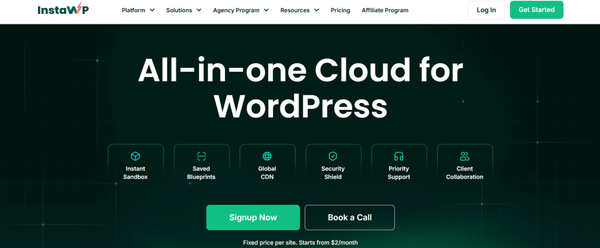
You can build WordPress sites, test changes safely, map domains, launch production sites, manage hosting, and maintain client or business websites from the same platform. No local setup. No jumping between multiple dashboards. No messy handoffs between development and hosting.
For businesses, this means faster launches and fewer technical bottlenecks. For developers and agencies, it means a cleaner workflow to build, host, and manage WordPress sites without the usual hassle with affordable pay-as-you-go hosting plans.
Pro Tip:
“Write down your admin username and password somewhere safe. Losing them means a recovery process that can cost you time.”
Step 4: Plan Your Site Architecture
Site architecture refers to how your pages are organized and connected. A well-structured website helps visitors find what they need quickly and helps search engines crawl and index your content – both critical for local business SEO.
Keep It Simple
Most small business websites need no more than 5–7 top-level pages in their navigation. A clear, flat structure works better than deeply nested menus. Think of it like a well-organized store – customers should never feel lost.
Create a Sitemap
Before building, sketch out all your pages and how they connect. A typical structure for a service-based business looks like:
- Home
- About Us
- Services (with sub-pages per service)
- Blog / Resources
- Testimonials or Case Studies
- Contact
For an e-commerce site, you’d also add Shop, Product Categories, Cart, Checkout and My Account pages.
Plan Your Navigation
Your main navigation menu should reflect your most important pages. Avoid cramming too many items – 5 to 7 is the sweet spot. If you use Elementor on your WordPress site, the Element Pack Mega Menu widget gives you stunning multi-column navigation menus that guide visitors naturally through your site.
Step 5: Design Your Website
At this stage, we will design the website, although the design of a WordPress website depends mainly on the theme. So we will show the webpage design through a theme installation.
Pick a Theme or Template
Your WordPress theme controls the overall look and feel of your website. A great theme should be:
- Lightweight and fast-loading
- Mobile-responsive out of the box
- Compatible with popular page builders (Elementor, Gutenberg)
- Regularly updated by the developer
Some excellent free themes for business websites include Astra, Hello Elementor, Kadence and GeneratePress. These themes are ultra-lightweight and designed to be paired with powerful plugins that do the heavy design lifting.
How to Install a WordPress Theme
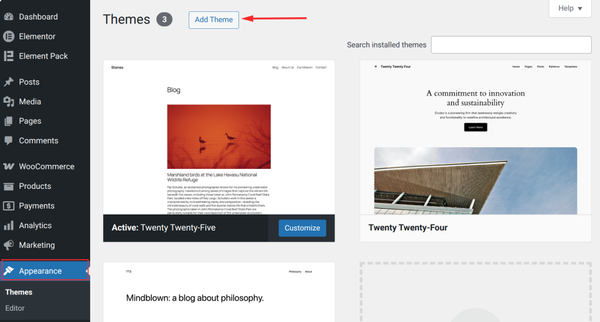
To install your chosen theme: go to Appearance → Themes → Add New,
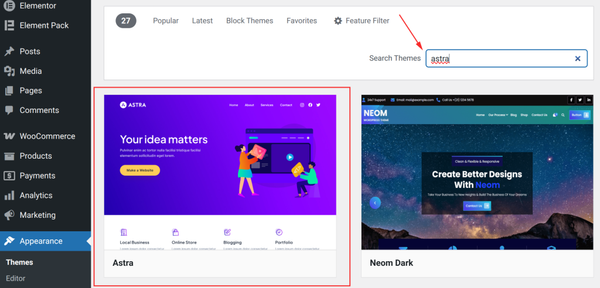
Search for the theme name, for example, I am searching here for“Astra.”
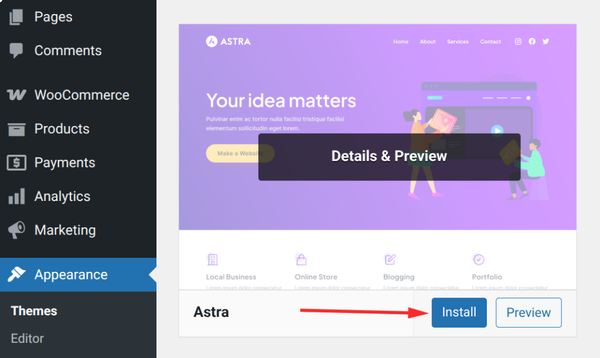
And click Install.
Finally hit the Activate button.
Step 6: Choose a Builder Plugin
WordPress plugins are the foundation that enhances your site’s functionality. There are over 60,000 WordPress plugins in the official directory. Of these, several thousand are builder plugins.
Popular builder plugins include Divi, Beaver Builder, Bricks and Gutenberg. However, the most widely used and popular plugin is Elementor. So, in this tutorial, we will show the full process using Elementor.
There is also a simple reason to use Elementor in this tutorial: it strikes the best balance between ease of use and depth of the ecosystem. It has the largest beginner community. It has the most available tutorial content online.
Also, the most important thing for this guide is that it has the richest library of WooCommerce-focused add-ons.
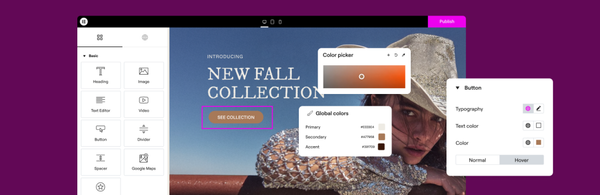
How to Install Elementor
- Go to your WordPress dashboard
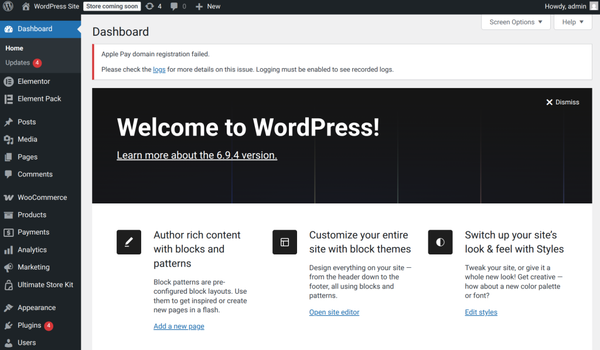
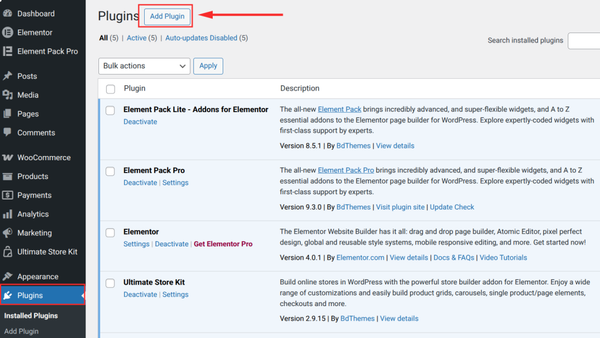
- Go to Plugins → Add New
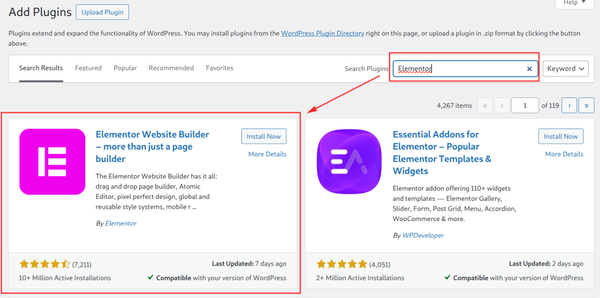
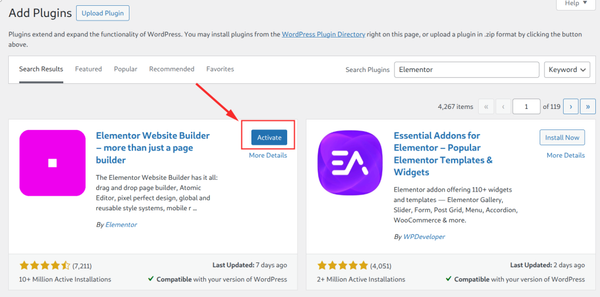
- Type “Elementor” in the search bar
- Click Install Now on the Elementor Website Builder result
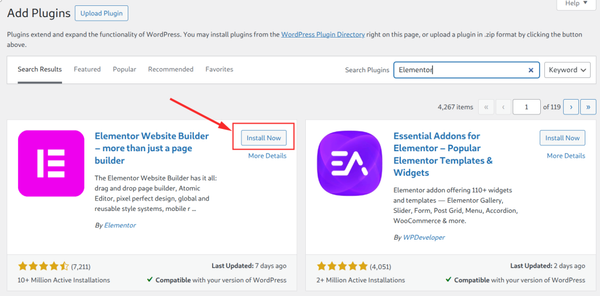
- Once installed, click Activate
How to Create a Page with Elementor
- Go to Pages → Add New in your WordPress dashboard
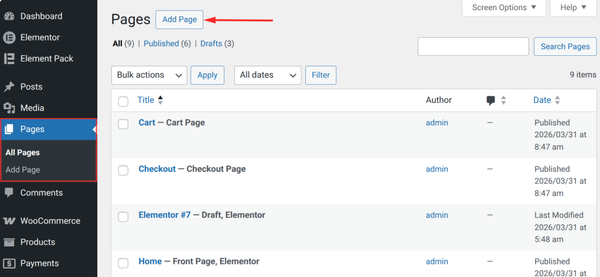
- Give your page a title (e.g. “Home” or “Shop”)
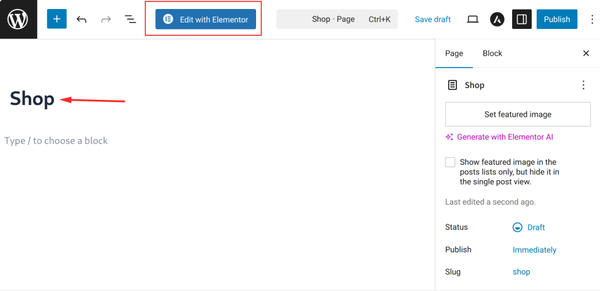
- Click “Edit with Elementor” – the live canvas will load
- Click the “+” icon to add a new section and choose a column structure
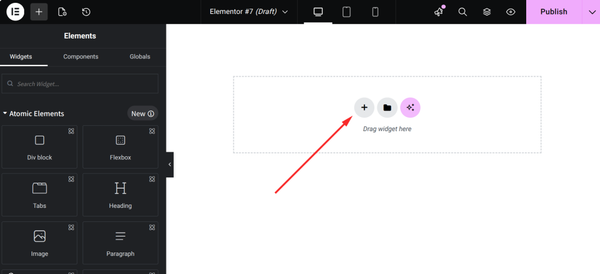
- Browse the widget panel on the left and drag widgets onto your canvas
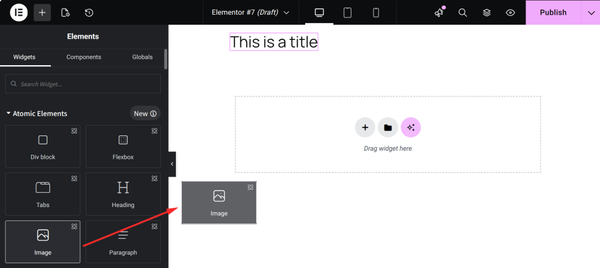
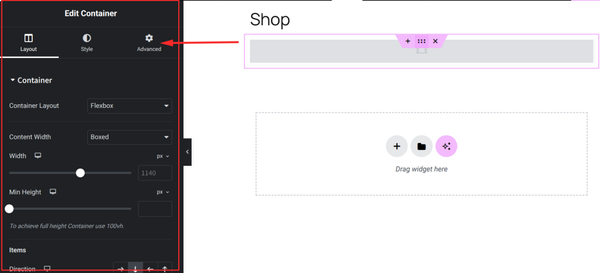
- Click any element to edit its content, style and settings in the left panel
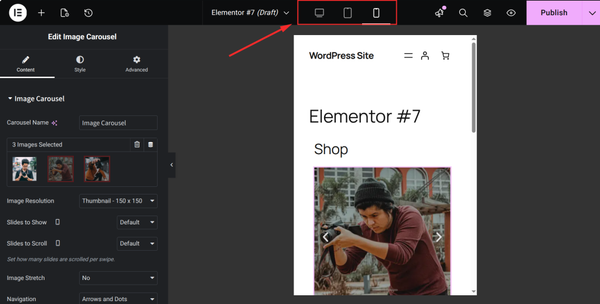
- Use the mobile/tablet icons at the top to check how it looks on smaller screens
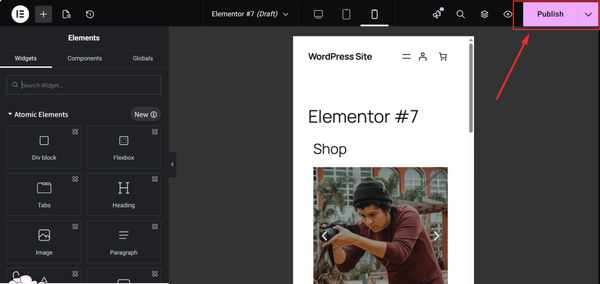
- When done, click the “Publish” button at the bottom left to make it live
Elementor Free comes with some powerful basic widgets. Such as text, images buttons, videos, etc. but for a professional eCommerce store, just basic widgets are not enough.
Add-on plugins enrich Elementor’s widget library with more advanced components, such as product carousels, mega menus, pricing tables, testimonial sliders, countdown timers and WooCommerce-specific layouts that are not available only in Elementor.
You can find many such plugins in the WordPress directory. These include Elementor Pack, Essential Addons for Elementor, ElementsKit and Happy Addons.
However, instead of installing ten different plugins for ten different features, a well-designed add-on like Element Pack provides dozens of features in one place.
In this part of the blog, we will show you how to create a WooCommerce page using Element Pack. You can use any other add-on plugin if you want.
Pro Tips:
“Element Pack’s free version alone provides dozens of widgets that would otherwise require multiple separate plugins. It can meaningfully reduce your total plugin count while expanding design flexibility.
How to Install Element Pack
We will install the free version of Element Pack here.
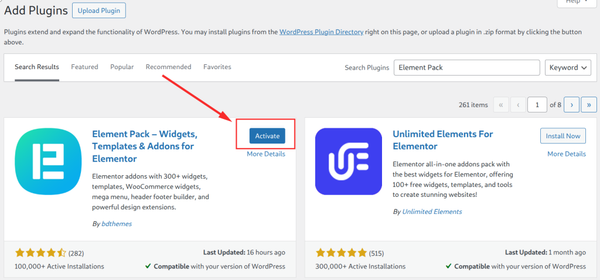
- Go to Plugins → Add New
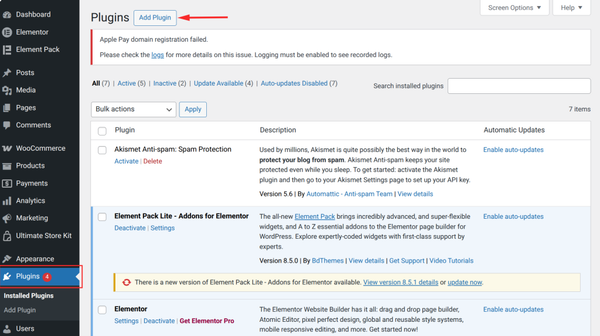
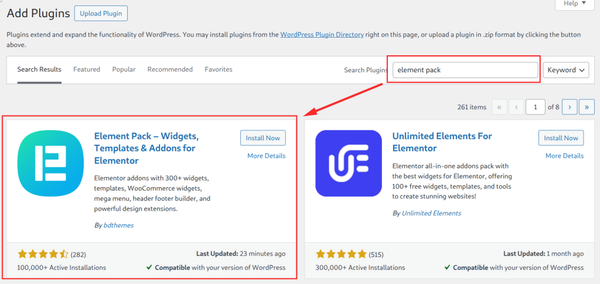
- Type “Element Pack” in the search bar
- Click Install Now,
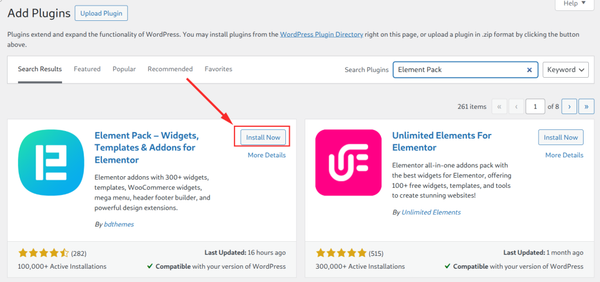
- Finally Activate.
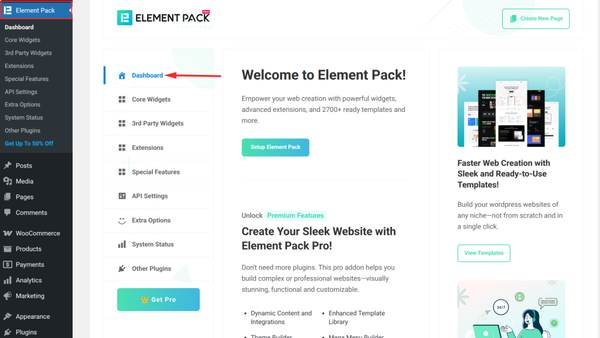
- Go to the Element Pack menu
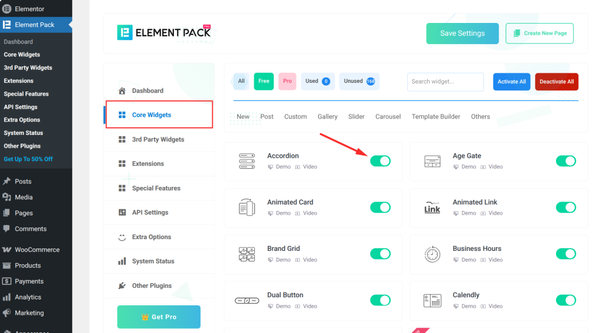
- In Core Widgets, enable only the widgets you need and click Save.
Now, we’ll walk through creating a landing page with Element Pack.
How to Design a Landing Page Using Element Pack Templates
Element Pack comes with a built-in template library that lets you import ready-made page designs with a single click – no building from scratch required.
- Go to the WordPress admin Dashboard and select Pages → Add Page.
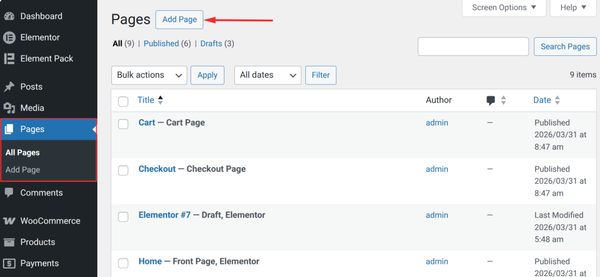
- Name your page.
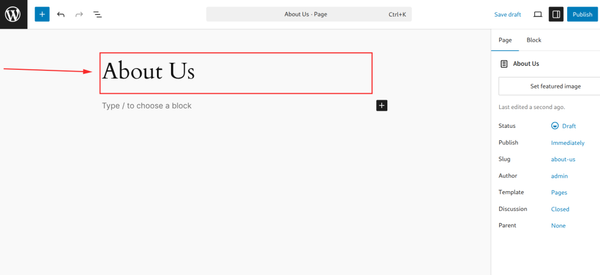
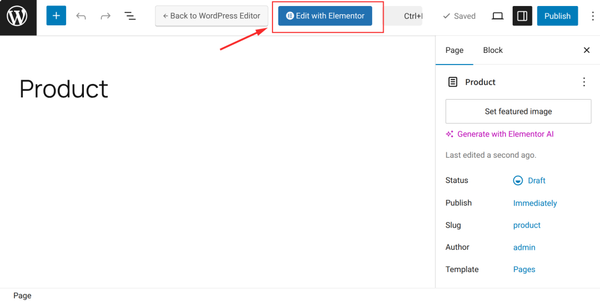
- Now, click “Edit with Elementor.”
- You can also open any page and click the Edit with Elementor button.
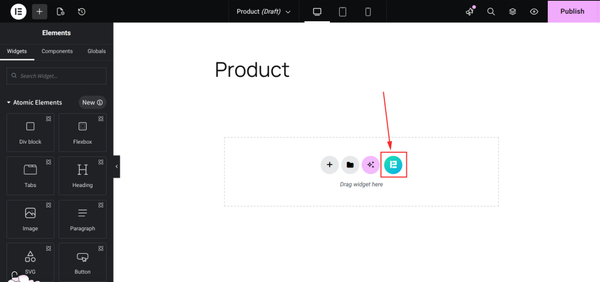
- Click the Element Pack icon to add a template.
- Switch to the “Element Pack” tab in the template library
- Browse the WooCommerce-related templates – landing page, shop pages, product pages, checkout layouts and more
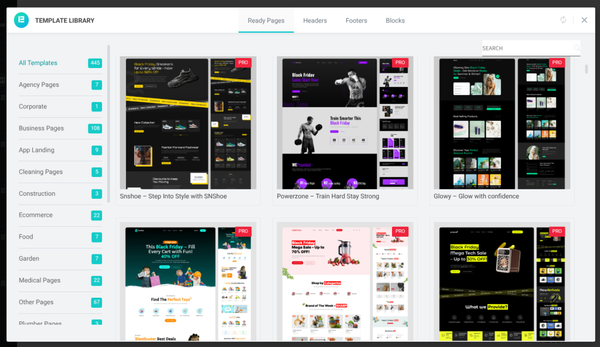
- Click Preview to see a full-screen demo of any template
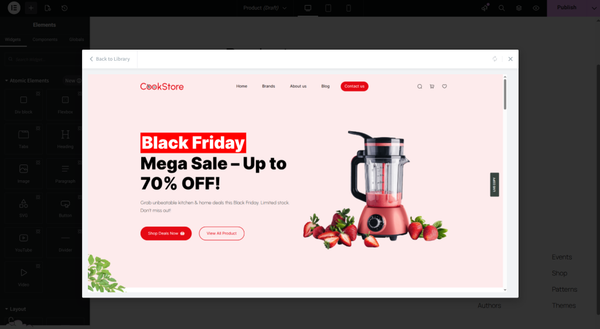
- Click “Insert” to import it directly onto your canvas
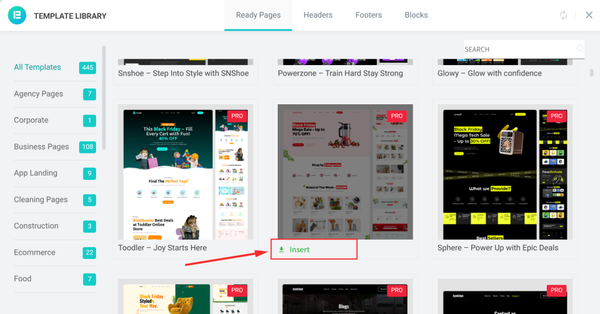
- Replace the placeholder text, images and colors with your own branding
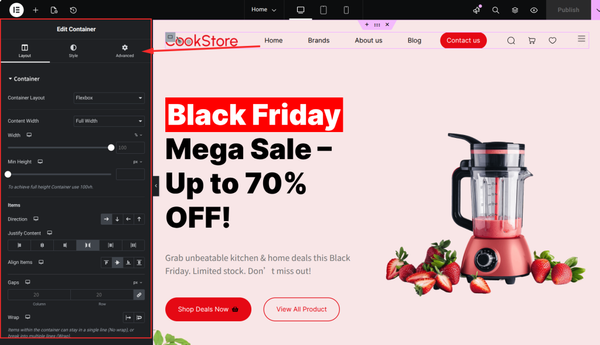
- Adjust any widget settings by clicking on individual elements
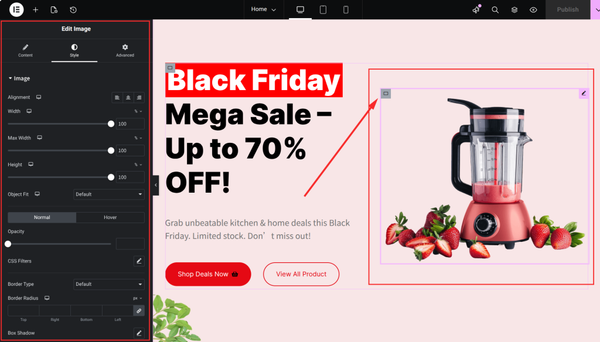
- Hit Publish when you’re happy with the result
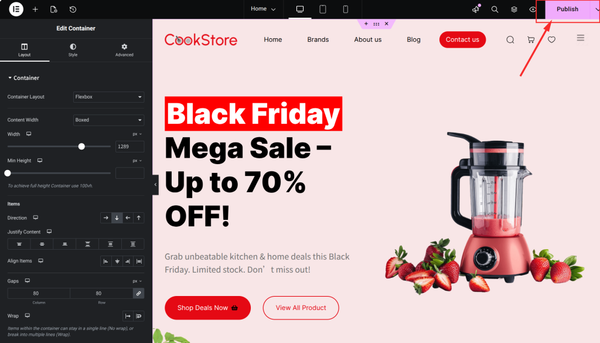
Finally, we will get a complete landing page that looks like this.
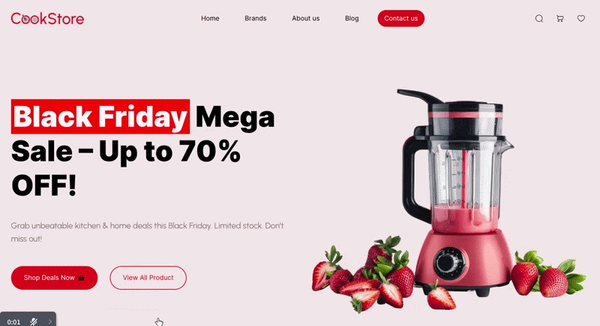
The landing page is done! Similarly, other pages, such as the service page, about page and contact page, can be easily created using element pack templates.
Additional Pages for an Online Store
If you are building an e-commerce site, WooCommerce is the best solution for WordPress. It is free, highly extensible and is used by over 28% of all online stores. To give your WooCommerce store a truly professional design, you can take the help of various third-party addons. Among them, Store Kit (Ultimate Store Kit) is an amazing Elementor addon specially designed for WooCommerce.
You can read this blog below on how to create a WooCommerce page using the Ultimate Store Kit.
Read: How to Build a WooCommerce Page using Ultimate Store Kit
Shop Page
Your main shop or product listing page should be clean, visually appealing and easy to filter. Store Kit’s Shop Page templates give you complete design control over your WooCommerce shop – custom layouts, product grids, filter bars and more.
Single Product Page
Each product deserves a dedicated page that sells. A high-converting product page has great photos, a clear product title and description, trust badges, customer reviews and an obvious Add-to-Cart button. Store Kit’s Single Page Pro lets you design stunning product pages that drive conversions.
Cart Page
A well-designed cart page reduces abandonment. Show a clear order summary, allow quantity adjustments, display shipping estimates and reassure customers with security badges. Store Kit’s Cart Pro gives your cart page a polished, conversion-optimized design.
Checkout Page
Checkout friction kills sales. Keep the checkout process as simple as possible – ideally, a single page. Remove unnecessary distractions, offer multiple payment methods and display trust seals prominently. Store Kit’s Checkout Pro helps you redesign the entire checkout experience without writing any code.
My Account Page
Returning customers need a clean dashboard to view order history, update their profile and manage subscriptions. Store Kit’s My Account Pro transforms the default WooCommerce account area into a beautifully designed, easy-to-use customer portal.
| 💡 Pro Tip: If you’re running a WooCommerce store, always enable an “Order Received” confirmation page. Store Kit offers a fully customizable Order Received Pro template that reinforces customer trust after every purchase. |
Extra: Building with the WordPress Block Editor (Gutenberg)
The Gutenberg block editor is WordPress’s built-in page builder – and it’s come a long way since its first release. If you prefer not to install Elementor, you can build a fully functional, beautiful business website using only Gutenberg blocks.
How to Build a WordPress site using Gutenberg
Building a WordPress site with the Gutenberg (Block Editor) is all about using modular “blocks” to design your layout without writing complex code or relying on third-party page builders.
After installing the latest version of WordPress, go to your WordPress dashboard
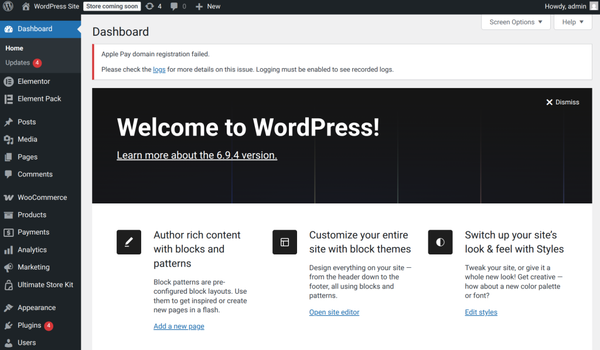
Choose a Block Theme:
- Go to Appearance > Themes and select a “Block Theme” (like Twenty Twenty-Four or Frost). These are designed specifically for Full Site Editing (FSE).
Understand the Block Concept:
“Everything in Gutenberg is a block. You can add:
- Basic Blocks: Paragraphs, Headings, Images and Lists.
- Layout Blocks: Columns, Groups (for background colors) and Spacers.
- Design Blocks: Buttons, Covers (images with text overlays) and Galleries.”
Design Your Pages:
- Navigate to Pages > Add New.
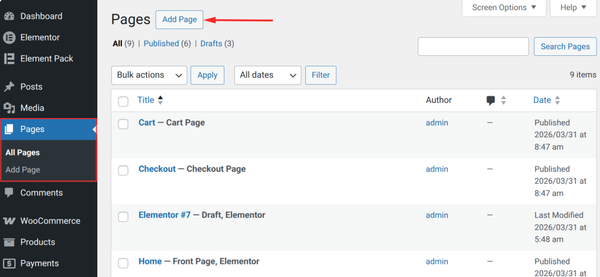
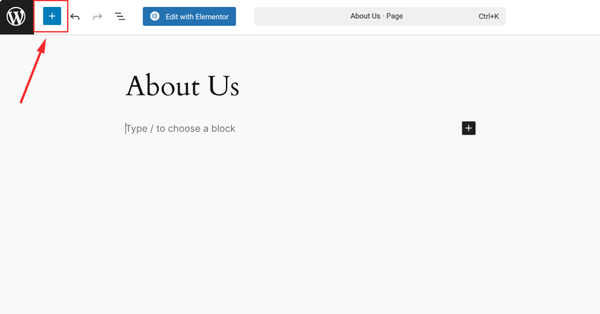
- Click the (+) icon to browse and insert blocks.
- Use Patterns: Click the (+) button, then the Patterns tab. These are pre-designed sections (like “About Me” or “Pricing Tables”) that you can drop in and customize.
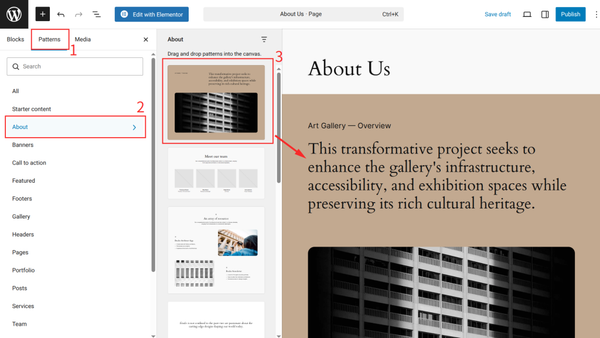
The default WordPress blocks are a solid starting point – paragraphs, headings, images, columns buttons. But to unlock truly professional designs without custom CSS, you’ll want a dedicated Gutenberg blocks plugin.
ZoloBlocks is one of the most feature-rich Gutenberg plugins available. From Advanced Headings and Icon Boxes to Brand Carousels, Countdown Timers and a Form Builder – ZoloBlocks gives you the design power of a premium page builder while staying completely inside the native WordPress editor.
You can read this blog below on how to create a business website using ZoloBlocks
Read: How Can I Make a Website for My Business? (Step-by-Step Guide for Beginners 2026) (Using Guttenberg – ZoloBlocks)
Here are some Gutenberg design tips for business websites:
- Use reusable blocks for repeated elements (headers, CTAs, testimonial cards)
- Leverage full-width sections for impactful hero banners
- Use the Columns block strategically – three-column layouts work great for service showcases
- Keep font sizes consistent using your theme’s typography settings
- Test every design change on mobile before publishing
SEO & Performance Tips for Your Business Website
Building your website is only half the battle. You also need people to find it. Search Engine Optimization (SEO) is how you make your site visible on Google.
Install an SEO Plugin
Plugins like Yoast SEO or Rank Math make on-page SEO straightforward. They guide you through adding meta titles, meta descriptions and schema markup to every page.
Focus on Local Business SEO
If your business serves a specific area, local SEO is your best friend. Key actions:
- Claim and optimize your Google Business Profile
- Include your city and region in page titles and headings
- Get listed in local directories (Yelp, Yellow Pages, etc.)
- Encourage customers to leave Google reviews
- Add LocalBusiness schema markup to your website
Speed and Core Web Vitals
Google uses page speed as a ranking factor. A slow website also frustrates visitors and hurts conversions. Key optimization steps:
- Use a fast, lightweight theme (Astra, Kadence, GeneratePress)
- Compress and lazy-load images
- Use a caching plugin (WP Rocket, W3 Total Cache)
- Use a CDN (Cloudflare is free)
- Minimize plugins – only install what you truly need
Element Pack’s built-in Assets Manager helps you load only the CSS and JavaScript your pages actually need – resulting in significantly faster page load times without any manual optimization.
Frequently Asked Questions (FAQ)
How much does it cost to create a business website?
A basic WordPress business website can cost as little as $50–$150/year, including hosting and a domain. Add premium plugins or a professionally designed theme and you might spend $200–$500. A fully custom website built by an agency can run $2,000–$20,000+. For most small businesses, the DIY WordPress route offers the best value.
Do I need to know how to code?
No. With WordPress and modern page builder plugins like Elementor paired with Element Pack or the native Gutenberg editor enhanced with ZoloBlocks, you can build a stunning, fully functional business website without writing a single line of code.
How long does it take to build a business website?
A simple business website with 5–7 pages can be built in a weekend if you have your content ready. More complex sites with an online store, custom design or large amounts of content can take 2–8 weeks.
What is the best website builder for small businesses?
WordPress is generally the best choice for small businesses due to its flexibility, scalability and cost-effectiveness. Wix and Squarespace are simpler but more limiting as your business grows.
How do I make my website mobile-friendly?
Choose a responsive WordPress theme, test your design on multiple screen sizes before launching and use page builder tools that preview mobile layouts in real time. Plugins like Element Pack and ZoloBlocks include built-in responsive controls so you can fine-tune spacing, font sizes and visibility per device.
How do I set up an online store?
Install WooCommerce, choose a WooCommerce-compatible theme and use Store Kit to design all your store pages – shop, product, cart, checkout and account – to look fully professional. Add your products, configure shipping and payment and you’re ready to sell.
What is an AI website generator?
Some platforms now offer AI-powered website creation tools that generate a basic site structure, copy and layout from a prompt. These are great for getting a starting point quickly but most serious businesses still refine their AI-generated sites with proper design tools and custom content.
How do I improve my business website’s SEO?
Install Yoast SEO or Rank Math, optimize every page with relevant keywords, build backlinks from reputable sites, publish regular blog content, ensure fast load speeds and set up your Google Business Profile for local SEO.
Conclusion
Creating a website for your business doesn’t have to be overwhelming or expensive. With WordPress as your foundation and the right tools in your arsenal, you can build a professional, high-performing website that represents your brand beautifully and works hard to grow your business 24/7.
Here’s a quick recap of the path to follow:
- Plan first: Define your goals, audience and budget before touching any tools.
- Set up properly: Register a domain, choose reliable hosting and install WordPress.
- Choose a website builder: WordPress beats the competition for flexibility and value.
- Architect your site: Map out your pages and navigation before you start designing.
- Design beautifully: Use a lightweight theme and power it up with professional plugins.
- Build for your goals: Create every essential page with purpose – and add e-commerce pages if you’re selling online.
- Optimize for SEO: Make sure people can actually find your website on Google.
We recommend using Elementor with the Element Pack for drag-and-drop page creation. Use the native Gutenberg editor powered by ZoloBlocks for a code-free block-based design workflow. And if you want to build a world-class WooCommerce store, use the StoreKit.
BdThemes has the tools you need to make your dreams a reality. Check out the full suite of WordPress plugins at BdThemes and start building a website your business will be proud of.
Md Tariqul
The BdThemes team builds WordPress plugins trusted by 3M+ users worldwide. We write about web accessibility, WCAG compliance, and inclusive design.