

So you want to create a WordPress eCommerce site and you want to do it without hiring a developer, spending a fortune or spending weeks figuring it out. You’ve come to the right place.
WordPress is the world’s most trusted website platform and when paired with WooCommerce, it becomes one of the most powerful eCommerce solutions available today, completely free to start.
Whether you’re selling handmade crafts, digital downloads, clothing or services, knowing how to create a WordPress eCommerce site gives you full control over your store, your data and your costs.
In this step-by-step guide, you’ll learn exactly how to create a WordPress eCommerce site from scratch. Even if you’ve never built a website before.
We’ll walk you through everything: choosing a domain and hosting, installing WordPress and WooCommerce, designing your store pages with Elementor, adding products, setting up payments and launching with confidence.
By the end, you’ll have a live, professional eCommerce store ready to accept real orders, built on tools that scale with you as your business grows.
Here’s what this guide covers:
- Choosing the right hosting and domain for your store
- Installing WordPress and WooCommerce in minutes
- Designing beautiful store pages with drag-and-drop builders
- Adding products, configuring payments and setting up shipping
- Optimizing your store for speed, SEO and conversions before launch
No coding required. No design experience needed. Just follow the steps, and you’ll have a fully functional store running by the time you’re done.
Why WordPress for Creating an eCommerce Site in 2026?
If you’ve been wondering which platform to build your online store on, the numbers tell a convincing story. WordPress powers over 43% of all websites on the internet – making it the most popular website platform in the world by a wide margin.
When you pair it with WooCommerce, the leading open-source eCommerce plugin, you get a fully functional, scalable store with full control over every element.
Unlike hosted platforms that lock you into monthly fees and rigid templates, WordPress gives you the freedom to build a professional website exactly the way you imagine it.
You can create a WordPress eCommerce site for a fraction of the cost and you’re never held hostage by someone else’s pricing changes.
“You’ll have a fully functional online store running in a single afternoon – and it won’t cost you a fortune to get there.”
In 2026, the WordPress ecosystem has matured beautifully. Page builders, drag-and-drop editors and purpose-built eCommerce plugins have made the process more beginner-friendly than ever.
You no longer need to write a single line of code to build a beautiful, modern WordPress store.
Here’s a quick look at what makes WordPress stand out for new store owners:
| Feature | WordPress + WooCommerce | Typical Hosted Platforms |
| Full control over design | ✔ Yes | ✘ Limited |
| No transaction fees | ✔ Yes | ✘ Often 2–3% |
| Thousands of free plugins | ✔ Yes | ✘ App stores vary |
| Sell digital downloads | ✔ Built-in | ✘ Paid add-on |
| Open source & portable | ✔ Yes | ✘ Vendor lock-in |
Ready to learn how to build a complete eCommerce website with WordPress? Let’s go step by step.
Step 1: Pick Your Domain & Buy a Hosting
Before you install WordPress, you need two things: web hosting (a server that stores your website files) and a domain name (your web address, like yourbrand.com). Think of it like renting a plot of land and putting up a signpost.
Buying Your Domain
Most hosting plans let you buy a domain directly during sign-up. Choose a name that’s short, easy to spell and relevant to your niche. If your preferred .com is taken, try .store, .shop or .co – all widely accepted in 2026.
Note:
- Domain names typically cost $10–$15/year after the first year. Factor this into your budget when you consider the costs of running your store.
- You can buy a domain from popular and trustworthy sites like Name or Namecheap etc.
Choosing a Hosting Provider
For beginners, shared hosting is the most affordable place to start. Popular beginner-friendly options include Hostinger, SiteGround, Bluehost and Cloudways. When evaluating a host, look for:
- One-click WordPress installation (saves significant setup time)
- Free SSL certificate (essential for a secure checkout)
- Reasonable renewal pricing – not just introductory rates
- 24/7 customer support, especially for beginners
- Enough storage for product images and content
Pro Tips:
Hostinger’s Business or Premium plans are a popular starting point in 2026. They include free domain registration, free SSL and automatic WordPress installation. You can set up hosting and install WordPress in under 15 minutes.
Step 2: Install WordPress
With your hosting and domain ready, it’s time to install WordPress – the software that runs your entire site, from product pages to blog posts.
Good news: it’s much easier than it used to be.
The Easy Way: One-Click Install
Most hosting providers (like Hostinger or SiteGround) let you install WordPress in just a few clicks right from your hosting account:
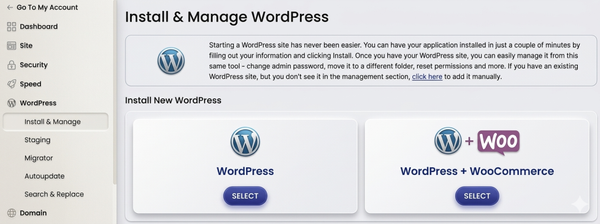
- Log in to your hosting account.
- Look for a “WordPress” or “Autoinstaller” section.
- Choose your domain and hit Install.
- When asked to create login credentials, don’t use “admin” as your username – it’s the first thing hackers guess. Pick something unique and use a strong password.
That’s how easy it is to install WordPress.
Pro Tip:
“Write down your admin username and password somewhere safe. Losing them means a recovery process that can cost you time.”
Your First Stop After Installing
Once installed, you can access your site’s backend at yourdomain.com/wp-admin.
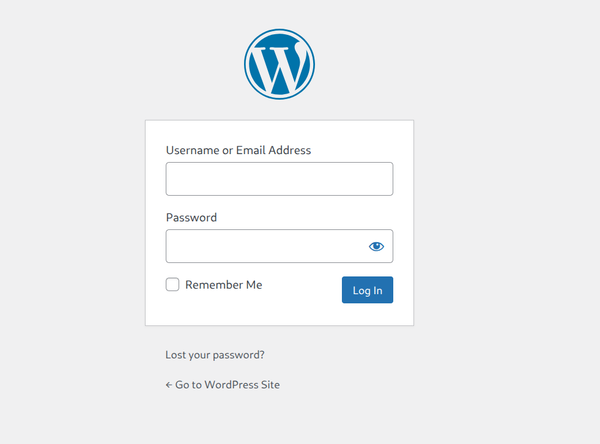
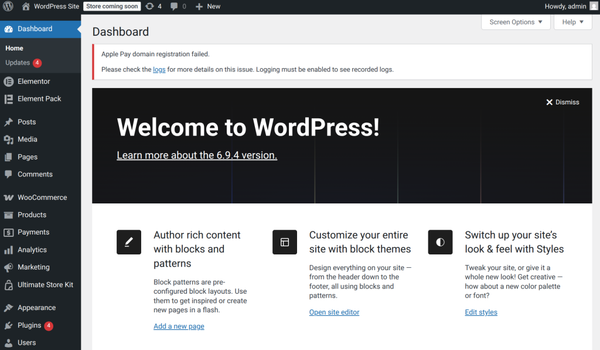
After login, you will get your WordPress website CMS dashboard will look like this
Before you do anything else, go to Settings → Permalinks and select Post Name.
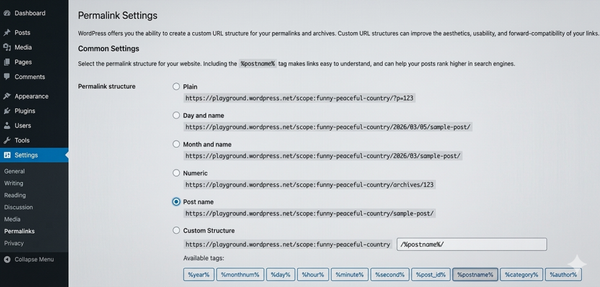
This one small change transforms your URLs from something ugly like yourstore.com/?p=123 into something clean like yourstore.com/product-name/ – which is better for SEO and looks far more trustworthy to visitors.
Step 3: Install WooCommerce
WooCommerce is the engine that transforms your WordPress site into a fully functional eCommerce website. It’s free, open-source and used by more online stores than any other platform. Its free version covers the majority of what most small stores need – products, cart, checkout orders and basic payment gateways.
How to Install WooCommerce
- From your WordPress dashboard, go to Plugins → Add New
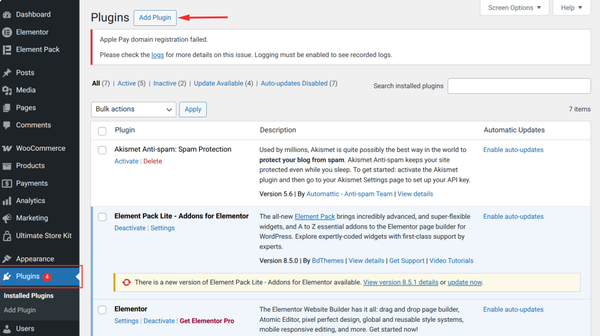
- Search for “WooCommerce”
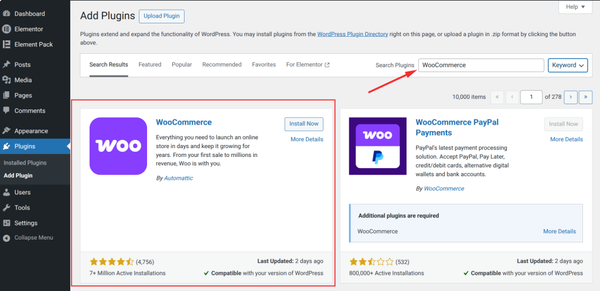
- Click Install Now,
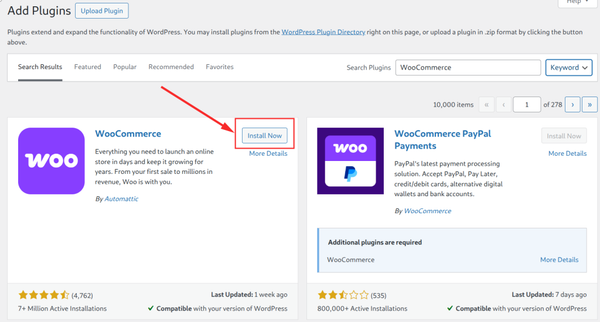
- Then Activate
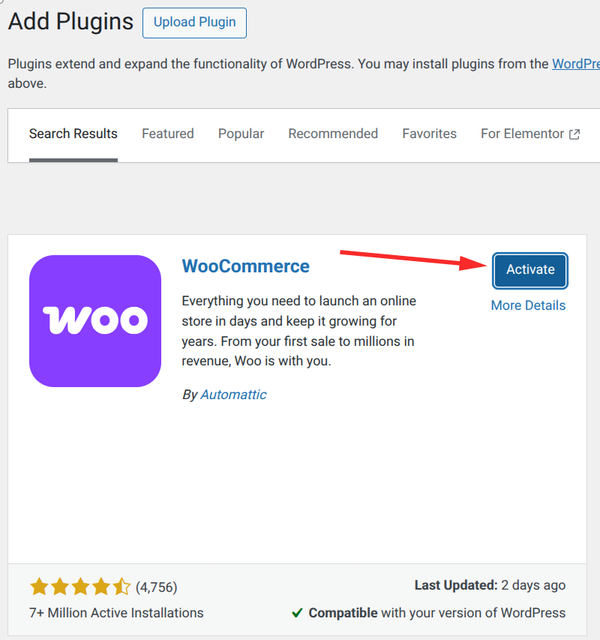
- Run through the WooCommerce Setup Wizard that launches automatically
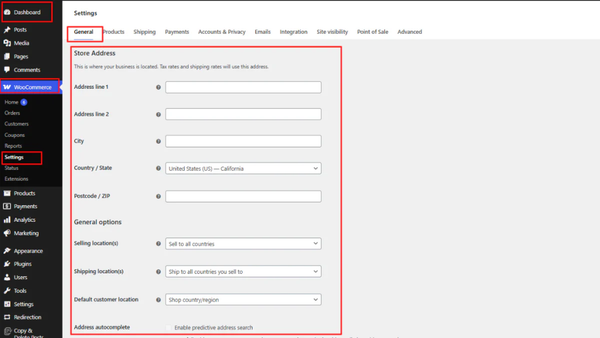
The setup wizard will ask about your store location, currency, product types (physical, digital downloads or both) and preferred payment methods. You can change all of these later, so don’t overthink the initial choices.
Note:
After setup, WooCommerce automatically creates the most important pages: Shop, Cart, Checkout, My Account and Order Confirmation. These are linked together behind the scenes – don’t delete them.
Step 4: Choose & Install a WordPress Theme
Your WordPress theme controls the overall look and layout of your site. The right theme in 2026 should be fast, mobile-responsive and compatible with page builders for easy customization.
Free vs. Premium Themes
The WordPress theme directory has thousands of free options. For eCommerce, look for themes specifically designed to work with WooCommerce – they’ll include shop page templates, product grid layouts and cart styling out of the box.
Some reliable starting points:
Storefront (Free)
WooCommerce’s own official theme. Lightweight, clean and perfectly compatible with every WooCommerce feature.
Astra (Free + Pro)
One of the fastest-loading themes available. Highly customizable and works seamlessly with Elementor and most page builders.
Kadence (Free + Pro)
A modern WordPress theme with excellent WooCommerce integration. Starter templates make getting started very fast.
OceanWP (Free + Pro)
Flexible and popular among store builders. Includes dedicated WooCommerce sections and a rich free extension library.
How to Install a WordPress Theme
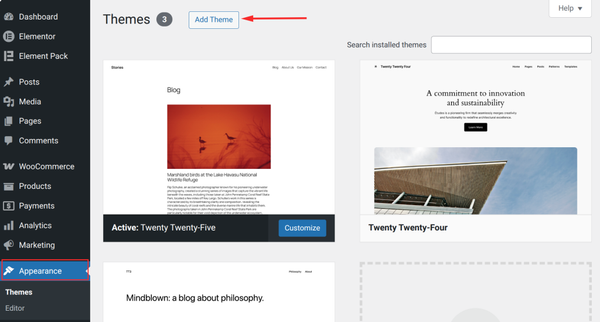
To install your chosen theme: go to Appearance → Themes → Add New,
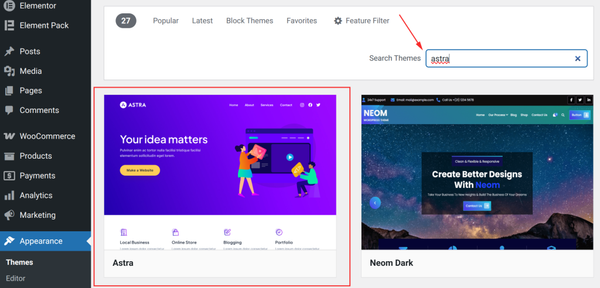
Search for the theme name, for example, I am searching here for“Astra”.
Now click Install.
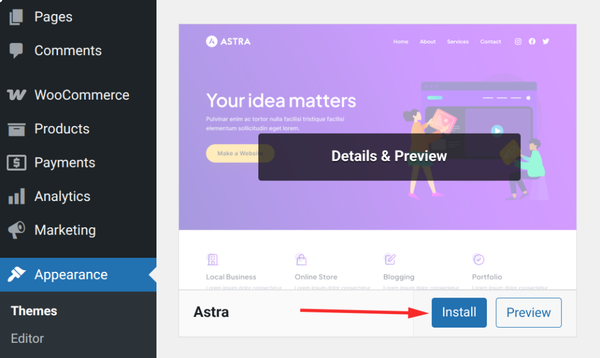
Finally hit the Activate button.
Protip:
“If you plan to use a drag-and-drop page builder like Elementor (covered in the next step), choose a theme that’s officially listed as “Elementor-compatible.” This ensures design elements render consistently.
Step 5: Choose a Builder Plugin
WordPress plugins are the foundation that enhances your site’s functionality. There are over 60,000 WordPress plugins in the official directory. Of these, several thousand are builder plugins.
Popular builder plugins include Divi, Beaver Builder, Bricks and Gutenberg. However, the most widely used and popular plugin is Elementor. So, in this tutorial, we will show the full process using Elementor.
There is also a simple reason to use Elementor in this tutorial: it strikes the best balance between ease of use and depth of the ecosystem. It has the largest beginner community. It has the most available tutorial content online.
Also, the most important thing for this guide is that it has the richest library of WooCommerce-focused add-ons.
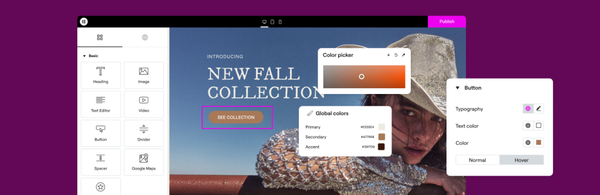
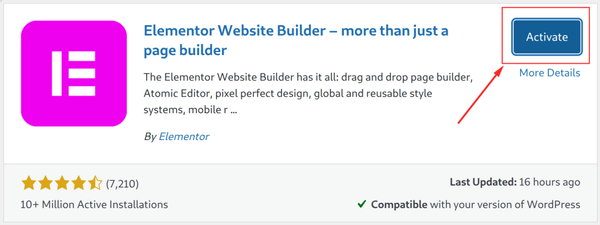
How to Install Elementor
- Go to your WordPress dashboard
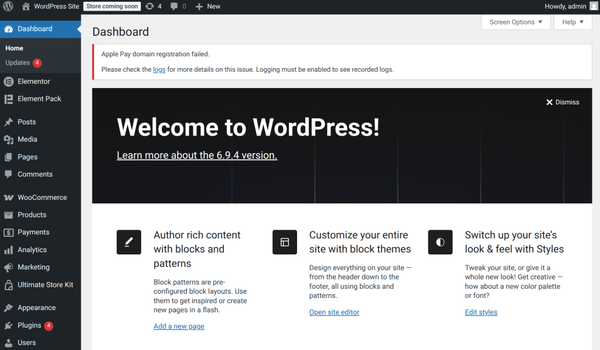
- Go to Plugins → Add New
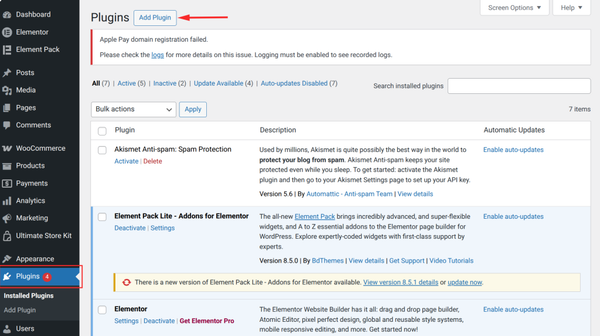
- Type “Elementor” in the search bar

- Click Install Now on the Elementor Website Builder result
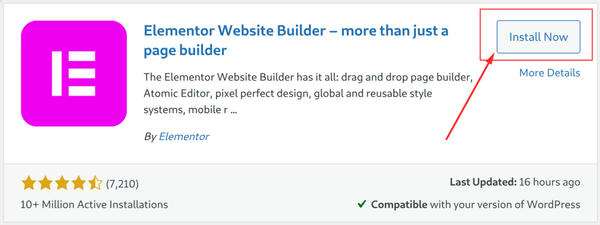
- Once installed, click Activate
How to Create a Page with Elementor
- Go to Pages → Add New in your WordPress dashboard
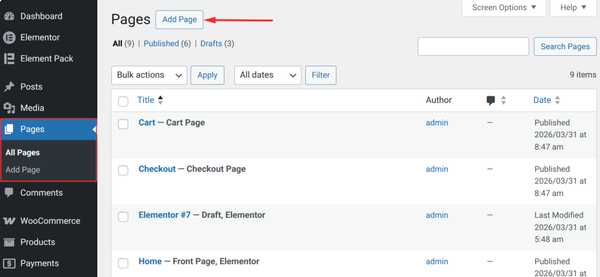
- Give your page a title (e.g. “Home” or “Shop”)
")
- Click “Edit with Elementor” – the live canvas will load
- Click the “+” icon to add a new section and choose a column structure

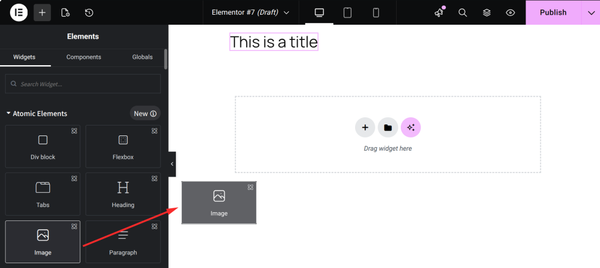
- Browse the widget panel on the left and drag widgets onto your canvas
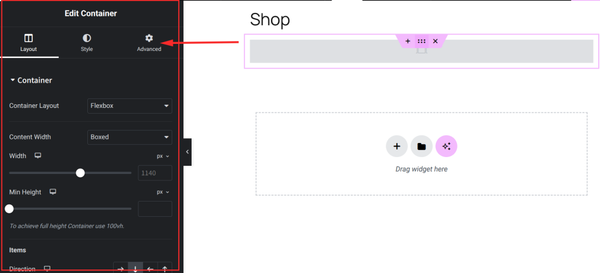
- Click any element to edit its content, style and settings in the left panel
- Use the mobile/tablet icons at the top to check how it looks on smaller screens
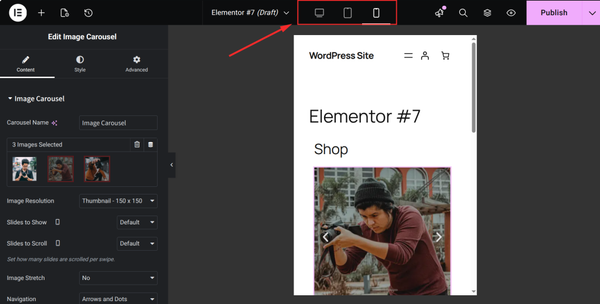
- When done, click the “Publish” button at the bottom left to make it live

Elementor Free comes with some powerful basic widgets. Such as text, images, buttons, videos, etc. but for a professional eCommerce store, just basic widgets are not enough.
Add-on plugins enrich Elementor’s widget library with more advanced components, such as product carousels, mega menus, pricing tables, testimonial sliders, countdown timers and WooCommerce-specific layouts that are not available only in Elementor.
You can find many such plugins in the WordPress directory. These include Elementor Pack, Essential Addons for Elementor, ElementsKit and Happy Addons.
However, instead of installing ten different plugins for ten different features, a well-designed add-on like Element Pack provides dozens of features in one place.
In this part of the blog, we will show you how to create a WooCommerce page using Element Pack. You can use any other add-on plugin if you want.

Pro Tips:
“Element Pack’s free version alone provides dozens of widgets that would otherwise require multiple separate plugins. It can meaningfully reduce your total plugin count while expanding design flexibility.
How to Install Element Pack
- Go to Plugins → Add New
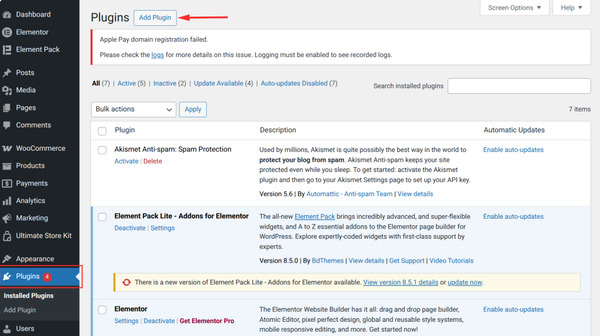
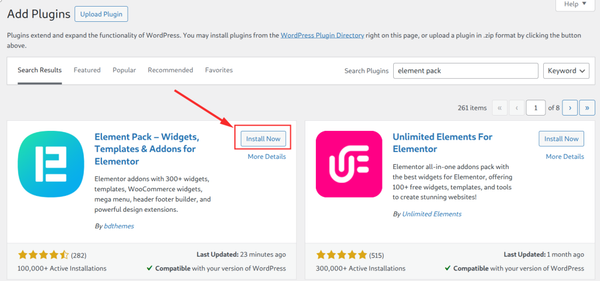
- Type “Element Pack” in the search bar

- Click Install Now,
- Finally Activate.
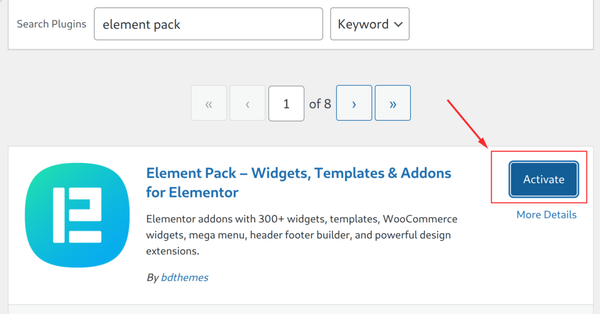
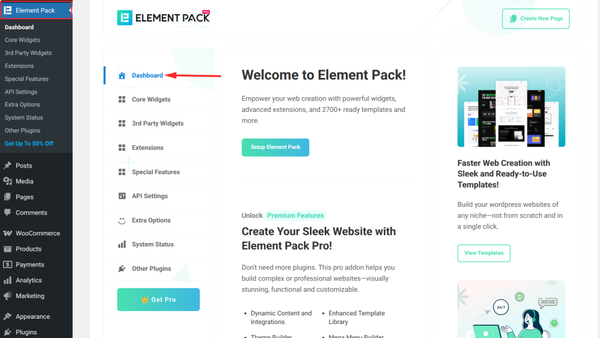
- Go to the Element Pack menu
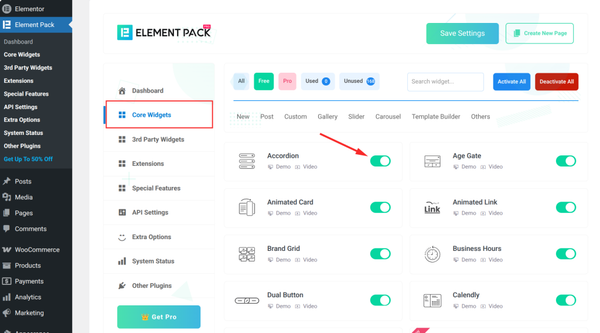
- In Core Widgets, enable only the widgets you need and click Save.
Now, we’ll walk through creating a WooCommerce landing page with Element Pack.
How to Design a WooCommerce Landing Page Using Element Pack Templates
Element Pack comes with a built-in template library that lets you import ready-made page designs with a single click – no building from scratch required.
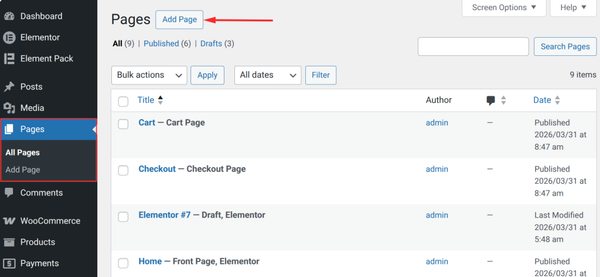
- Go to the WordPress admin Dashboard and select Pages → Add Page.
- Name your page.
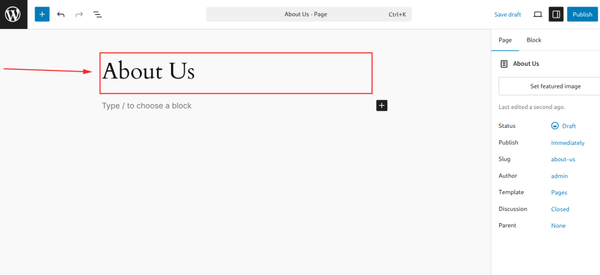
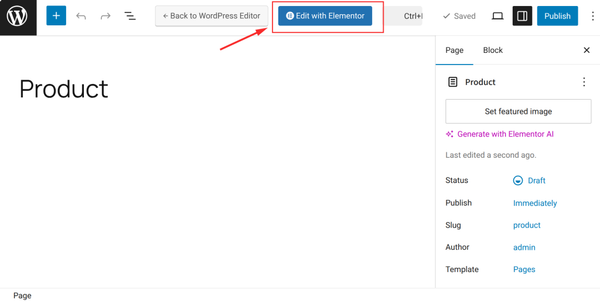
- Now, click “Edit with Elementor.”
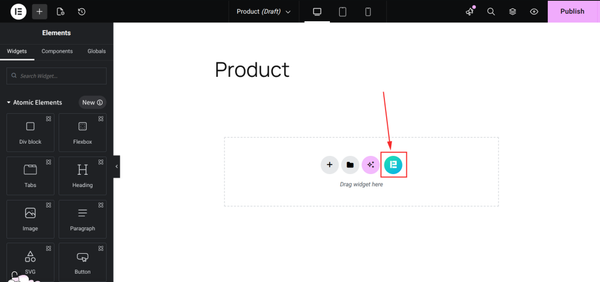
- Click the Element Pack icon to add a template.
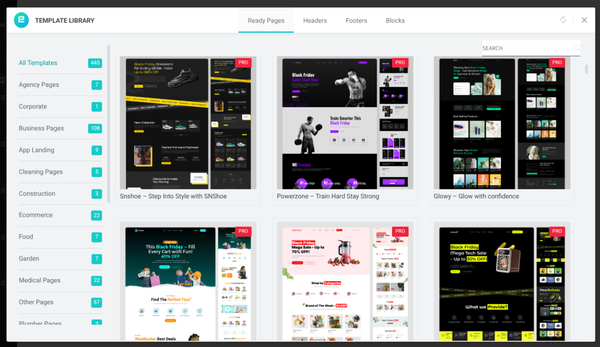
- Switch to the “Element Pack” tab in the template library
- Browse the WooCommerce-related templates – landing page, shop pages, product pages, checkout layouts and more
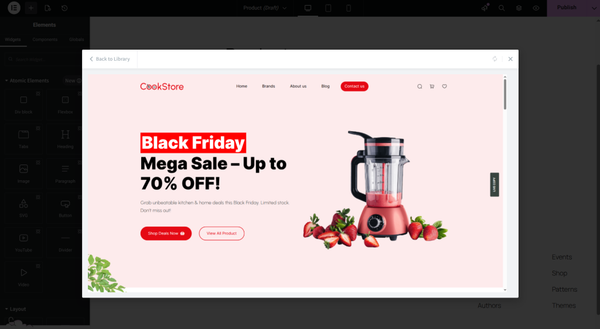
- Click Preview to see a full-screen demo of any template
- Click “Insert” to import it directly onto your canvas
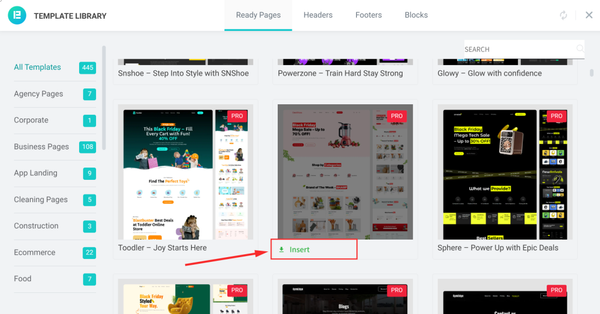
- Replace the placeholder text, images and colors with your own branding
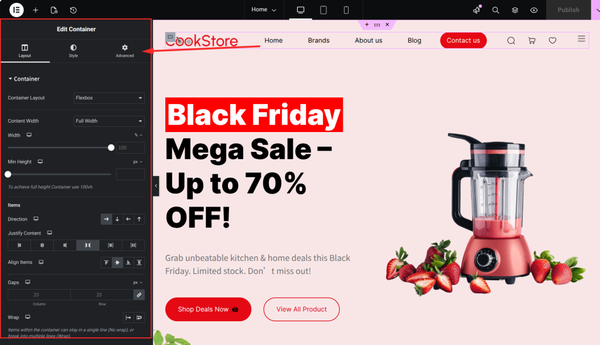
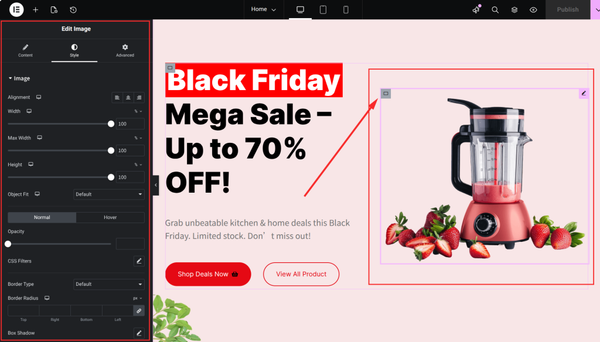
- Adjust any widget settings by clicking on individual elements
- Hit Publish when you’re happy with the result
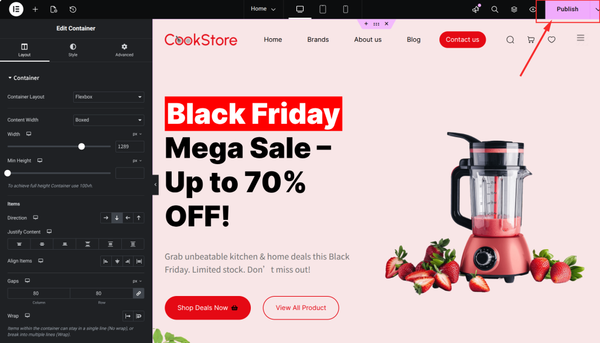
Finally, we will get a complete landing page that looks like this.
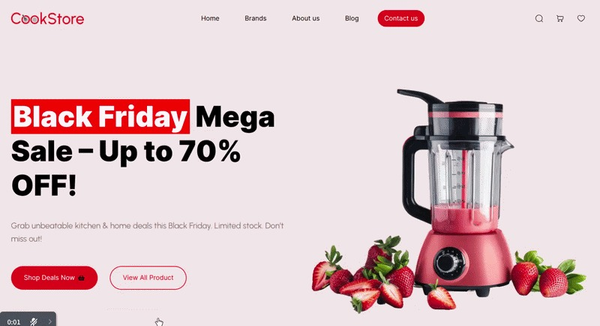
The landing page is done! Now we need to create the main pages of e-Commerce, like shop pages, product pages, checkout layouts and more. And for this, we will use the Ultimate Store Kit.
Step 6: WooCommerce Page Design
In the era of technological revolution, e-commerce competition is fiercer than ever and the store page-related experience is a key battleground when designing a WooCommerce store with Elementor.
You can build store pages with the combination of Elementor and WooCommerce but it is a very basic design. If you want to design a premium-looking WooCommerce page, then you can use some extended plugins.
Plugins like ShopEngine, ElementsKit, PowerPack and Store Build enhance the WooCommerce experience. But among these, if we talk about the best WooCommerce builder, it is Ultimate Store Kit.
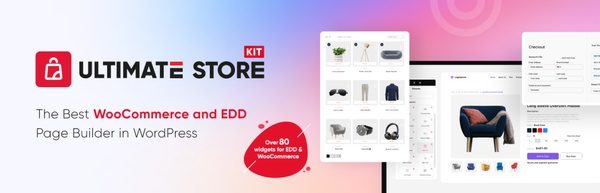
Ultimate Store Kit is purpose-built for WooCommerce stores on Elementor. While Elementor handles general page layouts, Ultimate Store Kit adds WooCommerce-specific widgets: product grids, category showcases, cart upsells, quick view modals, wishlist buttons, checkout page builders and more.
Now we will show you how to build a page (Cart Page) for free using the Ultimate Store Kit.
How to Build a WooCommerce Page using Ultimate Store Kit
To build a WooCommerce Cart Page using the Ultimate Store Kit, follow these condensed steps:
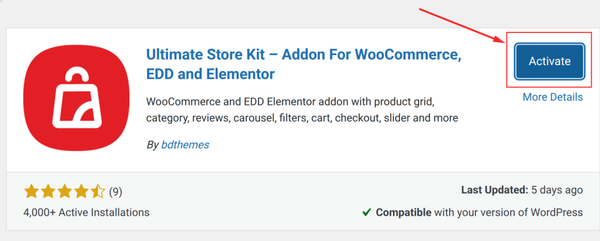
- Go to Plugins > Add New,
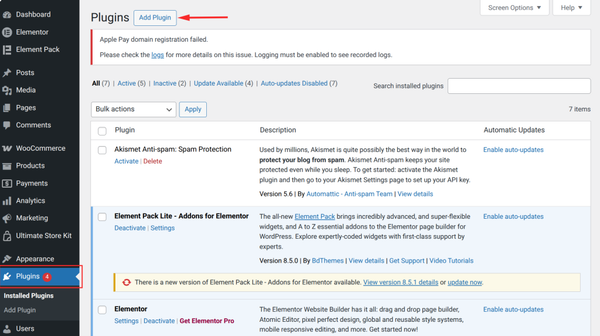
- Search Ultimate Store Kit and click Install
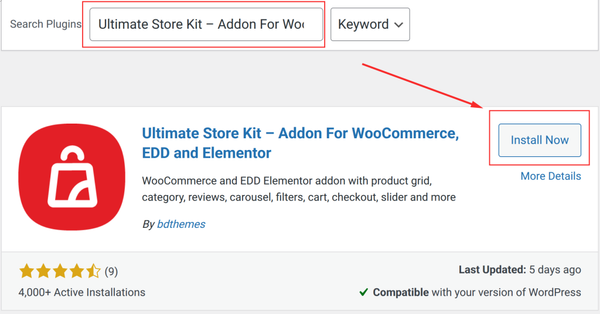
- Hit Activate Plugin
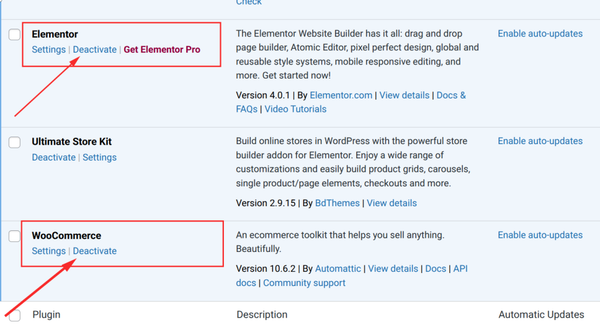
- Ensure Elementor and WooCommerce are already active. When you see “Deactivate”, it means they are active.
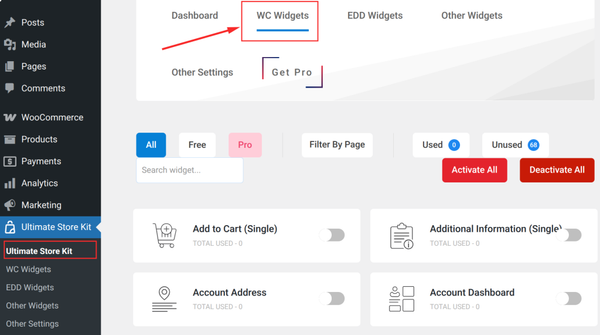
- Navigate to Ultimate Store Kit > WC Widgets.
- Enable the specific store widgets you need (e.g., Product Grid, Category List or Special Offers) and Save.
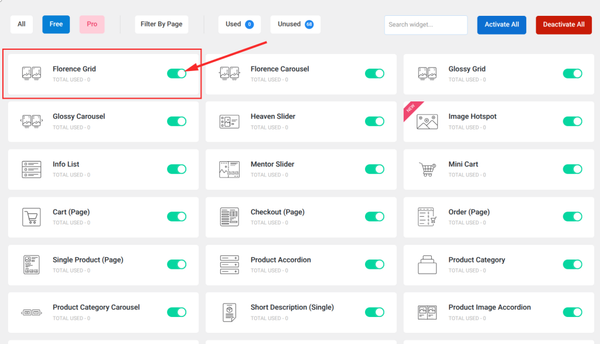
Now, we’ll walk through creating a WooCommerce page.
To create and design a page, for example, we will build a cart page. So start from here:
Step 1: Enable the Cart (Page) Widget
- Go to WordPress Dashboard → Ultimate Store Kit → WC Widgets
- Search for Cart (Page), toggle it ON, then click Save Settings
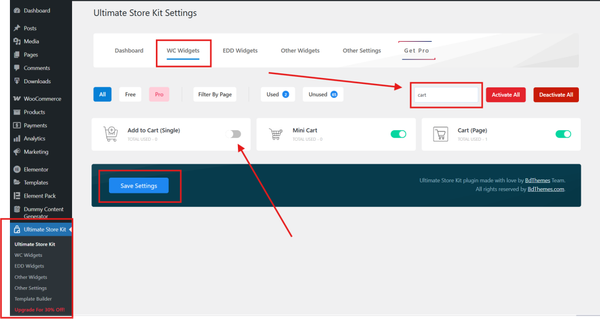
Step 2: Create a Cart Page Template
- Go to Ultimate Store Kit → Template Builder
- Click Add New Template
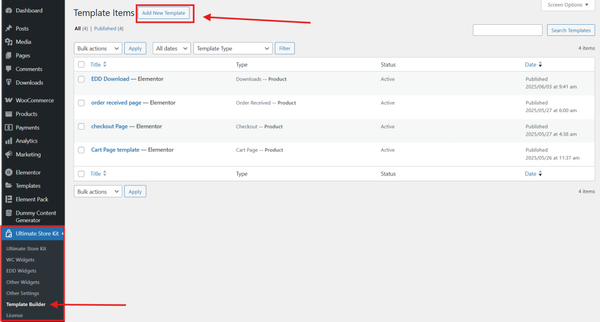
- Select template type as Cart Page, give it a name, set status to Active, then hit Create Template
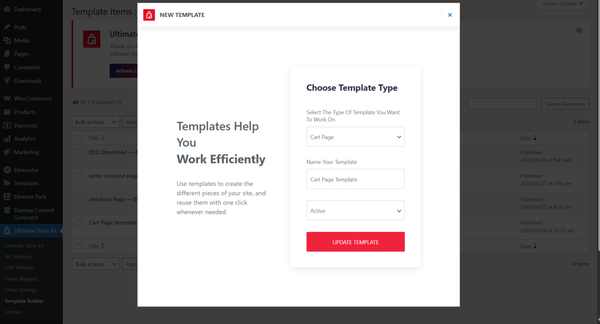
Step 3: Design the Cart Page
- The template opens automatically in Elementor Editor
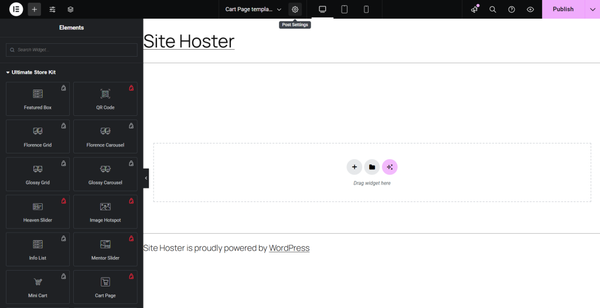
Find the Cart Page widget under the Ultimate Store Kit section. Drag and drop it onto the canvas.
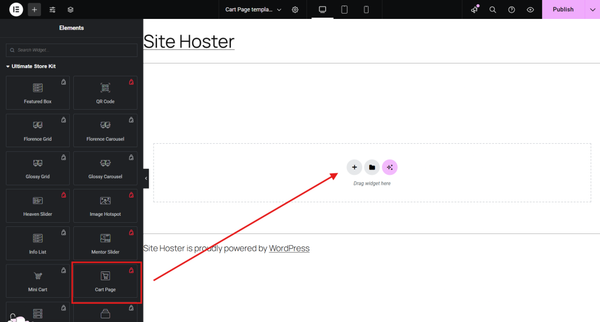
Step 4: Customize & Publish
Time to fine-tune! Adjust the content, layout, colors, spacing and other style settings to match your store’s branding and design style.
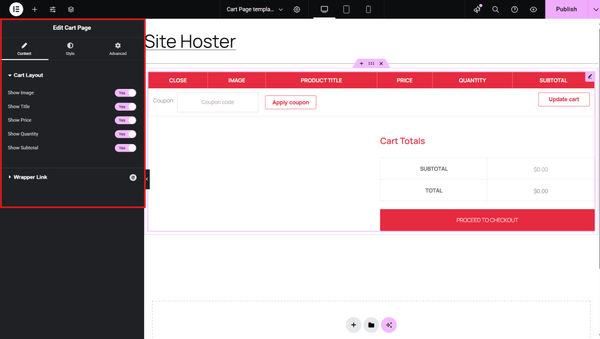
- Content
Toggle Cart Elements: Enable/disable key items that you want, like
- Product image
- Title
- Price
- Quantity field
- Subtotal
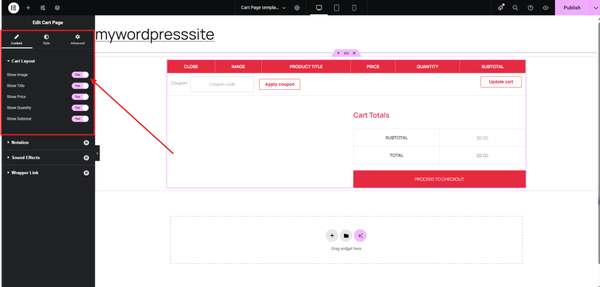
- Style
Let’s walk through how to fine-tune your WooCommerce cart page design using Elementor’s Style tab. This is where visual clarity meets conversion strategy. So every element should be intentional and on-brand.
Cart Heading: Start with your typography, set a consistent font family, adjust weight and line height for readability and apply a text color that complements your site’s palette. Maintain clear spacing above and below to help the heading stand out without overwhelming the layout.
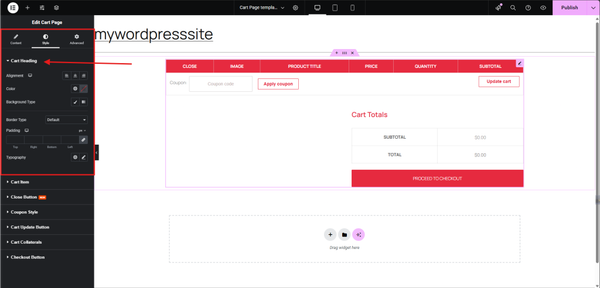
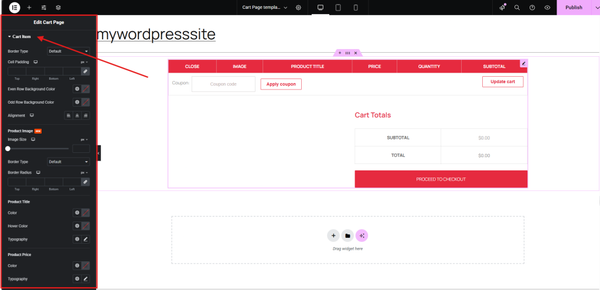
Cart Item: Ensure the cart table rows are visually scannable:
- Use background colors or subtle borders to separate items.
- Fine-tune image size and spacing to keep thumbnails proportional.
- Apply consistent typography to product names, prices and subtotals for a unified tone.
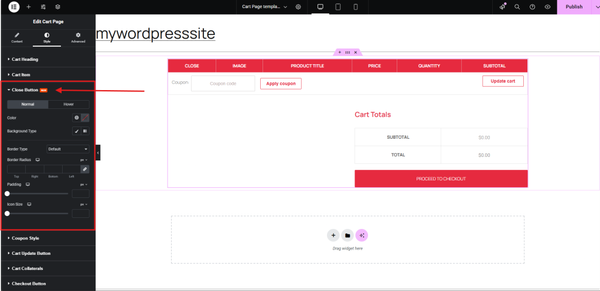
Close (Remove) Button: This should be immediately recognizable but not distracting:
- Set a bold icon color and test its hover effect for user feedback.
- Maintain consistent sizing, especially on mobile, to avoid misclicks.
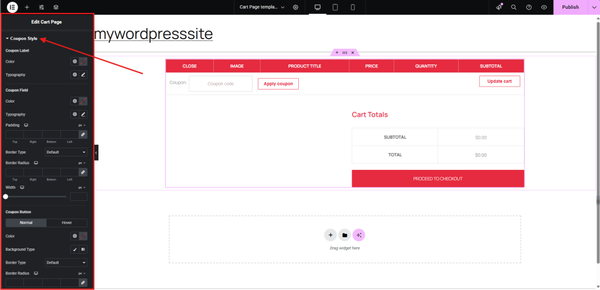
Coupon Section: For both the coupon field and the “Apply” button:
- Define padding, border radius and background color.
- Ensure the button uses a high-contrast hue and aligns responsively next to or under the input field.
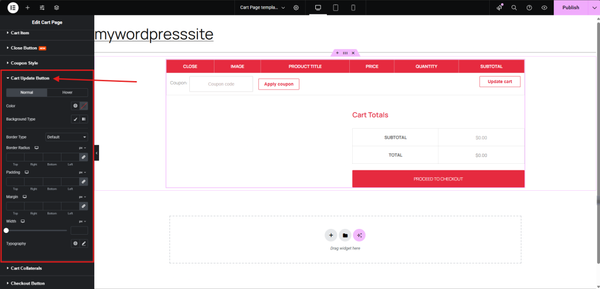
Cart Update Button: It needs to be functional and noticeable without competing with the checkout CTA:
- Tweak the background and hover color.
- Use a modest border radius and keep typography consistent with other buttons.
- Typography: Highlight total amounts clearly
- Spacing: Control spacing between rows and table items
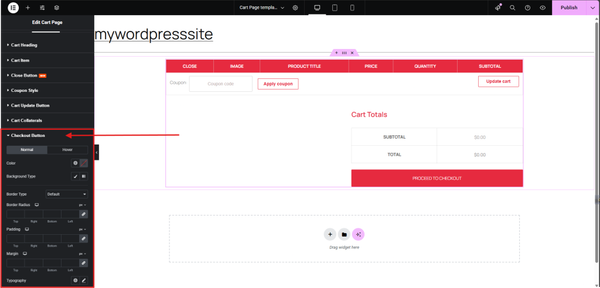
Checkout Button: This is your primary CTA, so it deserves extra attention:
- Apply a bold color that contrasts with the rest of the section.
- Use hover effects to reinforce interactivity.
- Adjust padding for tappable sizing and optionally make it full-width for mobile.
- Advanced
Advanced customization options in WooCommerce give you complete control over your cart page design, ensuring it aligns perfectly with your brand aesthetics and functionality goals.
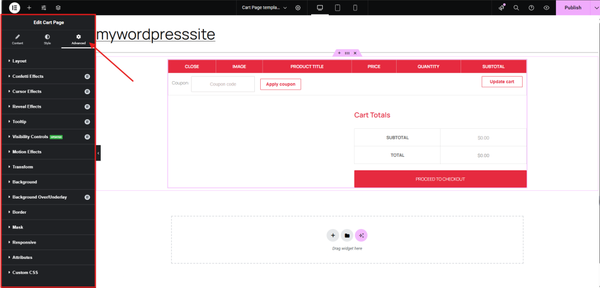
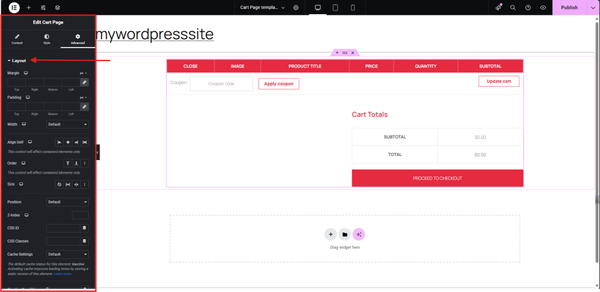
Let me walk you through how to fine-tune each setting to get the most out of your WooCommerce cart page customization:
Layout: Use this to control margin, padding and alignment. It’s key when you’re fine-tuning spacing between widgets or making the cart layout pixel-perfect.
Confetti Effects: Add celebratory animation (like confetti) on specific actions, ideal after applying a coupon or adding a product.
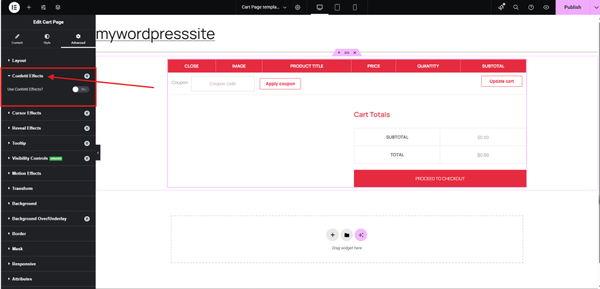
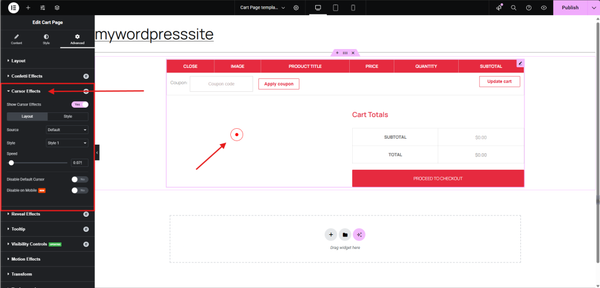
Cursor Effects: Customize cursor behavior on hover, like changing the icon or adding effects.
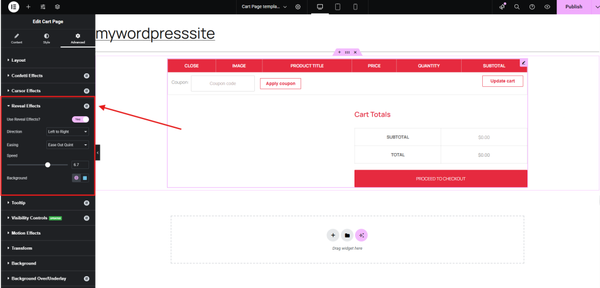
Reveal Effects: Trigger animations when elements scroll into view. This adds a smooth, polished touch to your cart page.
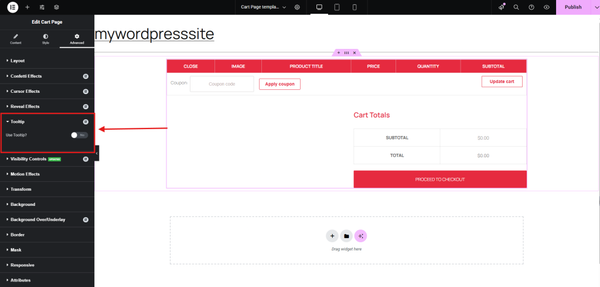
Tooltip: Add informational hover boxes, great for explaining discounts, taxes or shipping logic.
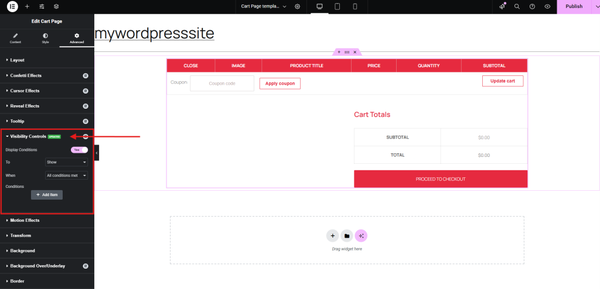
Visibility Controls: Show or hide elements based on device (desktop, tablet, mobile) or user roles (e.g., guest vs. logged-in).
Motion Effects: Animate items as they load or scroll into view, fade, slide, zoom, etc.
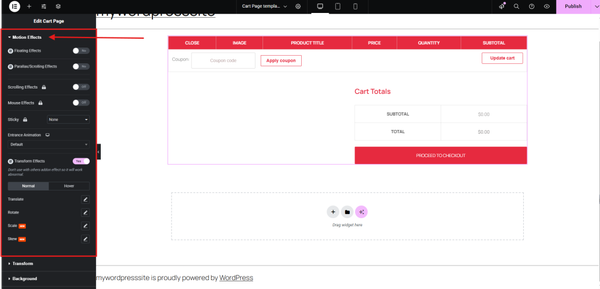
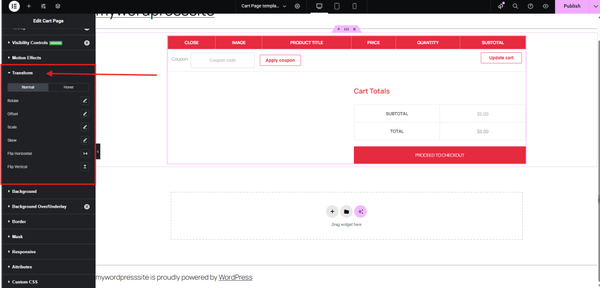
Transform: Add custom attributes to enhance functionality. For example, inserting a data-tracking-id on the checkout button helps integrate with third-party analytics or A/B testing tools.
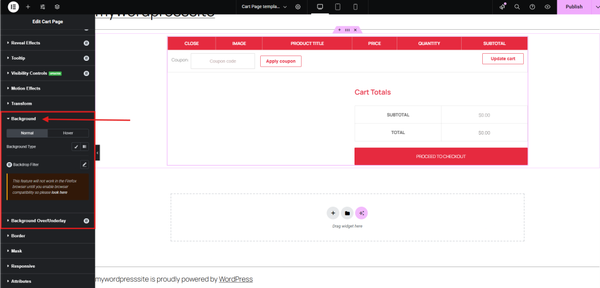
Background: Set solid colors, gradients or background images.
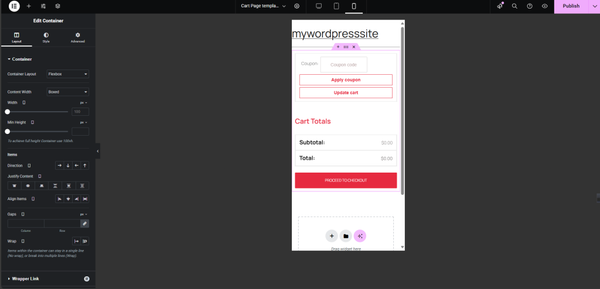
Responsive: Adjust display rules per device, hide widgets or modify sizing.
Happy with the look? Click the Publish button to save your changes.
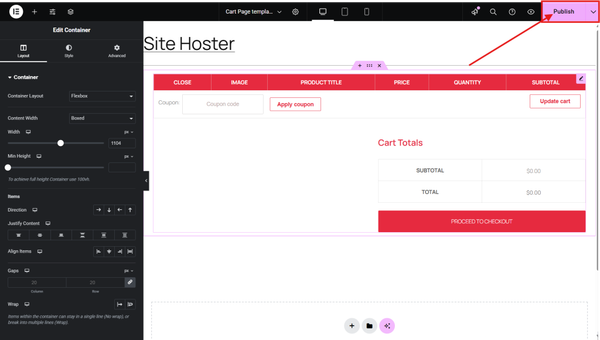
Finally, when your customers add a few products, your Cart Page will look something like this :
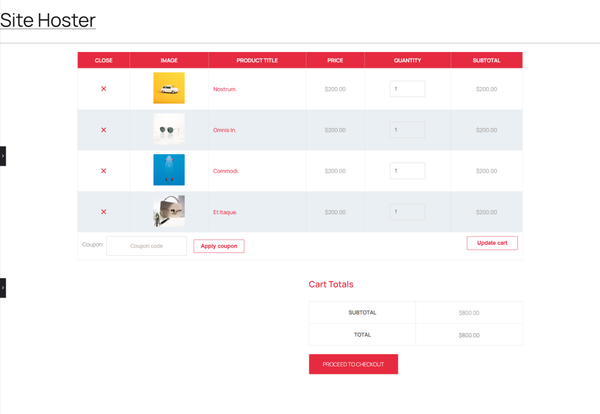
The combination of Elementor + Element Pack + Ultimate Store Kit gives you a comprehensive design system for your entire store – from the homepage hero section down to the product card hover effects and the checkout form layout. You’re essentially designing your store without touching a stylesheet.
Step 7: Add Products to Your Store
With your pages designed, it’s time to populate your store. Go to Products → Add New in the WordPress dashboard.
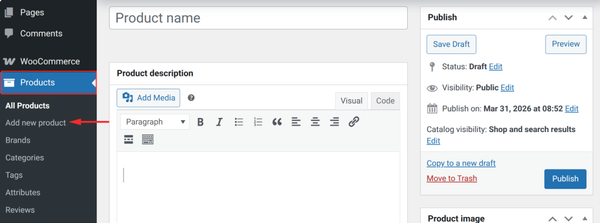
Product Basics
Every product needs:
- Product name: clear and descriptive; include the main keyword naturally
- Description: a thorough, long description for the product detail page; a short description that appears near the price
- Price: regular price and optionally a sale price with a date range
- Product images: always upload original content with high resolution; include a gallery with multiple angles
- Category & Tags: helps shoppers navigate and improves internal site search
- SKU: optional but useful for inventory management
Product Types in WooCommerce
| Type | Best For | Notes |
| Simple | Single physical item | Most common type: one price, one SKU |
| Variable | Products with options (size, color) | Each variation can have its own price/stock |
| Virtual | Services, memberships | No shipping required |
| Downloadable | Digital downloads (ebooks, software) | Customer receives a download link after purchase |
| Grouped | Product bundles | Multiple related products shown together |
Note:
“For digital downloads, WooCommerce automatically sends the buyer a secure, expiring download link. You can set a download limit and expiry period under each product’s settings.
After adding a product, you can just hit the Publish button to make it live.
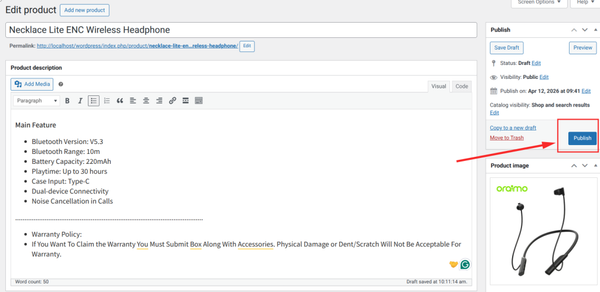
It’s that simple, publishing a product with WooCommerce.
Step 8: Configure Payments
Setting up payments is one of the most important steps – and thankfully, WooCommerce has made it straightforward. Your store needs to be ready to accept orders from day one.
Stripe
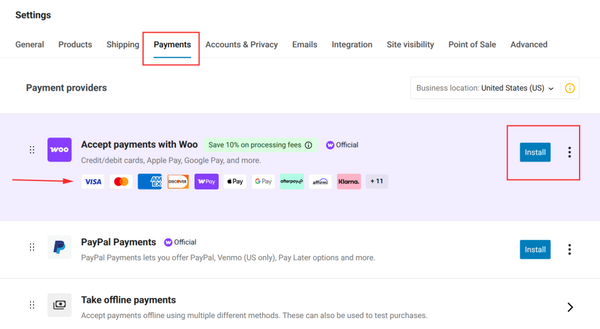
Stripe is the most popular payment gateway for new eCommerce stores in 2026. It accepts credit and debit cards, Apple Pay, Google Pay and various local payment methods depending on your country. WooCommerce has an official Stripe plugin that connects your store to your Stripe account in minutes.
To set it up:
- Create a free account at stripe.com
- In WooCommerce, go to Settings → Payments
- Enable “Stripe” and click “Set up.”
- Connect your Stripe account using the API keys from your Stripe dashboard
- Enable test mode first, complete a test purchase, then switch to live mode
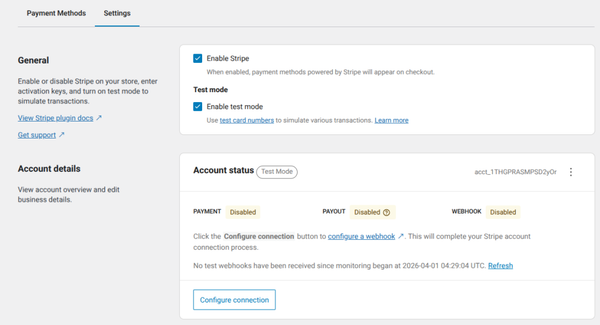
For more details, you can follow the official documentation of WooCommerce: How to add Stripe to your WooCommerce site
PayPal
PayPal is still widely trusted by buyers and is worth enabling alongside Stripe. WooCommerce includes a built-in PayPal gateway. Buyers can pay with their PayPal balance or use it as a card processor – useful for customers who feel more comfortable with a familiar name at checkout.
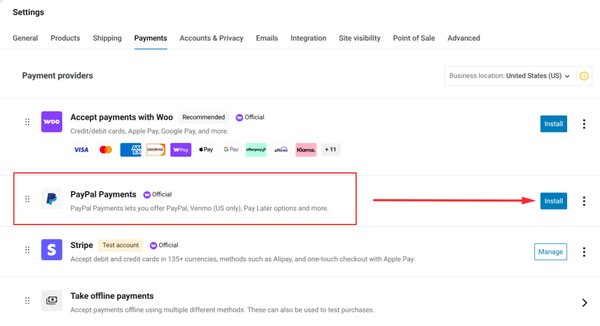
For more details, you can follow the official documentation of WooCommerce: How to add PayPal to your WooCommerce site
Other Payment Options
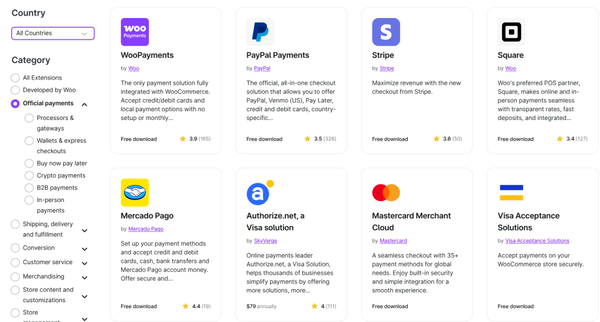
WooCommerce supports hundreds of payment gateways via official and third-party plugins: Square, Mollie, Klarna (buy now pay later), bank transfer and cash on delivery. Enable the options that make sense for your audience’s location and preferences.
Heads Up:
Always enable SSL on your site before going live (most hosts provide this for free). Look for the padlock in the browser bar on your checkout page. Without SSL, browsers will warn users that your site is “Not Secure” – an instant conversion killer.
Step 9: Set Up Shipping & Tax
Go to WooCommerce → Settings → Shipping to configure your shipping zones. A shipping zone is a geographic region (country, state or customs area) with its own set of shipping methods and rates.
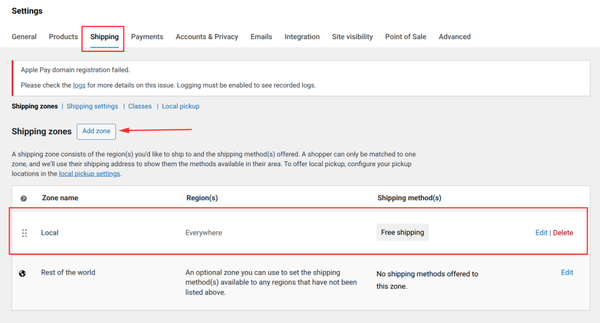
Common Shipping Methods
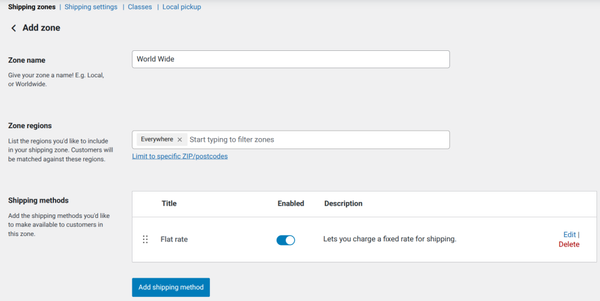
- Flat rate: charge a fixed amount per order or per item
- Free shipping: offer free shipping above a minimum order value (a proven conversion booster)
- Local pickup: for stores with a physical location
- Carrier-calculated rates: real-time rates from FedEx, UPS, USPS via third-party plugins
Step 10: Optimize & Launch Your Store
Finally, we have built a complete eCommerce page. Below is a preview of it.
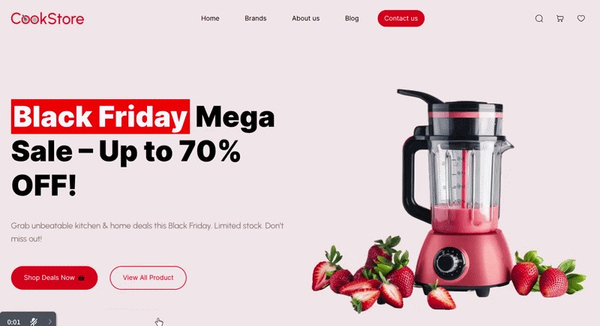
Before you hit publish, run through this final checklist. A few hours of optimization work before launch can prevent weeks of headaches after.
Performance
Page speed directly impacts conversions. Studies consistently show that a one-second delay in load time can reduce conversions by up to 7%. To optimize your WordPress eCommerce site:
- Install a caching plugin (WP Rocket, LiteSpeed Cache or W3 Total Cache)
- Utilize a media manager plugin like Sigma Media Manager to organize and optimize your folders, images, videos and other files.
- Use a CDN (Cloudflare’s free plan works well for most small stores)
- Choose a hosting plan with SSD storage – it’s standard in 2026
SEO Basics
Install Rank Math or Yoast SEO and configure:
- A descriptive title and meta description for each product page
- Clean, keyword-friendly URLs (e.g., /shop/blue-leather-wallet not /?p=123)
- Alt text on all product images
- A submitted XML sitemap to Google Search Console
Pre-Launch Checklist
- Complete at least two test orders – one with Stripe, one with PayPal
- Check your store on mobile – over 60% of eCommerce traffic is from phones
- Verify the checkout flow end-to-end, including order confirmation emails
- Add a privacy policy and terms of service page (legally required in many regions)
- Set up Google Analytics 4 or a privacy-friendly alternative to track traffic
- Confirm SSL is active – your URL should begin with https://
- Run a backup before going live
Pro Tip:
“Ask a friend or family member to try placing an order from start to finish on their own device. Fresh eyes catch problems you’ve become blind to after staring at your own store.
Understanding the Costs – A Realistic Picture
One of the most common questions from first-time store builders is: ” How much is this going to cost? Here’s a realistic idea of the costs of a new WordPress eCommerce website in 2026:
| Item | Free Option | Typical Paid Range |
| Web Hosting | – | $3–$30/month |
| Domain Name | Included with some hosting | $10–$15/year after year 1 |
| SSL Certificate | Free (Let’s Encrypt) | $0 on most hosts |
| WordPress | Always free | $0 |
| WooCommerce | Core plugin free | Extensions: $0–$79/year each |
| Theme | Free options available | $30–$79 one-time |
| Elementor | Free version robust | $59–$99/year for Pro |
| Element Pack | Free version available | From ~$39/year |
| Ultimate Store Kit | Free version available | From ~$39/year |
| Payment Processing | No monthly fees | ~2.9% + $0.30 per transaction (Stripe) |
A lean, functional store can be built for as little as $5–$10/month in hosting costs, with the rest free. A more polished professional store with premium plugins typically runs $15–$50/month all-in. Either way, it’s a fraction of the cost of custom development.
Bonus: Grow Your Store with Affiliate Marketing
Launching your eCommerce store is only the first step. The next challenge is getting consistent traffic and sales.
One of the most cost effective ways to grow a WooCommerce store in 2026 is through affiliate marketing, where creators, bloggers and influencers promote your products in return for commissions. Even studies show over 80% of brands use affiliate programs to grow their sales.
The best way to create your own affiliate program for WooCommerce stores is by using WordPress affiliate plugins like AffiliatePress.
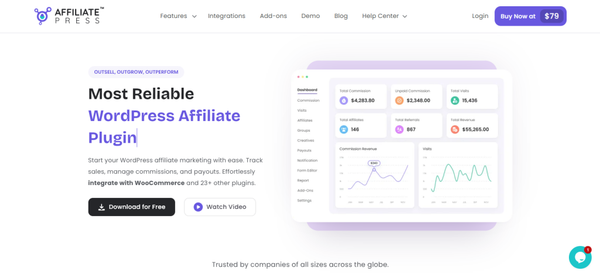
AffiliatePress is one of the best WordPress affiliate management plugins that gets your affiliate program launched and running in no time, even if you’re a non techie. Integrating smoothly with WooCommerce and 25+ other WordPress plugins including SureCart, WP EasyCart, Easy Digital Downloads, and more, you can manage your complete affiliate program with no effort.
You can create multiple smart commission structures, automate payout and track all commissions, referral and sales with detailed insights. Plus, the system protects your entire affiliate marketing program with smart fraud detection so you never have to worry about commission loss.
Final Thoughts
Building a complete eCommerce website using WordPress in 2026 is genuinely achievable for beginners. The platform has never been more accessible.
You can learn how to build a professional website without a design background, without knowing how to code and without spending a fortune.
What you do need is patience and a willingness to follow the process step by step. Set up hosting, install WordPress, add WooCommerce, pick a theme, choose your plugins thoughtfully, design your pages visually, add your products, configure payments and test everything before launch. That’s the entire roadmap – and you’ve just walked through all of it.
The tools covered here – WooCommerce for the store engine, Elementor for drag-and-drop page design, Element Pack for expanded UI components and Ultimate Store Kit for WooCommerce-specific design – work together as a coherent system.
None of them requires you to be a developer. All of them have active communities, documentation and tutorial libraries to support you as your store grows.
‘By the time you’re done, you’ll have a fully functional store in 2026, ready to accept orders, process payments and serve customers anywhere in the world.
Md Tariqul
The BdThemes team builds WordPress plugins trusted by 3M+ users worldwide. We write about web accessibility, WCAG compliance, and inclusive design.