

Do you struggle to find and download your images in WordPress? Many users feel confused when they try to get files from the media library. The process is not always clear, especially if you are new. This can waste time and slow down your work.
If you cannot properly download your images, it becomes harder to reuse, edit or keep backups. This can cause problems during website updates or migration. You may also lose important files if you do not have a copy saved.
The good news is that there are simple ways to solve this. In this guide on How Can I Download Images from My WordPress Media Library, you will learn easy methods to download single or multiple images. You will also discover tips to manage your files better and save time.
What is WordPress Media Library
The WordPress Media Library is a built-in tool that stores all the files you upload to your website. This includes images, videos, audio files and documents. You can easily access it from your WordPress dashboard by going to the Media section.
From here, you can upload new files, view existing media, edit file details and delete items you no longer need. It helps you keep all your content in one place, making it easier to manage.
Every image or file you use on your website is stored in the Media Library, making it easy to find, reuse and organize your media files whenever needed.
Why Would You Need to Download Images from WordPress?
Before diving into the how, it’s worth understanding the why. There are several common scenarios where you’d need to retrieve images from your WordPress Media Library:
Site Migration
If you’re moving your WordPress site to a new hosting provider or a completely different platform like Squarespace, Wix or Shopify, you’ll need all your media files. Your images don’t automatically transfer; they need to be downloaded and re-uploaded.
Platform Change
Switching from WordPress to another CMS? You’ll need to export everything, including your images. WordPress doesn’t make this obvious and many users only realize their images are “stuck” once they’ve already started the migration.
Backup Creation
While many hosting providers offer server-level backups, having a local copy of your images gives you an extra layer of protection. If something goes wrong, a plugin conflict, a hack or accidental deletion, your images will still be safe on your own machine.
Web Design Projects
Designers and developers often need access to images to work on mockups, redesigns or prototypes without needing constant access to the live site.
Portfolio Archiving
If you’re a photographer, blogger or content creator, downloading your work before canceling a WordPress plan ensures you don’t lose years of content.
Whatever your reason, the methods below will help you get the job done efficiently.
How can I download images from my WordPress media library
Downloading images from your WordPress media library is quick and easy and you can do it in a few simple steps depending on your needs.
Method 1: Download Images Manually from the Media Library
This is the simplest approach and works well if you only need a handful of images.
How to do it:
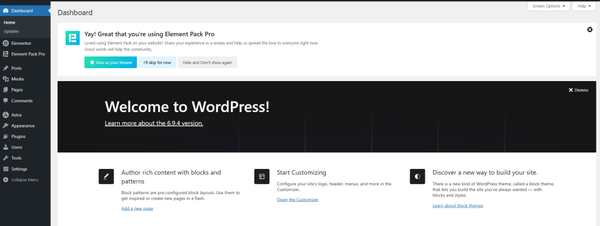
Log into your WordPress dashboard.
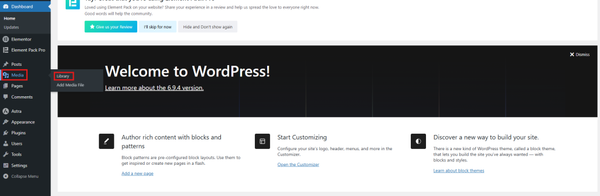
Go to Media > Library from the left-hand menu.
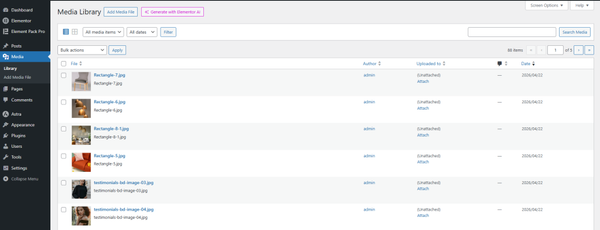
The Media Library will open, showing all your uploaded files.
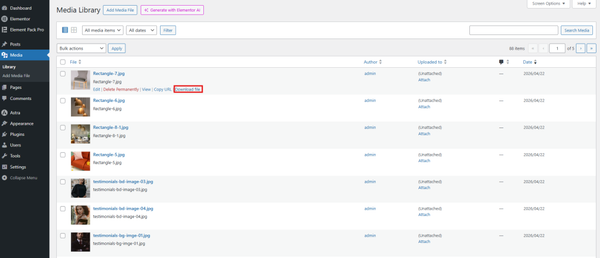
Hover over the image you want to download and click → Download file.
That’s how you can download your images successfully.
Pros: No plugins or tools needed, completely free, works instantly.
Cons: Extremely time-consuming if you have more than a few images. You’d need to repeat these steps for every single image, which is not practical for large libraries.
Method 2: Use an FTP Client to Access Your Server Files
For those comfortable with a little more technical work, FTP (File Transfer Protocol) is one of the most reliable ways to bulk download all your WordPress images at once.
WordPress stores all uploaded media in the /wp-content/uploads/ directory on your server. This folder is organized by year and month (e.g., /wp-content/uploads/2024/03/), making it easy to find specific image batches.
What you’ll need:
- An FTP client such as FileZilla (free) or Cyberduck
- Your hosting account’s FTP credentials (hostname, username, password and port — typically found in your hosting control panel or welcome email)
Follow these steps to bulk download the images:
- Download and install FileZilla from filezilla-project.org.
- Open FileZilla and enter your FTP credentials in the Quickconnect bar at the top.
- Click Quickconnect to connect to your server.
- In the right-hand panel (your server’s files), navigate to /public_html/wp-content/uploads/ (the exact path may vary depending on your host).
- In the left-hand panel (your local computer), navigate to the folder where you want to save your images.
- Select the entire uploads/ folder (or specific subfolders), right-click and choose Download.
FileZilla will transfer all your files to your local machine. Depending on how many images you have, this can take anywhere from a few seconds to several minutes.
If you need help, you can watch the video below.
FileZilla Tutorial: How to connect to FTP and transfer files to a web server
Pros: Downloads everything at once, preserves the original folder structure, requires no plugins and gives you a true backup of your media folder.
Cons: Requires technical knowledge and FTP credentials, may be unfamiliar to beginners.
Method 3: Use Your Hosting Control Panel (cPanel File Manager)
If FTP feels too intimidating, most hosting providers offer a built-in File Manager through their cPanel dashboard. This gives you access to your server files through a browser-based interface, no additional software required.
How to do it:
- Log into your hosting account and open cPanel.
- Click on File Manager under the “Files” section.
- Navigate to public_html > wp-content > uploads.
- Select the folders or files you want to download.
- Right-click and choose Compress to create a ZIP archive of your selected files.
- Once the ZIP file is created, right-click it and select Download to save it to your computer.
- After downloading, extract the ZIP file on your computer to access your images.
If you need any help, please watch the video below.
How to Use File Manager in cPanel #cpanel #filemanager
Pros: No extra software needed, browser-based, easy to navigate, great for beginners.
Cons: Compressing large folders can be slow; some hosts limit download file sizes via cPanel.
Method 4: Download via SSH and Command Line
For developers and advanced users, SSH (Secure Shell) access provides the fastest and most powerful way to download your WordPress images.
How to do it:
- Connect to your server via SSH using a terminal or tool like PuTTY:

- Navigate to your uploads folder:

- Compress the entire uploads directory into a ZIP file:

- Use SCP (Secure Copy Protocol) to download the ZIP to your local machine:

This method is blazing fast for large libraries and gives you precise control over what you download.
Pros: Extremely fast, handles massive libraries easily and has no limitations.
Cons: Requires SSH access (not available on all hosting plans) and command-line knowledge.
Bonus Tips: Easy Ways to Organize Your WordPress Media Library
Downloading images becomes much easier when your media library is well organized. If your files are not organized, it can be hard to find the images you need. A large list of files can look messy and confusing. This can slow down your work and make exporting files difficult.
To keep things simple, you should organize your media library properly. One of the best ways is to use folders to group related files.
By default, WordPress displays all your files in a single place without folders. This makes it hard to find specific images, especially if you have many uploads.
You can use a tool like Sigma Media Manager to solve this problem. It lets you create folders and organize your files easily. You can group images by project, client or type. It also supports drag-and-drop, which makes file management faster and easier.
When your files are organized, you can quickly find, manage and download the images you need without confusion.
Sigma Media Manager is an all-in-one tool for managing media files. It does more than just create folders.
With this plugin, you can:
- Organize your files in a better way
- Add metadata using AI in bulk
- Remove unused media files
- Move files to cloud storage
- Optimize images for faster loading
- Create secure document libraries
Instead of using many different plugins, you can do everything with one plugin.
To get started:
- Visit the official Sigma Media Manager website
- Choose a license that fits your needs (single site or multiple sites)
- All plans include full features, regular updates and a 60-day money-back guarantee (on eligible purchases)
After completing your purchase, you will receive:
- A license key
- A ZIP file of the plugin
You will need these to install and activate the plugin in WordPress.
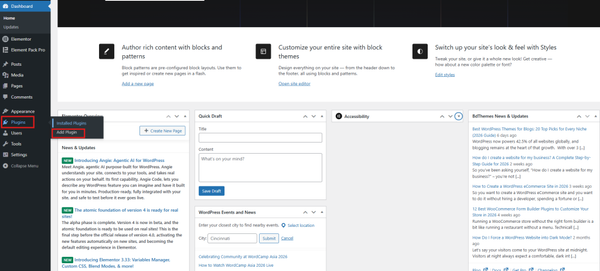
Now, go to your WordPress dashboard.
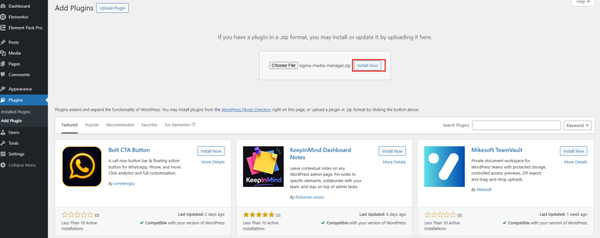
Click on Plugins → Add Plugin.
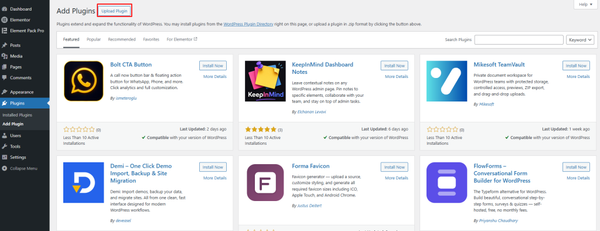
After that, click on the Upload Plugin button at the top.
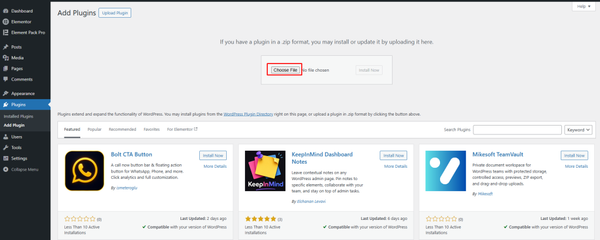
Now, click on the Choose File button.
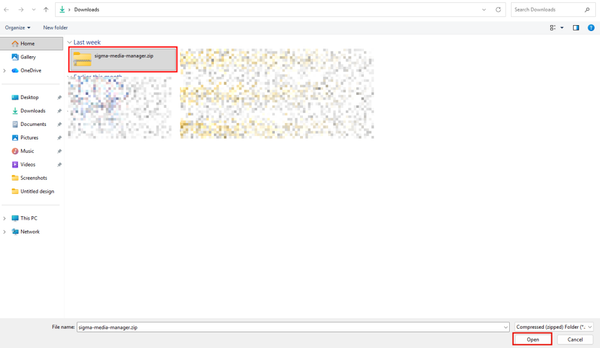
After that, select the plugin ZIP file from your computer.
After uploading the file, click Install Now. Wait a few seconds for the installation to complete.
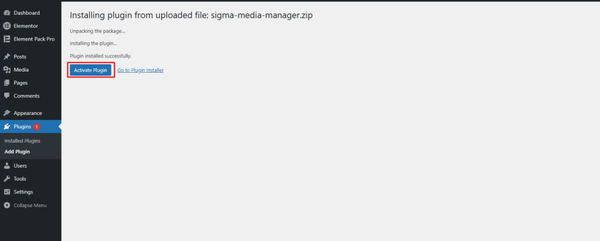
Once installed, click on the Activate Plugin button.
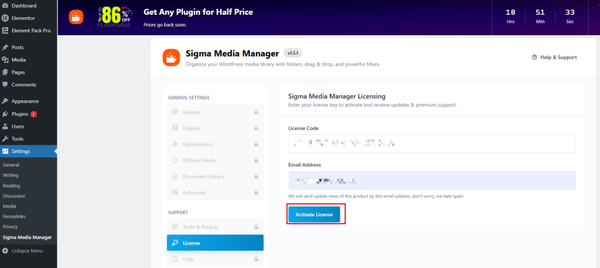
After activating the plugin, go to the Sigma Media Manager settings. Now, open the License section. Enter your license key and email address. Then, click on the Activate License button.
Now, your plugin is successfully installed and ready to use.
Now, go to the Media section from your WordPress dashboard.
Click on Media → Media Manager.
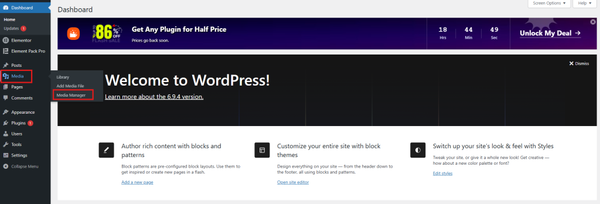
This will open the plugin dashboard, where you can manage your media files.
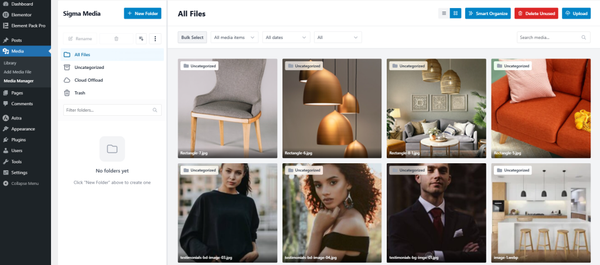
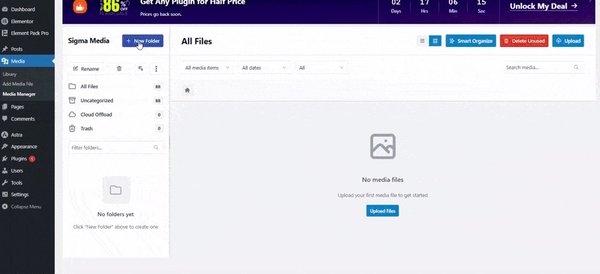
Now you can organize your images using folders. First, go to New Folder.
Enter a name for your folder, for example, Chair and create it.
Next, go to All Files and select the images you want to move.
Then click on Move to Folder and choose your folder (Chair).
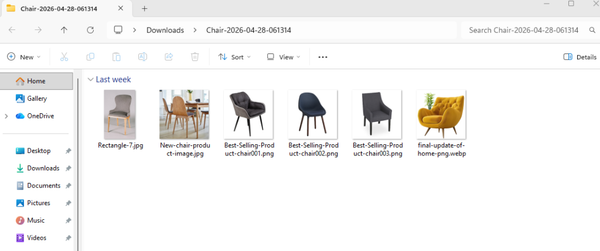
Now your images will be moved into the Chair folder, making them easy to find.
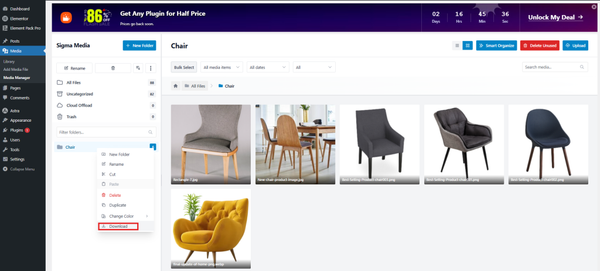
You can easily download this folder. Hover over the folder, then right-click on it.
Click on the Download option from the menu.
The folder will be downloaded to your computer, usually as a ZIP file.
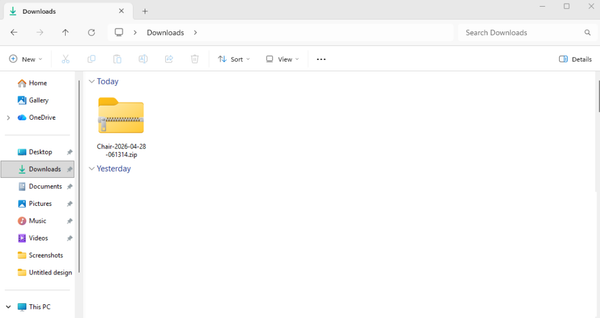
After downloading, you can open or extract the folder to access your images.
FAQ
1. How can I download images from my WordPress Media Library?
You can download images by going to your WordPress dashboard, then Media → Library. Click on the image you want, open its file URL and save it to your computer. This is the easiest way to download a single image.
2. Can I download multiple images at once in WordPress?
By default, WordPress does not provide a bulk download option. If you need to download many images, you can use FTP, File Manager or a plugin. These methods allow you to download multiple files quickly.
3. Where are WordPress images stored on the server?
All WordPress images are stored in the wp-content/uploads folder. Inside this folder, files are organized by year and month, making it easy to find specific images.
4. How do I download all images from my WordPress site?
To download all images, you can access your server using FTP or cPanel File Manager. Then locate the uploads folder, compress it into a ZIP file and download it to your computer.
5. Can I download images without logging into WordPress?
Yes, you can download images directly from your website. Just open the page, right-click on the image and select “Save Image As.” However, this may not always give you the original file quality.
6. Why are my images not downloading properly?
This can happen due to broken links, permission issues or caching problems. Make sure the file URL is correct and try clearing your browser cache before downloading again.
7. How can I download images using cPanel File Manager?
Log in to your hosting account and open File Manager. Go to public_html → wp-content → uploads. Select the files, compress them into a ZIP and then download the file to your computer.
8. Is it safe to download images using FTP?
Yes, FTP is a safe and reliable method. It allows you to access your website files directly and download them without any restrictions. Just make sure you use secure login details.
9. Can I organize images before downloading them?
Yes organizing your media files into folders helps you find and download images faster. A clean and structured media library saves time and improves workflow.
10. Do I need a plugin to download images from WordPress?
No, a plugin is not required. You can download images using the Media Library, FTP or File Manager. However, plugins can make the process easier if you manage a large number of files.
Conclusion
Downloading images from WordPress can feel confusing at first. Many users do not know where to find files or how to download them correctly. This can lead to wasted time and missed files.
If you ignore this, managing your website becomes harder. You may struggle with backups, content updates or moving your site. Small issues like this can slow down your workflow.
Now that you have the answer to the question, “ How can I download Images from my WordPress Media Library using simple steps?” – You can download images from the media library, use FTP or access files through your hosting panel. Choose the method that fits your needs. With these tips, you can manage your images easily and keep your website organized.

Strategic Content Writer for WordPress, Semantic SEO, and SaaS Audiences