

Collecting honest employee feedback can be difficult. Many employees hesitate to share their opinions because they worry their responses may not remain private. As a result, businesses often miss valuable insights that could improve workplace culture, communication and employee satisfaction.
An Anonymous Feedback Form helps solve this problem by giving employees a safe and private way to express their thoughts. With the help of an AI form builder, you can create a professional feedback form in minutes without starting from scratch.
In this guide, you'll learn how to create an Anonymous Feedback Form, what questions to include and how to collect meaningful feedback using AI-powered tools.
What Is an Anonymous Employee Feedback Form?
An anonymous employee feedback form is a survey that allows employees to share opinions without revealing their identity.
Unlike traditional surveys that collect personal information, anonymous forms focus only on gathering feedback. Employees can answer questions honestly because they know their names, email addresses and other identifying information are not required.
Businesses use anonymous feedback forms for many different purposes. Some organizations want to understand employee satisfaction, while others use them to improve communication, evaluate leadership or identify workplace challenges.
Common topics include workplace culture, teamwork, management support, career development, employee benefits and work-life balance.
Because responses remain anonymous, companies usually receive more honest answers and more useful suggestions.
Why Anonymous Employee Feedback Is Important
Employee feedback helps businesses make better decisions, but only if the responses are honest.
When employees worry that their opinions might affect their relationships or career opportunities, they may avoid giving truthful answers. Anonymous surveys reduce that concern and encourage open communication.
Organizations that regularly collect anonymous feedback often discover problems that would otherwise remain hidden. Small issues can be identified early before they become larger workplace challenges.
Anonymous feedback also helps managers understand how employees experience the workplace from day to day. Instead of relying on assumptions, they can make improvements based on real experiences and practical suggestions.
Perhaps most importantly, anonymous surveys show employees that their opinions are valued. When organizations listen to feedback and take action, employees feel respected and more connected to the company.
Why Use an AI Form Builder?
Creating a professional survey from scratch can take longer than expected.
First, you need to decide what questions to ask. Then you have to choose the right field types, organize the questions in a logical order and design a form that is easy to complete.
An AI form builder simplifies this entire workflow.
Instead of starting with an empty form, AI can generate a complete draft based on a short description. It can suggest relevant questions, organize sections and recommend suitable field types.
You remain in full control of the final result. The generated form can be edited, expanded or simplified to match your organization's needs.
This approach saves time while making it easier to create well-structured feedback forms.
Choosing an AI Form Builder
There are many AI-powered form builders available today. Some focus on surveys, while others support registrations, contact forms, quizzes and payment forms.
When choosing an AI form builder for employee feedback, look for features such as:
- AI-assisted form generation
- Drag-and-drop editing
- Multiple question types
- Conditional logic
- Mobile responsiveness
- Spam protection
- Easy customization
- Form analytics
For this tutorial, we'll use Sigma Forms as an example. It provides a simple workflow for generating, editing and publishing forms inside WordPress, making it suitable for both beginners and experienced users.
How to Create an Anonymous Feedback Form for Employees with an AI Form Builder
Before creating your feedback form, make sure you have the following:
- A WordPress website
- Administrator access to your WordPress dashboard
- A list of the questions you want employees to answer
Having these ready will make the setup process much smoother.
Step 1: Install and Activate Sigma Forms
- Download the Sigma Forms plugin ZIP file from your BdThemes account. If you don't have an account, you can create one in under a minute.
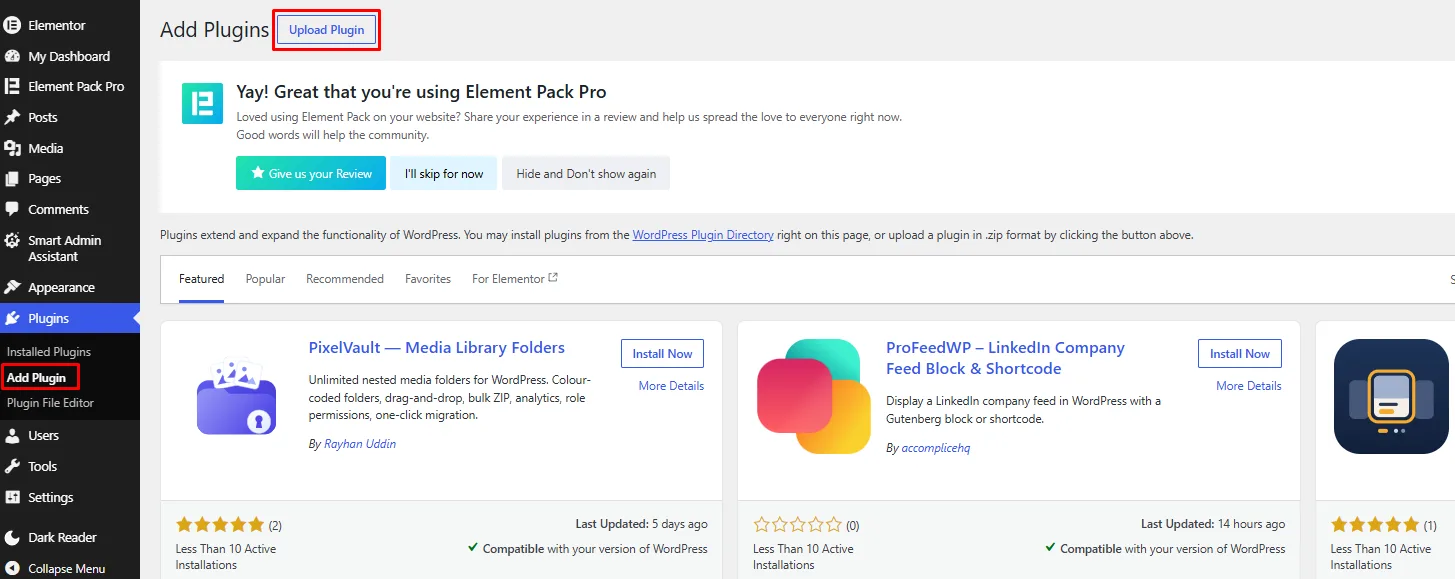
Once you have the ZIP file you need to head to the WordPress Admin dashboard and then go to Plugins → Add Plugin → Upload Plugin.
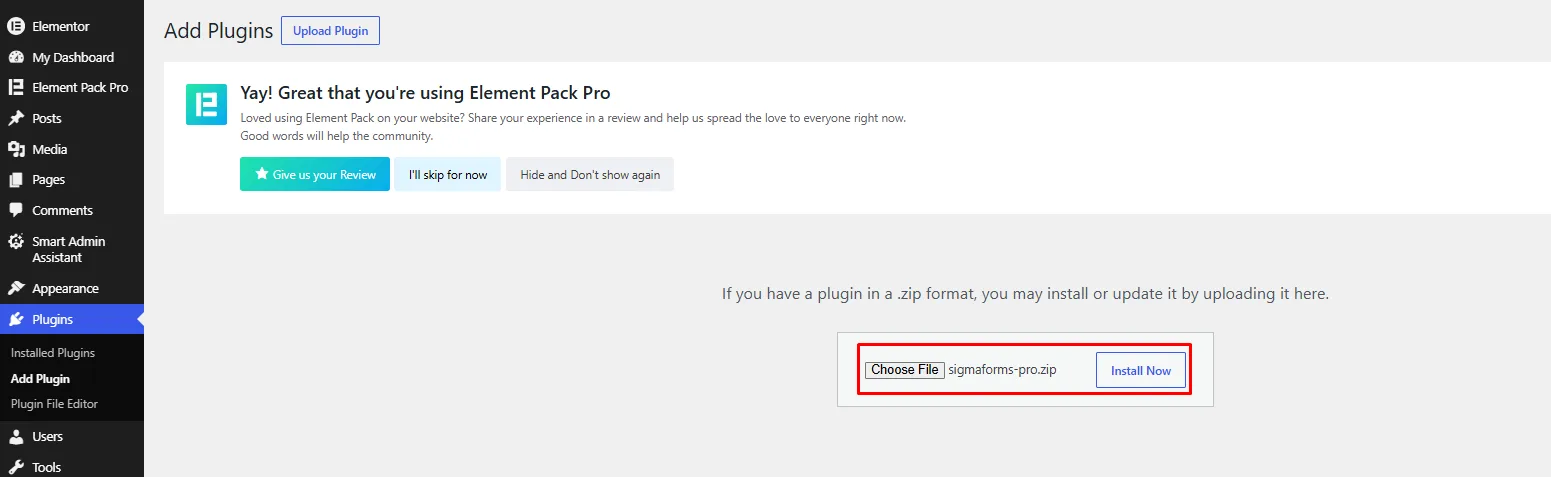
Upload the ZIP file, then click Install Now and Activate.

Once the plugin is activated, you'll see a new Sigma Forms menu in your WordPress dashboard.
Step 2: Configure the AI API
Before generating forms with an AI form builder, you need to connect Sigma Forms to your BdThemes account. This only takes a minute and enables AI-powered form generation inside WordPress.
To do so, navigate to Sigma Forms → Settings → AI Configuration.
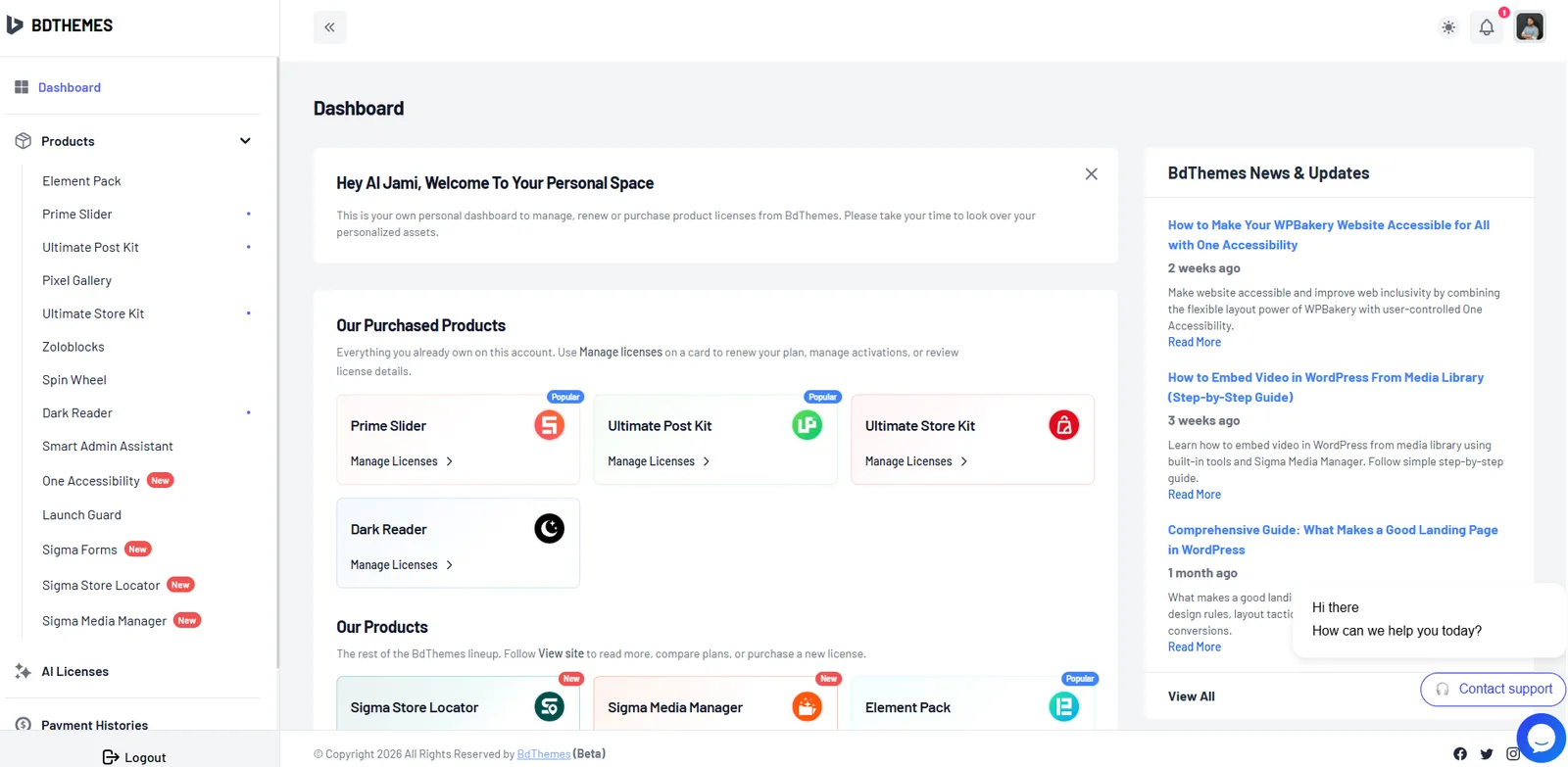
Copy your Sigma Forms API Key from your BdThemes Account Dashboard.
Paste the API key into the SigmaForms API Key field.
Click Save Settings.
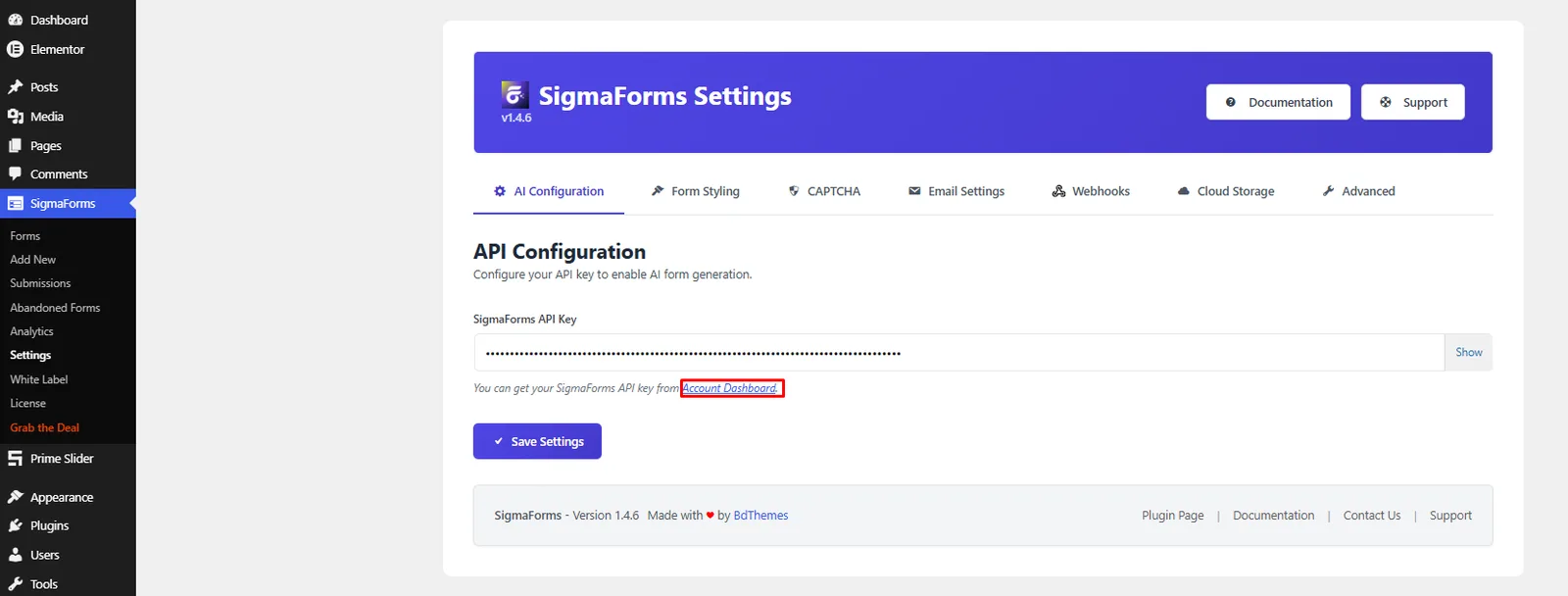
Once the API key is saved, your website is ready to create forms with AI.
Step 3: Generate Your Feedback Form with AI
Once the AI feature is configured, you're ready to generate your first form.
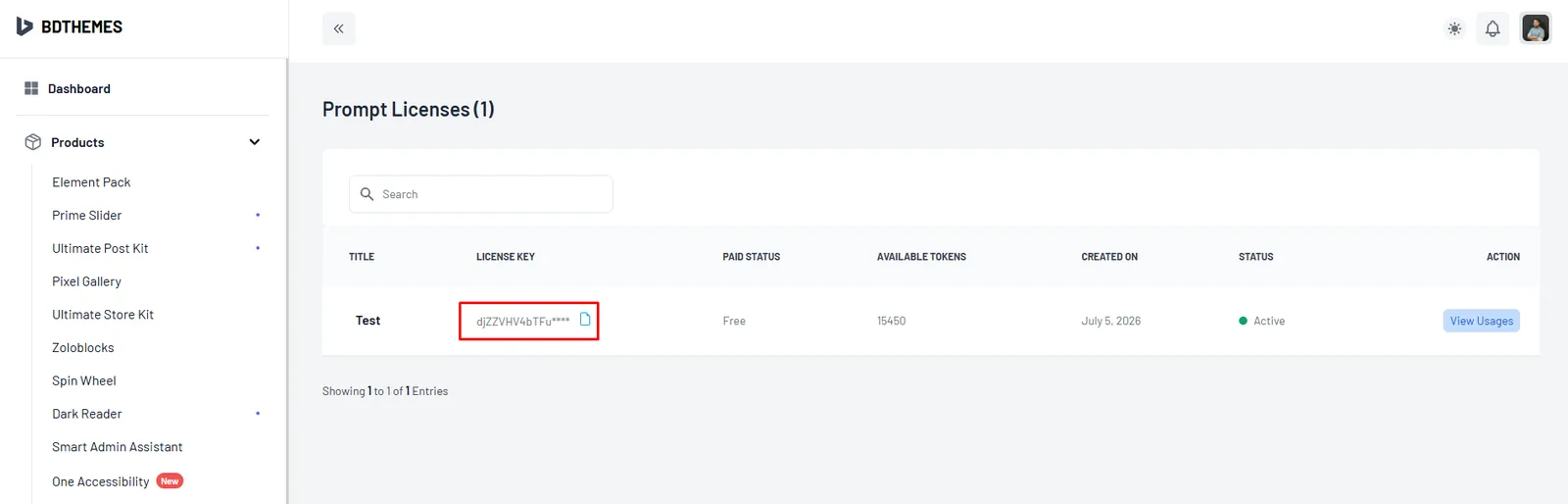
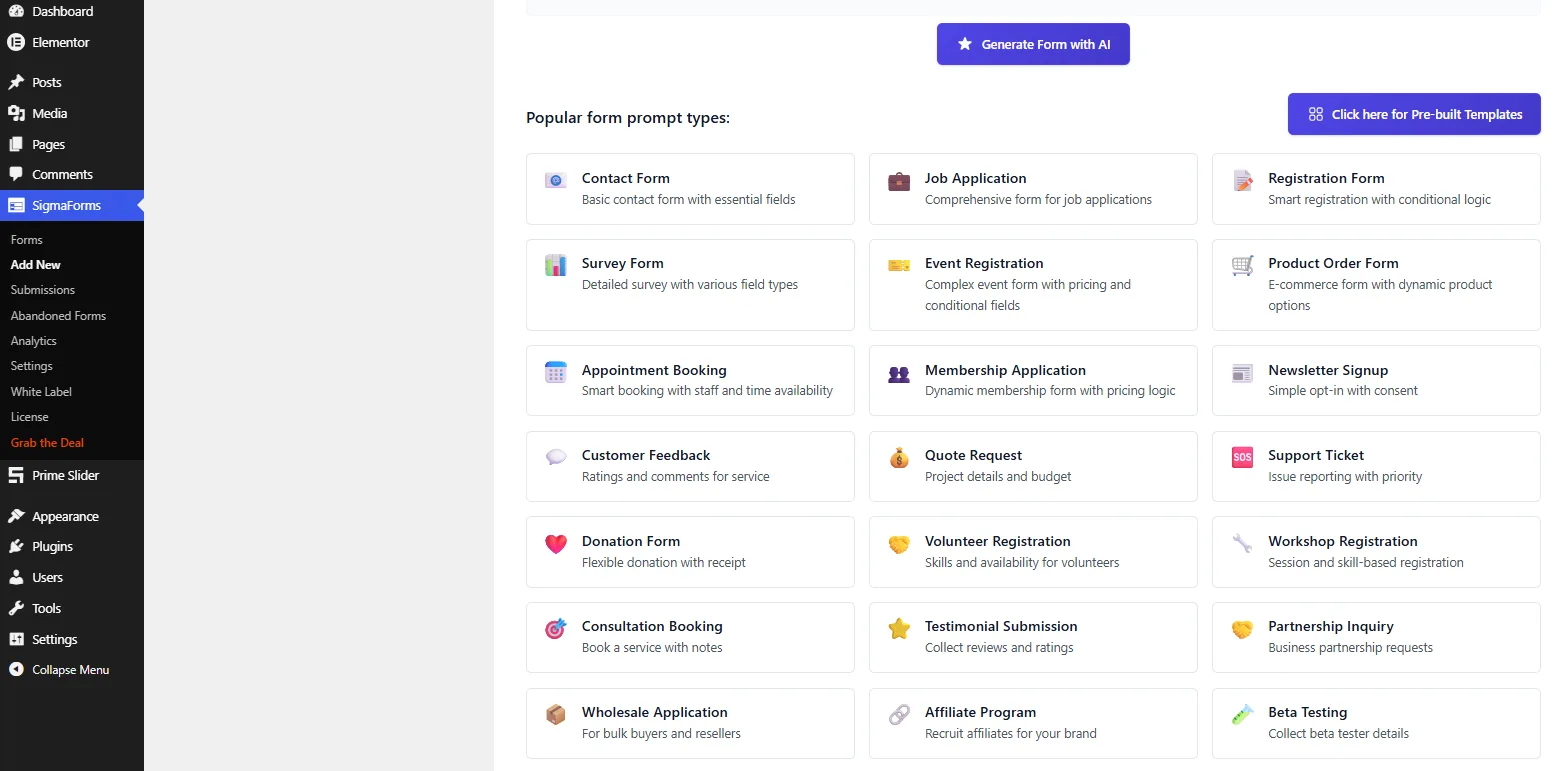
To do so, go to Sigma Forms → Add New. On the Generate page, you'll see a prompt box where you can describe the form you want to create.
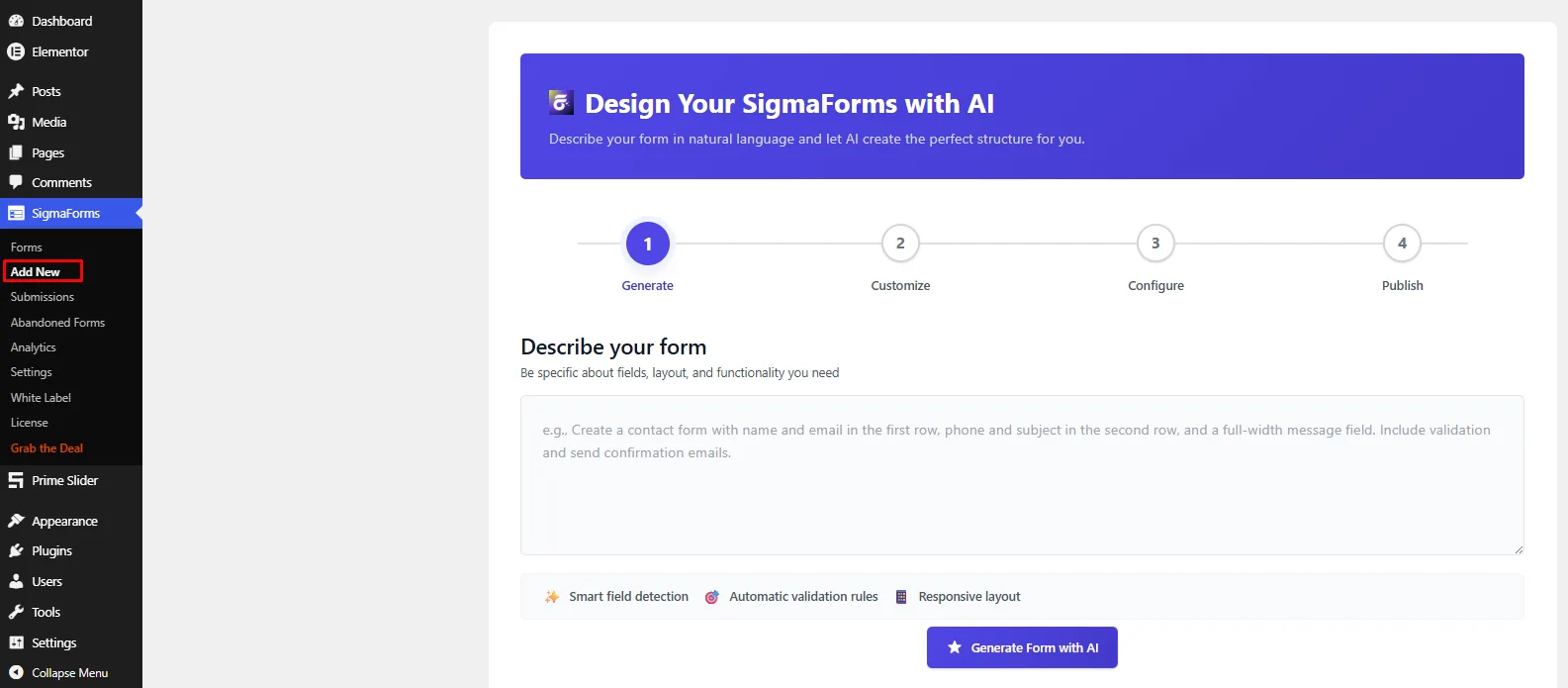
Enter a detailed prompt, such as:
Create an anonymous employee feedback form. Include questions about workplace satisfaction, management, communication, work-life balance and suggestions for improvement. Do not collect names, email addresses or employee IDs.
After entering your prompt, click Generate Form with AI. Sigma Forms will analyze your request and automatically create a structured feedback form with appropriate fields and sections.
You can also choose one of the pre-built templates if you prefer to start with an existing layout before making your own changes.
Step 4: Review and Customize the Generated Form
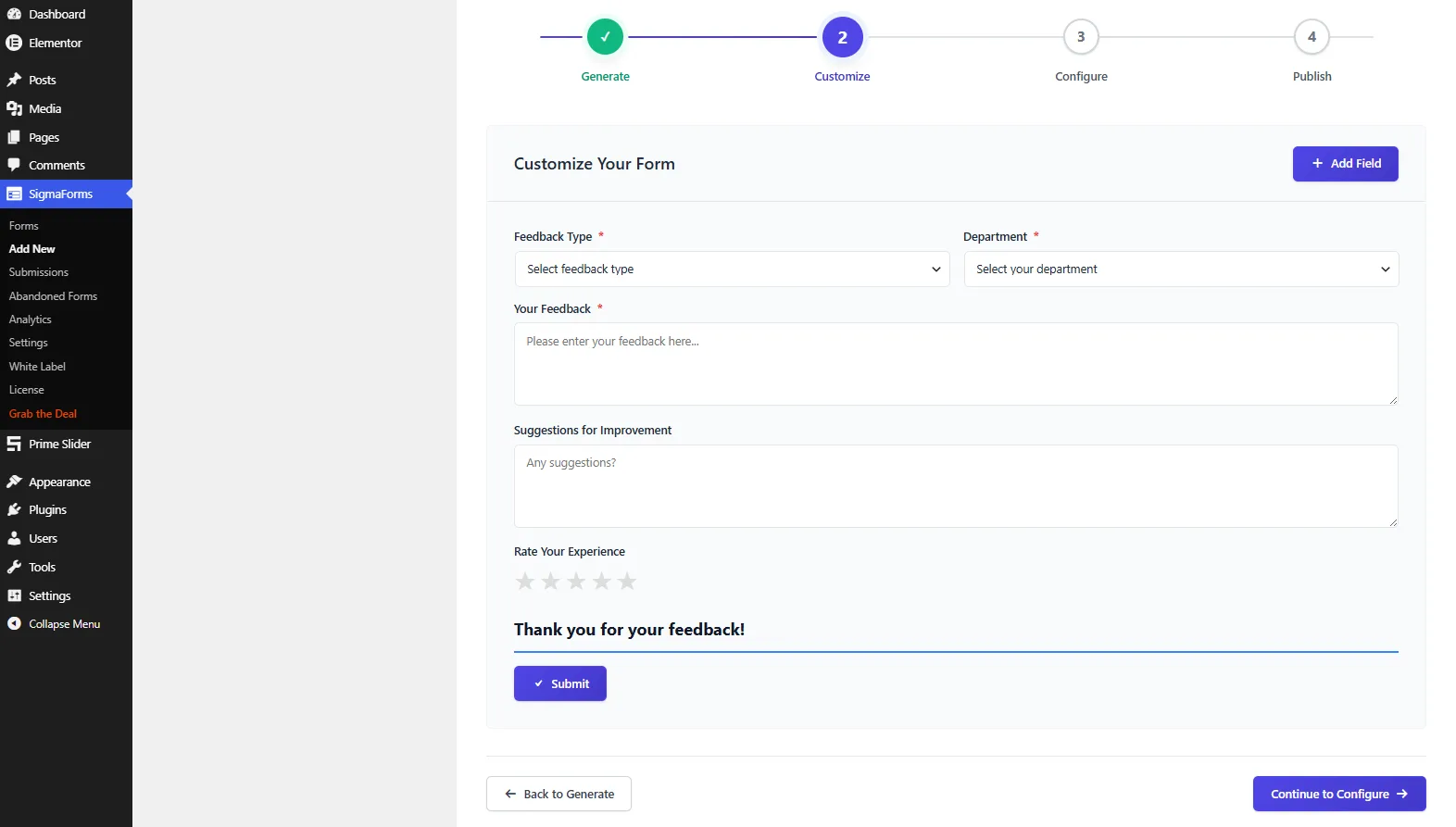
After the AI generates your form, you'll be taken to the Customize page. Here, you can review the generated fields and make changes before publishing the form.
For an anonymous employee feedback form, check that the questions are relevant and remove any fields that ask for personal information. You can also edit field labels, update placeholder text and rearrange fields to improve the flow of the survey.
If you need additional questions, click Add Field to insert new fields such as rating scales, multiple-choice questions or text areas. Once you're happy with the layout and questions, click Continue to Configure to move to the next step.
Step 5: Configure the Form Settings
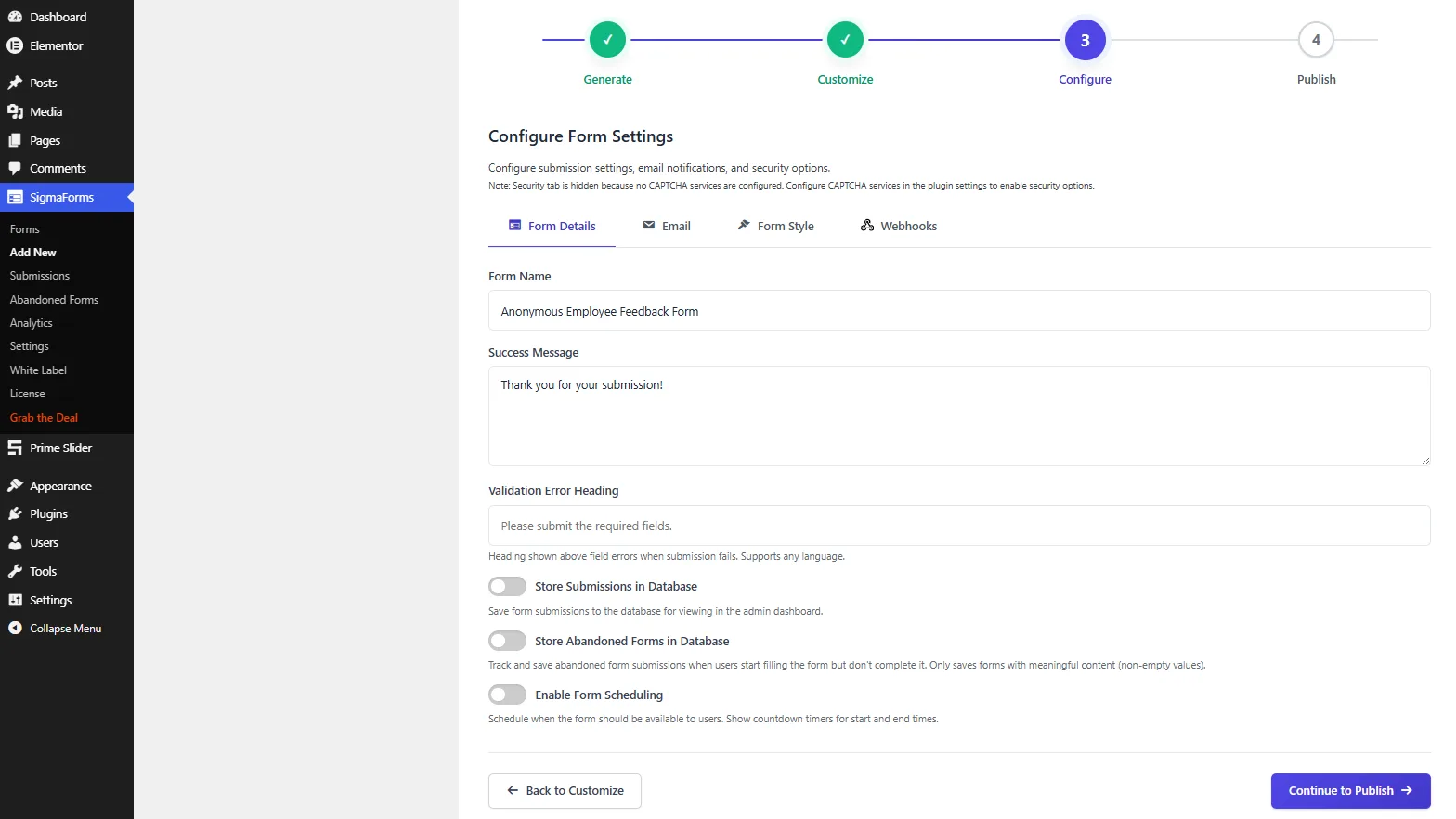
Once you've finished customizing the form, click Continue to Configure to open the settings page. Here, you can define how the form behaves after submission and manage additional options before publishing it.
Start by giving your form a clear and descriptive name, then customize the success message that users will see after submitting their feedback. You can also edit the validation error message to guide users if they miss any required fields.
If you want to keep a record of submissions, enable the Store Submissions in Database option. You can also turn on Store Abandoned Forms to capture partially completed responses or use Form Scheduling if you want the survey to be available only during a specific period.
After reviewing the settings, click Continue to Publish to move to the final step.
Step 6: Publish Your Form
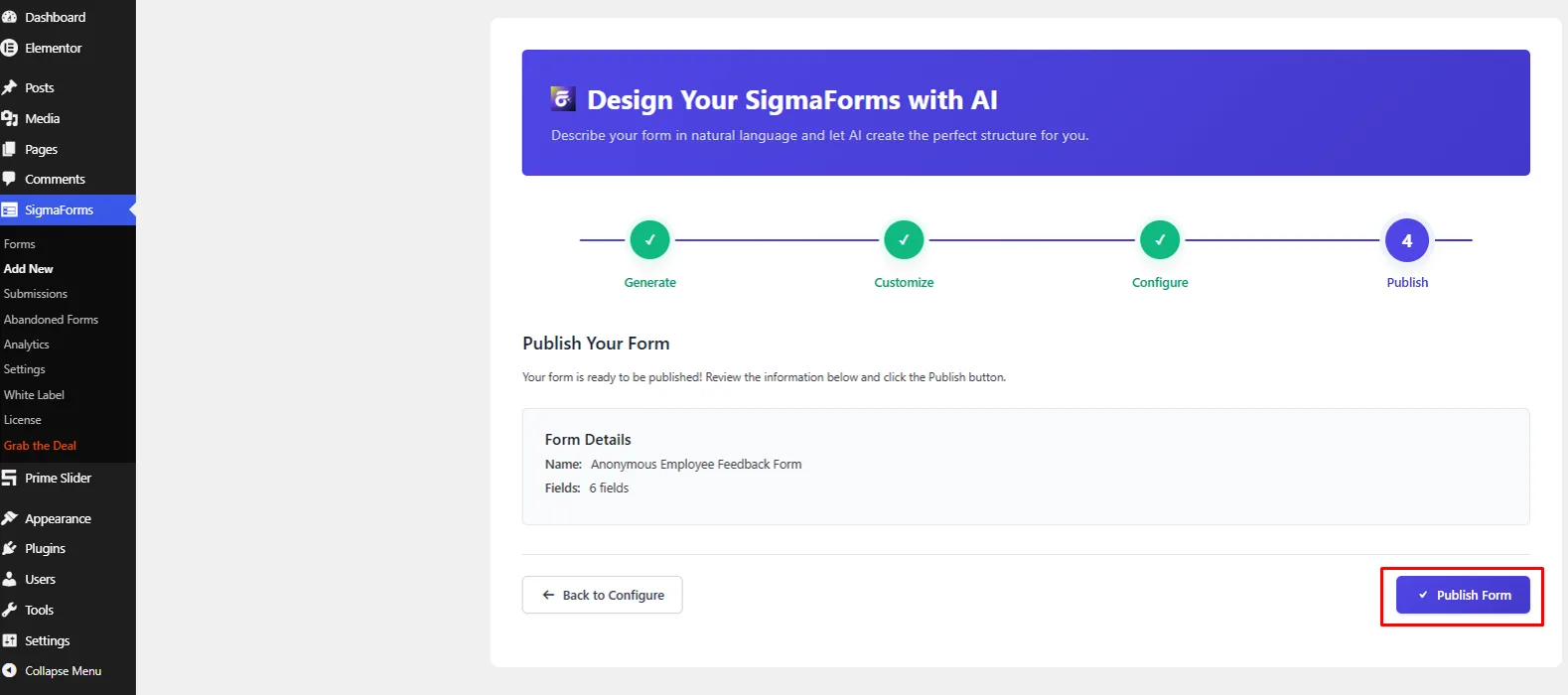
Your anonymous feedback form is now ready to go live. Before publishing, review the form details to make sure everything is correct, including the form name and the number of fields.
If you need to make any final changes, click Back to Configure to return to the previous step. Otherwise, click Publish Form to save and publish the form.
Once the form is published, Sigma Forms will generate a shortcode that you can copy and paste into any WordPress page or post. You can also add the form to an existing page using the Sigma Forms block or shortcode, making it easy for employees to access and submit their feedback.
After publishing, test the form on the front end to ensure everything works correctly before sharing it with your team.
Step 7: Publish and Embed Your Form
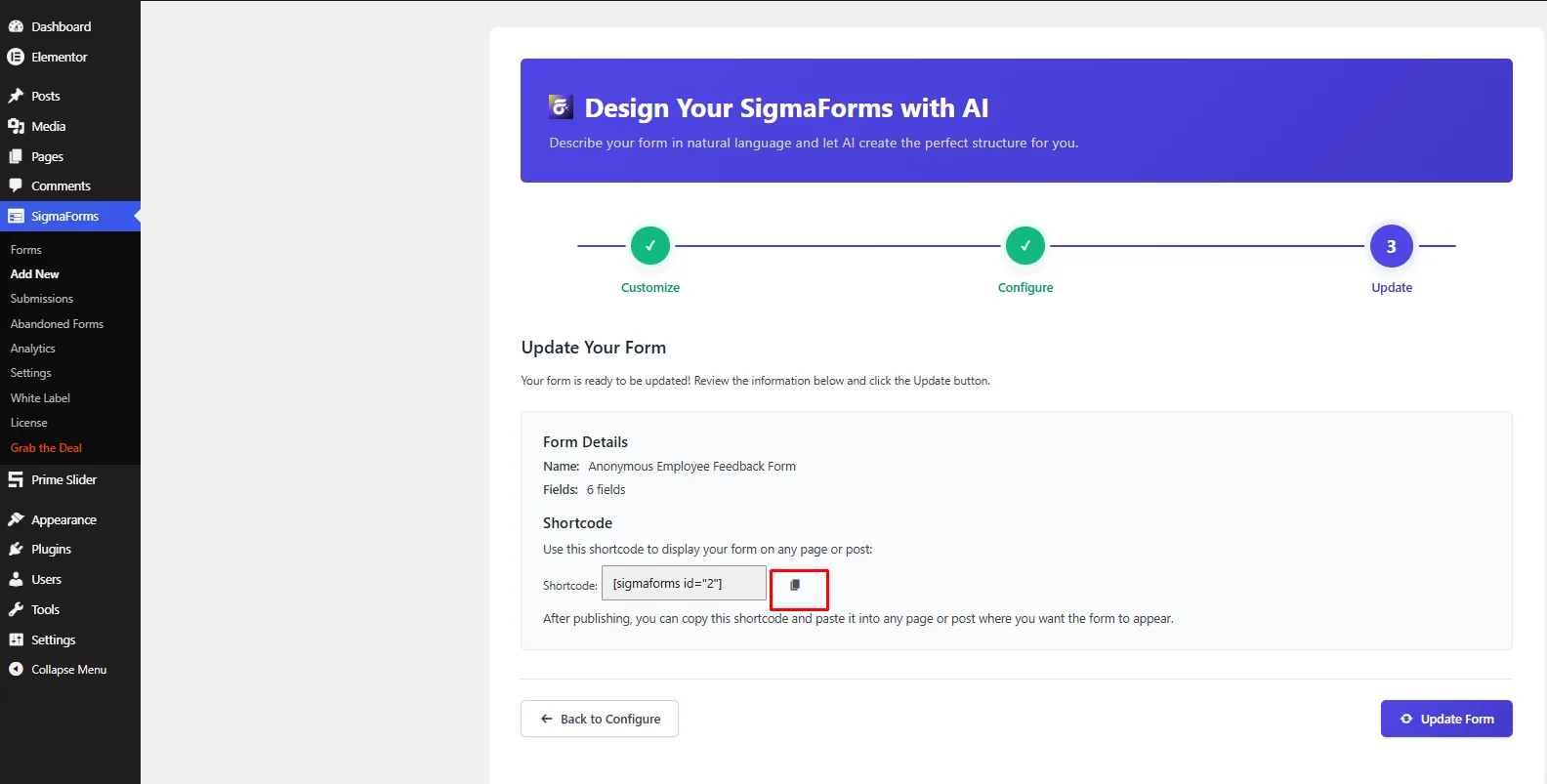
After reviewing the form details, click Publish Form to make your feedback form available. Once the form is published, Sigma Forms automatically generates a unique shortcode for your form.
- Copy the form shortcode.
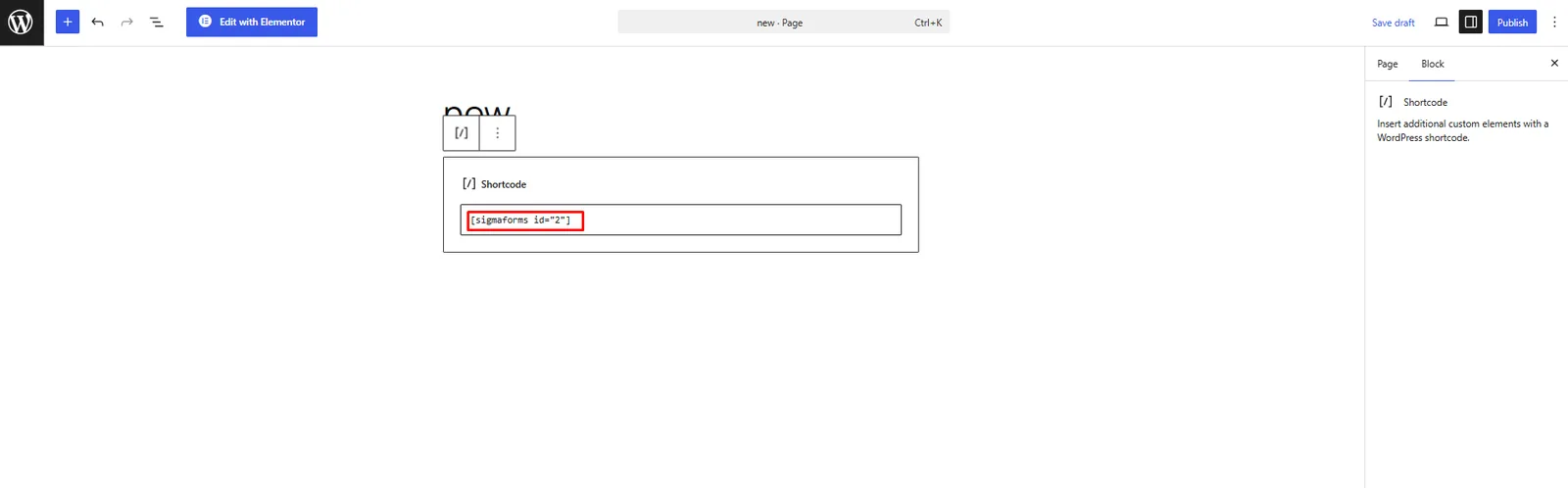
- Open the WordPress page or post where you want to display the form, add a Shortcode block and paste the copied shortcode into it.
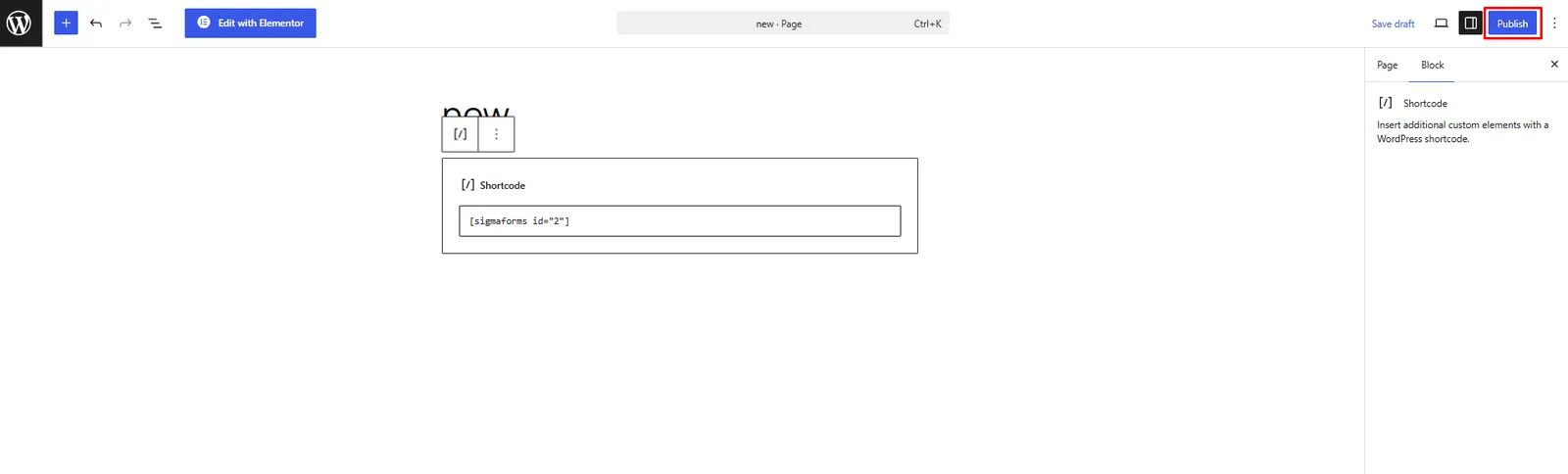
- Click Publish or Update to make the form live.
Step 8: Test Your Anonymous Feedback Form
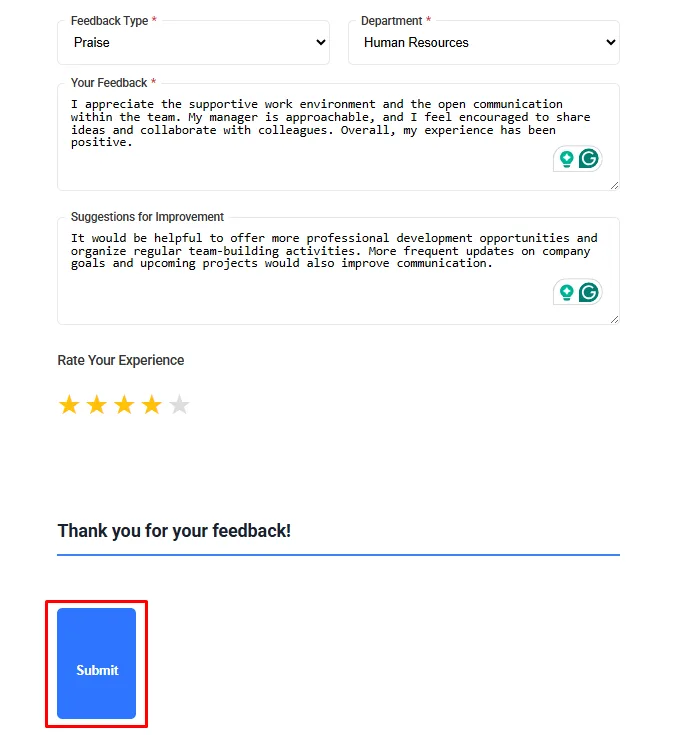
Before sharing the form with employees, test it to ensure everything works as expected. Select a feedback type and department, enter sample feedback, add a suggestion and choose a rating. Finally, click Submit to confirm that the form accepts responses successfully.
Testing the form helps you identify any missing fields, formatting issues or validation errors before making it available to your team. Once you're satisfied with the results, your anonymous feedback form is ready to collect employee responses.
Step 9: Submit the Form
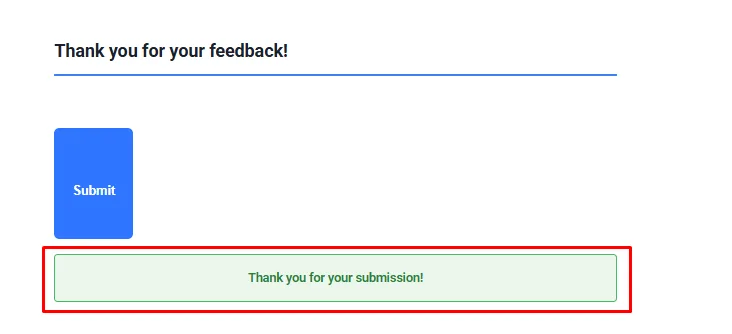
Click Submit to send a test response. If the form is configured correctly, a success message will appear confirming that the submission was received successfully.
View Form Submissions
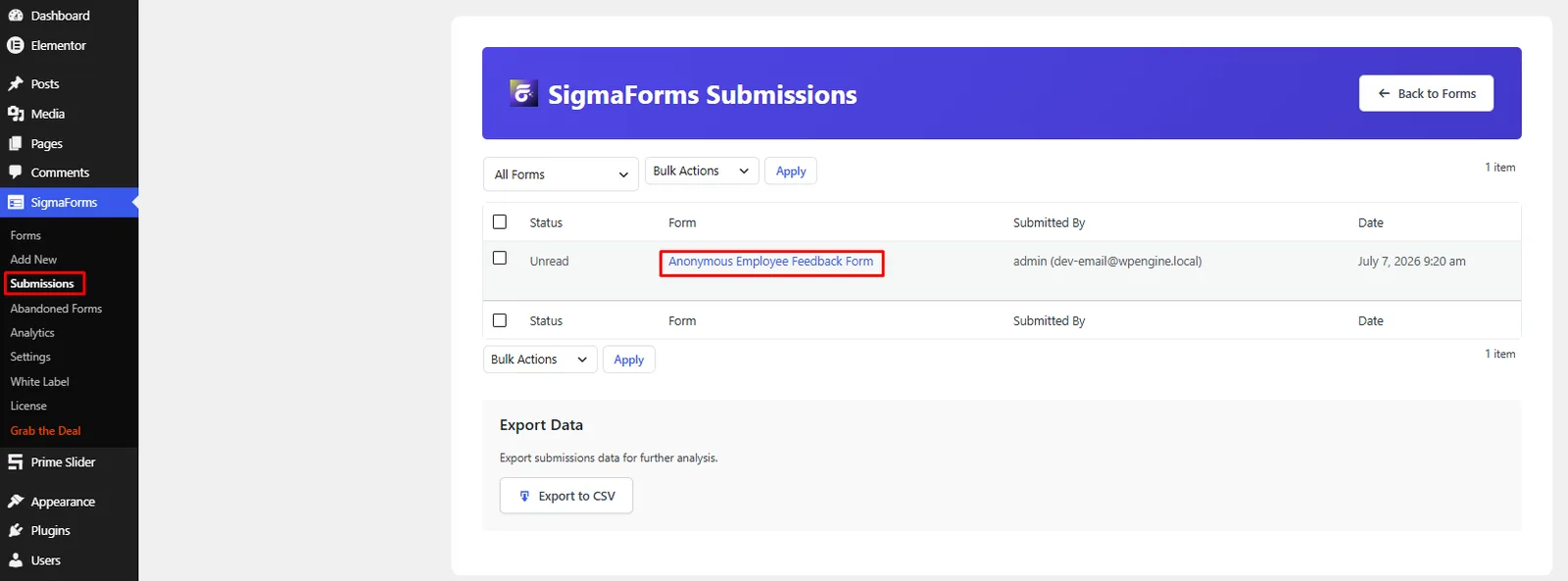
After employees submit the form, go to Sigma Forms → Submissions to view all responses. You can also export the submission data as a CSV file for reporting and further analysis.
To see an individual submission, select a submission to review the complete feedback.
You can review each response, including the feedback type, department, comments and rating.
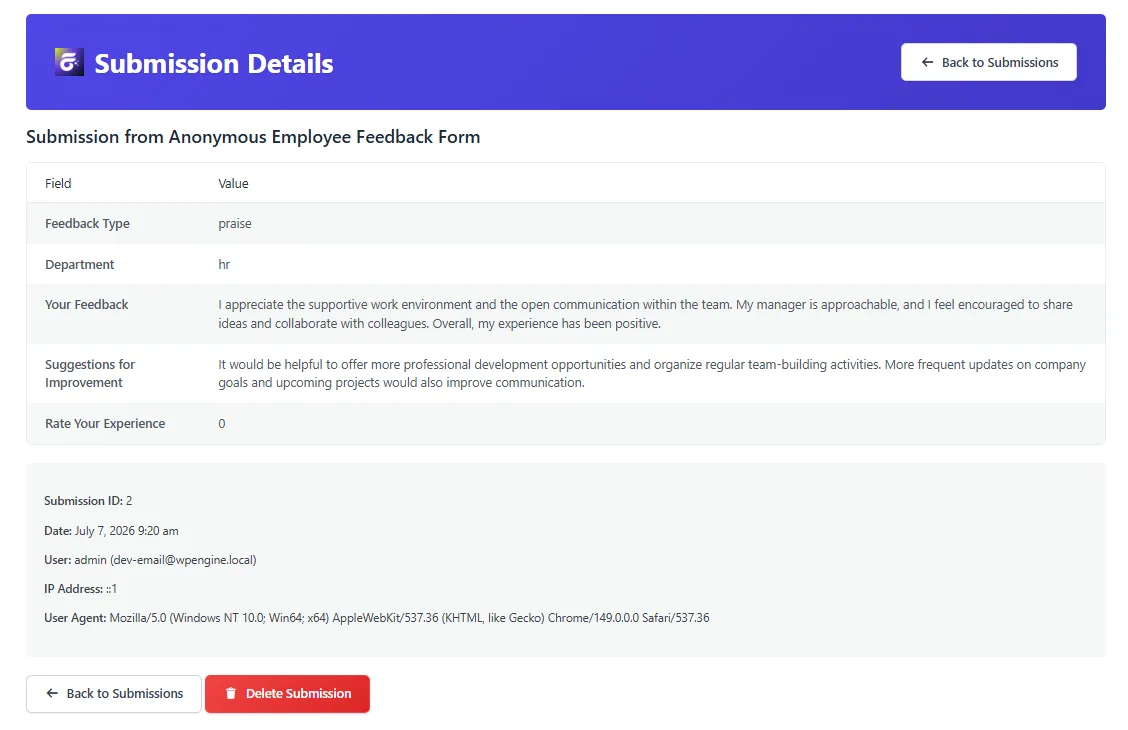
This helps you analyze employee feedback and identify areas for improvement.
Best Practices for Anonymous Employee Feedback Forms
A well-designed survey collects better feedback. Following a few simple best practices can improve both response rates and the quality of the information you receive.
First, keep the survey short. Employees are more likely to complete a form that takes only a few minutes. Focus on the most important questions instead of asking everything at once.
Second, use clear and simple language. Avoid technical terms or complicated questions that may confuse respondents.
It is also a good idea to include at least one open-ended question. While rating scales provide useful data, written comments often reveal valuable insights that numbers alone cannot provide.
Finally, collect feedback regularly instead of treating it as a one-time activity. Quarterly or biannual surveys help organizations monitor employee satisfaction and measure progress over time.
Frequently Asked Questions
Why should employee feedback forms be anonymous?
Anonymous surveys encourage employees to share honest opinions without worrying about negative consequences. This usually results in more accurate and meaningful feedback.
Can I customize the questions after generating the form?
Yes. After generating or selecting a form template, you can edit, remove or add questions to match your organization's requirements.
How many questions should an employee feedback survey include?
Most employee feedback forms work well with 10 to 15 carefully selected questions. Shorter surveys usually receive higher completion rates.
How often should businesses collect employee feedback?
Many organizations conduct employee feedback surveys every quarter or every six months. Regular surveys help identify trends and measure improvements over time.
Can employees complete the form on mobile devices?
Yes. Modern form builders use responsive layouts that work well on smartphones, tablets and desktop computers.
Final Thoughts
Anonymous employee feedback helps organizations understand what employees truly think about their workplace. Honest responses can highlight strengths, identify challenges and support better decision-making across the business.
Using an AI form builder makes the process much faster by simplifying form creation and customization. Instead of spending hours designing surveys from scratch, you can focus on asking meaningful questions and analyzing the responses.
For WordPress users, Sigma Forms provides a practical way to create, customize and publish employee feedback forms through an easy-to-use interface. Whether you're collecting feedback from a small team or a large organization, a well-designed anonymous survey can become an important part of improving workplace communication and employee satisfaction.

Strategic Content Writer for WordPress, Semantic SEO, and SaaS Audiences