

You exported your WordPress site and now you are staring at a zip file that looks like a maze of folders and unfamiliar file names. Where are your blog posts? Where did all your images go? Which folder holds the active theme and can you actually read any of this?
This guide answers all of those questions in plain language.
You will learn the exact difference between a WordPress XML export and a full site backup zip, where every important piece of your site lives inside each archive type and how to extract specific content safely without breaking anything on your live site.
Along the way, you will also see how the right tools, including free plugins from the WordPress Plugin Directory and Sigma Media Manager by BdThemes, can make the process dramatically smoother.
Whether you are migrating to a new host, recovering content from a backup or simply trying to understand what you downloaded, this guide walks you through it step by step.
Understanding the Two Types of WordPress Exports
Before you dig into any folder structure, it’s helpful to understand that there is no single universal “WordPress export.” Depending on the tool you used, you may have a content-only XML file or a complete site backup zip. These two formats are fundamentally different and contain very different things.
The XML Export (Tools > Export)
The built-in WordPress export tool lives at Tools > Export in your admin dashboard.
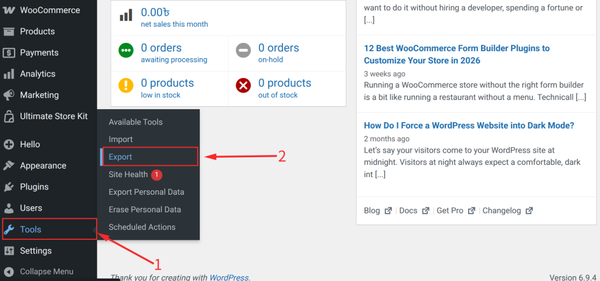
It generates a single .xml file in the WXR (WordPress eXtended RSS) format. Think of it as a structured text snapshot of your written content.
What the XML export includes:
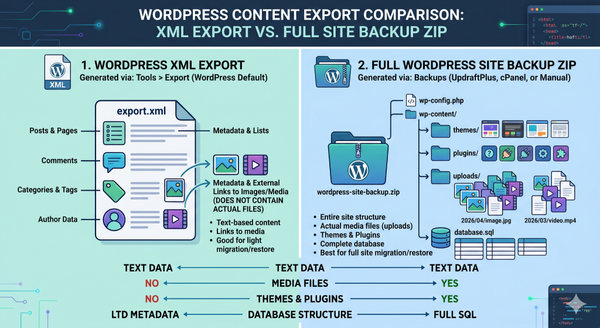
- Posts and pages: All published, draft, private and scheduled entries, including their full body content, titles, slugs and publication dates.
- Comments: All approved, pending and spam comments attached to your posts.
- Categories, tags and custom taxonomies: The organizational labels used across your content.
- Custom fields and post metadata: Any additional data stored per-post, such as featured image IDs, SEO fields or custom plugin data.
- User information: Author details for any users who have contributed posts.
- Media references: Links pointing to your images and attachments, but not the actual image files themselves.
What the XML export does NOT include:
- Your actual image and media files (the .jpg, .png, .pdf, .mp4 files themselves)
- Your active theme or any installed themes
- Your installed plugins
- WordPress core files
- Your database beyond content data
- Server configurations such as .htaccess or wp-config.php
| Important: The XML file references your media by URL. If you import it to a new site, WordPress can attempt to download images from the original URL during import. This only works if the original site is still live and publicly accessible. If the original site is offline, you will have broken image links after import unless you separately migrate the media files. |
How to generate a WordPress XML export:
- Log in to your WordPress admin dashboard.
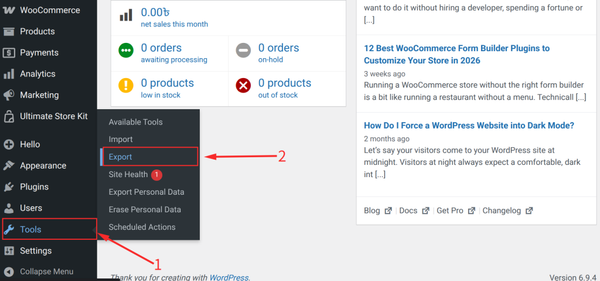
- In the left sidebar, go to Tools > Export.
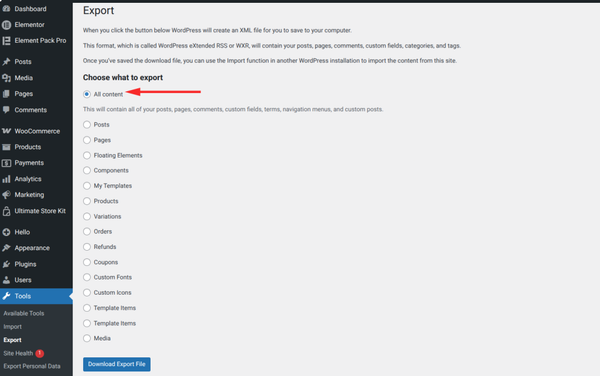
- Select what to export: All Content exports everything or you can choose Posts, Pages or specific custom post types using the dropdown filters.
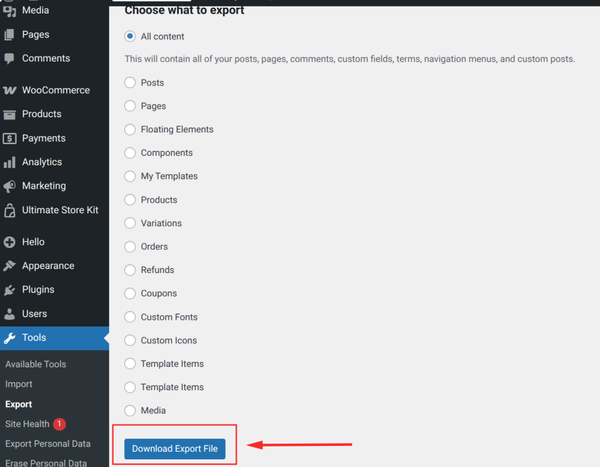
- Click the Download Export File button. WordPress generates an .xml file and your browser downloads it automatically.
The Full Site Backup (Astra, UpdraftPlus or cPanel)
A full-site backup ZIP is a completely different animal. It contains everything needed to restore or migrate your site – files, database, plugins, themes and all media. The exact structure varies slightly depending on the tool used to create it, but the core contents are consistent.
Common tools that generate full backup zips:
- UpdraftPlus: One of the most popular free backup plugins. It saves separate zip files for the database, plugins, themes and uploads, then stores them on your server or in remote storage like Google Drive or Dropbox.
- Astra Sites / Starter Templates: Can export a site template zip that includes settings, pages and customizer data for demo-style imports.
- All-in-One WP Migration: Packages your entire WordPress site into a single .wpress file that can be imported with its companion importer plugin.
- cPanel File Manager / FTP: A manual full-site backup that includes all WordPress files and a separate database export (.sql file) from phpMyAdmin.
- Duplicator: Creates an installer.php and a zip archive that, together, allow you to clone or migrate a site to a new server.
What a full backup zip typically includes:
- wp-content/uploads/: All your media files organized by year and month.
- wp-content/themes/: All installed themes, including the active one.
- wp-content/plugins/: All installed plugins.
- Database dump (.sql file): All posts, pages, settings, users and comments stored in MySQL tables.
- wp-config.php (sometimes): Database connection details. Handle with care, as it contains sensitive credentials.
Where to Find the Text Content (Posts and Pages)
The location of your text content depends entirely on which type of export you are working with.
In a WordPress XML Export
Your posts and pages are inside the .xml file itself. Open the file in any text editor (Notepad, VS Code or Sublime Text) and search for the <item> tags. Each <item> block represents a single post or page.
The key elements inside each <item> block are:
| <title>Your Post Title Here</title><link>https://yoursite.com/your-post-slug/</link><pubDate>Mon, 01 Jan 2024 12:00:00 +0000</pubDate><dc:creator>author_username</dc:creator><content:encoded><![CDATA[ Full post HTML content here ]]></content:encoded><wp:post_type>post</wp:post_type><wp:status>publish</wp:status> |
If you have hundreds of posts and need to extract content selectively, the free plugin WP All Export (available on WordPress.org) lets you filter your content by category, author, date range or post status and download a structured CSV or XML file that is much easier to work with than the raw WXR file.
In a Full Backup Zip
In a full backup, text content lives in the database, not in a file folder. When you extract the zip, look for a file ending in .sql. This is a database dump containing every post, page, comment, setting and user in plain SQL syntax.
To read the content without importing the whole database, open the .sql file in a text editor and search for the wp_posts table. Every row in this table is a post or page. The post_content column holds the full body text.
| wp_posts <- Posts, pages, revisions, nav menus, attachmentswp_postmeta <- Custom fields and metadata per postwp_terms <- Categories, tags and custom taxonomy termswp_options <- Site settings, theme mods, plugin settingswp_users <- Registered user accountswp_usermeta <- Per-user metadata and preferences |
| Tip: For a backup created by UpdraftPlus, the database is inside a separate zip named something like backup_2024-01-01_db.zip. Extract that zip first to find the .sql file inside. |
Where to Find the Media Files (The Uploads Folder)
Your images, PDFs, videos, and audio files live in one specific location within any full backup: the uploads folder.
The Path to Your Media Files
| your-backup.zip └── wp-content/ └── uploads/ ├── 2022/ │ ├── 01/ │ │ ├── hero-image.jpg │ │ ├── hero-image-150×150.jpg │ │ ├── hero-image-300×200.jpg │ │ └── hero-image-1024×683.jpg │ └── 06/ ├── 2023/ └── 2024/ |
WordPress organizes uploads into subfolders by year and month based on the date each file was uploaded. Every image also has multiple resized copies generated automatically at upload, named with the image’s dimensions appended to the filename (for example, image-300×200.jpg).
If you only want the original files and not the resized copies, look for the files without dimension suffixes in their names. The original is always the largest file in any given date folder without a size appended to its name.
Finding Media in an XML Export
The XML file does not contain your actual media files. It stores the URLs pointing to the locations of those files on your server. To find what is referenced, open the XML and search for <wp:attachment_url>. Each entry shows the full URL of an uploaded file.
If you need to download all referenced media from a live site, the free plugin Export Media Library (WordPress.org) packages your entire uploads folder into a downloadable zip directly from the dashboard. For selective media exports, Media Export and Clean give you additional filtering and orphan detection.
A Smarter Way to Work With Your Media
Once you have located your uploads folder within a backup, the real challenge begins – making sense of thousands of files across dozens of date-based subfolders. This is where a well-organized media library makes all the difference.
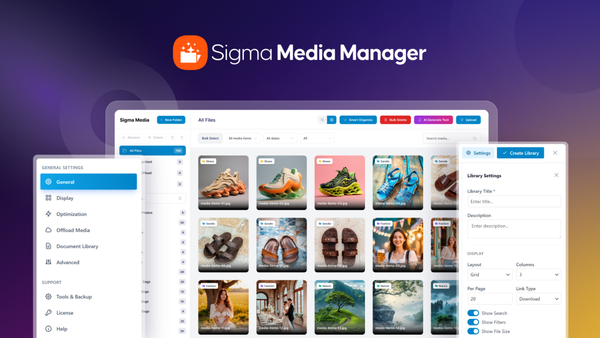
Sigma Media Manager by BdThemes addresses this problem on the live site. Rather than hunting through zip archives after the fact, it transforms your WordPress Media Library into a properly organized, folder-based system as you build and manage your site. When you do need to access a backup, having a logical folder structure already in place means your uploads directory reflects the same organization you see in your admin panel.
| Sigma Media Manager: Know Exactly Where Every File Belongs. Sigma replaces the flat date-based structure of the default WordPress media library with a folder hierarchy you define. Its Smart Organize feature uses AI to sort your existing library into categorized folders in one click, making both live browsing and backup navigation significantly easier. The built-in Document Library feature lets you create browseable, downloadable file collections with access controls, eliminating the need to dig through zip files to distribute content. |
Where to Find the Themes and Plugin Files
Theme and plugin files are only present in full site backups. They are never included in a WordPress XML export.
Theme Files
Inside any full backup zip, themes are located at:
| your-backup.zip └── wp-content/ └── themes/ ├── twentytwentyfour/ <- WordPress default theme ├── astra/ <- Installed theme └── astra-child/ <- Child theme (always keep this) |
Each theme folder contains all the PHP, CSS and JavaScript files for that theme. The active theme at the time of backup is just one of the folders here. To identify which theme was active, check the wp_options table in the .sql file for the template and stylesheet keys.
| Important: Never edit theme files directly from the backup or on your live site. If you update the theme later, your edits will be overwritten. Always use a child theme for customizations. The child theme folder (usually named astra-child, storefront-child or similar) is where your safe customizations live. |
Plugin Files
Plugin files follow the same pattern:
| your-backup.zip └── wp-content/ └── plugins/ ├── akismet/ <- Spam protection plugin ├── woocommerce/ <- E-commerce plugin ├── elementor/ <- Page builder plugin └── sigma-media-manager/ <- Media management plugin |
Each plugin has its own subfolder named after its slug. Inside you will find the main plugin PHP file and supporting assets. However, the settings and configuration data for each plugin are stored in the database, not in these folders. Copying a plugin folder to a new site without the corresponding database rows means the plugin will exist but may have no saved settings.
If you need to download your installed plugins directly from a live WordPress site without FTP access, the free plugin Download Plugins and Themes in ZIP (WordPress.org) adds a Download button next to each plugin and theme in your dashboard, letting you download any of them in a single click.
Managing Content More Effectively
Understanding where your content lives inside a zip archive is useful knowledge, especially when recovering from an emergency. But ideally, you should never need to root through backup folders to find your files in the first place.
A more organized approach to media management on the live site dramatically reduces how often you need to consult backups for content retrieval. Two categories of tools help here: free single-purpose plugins and comprehensive management solutions.
The Better Way: Sigma Media Manager
The default WordPress Media Library gives you an undifferentiated grid of files sorted by date. As your site grows, this flat structure becomes increasingly difficult to navigate and finding a specific file often means scrolling through hundreds of thumbnails. Sigma Media Manager was built specifically to solve this problem.
Here is what makes Sigma the recommended solution for anyone who manages a significant volume of media:
Smart AI-Powered Organization
Sigma’s Smart Organize feature scans your existing Media Library and uses AI to automatically sort all your files into labeled folders in a single click. Images grouped by type, PDFs together, product photos in one place. Instead of a flat sea of thumbnails, you get a structured folder tree that mirrors the organization you would build yourself, without the manual work.
Drag-and-Drop Folder Management
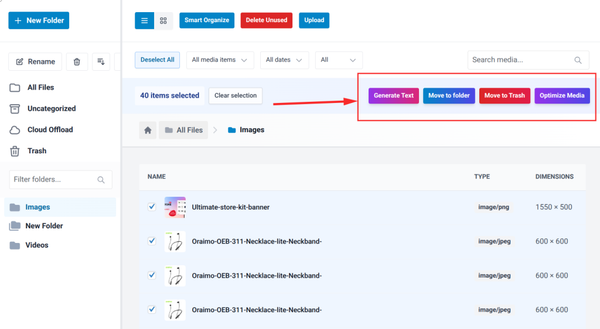
You can create unlimited folders and subfolders, rename them and drag files between them just as you would on your desktop. Keyboard shortcuts like Ctrl+A to select all files are supported for faster bulk operations. The folder structure is visual only, which means it does not physically move files on the server and remains fully compatible with all themes and plugins.
AI Metadata Generation
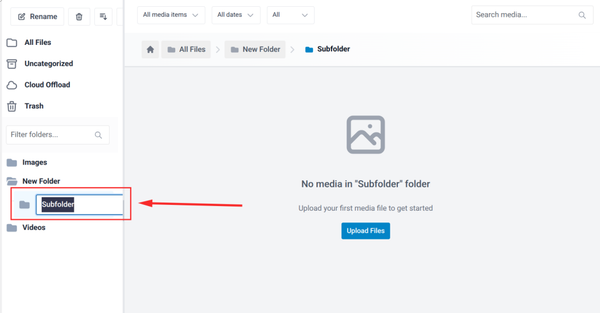
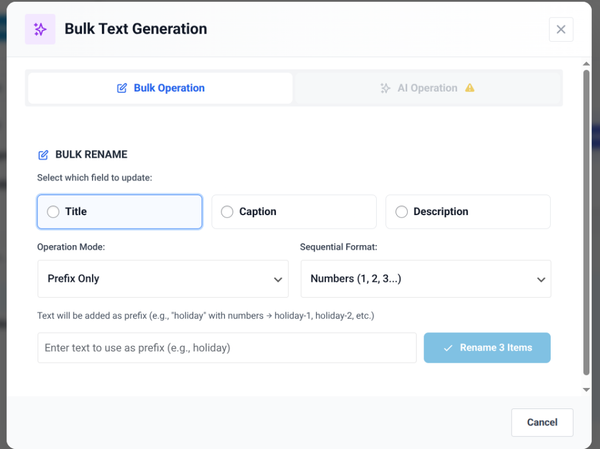
Sigma can automatically generate image titles, captions and descriptions for selected files in bulk using AI. This is particularly valuable when importing a large library from a backup that has no existing metadata. Instead of writing alt text for each file manually, you select a batch and let the AI fill in the details for review.
Secure Document Library
Sigma includes a Document Library feature that lets you create curated, browseable file collections and embed them on any page or post using a shortcode. All d files are served through protected delivery rather than direct public URLs. This replaces the workflow of hunting through zip files and then emailing download links to users.

Cloud Storage Integration
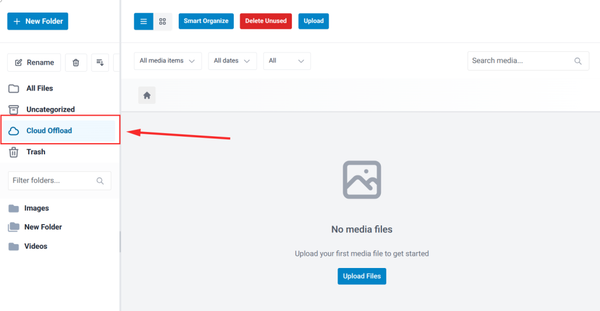
Files placed in Sigma’s Cloud Offload folder are automatically synced to your connected cloud storage provider. This means your media library stays organized on both the local server and in external storage simultaneously and you can browse both from the same admin interface.
| Why Sigma Media Manager Is the Pro ChoiceInstead of managing five separate plugins for folders, bulk editing, AI metadata, secure downloads and cloud offload, Sigma handles all of it from one unified interface inside your WordPress admin.It works alongside your existing backups, not instead of them. A well-organized Sigma library makes your backup zip easier to read because the uploads folder reflects the same folder logic you set up inside your dashboard.White label branding is available on higher license tiers, making it a strong choice for agencies delivering managed WordPress solutions to clients. |
Why Use a Plugin At All?
A reasonable question is whether the default WordPress tools, combined with direct file access through FTP or cPanel, are sufficient for most users. For sites with fewer than a few hundred media files and no complex access requirements, the answer is often yes. The built-in tools work and free plugins like UpdraftPlus, Export Media Library and WP All Export cover the most common gaps.
The case for a dedicated plugin grows stronger as your site scales. Consider:
- Volume: A site with 5,000 images is genuinely difficult to navigate in the default grid view. Searching by filename works occasionally; having a folder structure works every time.
- Team workflows: When multiple authors or editors upload media, a shared folder convention prevents duplication and maintains library coherence.
- Client deliverables: If you are building sites for clients who need to download specific documents or find specific assets, a Document Library feature with access controls provides a professional solution that a plain backup zip cannot.
- Time cost: The hours spent searching for files, cleaning up orphaned media and manually writing metadata for hundreds of images add up quickly. Automation tools pay for themselves in the time they save.
How to Extract Specific Content Safely
When you need to pull specific files or content from a backup zip without restoring the entire site, follow these steps to avoid overwriting anything on your live site.
Extracting Media Files From a Full Backup
Step-by-step:
- Download or locate your backup zip file on your computer.
- Right-click the zip file and select Extract All (Windows) or double-click to open it in Finder (Mac). Choose a destination folder on your desktop or another safe location.
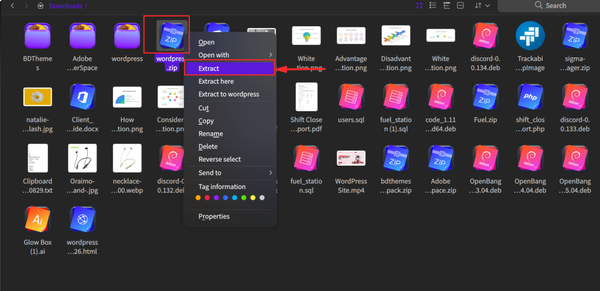
- Do not extract directly into your live site directory. Always extract to a local folder first.
- Navigate to wp-content > upload inside the extracted folder.
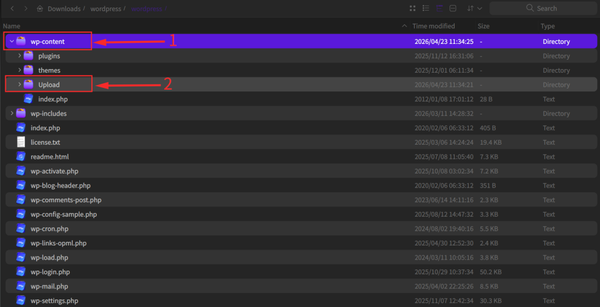
- Browse to the year and month subfolder corresponding to when the file was uploaded. Copy only the specific files you need.
- If you need to restore a file to your live site, upload it via FTP, your hosting file manager or re-upload it through the WordPress Media Library. Do not bulk-paste the entire uploads folder over a live site unless you are intentionally doing a full restore.
Extracting Post Content From an XML Export
Step-by-step:
- Open the .xml file in a text editor such as VS Code, Notepad++ or even the free online editor xmlgrid.net.
- Use Ctrl+F (Find) to search for the title of the post or page you need.
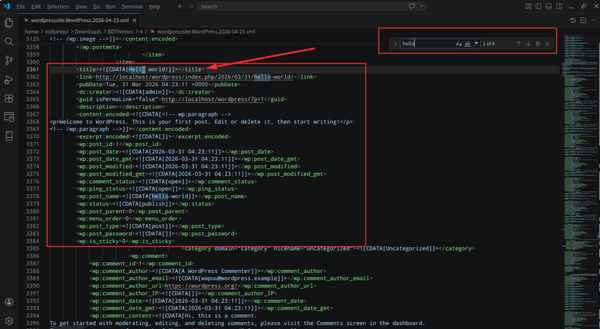
- The full content of the post is inside the <content: encoded> tags within the <![CDATA[ … ]]> section. Copy this HTML to a text file or a new post in your destination WordPress install.
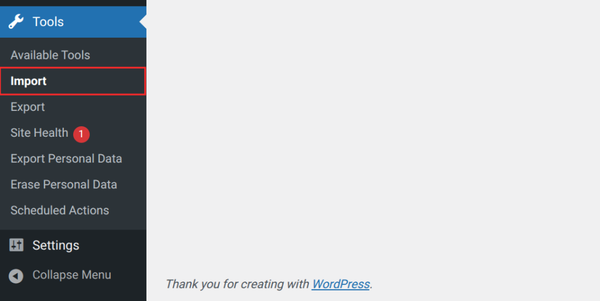
- Alternatively, import the entire XML into a fresh WordPress installation via Tools > Import > WordPress and then export only what you need using WP All Export.
Extracting Theme or Plugin Files From a Full Backup
Step-by-step:
- Extract the backup zip to a local folder (never directly onto a live server).
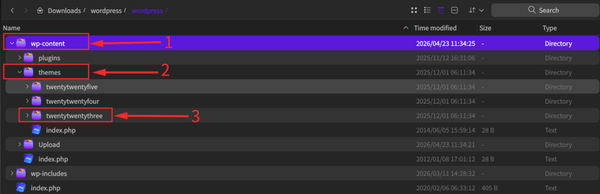
- Navigate to wp-content > themes or wp-content > plugins.
- Copy the specific theme or plugin folder you need to a separate location.
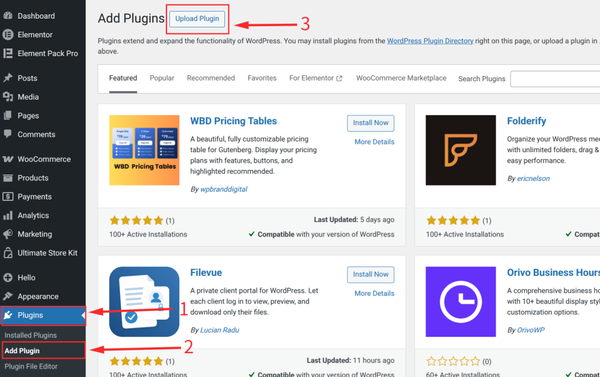
- To install the extracted plugin on a live site, compress the plugin folder back into a .zip file and upload it via Plugins > Add New > Upload Plugin in your WordPress dashboard.
- For themes, use Appearance > Themes > Add New > Upload Theme with the zipped theme folder.
| Warning: Restoring an individual plugin from a backup file only restores the plugin code, not its settings. Settings are stored in the database. If you need to recover plugin settings as well, you need to restore the corresponding database tables from your .sql backup file or re-configure the plugin from scratch. |
Frequently Asked Questions
What is inside a WordPress export zip file?
The contents depend entirely on how the zip was created. If you used Tools > Export in the WordPress dashboard, the zip contains a single XML file (WXR format) with your post and page content, but not your media files, themes or plugins. If you used a backup plugin like UpdraftPlus or a cPanel backup, the zip contains the wp-content folder (including uploads, themes and plugins) and a database file (.sql).
Where are my images inside a WordPress backup zip?
Your images are in wp-content/uploads/ inside the backup zip. They are organized into subfolders by year and month (for example, uploads/2024/03/). WordPress also stores multiple resized copies of each image in the same folder, named with their dimensions appended (for example, image-300×200.jpg). The original file is the one without a dimension suffix.
Why are my images missing after importing an XML export file?
The WordPress XML export file does not contain the actual image files. It only stores URLs pointing to where the images live on the original server. When you import the XML into a new site, WordPress tries to download those images from the original URLs. If the original site is offline or the URLs have changed, the images will not transfer. In that case, you need to manually copy the uploads folder from a full backup and upload those files to the new site.
How do I find a specific post inside a WordPress XML file?
Open the .xml file in any text editor and use Ctrl+F (Find) to search for the title or a phrase from the post. Posts and pages are stored inside <item> blocks. The full post content is within the <content: encoded> element wrapped in a CDATA section. If the XML is very large, consider importing it into a staging WordPress installation and then using the dashboard search to find the post more easily.
What is the difference between wp-content/uploads and the WordPress Media Library?
The uploads folder is the physical location on your server where WordPress stores media files. The Media Library is the admin interface that displays and manages those files. The default Media Library has no folder structure beyond the year/month organization built into the uploads folder. Plugins like Sigma Media Manager add a visual folder and organization layer on top of this without physically rearranging the files on the server.
Can I restore just one file from a full site backup without restoring the whole site?
Yes. Extract the backup zip file on your local computer, then navigate to the wp-content/uploads folder and locate the specific file by date subfolder. You can then re-upload that file to your live site via FTP, your hosting file manager or directly through the WordPress Media Library. You do not need to restore the entire backup to recover a single file.
Do plugin settings get saved inside the backup zip files?
Plugin settings are stored in the WordPress database, specifically in the wp_options table and sometimes in separate plugin-specific tables. They are included in the .sql database dump within a full backup, but not inside the plugin folder itself. Restoring plugin settings requires restoring the corresponding database rows, not just the plugin folder files.
What is Sigma Media Manager and how does it help with content organization?
Sigma Media Manager is a WordPress plugin by BdThemes that replaces the default flat Media Library interface with a full folder and subfolder system, AI-powered metadata generation, bulk editing tools, a secure Document Library and cloud storage integration. Rather than digging through zip archives to find files, Sigma lets you organize your media with the same logic you would use in any file manager app, making content retrieval faster both inside WordPress and when you do need to reference a backup.
Final Thoughts
A WordPress zip file is not as mysterious as it first appears. Once you understand the two export types and know that all user content lives inside the wp-content folder, navigating any backup becomes straightforward.
To summarize what lives where:
- Post and page content: Inside the .xml file (XML export) or the wp_posts table in the .sql database dump (full backup).
- Media files: Inside wp-content/uploads/ organized by year and month, inside any full backup zip.
- Theme files: Inside wp-content/themes/, one subfolder per theme.
- Plugin files: Inside wp-content/plugins/, one subfolder per plugin.
- Plugin and theme settings: Inside the .sql database file, not in the file folders.
For one-off recovery tasks, the combination of a text editor, a file manager and free plugins like UpdraftPlus, WP All Export and Export Media Library covers most needs at no cost.
For sites where media management is an ongoing workflow, Sigma Media Manager provides the folder structure, AI organization, bulk tools and document delivery features that reduce how often you need to touch backup archives in the first place. A well-organized library on the live site is always easier to work with than a well-organized backup after the fact.
Md Tariqul
The BdThemes team builds WordPress plugins trusted by 3M+ users worldwide. We write about web accessibility, WCAG compliance, and inclusive design.