

Have you ever visited a website and noticed a row of posts or images sliding smoothly across the screen? That is a carousel post in action and it is one of the most powerful tools available for making your WordPress site more interactive and visually appealing. Whether you run a blog, an online store, or a business website, knowing how to add a carousel in WordPress can make a significant difference in how visitors engage with your content.
In this guide, we will cover everything you need to know about carousel posts, from what they are and why they matter, to how you can create one on your WordPress site without any coding knowledge. By the end, you will have a clear understanding of how to use this feature to boost site engagement, showcase your content effectively and keep your visitors coming back for more.
Whether you are looking for a responsive WordPress carousel, exploring a WordPress carousel plugin, or simply trying to understand the concept before you get started, this guide has you covered.
What is a Carousel Post in a WordPress Site?
A carousel post is a dynamic display format that allows multiple posts, images, or content items to be presented in a rotating or scrollable layout within a single section of a web page. Instead of listing posts in a traditional vertical or grid format, a carousel arranges them in a horizontal row that users can slide or click through one by one.
In WordPress, a carousel post typically refers to a section on your homepage, category page, or sidebar that displays recent posts, featured articles, WooCommerce products, or any custom content type in a sliding format. This is sometimes referred to as a post carousel slider or simply a post slider.

Carousel posts are widely used because they are space-efficient. Instead of taking up several rows of vertical space on your page, they condense multiple pieces of content into a single row with interactive navigation. Visitors can browse through the content at their own pace, making the experience feel more personalized and engaging.
The term carousel post design for websites often includes features like autoplay, dot navigation, arrow buttons, responsive behavior and customizable animation effects. These features help create a polished, professional appearance that aligns with your brand identity.
It is also worth noting that carousel posts are not limited to just blog articles. They can display product listings, team members, testimonials, portfolio items, or any type of post you have on your WordPress site. This flexibility is one of the main reasons why they have become so popular among WordPress users and designers.
Benefits of Carousel Posts in WordPress
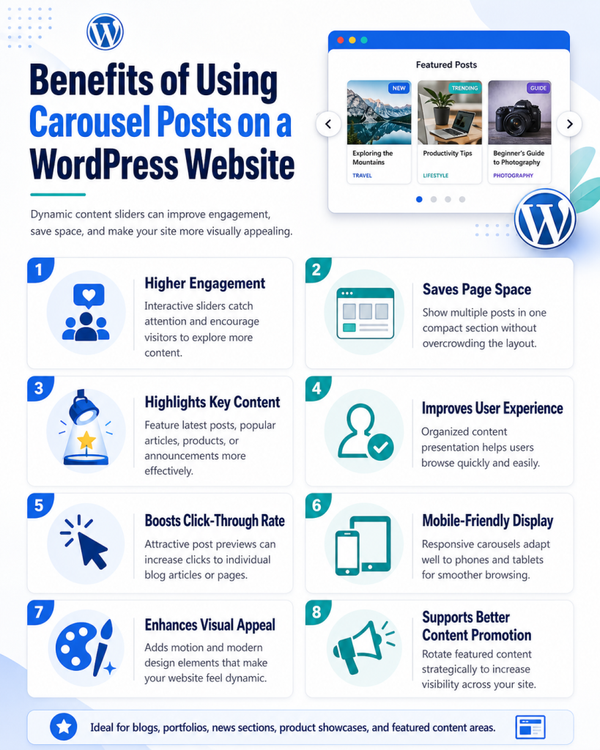
Before you learn how to create a carousel post in WordPress, it helps to understand why you should use one in the first place. The benefits go well beyond just making your site look attractive.
Improved User Engagement
One of the most direct benefits of carousel posts is increased user engagement. When visitors see an interactive element on your page, they are more likely to click on it and explore. This curiosity-driven interaction keeps users on your site longer, which is a positive signal for both your audience experience and your search engine rankings.
Internal linking through carousel posts also plays a role here. You can link to other posts and pages on your site, encouraging visitors to navigate deeper into your content. For example, using the
For example, using the Elite Carousel Widget from Ultimate Post Kit, you can display your latest blog posts in a visually rich format that naturally draws clicks and encourages exploration.
Better Use of Page Space
A carousel is a smart way to present more content without overwhelming your page layout. Instead of having a long scroll of post listings, you can show six, eight, or even ten posts in the same amount of horizontal space. This is especially useful for homepages and landing pages where space is valuable and first impressions matter.
The responsive WordPress carousel feature ensures your layout adapts correctly to mobile and tablet screens. As more users browse on smaller devices, having a carousel that stacks and resizes appropriately is an important part of providing a good user experience.
Highlighting Featured Content
Carousel posts are an excellent way to spotlight specific content you want your audience to notice. Whether it is your most popular blog articles, newest product launches, or seasonal promotions, placing this content in a carousel ensures it gets the attention it deserves without being buried below the fold.
For WordPress store owners, displaying products through a WooCommerce product carousel is one of the most effective strategies for increasing visibility and driving sales. Instead of sending users to a separate shop page, you can bring your top products directly to the homepage or a targeted landing page.
Enhanced Visual Appeal
A well-designed carousel post can instantly elevate the visual appeal of your WordPress site. With customizable layouts, typography, colors, spacing and animation effects, you can create a carousel that feels like a natural extension of your brand. A polished carousel post design for websites communicates professionalism and attention to detail, which builds trust with your audience.
Increased Click-Through Rates
When content is presented attractively and in an interactive format, people are more likely to click through to read more. Carousel posts with strong featured images, compelling post titles and clear call-to-action buttons tend to generate higher click-through rates than static post lists. This is especially true for e-commerce sites where product images play a central role in the buying decision.
Using a well-optimized WordPress carousel plugin, you can even add category filters, post tags, or dynamic sorting so that users can find exactly what they are looking for without leaving the page they are on.
SEO and Internal Linking Advantages
From an SEO perspective, carousel posts help with internal linking by naturally connecting different pages of your site. Search engines value websites that have a clear internal link structure, as it helps them understand how your content is organized and which pages are most important. Carousel posts make it easy to create these connections while also benefiting your users.
When you display a category-based carousel, for instance, you are helping both search engines and users discover related content more efficiently. This supports topical authority and can improve rankings over time.
How to Create a Carousel Post in WordPress
There are several ways to create a carousel post in WordPress, depending on the tools and workflow you prefer. Below are the three most popular methods, each catering to different skill levels and site setups.
Using Dedicated Carousel Plugins (Easiest)
The easiest way to add a carousel post to your WordPress site is by using a dedicated carousel or post widget plugin. These tools are designed specifically for this purpose and usually come with a drag-and-drop interface, pre-built templates and extensive customization options that require no coding at all.
If you run a blog and want a powerful set of post display widgets, Ultimate Post Kit is an excellent solution built specifically for bloggers using Elementor. It includes a wide range of carousel and slider widgets that make it easy to showcase your posts in beautiful and functional layouts.
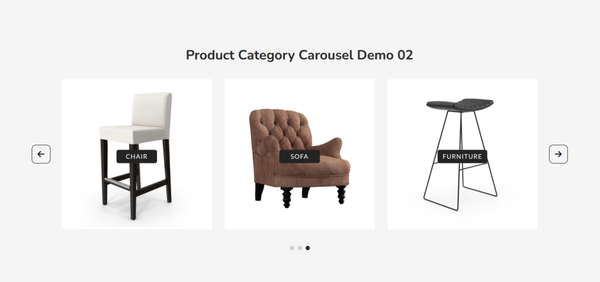
For online store owners, having a dedicated e-commerce carousel solution is even more important. Displaying brands, products, or categories in a carousel format can significantly influence purchase decisions. A purpose-built solution for WordPress stores provides widgets and modules optimized for shopping experiences, including product image zoom, price display, add-to-cart functionality and brand showcases.
A great example of this is the Ecommerce Exclusive Brand Carousel Widget by Ultimate Store Kit, which lets you display your featured brands in a smooth, rotating carousel that looks great on both desktop and mobile. This kind of widget not only adds visual interest to your store but also helps customers quickly navigate to their preferred brands.
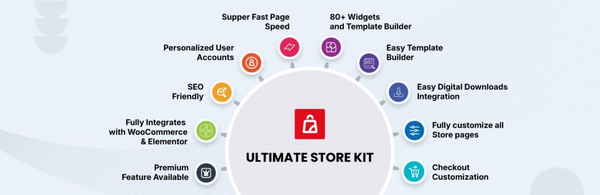
Ultimate Store Kit is a plugin that elevates the standard WordPress store experience with specialized widgets and layouts designed for eCommerce. If you are building or running a WooCommerce-powered shop, having a toolkit that understands the unique needs of online stores is invaluable. From product carousels to brand showcases and category sliders, it covers the essential elements that drive conversions and improve the shopping experience.
To get started with a plugin-based carousel, you typically follow these general steps. First, install and activate the plugin of your choice from the WordPress plugin directory. Second, navigate to the page or post where you want to add the carousel. Third, open the block editor or page builder interface. Fourth, search for the carousel widget in the available blocks or widgets panel. Fifth, drag and drop it into your desired section. Sixth, configure the settings such as the post type to display, number of posts, categories, layout style and animation options. Finally, publish or update the page to see the carousel live on your site.
Using Page Builders (Elementor)
If you already use a page builder like Elementor on your WordPress site, you have even more flexibility when it comes to creating carousel posts. Page builders offer a visual editing environment where you can see your changes in real time without needing to preview the page separately.
For Elementor users, following a step-by-step Elementor carousel tutorial is one of the most efficient ways to get a professional-looking carousel up and running. With the right addon, you can access a wide variety of post carousel widgets that integrate seamlessly with the Elementor interface.
When using a page builder, you gain visual control over every aspect of the carousel design. You can set the number of columns, control the gap between items, choose the card layout style, set the hover effects and configure the navigation dots or arrows all from within the drag-and-drop editor.
For category-based carousels, the Category Carousel Widget is a practical tool for displaying your WordPress post categories in a carousel. This is useful for sites that organize content into multiple categories and want to give users an easy way to explore each one. Instead of linking to a static category page, you can show a visually engaging carousel that users can browse directly from the homepage or landing page.
[IMAGE: Screenshot: Elementor editor showing carousel widget configuration panel with live preview]
Here is a general workflow for creating a carousel post using Elementor.
- Open your page in the Elementor editor by clicking the Edit with Elementor button.
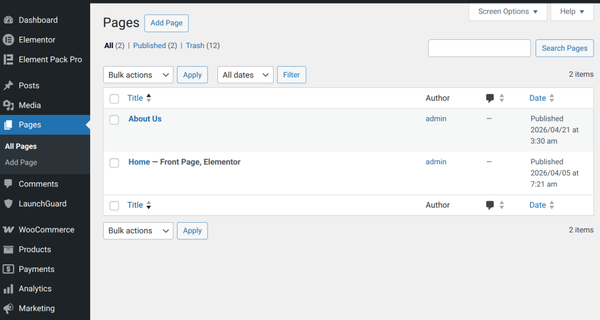
- Add a new section or select an existing one where you want the carousel to appear.
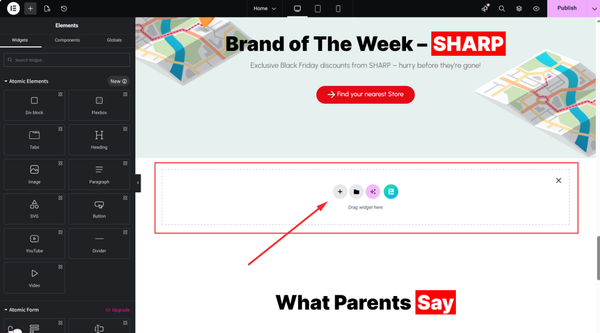
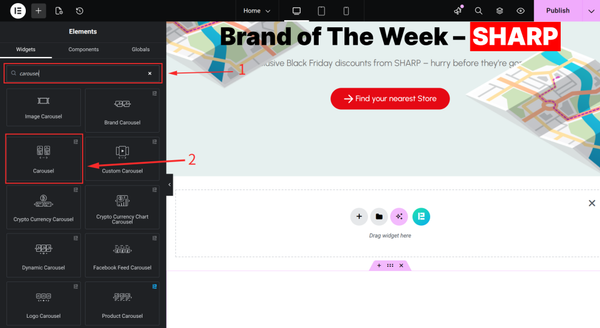
- Search for a carousel or post carousel widget in the Elementor elements panel on the left.
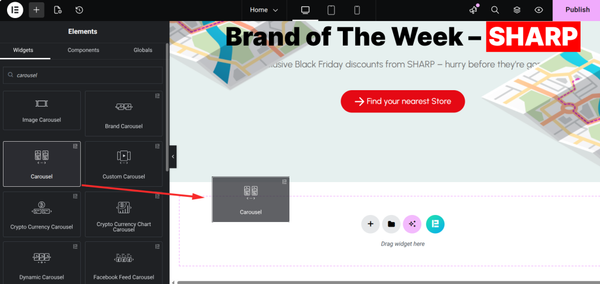
- Drag the widget into your section.
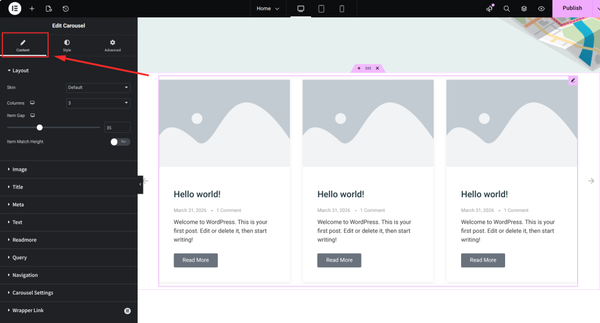
- In the Content tab, choose the post type, number of posts per slide, category filter and display elements like title, excerpt and thumbnail.
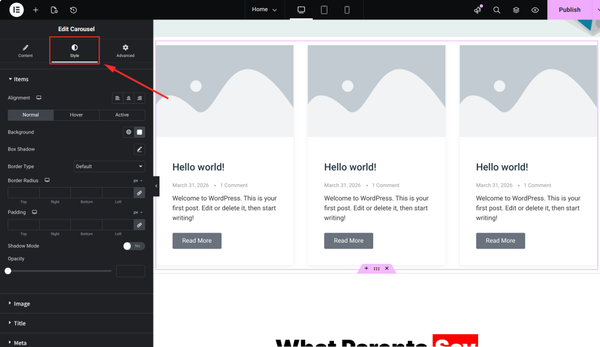
- In the Style tab, customize the fonts, colors, card background, border radius and navigation button styles.
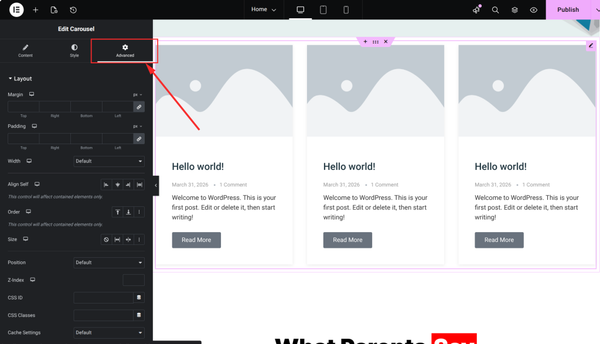
- In the Advanced tab, you can set responsive settings for mobile and tablet. Once satisfied, click the Update or Publish button to save your changes.
One advantage of using a page builder is the ability to mix and match different widget styles on the same page. You might use a large hero carousel at the top, a compact category carousel in the middle and a product carousel at the bottom, each with its own design settings that work together harmoniously.
Using Gutenberg (Block Editor)
For WordPress users who prefer the native block editor experience, creating a carousel post using Gutenberg is also possible. The Gutenberg block editor has evolved significantly and now supports a wide range of third-party blocks that extend its functionality, including carousel and slider blocks.
A Gutenberg block carousel typically comes as part of a block addon plugin that you install alongside the core block editor. Once installed, the new carousel block appears in your block library and can be inserted into any post or page just like a regular paragraph or image block.
The Gutenberg approach is particularly appealing to users who prefer a cleaner, more minimalist editing environment without the overhead of a full-page builder. It is lightweight, fast and tightly integrated with the WordPress core.
To create a carousel using the Gutenberg block editor, start by opening the post or page you want to edit. Click the plus icon to add a new block. Search for the carousel or post carousel block in the search field. Click to insert it into your content area. In the block settings panel on the right, configure which posts to show, how many per row and what elements to display. Customize the styling options available in the block settings. Save or publish your page when ready.
While Gutenberg carousels may not always offer the same depth of styling options as page builder alternatives, they are an excellent choice for users who want a quick and easy way to add a lightweight WordPress slider to their content without installing a heavy plugin suite.
Regardless of the method you choose, the goal remains the same. You want to create a carousel post that loads quickly, looks great on all screen sizes and makes it easy for your visitors to discover and engage with your content.
Carousel Post FAQs
What is the difference between a carousel and a slider in WordPress?
A slider typically refers to a full-width display that shows one item at a time and transitions to the next. A carousel, on the other hand, usually shows multiple items simultaneously in a row and allows horizontal scrolling or navigation. In practice, many WordPress carousel plugins use both terms interchangeably, so the distinction depends on the specific implementation you are using.
Will a carousel post slow down my WordPress site?
This depends on the plugin or tool you use to create it. A poorly coded plugin with excessive JavaScript and unoptimized images can certainly affect page load speed. This is why choosing a lightweight WordPress slider solution built with performance in mind is important. Look for plugins that load scripts only when the carousel is present on the page and always optimize your images before displaying them in a carousel.
Are carousel posts mobile-friendly?
Yes, modern carousel solutions are designed to be fully responsive. A responsive WordPress carousel automatically adjusts the number of visible items, the font sizes and the navigation controls based on the screen size of the visitor. Always test your carousel on mobile devices after setting it up to ensure the experience is smooth and touch-friendly.
Can I display custom post types in a WordPress carousel?
Absolutely. Most advanced carousel widgets support custom post types in addition to standard blog posts. This means you can display portfolio items, testimonials, team members, products, events, or any other custom post type you have registered on your WordPress site. Check the settings panel of your chosen widget to see which post types it supports.
Do I need to know how to code to create a carousel post?
No coding knowledge is required when using modern WordPress carousel plugins or page builder addons. These tools are built specifically for non-technical users and provide intuitive visual interfaces for setting up and customizing carousels. If you can use a drag-and-drop editor, you can create a professional-looking carousel post without writing a single line of code.
How many posts should I display in a carousel?
There is no universal answer, as it depends on your content goals and available screen space. A common practice is to display three to four posts per row on desktop and reduce to one or two on mobile. The total number of posts loaded into the carousel can be higher since users can scroll through them. Start with a manageable number and increase it as your audience engages with the content.
Is it possible to filter carousel posts by category?
Yes, category filtering is a common feature in most carousel widgets. You can configure the widget to display posts from a specific category, tag, or custom taxonomy. Some advanced widgets even let visitors filter the carousel in real time by clicking category buttons, adding a layer of interactivity to your page.
Final Thoughts
A carousel post is far more than just a visual enhancement. It is a functional tool that helps you present more content in less space, guide your visitors toward the information most relevant to them and create a more engaging browsing experience overall. Whether you are a blogger looking to highlight your latest articles, a business owner promoting your services, or an e-commerce store manager showcasing your best products, carousel posts offer a flexible and effective solution.
The good news is that adding a carousel to your WordPress site has never been easier. With the right tools, you can go from zero to a fully functioning, beautifully styled carousel post in a matter of minutes. You do not need to be a developer or a designer to make it happen.
For bloggers and content creators, a dedicated solution like Ultimate Post Kit gives you all the post display widgets you need in one place, including powerful carousel options built specifically for content-rich websites.
For e-commerce store owners, having a toolkit built around the needs of online shopping makes a real difference. A solution that understands the nuances of product display, brand visibility and customer journey is worth far more than a generic plugin. Ultimate Store Kit is designed from the ground up for WordPress store owners who want to deliver a premium shopping experience without needing a developer on retainer.
Whichever route you take, the most important thing is to start. Add your first carousel post, monitor how your visitors respond and refine it over time. With every iteration, you will discover new ways to make your WordPress site more engaging, more useful and more successful.
Now that you know what a carousel post is and how to create one, the next step is yours. Pick your preferred method, set up your first carousel and watch what happens when your content becomes interactive.
Md Tariqul
The BdThemes team builds WordPress plugins trusted by 3M+ users worldwide. We write about web accessibility, WCAG compliance, and inclusive design.