

The Cross-Sell Popup feature of the Ultimate Store Kit Pro allows you to display targeted product recommendations in a popup while customers are visiting your shop page and browsing your products. By presenting complementary products at the right moment, you can encourage additional purchases without interrupting the shopping journey. This helps increase the average order value while creating an engaging and convenient upselling experience for your customers.
Configuring Settings for Cross-Sell Popup
The Cross-Sell Popup feature is a Pro feature of the Ultimate Store Kit plugin, which means you need to install and activate the Pro version on your WordPress website to access and use it. Once the plugin is enabled and the feature is set up, it will allow you to display targeted product offers directly on the WooCommerce shop page, encouraging customers to add complementary items to their order before completing their purchase. Simply follow the documentation to know how to install and activate the Pro plugin to start using this feature.
Where to Find The Cross-Sell Popup Feature
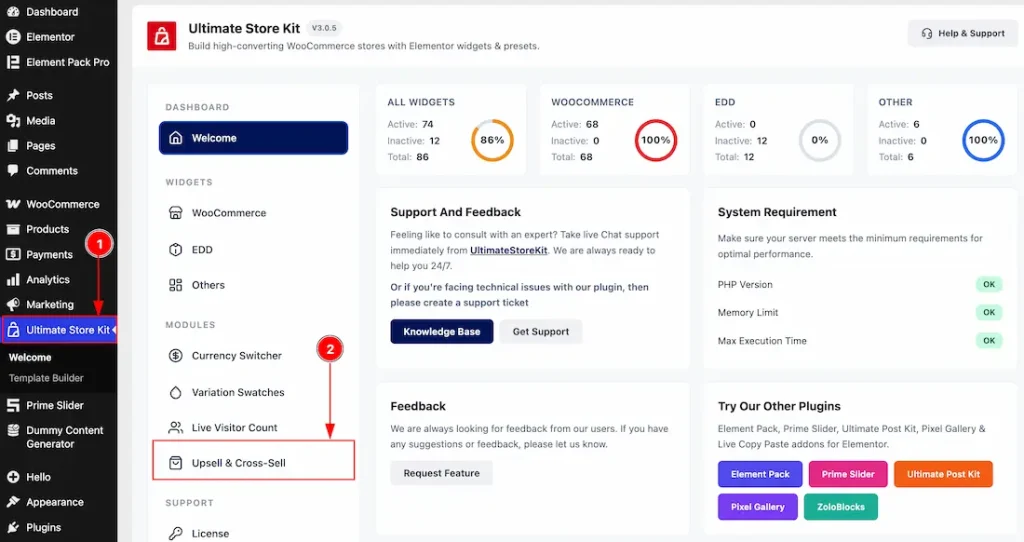
After properly installing and activating the Ultimate Store Kit Pro plugin, follow the steps below to find the Cross-Sell Popup feature:
- Go to WP Dashboard > Ultimate Store Kit and click on it to open the Ultimate Store Kit Dashboard.
- In the Ultimate Store Kit Dashboard, you will find the Upsell & Cross-Sell tab. Click on this tab.
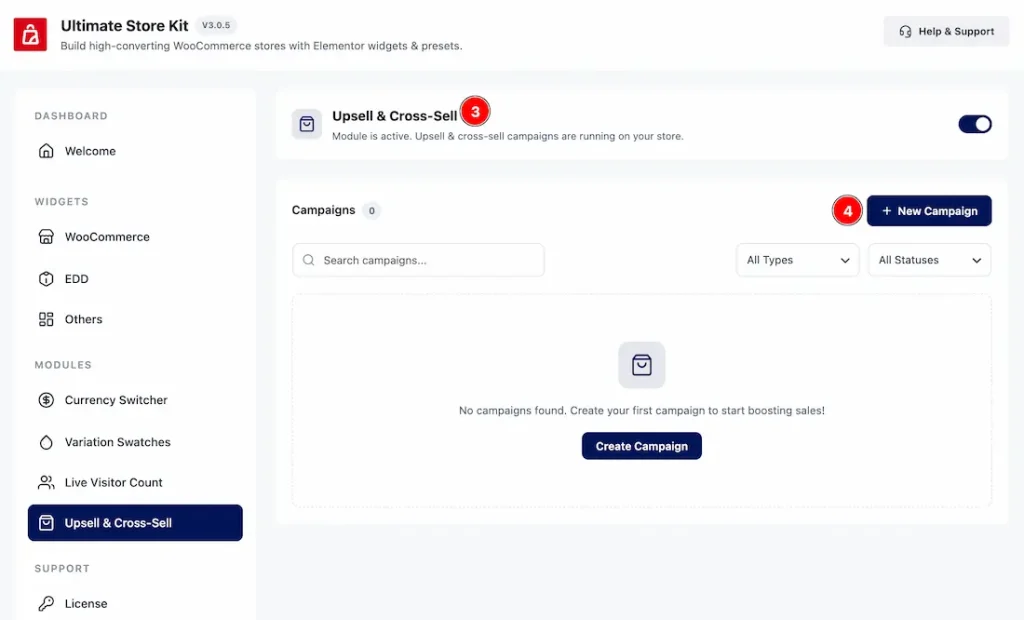
3. After the tab is opened, you have to enable the switcher to run the upsell & cross-sell campaigns on your store.
4. Click on the New Campaign button to add a new upsell & cross-sell campaign with this option.
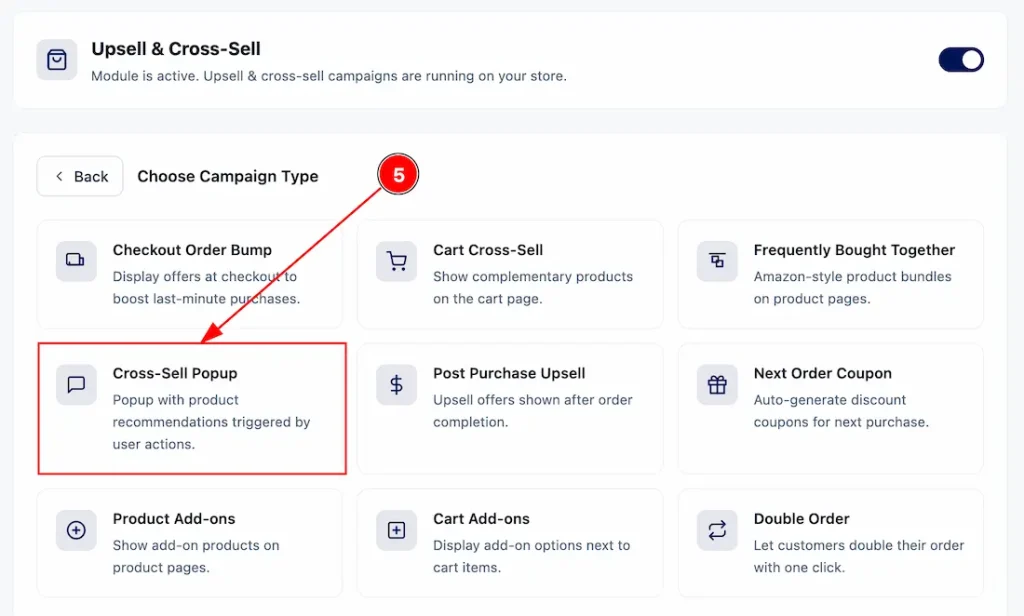
5. After clicking on the New Campaign button, you will see the campaigns that are under the upsell & cross-sell. Here you will see the Cross-Sell Popup feature. Click on it to open the settings interface for the Cross-Sell Popup feature.
Setting Up the Cross-Sell Popup Feature
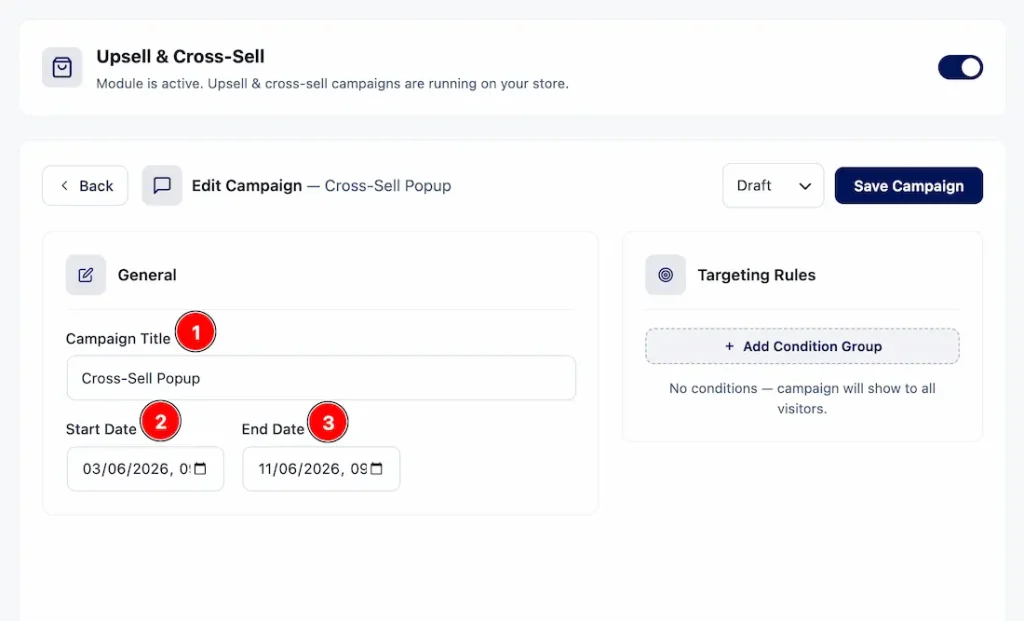
After selecting Cross-Sell Popup as the campaign type, a new dashboard will appear where you can customize the Cross-Sell Popup campaign. Let’s take a look at the available options:
- Campaign Title: You can enter a name for the campaign in this field.
- Start Date: Use this option to set the date when you want the campaign to start running for your audience.
- End Date: Use this option to set the date when you want the campaign to stop running for your audience.
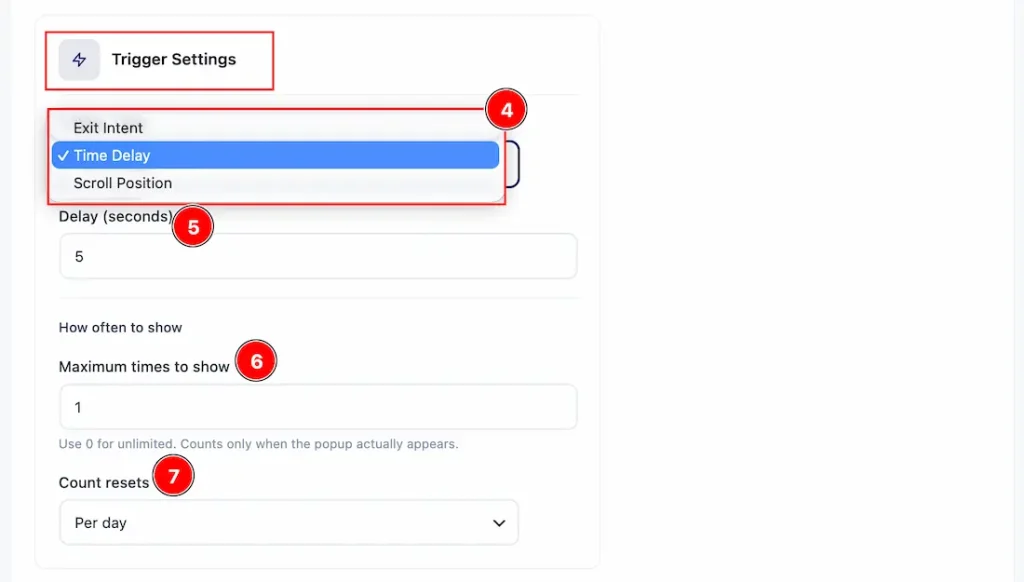
- Trigger Settings: This option determines when the Cross-Sell Popup will appear to visitors. You can choose from:
Exit Intent – Display the pop-up when a visitor is about to leave the page.
Time Delay – Display the pop-up after a specified number of seconds.
Scroll Position – Display the pop-up when a visitor scrolls to a certain point on the page. - Delay (Seconds): This option is available when Time Delay is selected as the trigger type. It allows you to define how many seconds the system should wait before showing the pop-up. For example, entering 5 will display the pop-up 5 seconds after the page loads.
- Maximum Times to Show: This option controls how many times the pop-up can be shown to the same visitor within the selected reset period. For example, setting it to 1 means the pop-up will appear only once, while setting it to 0 removes the limit and allows unlimited displays.
- Count Resets: This option determines when the pop-up display count will reset. For example, if Per Day is selected, the count will reset every day, allowing the pop-up to appear again based on the maximum display limit.
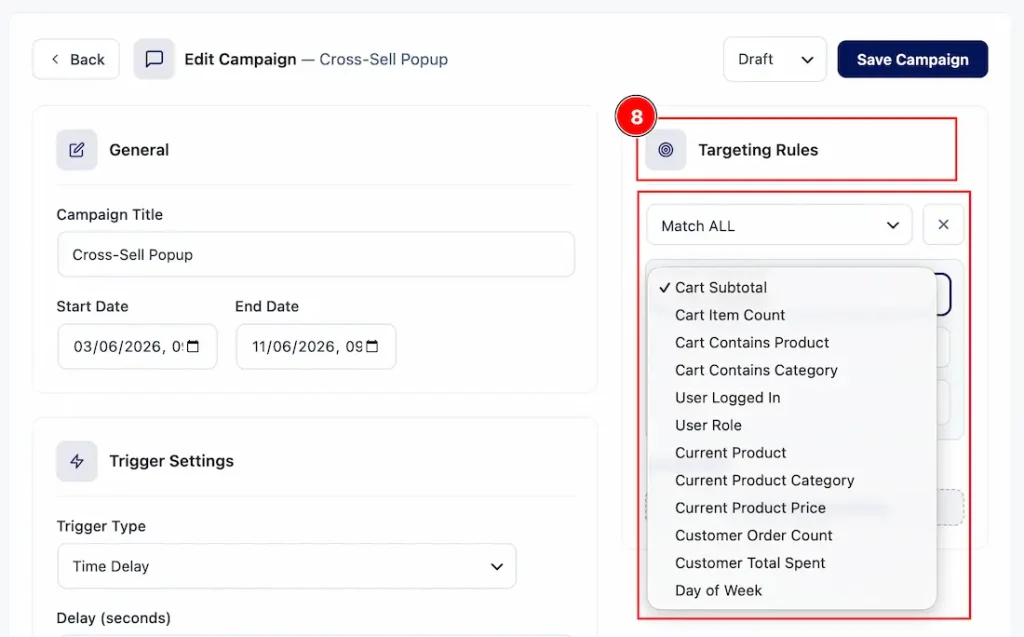
8. You can use the Targeting rules option to control when your campaign appears by checking selected conditions (like cart subtotal, products, user role, etc.) and displaying the offer only if they match based on “Match ALL” (all conditions true) or “Match ANY” (at least one true).
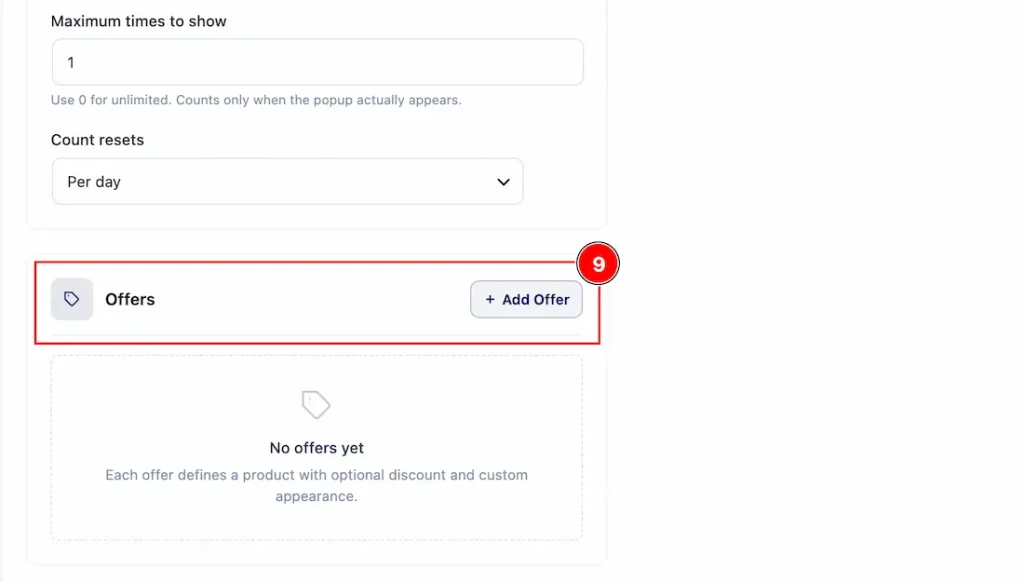
9. Now, navigate to the Offers tab in the dashboard. This is a very crucial part. Here you can add and customize the offers for your campaign. Now, let’s see how to set an offer for the Cross-Sell Popup feature with this option.
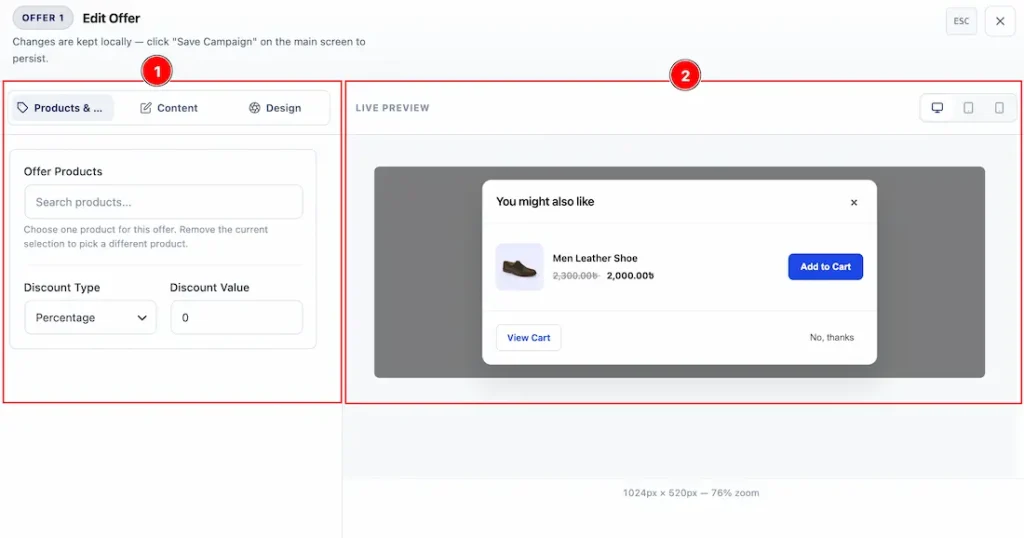
After clicking Add offer, a new right sidebar will open where you can set the offer for your campaign. Here you will see two parts.
1. This part is on the left, which allows you to add the product and make changes to the offer.
2. Here, you can see the preview that will be visible for your audience in the frontend.
Now, let’s see what to do to set the offer –
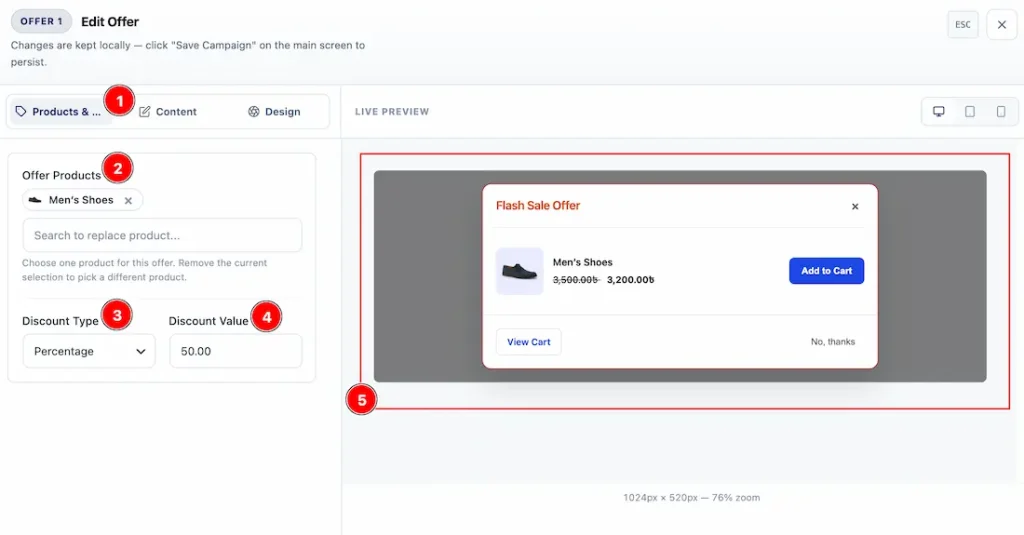
1. Products & Discount: Click on this tab to get options to set the offer product for your campaign and add a discount on that.
2. Offer Products: Here, you can add the product name for the offers that are already created on your WP Dashboard > Products.
You can just type ⅔ letters of the product name, and it will appear as a suggestion. Then select the preferred one.
3. Discount Type: You can select the discount type to be a percentage, a fixed amount, or free with this option.
4. Discount Value: As we have selected the discount type as a percentage, here you have to add the value of the percentage.
5. Preview: After completing the addition on the left side, on the right side, you can see the preview of the selected product along with the percentage that you have set to apply for your audience.
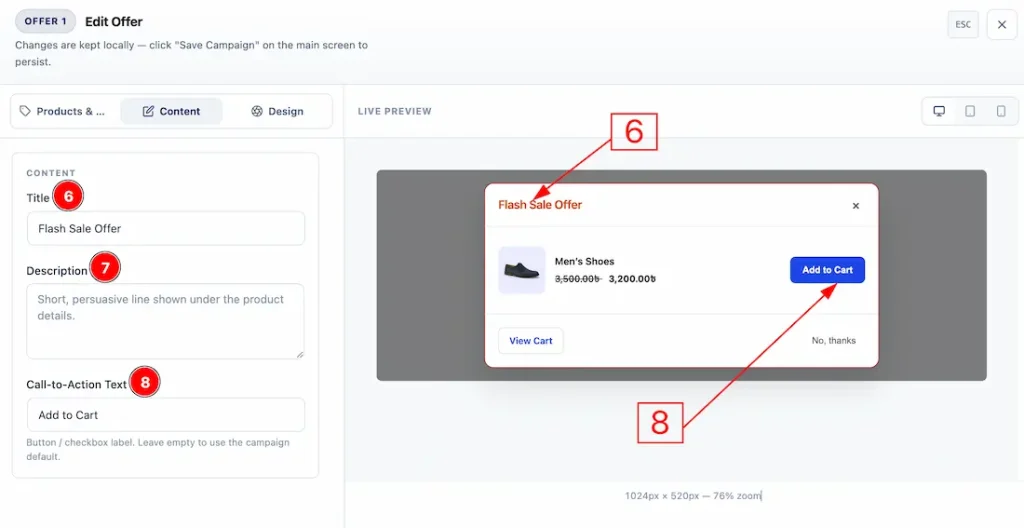
Now, let’s move to the Content Tab and let’s see what we have here –
6. Title: You can add and make changes to the title text with this option.
7. Description: You can add a description to the offer card in this field.
8. Call-to-Action Text: You can add and make changes to the call-to-action button text with this option.
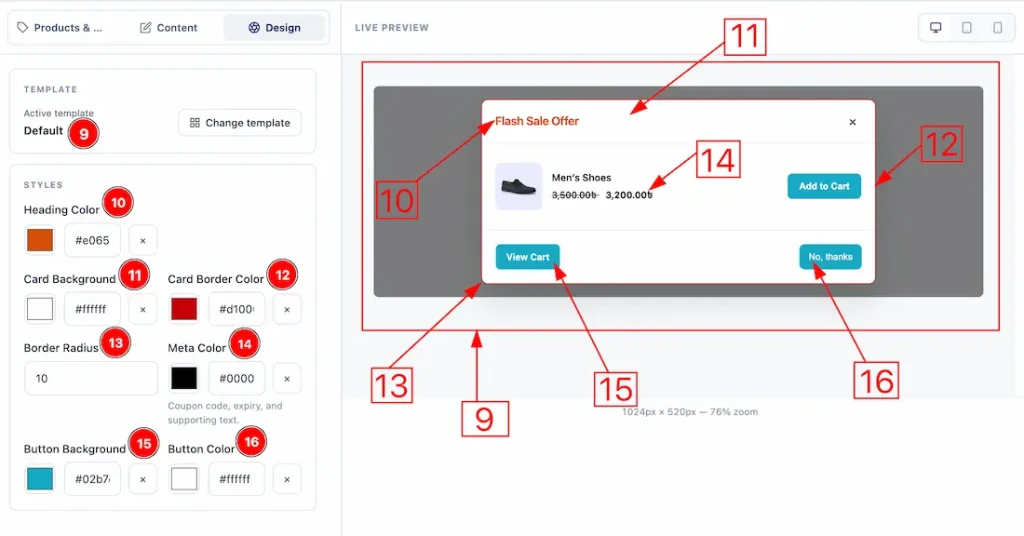
Now, let’s move to the Design Tab and see what options we have here to customize –
9. Template: You can click on the change template options to get more options to select a template and choose one that you feel is suitable for your campaign.
10. Heading Color: You can make changes to the heading text color with this option.
11. Card Background: You can make changes to the campaign offer card background color with this option.
12. Card Border Color: You can make changes to the card border color with this option.
13. Border Radius: You can adjust the roundness of the offer card border with this option.
14. Meta Color: You can make changes to the meta color with this option.
15. Button Background: You can make changes to the button background color with this option.
16. Button Text Color: You can make changes to the button text color with this option.
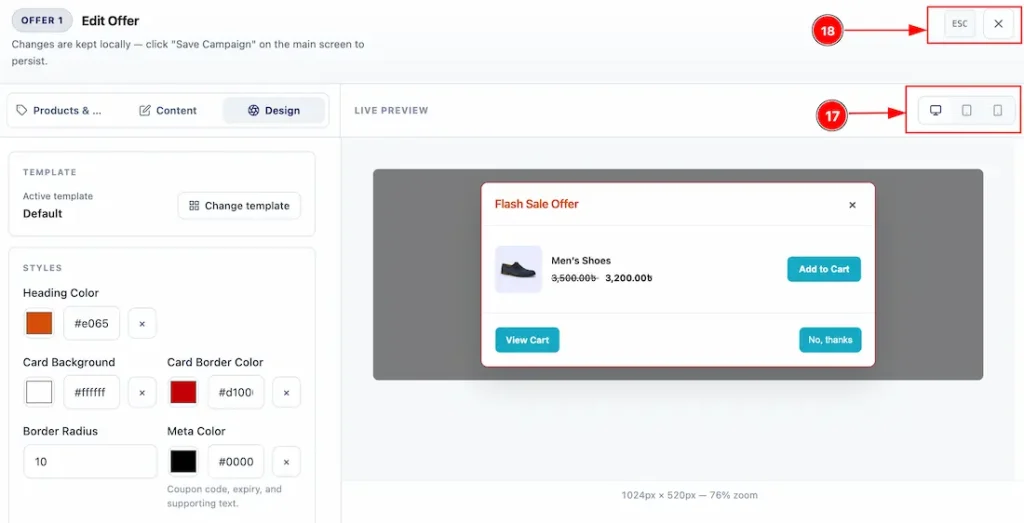
17. In this field, you can check how the card will appear on desktop, tab & mobile device.
18. You can click on the close button or press the ESC key on the keyboard to close the offer dashboard.
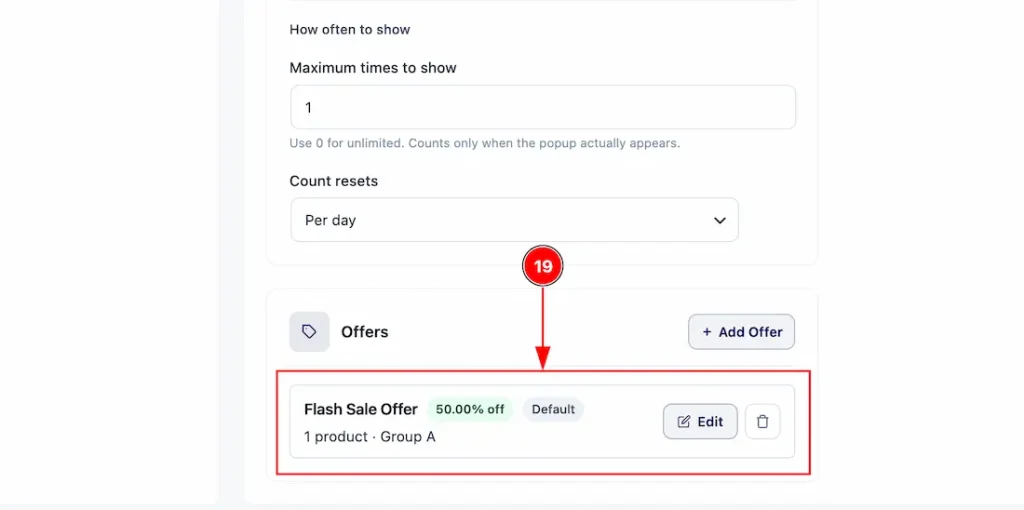
19. Now, as the offer is created, you can close the sidebar and get a visual of your created offer here. If you want, then you can re-edit it and delete the offer as well.
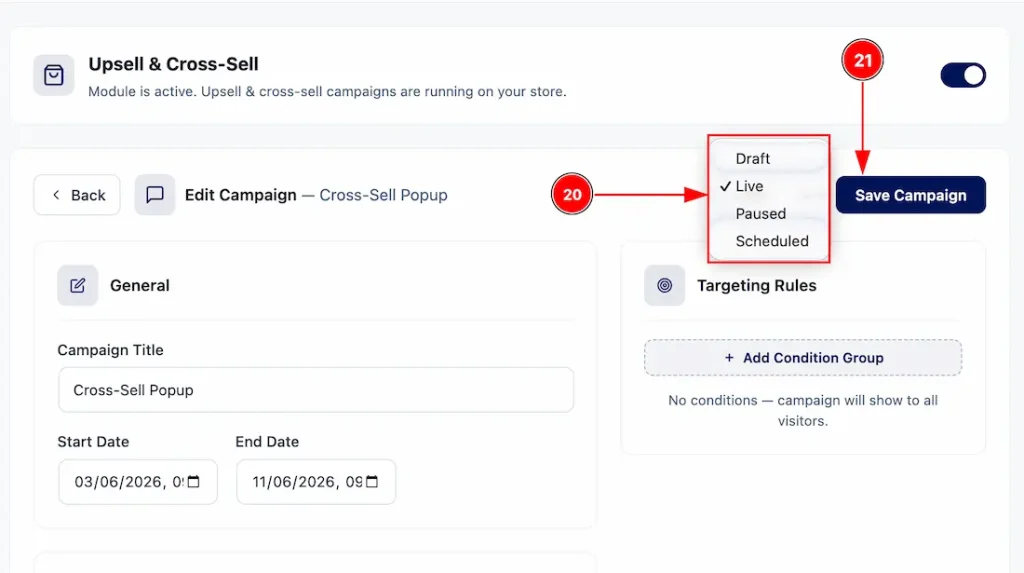
21. Once you have finished configuring the campaign, scroll to the top of the page and publish it. To do this, change the campaign status from Draft to Live. You can choose any status based on your requirements, but selecting Live will publish the campaign and make it visible to your audience.
22. You can click on this button to apply the changes that you have made.
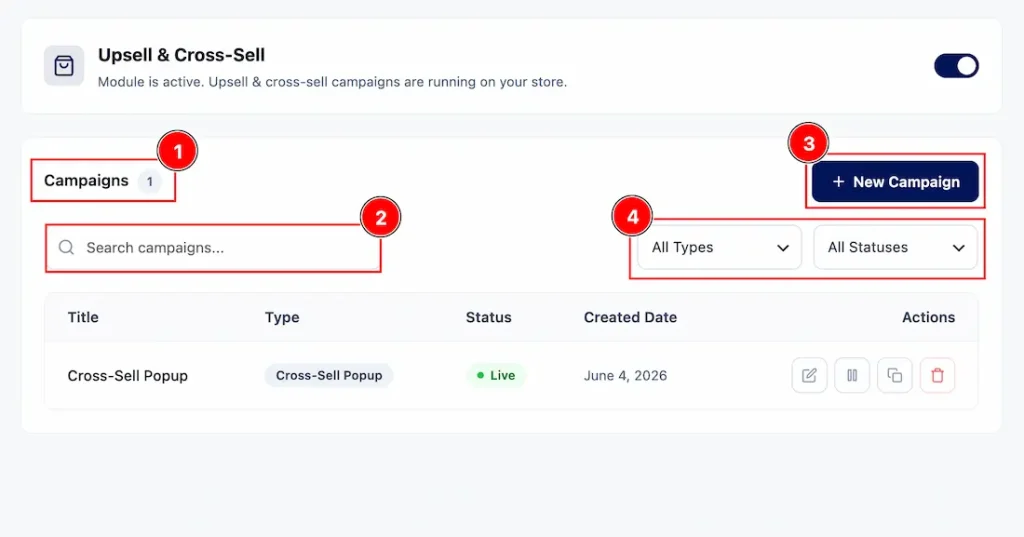
Now, get back to the main Upsell & Cross-Sell dashboard page and here you can see the campaign that you have just created. Let’s see what options we have here –
1. You can see the number of campaigns that you have created in this field.
2. You can search by the name of the campaign that you have created in this field.
3. You can click on this button to add more campaigns to boost your sales.
4. Here, you can filter your campaign as per those types and status in this field.
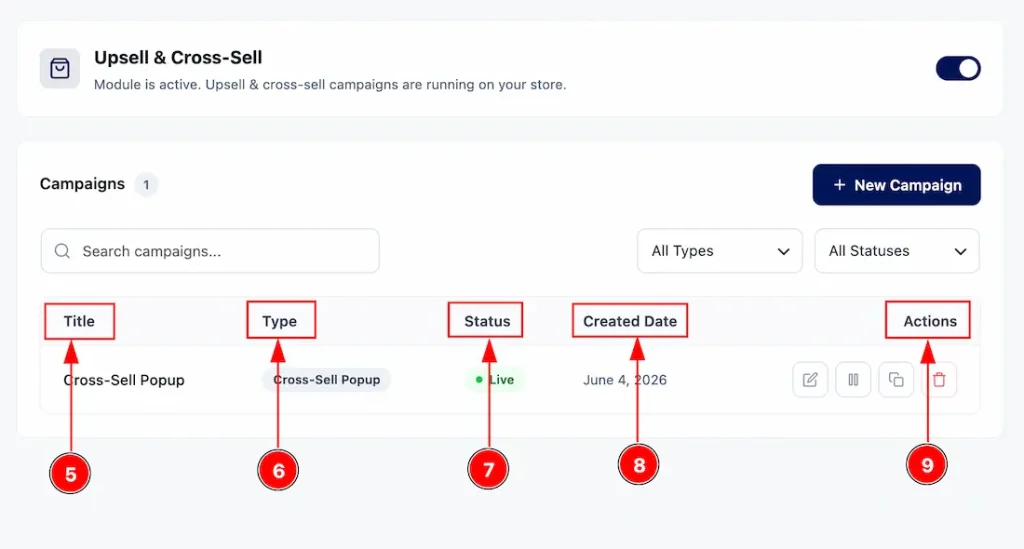
5. You can see the title of the created campaign in this field.
6. You can see the type of campaigns here.
7. You can see the status of the campaign that you have created in this field.
8. You can see the creation date of the campaign in this field.
9. Here, you will get some useful action icons by which you can edit the campaign, pause the campaign, duplicate the campaign, and delete the campaign.
Final Preview of the Cross-Sell Popup Feature
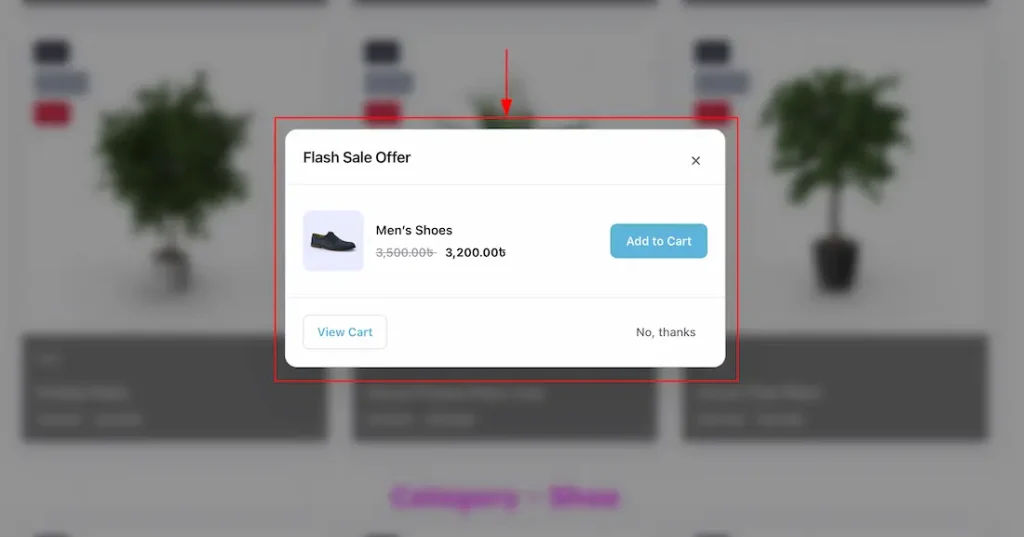
After configuring and publishing the campaign, navigate to your shop page to see it in action. The pop-up will appear based on the Trigger Type you selected during the campaign setup.
For example, as we have chosen the Time Delay and set it to 5 seconds, the pop-up will automatically appear after a visitor spends 5 seconds on the page. If you select Exit Intent, the pop-up will be displayed when a visitor attempts to leave the shop page. Alternatively, if you choose Scroll Position, the pop-up will appear once the visitor reaches the specified scroll depth configured in the campaign settings. This allows you to engage visitors at the most effective moment during their browsing experience.
All done, you have successfully set up the campaign of the Cross-Sell Popup module on your website
Video Assist
The video will come soon. Thanks for staying with us.