

Many WordPress users want to rename admin-menu-submenu labels but feel confused. The default labels may not match your needs. This can make your dashboard look messy and hard to use.
This becomes a problem when you manage multiple pages or clients. You may waste time searching for the right menu. It can also confuse other users who log in to your site.
The good news is that you can easily rename admin menu submenu labels in WordPress. You do not need advanced coding skills. In this guide, you will learn simple ways to rename admin menu submenus and organize your dashboard more effectively.
Why Would You Want to Rename Admin Menu Labels?
Before diving into the how, let’s talk about the why. There are several solid reasons to rename WordPress admin menu and submenu labels:
White-labeling for clients: When you build a WordPress site for a client, they often don’t know (or care) what “Posts” or “Taxonomies” mean. Renaming “Posts” to “News Articles,” “Blog Posts,” or “Case Studies” helps clients understand exactly what they’re working with, reducing support calls and confusion.
Custom post type clarity: WordPress’s default labels for custom post types are auto-generated and sometimes awkward. You might register a post type called project and end up with submenu items like “Add New Project” when what you actually want is “Create New Project” or “Submit a Project.”
Multilingual backends: If your team operates in a language other than English or if you’re building a localized site, you may want to rename menu items to match your team’s preferred language or terminology.
Role-specific UX: Different user roles may benefit from different label names. An editor doesn’t need to see “Dashboard”; they might benefit more from something like “My Workspace.”
Plugin rebranding: Plugins often add their own menu items with generic or branded names. You might want to strip out plugin branding or consolidate items under a different name.
Understanding WordPress Admin Menu Structure
Before renaming anything, you need to understand how WordPress structures its admin menus.
WordPress stores the admin menu in two global arrays:
- $menu: the top-level menu items (e.g., Posts, Media, Pages, etc.)
- $submenu: the submenu items nested beneath each top-level item
Each entry in $menu is an array with the following structure:
$menu[$position] = array(
    $menu_title,       // [0] The display name
    $capability,       // [1] Required user capability
    $menu_slug,        // [2] The slug (used in URLs)
    $page_title,       // [3] Page title shown in <title> tag
    $css_class,        // [4] CSS class for the menu item
    $hookname,         // [5] The hook name
    $icon_url          // [6] Icon URL or dashicon class
);
Each entry in the $submenu is similarly structured:
$submenu[$parent_slug][$position] = array(
    $menu_title,    // [0] Display name
    $capability,    // [1] Required capability
    $menu_slug,     // [2] Slug/URL
    $page_title     // [3] Page title (optional)
);
The key insight: to rename a label, you just need to find the right array index and change index [0] (the display name).
Method 1: Renaming via admin_menu Hook (Recommended)
The cleanest, most reliable way to rename admin menu and submenu labels is by hooking into admin_menu with a late priority. Using a high-priority number (like 999) ensures your code runs after all plugins and themes have registered their menus.
Step 1: Add the Code
Add the following to your theme’s functions.php or a custom plugin file:
add_action( 'admin_menu', 'my_rename_admin_menu_labels', 999 );

function my_rename_admin_menu_labels() {
    global $menu, $submenu;

    // Rename "Posts" (top-level) to "Articles"
    $menu[5][0] = 'Articles';

    // Rename "Posts > All Posts" submenu to "All Articles"
    $submenu['edit.php'][5][0] = 'All Articles';

    // Rename "Posts > Add New" submenu to "Write New Article"
    $submenu['edit.php'][10][0] = 'Write New Article';

    // Rename "Posts > Categories" submenu to "Article Categories"
    $submenu['edit.php'][15][0] = 'Article Categories';

    // Rename "Posts > Tags" submenu to "Article Tags"
    $submenu['edit.php'][16][0] = 'Article Tags';
}
Step 2: Find the Right Menu Position
The position numbers (5, 10, 15, 16) correspond to the default WordPress positions. Here’s a quick reference for the most commonly used positions:
| Menu Item | $menu position |
| Dashboard | 2 |
| Posts | 5 |
| Media | 10 |
| Links | 15 |
| Pages | 20 |
| Comments | 25 |
| Appearance | 60 |
| Plugins | 65 |
| Users | 70 |
| Tools | 75 |
| Settings | 80 |
Submenu positions vary depending on the plugin or post type. Use the debug method below to find exact positions.
Step 3: Debug the Menu Array
Not sure what position your target submenu uses? Add this temporary debugging snippet to your functions.php:
add_action( 'admin_menu', 'debug_menu_arrays', 9999 );
function debug_menu_arrays() {
    global $menu, $submenu;
    echo '<pre>';
    print_r( $menu );
    print_r( $submenu );
    echo '</pre>';
    die();
}
Visit your WordPress admin area and you’ll see the full dump of both arrays. Once you’ve found the right indexes, remove this debug code immediately; you never want debug output running on a live site.
Method 2: Renaming Custom Post Type Labels on Registration
If you’re registering a custom post type yourself, the best time to set the right labels is at registration time using the labels argument in register_post_type().
function my_register_projects_post_type() {
    $labels = array(
        'name'               => 'Projects',
        'singular_name'      => 'Project',
        'menu_name'          => 'Our Projects',       // Top-level menu label
        'add_new'            => 'Add Project',
        'add_new_item'       => 'Add New Project',
        'edit_item'          => 'Edit Project',
        'new_item'           => 'New Project',
        'all_items'          => 'All Projects',
        'view_item'          => 'View Project',
        'search_items'       => 'Search Projects',
        'not_found'          => 'No projects found',
        'not_found_in_trash' => 'No projects found in Trash',
    );

    $args = array(
        'labels'             => $labels,
        'public'             => true,
        'has_archive'        => true,
        'menu_position'      => 5,
        'supports'           => array( 'title', 'editor', 'thumbnail' ),
    );

    register_post_type( 'project', $args );
}
add_action( 'init', 'my_register_projects_post_type' );
This approach sets all labels upfront, including the submenu labels for “All Items,” “Add New,” etc., without any need to manipulate the global $menu or $submenu arrays later.
Method 3: Using register_post_type_args Filter
If you want to rename labels for a post type that was registered by a plugin (i.e., code you can’t modify directly), use the register_post_type_args filter:
add_filter( 'register_post_type_args', 'my_modify_post_type_labels', 10, 2 );

function my_modify_post_type_labels( $args, $post_type ) {
    if ( 'product' === $post_type ) { // Change 'product' to your target post type
        $args['labels']['name']          = 'Shop Items';
        $args['labels']['menu_name']     = 'Shop Items';
        $args['labels']['all_items']     = 'All Shop Items';
        $args['labels']['add_new_item']  = 'Add New Shop Item';
        $args['labels']['edit_item']     = 'Edit Shop Item';
    }
    return $args;
}
This is particularly useful when working with WooCommerce products, Events Calendar events or any other post types registered by third-party plugins.
Method 4: Renaming Taxonomy Submenu Labels
Taxonomies (like Categories and Tags) also appear as submenu items. To rename these, you can use the register_taxonomy_args filter or directly modify the $submenu array.
Using the filter (for plugin-registered taxonomies):
add_filter( 'register_taxonomy_args', 'my_modify_taxonomy_labels', 10, 2 );

function my_modify_taxonomy_labels( $args, $taxonomy ) {
    if ( 'category' === $taxonomy ) {
        $args['labels']['name']          = 'Topics';
        $args['labels']['singular_name'] = 'Topic';
        $args['labels']['menu_name']     = 'Topics';
        $args['labels']['all_items']     = 'All Topics';
        $args['labels']['add_new_item']  = 'Add New Topic';
    }
    return $args;
}
Renaming directly via $submenu:
add_action( 'admin_menu', 'rename_category_submenu', 999 );

function rename_category_submenu() {
    global $submenu;

    // Rename Posts > Categories to Posts > Topics
    if ( isset( $submenu['edit.php'] ) ) {
        foreach ( $submenu['edit.php'] as $key => $item ) {
            if ( isset( $item[2] ) && $item[2] === 'edit-tags.php?taxonomy=category' ) {
                $submenu['edit.php'][$key][0] = 'Topics';
            }
        }
    }
}
Using a foreach loop with a slug check (rather than a hardcoded position) makes your code more robust; position numbers can vary, but slugs are stable.
Method 5: Renaming Plugin-Added Submenu Items
Many plugins add submenu items beneath their own top-level menus (e.g., WooCommerce, Yoast SEO, ACF). Here’s how to rename those:
add_action( 'admin_menu', 'rename_plugin_submenus', 999 );

function rename_plugin_submenus() {
    global $submenu;

    // Example: Rename WooCommerce > Orders to WooCommerce > Customer Orders
    if ( isset( $submenu['woocommerce'] ) ) {
        foreach ( $submenu['woocommerce'] as $key => $item ) {
            if ( isset( $item[2] ) && $item[2] === 'edit.php?post_type=shop_order' ) {
                $submenu['woocommerce'][$key][0] = 'Customer Orders';
            }
        }
    }

    // Example: Rename a Yoast SEO submenu
    if ( isset( $submenu['wpseo_dashboard'] ) ) {
        foreach ( $submenu['wpseo_dashboard'] as $key => $item ) {
            if ( isset( $item[2] ) && $item[2] === 'wpseo_general' ) {
                $submenu['wpseo_dashboard'][$key][0] = 'SEO Settings';
            }
        }
    }
}
The pattern here is always the same: loop through the submenu array for the parent slug, find the item whose slug ($item[2]) matches what you’re looking for and change the label ($item[0]).
Method 6: Role-Based Label Renaming
Sometimes you want different users to see different labels for the same menu item. This requires checking the current user’s role before modifying labels.
add_action( 'admin_menu', 'role_based_menu_rename', 999 );

function role_based_menu_rename() {
    global $menu, $submenu;

    $user = wp_get_current_user();

    if ( in_array( 'editor', (array) $user->roles ) ) {
        // Editors see "My Content Hub" instead of "Posts"
        $menu[5][0] = 'My Content Hub';

        if ( isset( $submenu['edit.php'][10] ) ) {
            $submenu['edit.php'][10][0] = 'Write New Content';
        }
    }

    if ( in_array( 'author', (array) $user->roles ) ) {
        // Authors see "My Articles"
        $menu[5][0] = 'My Articles';
    }
}
This approach gives you fine-grained control over the admin experience for each role without needing a plugin.
Method 7: Use a Plugin
If you do not want to use code, a plugin is the easiest option. You can rename admin menu submenu labels with just a few clicks. This method is perfect for beginners and non-technical users.
Many plugins give you a simple interface where you can edit menu names, reorder items and hide unwanted options. You do not need to touch any files.
Smart Admin Assistant helps you change submenu names in the admin menu. It makes your dashboard easy to manage.
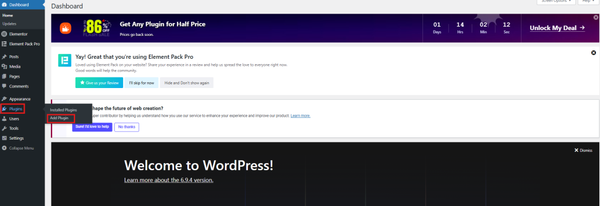
First, go to your WordPress dashboard and open Plugins → Add New
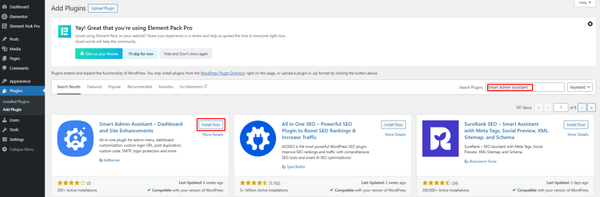
Search for “Smart Admin Assistant” and click Install Now.
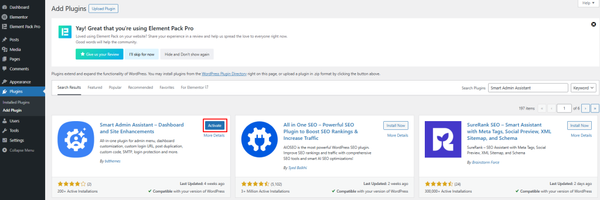
After installation, click Activate.
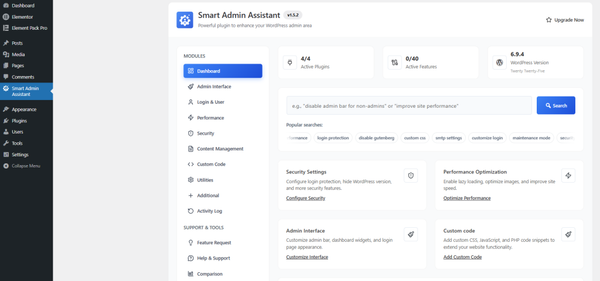
The plugin is now ready to use.
You can also upgrade to the “Smart Admin Assistant” Pro version to customize everything you need.
First, visit the official Smart Admin Assistant website.
Choose a license that fits your needs, whether for one site or multiple sites.
All plans include full plugin features, regular updates and a 60-day money-back guarantee on eligible purchases.
After completing your purchase, you will receive:
- A license key
- A ZIP file of the plugin
You will need these to install and activate the plugin in WordPress.
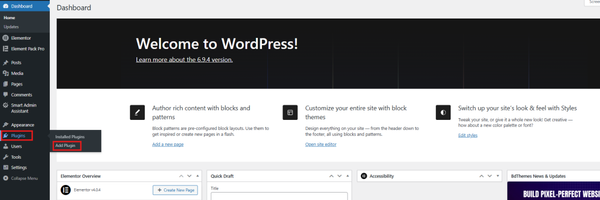
Now, go to your WordPress dashboard.
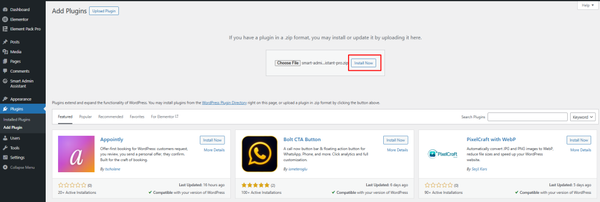
Click on Plugins → Add Plugin.
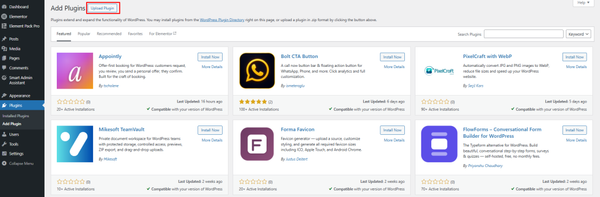
After that, click on the Upload Plugin button at the top.
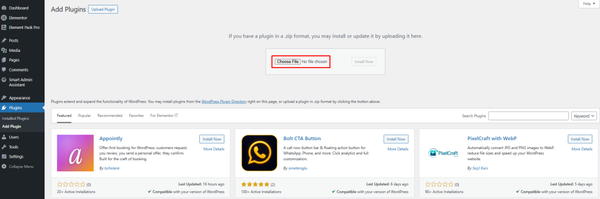
Now, click on the Choose File button.
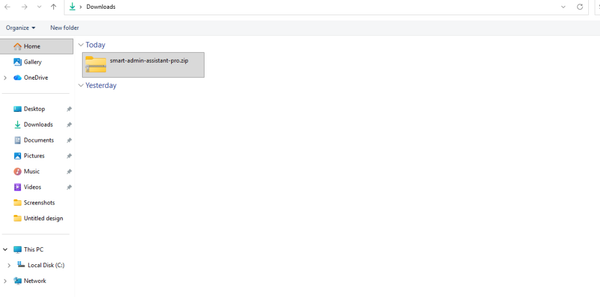
Select the Smart Admin Assistant plugin ZIP file from your computer.
Then click Install Now and wait a few seconds.
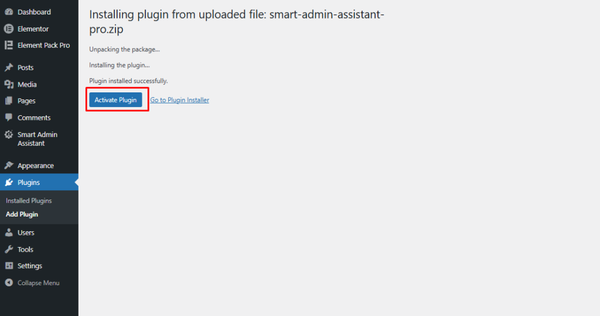
Once installed, click Activate Plugin.
After activation, go to the Smart Admin Assistant settings.
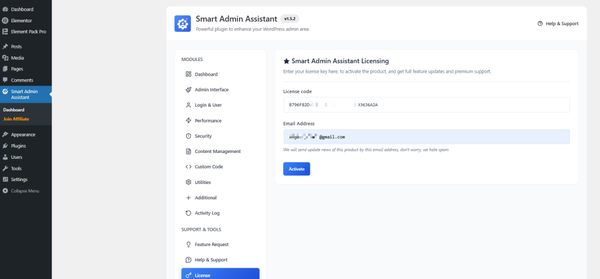
Open the License section and enter your license key and email address.
Then click Activate License.
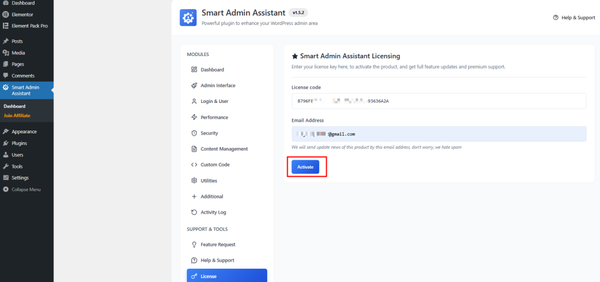
Now, your Smart Admin Assistant plugin is successfully installed and ready to use.
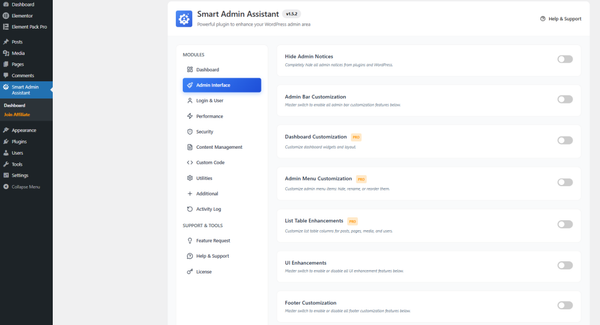
Now, Go to Smart Admin Assistant → Admin Interface
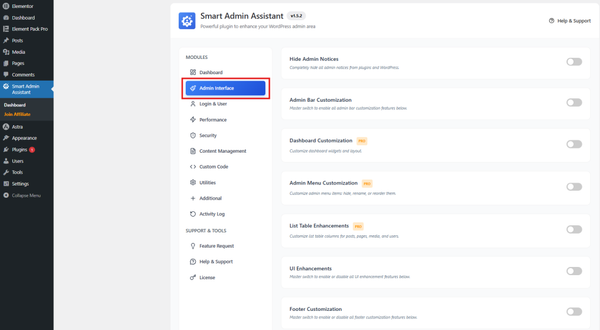
Then enable Admin Menu Customization using the switch.
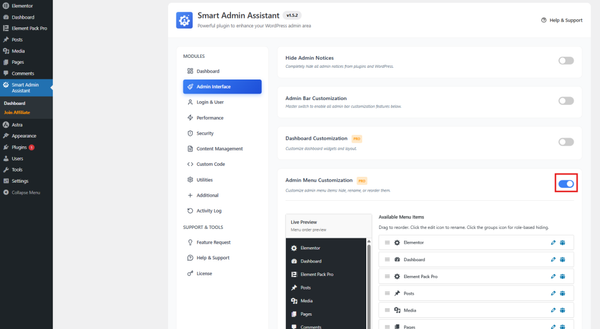
You can now easily hide, rename, or reorder menu items.
Edit Menu Name:
Click the Edit icon
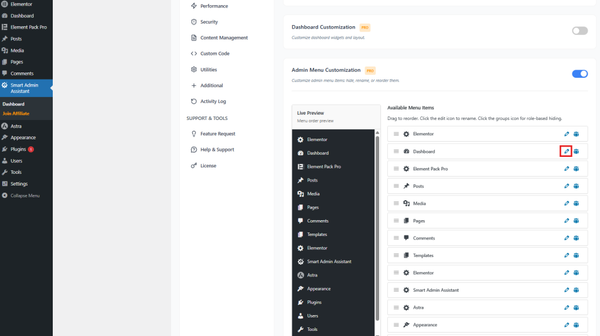
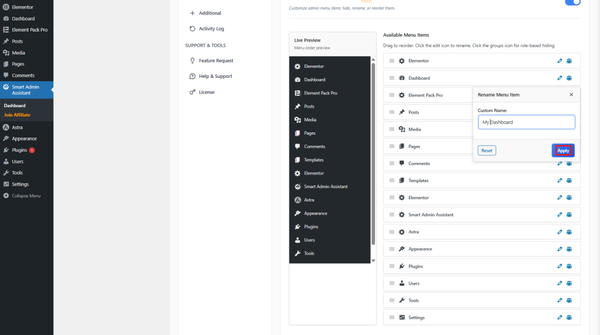
Enter a new name
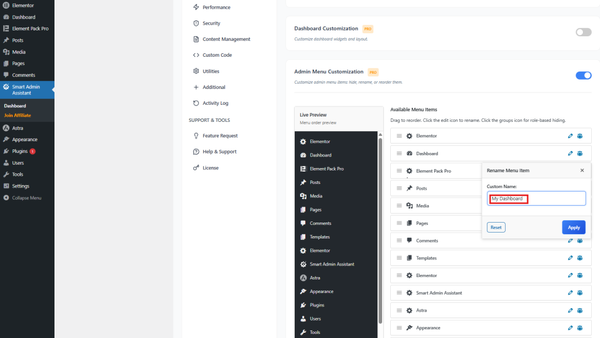
Click Apply
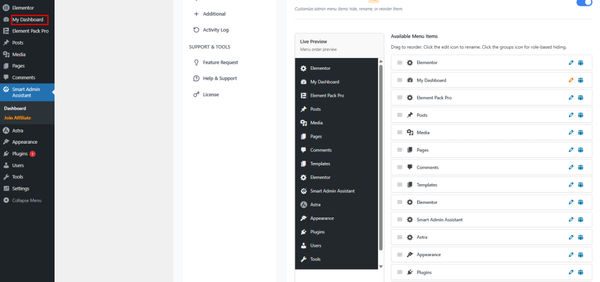
The new label will appear instantly
To explore all features in detail, read the full documentation here.
A Complete Guide to Using Smart Admin Assistant Plugin Pro
Best Practices and Common Gotchas
Use late priority
Always hook into admin_menu with a priority of 999 or higher. This ensures your code runs after all plugins and themes have registered their items.
add_action( 'admin_menu', 'my_function', 999 );
Don’t hard-code position numbers blindly
Position numbers in the $submenu can shift when plugins are activated or deactivated. It’s safer to loop through the array and match by slug (the [2] index) rather than by numeric position.
Put code in a plugin, not functions.php
If your theme changes, your menu customizations disappear. A small must-use plugin (placed in wp-content/mu-plugins/) is a safer home for admin customizations that should persist regardless of the active theme.
Test with different user roles
What looks good for an administrator may be confusing for an editor. Always test your renamed labels while logged in as each affected user role.
Internationalization (i18n)
If your site is multilingual, wrap your new labels in __() or _x() for translation support:
$menu[5][0] = __( 'Articles', 'my-text-domain' );
Avoid caching issues
Some caching plugins or object caches can occasionally cause menu changes to not appear immediately. Clear your cache after making changes.
Troubleshooting
My changes aren’t showing up
- Make sure your hook priority is high enough (999 is usually safe).
- Check that you’re modifying the correct index. Use the debug dump method to verify.
- Clear all caches (page cache, object cache, browser cache).
Changes disappear after plugin updates
- Never put customizations in plugin files you didn’t write. Use functions.php, a child theme or a custom plugin.
Labels only change for some users
- Check if another plugin (like Admin Menu Editor) is overriding your changes for certain roles.
- Make sure you’re not wrapping your code in a capability check that excludes some roles.
Submenu item not found
- Some plugins register their submenus late. Try an even higher priority (e.g., 99999).
- Confirm the parent slug. Use the debug dump to find the exact key used in the $submenu.
Frequently Asked Questions (FAQ)
1. What does rename admin menu submenu mean?
It means changing the default names of submenu items inside the WordPress dashboard. These labels appear under main menu items like Posts or Pages. Renaming them helps make the dashboard easier to understand and more organized.
2. Why should I rename admin menu submenu labels?
Default labels may not match your workflow or client needs. Renaming them helps improve clarity, reduce confusion and save time when managing content. It also makes the dashboard more user-friendly.
3. Do I need coding skills to rename submenu labels?
No, you do not need coding skills. You can use plugins like Smart Admin Assistant to rename admin menu submenu labels easily. However, advanced users can also do it using custom code if needed.
4. Can I rename admin menu submenu for different user roles?
Yes, you can customize labels based on user roles. For example, admins can see full options while editors see simplified labels. This improves usability and reduces mistakes for different users.
5. Is it safe to use a plugin for menu customization?
Yes, it is safe when you use a trusted and updated plugin. Always download plugins from reliable sources and keep them updated to avoid security issues.
6. Can I undo the changes later?
Yes, you can change the labels anytime or reset everything back to default. Most plugins offer easy options to edit or remove changes without affecting your website.
7. Will renaming submenu labels affect my website frontend?
No, it will not affect the frontend of your website. These changes only apply to the WordPress admin dashboard and do not impact what visitors see.
8. Can I also hide or reorder menu items?
Yes, many tools allow you to do more than renaming. You can hide unnecessary items, reorder menus using drag and drop and create a cleaner dashboard layout.
9. What is the easiest way to rename admin menu submenu labels?
The easiest way is to use a plugin. It allows you to rename admin menu submenu labels quickly without writing any code. This is ideal for beginners.
10. Which plugin is best for this task?
Smart Admin Assistant is a strong choice. It helps you rename admin menu submenu and update any rename admin menu submenu label easily. It also offers extra features for better dashboard control.
Conclusion
Many people ignore small changes like submenu labels, but they matter. If you do not rename admin-menu-submenu-labels, your dashboard can stay confusing and unorganized.
This can slow down your work and create problems for your team or clients. A messy admin panel makes it harder to manage your website.
By following this guide, you can easily change admin submenu names and make your dashboard easier to use. Keep your menu clean, simple and easy to use. Small improvements like this can speed up and streamline your workflow.

Strategic Content Writer for WordPress, Semantic SEO, and SaaS Audiences