

Building forms used to take a lot of time. You had to drag fields, write labels, set up email notifications and handle validation rules one by one. For developers and site owners who manage multiple projects, this repeated work adds up fast.
That is no longer the case. The rise of AI form builders has completely changed how forms are created. With smart automation, you can now describe what you want in plain language and get a fully working form in seconds. Whether you need a contact form, a survey, a lead-capture form, or something more complex, an AI-powered tool handles the heavy lifting.
This blog will walk you through everything you need to know about advanced form creation with AI, with a focus on how to do it inside WordPress. You will learn the steps to pick the right plugin, build your form using AI commands, configure it properly and publish it to any page or post on your site.
If you have been looking for a smarter way to build forms, you are in the right place.
Advance Form Creation with AI
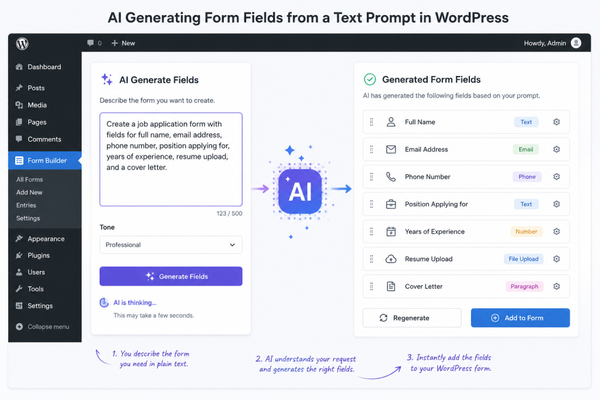
The traditional way of building forms required you to open a form editor, add fields manually, set rules and configure settings one by one. It was functional, but slow. A smart forms AI approach replaces all of that with a single prompt.
With an AI online form generator, you type in a short description of the form you want to create and the AI reads your instructions to generate the complete form structure automatically. Fields, labels, placeholders, validation rules and layout decisions all happen in the background.
This is especially powerful when building advanced forms with multiple sections, conditional logic or specific data-collection needs. Instead of spending 30 minutes setting up a complex multi-step form, you can get a working draft in under a minute.
Some key advantages of using an AI form builder include the following.
- Speed – AI generates complete forms from a short description, cutting form creation time dramatically.
- Accuracy – The AI understands your intent and adds the appropriate fields for your use case.
- Flexibility – You can still edit, add or remove fields after AI generates the initial structure.
- Consistency – Every form follows best practices without you having to think about them.
- Less technical knowledge required – You do not need to know code or complex settings.
AI form automation is not just a trend. It is quickly becoming the standard for anyone who builds or manages forms regularly.
For WordPress users, the good news is that AI form capabilities are now available directly inside the WordPress dashboard through dedicated plugins. You do not need third-party tools, external platforms or developer support to take advantage of this technology.
If you are curious about building other types of forms, you can check out this guide on how to create an online survey form in WordPress for more ideas on applying similar workflows to different form types.
How to Create Advanced Forms with AI for WordPress
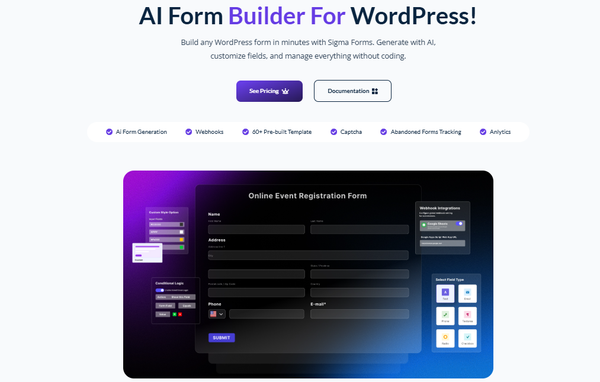
Creating advanced forms with AI in WordPress is a straightforward process once you have the right plugin installed. The steps below walk you through the full journey, from choosing your plugin to placing the finished form on your site.
Here is a quick overview of the process.
- Pick a form plugin you like.
- Install the plugin on your WordPress site.
- Start a new form using the AI prompt.
- Configure your form settings.
- Place the form on any page or post using a shortcode.
Let us go through each step in detail.
Step 1: Pick a form plugin you like
The first step is choosing the right plugin. There are several form plugins for WordPress, but not all support AI-powered form creation. You need one that has a built-in AI form generator so you can take full advantage of this technology.
When choosing a plugin, keep the following factors in mind.
- AI form generation – The plugin should support generating forms from natural language prompts.
- Security and spam control – A good plugin will help you protect your forms from unwanted submissions.
- Flexible field options – You need control over field types, validation and layout.
- Easy configuration – Settings for email notifications, webhooks and storage should be accessible.
- Shortcode support – The plugin should let you embed forms anywhere on your site easily.
For this guide, we are using Sigma Forms, one of the most advanced no-code AI form builders for WordPress. It combines powerful AI form generation with robust security, spam control, flexible field options and easy configuration.

It is built specifically for WordPress, which means everything works natively inside your dashboard without needing external tools.
You can learn more about it on the Sigma Forms by BdThemes page.
If you want to explore how contact forms are typically built in WordPress before switching to an AI-powered approach, this article on how to create a custom contact form in WordPress offers a helpful comparison.
Step 2: Install the plugin
Once you have decided on the plugin, the next step is installing it on your WordPress site. Here is how to do it.
- Log in to your WordPress dashboard.
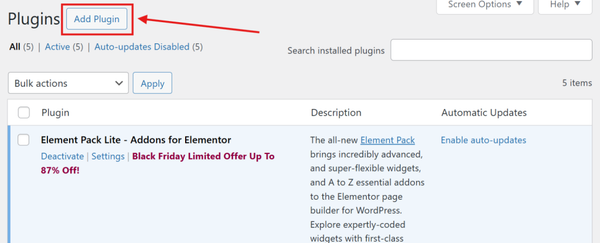
- Go to Plugins and then click Add New.
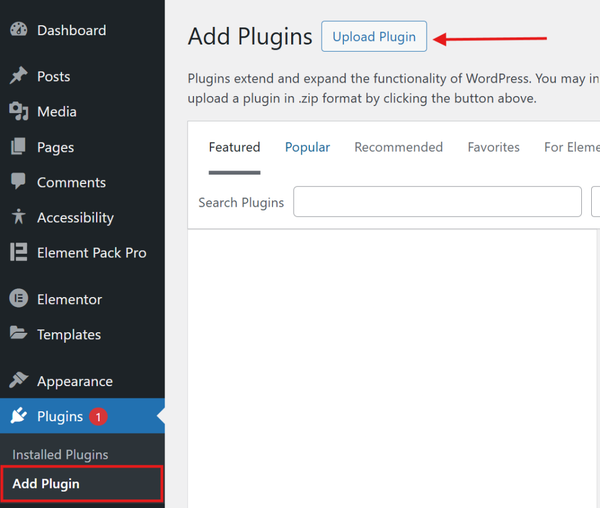
- Click the Upload Plugin button at the top of the page.
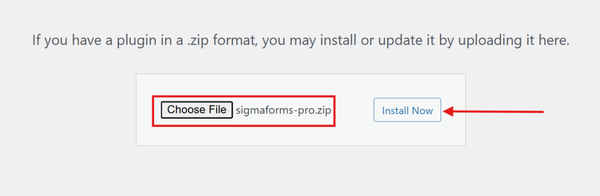
- Find the plugin zip file you downloaded after purchase, select it.
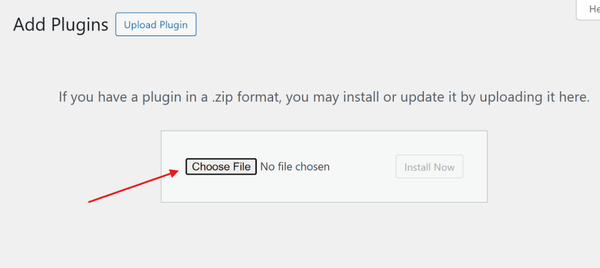
- Click Install Now.
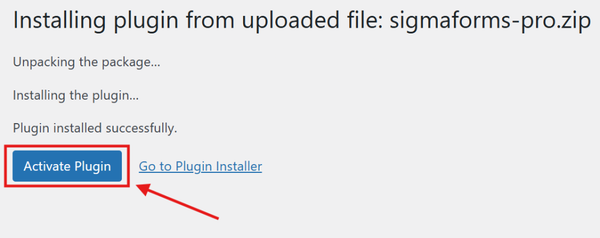
- After the installation finishes, click Activate Plugin to enable it on your site.
Once activated, you will see the Sigma Forms menu appear in your WordPress left sidebar. That is your starting point for everything from here on.
If you prefer building forms from ready-made templates rather than starting from scratch, this guide on creating a WordPress contact form with a pre-built template shows you that option as well.
Step 3: Start a new form
With the plugin installed and activated, it is time to create your first AI-generated form. Follow these steps.
- In your WordPress dashboard, look at the left sidebar and click on Sigma Forms, then select Forms.
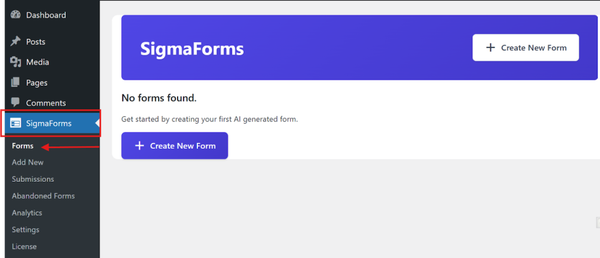
- At the top of the forms screen, click the Create New Form button.
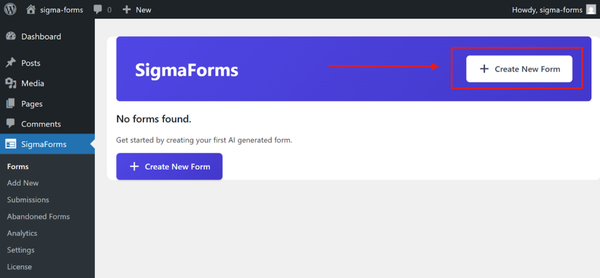
- You will see the AI command prompt field where you can type your form description.
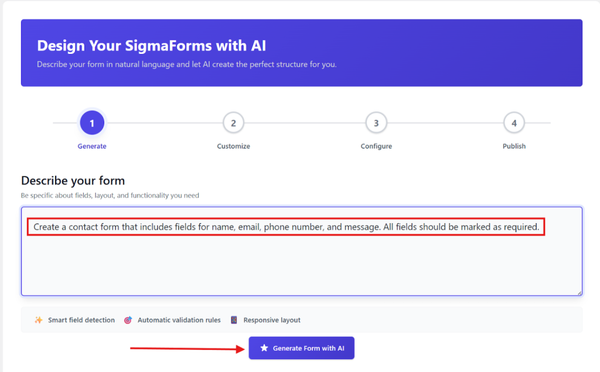
This is where the conversational AI forms experience begins. You simply type what you want the form to do in plain, everyday language. For example, you might write something like this.
“Create an advanced lead capture form with name, email, phone number, company name and a message field. Include a dropdown for budget range and a checkbox for newsletter signup.”
- After writing your prompt, click the Generate Form with AI button.
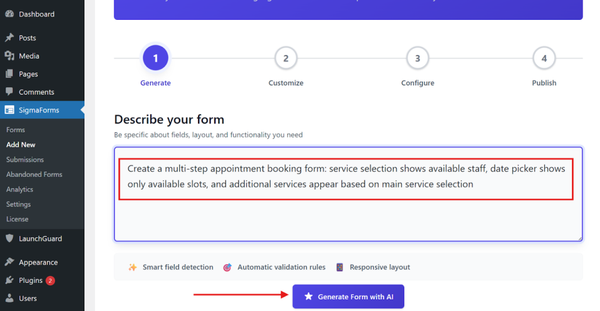
The AI reads your description and builds the complete form structure for you. All the fields, labels and input types are created automatically based on what you described.
- You can then review the generated fields and make any changes. Add new fields, remove ones you do not need or adjust labels and placeholder text.
- When you are satisfied with the fields, click the Continue to Configure button to move to the next step.
This is where the power of a dynamic AI forms approach really stands out. You are not locked into a fixed template. The AI gives you a strong starting point and you keep full control over every detail.
If you want to explore building forms from scratch without AI first, this resource can provide useful context:
How to create a custom form in WordPress
Step 4: Configure Your Form
After generating your form fields with AI, the next step is to configure how the form behaves after a submission. This is where you control notifications, storage and security.
Here is what to set up in this step.
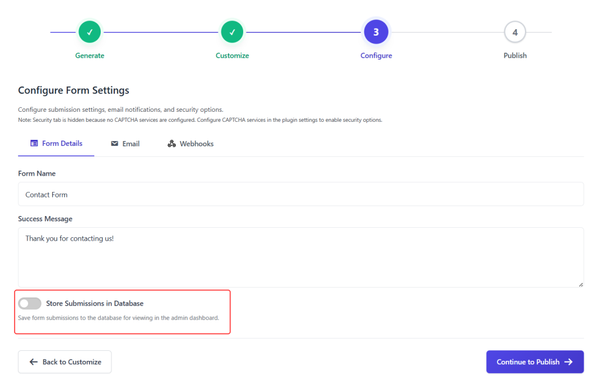
- Form name and confirmation message – Give your form a clear name so you can identify it later. Write the message that users will see after they submit the form. This can be a simple thank-you message or a more detailed response.
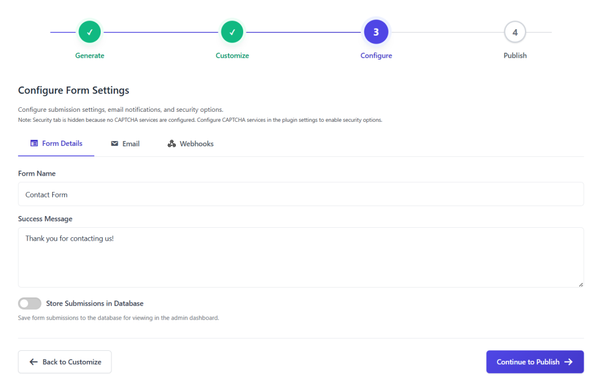
- Store submissions in the database – If you want to save form entries inside your WordPress database, make sure to enable the Store Submissions in Database toggle. This helps keep records of all submissions.
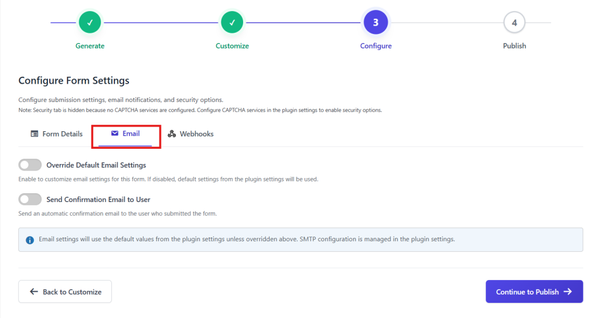
- Email tab – Go to the Email tab to configure how the form handles email notifications. You can set the recipient email address, customize the subject line and decide what information gets included in the notification email.
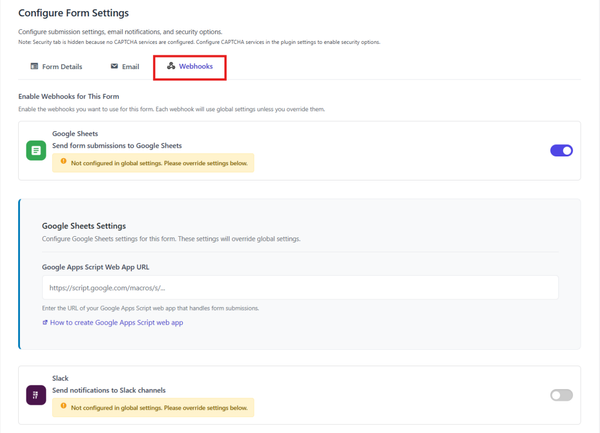
- Webhooks tab – Open the Webhooks tab if you need to connect the form to external services. You can enable specific webhooks for this form. By default, each webhook follows the global settings, but you can override them for this particular form if needed.
Once you have configured all the settings, click the Continue to Publish button. Review your form one last time, then click Publish to make it live.
Adding spam protection is also worth considering at this stage. You can find detailed steps in this guide on how to add reCAPTCHA to a WordPress contact form to keep your form submissions clean.
Step 5: Place the form using shortcodes on any page or post
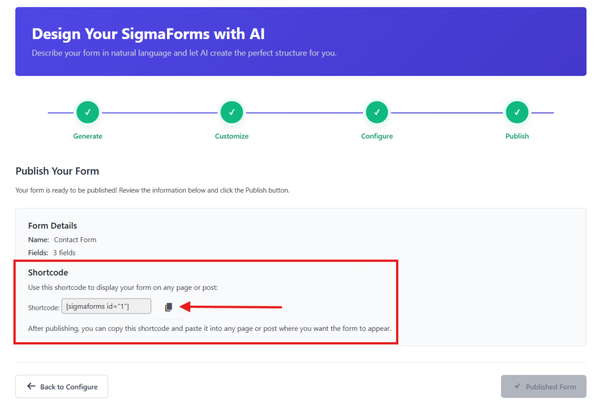
Your form is now published and ready to go live on your website. Sigma Forms provides a shortcode you can use to embed the form anywhere on your site.
Follow these steps to place your form.
- After publishing, you will see a shortcode displayed on the screen. Copy the shortcode.
- Go to the page or post where you want the form to appear.
- Add a Shortcode block from the WordPress block editor.

- Paste your copied shortcode into the block.

- Save or publish the page, then preview it to confirm the form appears correctly.
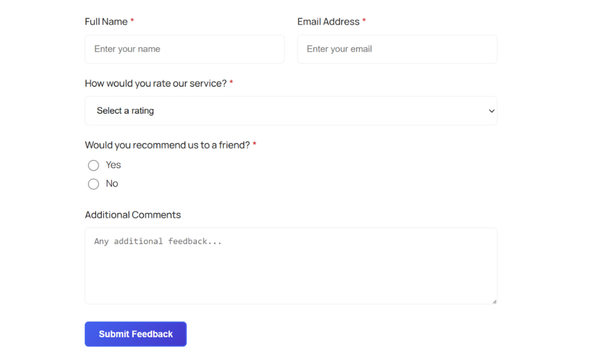
That is it. Your AI-generated advanced form is now live and ready to collect submissions. You can embed the same form on multiple pages or posts using the same shortcode, making it easy to use the form wherever needed.
This same shortcode method works for all types of forms you build with the plugin, whether they are contact forms, lead-capture forms, surveys, or any other type. If you want to learn more about managing contact forms built this way, visit this resource on how to create a contact form with AI for WordPress.
FAQ
What is an AI form builder?
An AI form builder is a tool that uses artificial intelligence to generate complete forms from plain text descriptions. Instead of building forms field by field, you type what you need and the AI creates the form structure automatically. This includes fields, labels, validation and layout decisions.
Can I use an AI form builder without coding?
Yes. The whole point of a no-code AI form builder is that you do not need any technical knowledge. You describe what you want in natural language and the AI handles everything else. You can then make edits using a visual interface without writing a single line of code.
What makes a form builder different from a smart AI form builder?
A regular form builder requires you to manually add and arrange each field. A smart forms AI builder generates the entire form from a description, learns from your input and can make intelligent decisions about what fields and configurations are appropriate for your use case.
Is Sigma Forms the best AI form builder for WordPress?
Sigma Forms is one of the most capable AI form builders available for WordPress right now. It combines AI form generation with strong security features, flexible configuration options and native WordPress integration, making it a strong choice for both beginners and experienced users.
How does automated lead capture work with AI forms?
With automated lead capture forms, the AI generates a form designed to collect visitor information efficiently. You can configure email notifications so every submission is sent to your inbox automatically. Combined with webhook integrations, your form can send lead data to a CRM or email marketing tool without any manual work.
Can I add spam protection to my AI-generated form?
Yes. Sigma Forms includes built-in spam control features. You can also add reCAPTCHA to your forms for an extra layer of protection. This is especially important for advanced lead capture forms that are publicly visible and likely to attract bot submissions.
What is the difference between a conversational form and a regular form?
A regular form shows all fields at once. Conversational AI forms present one question at a time, creating a more natural and engaging experience for the user. This style tends to increase completion rates because it feels less overwhelming than a long static form.v
Conclusion
Creating advanced forms no longer has to be a slow, manual process. With an AI form builder, you can go from idea to live form in a matter of minutes. Whether you are building a simple contact form or a complex multi-field form for lead generation or surveys, AI handles the structure while you focus on the details that matter.
For WordPress users, this kind of AI form automation is now fully available inside the dashboard. You do not need external tools or developer support to take advantage of it. A well-chosen plugin gives you everything you need to build, configure and publish forms that look professional and work reliably.
The steps outlined in this blog give you a complete picture of the process, from selecting the right plugin and generating your form with AI to configuring settings and embedding the form using a shortcode. Follow them in order and you will have a working advanced form on your site quickly.
If you are ready to explore what an AI-powered form experience looks like on WordPress, visit the Sigma Forms by BdThemes page to get started. And if you want to dive deeper into related topics, check out these resources.
- How to create a WordPress contact form with a pre-built template
- How to create a custom form in WordPress
- How to create an online survey form in WordPress
- How to add reCAPTCHA to a WordPress contact form
Start building smarter forms today with the power of AI.
Md Tariqul
The BdThemes team builds WordPress plugins trusted by 3M+ users worldwide. We write about web accessibility, WCAG compliance, and inclusive design.