

Every WordPress website owner has faced the same frustration. You log in to your admin dashboard, and the menu on the left looks cluttered, confusing, and completely out of order.
Items you never use sit at the top, while the tools you rely on every day are buried at the bottom. This is a common pain point for developers, agencies, and site owners alike.
The good news is that WordPress admin menu order positions are not fixed. You can rearrange, rename, hide, or reorder the admin menu to match your actual workflow. Whether you manage one website or dozens of client sites, a clean, logical admin menu saves time and reduces confusion.
In this guide, you will learn how to change WordPress admin menu order positions step by step with a plugin—without writing a single line of code.
How to Change WordPress Admin Menu Order Positions
Changing the WordPress admin menu order is simpler than most people think. You do not need to be a developer or touch your theme's functions.php file. All you need is the right plugin and a few minutes.
Below is a complete walkthrough to help you get started.
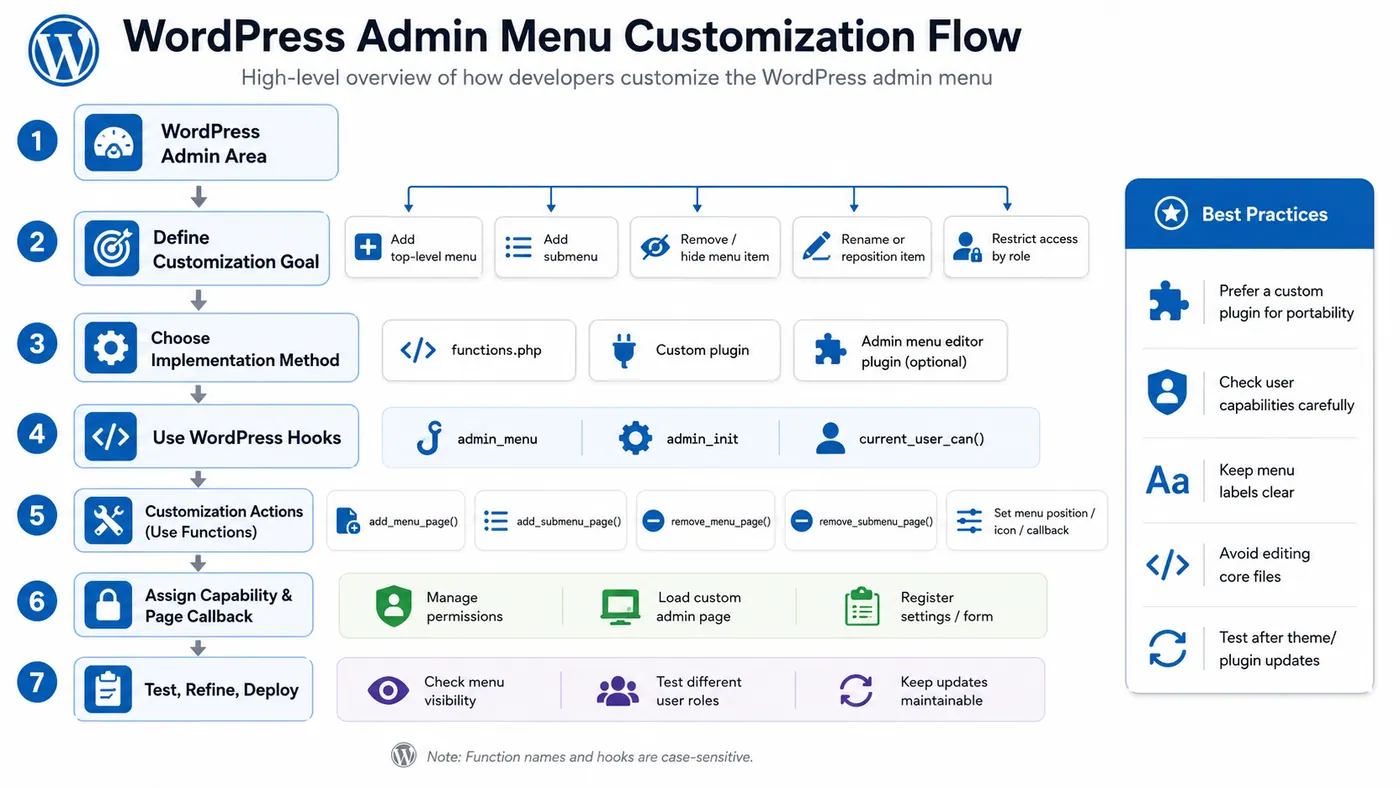
Step 1: Choose a WordPress Admin Menu Customization Plugin
The first step is choosing the right tool for the job. The WordPress plugin repository offers several options, but not every plugin provides the same level of control. Look for these qualities:
- Ease of use: The plugin should have a clean interface that does not require technical knowledge.
- Full control: You should be able to reorder, rename, hide, and customize admin menu items.
- No coding required: The best plugins let you work directly from the admin panel.
- Active support and updates: A well-maintained plugin stays compatible with current WordPress releases.
- Extra features: Dashboard widget management, admin bar customization, and login page styling can add more value.
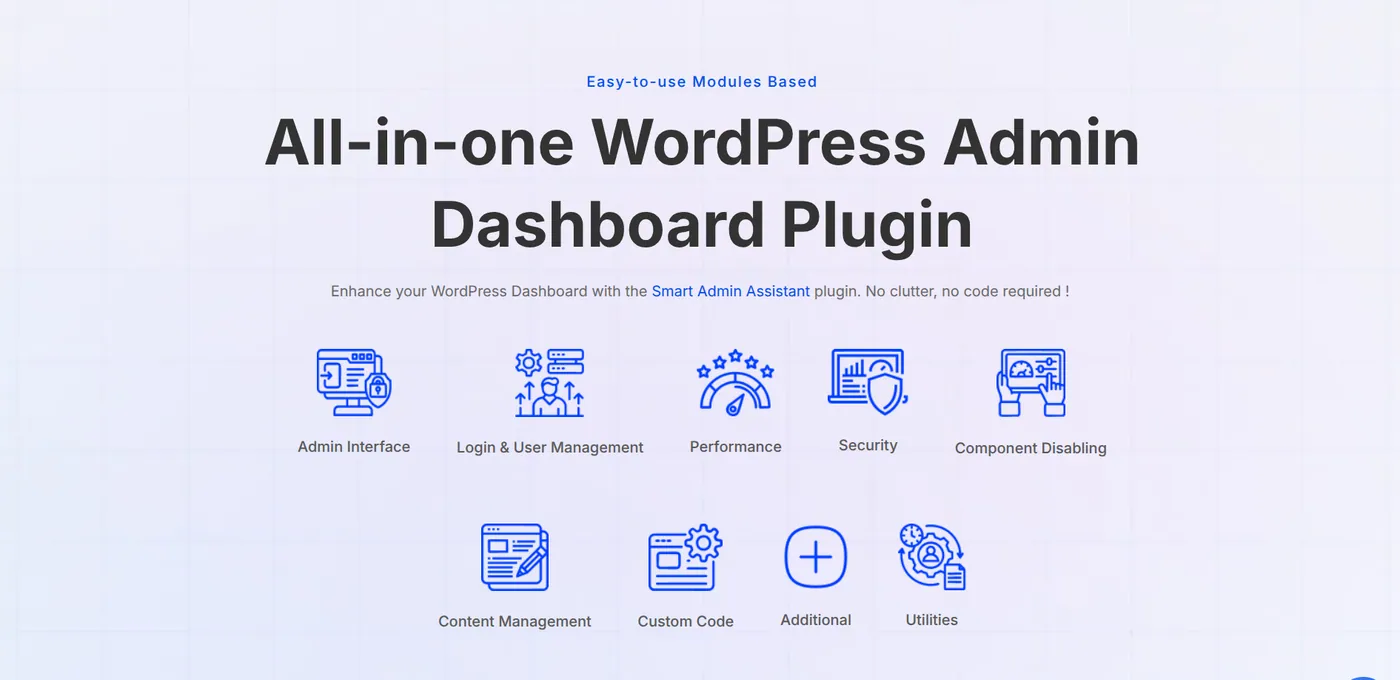
The plugin that covers these requirements is Smart Admin Assistant. Developed by BdThemes, it is a complete WordPress admin dashboard plugin that includes admin menu customization and many other backend tools.
BdThemes is also the team behind products such as Element Pack Pro, Ultimate Store Kit, and ZoloBlocks. Smart Admin Assistant brings that experience directly to your WordPress backend.
Step 2: Install and Activate the Plugin
Once you decide on Smart Admin Assistant, follow these steps to install it:
- Log in to your WordPress admin panel.
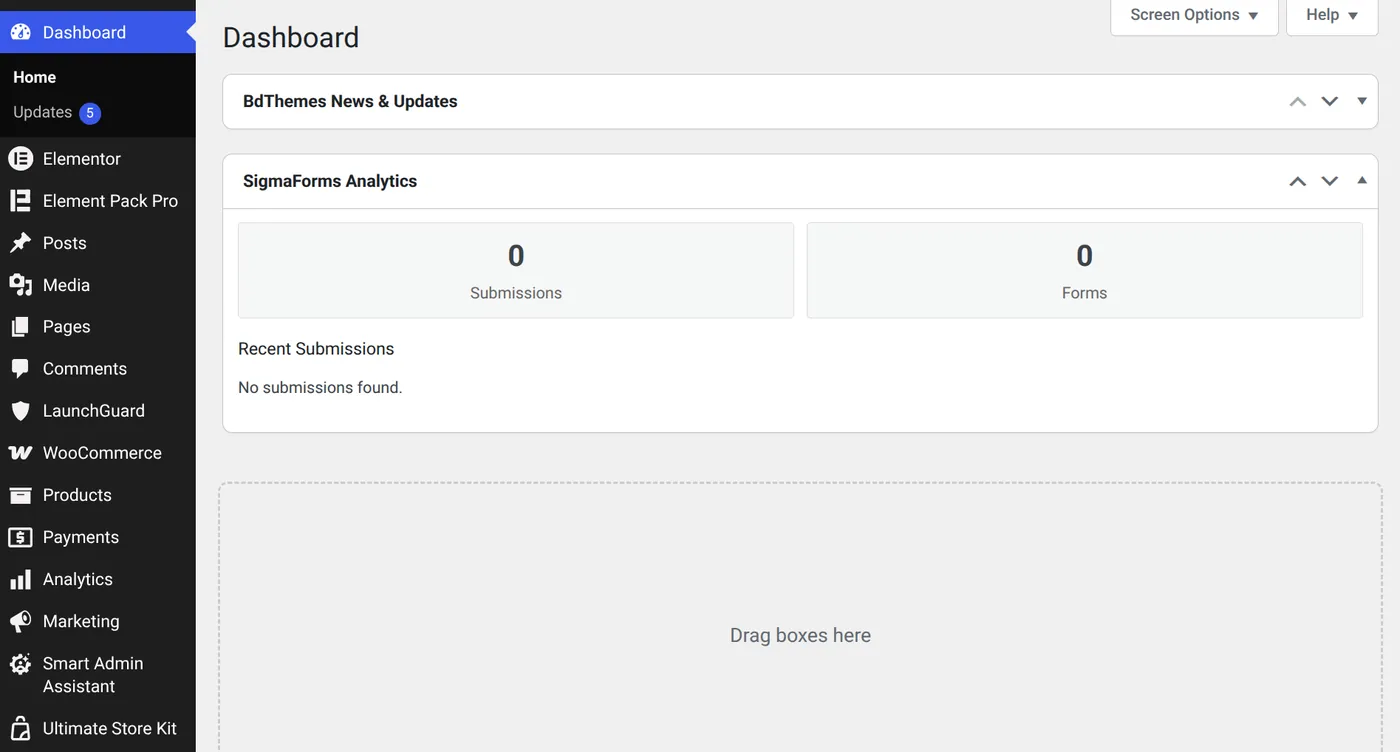
- Navigate to Plugins in the left-hand admin menu.
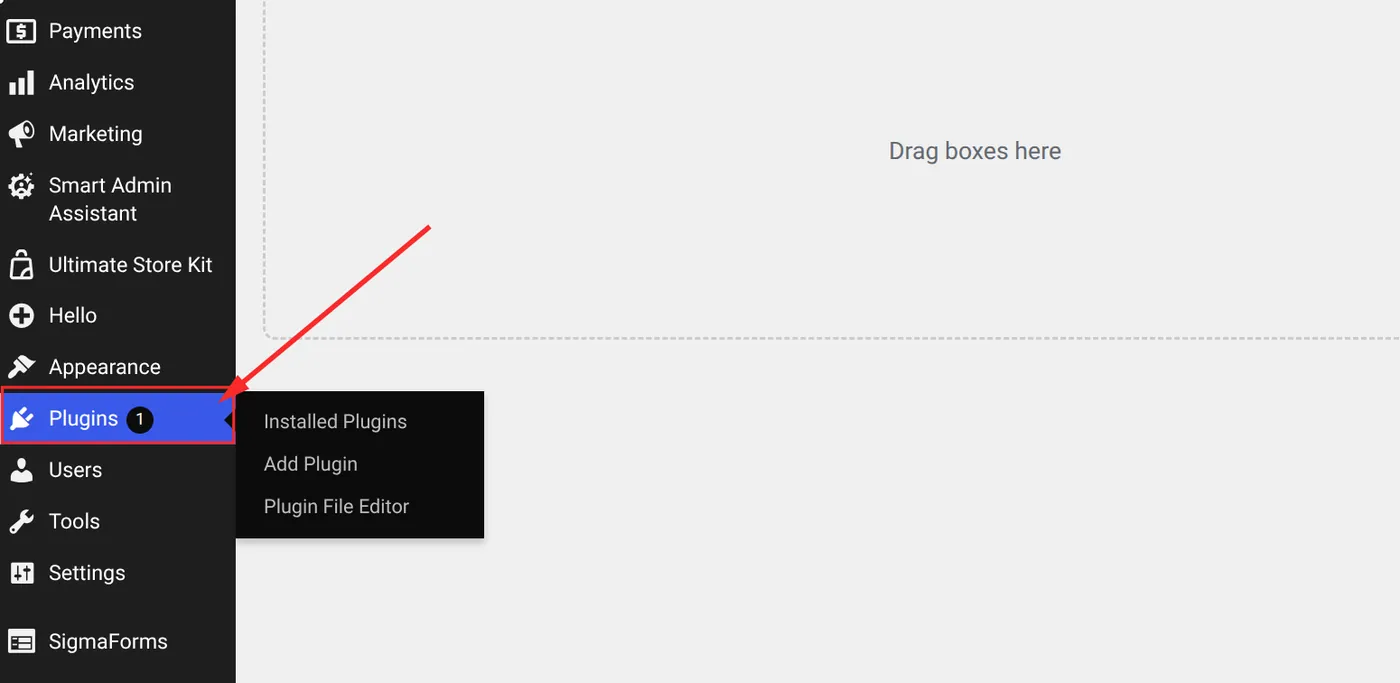
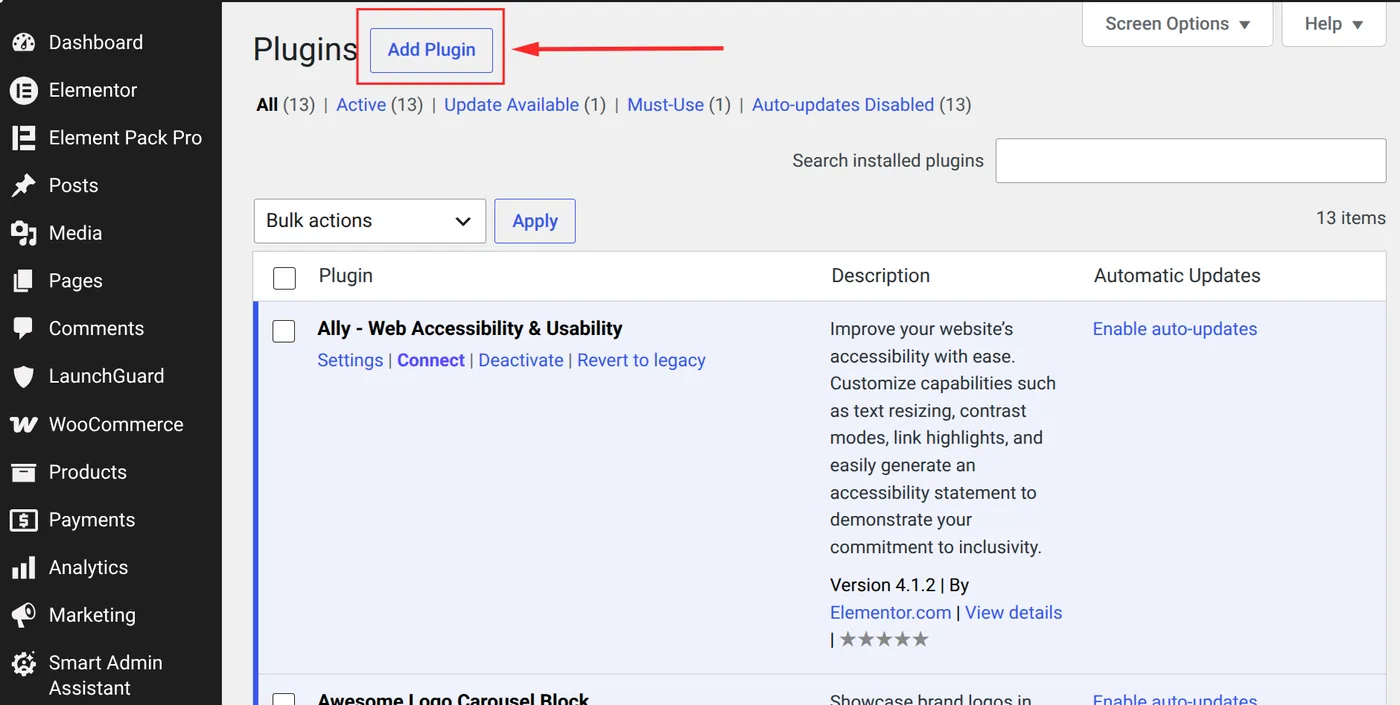
- Click Add New Plugin at the top of the page.
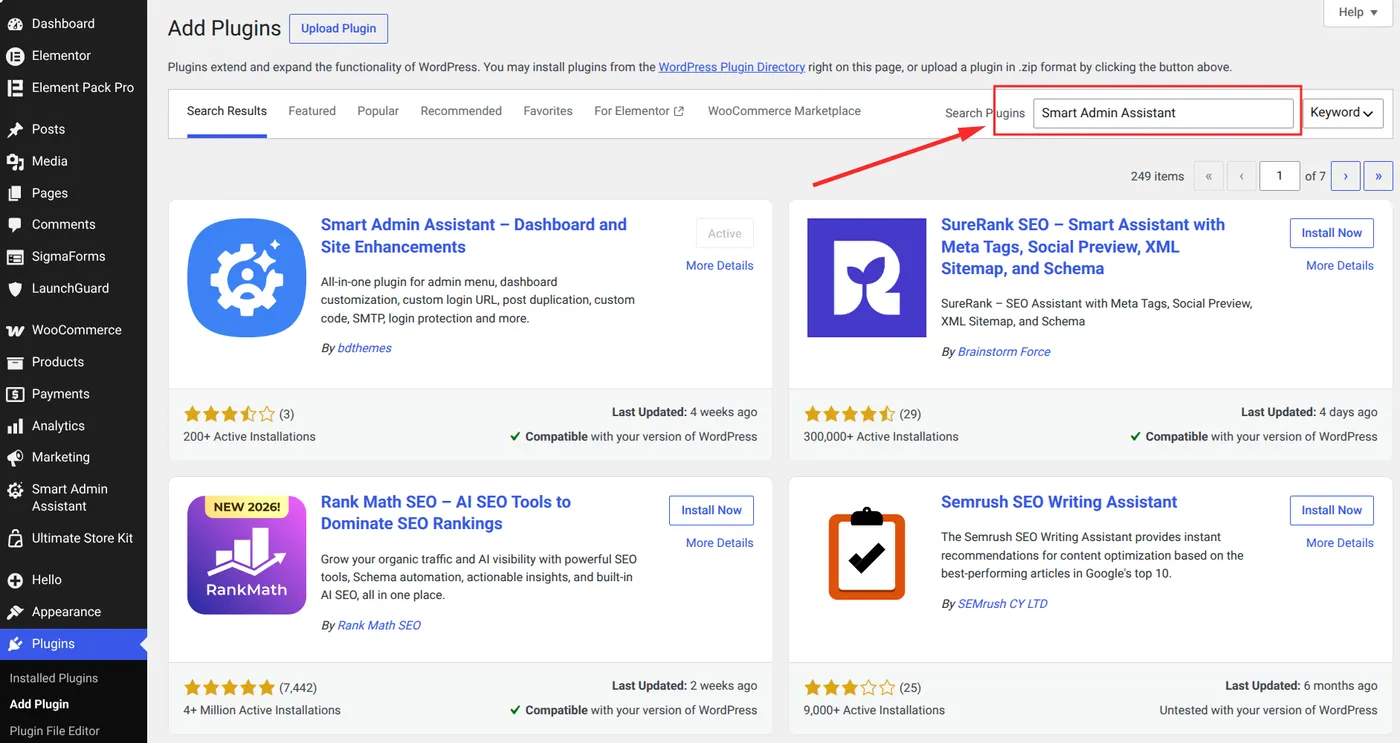
- Type Smart Admin Assistant in the search bar.
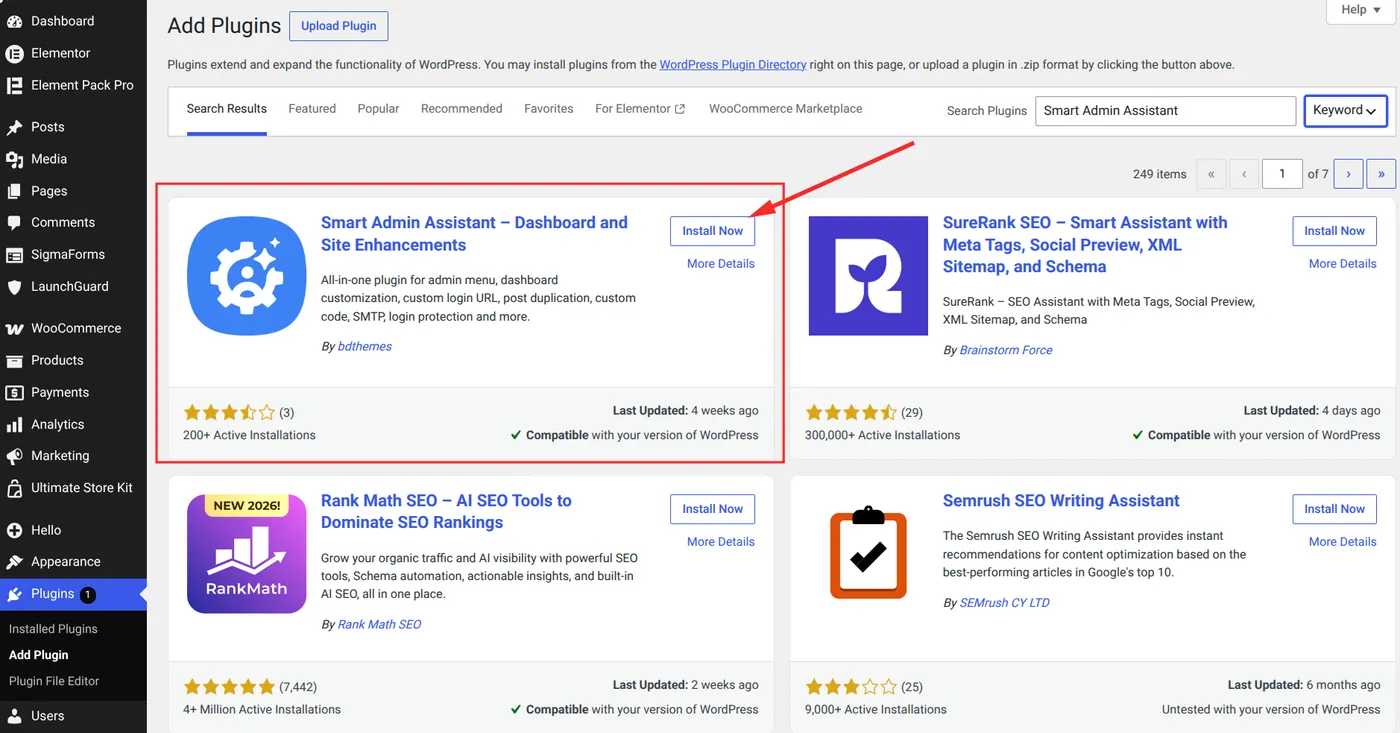
- Locate the plugin in the search results and click Install Now.
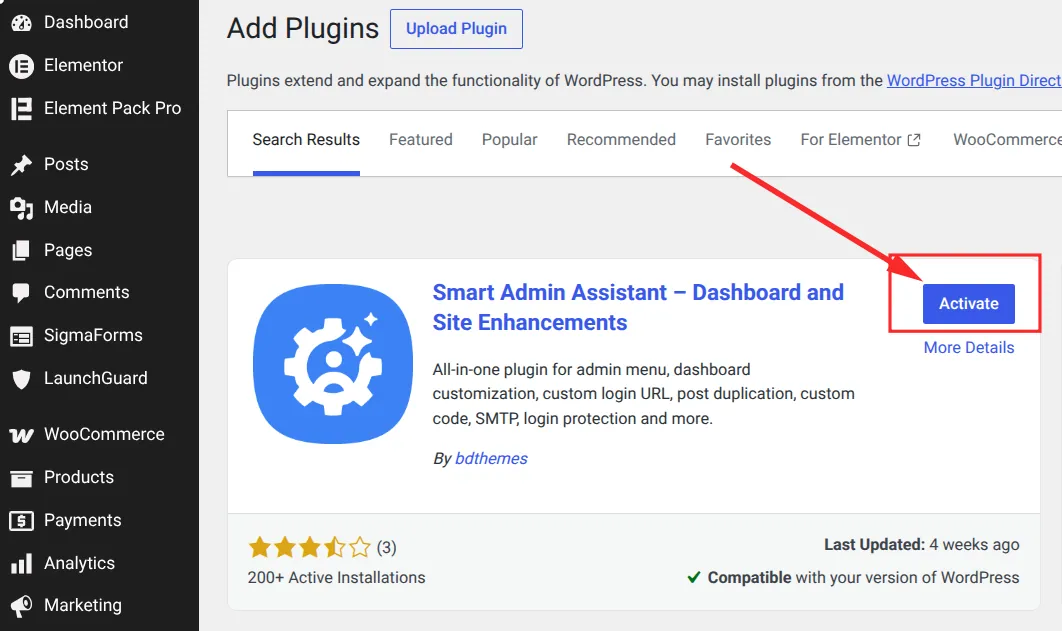
- After installation finishes, click Activate.
If you downloaded the plugin directly from BdThemes, go to Plugins > Add New Plugin, choose Upload Plugin, select the ZIP file, and then install and activate it.
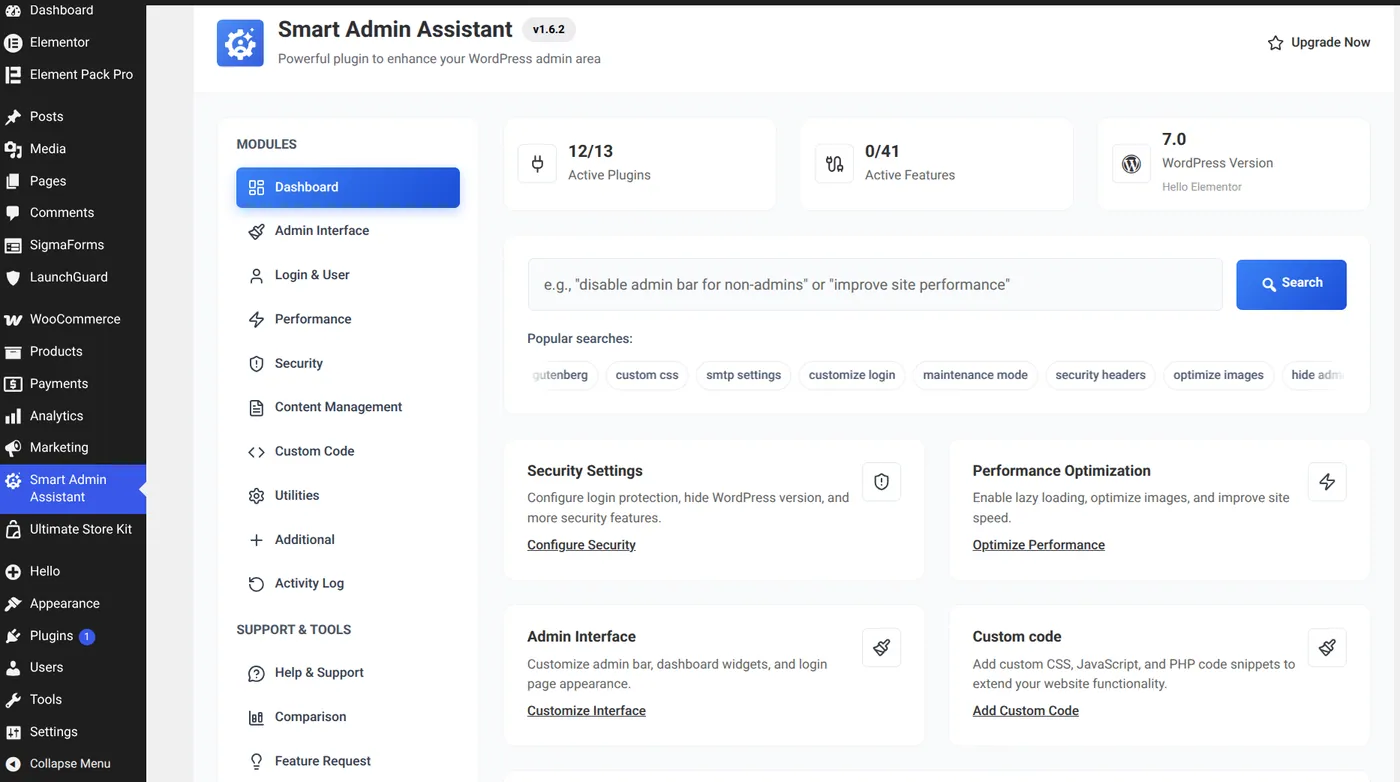
After activation, a new Smart Admin Assistant menu item appears in your WordPress admin sidebar.
Step 3: Open the Admin Interface Settings
After activating the plugin, open its dashboard. Smart Admin Assistant organizes its features into clearly labeled modules, making it easy to find the controls you need.
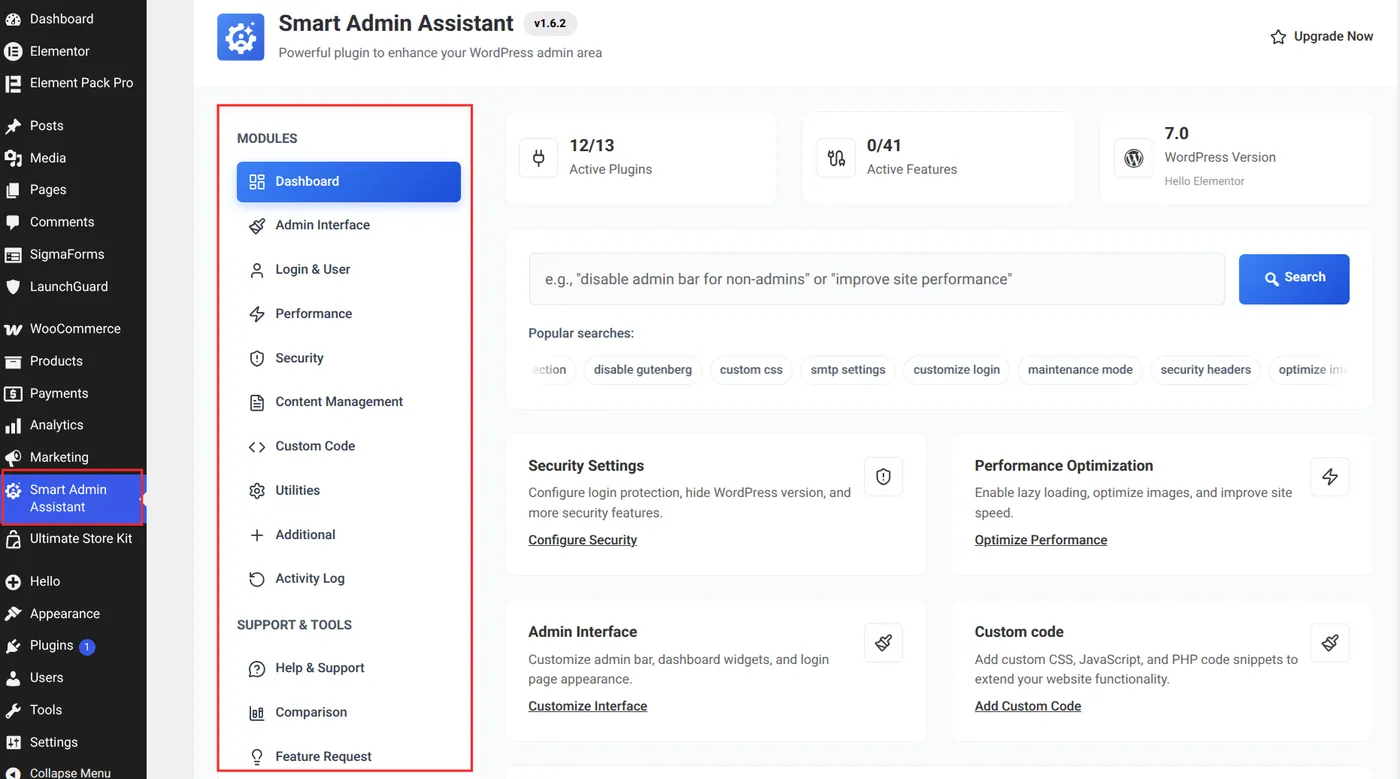
To access the admin menu customization settings:
- Click Smart Admin Assistant in the WordPress admin sidebar.
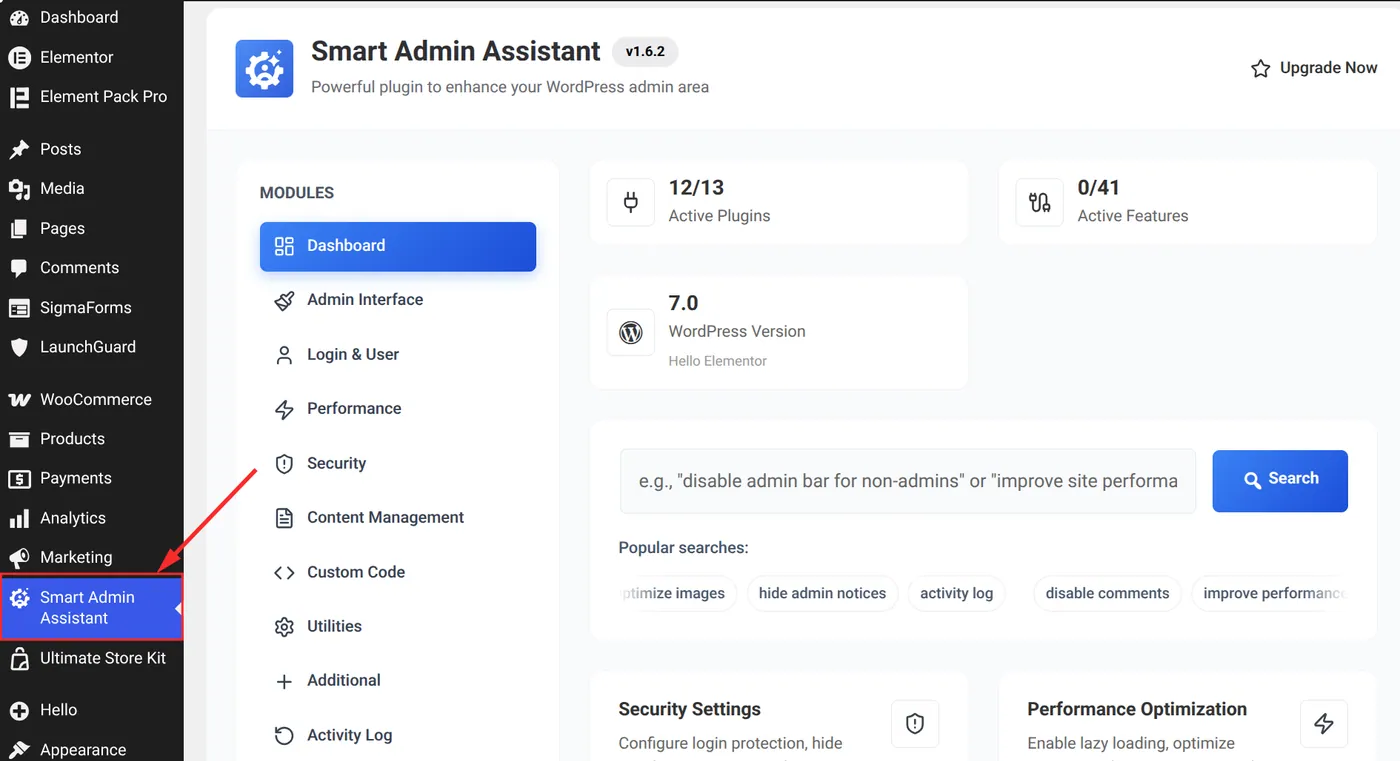
- Open the main plugin dashboard to view the available modules.
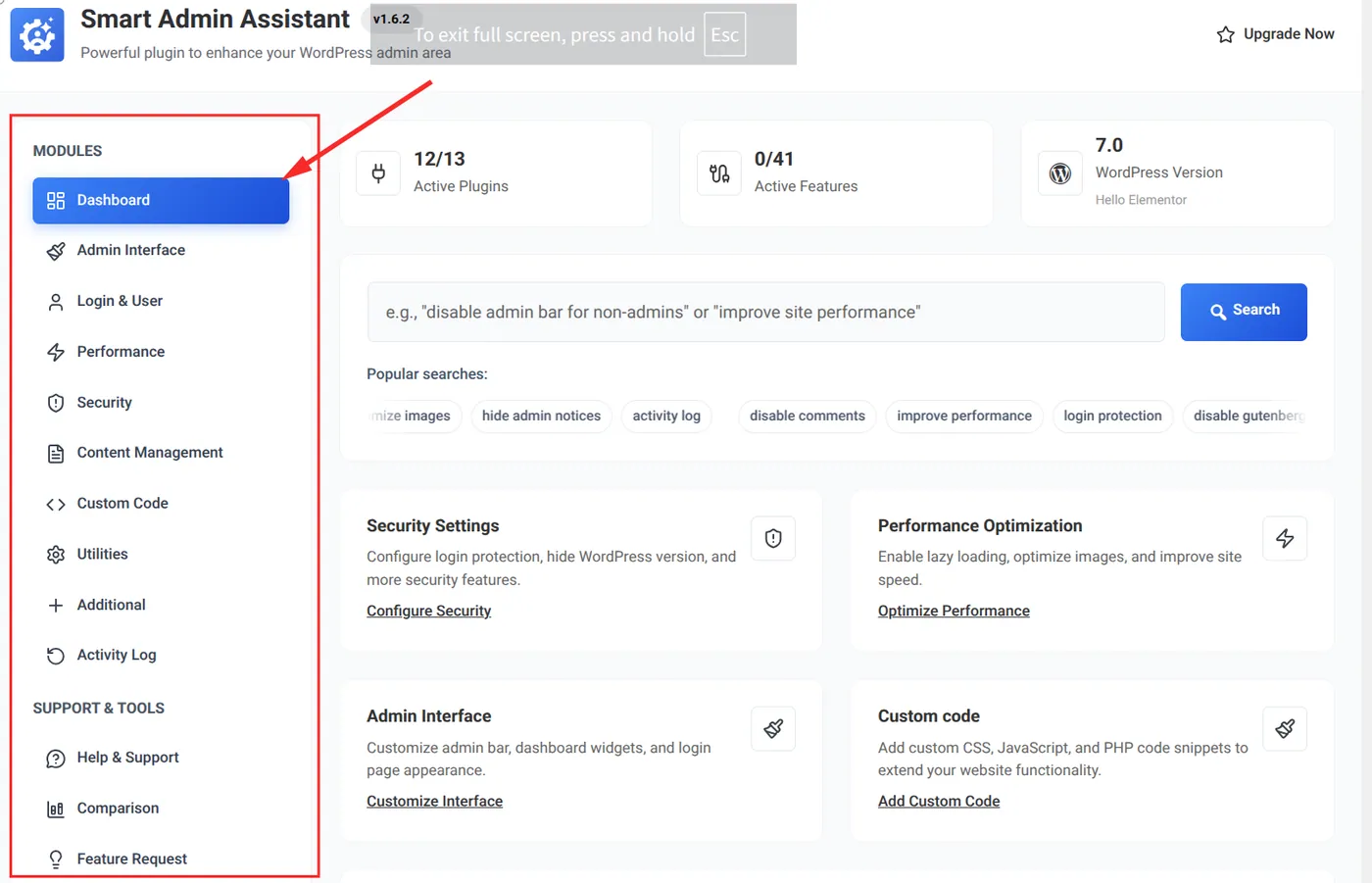
- Find the Admin Menu Customization option under Admin Interface.
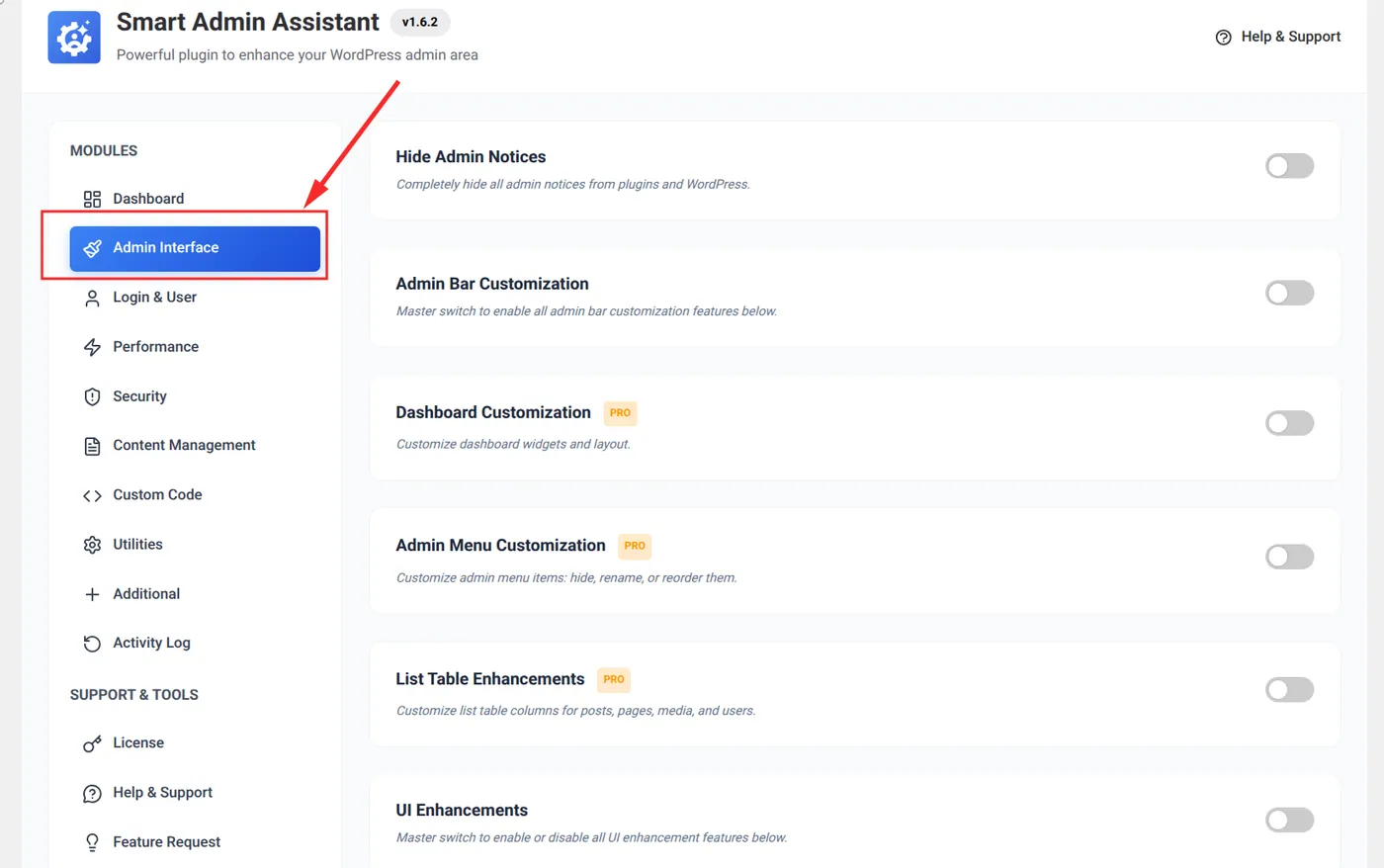
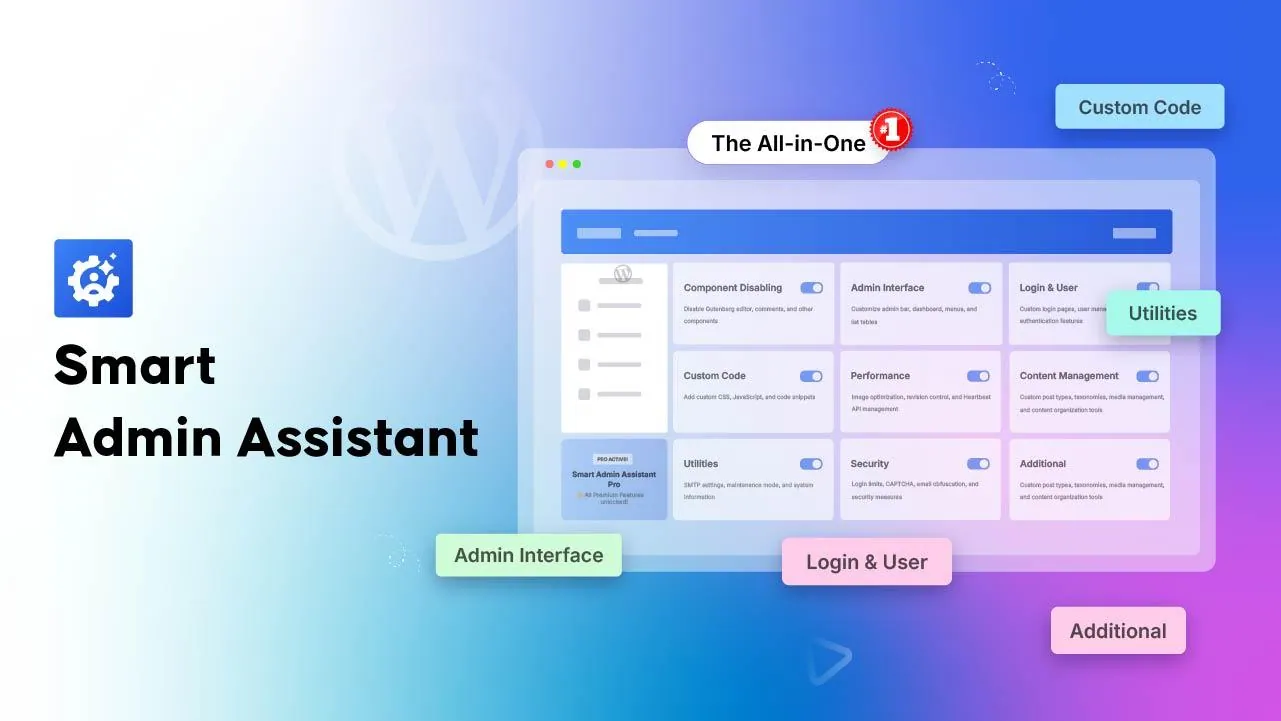
Smart Admin Assistant groups its tools into categories that include Admin Interface, Login and User Management, Performance, Security, Component Disabling, Content Management, Custom Code, Additional Tools, and Utilities. You can review the full feature set on the Smart Admin Assistant plugin page.
Step 4: Customize the Admin Menu
Turn on the admin menu customization setting inside the Admin Interface module. You will then see a visual representation of your current admin menu and the controls for changing it.
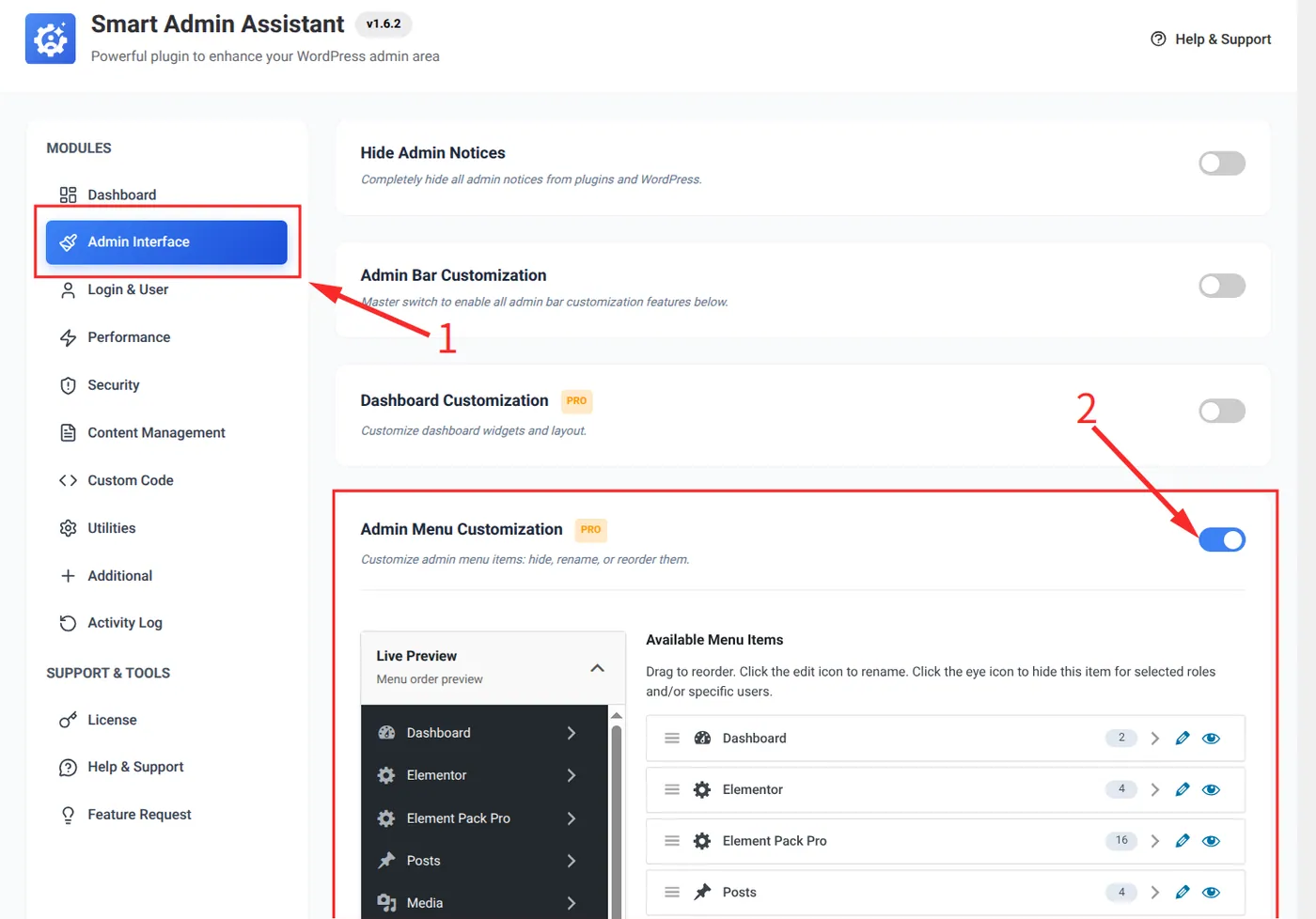
Reorder Admin Menu Items
Smart Admin Assistant lets you drag and drop menu items into your preferred order. You can bring frequently used sections such as Posts, Pages, or WooCommerce to the top and move rarely used items toward the bottom.

Rename Admin Menu Items
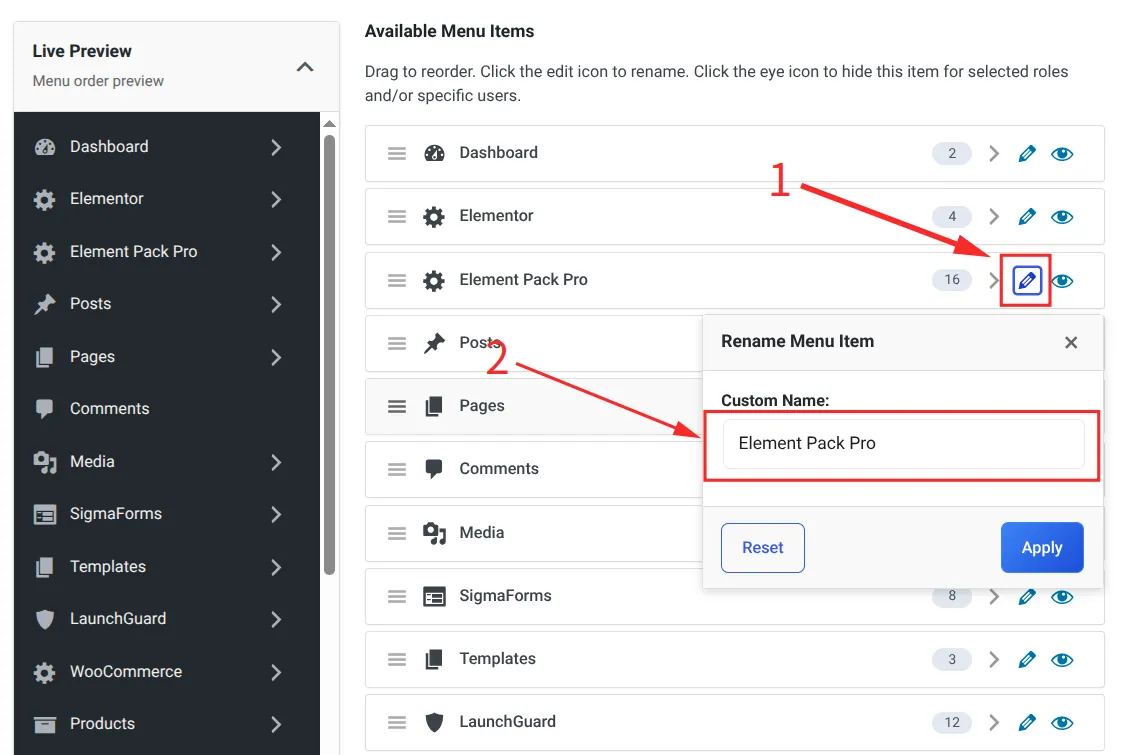
Default WordPress labels can confuse non-technical users. Smart Admin Assistant lets you rename menu items—for example, changing Posts to News or WooCommerce to Online Store.
To rename an item, click the pencil icon and edit its name in the input field.
Hide Admin Menu Items
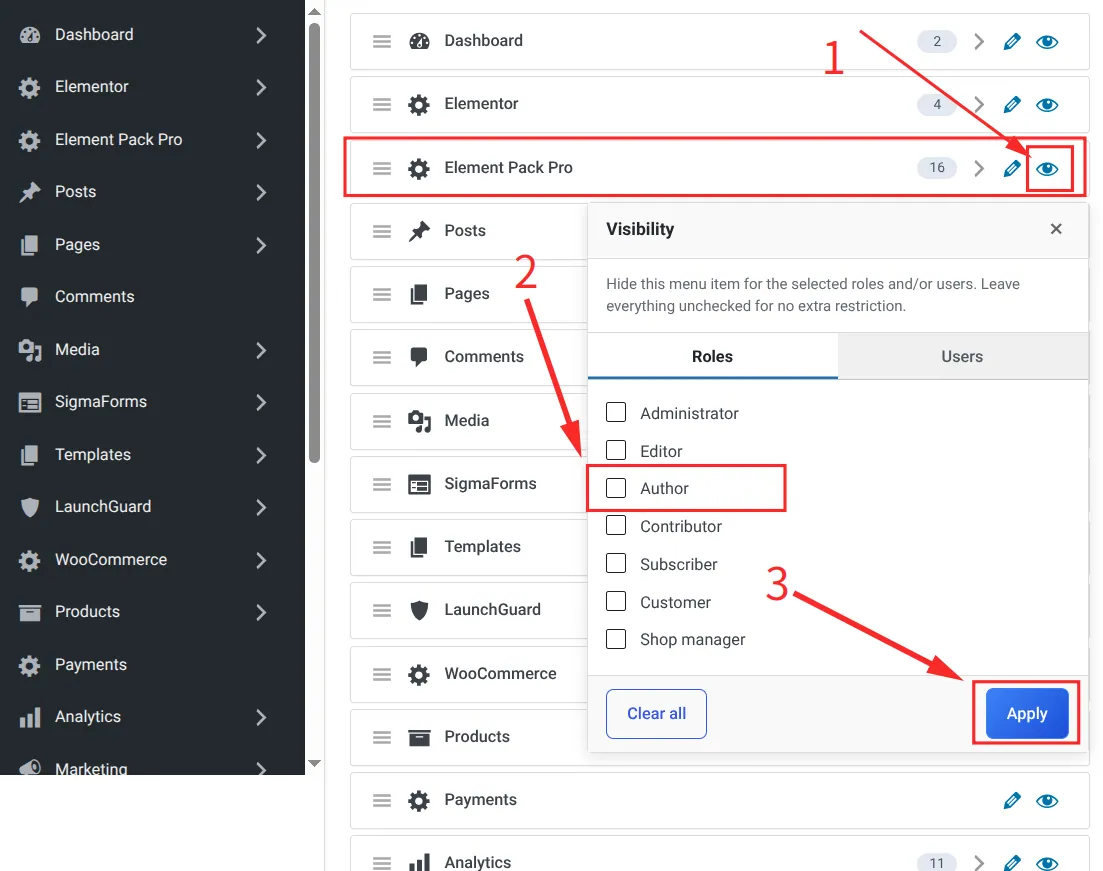
You can hide menu items that do not belong in a user's workflow. Hidden items are not deleted, so you can restore them later.
This is especially useful when building WordPress sites for clients and removing advanced options that might cause confusion. Click the eye icon, choose the role or user for which the item should be hidden, and then click Apply.
Step 5: Save Your Settings
After customizing the WordPress admin menu:
- Review the changes you made to the menu order, labels, and visibility.
- Click Save Settings or Apply Changes.
- Refresh the WordPress admin page to see the updated menu.
Your custom menu order is now active. Users will see the updated layout when they log in unless you configure different role-based visibility settings.
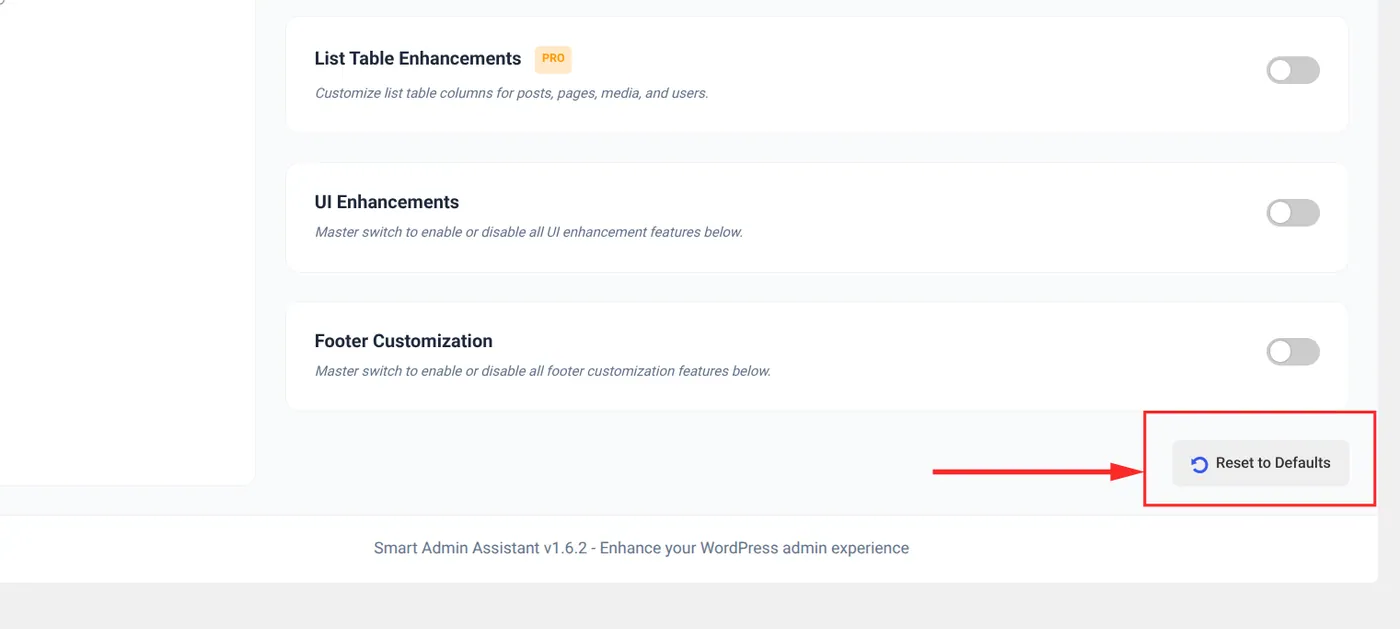
If you want to return to the original menu order, use the reset option to restore the default WordPress admin menu layout.
Why We Choose Smart Admin Assistant
Many plugins can change the WordPress admin menu order, but Smart Admin Assistant goes beyond that single feature.
All-in-One Admin Dashboard Control
Smart Admin Assistant is more than an admin menu editor. It brings together admin interface controls, login and user management, performance tools, security settings, component disabling, content management, custom code, and utilities in one plugin.
No Code Required
You manage the plugin through a visual interface inside WordPress. Beginners can use the controls without editing PHP, while experienced developers can use them to speed up repetitive dashboard work.
Admin Menu Reordering, Renaming, and Hiding
You can drag menu items into a new order, rename labels, hide sections you do not use, and customize submenus for more control over the backend navigation.
Admin Bar Customization
Smart Admin Assistant also lets you customize the WordPress admin bar. You can hide it on the frontend and remove default or plugin-added items to reduce distractions.
Admin Notices Management
Plugin notices, promotions, and review requests can quickly clutter the dashboard. Smart Admin Assistant provides controls for managing those notices and keeping the workspace focused.
Performance and Security Features
The plugin also includes performance and security tools, making it more comprehensive than a standalone menu-order plugin.
White-Label Ready for Agencies
Agencies can rename menu items, hide advanced options, customize the login page, and create a cleaner WordPress admin experience for clients.
Built by BdThemes
Smart Admin Assistant comes from the BdThemes team, which also develops Element Pack Pro, ZoloBlocks, and other WordPress products.
FAQs
What are WordPress admin menu order positions?
WordPress admin menu order positions are the numerical slots that determine where each item appears in the left-hand navigation menu of the WordPress dashboard. Changing those positions rearranges the menu to match your workflow.
Can I reorder the WordPress admin menu without a plugin?
Yes. Developers can use the custom_menu_order and menu_order PHP filters. This requires coding knowledge and is best implemented in a custom plugin rather than directly in a theme. For most users, a visual plugin is easier to manage.
Will changing the admin menu order affect my website visitors?
No. The admin menu appears only inside the WordPress dashboard. Reordering, renaming, or hiding admin menu items does not change the frontend appearance of your website.
Can I hide admin menu items for specific user roles?
Yes. Smart Admin Assistant supports role-based menu customization, which helps editors, contributors, shop managers, and other users see only the sections relevant to their work.
Is Smart Admin Assistant free or paid?
Smart Admin Assistant has free and Pro versions. The free version includes core admin enhancements, while Pro unlocks advanced controls such as admin menu reordering, renaming, hiding, and dashboard widget management. Pro plans currently start from $39 per year.
Will the plugin slow down my WordPress site?
Smart Admin Assistant is designed to apply its dashboard customizations in the WordPress admin area, keeping those interface changes separate from the visitor-facing website.
What happens if I reset the admin menu?
Resetting clears your custom ordering, naming, and visibility settings and restores the default WordPress admin menu layout. You can then create a new configuration.
Final Thoughts
Knowing how to change WordPress admin menu order positions can make a meaningful difference in your daily workflow. A well-organized menu saves time, reduces frustration, and makes the dashboard easier to use.
The process is straightforward: install the right plugin, open its admin interface settings, reorder or rename menu items, hide anything unnecessary, and save your changes.
Smart Admin Assistant brings these controls together with other WordPress backend tools. If you build client sites, manage a team, or simply want a cleaner dashboard, explore Smart Admin Assistant and create an admin experience that better matches the way you work.
Md Tariqul
The BdThemes team builds WordPress plugins trusted by 3M+ users worldwide. We write about web accessibility, WCAG compliance, and inclusive design.