

The Wishlist Button widget by Ultimate Store Kit Pro allows customers to save their favorite products to a wishlist for future purchases. It helps improve the shopping experience by making it easy for users to keep track of products they are interested in without adding them to the cart immediately, which can also encourage return visits and conversions. In this documentation, we will show you how to customize the Wishlist Button Widget by Ultimate Store Kit.
Enable the Wishlist Button Widget
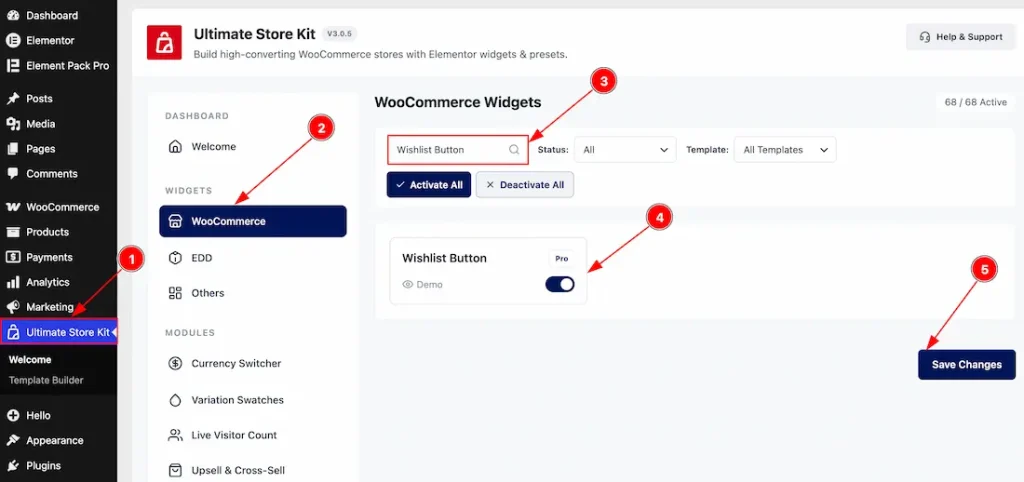
To use the Wishlist Button widget by Ultimate Store Kit, first, you have to enable the widget.
- Go to WordPress > Ultimate Store Kit Plugin dashboard.
- Then, click the WooCommerce Tab.
- Search the Wishlist Button Widget Name.
- Enable the Wishlist Button Widget.
- Hit the Save Settings Button.
Inserting the Wishlist Button widget
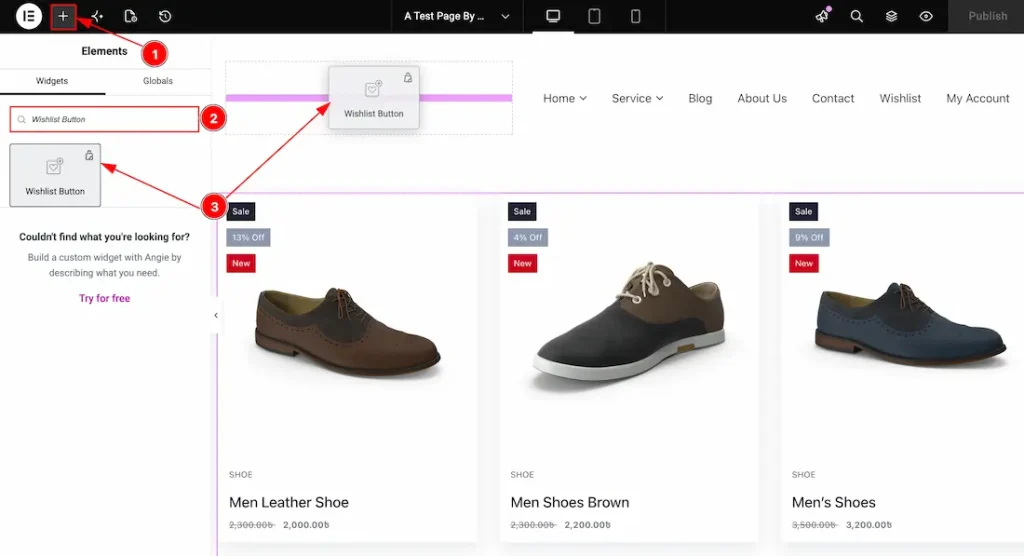
To give you a better idea of how the widget can be used in a real-world design, we have created a demo layout showcasing the widget in action. You can place and customize the widget anywhere on your website according to your specific needs and design requirements. Now. let’s see how to drag & drop the widget –
- Go to the Elementor Editor Page and Hit the “+” (Add Element) icon button.
- Search the Wishlist Button widget.
- Drag the widget and drop it on the editor page
How the user’s Wishlist count on Wishlist Button
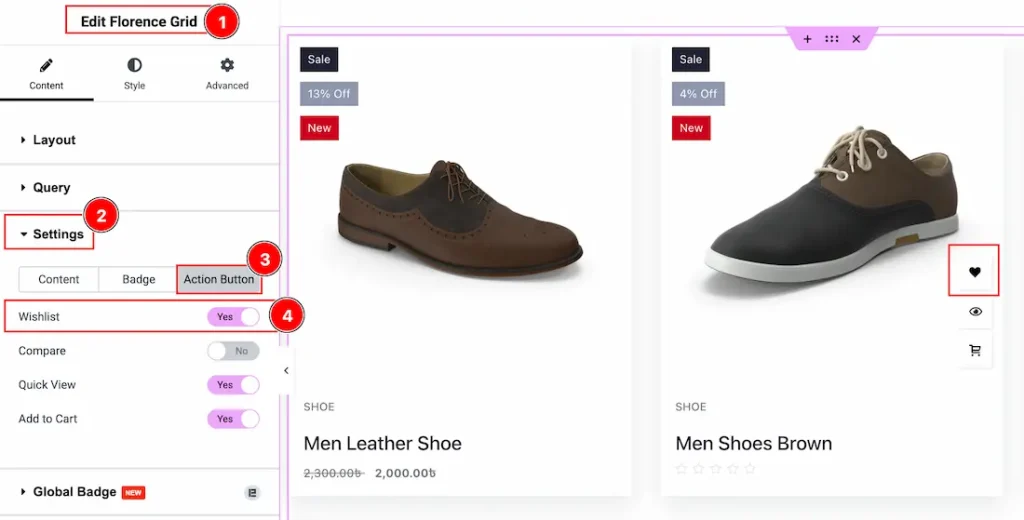
You must enable the Wishlist feature on the grid widget that you are using to showcase your products. You need to follow this –
1. Select the Grid widget. Here, we have used the Florence Grid, so we have selected the Florence Grid and then navigated to the content tab.
2. Click on the Settings section to open the settings options.
3. Now, move to the Action button tab of the settings section.
4. Now, enable the switcher of the wishlist to display the wishlist icon on the products.
All done, now the product will display the wishlist icon, and let’s see how we can connect the wishlist button with this appeared wishlist icon.
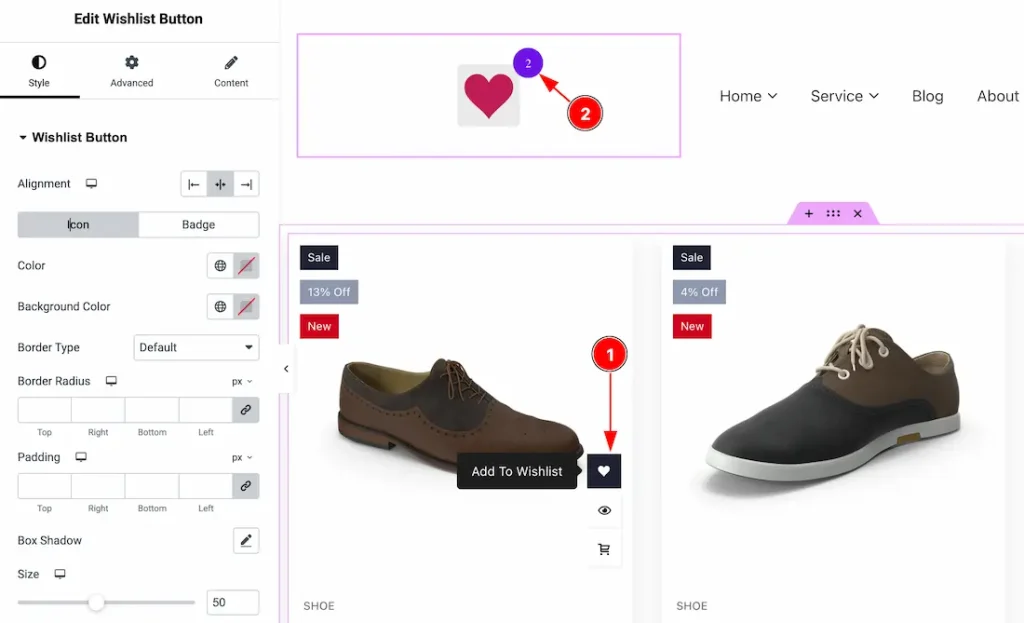
1. Click on the wishlist icon on the grid widget.
2. The number of clicks on the wishlist icon of the products will count on the button.
Note: You can see this preview when you publish the page, and on the live page, you will click on the wishlist icon.
Configuring the Style Tab
Wishlist Button Section
Go to Style > Wishlist Button
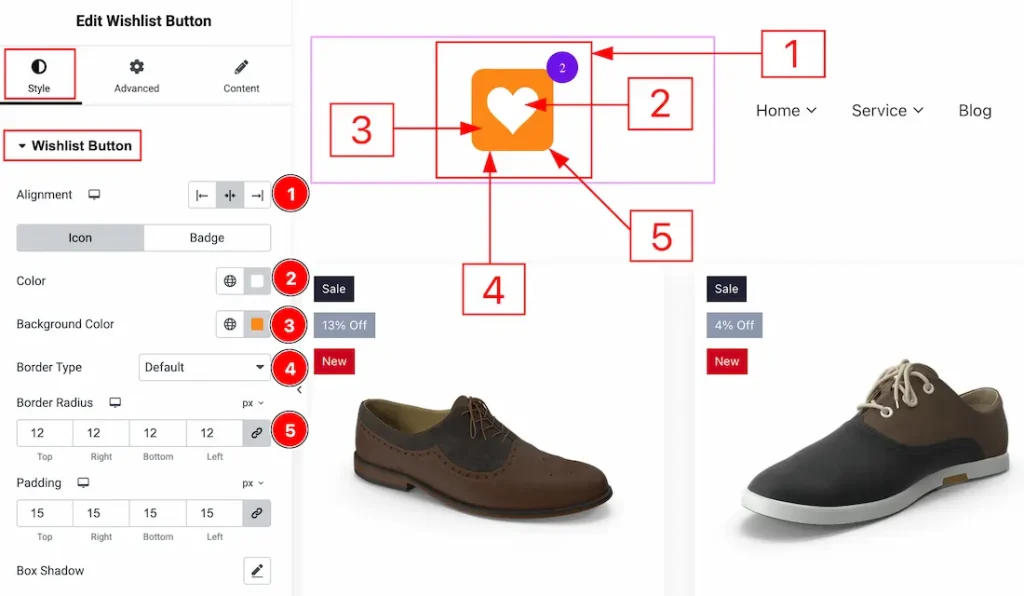
1. Alignment: You can adjust the position of the wishlist button to left, center or right with this option.
In this section, we have two more tabs. These are Icon & Badge. Let’s start customizing the Icon tab first –
2. Color: You can make changes to the wishlist button icon color with this option.
3. Background Color: You can make changes to the icon background color with this option.
4. Border Type: You can add and change the border types with this option.
5. Border Radius: You can control the roundness of the border with this option.
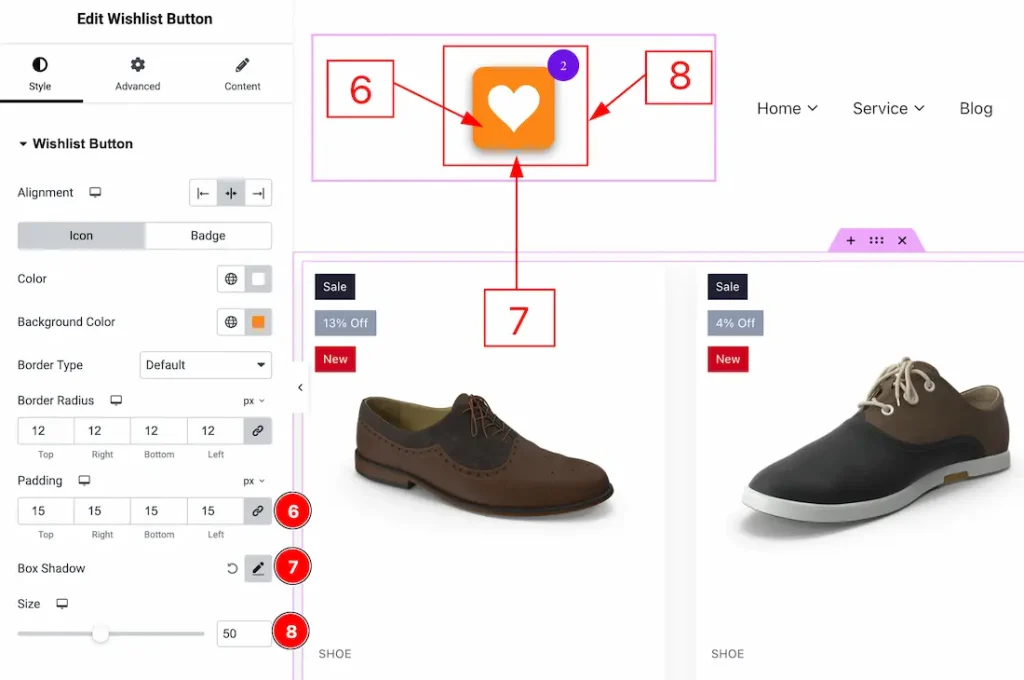
6. Padding: You can adjust the inner space of the icon with this option.
7. Box Shadow: You can add a shadow effect to the icon field with this option.
8. Size: You can adjust the size of the wishlist button with this option.
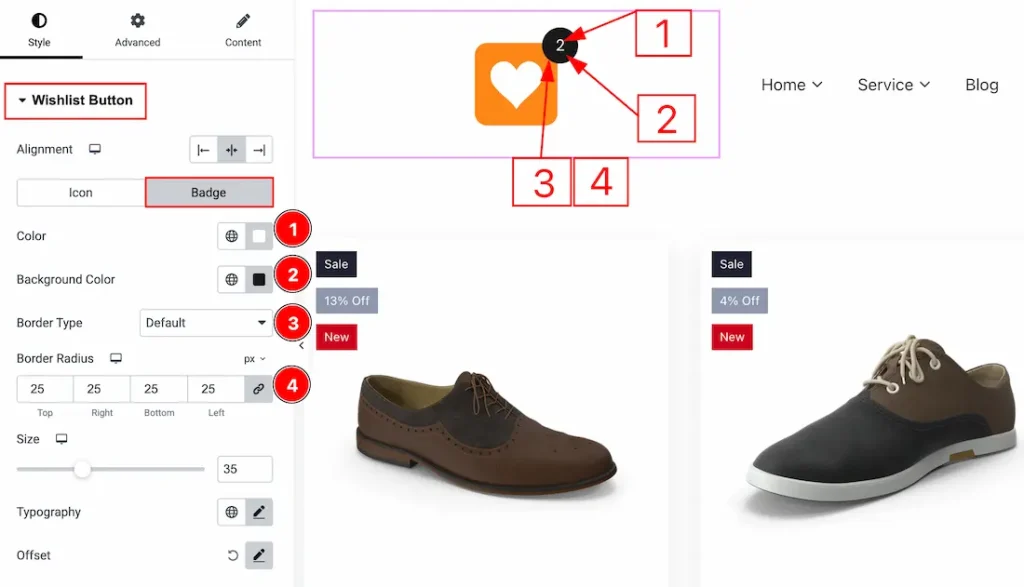
Now, let’s proceed to the badge tab customization –
1. Color: You can make changes to the badge count number color with this option.
2. Background Color: You can make changes to the background color of the badge with this option.
3. Border Type: You can add and change the border types with this option.
4. Border Radius: You can control the roundness of the border with this option.
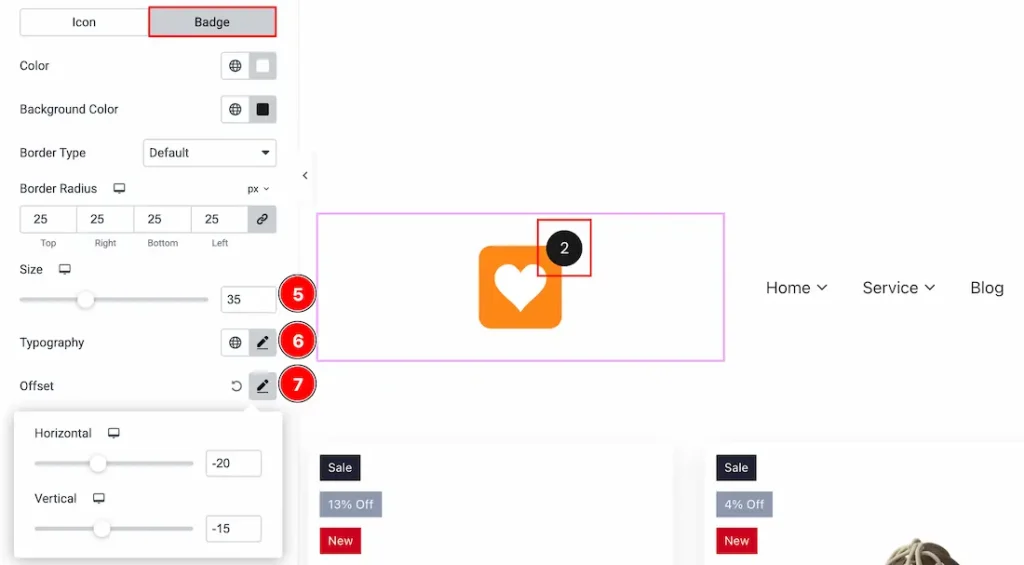
5. Size: You can adjust the badge size with this option.
6. Typography: Change the font family, size, weight, transform, style, decoration, line height, letter spacing, and word spacing from here.
7. Offset: You can move the badge position horizontally and vertically with this option.
All done! You have successfully customized the Wishlist Button widget on your website.
Video Assist
The demo and video will come soon.
Thanks for being with us.