

Do your links look messy because of underlines? It can make your design feel old and less clean. Many users face this problem while working with Elementor. You try to build a modern website but those underlined links keep showing up everywhere.
This can hurt your design. It may not match your brand style. It can also make your page look crowded. If you do not fix it, your website may not look as professional as you want.
The good news is you can fix this very easily. In this guide on how to remove underline from link in Elementor, you will learn simple methods that anyone can follow. You do not need coding skills. Just follow a few easy steps and your links will look clean and modern.
Understanding Elementor Link Styling
Before making changes, you need to understand how Elementor controls links.
Elementor uses both global settings and widget settings. Global settings apply to the whole website, while widget settings apply only to selected elements.
Sometimes your WordPress theme also controls link styles. So if you see underlines, they may come from your theme, Elementor or custom styles.
Knowing this helps you fix the issue faster.
The Basics of Link Styling in Elementor
Elementor gives you control over link appearance. You can change color, typography, hover effects and text decoration.
Text decoration is the most important setting here. If it is set to underline, your links will appear underlined. If you change it to none, the underline will disappear.
Remove Underline from All Links (Global Method)
If you want to remove the underline from every link on your website, this is the best method. You only need to do it once. After that, all links will follow the same style.
This method uses a small CSS code. Do not worry if you are not a developer. It is very simple.
Steps to follow:
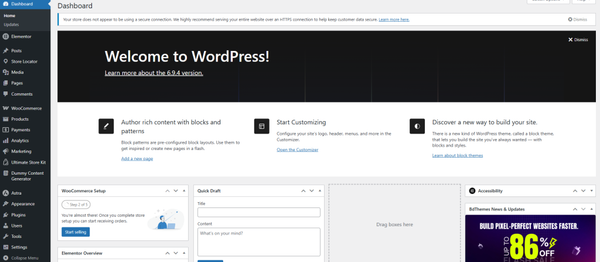
First, go to your WordPress dashboard. This is your main control panel.
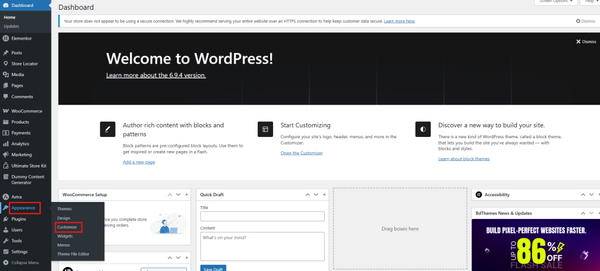
Next, go to Appearance and then click Customize. This will open the WordPress Customizer.
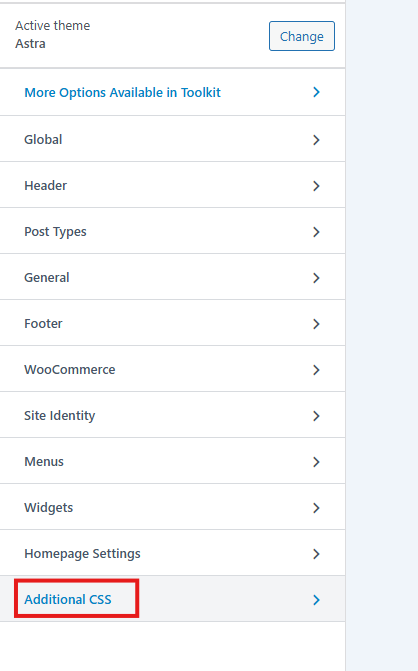
Inside the Customizer, scroll down slowly. You will see an option labeled “Additional CSS.” Click on it.
Now you will see a box where you can add code.
Copy and paste this code:
a {
   text-decoration: none  !important;
}
This code tells your website to remove the underline from all links.
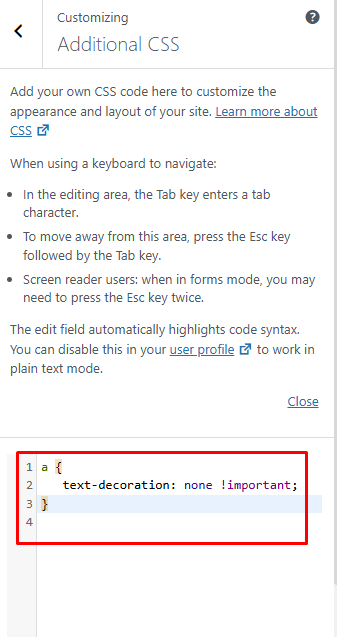
After pasting the code, click on the Publish button.
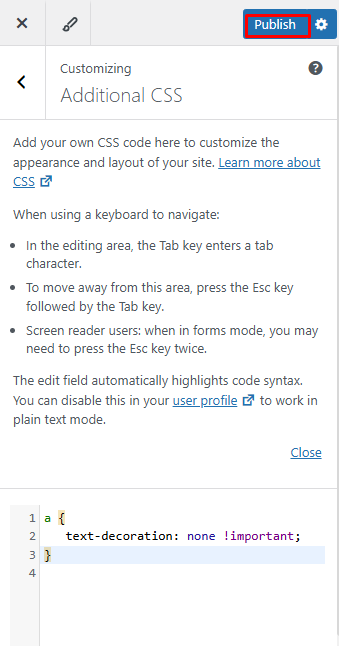
That’s it. Now your links will not have underlines anywhere on your website.
Why is this method useful?
This method saves a lot of time. You do not need to edit each page. You do not need to change every link manually.
It also keeps your design consistent. All links will look the same.
If you have a big website, this is the best option.
Remove Underline from Specific Sections or Widgets
Sometimes, you do not want to remove the underline from the whole website. You may want it only in a specific area.
For example, you may want underlines in blog posts but not on your homepage.
In that case, you can use the following methods.
Method 1: Using Custom CSS in Elementor (Elementor Pro)
If you are using Elementor Pro, you have access to custom CSS. This gives you more control.
You can remove the underline from links in a specific section or widget only.
Steps to follow:
First, open your page using Elementor.
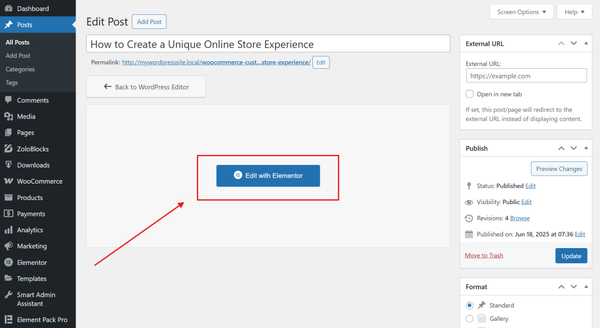
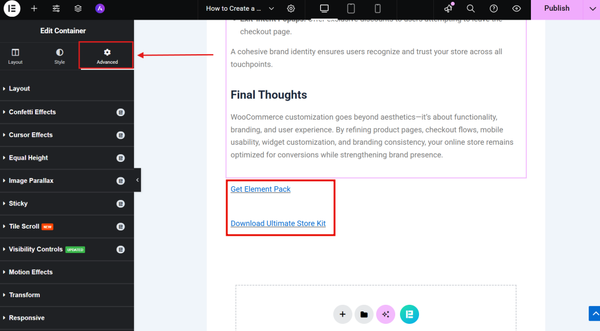
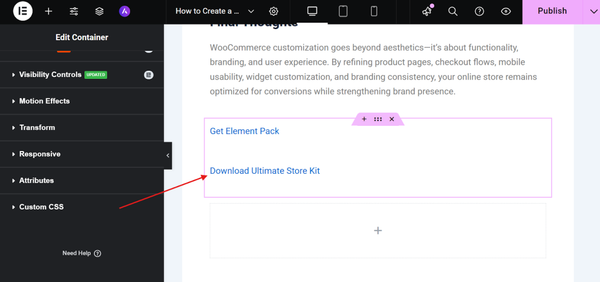
Click on the section or widget where you want to remove the underline. Then, go to the Advanced tab on the left panel.
Scroll down until you find Custom CSS.
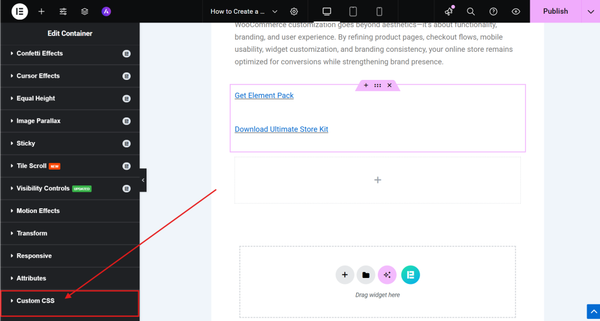
Click on it and you will see a box.
Paste this code:
a {
   text-decoration: none;
}
After adding the code, your links in that section will no longer have underlines.
What this method does
This method only affects the selected section. It will not change other parts of your website.
This is useful when you want more design control.
Method 2: Using Elementor Style Settings (No Coding)
If you are using Elementor Free, do not worry. You can still remove the underline without coding.
Elementor provides easy-to-use style options.
Steps to follow:
Open your page in Elementor.
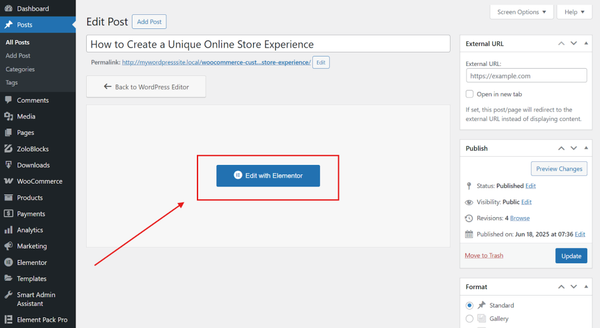
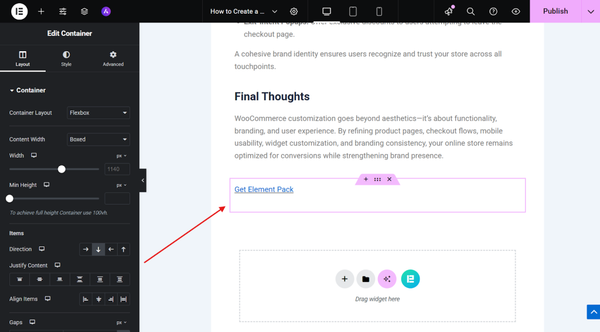
Click on the text widget that contains your link.
Now go to the Style tab on the left side.
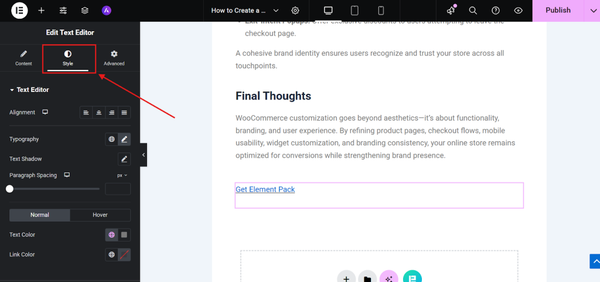
Look for the Typography settings. Click on the pencil icon.
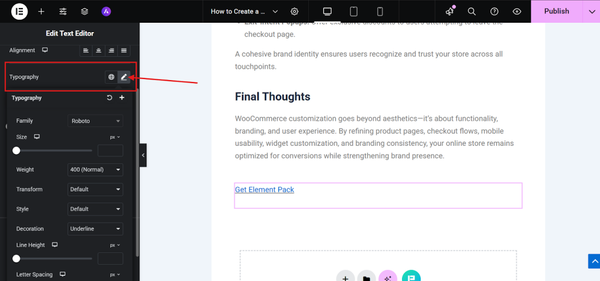
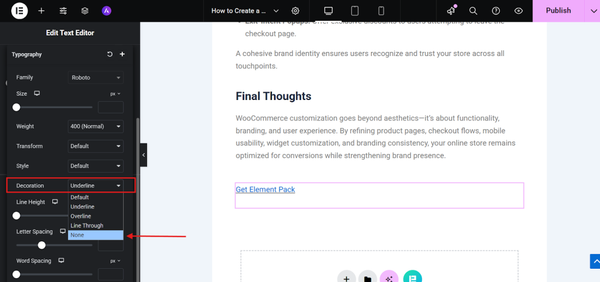
Scroll down until you find Decoration.
You will see options like underline, overline or none.
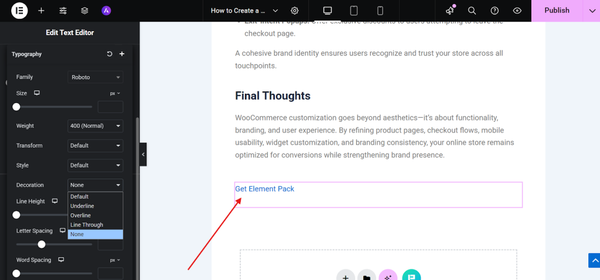
Select None.
Now your link will not have an underline.
Important note
This method works for individual widgets. If you have many links, you need to repeat the process.
It can take time if your website has many pages.
Which Method Should You Use?
The best method depends on your needs.
- If you want to remove the underline from the entire website, use the global CSS method. It is fast and easy.
- If you want control over specific sections, use Elementor Pro custom CSS.
- If you do not want to use code, use Elementor style settings.
Each method works well. You just need to choose the one that fits your situation.
Common Issues You May Face
Sometimes changes do not work immediately. This can be confusing.
One reason could be your theme settings. Some themes force link styles. In that case, CSS is the best solution.
Another reason is the hover effect. Even if the underline is removed, it may still appear when you hover over the link. You need to remove the underline from the hover settings as well.
Caching is another common issue. Your browser or plugin may show old styles. Clearing the cache usually fixes this.
Why Remove Underline from Links
Removing the underline is mostly a design choice.
It helps create a clean and modern look. It also works well for minimal websites. Many brands prefer this style because it looks simple and professional.
However, removing the underline should not affect usability. Users should still understand that the text is clickable.
When You Should Keep Underlines
You should not always remove underlines.
If your links look like normal text, users may get confused. This can reduce clicks and affect user experience.
If you remove underlines, make sure links stand out using color or hover effects. This keeps your design both clean and functional.
Best Practices for Link Styling
Good link styling improves user experience. Use a different color for links so they stand out. Add a hover effect to show interaction.
Keep your design consistent across all pages. Always test your site on mobile devices to make sure links are visible and easy to tap.
Also Read: How to underline in WordPress
FAQ
1. How to remove underline from link in Elementor?
You can remove the underline by going to Site Settings → Typography and setting text decoration to none. You can also change it inside a specific widget.
2. Why are my links still underlined in Elementor?
This usually happens because your theme overrides Elementor settings or because of caching. Using custom CSS can fix this issue.
3. Can I remove the underline from only one link?
Yes, you can edit a specific widget and change the link style from the Style tab without affecting other links.
4. How to remove underline on hover in Elementor?
Go to the hover settings in the Style tab and set text decoration to none for the hover state as well.
5. Do I need Elementor Pro to remove the underline?
No, you can use basic settings in Elementor. However, Elementor Pro offers greater control through custom CSS.
6. How to remove underline using CSS in Elementor?
You can add this code in custom CSS:
a {
  text-decoration: none !important;
}
This removes underline from all links.
7. Will removing the underline affect SEO?
No, removing the underline does not affect SEO. It only changes the visual design of your website.
8. Is it good to remove the underline from links?
It depends on your design. It looks clean, but you should make sure links are still easy to see using color or hover effects.
9. Can I customize link styles in Elementor?
Yes, Elementor allows you to change link colors, typography, hover effects, and more.
10. Why do links look different on different pages?
This can happen due to different widget settings, theme styles or global settings. Always check both global and widget-level settings.
Conclusion
Underlined links can make your website look outdated. They can break your design and reduce the overall user experience. Many Elementor users struggle with this small but important issue.
If you ignore it, your site may not look polished. Visitors may not enjoy browsing your pages. Even a small design detail like this can make a big difference.
Now you know how to remove the underline from a link in Elementor in simple ways. You can use global settings, custom CSS or Elementor style options. Choose the method that fits your needs. With these steps, you can create a clean, professional website that looks better and is easier to use.

Strategic Content Writer for WordPress, Semantic SEO, and SaaS Audiences