Right now, over 1.5 billion people around the world live with some kind of hearing loss.
You might assume that people with hearing impairments face the same challenges as those who are blind or physically disabled when browsing the web. But that’s not the case.
Think about how much video and audio content you see on websites and social media every day. Without proper tools and accessibility features, users who can’t hear well miss out on most of that information.
WordPress is one of the most popular website builders and is known for its user-friendly features. But to make your site accessible to deaf users, you need to add a few specific plugins.
And in this blog, we will show you how to make a website accessible for the deaf using just one plugin.
Hearing Impairment
Hearing impairment varies depending on a person’s level of hearing loss and the age at which it begins. Some individuals are born deaf and use sign language as their primary means of communication throughout life.
Others lose their hearing later and also rely on sign language to interact with others. Some people are not completely deaf but experience significant hearing difficulties, often related to conditions such as diabetes or hypertension.
The Different Types of Hearing Impairments (Deaf)
Now, let’s look at some common types of hearing impairments your website visitors may experience:
- Conductive hearing loss: This occurs when damage to the outer or middle ear blocks sound from reaching the inner ear.
- Sensorineural hearing loss: This type results from damage to the inner ear, cochlea, or auditory nerve.
- Tinnitus: People with tinnitus hear ringing or buzzing sounds in their ears, often due to aging or exposure to loud noises.
- Auditory processing disorders: These affect how the brain interprets sounds, making it hard for users to remember what they hear, distinguish important sounds from background noise, or process language clearly.
Web Accessibility for the Hearing Disabled
Making the web accessible for people who are deaf or hard of hearing is very important.
It gives everyone equal access to information and online services.
Accessible websites offer tools like captions and transcripts that let users follow audio content, learn, and communicate without trouble.
This approach promotes inclusion, meets legal requirements, and shows a commitment to ethical digital practices.
WordPress Website Accessibility for the Deaf
Ensuring WordPress website accessibility for the deaf means ensuring that all types of users can access your website. Regardless of their hearing ability, they can use, understand, and enjoy your website just as easily as anyone else.
This includes using techniques and tools to overcome the barriers deaf or hard-of-hearing visitors often face when browsing the web. And in WordPress, you will find these types of tools as plugins.
Now, using a plugin, we will show you how to make a WordPress website accessible to the deaf.
How to Make a Website Accessible for the Deaf
WordPress offers some basic tools to help you create a site for deaf users, but they don’t cover everything. To make your website fully accessible for people with disabilities, you can use the One Accessibility Plugin.
It’s free to use, and there’s also a premium version with more advanced features and options.
Follow the steps below to start using the plugin:
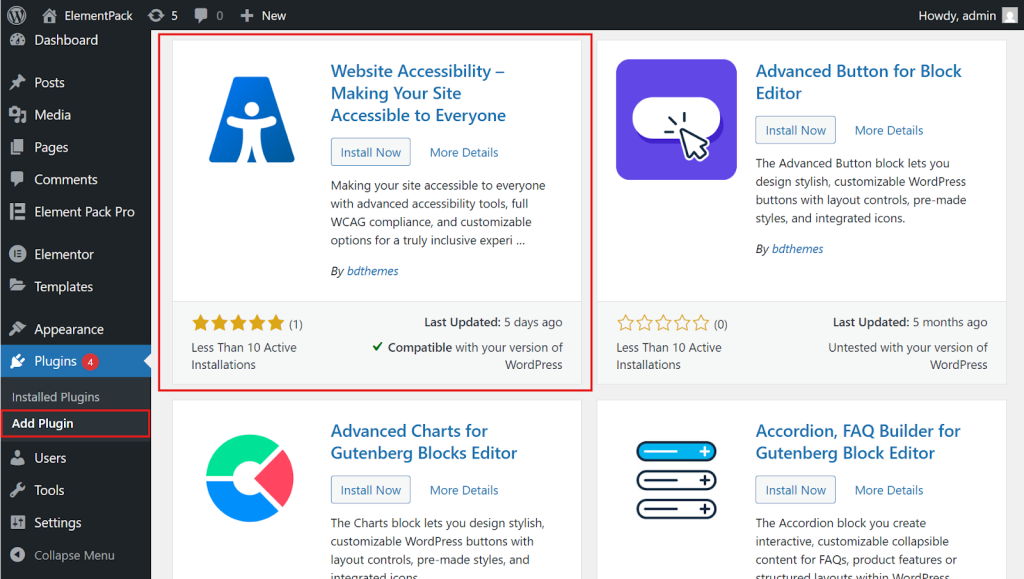
Step 1: Install the Website Accessibility Plugin
- Go to your WordPress dashboard, click on Plugins > Add New, and search for “One Accessibility.” Install and activate the plugin.
Step 2: Create a Preset
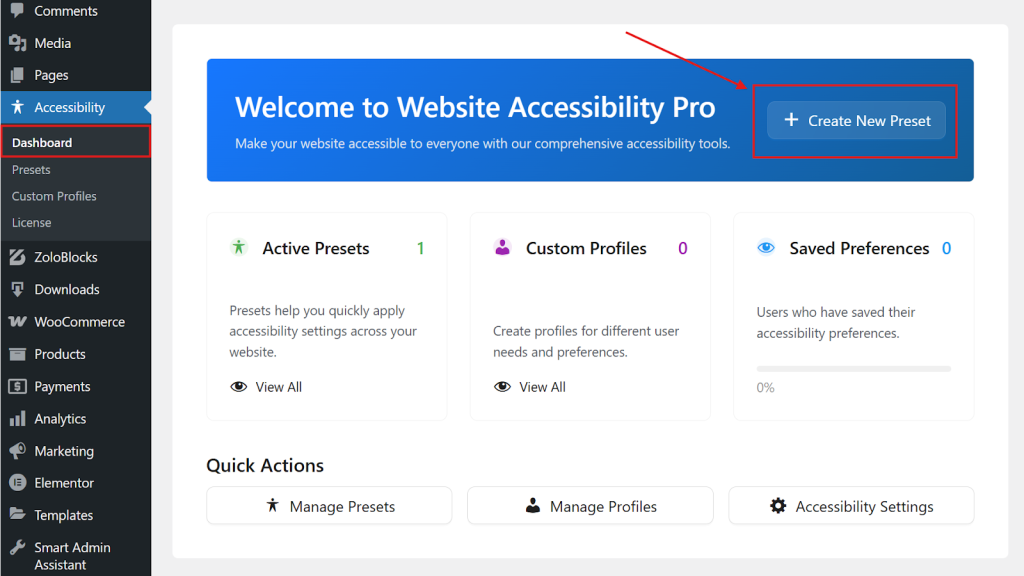
- Open the plugin dashboard and click “+ Create New Preset” at the top.
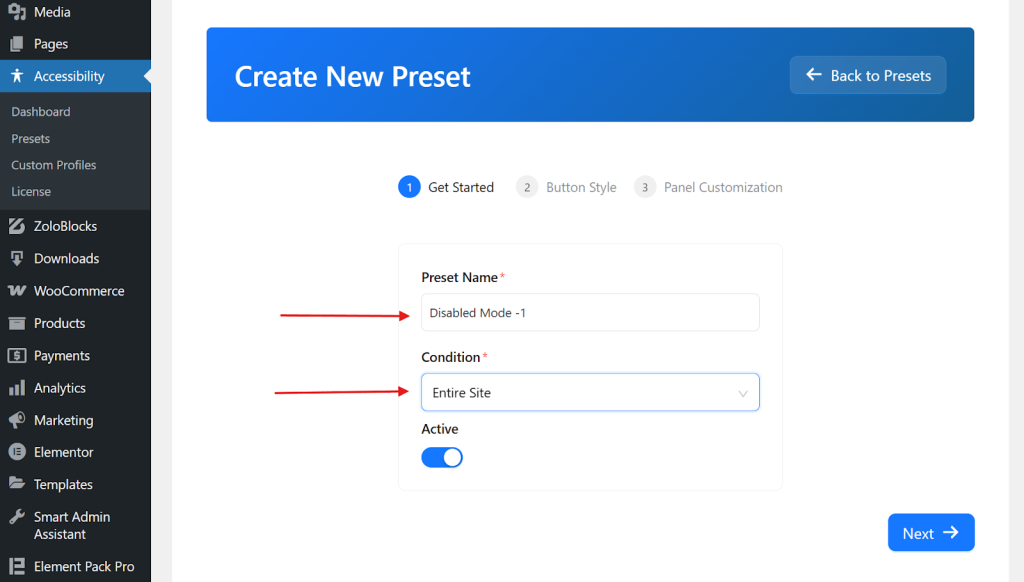
- Give your preset a name(for example, Deaf Users), choose the condition, turn on the active status, and click Next.
Step 3. Accessible Button Design and Settings
Set up how the accessibility button looks on your site,
- Edit the button text, type, icon, position, and adjust the horizontal and vertical offsets.
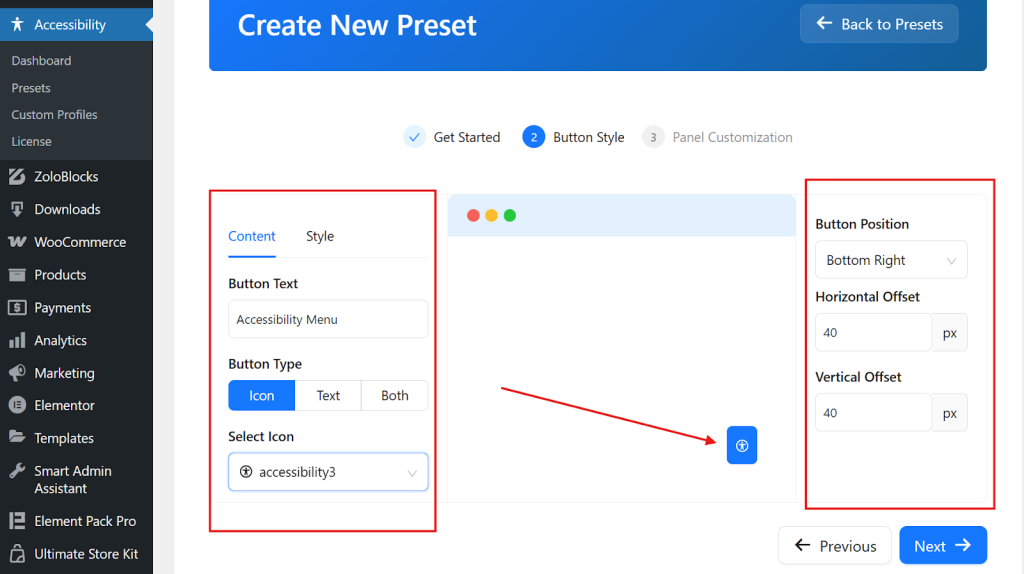
- Click Next to continue.
Step 4: Setting up the Module and Features
After visitors click the accessibility button, they’ll see the available tools. You can customize these features to fit your site, like changing header color, text, and branding.
Here are some feature customizations:
- Header Customization: You can modify or customize the header content, color, and close button. To do this, click on the pencil icon next to the header option and customize it according to your needs.
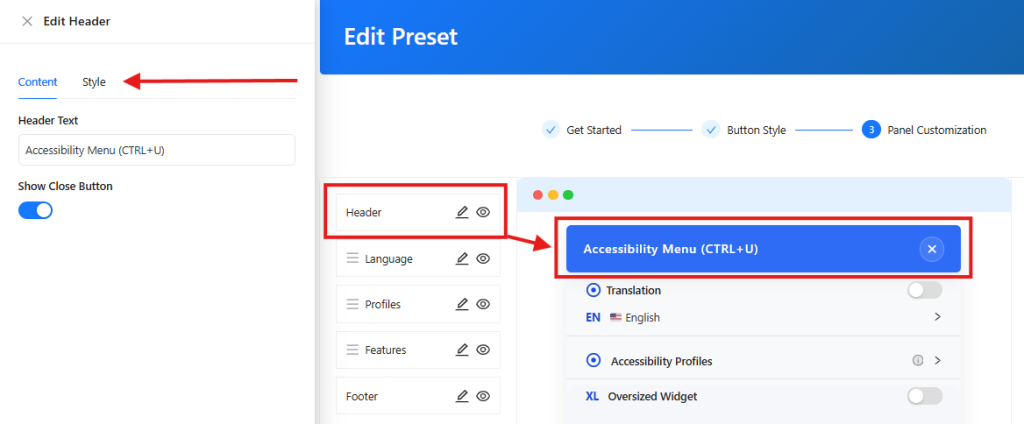
- Language: Then, from the translation option, we set the audience-based language as the default. You can also customize the layout, header, and body.
- Profile: The next option is the Profile section. Here, you can create different profiles for different types of disabilities based on their problems.
Since we will be setting accessibility for deaf people, we need to choose some widgets that will only solve the hearing disabled.
To do this, click on the pencil icon in the profile options and select the disability issue. Like,
- Deaf
- Hearing Impairments
- Hearing Disabled
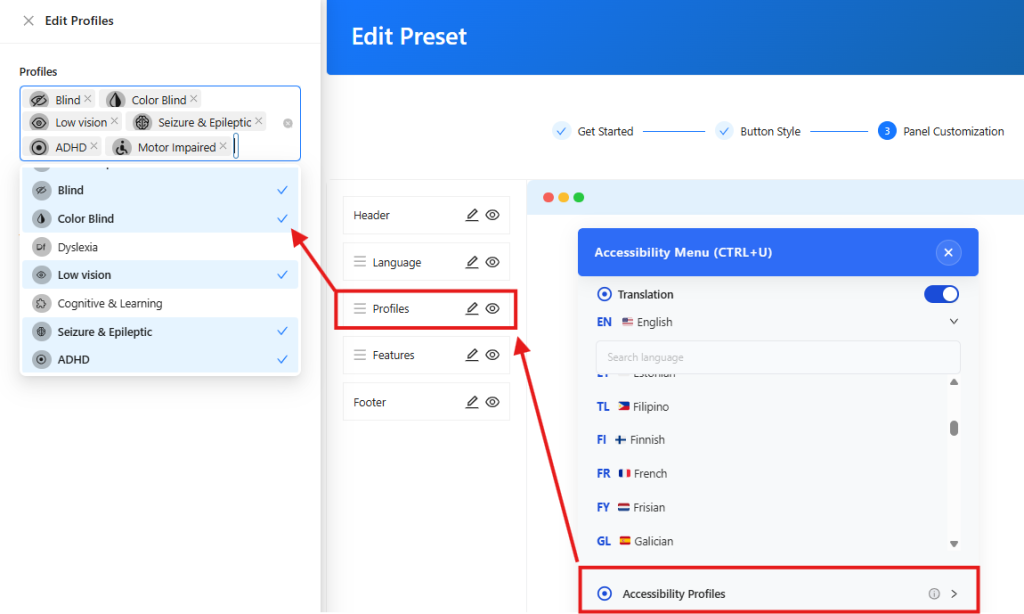
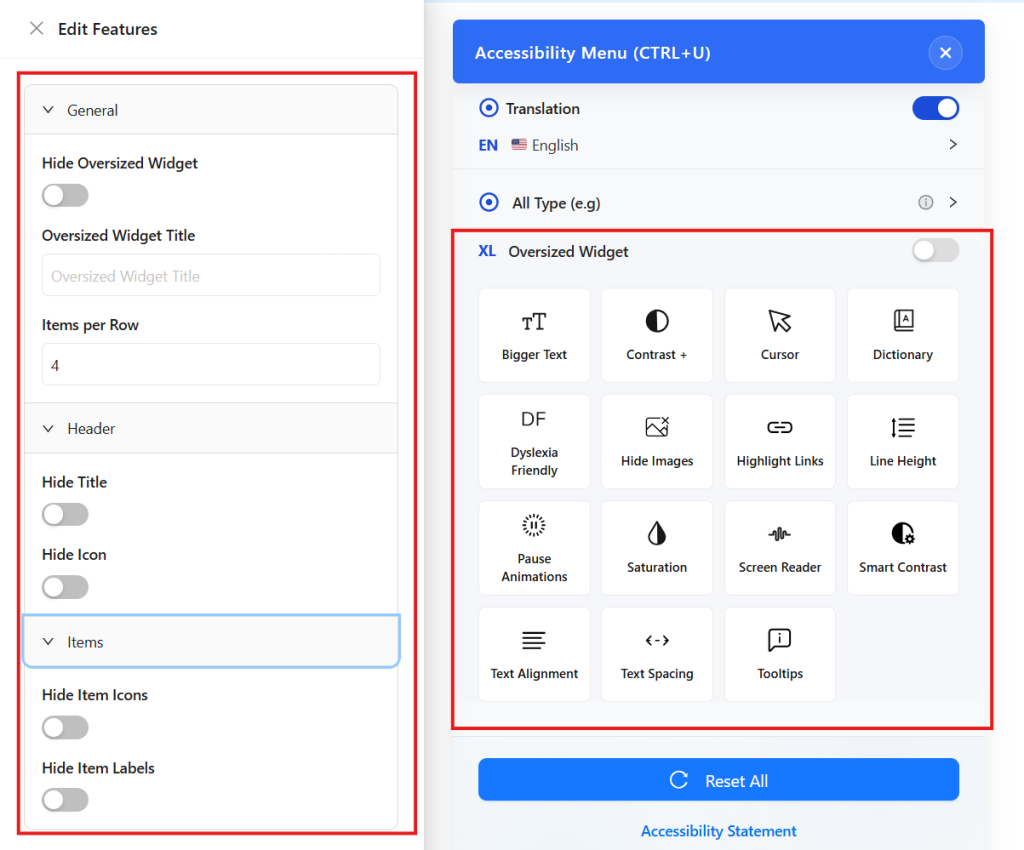
- Features: Then, you can customize the state of the accessible features or widgets. For example, here we have set 4 widget items per row.
- Footer: To modify the Reset Button Text and footer content and color, go to the Footer option.
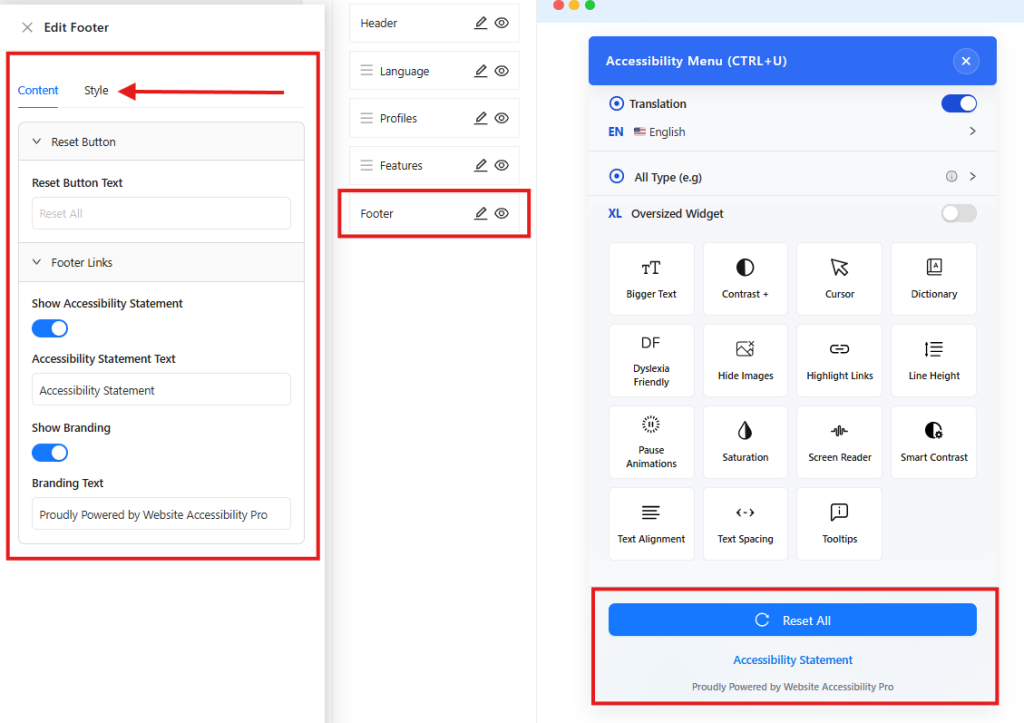
- Update Preset: Then, using the options on the right side, we customized the Width, Background Color, Border, Padding, Border Radius, and Box Shadow of the accessible dashboard.
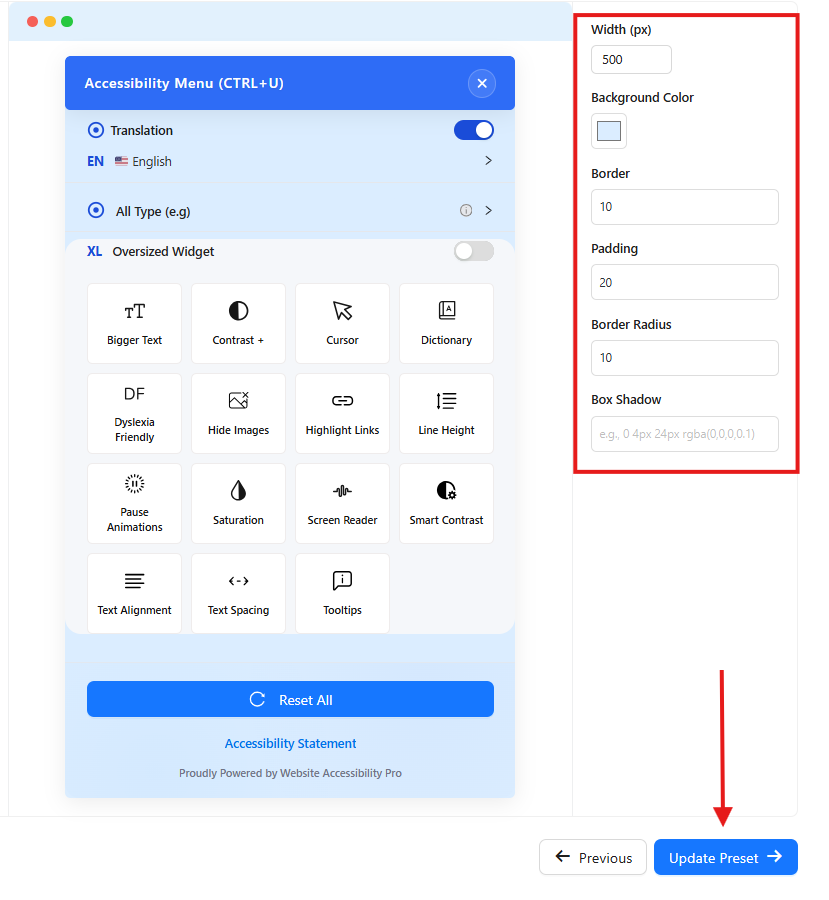
- Then press the Update Preset button to go to the next step.
Step 5: Done and Preview Your Site
- Congratulations! Your accessible feature is ready for deaf users.
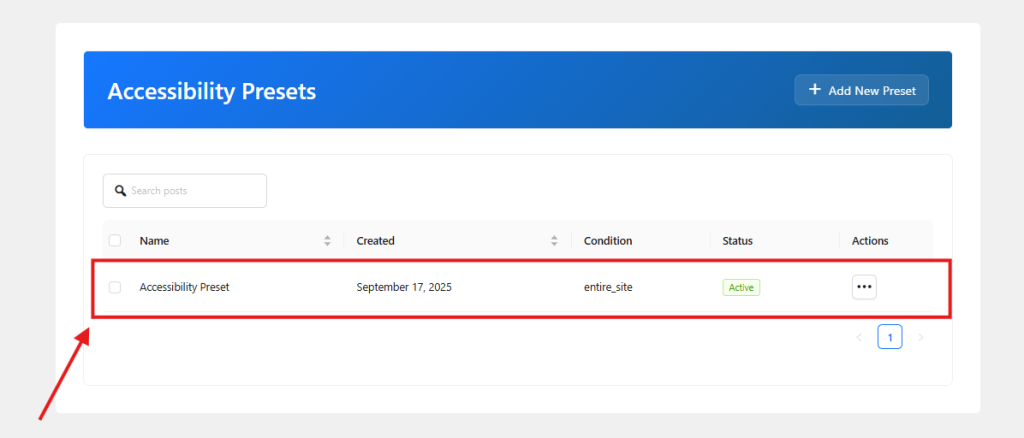
- Now, click on the View option from the three-dot button to see exactly how it looks.
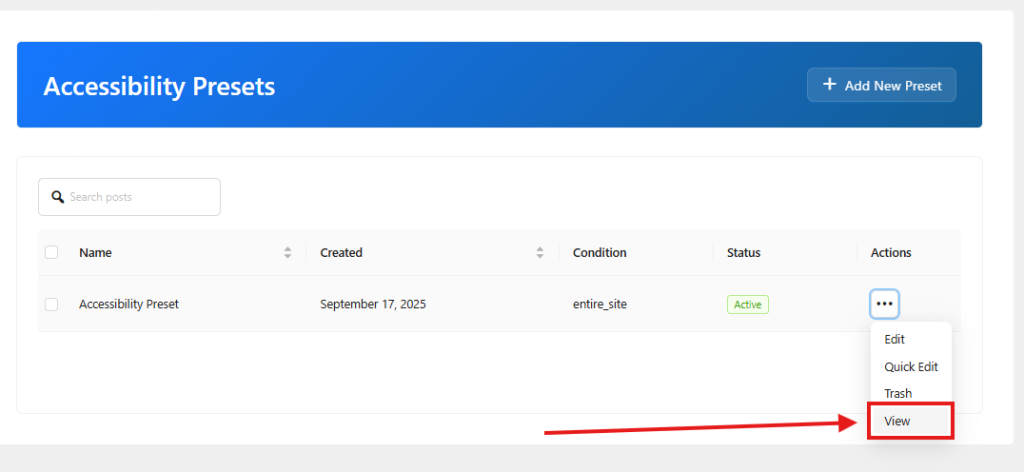
- You can also check by visiting the website directly.
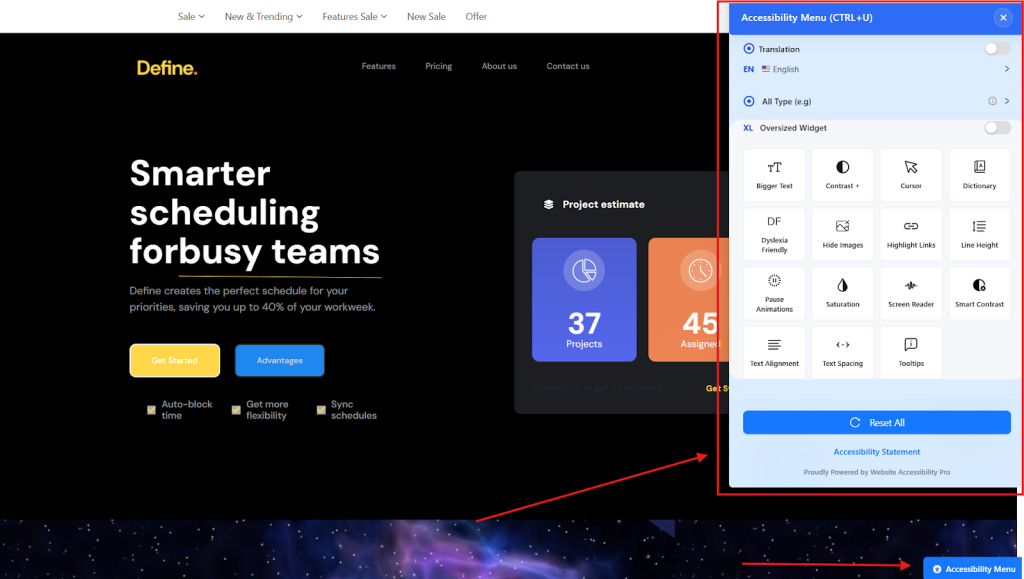
- Then, a user can choose a profile based on their hearing impairment by pressing the accessible button on the front of the website.
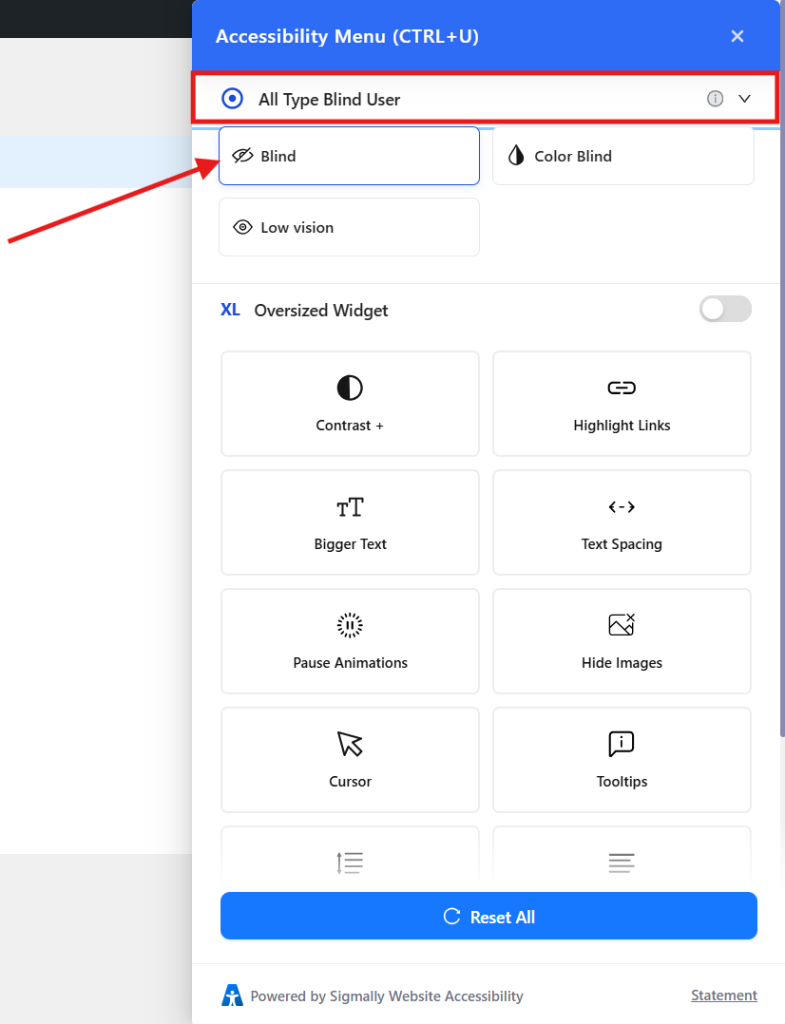
- This is the easiest way to make your WordPress website accessible.
Conclusion
Making your WordPress site easy for deaf users means more people can use it comfortably. You don’t have to be an expert. You just follow a few simple steps, like using the One Accessibility plugin and the WCAG 2.1 guidelines.
This tool adds useful options like keyboard navigation, screen reader help, and visual changes everyone can use. Good accessibility also helps your site appear better in search results, works great on phones, and makes everything clearer and nicer for all visitors.
It’s not only about following rules; it’s about making every visitor feel included. Start with small changes, keep improving bit by bit, and your website will be easier for everyone. Happy users will keep coming back, and your site’s reputation will grow.