
WordPress users are already familiar with ready-made form templates and easy drag-and-drop builders. Now, form creation has reached a new level with the power of AI.
The AI form generator makes building forms faster and simpler than ever. It allows you to create fully functional forms with just a few short commands.
In this guide, we’ll explore how you can create contact form with AI in WordPress and make your workflow more efficient.
AI Form Creation
One of the most revolutionary features of AI in WordPress is the ability to create complete forms from a simple description. Gone are the days of manually adding fields, labels, and formatting.
With AI, all you have to do is describe the form you need in everyday language, and AI takes care of the rest.
However, for form creation with AI in WordPress, you need to choose a plugin. Although there are many plugins available now, in my experience, Sigma AI Form Builder seems to be the most advanced.
In this blog, we will show you how to build forms with AI using Sigma Forms. So let’s get started now…
How to Create Contact Form with AI for WordPress
You can make a form in WordPress in just a few easy steps:
- Pick a form plugin you like.
- Add it to your WordPress site.
- Start a new form.
- Add a Field and Customize Your Form
- Configure Your Form
- Place the form on any page or post.
Here is an easy step-by-step guide to the entire process.
Step 1: Pick a form plugin you like
The easiest and fastest way to build a form is through a plugin. However, some plugins have security limitations. Also, some plugins are not as flexible as coding from scratch.
So we would recommend using Sigma Forms. This plugin doesn’t offer a free tier. You can get started with a paid plan from $20/Year.
Whichever plugin you choose, you can put Sigma Forms on top of all others for better spam control and security.
We won’t go into detail here, as we are serious about security, so we will cover the entire blog using Sigma Forms here.
Step 2: Install the plugin
After purchase, you need to install the plugin in your WordPress website.

- To install the plugin, open your WordPress dashboard >> “Plugins” >> “Add New” and choose “Upload.” Find the plugin zip file on your computer, then click “Install” and “Activate.”
Step 3: Start a new form
After installing the Sigma Forms plugin, let’s make a new form.
- Stay in your WordPress dashboard.
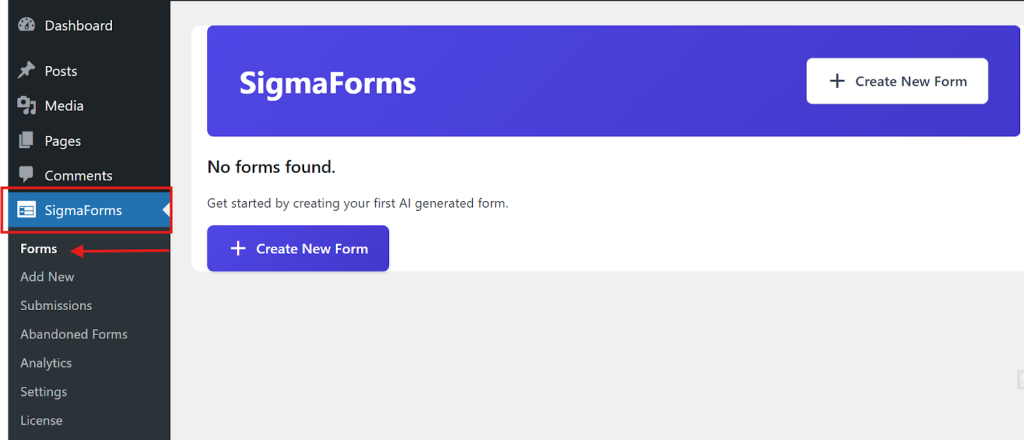
- On the left sidebar, click on “Sigma Forms” >> “Forms.”
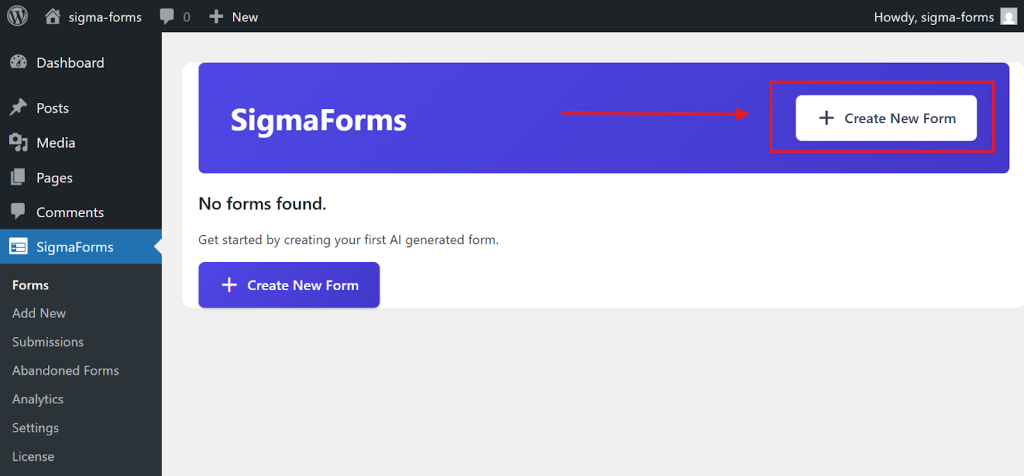
- At the top, click “Create New Form” to get started.
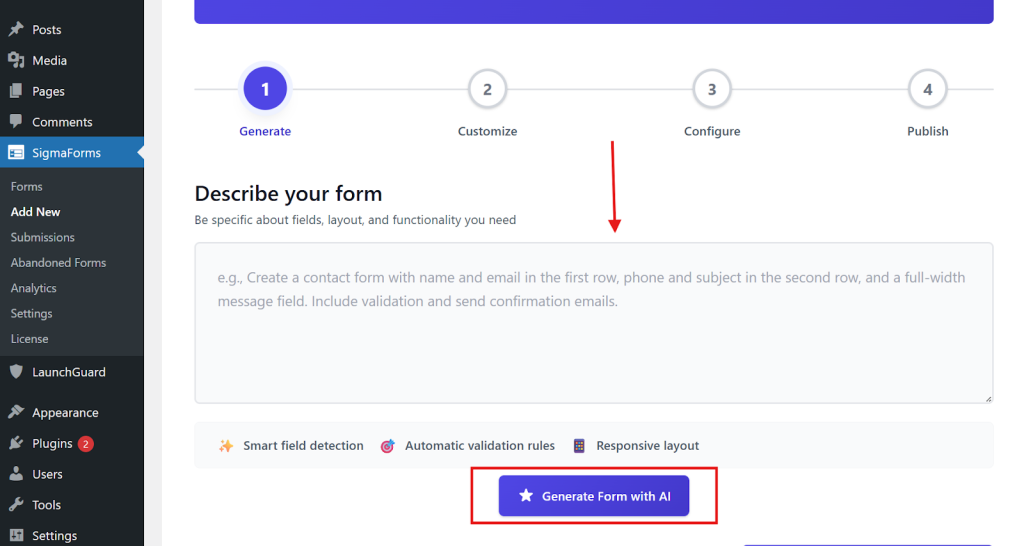
- Here you will find the AI command prompt field.
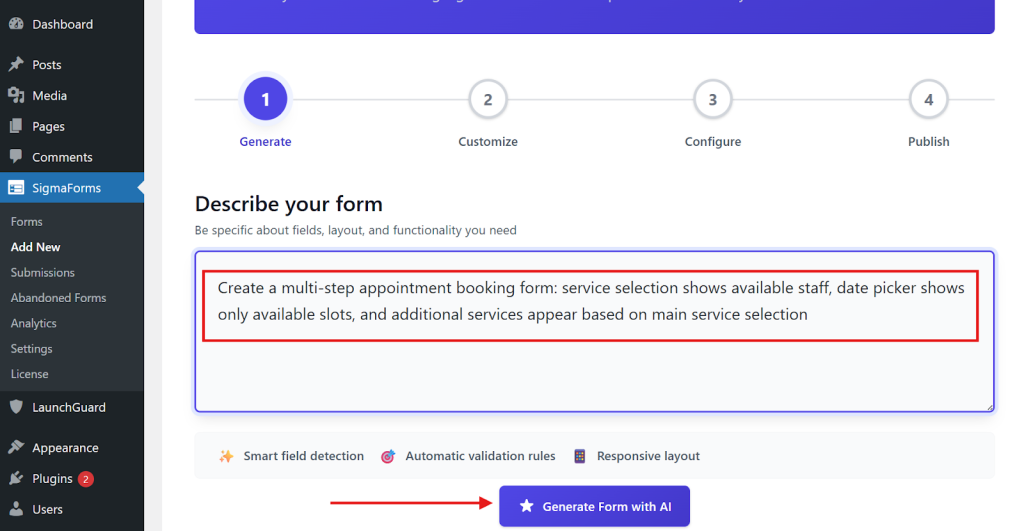
- Now, write your prompt in the input field. And click on the Generate Form with AI button.
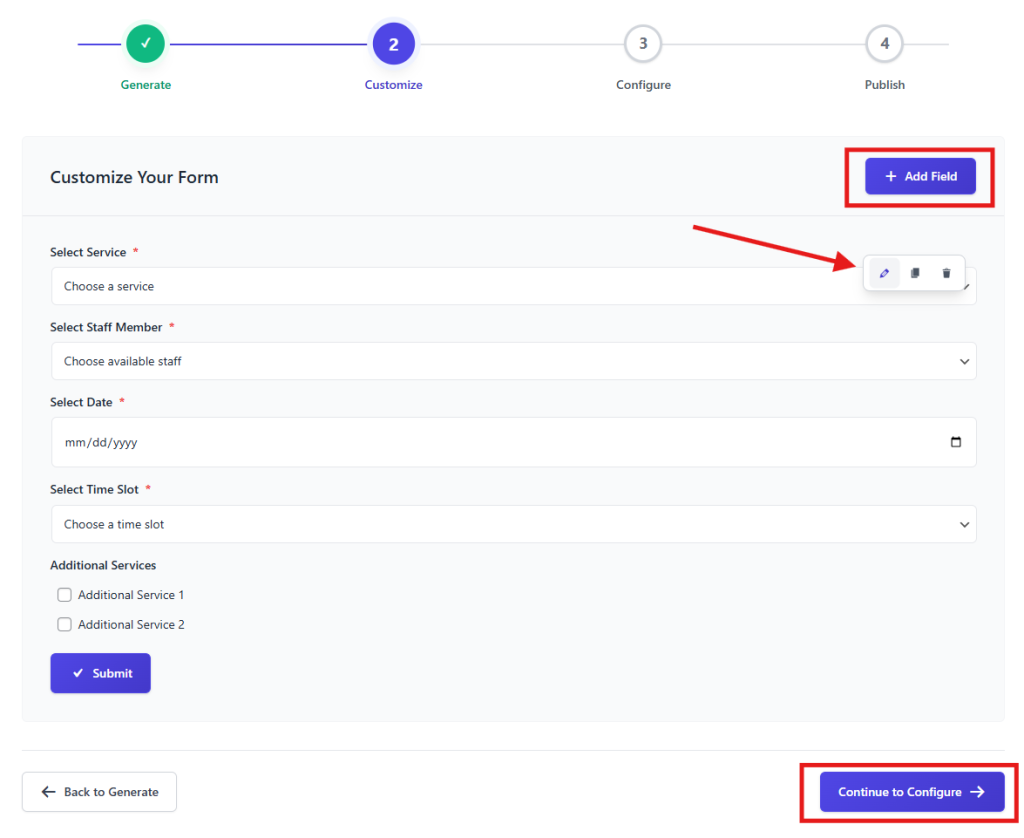
- You can then add or customize anything to your AI-generated fields.
- Then, click the Continue to Configure button.
Step 4: Configure Your Form
Now it’s time to set up your contact form.
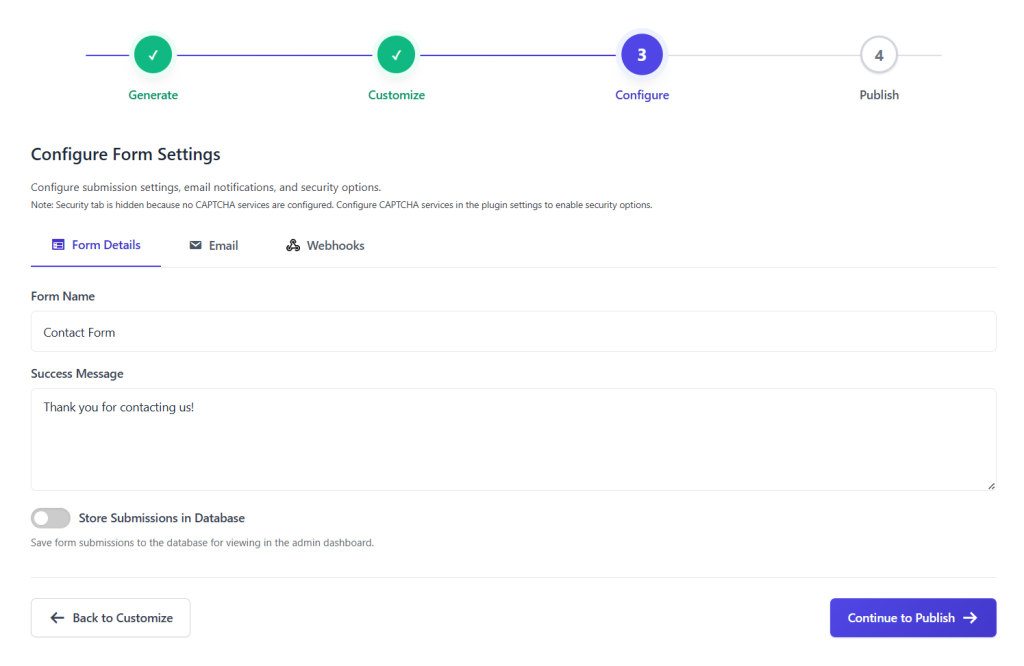
- First, give your form a name and write the message users will see after they submit the form.
- If you want to save the form entries in your database, make sure to turn on the “Store Submissions in Database” option.
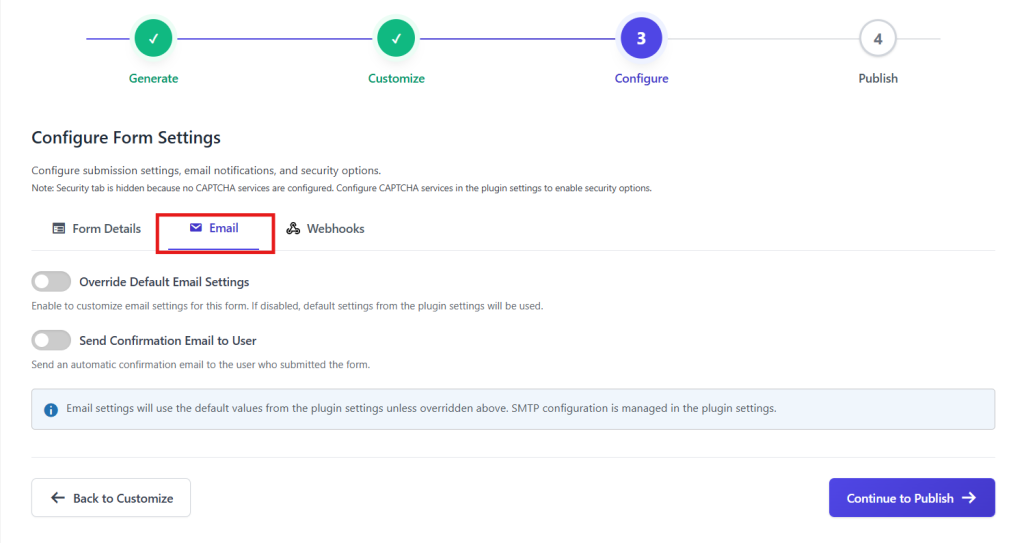
- Next, go to the Email tab to set up how the form handles submissions, sends email notifications, and manages security.
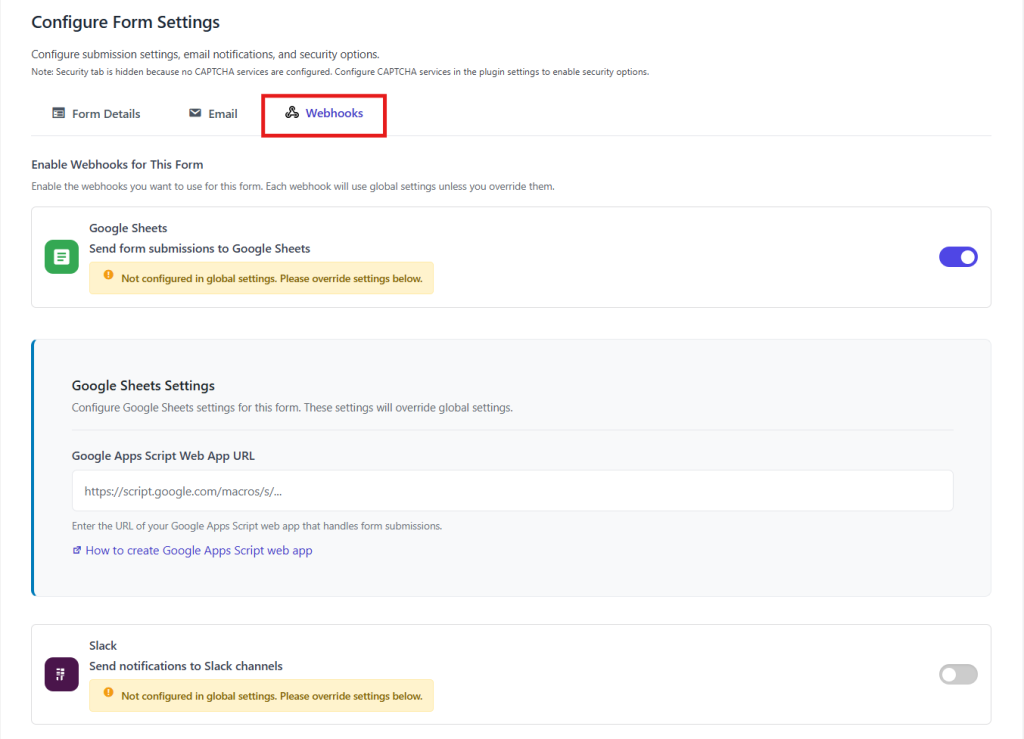
- Then, open the Webhooks tab. Here, turn on any webhooks you need for the form. By default, each webhook follows the global settings; however, you can make changes for this particular form if desired.
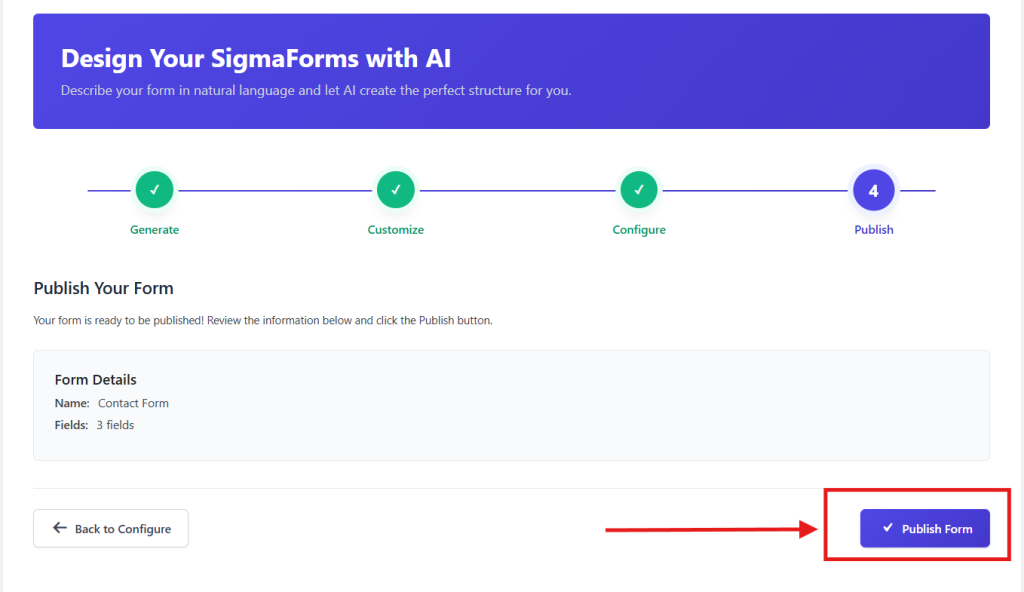
- Finally, click the “Continue to Publish” button below.
Your form is now ready to publish! Review everything one last time, and then click “Publish” to make your form live for users. m
Step 5: Place the form using shortcodes on any page or post
Great job! Your form is ready. You’ll get a special code, called a shortcode, to add to your website.

- Copy the shortcodes.

- Go to the page or post where you want to show the form.
- Add a “Shortcode” block or widget on that page.

- Paste your shortcode into the block.

- Save or publish the page, then preview it to make sure the form appears.

- Your contact form is now set up!
This way, you can easily set up any form, from basic to advanced, on any page or post. If you want to build forms using a faster and more time-efficient method, you can use the pre-built feature.
FAQ
What is the best contact form plugin for WordPress?
For modern WordPress sites, Sigma Forms is an excellent choice because it combines AI form generation, conditional logic, spam protection, and built-in analytics in one plugin.
Can I use AI to make a WordPress website?
Yes, you can start by using Sigma Forms as your AI assistant for all kinds of forms on your WordPress website, such as contact, booking, survey, feedback, or payment forms.
Its AI-driven workflow (Generate > Customize > Configure > Publish) helps you launch professional, optimized forms fast, so your site feels smarter and more interactive with minimal effort.
Conclusion
AI has changed how WordPress users create forms, and Sigma Forms brings that power directly into your dashboard. With its AI form generator, strong security, and flexible configuration, you can build and launch contact forms in minutes instead of hours.
If you want a faster, smarter, and more secure way to handle any type of form on your WordPress site, Sigma Forms is the plugin to choose.