Struggling to collect meaningful feedback on your WordPress site? Or looking for a plugin to manage an online survey on a WordPress website?
Sure, the WordPress directory has plenty of free survey plugins. But they only cover the basics, lacking smart conditional logic, custom designs, and smooth integrations.
Worse, their clunky forms annoy users and deliver unreliable data.
So in this blog, we’ll show you how to create a proper online survey form in WordPress with a premium plugin. We’ll also talk about adding fields, configuring settings, and embedding your form anywhere on your site. So, let’s get started!
Create an Online Survey Form in WordPress
Since we will be building the survey form using a premium plugin, I would recommend Sigma Form as a premium form builder. It provides state-of-the-art features you won’t find in any other plugin. So let’s see what premium features the Sigma Form plugin provides.
- AI Form Generation
- Drag-and-Drop Builder
- Conditional Logic
- 60+ Templates
- Payment Gateways
- Spam Protection
- Analytics Dashboard
- Custom Styling
- Email Integrations
You can make an online survey form in WordPress in just a few easy steps:
- Install Plugin
- Start a new form.
- Add a Field and Customize Your Form
- Configure Your Form
- Place the form on any page or post.
Here is a full step-by-step guide to the entire process.
Step 1: Install Plugin
After purchase, you need to install the plugin in your WordPress website.

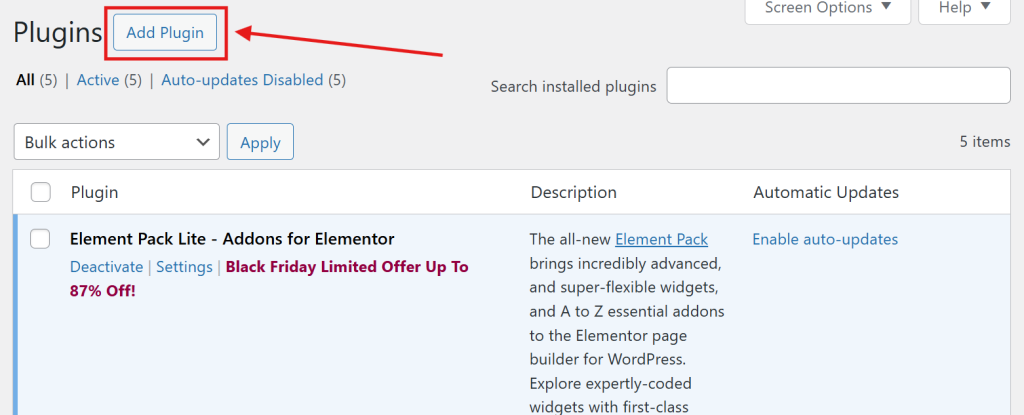
- To install the plugin, go to your WordPress dashboard and open the “Plugins” menu.
- Select the “Add Plugin button.
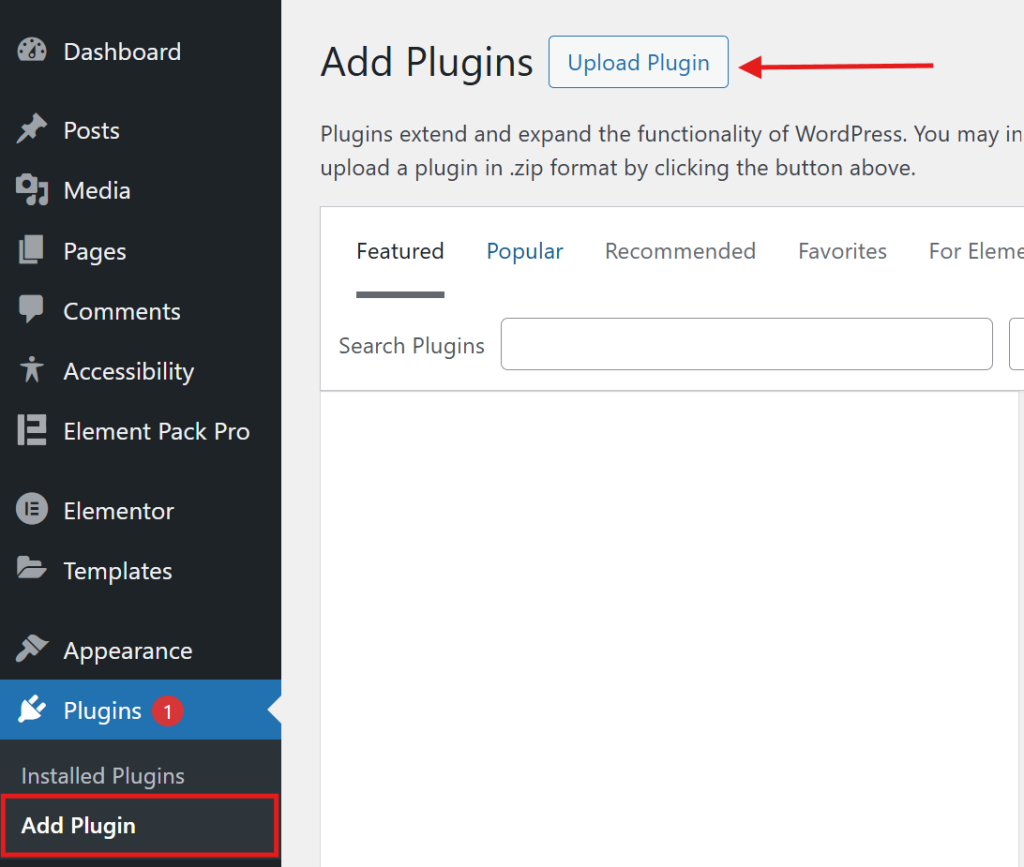
- Click on “Upload Plugin.”
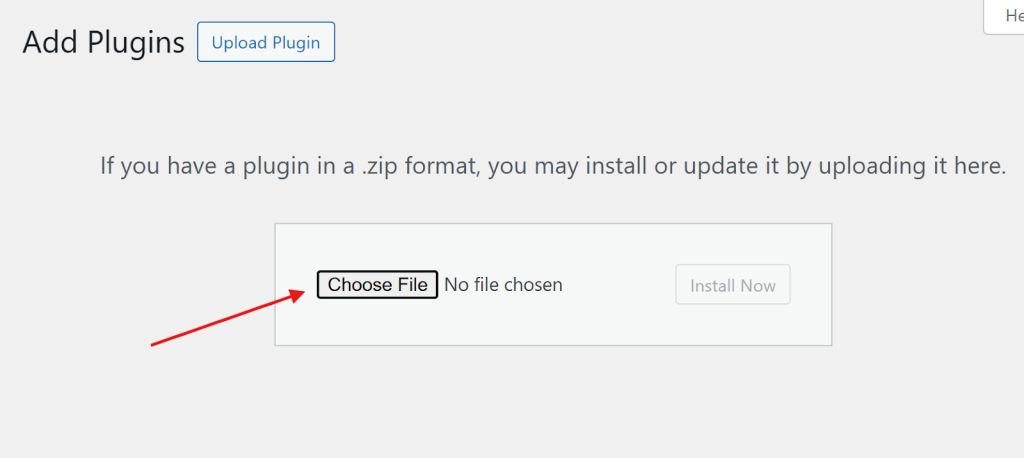
- Then, choose the file and find the plugin’s ZIP file on your computer and select the file.
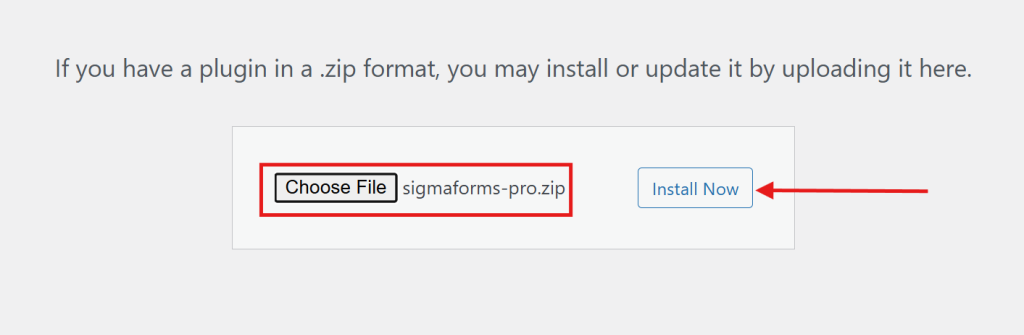
- Click the “Install” button.
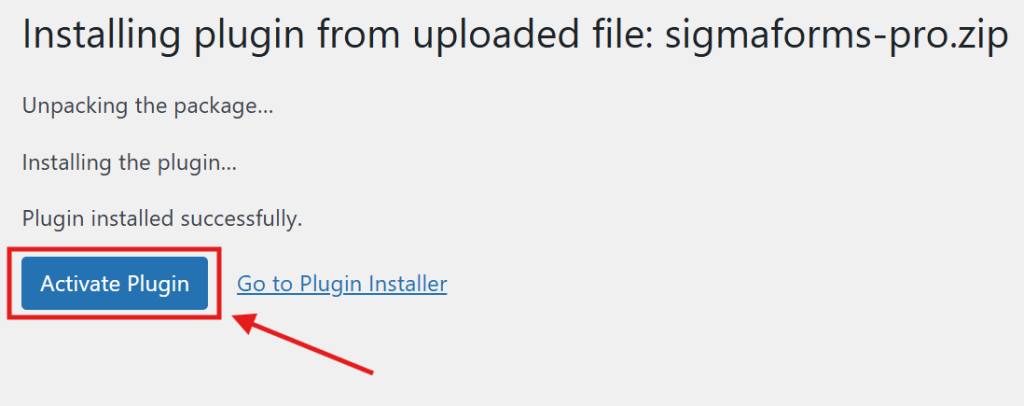
- Finally hit the “Activate button”.
Step 3: Start a new form
After installing the Sigma Forms plugin, let’s make a new form.
- Stay in your WordPress dashboard.
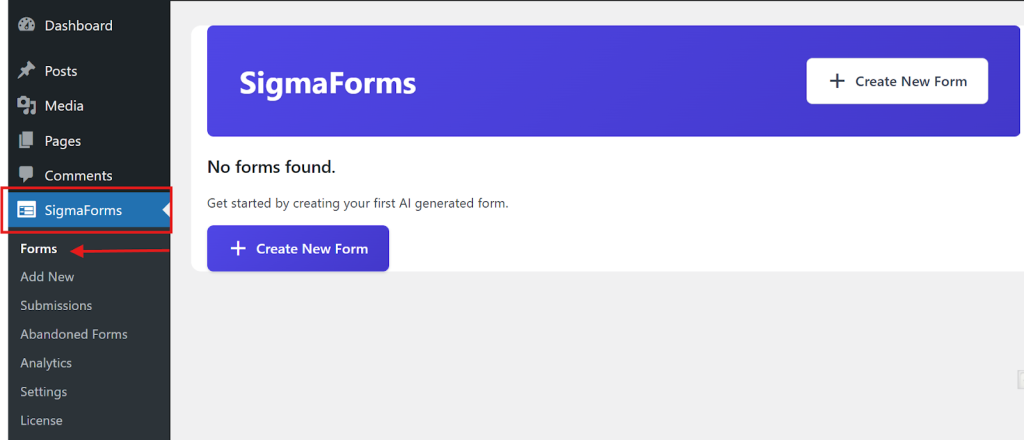
- On the left sidebar, click on “Sigma Forms” → “Forms.”
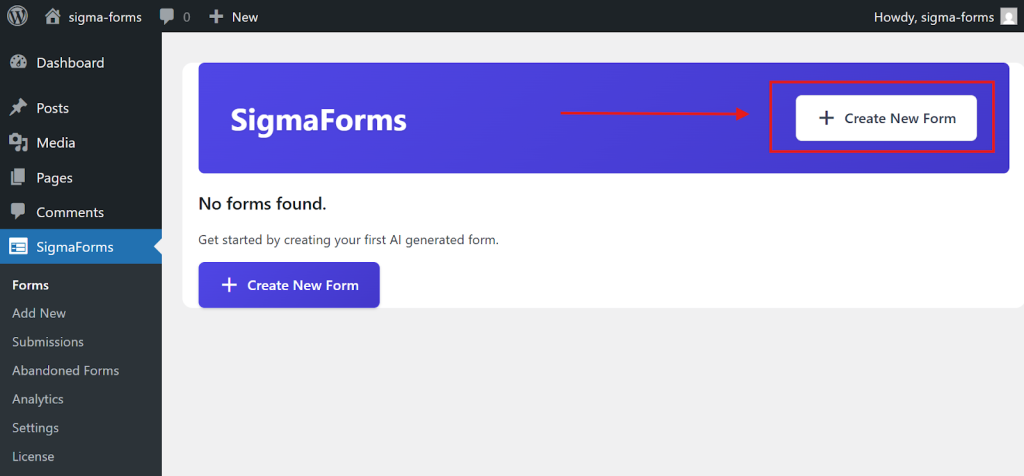
- At the top, click “Create New Form” to get started.
Step 4: Choose a Pre-built Template for an Online Survey Form
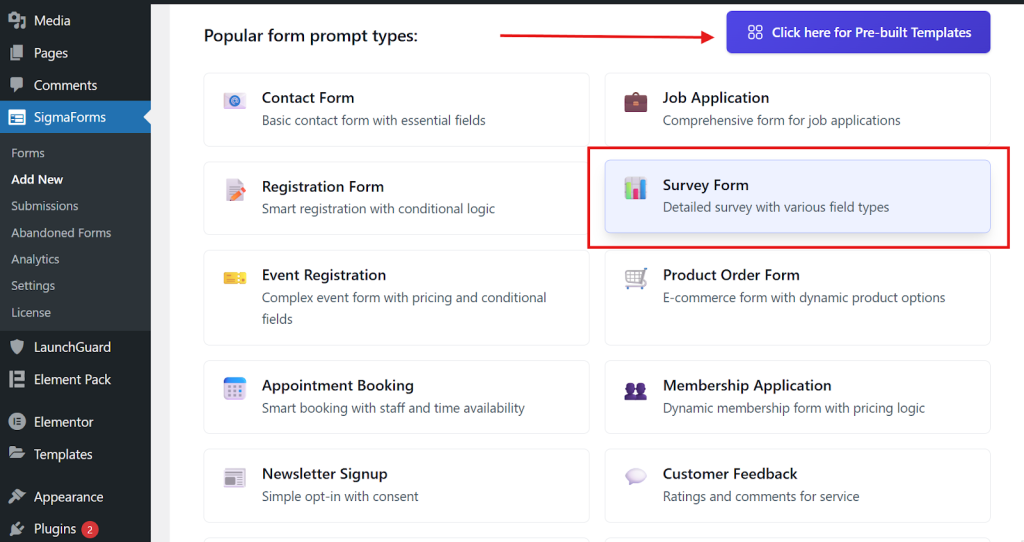
- Here you will find the pre-built template section
- Choose the Survey Form template
- Then, automatically, a prompt will generate in the AI input field. You can add more prompts as needed.
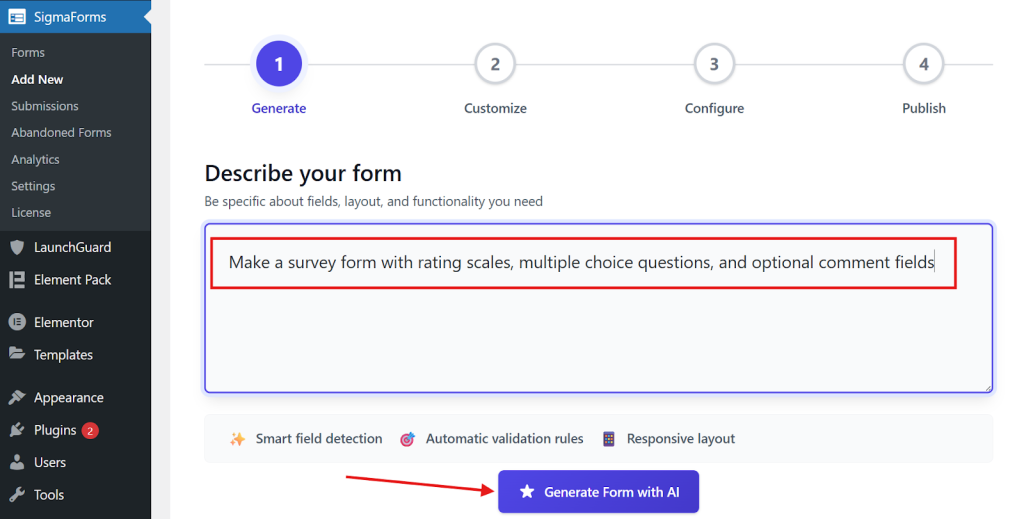
- After the input prompt, click Generate Form with AI
- Then the fields will be generated according to the conditions and requirements given in the prompt. You can also customize them if you want.
Step 5: Add a Field and Customize Your Form
- You can create a new field by clicking the + Add Field button. And if you need to customize or edit a field, click the pencil icon next to it.
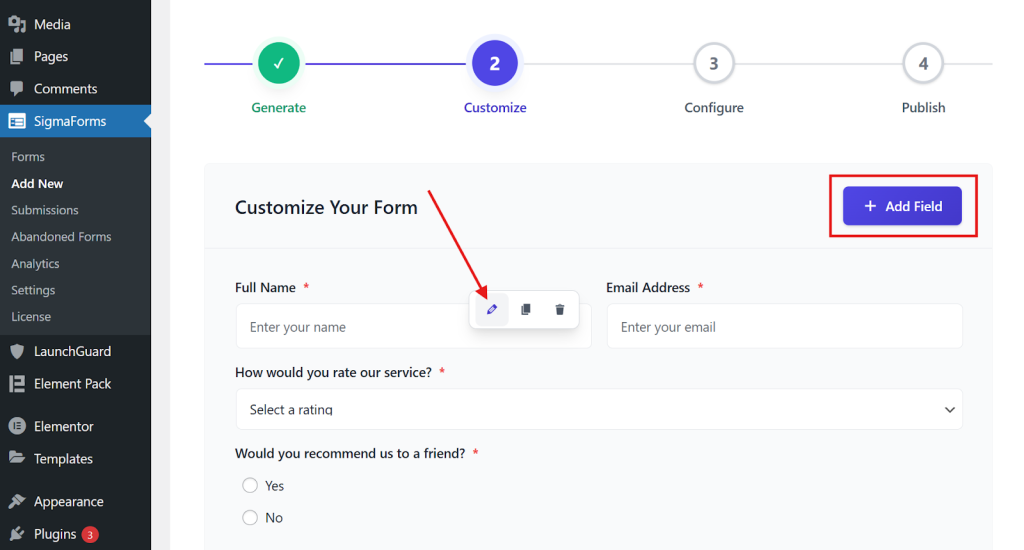
- Then click Continue to Configure.
Step 6: Configure Your Form
Now it’s time to set up your contact form.
- First, give your form a name and write the message users will see after they submit it.
- If you want to save the form entries in your database, make sure to turn on the “Store Submissions in Database” option.
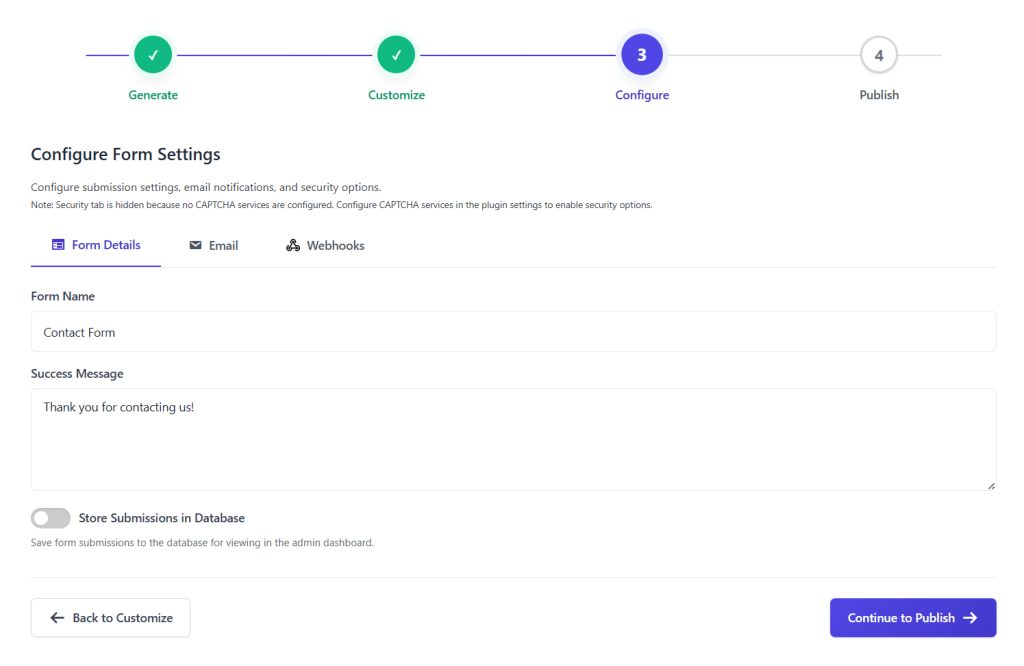
- Next, navigate to the Email tab to configure how the form handles submissions, sends email notifications, and manages security.
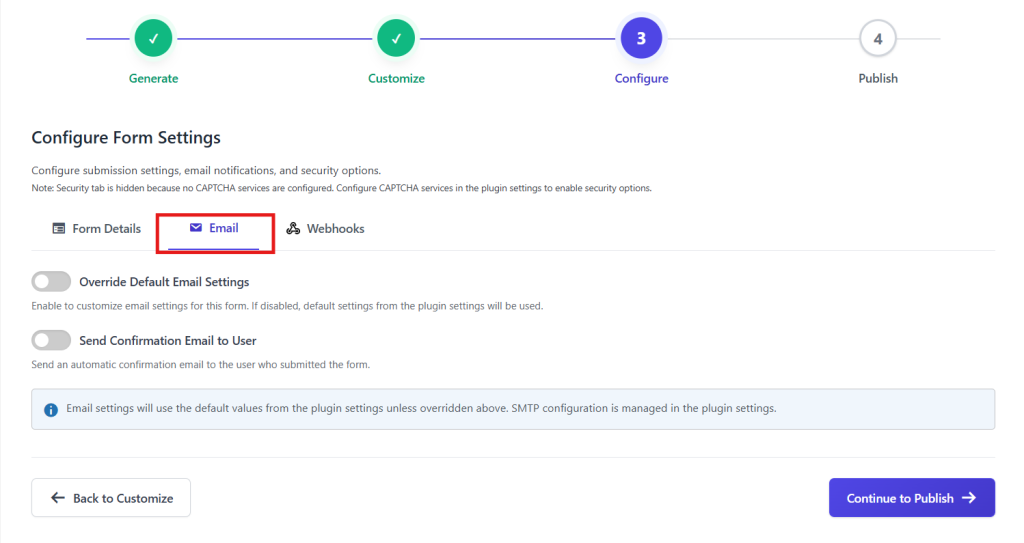
- Then, open the Webhooks tab. Here, turn on any webhooks you need for the form. By default, each webhook follows the global settings; however, you can make changes for this particular form if desired.
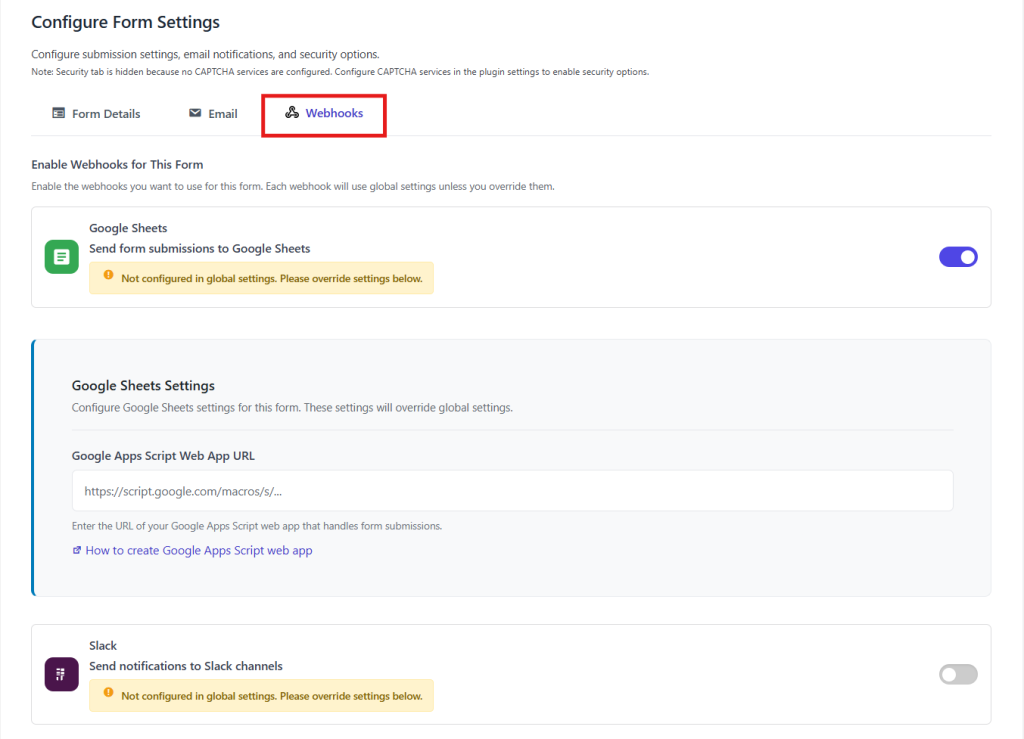
- Finally, click the “Continue to Publish” button below.
Your survey form is now ready to publish! Review everything one last time, and then click “Publish” to make your form live for users.
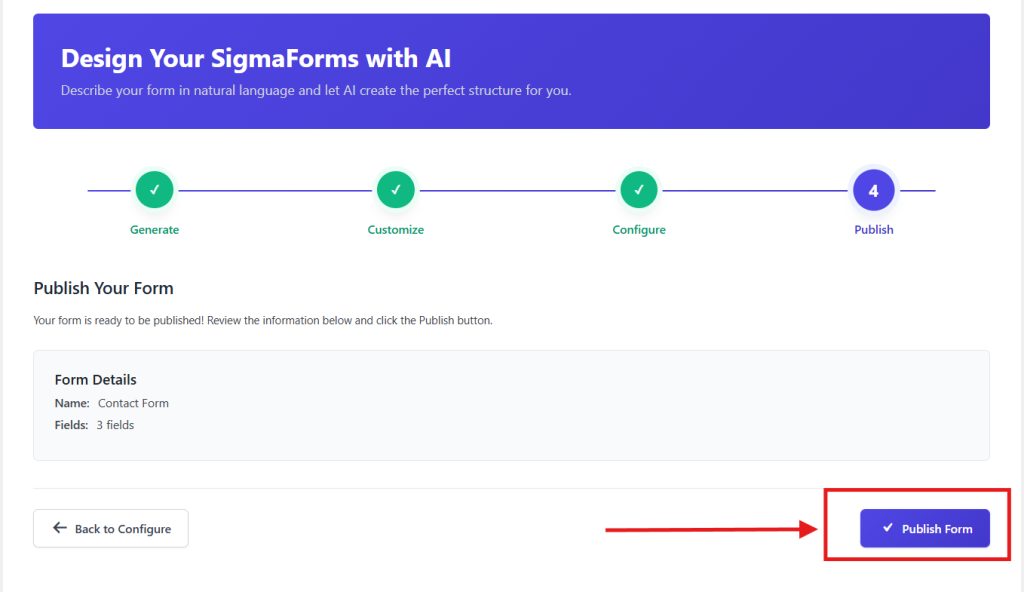
Step 5: Place the form using shortcodes on any page or post
Great job! Your survey form is ready. You’ll get a special code, called a shortcode, to add it to your website.
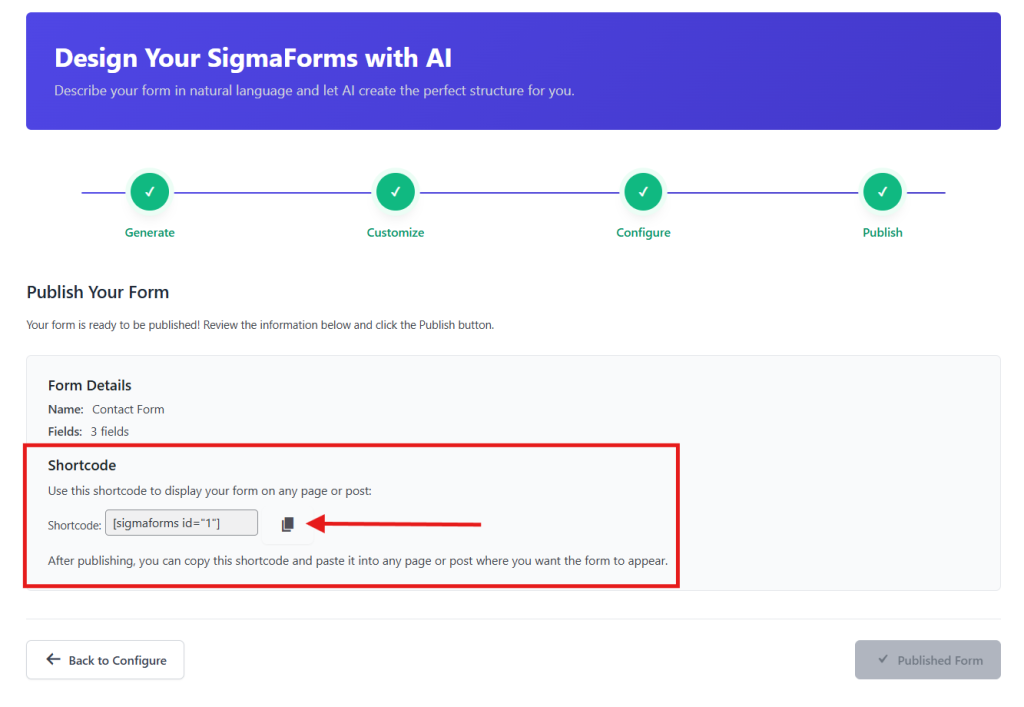
- Copy the shortcodes.
- Go to the page or post where you want to show the form.
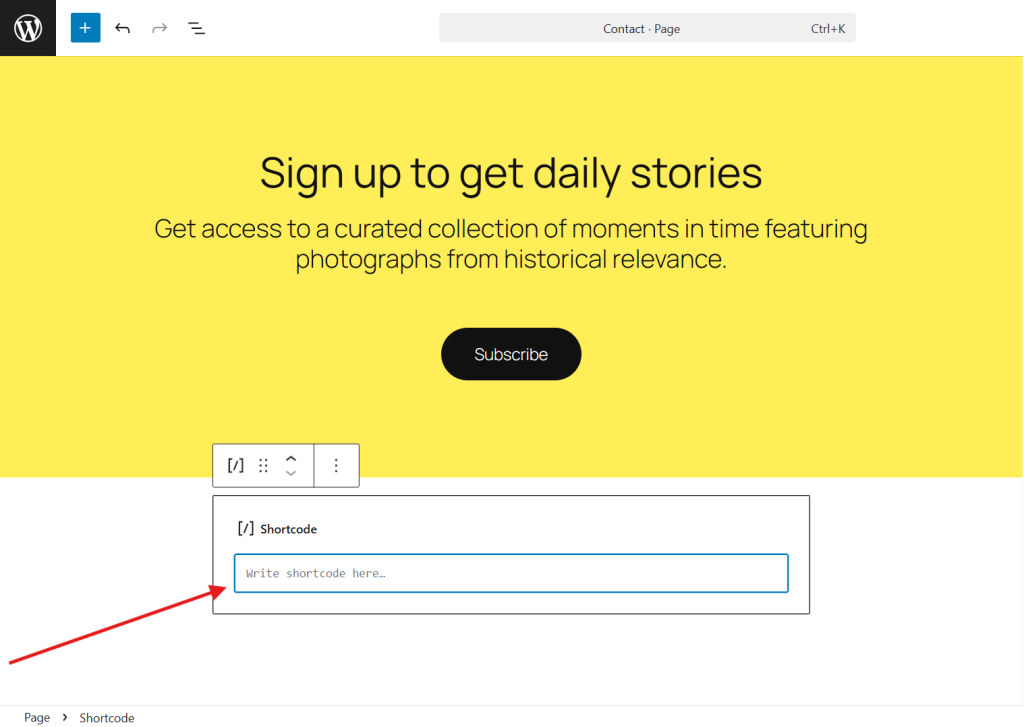
- Add a “Shortcode” block or widget on that page.
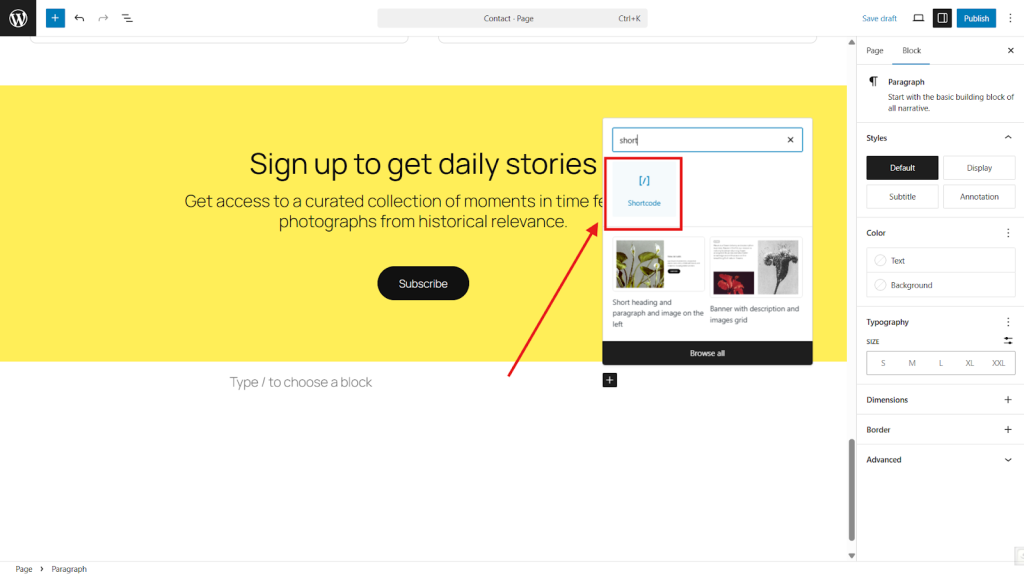
- Paste your shortcode into the block.
- Save or publish the page, then preview it to ensure the form appears correctly.
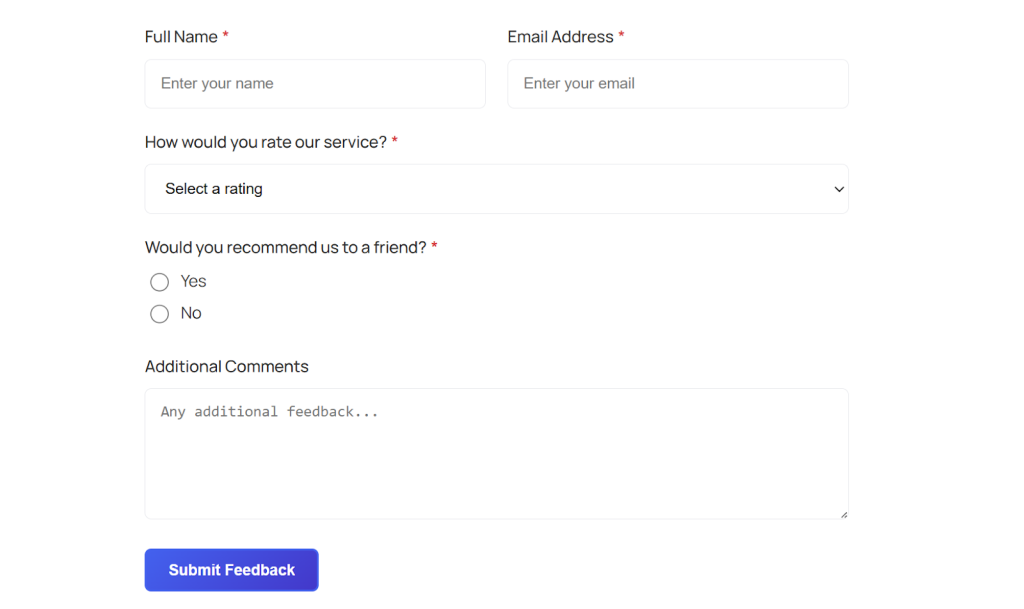
- Your Survey form is now set up!
This way, you can easily set up any online survey form, from basic to advanced, on any page or post. If you want to build forms more quickly and efficiently, you can use the pre-built feature.
Why should you choose an online survey over an offline one?
Online surveys outperform offline methods in terms of speed, cost, and accuracy. They enable immediate distribution to a global audience without the expense of printing or mailing. Automated data collection reduces errors from manual entry.

Responses arrive quickly, often in real-time, with online surveys. This enables faster analysis compared to waiting for paper returns or interviewer notes. Advanced features, such as multimedia, conditional logic, and analytics, enhance engagement and insight that paper surveys often lack.
Offline surveys limit reach to local groups, incur higher logistics costs, and are susceptible to data errors from human handling. Online surveys are a good choice when scalability, efficiency, and accurate data are most important for collecting responses.
FAQs
Does WordPress have a form builder?
No, core WordPress lacks a dedicated form builder. Users rely on plugins like Sigma Forms, WPForms, or Gravity Forms for drag-and-drop creation, field customization, and advanced logic.
What is Sigma Forms?
Sigma Forms is a premium AI-powered WordPress plugin by BdThemes for building advanced survey and contact forms. It offers AI-generated templates, conditional logic, custom styling, and integrations beyond other plugins.
How much does Sigma Forms cost?
Sigma Forms offers affordable pricing. Personal ($16/year or $48 lifetime), Business ($29/year or $69 lifetime), and Agency ($76/year or $200 lifetime) plans.
Is Sigma Forms compatible with Elementor?
Yes, it integrates seamlessly with Elementor and other page builders via shortcodes. Embed forms anywhere, including widgets or posts, for flexible placement.
Can I use AI to generate survey forms?
Absolutely, select a survey template and input prompts in the AI field. The plugin auto-generates fields based on your description, which you can then customize.
Does it support data storage and webhooks?
Forms store submissions in your WordPress database if enabled. Configure email notifications, security, and webhooks for custom and third-party integrations.
How do I add advanced logic like conditional fields?
Use the pencil icon on fields to edit properties, apply rules, and set visibility conditions. This enables dynamic surveys tailored to user responses.
Conclusion
Creating a survey form in WordPress is easy using Sigma Forms. Whether you need a basic response form or a fully customized survey with advanced logic and styling, this is the perfect solution.
This plugin makes it easy to create, configure and embed forms anywhere on your site. Try it out and start gathering valuable insights from your visitors today.
Last but not least, don’t forget to subscribe to our newsletter to get more exciting news, offers and tutorials right into your inbox.
Happy WordPressing!