
Spam is a common issue for most websites, including those powered by WordPress. It often originates from contact forms. Adding a reCAPTCHA field is a simple yet effective way to keep automated submissions at bay.
Many form builder plugins can help with this, but be sure to choose one that supports reCAPTCHA integration.
Many form builders let you create forms, but don’t include a built-in reCAPTCHA feature. In such cases, you’ll need to set up reCAPTCHA manually, which can require some technical or coding knowledge.
In this article, we’ll walk you through how to build a contact form in WordPress and integrate a reCAPTCHA field step by step. It’s simpler than you might think.
Add reCAPTCHA to a WordPress Contact Form
Sigma Forms’ captcha integration system is a leading form builder and captcha tool that allows you to integrate various reCAPTCHA APIs with advanced form building.
The best part is that you can use various reCAPTCHA tools with Sigma Form, including Google reCAPTCHA, hCaptcha, Cloudflare Turnstile, and CleanTalk.
Let’s start by taking it step by step on how to add reCAPTCHA to a WordPress contact form.
Step 1: Install Sigma Forms
- First, purchase Sigma Forms from its official website. Once the purchase is complete, install the plugin on your WordPress site.
- To install the plugin, go to your WordPress dashboard and open the “Plugins” menu.
- Select the “Add Plugin button.
- Then choose “Upload.”
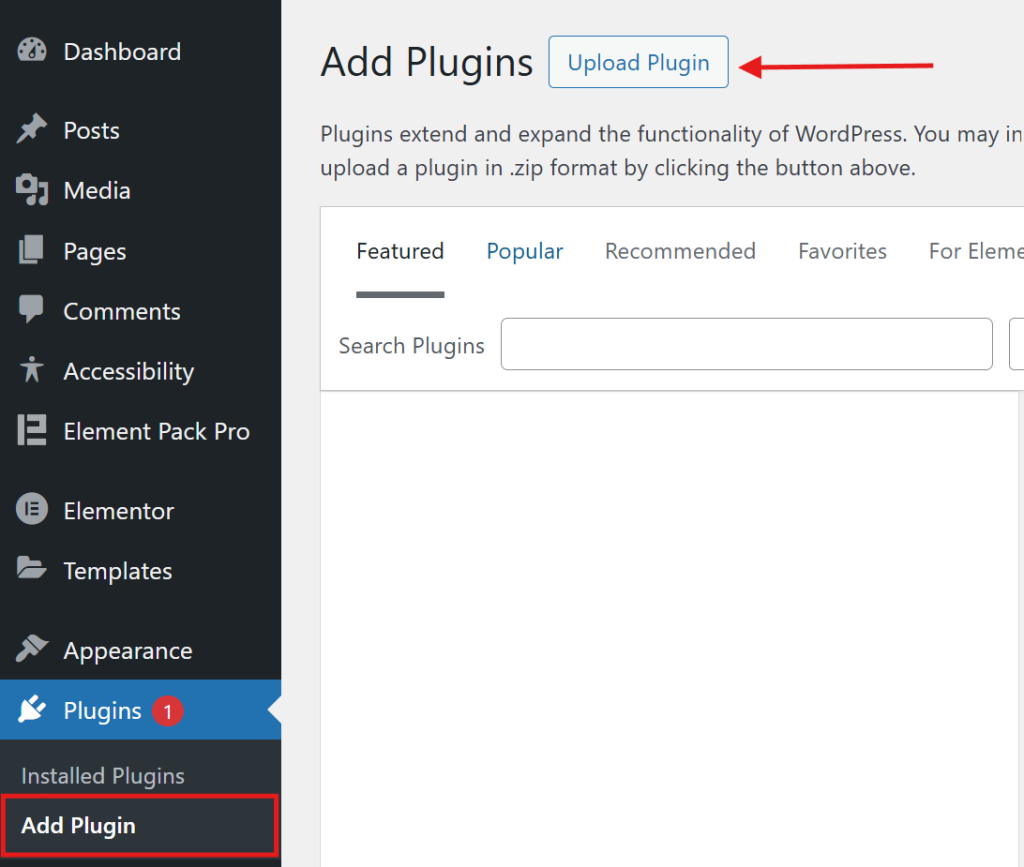
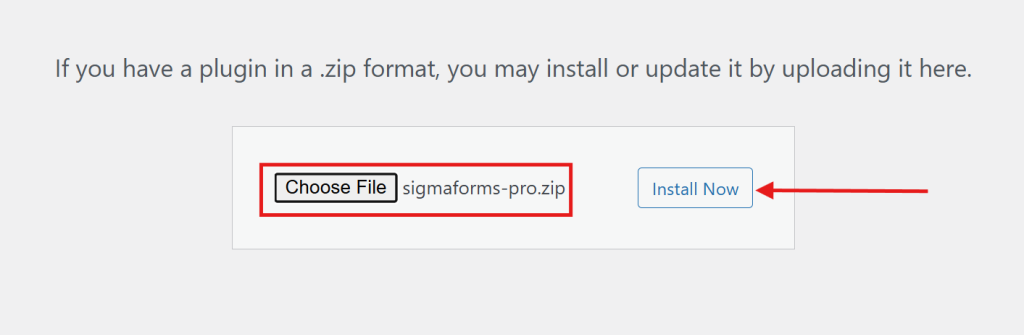
- Find the plugin’s ZIP file on your computer, and once selected,
- Click the “Install” button.
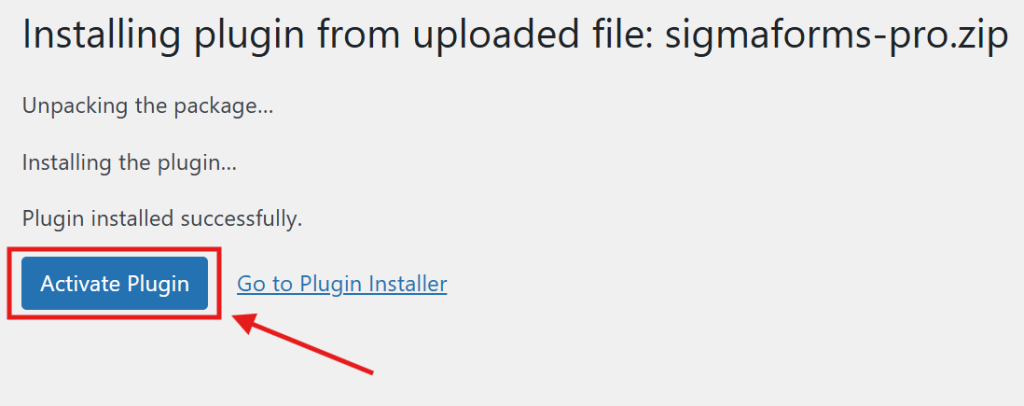
- Finally hit the “Activate button”.
Step 2: Create Contact Form
After installing the Sigma Forms plugin, let’s make a new form.
- Stay in your WordPress dashboard.
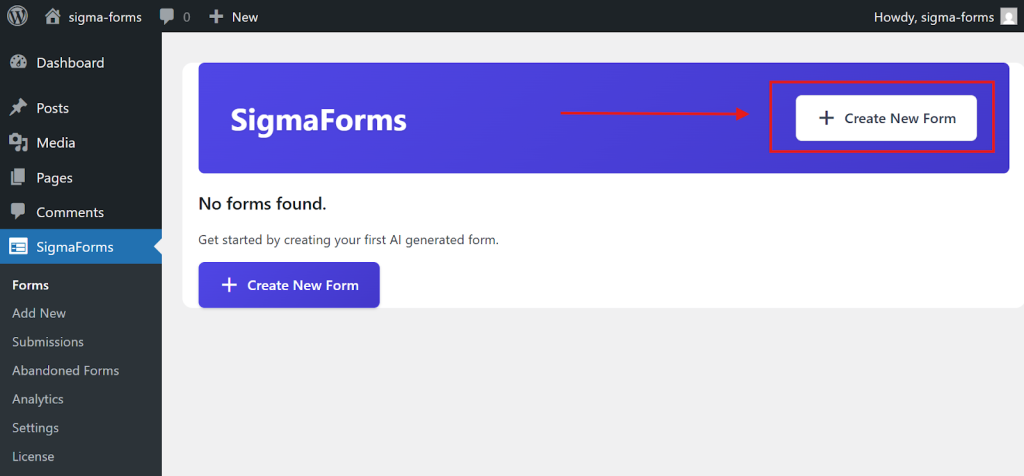
- On the left sidebar, click on “Sigma Forms” → “Forms.”
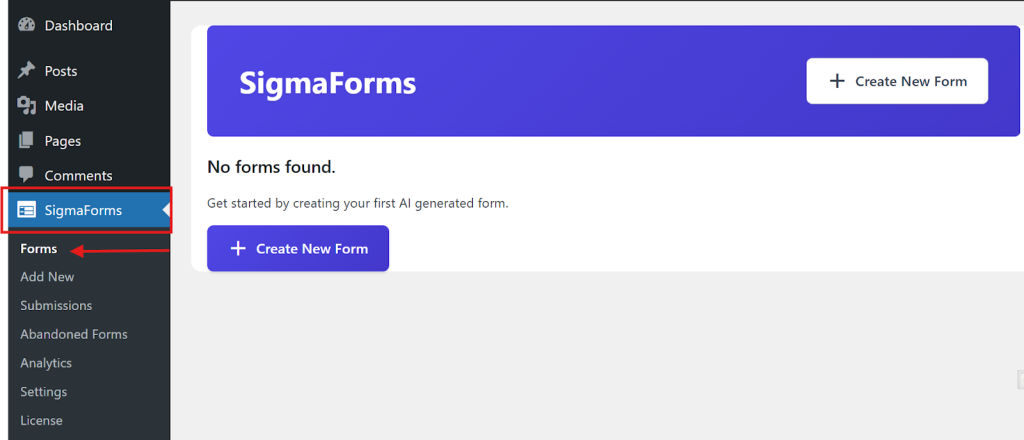
- At the top, click “Create New Form” to get started.
- Here you will find pre-built templates.
- So, choose a template.

- Now, you need to create and customize the field according to your requirements. Click on the Add Field button to create the field.
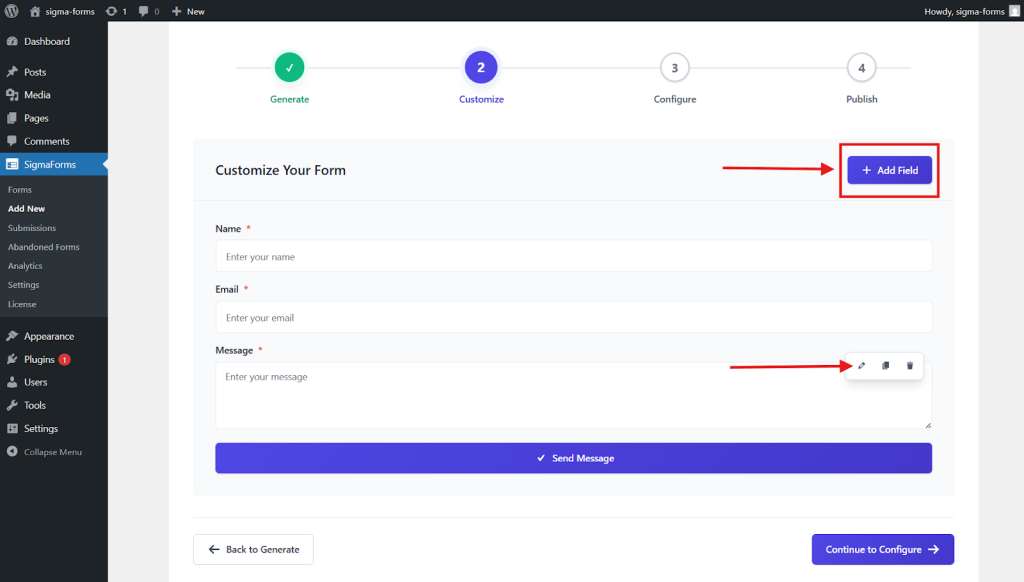
- Also, you can customize the existing field by clicking the pencil icon.
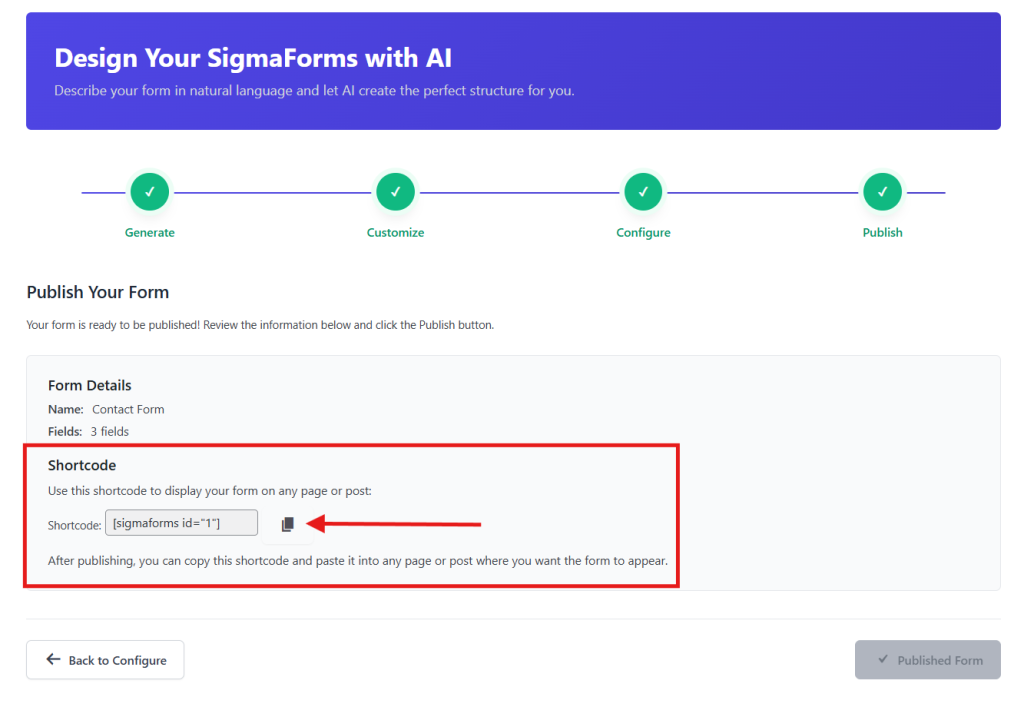
- Congratulations! Your form is ready. And you will get a shortcode to use the form.
Now, follow the steps below to set up reCAPTCHA.
Step 3: Obtain reCAPTCHA API Keys
- Go to the Google reCAPTCHA website and sign in with your Google account.
- Register a new site. Click the plus (+) icon to add a new site. Fill in the following details:
- Label: Give your site a descriptive name (e.g., “My Website Contact Form”).
- reCAPTCHA type: Choose a version. Version 3 is invisible and works in the background, while Version 2 uses the “I’m not a robot” checkbox.
- Domains: Enter your website’s domain name (e.g., example.com). Do not include https:// or www.
- Owners: Confirm the listed owners and agree to the Terms of Service.
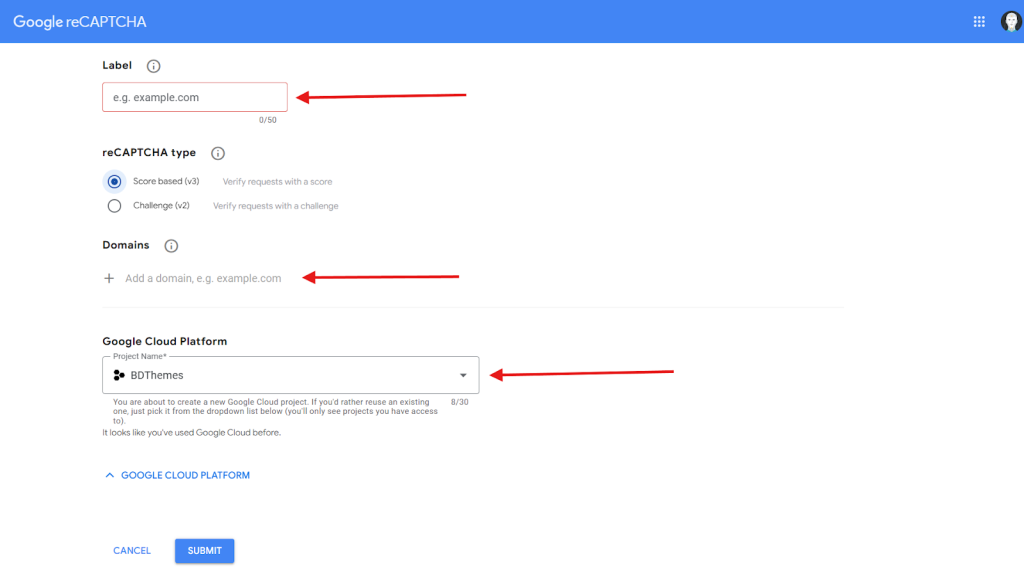
- Click Submit to register your site. Google will provide you with a Site Key and a Secret Key. Copy these keys and save them for the next step.
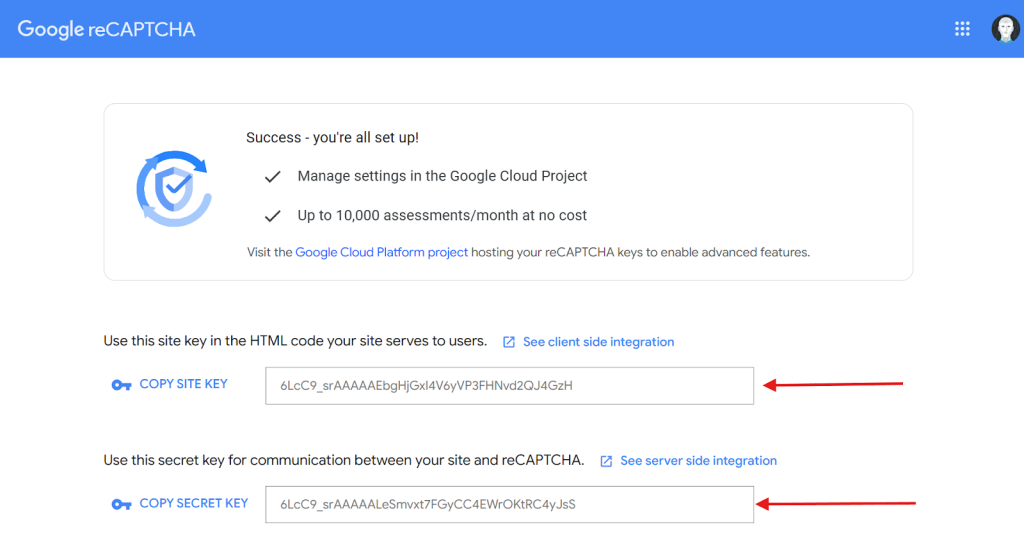
Step 4: Integrate reCAPTCHA with Contact Form Plugin (Sigma Forms)
- In your WordPress dashboard, navigate to Sigma Forms > Settings > CAPTCHA
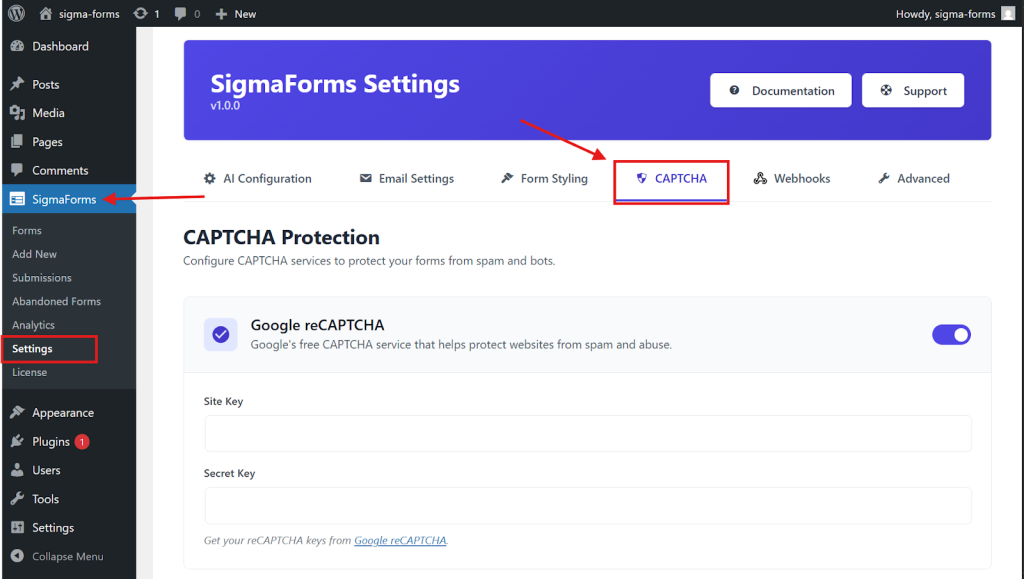
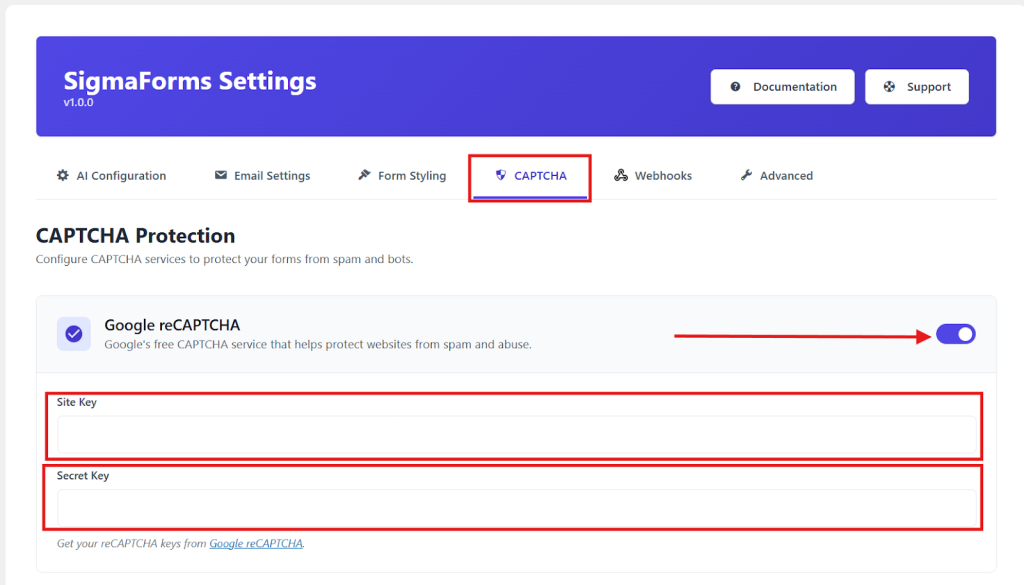
- Locate the CAPTCHA section and turn on ‘Google reCAPTCHA‘.
- Paste your Site Key and Secret Key into the fields and click Save Settings.
Step 5: Add reCAPTCHA to the Specific Form
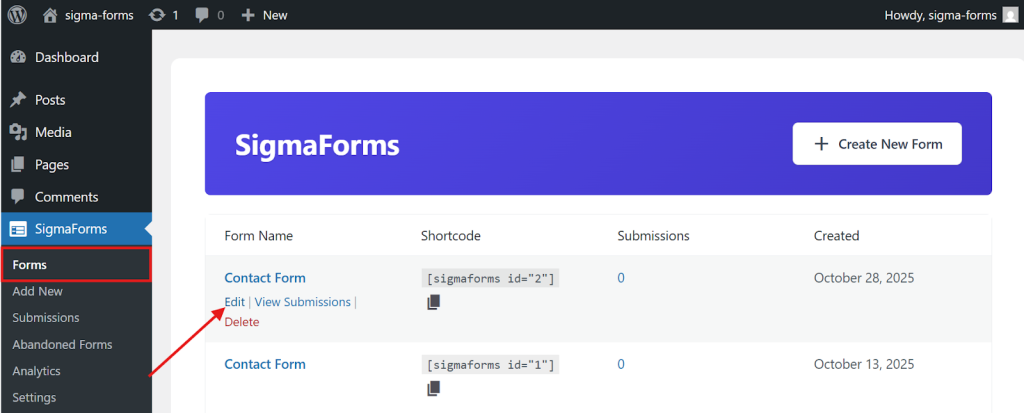
- Again, go to the Forms section and edit your contact form
- Then, go to the Configure step. Here you will get the Security tab.
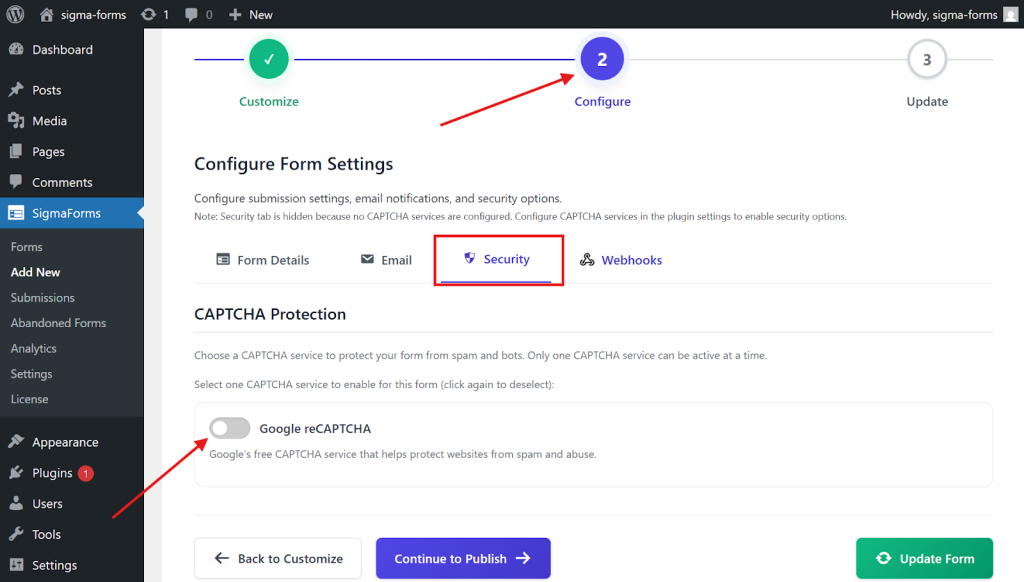
- Turn on the Google ReCaptcha toggle and click Update Form.
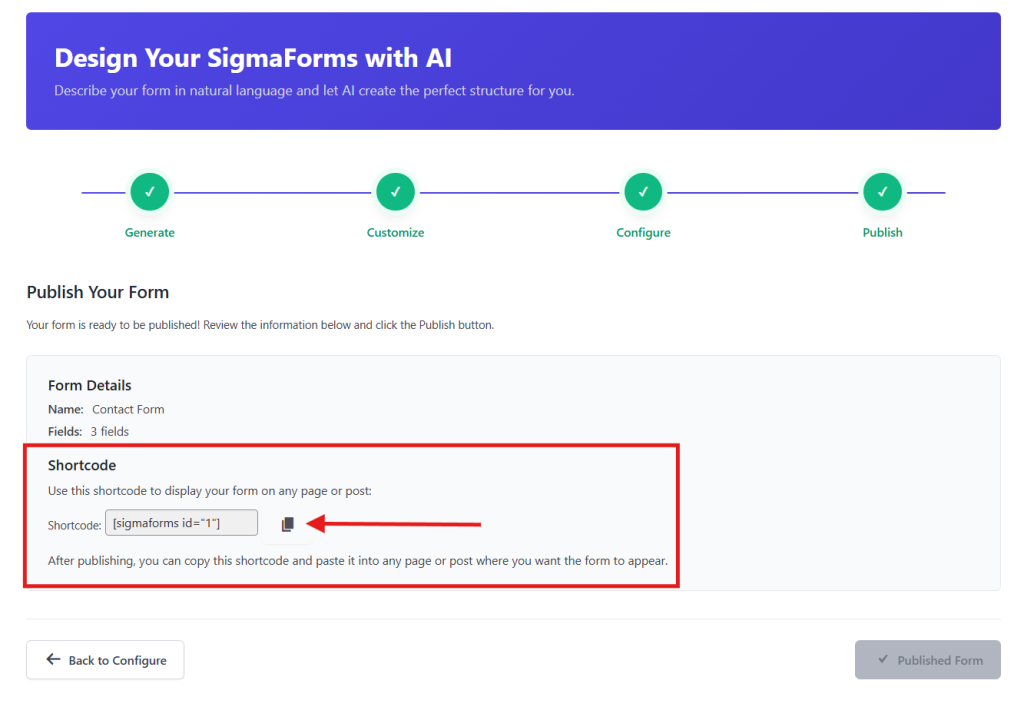
- This time, copy the shortcodes.
Place the form using shortcodes on any page or post:
- Now go to your desired page where you want to set the form.
- Get a shortcode widget or block on the page.
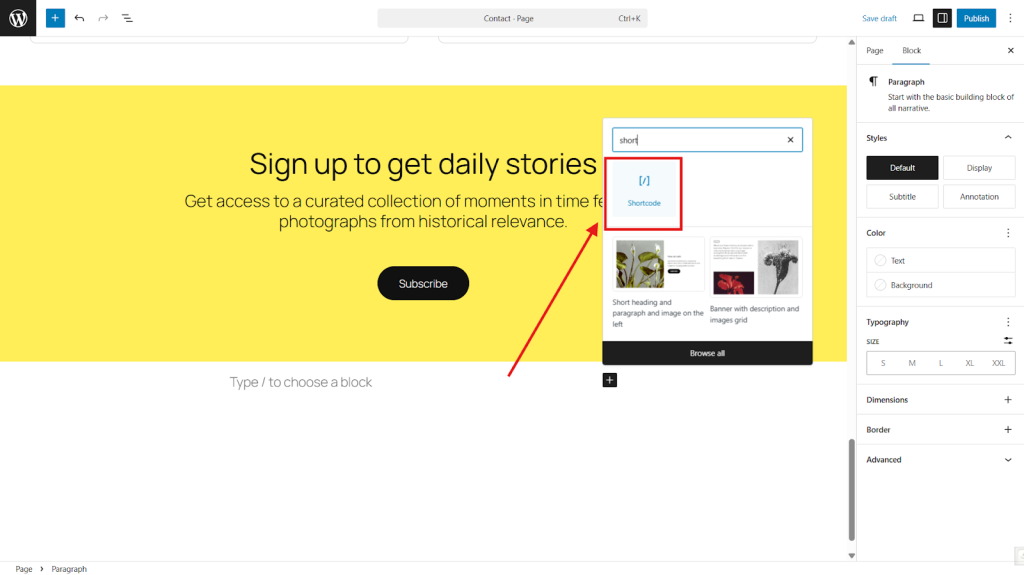
- Paste the shortcode here.

- Click on the Save button after Draft.
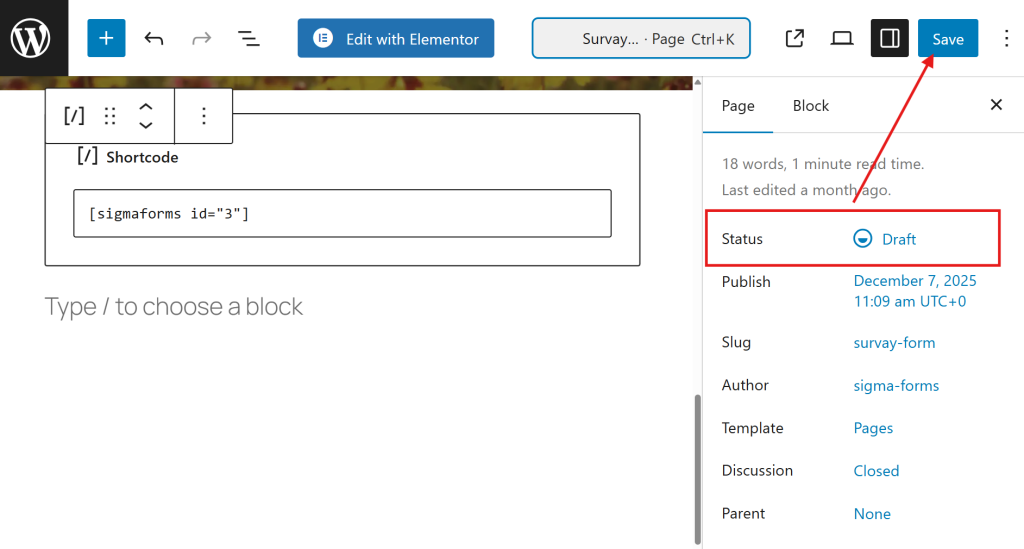
- Finally hit the Publish button.
You can also view the page from the frontend.
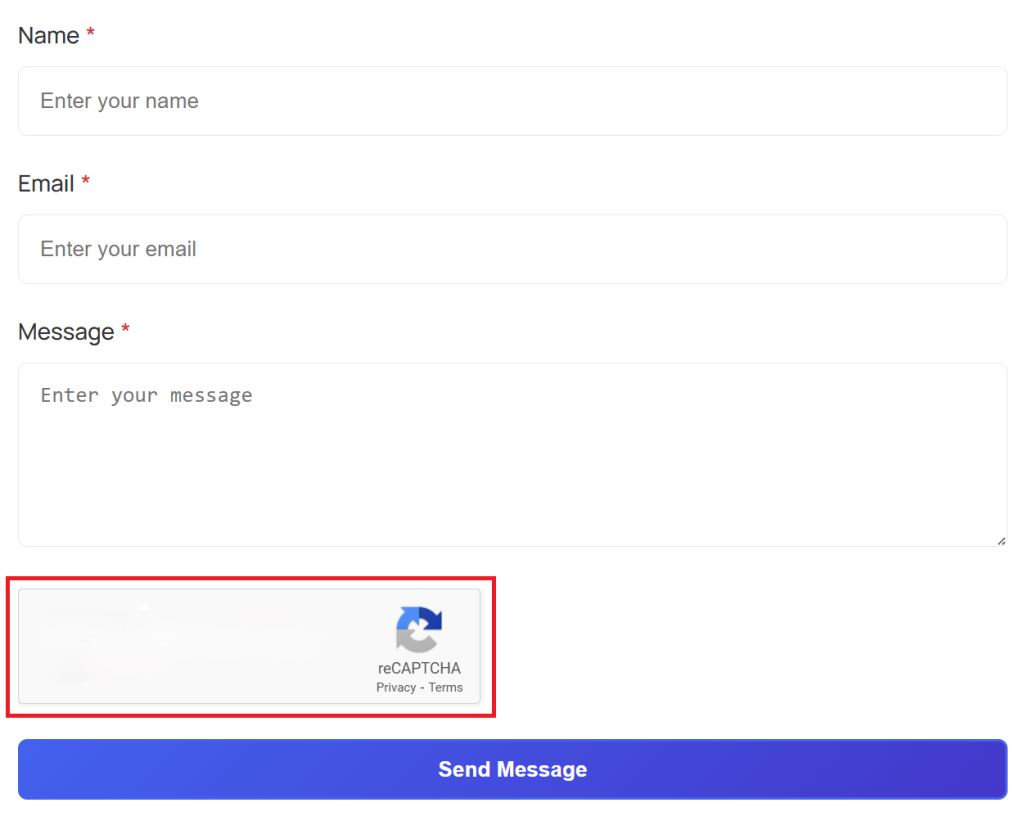
- Congratulation! You have successfully added reCAPTCHA to the contact form.
This way, you can easily set up reCAPTCHA in any form, from basic to advanced, on any page or post.
FAQs
Q1: Is reCAPTCHA free to use?
Yes, reCAPTCHA is free for most users.
Q2: Is reCAPTCHA better than CAPTCHA?
Yes, reCAPTCHA uses more intelligent algorithms and is less annoying for users than traditional CAPTCHA.
Q3: Is there an alternative to reCAPTCHA?
Yes, popular options include hCaptcha, Cloudflare Turnstile, and Friendly Captcha.
Q4: Which is better, reCAPTCHA or hCaptcha?
ReCAPTCHA is smoother for users; hCaptcha offers better privacy and admin control.
Conclusion
Adding reCAPTCHA to your WordPress contact form is one of the easiest and most effective ways to combat spam. With Sigma Forms, we’ve shown you how easy the process is. Simply install the plugin, set up your form, enter your Google API keys and enable reCAPTCHA.
With Sigma Forms, your contact forms will be safer, more reliable, and much more effective for real visitors. Secure forms mean happier website owners and a better user experience!