Launching a website before it’s ready can damage your brand reputation and turn potential customers away. Visitors who land on incomplete pages, broken links or unfinished design elements often leave and never return.
A bounce rate of 60% or higher indicates you need to make your page more helpful and engaging for users, making first impressions critical to your online success.
A WordPress coming soon page solves this challenge by displaying a professional placeholder while you perfect your site behind the scenes.
This temporary website page for your WordPress website solution helps you build anticipation, collect email addresses from interested visitors and maintain credibility during the development phase.
Instead of showing a half-finished WordPress website, you can present a polished pre-launch landing page that turns early visitors into engaged subscribers.
In this guide, you’ll discover how to add a coming soon page in WordPress using simple customization options that require zero coding knowledge.
How to Add a Coming Soon Page in WordPress Using Launch Guard
Launch Guard is a lightweight WordPress coming soon plugin that helps you create professional pre-launch pages quickly. This best-in-class coming-soon plugin for WordPress offers interactive templates, custom design options, Mailchimp integration, social media links, visitor analytics, and password protection.
Let’s walk through the complete process for creating a coming-soon page, from installation to going live.
Step 1: Access the Plugin Dashboard and Navigate to Settings
After installing and activating the Launch Guard plugin, you need to access its configuration panel to begin the setup guide for your coming soon page.
- Navigate to your WordPress admin panel and log in to your WordPress dashboard using your admin credentials.
- Look for Launch Guard in the left sidebar menu, then click it to open the main plugin dashboard.
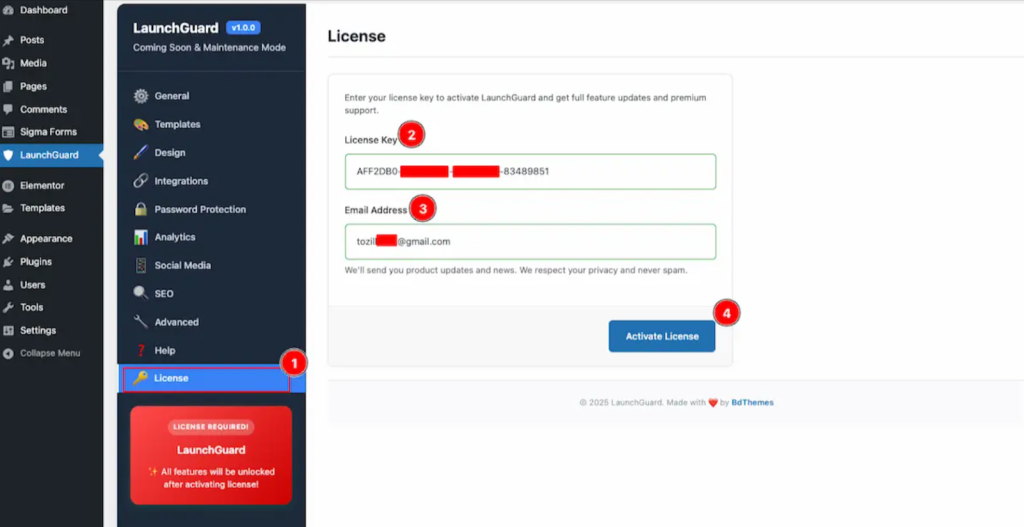
The dashboard provides access to all configuration options including General settings, Templates, Design customization, Integrations, Password Protection, Analytics, Social Media links, SEO settings, and Advanced controls.
Step 2: Enable Coming Soon Mode and Configure Basic Settings
- Navigate to Launch Guard → General to access the primary configuration panel where you’ll activate your WordPress coming soon mode.
- Toggle the “Enable Launch Guard” switch to activate the coming soon page plugin WordPress.
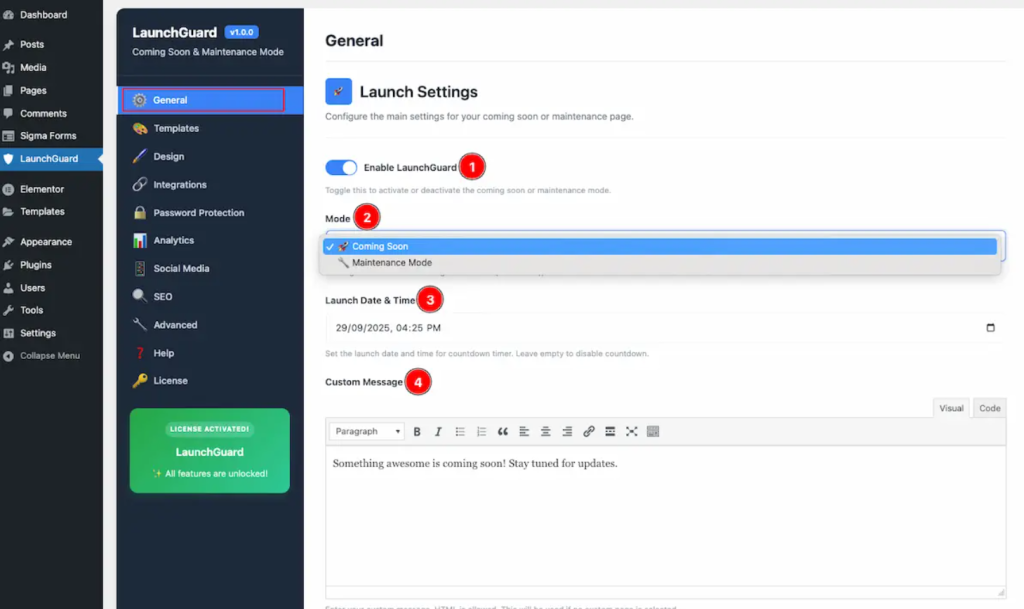
When enabled, visitors will see your coming soon page instead of your actual website content while you continue building behind the scenes.
Select your mode by choosing between two distinct operating modes:
- Coming Soon: Use this mode for pre-launch landing page WordPress scenarios. This setup allows search engines to index your page by returning a 200 status code, which benefits your SEO readiness.
- Maintenance Mode: Select this option when performing site maintenance or updates. This WordPress maintenance mode page returns a 503 status code, informing search engines that your site is temporarily unavailable.
- Set your launch date and time to display an automated countdown timer on your coming soon page plugin WordPress.
The countdown creates urgency and gives visitors a clear expectation of when to return. Leave this field empty if you prefer not to show a countdown.
- Enter a personalized custom message for visitors who land on your site while the mode is active. You can use HTML formatting to style your text, add line breaks, or insert links.
If you’ve created a dedicated WordPress page for your coming soon page design using the page editor, select it from the “Custom Page” dropdown menu. The list shows “Use Custom Message” as the default option plus all your created pages.
- Click the Save All Settings button to apply your configuration and activate WordPress coming soon mode.
Step 3: Choose a Pre-Built Template or Custom Design
- Navigate to Launch Guard → General and scroll to the Templates section to select your pre-launch landing page WordPress design that matches your brand identity.
Launch Guard offers 12 professionally designed templates to design a pre-launch page in WordPress:
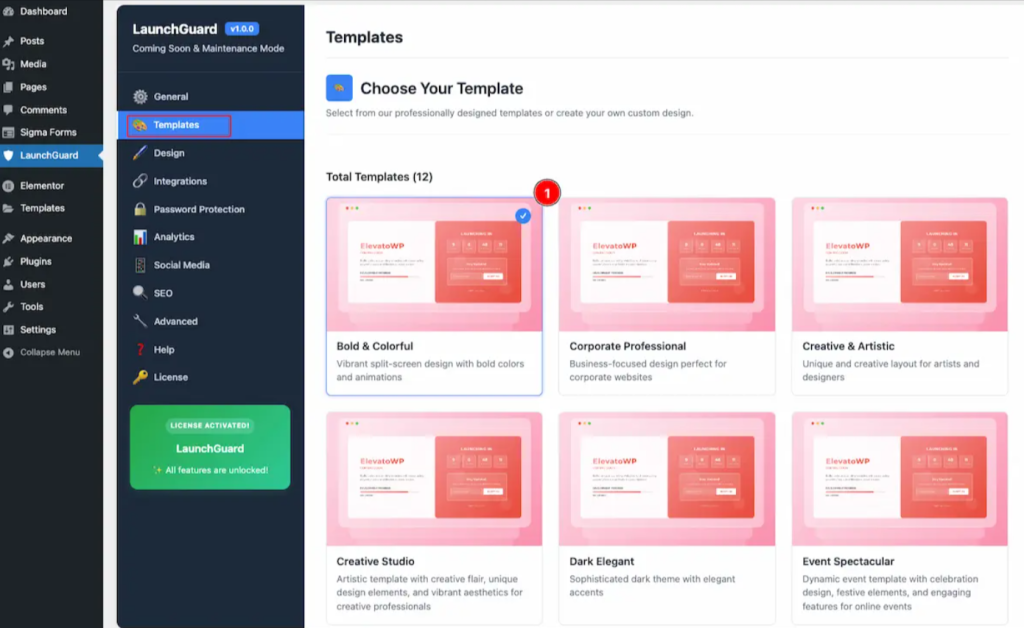
- Bold & Colorful: Vibrant split-screen design with bold colors and smooth animations, perfect for creative brands and modern startups
- Corporate Professional: Business-focused design ideal for corporate websites, consulting firms, and B2B companies
- Creative & Artistic: Unique layout tailored for artists, designers, photographers, and creative professionals
- Creative Studio: Artistic template with creative flair and vibrant aesthetics for agencies and design studios
- Dark Elegant: Sophisticated dark theme with elegant accents, suitable for luxury brands and premium services
- Event Spectacular: Dynamic event template with celebration design and festive elements, perfect for conferences and webinars
- Executive Suite: Professional corporate design with elegant typography for business launches
- Fashion Elite: Luxury fashion template with sleek design and premium aesthetics for fashion brands
- Modern Gradient: Eye-catching 3D gradient design with holographic effects for tech-forward brands
- Modern Minimal: Clean minimalist design with elegant typography for brands that value simplicity
- Tech & Digital: Modern tech-focused design with digital elements, perfect for SaaS products and apps
To preview any template:
- Hover over it and click the Preview button.
The preview opens in a modal window showing how the template looks with your site’s information.
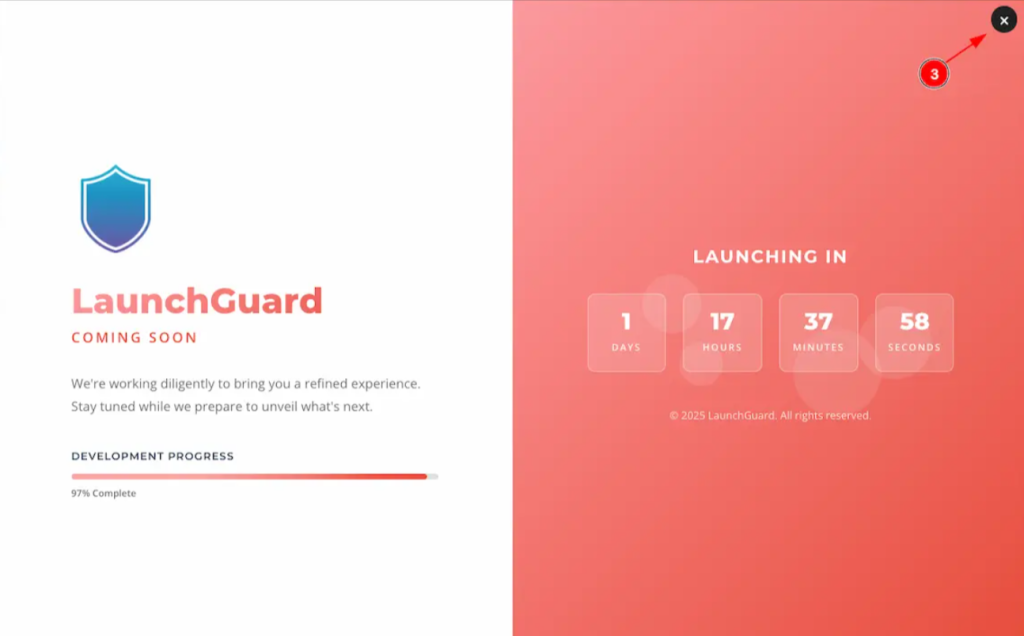
- Click the X icon in the top corner to close the preview.
After selecting your preferred template:
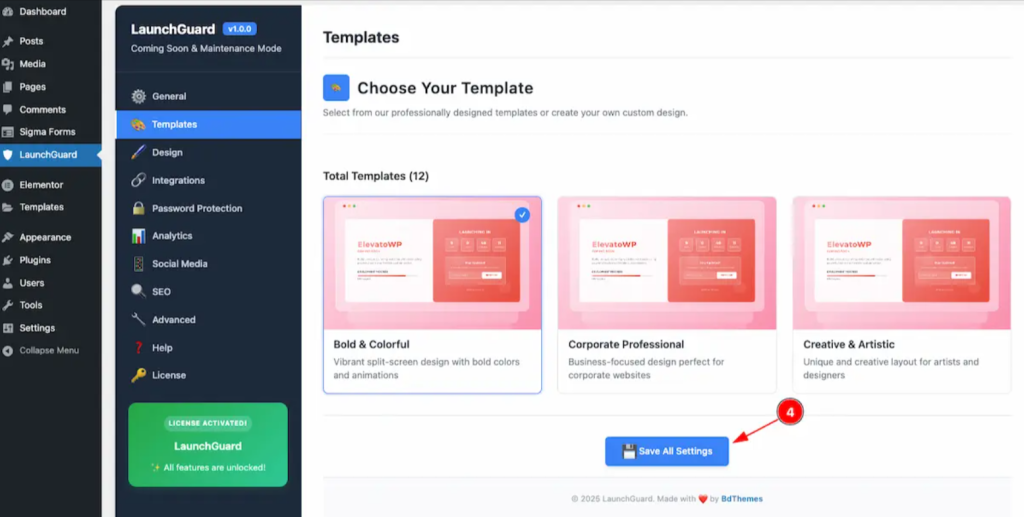
- Click Save All Settings to apply your choice and make it active on your WordPress coming soon page.
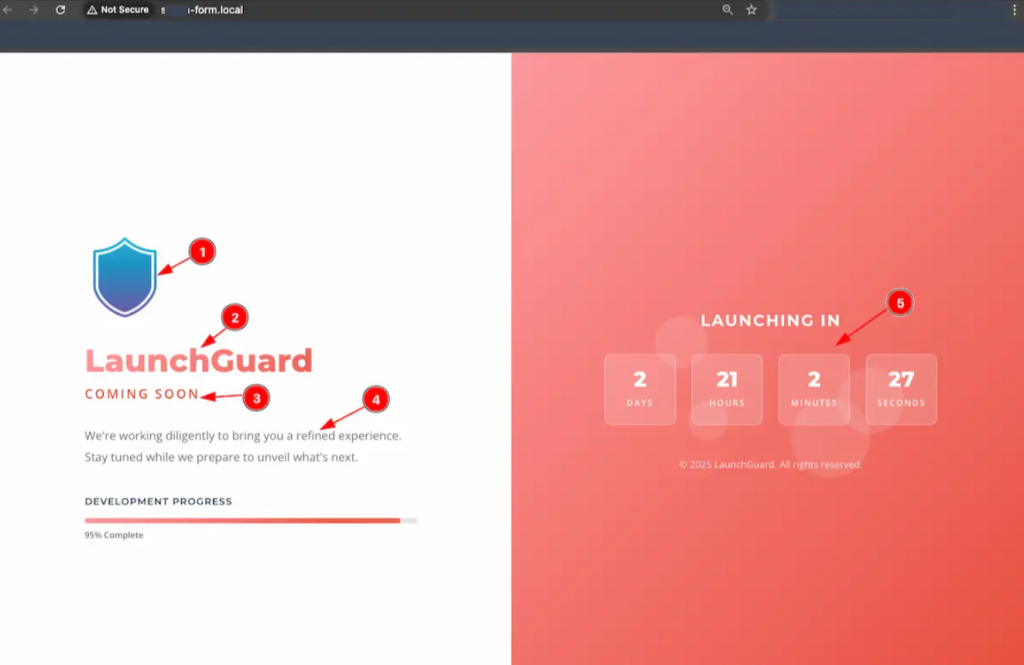
To see how your coming soon page plugin WordPress looks to visitors, open your website URL in an incognito or private browsing window.
Step 4: Customize Your Page Design with Branding Elements
If you prefer complete design control beyond the pre-built templates:
- Select the Custom Template option in the Templates section and click Save All Settings.

Understanding how to design a pre-launch page in WordPress with custom branding helps you create a unique experience that perfectly matches your brand identity.
- Navigate to Launch Guard → Design to access advanced customization options for your WordPress coming soon page.
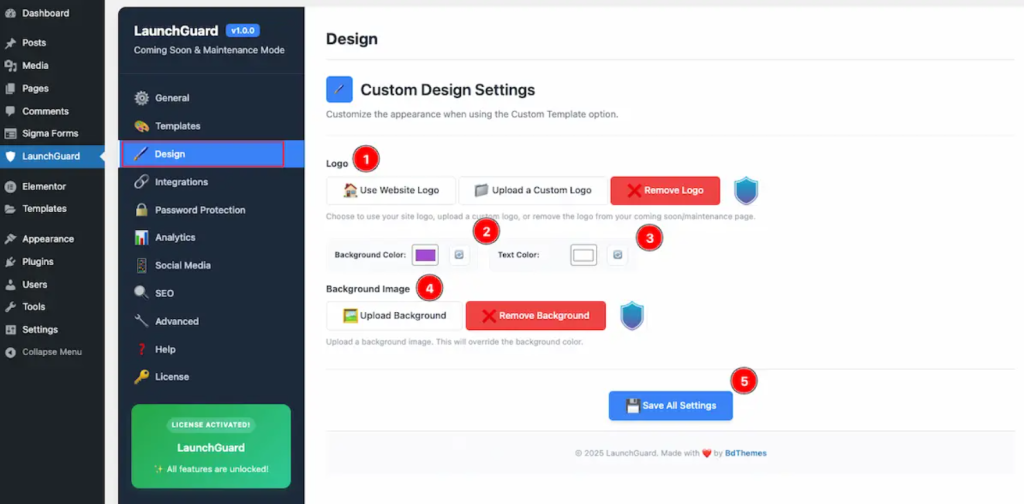
- For logo settings, you can use your website’s default logo, upload a custom logo from your computer, or remove the logo entirely for a text-only design.
A Remove button appears after selecting a logo.
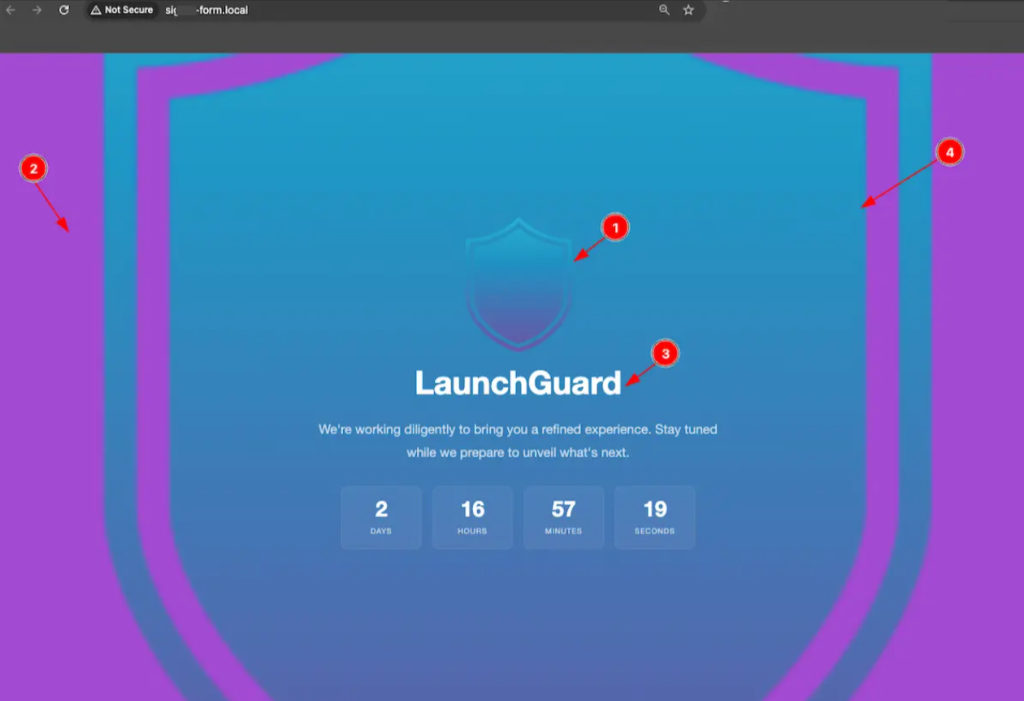
- Choose a background color for the logo section using the color picker to help your logo stand out and maintain brand consistency across your under construction page WordPress.
- Select the text color for all text elements on your page, including your site name, custom message, and countdown timer.
- Click to select and upload a background image from your local files. Choose high-quality images that represent your brand and don’t overwhelm the text content.
A Remove button appears after uploading if you want to switch back to a solid color background.
- Click Save All Settings to apply all your modifications and view your customized WordPress pre-launch landing page.
Step 5: Integrate Email Collection Forms to Capture Leads
- Navigate to LaunchGuard → Integrations to connect your WordPress coming soon page with email marketing tools and start building your subscriber list before launch.
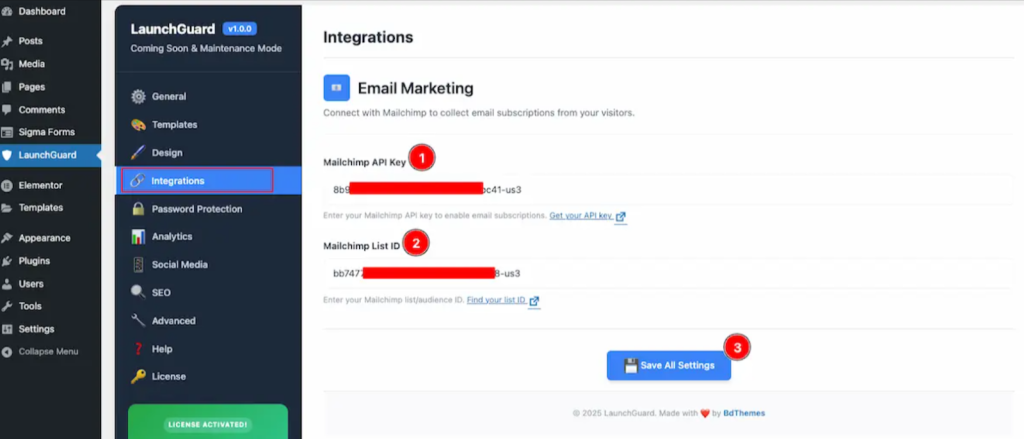
- Enter your Mailchimp API key by obtaining it from your Mailchimp account.
Visit the API keys section, copy your key, and paste it into this field to establish the connection between your coming-soon page and Mailchimp.
- Add your Mailchimp List ID by finding your audience or list ID in your Mailchimp audience settings.
Check the list ID location and enter this ID to specify which list should receive new subscriber emails.
- Click Save All Settings to activate email collection on your pre-launch landing page WordPress and start capturing leads immediately.
Once configured, an email subscription form appears on your coming-soon page setup guide, inviting visitors to enter their email address to be notified of your launch.

Step 6: Add Social Media Links to Stay Connected
- Navigate to LaunchGuard → Social Media to add social media connections to your WordPress coming-soon page and keep early visitors engaged across multiple channels.
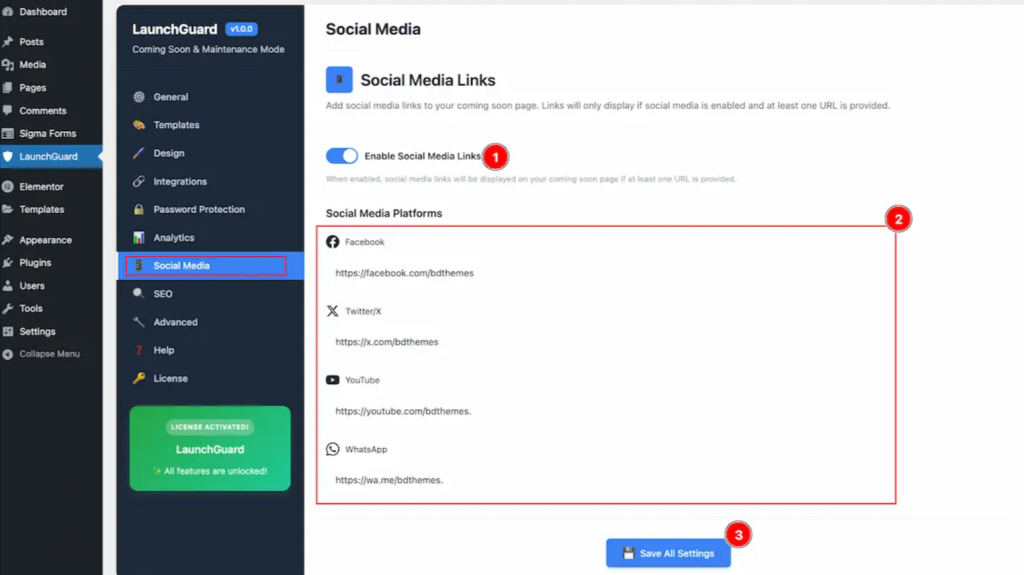
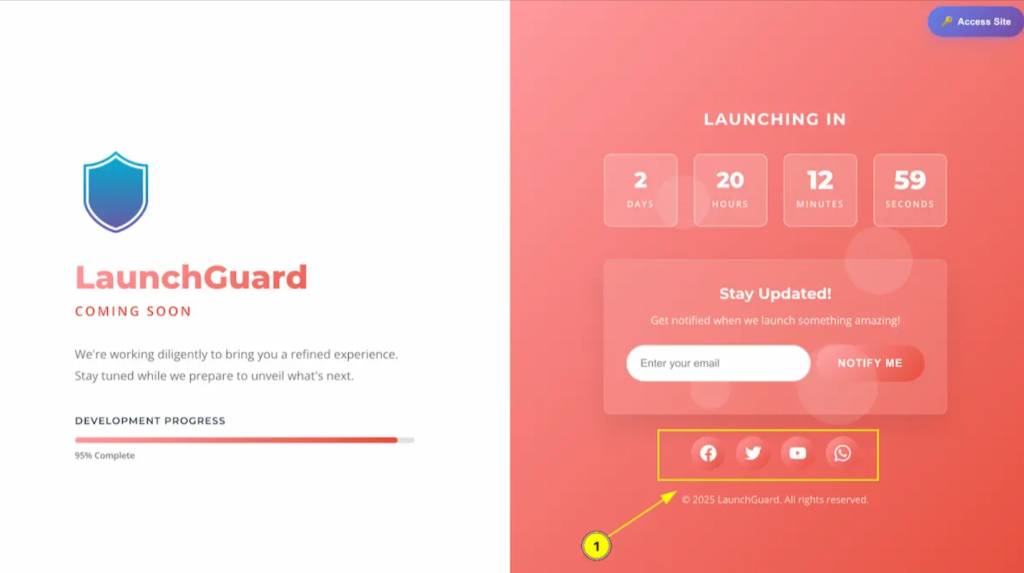
- Toggle the “Enable Social Media Links” switch on to display social media icons on your coming soon page. Icons only appear if you’ve entered at least one social media URL.
- Enter the complete URLs for your social profiles including Facebook, Twitter/X, YouTube, WhatsApp, LinkedIn, TikTok, Pinterest, Snapchat, and Discord.
You can add as many or as few platforms as needed. Leave fields blank for social networks you don’t use.
- Click Save All Settings to activate your social media connections and publish them on your pre-launch landing page on WordPress.
Your social media icons now appear on the coming soon page, typically near the bottom or footer area depending on your selected template.
Step 7: Configure User Role Access and Bypass Settings
- Navigate to LaunchGuard → Advanced to control which user roles can bypass your WordPress maintenance mode page and access the actual website while it’s under development.
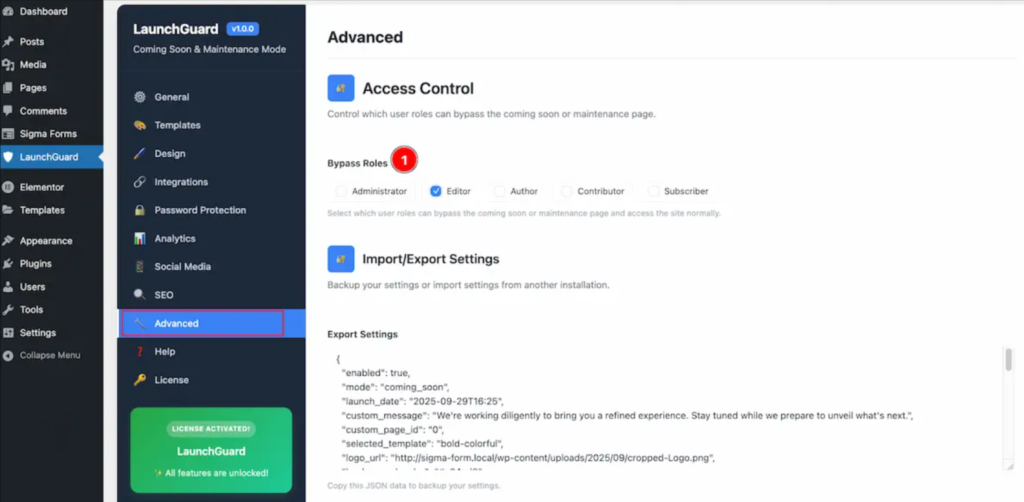
- Choose the WordPress user roles that should see your live website instead of the coming soon page when they log in.
Available options include Administrator, Editor, Author, Contributor, and Subscriber.
This feature is essential for allowing your team to continue working on the site, testing features, and reviewing content while visitors see the professional coming-soon-page WordPress interface.
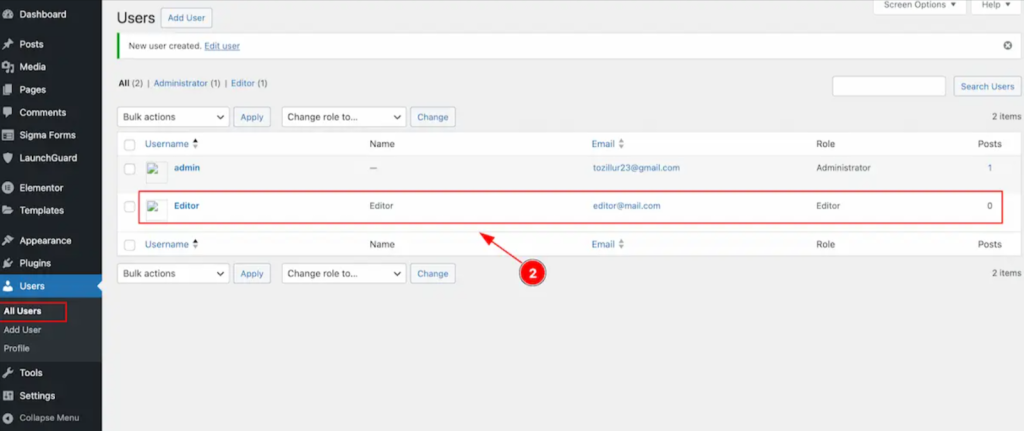
- Click Save All Settings to apply your role-based access settings and enable team collaboration while maintaining your WordPress coming soon mode.

Step 8: Publish Your Coming Soon Page and Test Everything
After configuring all your settings for how to add a coming soon page to WordPress, verify everything works correctly before relying on it for your pre-launch strategy.
- Click Save Changes or Save All Settings on any section where you made modifications to ensure all configurations are correctly stored.
Open a private or incognito browser window and visit your website URL to confirm that visitors see your WordPress coming soon page with all elements displaying correctly, including logo, custom message, countdown timer, email signup form, and social media icons.
Test the email subscription form by entering a test email address and submitting it. Check your Mailchimp list to verify the email appears correctly.
If you activated password protection, click the access button and enter your password to ensure the authentication system works appropriately.
Log in with a bypass-role account in a separate browser to confirm that authorized users can access the full site while the coming-soon page plugin remains active for public visitors.
Based on your testing, return to any Launch Guard section to refine your WordPress design for the under-construction page, update messaging, or modify functionality.
Additional Strategies to Maximize Your Coming Soon Page Performance
Beyond the basic setup for creating a coming soon page, implementing these optimization strategies helps you extract maximum value from your pre-launch landing page on WordPress and build a larger, more engaged audience.
Write a Compelling Headline That Creates Curiosity
Your headline is the first element visitors see on your pre-launch WordPress landing page, making it critical for capturing attention and encouraging email signups. Craft a message that creates curiosity and excitement about your upcoming launch.
Instead of generic phrases like “Coming Soon,” use specific language that hints at your value proposition, such as “Revolutionary Fitness Tracking Launches March 2025” or “The Future of Home Organization Arrives Soon.”
Add a Countdown Timer to Create Urgency
Countdown timers create psychological urgency and give visitors a concrete reason to return or sign up for notifications. The Launch Guard plugin makes it easy to activate coming soon mode in WordPress with an automated countdown.
Set your launch date in the General settings, and the timer automatically updates in real-time, showing days, hours, minutes, and seconds until your website goes live.
Use Action-Oriented CTAs That Set Clear Expectations
Your call-to-action buttons should clearly communicate what happens when visitors click. Instead of vague text like “Submit” or “Subscribe,” use action-oriented phrases that set expectations.
“Get Launch Updates,” “Notify Me When We Launch,” and “Join the Exclusive Waitlist” all perform better because they tell visitors exactly what they’re signing up for and the benefit they’ll receive.
Optimize All Images for Fast Mobile Loading
As of October 2024, 60.4% of all web traffic came from mobile phones, making mobile optimization critical to the success of your WordPress coming soon page. Large, unoptimized images slow down your page and frustrate visitors, especially on mobile devices.
Compress your background images and logos before uploading them to Launch Guard, aiming for file sizes under 200KB for backgrounds and under 50KB for logos without sacrificing visual quality.
Configure SEO Meta Tags for Search Visibility
- Navigate to LaunchGuard → SEO to configure search engine optimization settings for your temporary website page WordPress and ensure search engines can discover and properly index your pre-launch page.

- Toggle on “Enable SEO Settings” to activate SEO features and make your coming soon page search-friendly.
- Enter a meta title that appears in search results, keeping it under 60 characters. Example: “Amazing New Platform Launching March 2025 | YourBrand”
Add the meta author name for attribution, staying under 60 characters for optimal display in search results.
- Write a meta description that appears in search results, limited to 160 characters.
This is your opportunity to entice people to visit your coming soon page setup guide and sign up for launch notifications.
Include comma-separated meta keywords relevant to your upcoming website, such as your industry terms, brand name, and product categories.
- Enter your GA4 tracking ID to monitor visitor behavior, traffic sources, and engagement metrics on your WordPress coming soon mode page.
Add any additional meta tags, structured data, or tracking codes your marketing strategy requires for comprehensive analytics and optimization.
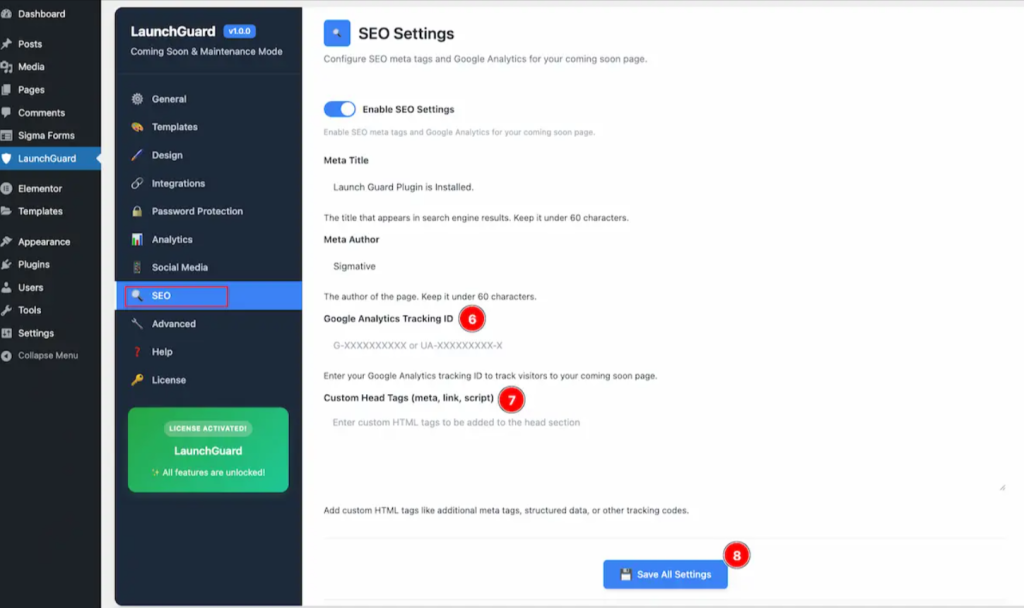
- Click Save All Settings to optimize your WordPress coming soon plugin for search engine visibility and organic traffic growth.
Share Your Coming Soon Page Across All Marketing Channels
Don’t wait until launch to start promoting your website. Share your WordPress coming-soon page URL across all your social media profiles, email signatures, business cards, and marketing materials. This drives early traffic, builds your email list, and creates momentum before your official launch.
Encourage followers to sign up for launch notifications and to share your coming-soon page with their networks to expand your reach organically.
Add Password Protection for Selective Preview Access
- Navigate to LaunchGuard → Password Protection to add an extra security layer for your under-construction page on WordPress and control exactly who can preview your site during development.
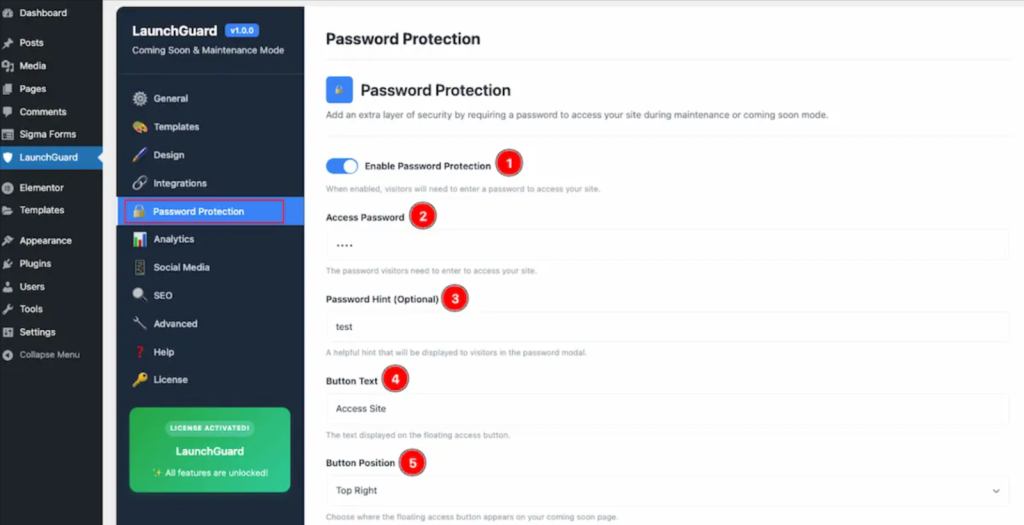
- Toggle on “Enable Password Protection” to require a password for site access during maintenance or coming soon mode.
Set a secure access password that visitors need to enter. Share this password only with clients, stakeholders, or testers who need early access.
- Provide an optional password hint that displays in the password modal to help authorized users remember the password without compromising security.
Customize the text on the floating access button; the default is “Access Site.”
- Choose where the access button appears on your coming soon page plugin WordPress by selecting Top Right, Top Left, Bottom Right, or Bottom Left.
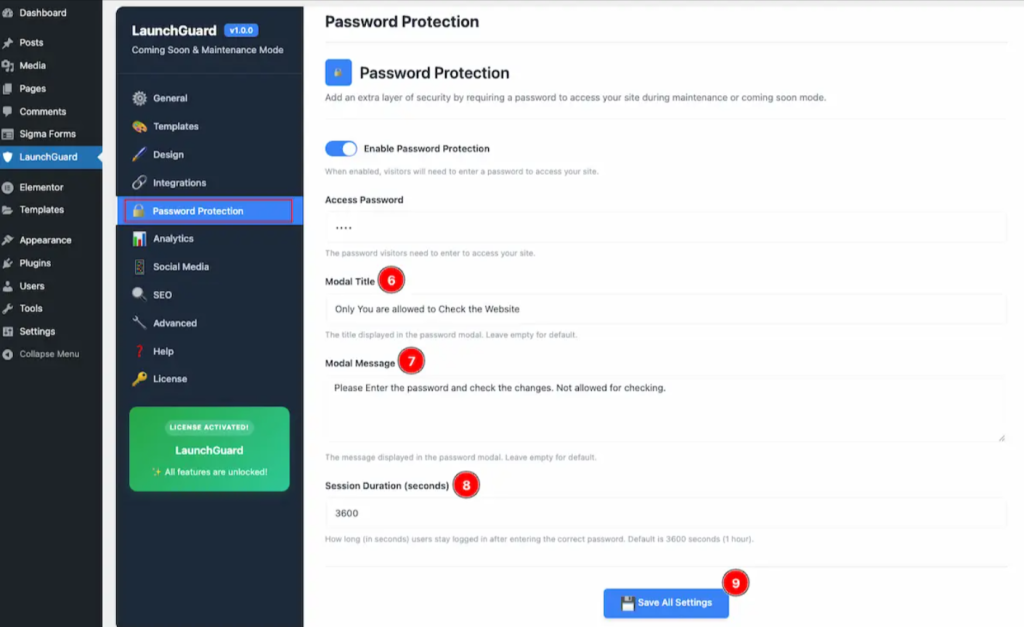
Set the modal title and message that appear in the password entry modal window to explain why password access is required.
Configure the session duration to determine how long users stay logged in after entering the correct password. The default is 3600 seconds (1 hour).
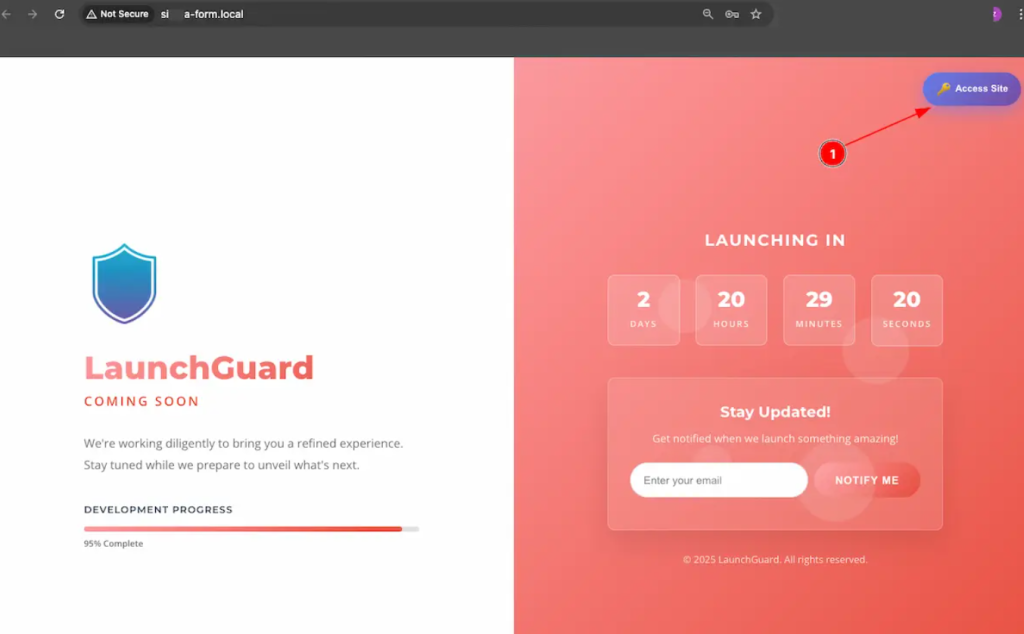
- After clicking Save All Settings, a password access button appears on your WordPress coming soon page.
When clicked, it opens a modal prompting visitors to enter the password.
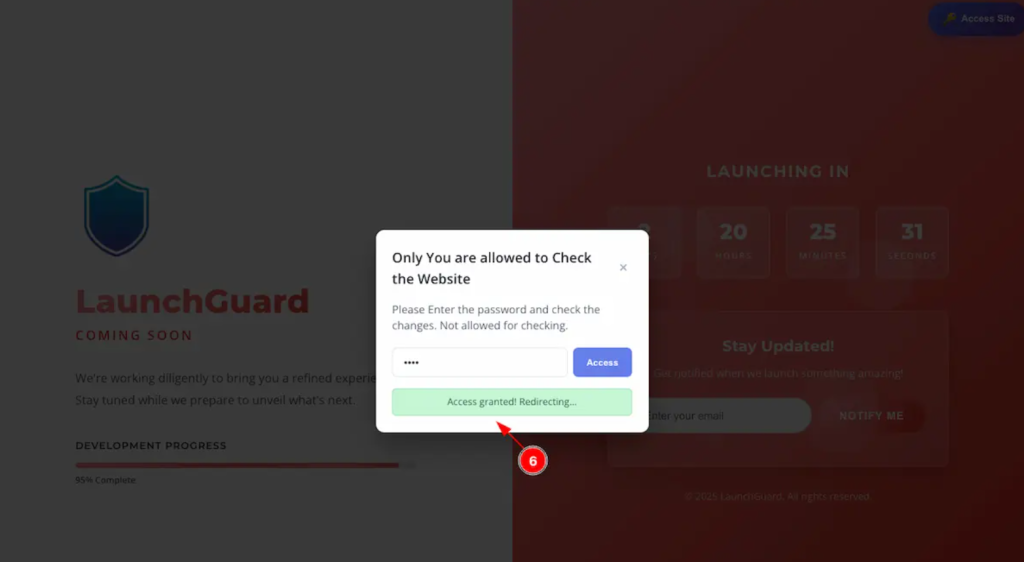
After entering the correct password, users see an “Access granted. Redirecting…” message and gain access to the full website.
Track Performance with Built-In Analytics
- Navigate to LaunchGuard → Analytics to monitor the performance of your pre-launch landing page WordPress and make data-driven decisions about your launch strategy.
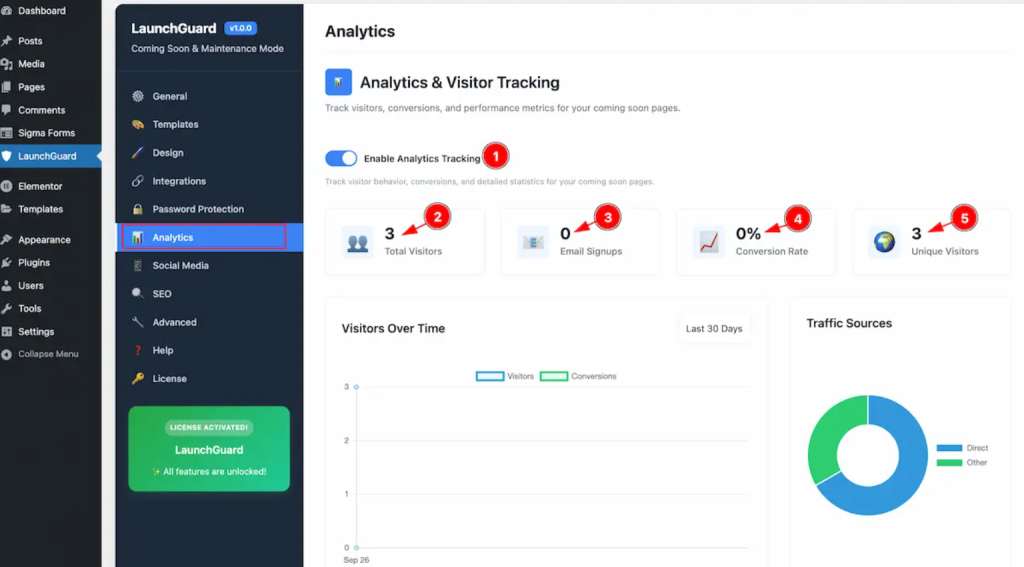
- Toggle this on to track visitor behavior, email signups, and detailed statistics about your coming soon page performance.
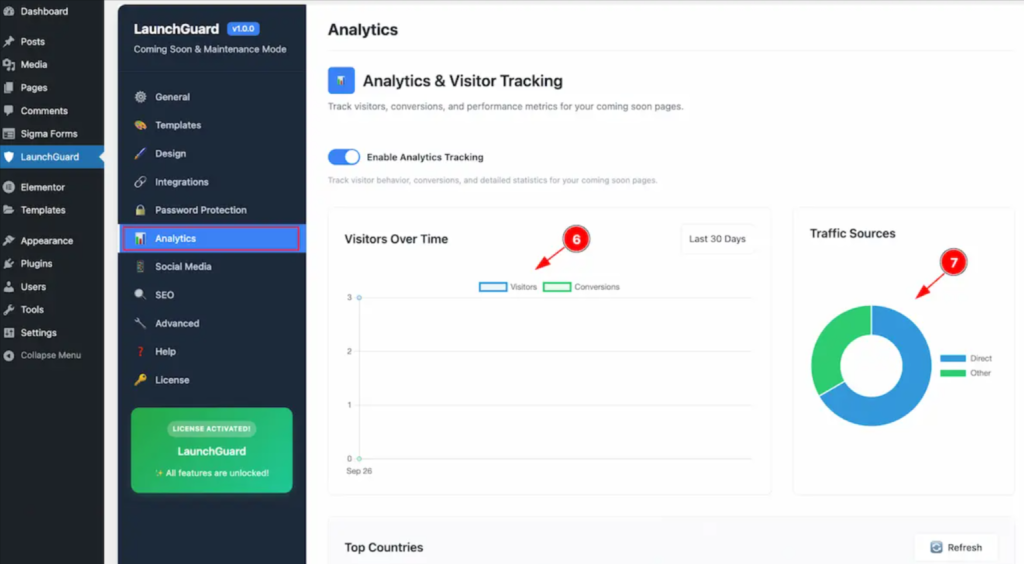
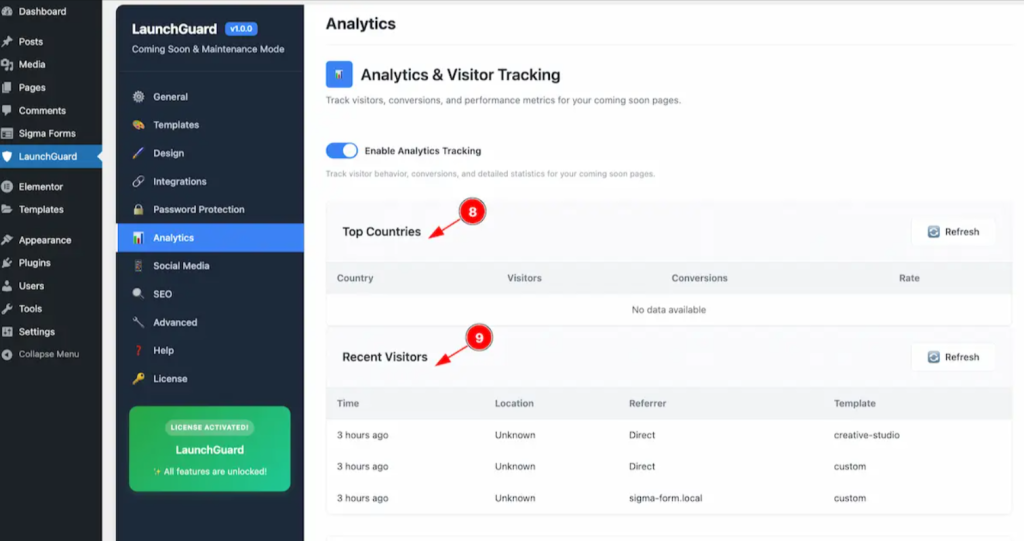
The analytics dashboard displays comprehensive metrics including total visitors, email signups, conversion rate percentage, unique visitors (excluding repeat visits), visitors over time graphs, traffic sources pie charts, top countries geographic data, and recent visitor activity lists.
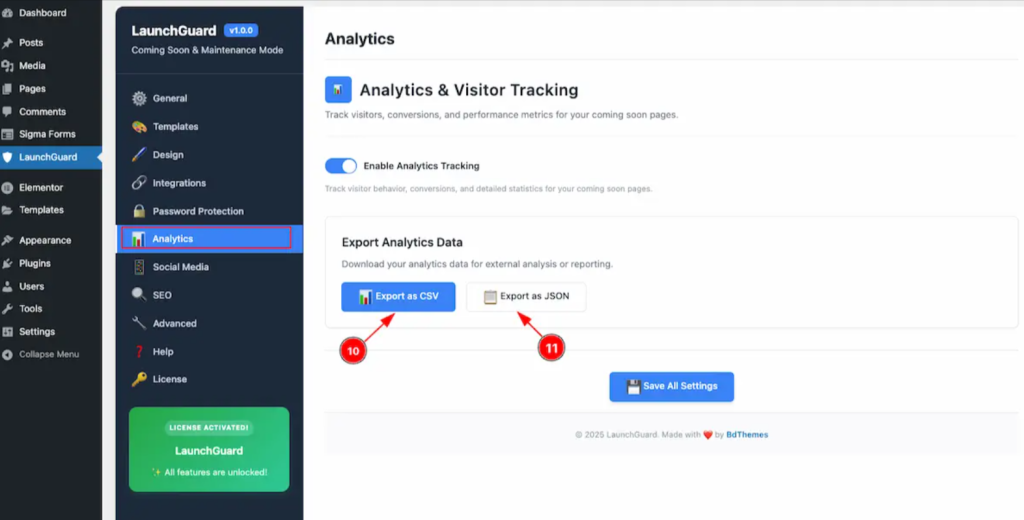
Download your analytics as CSV or JSON files for deeper analysis, reporting, or integration with other tools.
These insights help you understand your audience, refine your marketing approach, and make informed decisions about your launch timing and strategy.
Why You Need a Coming Soon Page for Your WordPress Website
Understanding the strategic benefits of a WordPress coming soon mode helps you maximize its potential for your business growth and audience engagement.
Creates Anticipation for Your Upcoming Launch
A coming soon page plugin for WordPress helps generate buzz before your official website launch. By displaying a teaser message with your brand identity, you give visitors a glimpse of what’s ahead and encourage them to return.
The countdown timer creates a sense of urgency, motivating people to check back or sign up for launch notifications.
Keeps Your Website Looking Professional During Development
Nobody wants to see error messages, placeholder text, or lorem ipsum when they visit a website.
An under-construction page for WordPress maintains your professional image by showing a polished, branded experience instead of exposing your work-in-progress. This is particularly important if you’ve already started promoting your domain through social media or business cards.
Allows You to Collect Visitor Emails and Grow Your Pre-Launch Audience
The average landing page conversion rate across industries is 2.35%, but coming-soon pages often perform better because they target highly interested visitors who have discovered your site before launch.
By adding an email signup form to your WordPress coming soon page, you can build a subscriber list of engaged prospects who are genuinely interested in your offering. These early subscribers become your first customers, brand advocates, and social media supporters when you go live.
Hides Unfinished Pages and Features from Public View
When you activate coming soon mode in WordPress, you protect incomplete sections from public scrutiny while allowing your team to continue building.
The under-construction WordPress approach lets you take your time to perfect content, test functionality, and fine-tune design elements without external pressure or premature judgments.
Helps with SEO Readiness by Keeping Search Engines Informed About Your Site Status
A properly configured WordPress maintenance mode page communicates with search engines about your site’s temporary status.
When you set up a coming soon page correctly, you can choose to return a 200 status code (for coming soon mode) that allows search engines to index your page, or a 503 status (for maintenance mode) that tells search engines your site is temporarily unavailable. This distinction helps maintain your SEO standing and prevents negative impacts on future rankings.
Start Building Anticipation with Your WordPress Coming Soon Page Today
A WordPress coming soon page transforms your pre-launch period into a powerful marketing opportunity. By following this coming soon page setup guide, you’ve learned how to add a coming soon page to WordPress, customize your under construction page WordPress with your brand identity, and optimize your pre-launch landing page WordPress for maximum engagement.
The best coming-soon plugin for WordPress gives you these capabilities without coding, making it simple to create a professional temporary WordPress page that builds an engaged audience ready to become customers on launch day.
Ready to create your stunning coming soon page? Try Launch Guard today and start capturing leads before your website goes live. With beautiful templates, robust integrations, and built-in analytics, you’ll turn early visitors into loyal subscribers who can’t wait for your official launch.
Frequently Asked Questions About WordPress Coming Soon Pages
What’s the difference between a coming soon page and maintenance mode?
A coming-soon page is for pre-launch situations with a 200 status code that allows search engine indexing, while WordPress maintenance mode is for existing sites undergoing updates, with a 503 status code that tells search engines the site is temporarily unavailable. Launch Guard lets you choose between these modes in the General settings.
Can I add a countdown timer to my coming soon page?
Yes, navigate to Launch Guard → General and enter your launch date and time in the “Launch Date & Time” field. The countdown timer automatically appears on your WordPress coming soon page, displaying days, hours, minutes, and seconds until launch.
Will search engines index my coming soon page?
It depends on your selected mode. “Coming Soon” mode returns a 200 HTTP status code that allows search engine indexing, while “Maintenance Mode” returns a 503 status code that prevents indexing.
Can I collect email addresses using my coming-soon page?
Yes, Launch Guard integrates with Mailchimp for email collection. Navigate to LaunchGuard → Integrations, enter your Mailchimp API key and List ID, then click Save All Settings to start capturing email addresses from interested visitors.
How do I disable the coming soon page once the website is ready?
Navigate to Launch Guard → General and toggle off the “Enable Launch Guard” switch, then click “Save All Settings.” Your WordPress coming soon mode is deactivated immediately, and your whole website becomes visible to all visitors.