

The Transform Effects extension in Element Pack Pro allows you to apply dynamic transformations like rotate, scale, skew, and translate to elements. It helps create interactive and visually engaging designs with smooth hover and motion effects. This documentation explains how to use and customize Transform Effects in Elementor.
Enable The Transform Effects Extension
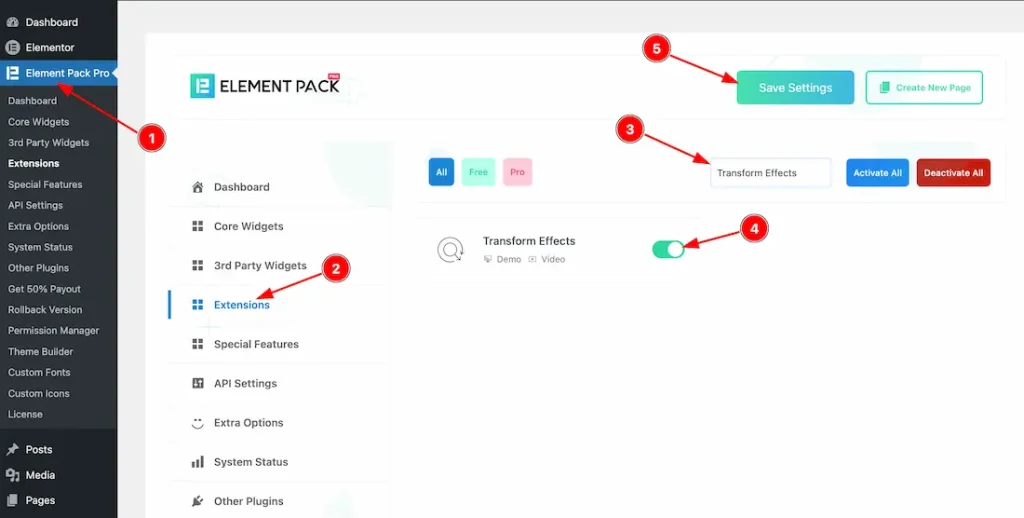
To use the Transform Effects Extension from Element Pack, you must first enable the extension.
- Go to WordPress Dashboard > Element Pack Plugin dashboard.
- Then, click the Extension Tab.
- Search the Transform Effects Extension Name.
- Enable the Transform Effects Extension.
- Hit the Save Settings Button.
How and Where You Find the Extension inside the Editor
You can apply the Transform Effect to any widgets. To demonstrate the feature, we’ve designed a section with image widgets. You can use any widgets as per requirement.
Let’s start to demonstrate the feature-
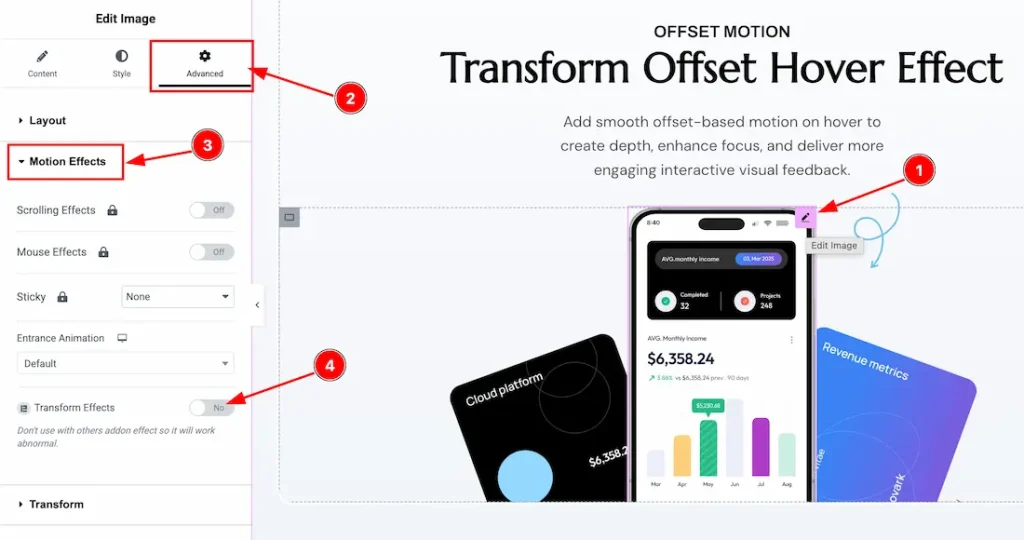
To use the transform feature, just follow the instructions below-
- Select the widget.
- Go to the Advanced Tab of the widget.
- Navigate the Motion Effects section.
- Enable the Transform Effects switcher button.
Let’s Describe the Transform Effects Feature
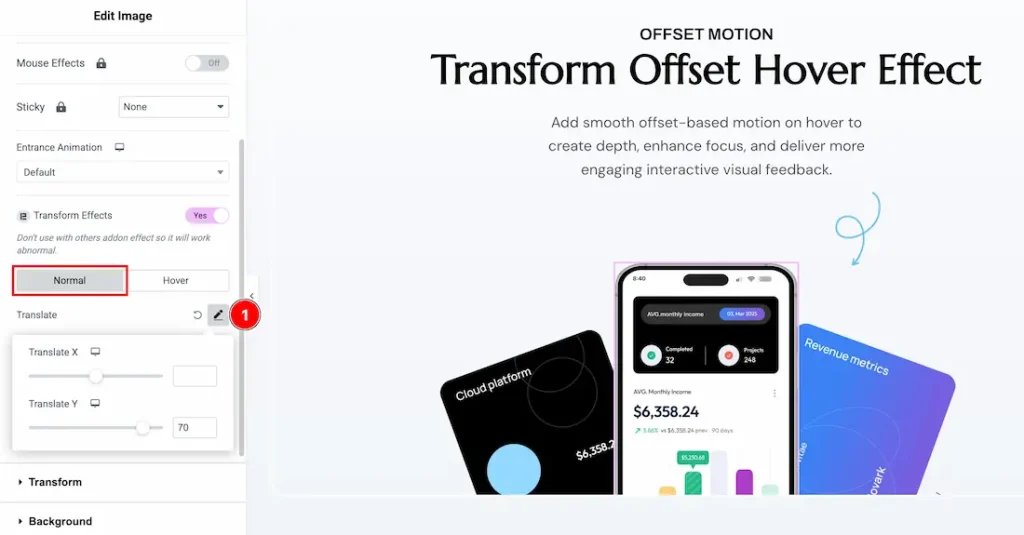
After enabling the Transform Effects switcher button, you will get the following customization options-
Here you will get two tab options: Normal and Hover. Let’s proceed with the Normal tab options-
1. Translate: Move the element horizontally or vertically to adjust its position on the X and Y axis.
- Translate X – Adjust the horizontal position of the element by moving it left or right along the X-axis.
- Translate Y – Adjust the vertical position of the element by moving it up or down along the Y-axis.
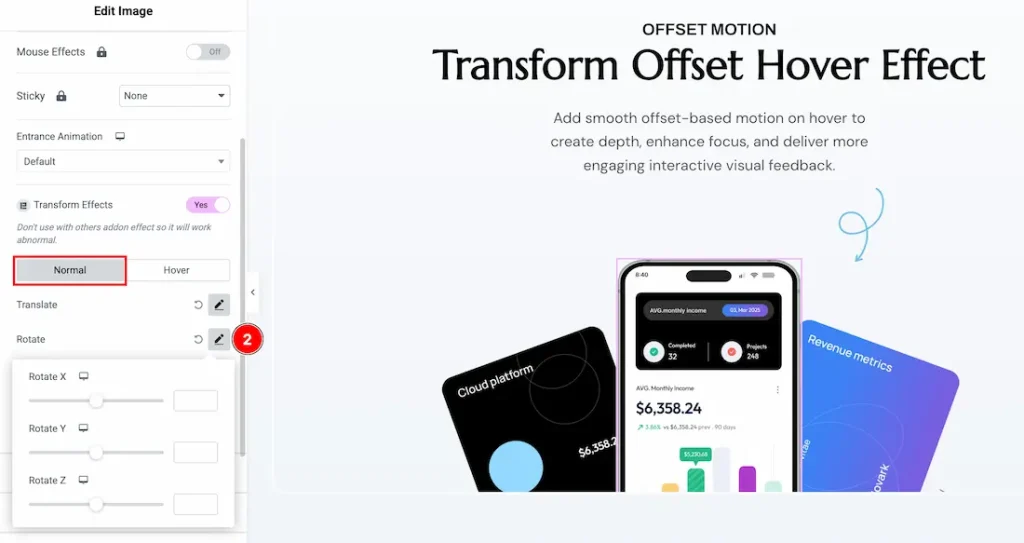
2. Rotate: Rotate the element to a specified angle for dynamic visual orientation.
- Rotate X – Rotate the element along the horizontal (X) axis to create a 3D tilt effect.
- Rotate Y – Rotate the element along the vertical (Y) axis for a side-to-side 3D rotation.
- Rotate Z – Rotate the element around the front-facing (Z) axis, creating a standard spin effect.
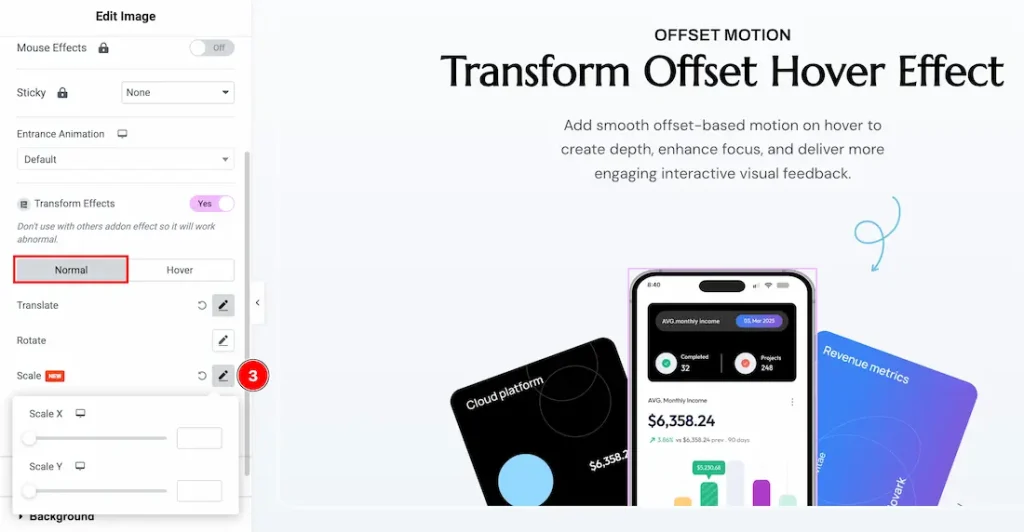
3. Scale: Increase or decrease the size of the element while maintaining its proportions.
- Scale X: Stretches or compresses the element horizontally (left ↔ right).
- Scale Y: Stretches or compresses the element vertically (up ↕ down).
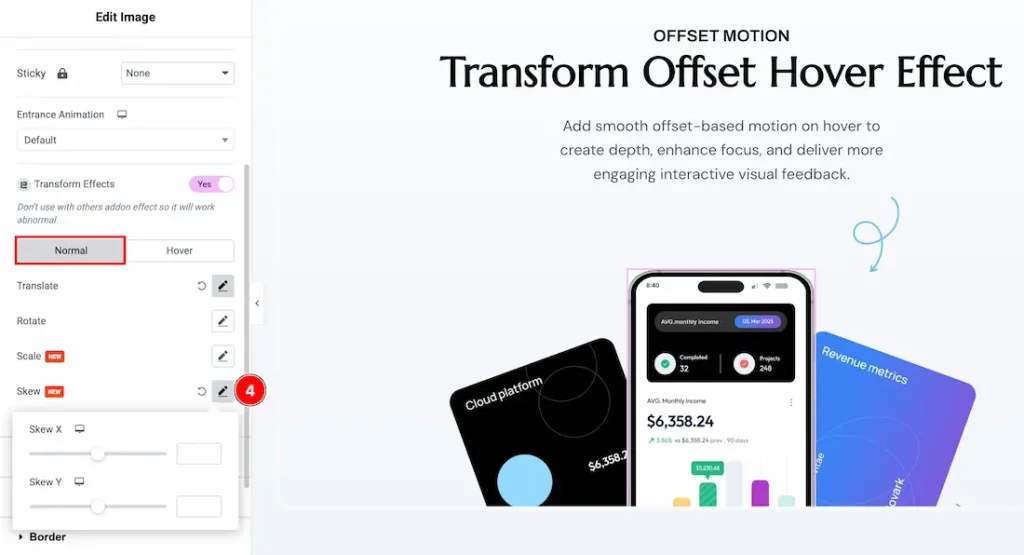
4. Skew: Tilt the element along the X or Y axis to create a slanted or distorted effect.
- Skew X: Slants the element horizontally (left ↔ right), making top and bottom edges shift.
- Skew Y: Slants the element vertically (up ↕ down), making left and right edges shift.
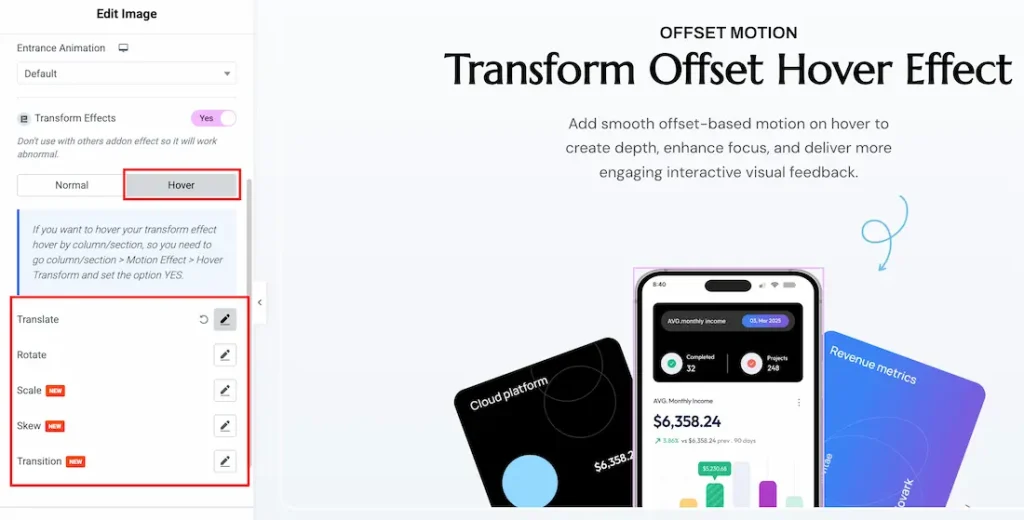
In the Hover tab section, you will get the same customization options as the normal tab section. Just try it yourself.
All done! You have successfully customized The Transform Effects Extension on your website.
Video Assist
Watch the video tutorial to learn more about the Transform Effects Extension. Please visit the demo page for examples.
Thanks for staying with us.