

In this documentation, we will show you how to change invoice information.
Log In Your Account
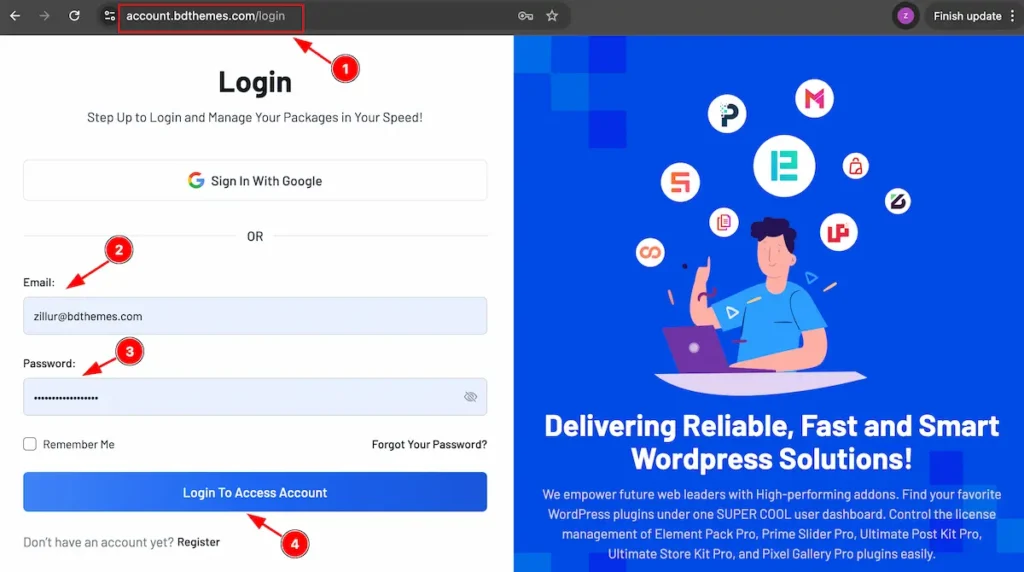
- Go to the link accounts.bdthemes.com
- Enter the Purchase email ( The email used for purchasing Any Pro Package ).
- Enter the password.
- Click on the ” Login To Access Account “ button to login to your license managements dashboard.
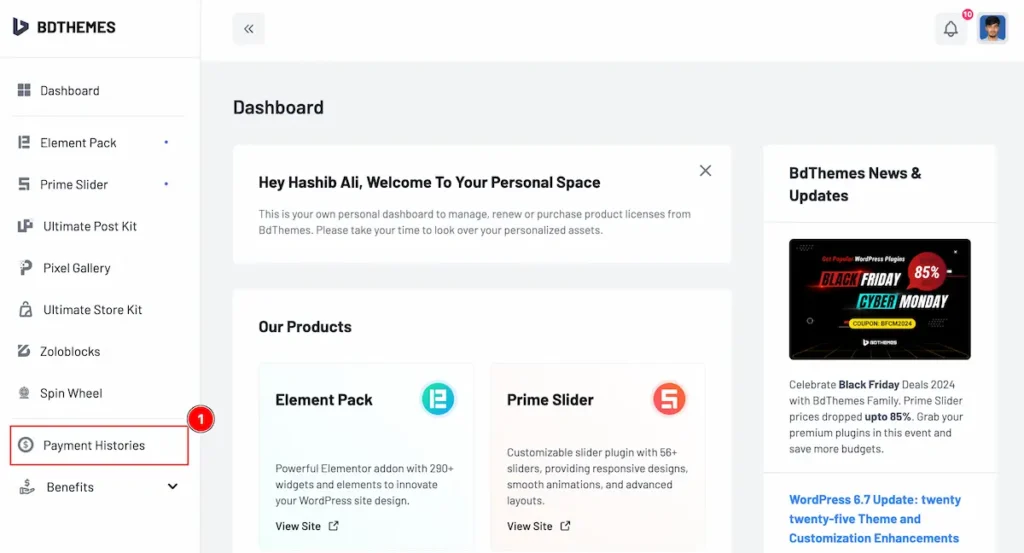
- After login go to the ” Payment Histories ” tab.
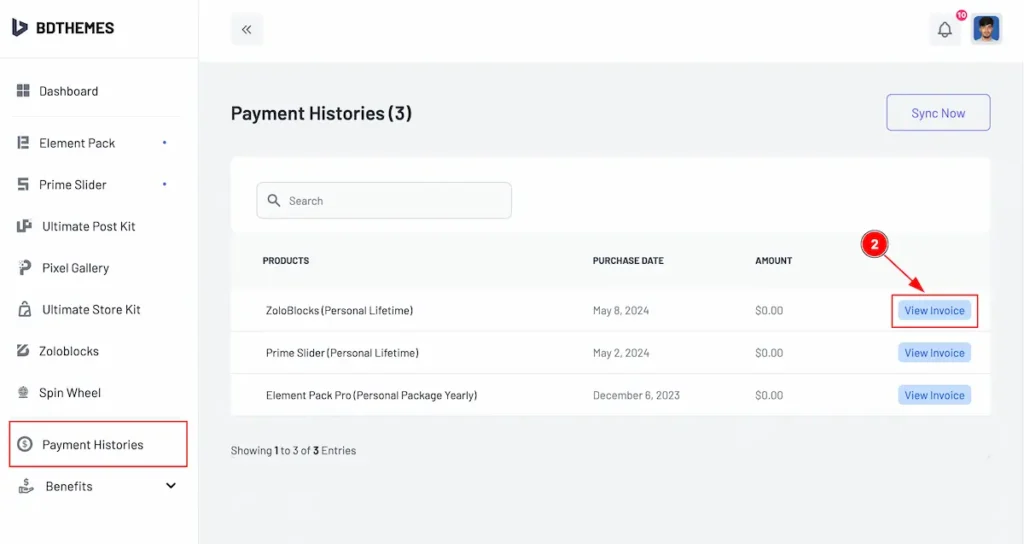
- Now find the button named “ View Invoice ” to check the invoice.
Invoice Information
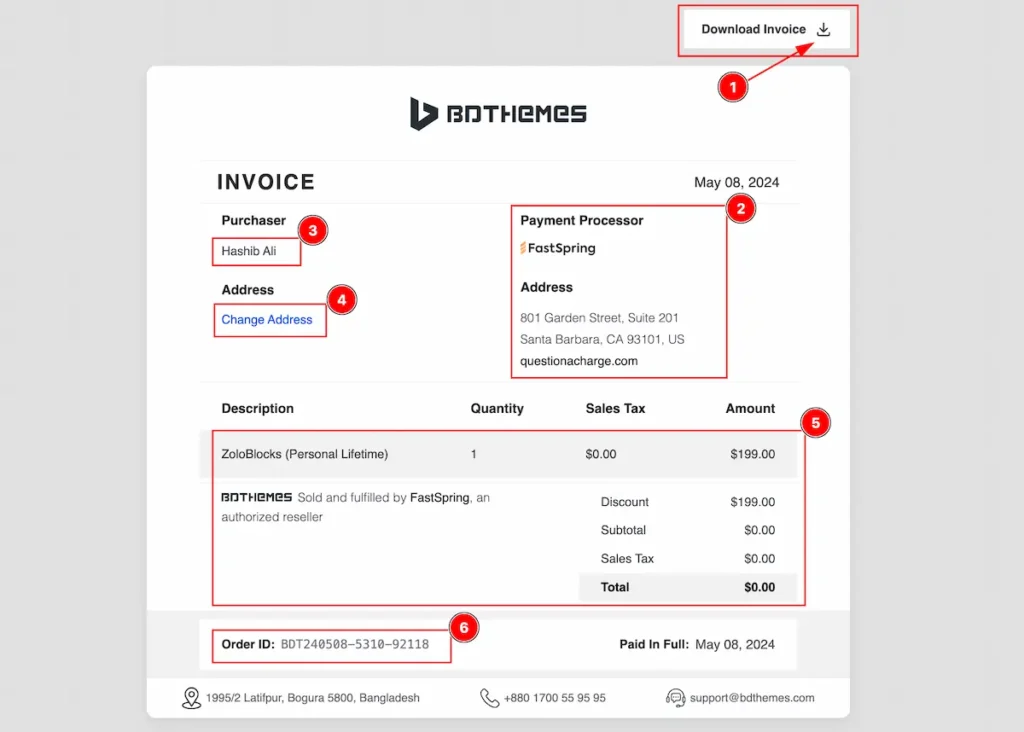
Introduction of Invoice.
- Find the “Download Invoice” on top right corner to download the invoice.
- Information about the Payment Processor.
- Purchaser information appear here.
- Address and VAT info appear here.
- Description, Quantity, Tax, Amount of you purchase products.
- Order ID appears here.
Change Invoice
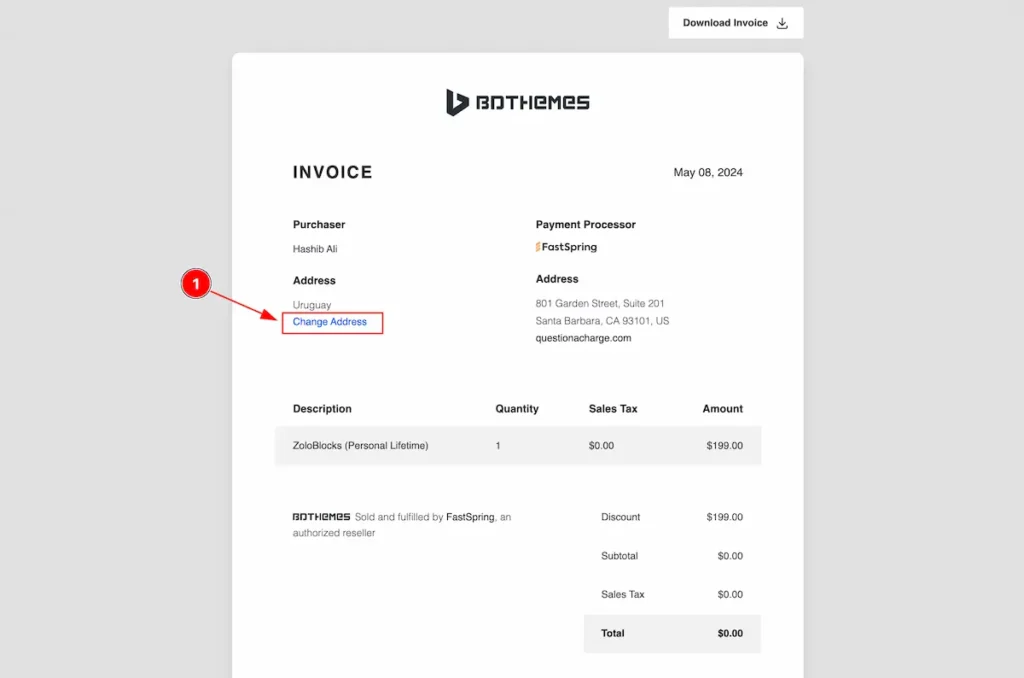
- Click on the ” Change Address ” button to edit your invoice.
Click on the link and it will take on the profile links.
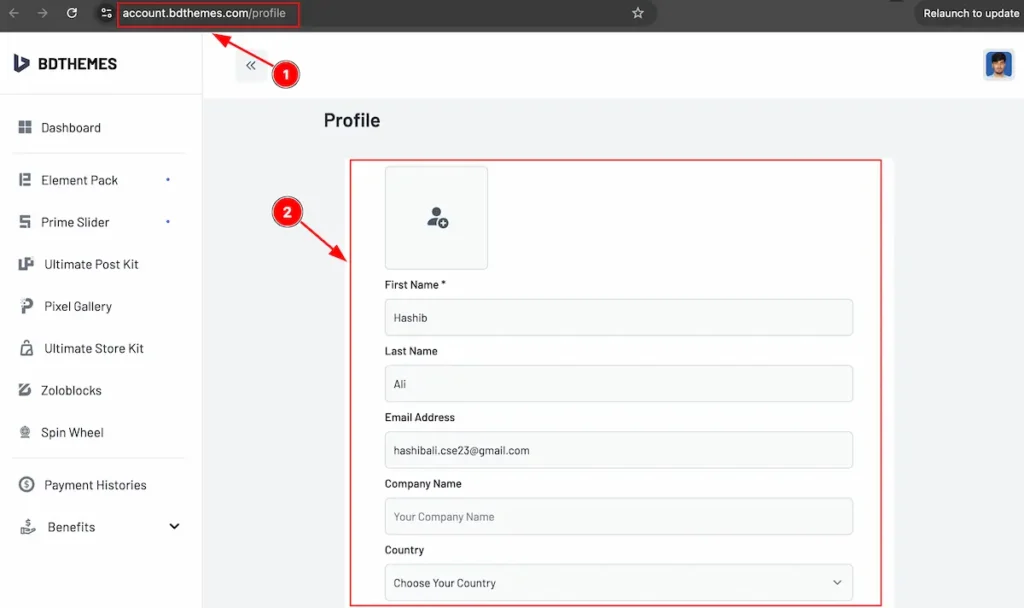
- It redirect to Profile link.
- The will appear the form to fill up.
| Profile Image | Set the profile image |
| First Name | Set the First name |
| Last Name | Last Name ( optional ) |
| Email Address | Purchase Email address ( Not Editable ) |
| Company Name | Set the Company Name |
| Country | Select Country |
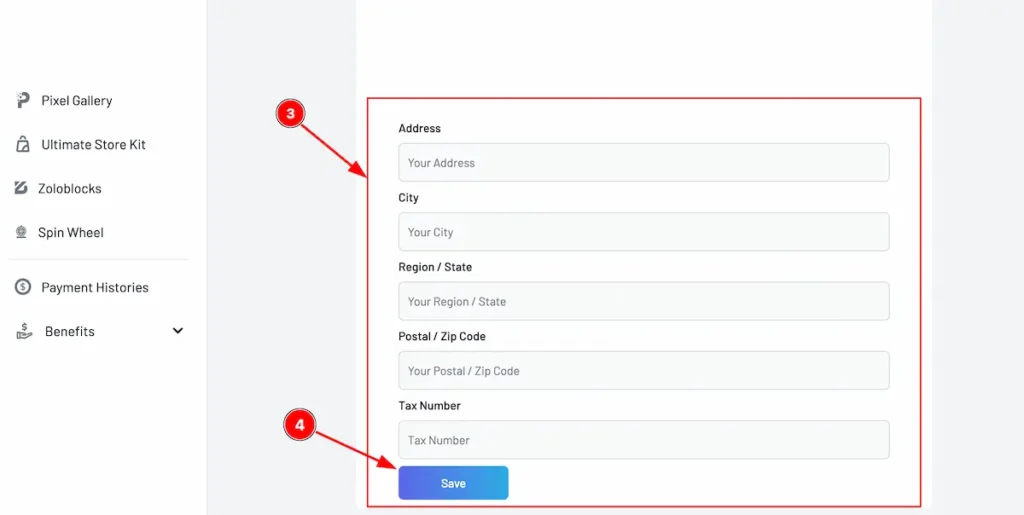
| Address | Set the address of your. |
| City | Set the City name |
| Region/State | Set the Region or State |
| Postal/Zip Code | Set the Postal or Zip Code |
| Tax Number | Set the Tax Number |
| Save ( Button ) | Click to save it. |
- Form input box to set.
- Click on the Save Button to make the save changes.
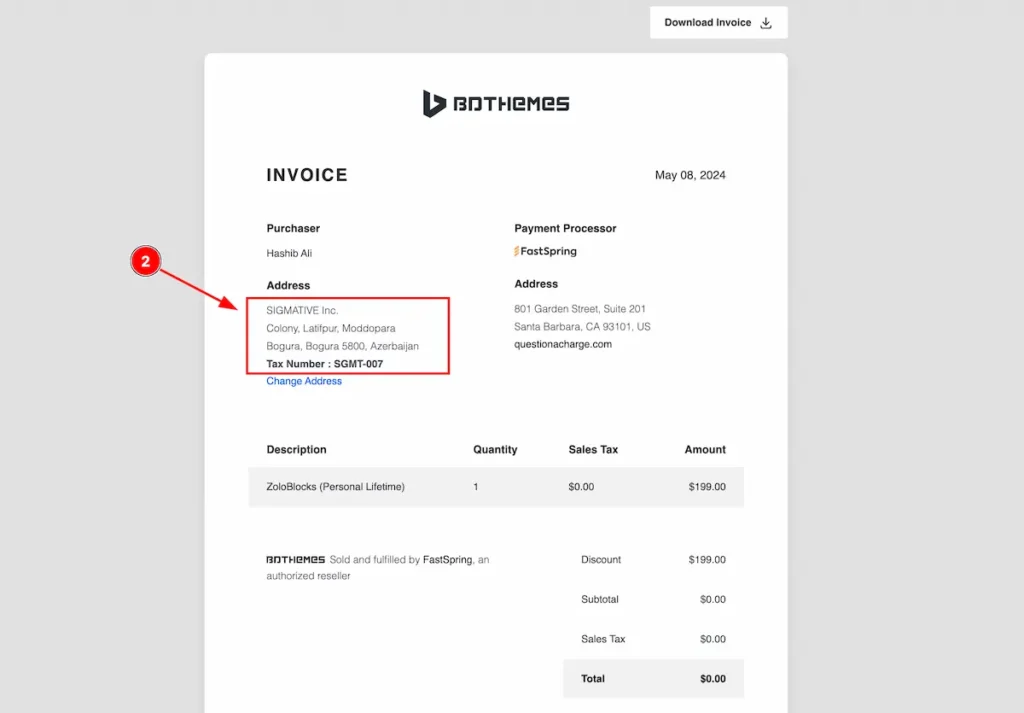
After making save changes reload the page.
- After changing the email you will find the information there.
This is an easy process to change the Invoice information.
Thanks for sharing reading the documentation.