Elementor is a powerful and intuitive page builder that allows you to create stunning websites without any coding knowledge.
However, there may be times when you need to edit the HTML of a particular element on your page.
In this blog post, we’ll explore how to edit HTML in Elementor.
How To Edit HTML In WordPress Elementor?
When working with Elementor, knowing the steps on how things work is better.
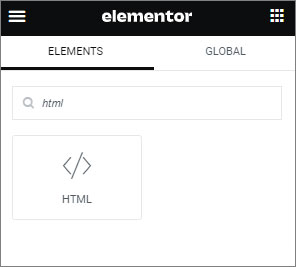
Step 1: Add HTML Element
Open the post or page and click on the “Edit with Elementor” button. To add Elementor HTML code to your page, drag and drop the HTML widget from the Editor Panel and paste your code into the text area.
Step 2: Add Code
To apply CSS, enclose your code with style tags at the beginning of your code. Similarly, enclose Javascript code with script tags at the bottom of your code.
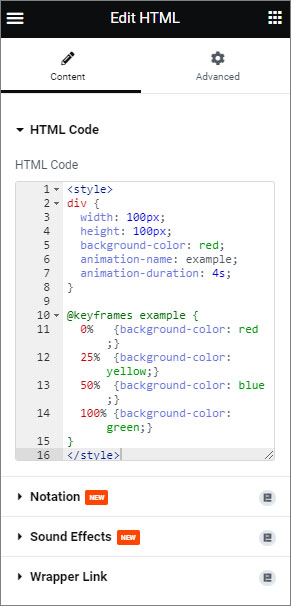
Step 3: Make Changes To The HTML
You can edit the codes anytime you want. All you need to do is click the html element and change the code.
Step 4: Save Your Changes
Once you have made your changes to the HTML, you need to save them by clicking on the Save button. This will update your element on the canvas to reflect your changes.
How Do I Edit A Website Page In Elementor?
Editing a website page with Elementor is easy. All you need to do is follow these steps:
- Log in to your WordPress website and navigate to the page you want to edit.
- Once you’re on the page, click the “Edit with Elementor” button. This will open up the Elementor editor.
- Use the drag-and-drop interface to add, remove, or edit elements on the page. You can add new sections, change the layout, and customize the design.
- To edit an existing element, simply click on it and make changes in the settings panel on the screen’s left side.
- Once you’re done editing, click the “Update” button to save your changes.
What Is Elementor Html Widget Shortcode?
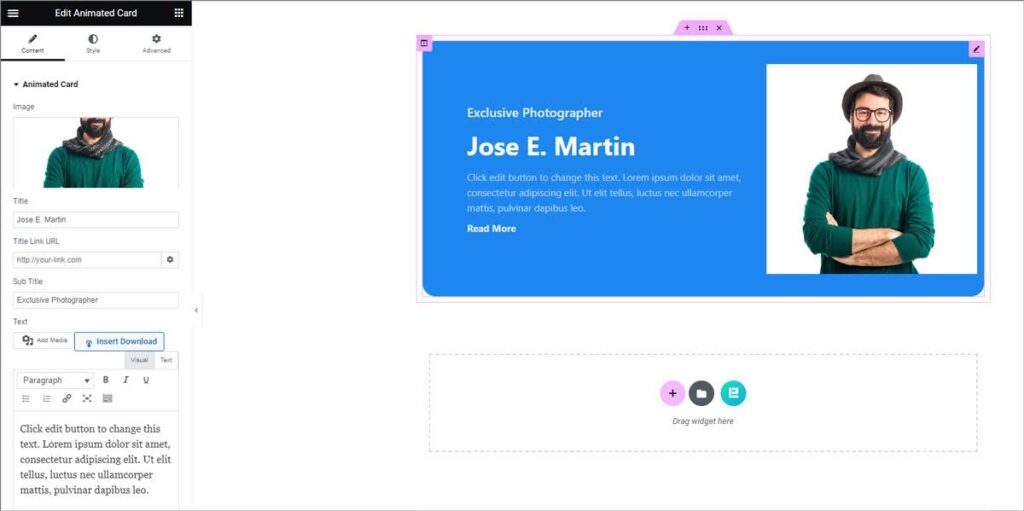
The Elementor page builder plugin offers users the ability to insert custom HTML code into their pages or posts using a shortcode, which can be added to any Elementor widget or block.
This feature enables users to display dynamic content, embed videos or forms, and seamlessly integrate third-party services and scripts into their website design.
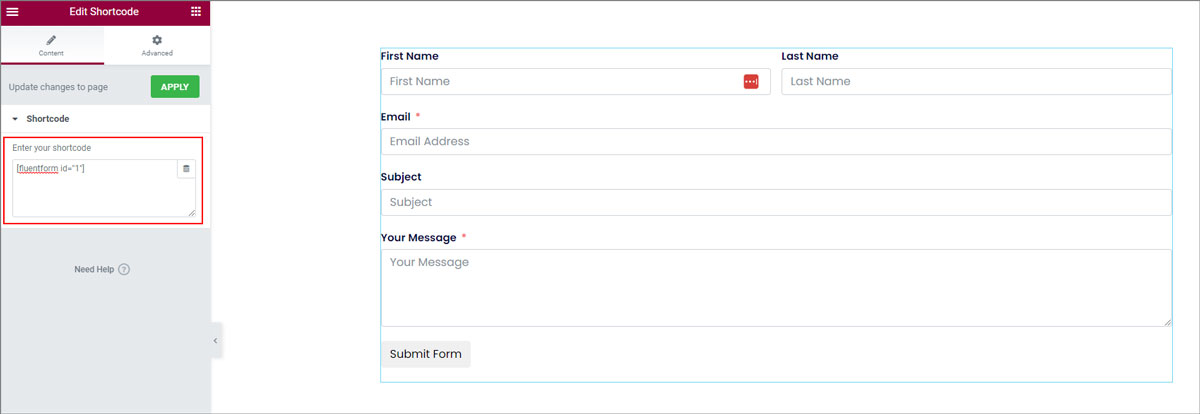
You need to install plugins to support the shortcode. Such as- to insert a form in the webpage, you need to install a form plugin. Only then your shortcode will appear.
Finally
Editing HTML in Elementor is a straightforward process that can be done in just a few simple steps.
By following these steps, you can make changes to the HTML of your Elementor elements, giving you more control over the appearance and functionality of your website.
So go ahead and give it a try – you’ll be surprised at how easy it is!
Facing problems with Custom CSS Not Working? Check out How To Fix Custom CSS Not Working [5 Ways].
Frequently Asked Questions
<span class="bdt-ep-accordion-icon bdt-flex-align-right"
aria-hidden="true">
<span class="bdt-ep-accordion-icon-closed">
<svg aria-hidden="true" class="fa-fw e-font-icon-svg e-far-arrow-alt-circle-right" viewBox="0 0 512 512" xmlns="http://www.w3.org/2000/svg"><path d="M504 256C504 119 393 8 256 8S8 119 8 256s111 248 248 248 248-111 248-248zm-448 0c0-110.5 89.5-200 200-200s200 89.5 200 200-89.5 200-200 200S56 366.5 56 256zm72 20v-40c0-6.6 5.4-12 12-12h116v-67c0-10.7 12.9-16 20.5-8.5l99 99c4.7 4.7 4.7 12.3 0 17l-99 99c-7.6 7.6-20.5 2.2-20.5-8.5v-67H140c-6.6 0-12-5.4-12-12z"></path></svg> </span>
<span class="bdt-ep-accordion-icon-opened">
<svg aria-hidden="true" class="fa-fw e-font-icon-svg e-fas-minus" viewBox="0 0 448 512" xmlns="http://www.w3.org/2000/svg"><path d="M416 208H32c-17.67 0-32 14.33-32 32v32c0 17.67 14.33 32 32 32h384c17.67 0 32-14.33 32-32v-32c0-17.67-14.33-32-32-32z"></path></svg> </span>
</span>
<span role="heading" class="bdt-ep-title-text bdt-flex-inline bdt-flex-middle" >
Why Is The Elementor Html Widget Not Working? </span>
</h4>
<div class="bdt-ep-accordion-content bdt-accordion-content">
<p>There are several reasons why the Elementor HTML widget may not be working. Such as an outdated version of Elementor or a conflict with other plugins or themes. To troubleshoot the issue, you can try disabling other plugins, updating Elementor to the latest version, or contacting Elementor support for further assistance.</p> </div>
</div>
<div class="bdt-ep-accordion-item">
<h4 class="bdt-ep-accordion-title bdt-accordion-title bdt-flex bdt-flex-middle bdt-flex-between" id="bdt-ep-accordion-in-elementor-how-to-edit-header"
data-accordion-index="1" data-title="in-elementor-how-to-edit-header">
<span class="bdt-ep-accordion-icon bdt-flex-align-right"
aria-hidden="true">
<span class="bdt-ep-accordion-icon-closed">
<svg aria-hidden="true" class="fa-fw e-font-icon-svg e-far-arrow-alt-circle-right" viewBox="0 0 512 512" xmlns="http://www.w3.org/2000/svg"><path d="M504 256C504 119 393 8 256 8S8 119 8 256s111 248 248 248 248-111 248-248zm-448 0c0-110.5 89.5-200 200-200s200 89.5 200 200-89.5 200-200 200S56 366.5 56 256zm72 20v-40c0-6.6 5.4-12 12-12h116v-67c0-10.7 12.9-16 20.5-8.5l99 99c4.7 4.7 4.7 12.3 0 17l-99 99c-7.6 7.6-20.5 2.2-20.5-8.5v-67H140c-6.6 0-12-5.4-12-12z"></path></svg> </span>
<span class="bdt-ep-accordion-icon-opened">
<svg aria-hidden="true" class="fa-fw e-font-icon-svg e-fas-minus" viewBox="0 0 448 512" xmlns="http://www.w3.org/2000/svg"><path d="M416 208H32c-17.67 0-32 14.33-32 32v32c0 17.67 14.33 32 32 32h384c17.67 0 32-14.33 32-32v-32c0-17.67-14.33-32-32-32z"></path></svg> </span>
</span>
<span role="heading" class="bdt-ep-title-text bdt-flex-inline bdt-flex-middle" >
In Elementor How To Edit Header? </span>
</h4>
<div class="bdt-ep-accordion-content bdt-accordion-content">
<p><span style="font-weight: 400;">To edit the header in Elementor, you can use the Elementor Theme Builder feature, which allows you to create custom headers using Elementor’s drag-and-drop editor. To access this feature, go to </span><b>Templates </b><span style="font-weight: 400;">> </span><b>Theme Builder </b><span style="font-weight: 400;">from the left sidebar on the WordPress dashboard. After that, select “</span><b>Header</b><span style="font-weight: 400;">” from the Elementor Theme Builder’s left sidebar. Then choose your header and click on the “</span><b>Edit</b><span style="font-weight: 400;">” button.</span></p> </div>
</div>
<div class="bdt-ep-accordion-item">
<h4 class="bdt-ep-accordion-title bdt-accordion-title bdt-flex bdt-flex-middle bdt-flex-between" id="bdt-ep-accordion-how-to-edit-footer-in-elementor-free"
data-accordion-index="2" data-title="how-to-edit-footer-in-elementor-free">
<span class="bdt-ep-accordion-icon bdt-flex-align-right"
aria-hidden="true">
<span class="bdt-ep-accordion-icon-closed">
<svg aria-hidden="true" class="fa-fw e-font-icon-svg e-far-arrow-alt-circle-right" viewBox="0 0 512 512" xmlns="http://www.w3.org/2000/svg"><path d="M504 256C504 119 393 8 256 8S8 119 8 256s111 248 248 248 248-111 248-248zm-448 0c0-110.5 89.5-200 200-200s200 89.5 200 200-89.5 200-200 200S56 366.5 56 256zm72 20v-40c0-6.6 5.4-12 12-12h116v-67c0-10.7 12.9-16 20.5-8.5l99 99c4.7 4.7 4.7 12.3 0 17l-99 99c-7.6 7.6-20.5 2.2-20.5-8.5v-67H140c-6.6 0-12-5.4-12-12z"></path></svg> </span>
<span class="bdt-ep-accordion-icon-opened">
<svg aria-hidden="true" class="fa-fw e-font-icon-svg e-fas-minus" viewBox="0 0 448 512" xmlns="http://www.w3.org/2000/svg"><path d="M416 208H32c-17.67 0-32 14.33-32 32v32c0 17.67 14.33 32 32 32h384c17.67 0 32-14.33 32-32v-32c0-17.67-14.33-32-32-32z"></path></svg> </span>
</span>
<span role="heading" class="bdt-ep-title-text bdt-flex-inline bdt-flex-middle" >
How To Edit Footer In Elementor Free? </span>
</h4>
<div class="bdt-ep-accordion-content bdt-accordion-content">
<p><span style="font-weight: 400;">To edit the footer in Elementor, you can use the Elementor Theme Builder feature, which allows you to create custom footers using Elementor’s drag-and-drop editor. To access this feature, go to </span><b>Templates </b><span style="font-weight: 400;">> </span><b>Theme Builder </b><span style="font-weight: 400;">from the left sidebar on the WordPress dashboard. After that, select “</span><b>Footer</b><span style="font-weight: 400;">” from the Elementor Theme Builder’s left sidebar. Then choose your footer and click on the “</span><b>Edit</b><span style="font-weight: 400;">” button.</span></p> </div>
</div>
<div class="bdt-ep-accordion-item">
<h4 class="bdt-ep-accordion-title bdt-accordion-title bdt-flex bdt-flex-middle bdt-flex-between" id="bdt-ep-accordion-how-to-add-button-html-code-in-elementor"
data-accordion-index="3" data-title="how-to-add-button-html-code-in-elementor">
<span class="bdt-ep-accordion-icon bdt-flex-align-right"
aria-hidden="true">
<span class="bdt-ep-accordion-icon-closed">
<svg aria-hidden="true" class="fa-fw e-font-icon-svg e-far-arrow-alt-circle-right" viewBox="0 0 512 512" xmlns="http://www.w3.org/2000/svg"><path d="M504 256C504 119 393 8 256 8S8 119 8 256s111 248 248 248 248-111 248-248zm-448 0c0-110.5 89.5-200 200-200s200 89.5 200 200-89.5 200-200 200S56 366.5 56 256zm72 20v-40c0-6.6 5.4-12 12-12h116v-67c0-10.7 12.9-16 20.5-8.5l99 99c4.7 4.7 4.7 12.3 0 17l-99 99c-7.6 7.6-20.5 2.2-20.5-8.5v-67H140c-6.6 0-12-5.4-12-12z"></path></svg> </span>
<span class="bdt-ep-accordion-icon-opened">
<svg aria-hidden="true" class="fa-fw e-font-icon-svg e-fas-minus" viewBox="0 0 448 512" xmlns="http://www.w3.org/2000/svg"><path d="M416 208H32c-17.67 0-32 14.33-32 32v32c0 17.67 14.33 32 32 32h384c17.67 0 32-14.33 32-32v-32c0-17.67-14.33-32-32-32z"></path></svg> </span>
</span>
<span role="heading" class="bdt-ep-title-text bdt-flex-inline bdt-flex-middle" >
How To Add Button HTML Code In Elementor? </span>
</h4>
<div class="bdt-ep-accordion-content bdt-accordion-content">
<ol><li style="font-weight: 400;" aria-level="1"><span style="font-weight: 400;">Open Elementor and select your page.</span></li><li style="font-weight: 400;" aria-level="1"><span style="font-weight: 400;">Add a Button widget to your section.</span></li><li style="font-weight: 400;" aria-level="1"><span style="font-weight: 400;">Customize its text and style.</span></li><li style="font-weight: 400;" aria-level="1"><span style="font-weight: 400;">Switch to HTML mode in Elementor.</span></li><li style="font-weight: 400;" aria-level="1"><span style="font-weight: 400;">Input your HTML button code. The HTML code for a simple button typically looks like this: <button type=”button”>Click Me</button></span></li><li style="font-weight: 400;" aria-level="1"><span style="font-weight: 400;">Preview and publish your changes.</span></li></ol> </div>
</div>
<div class="bdt-ep-accordion-item">
<h4 class="bdt-ep-accordion-title bdt-accordion-title bdt-flex bdt-flex-middle bdt-flex-between" id="bdt-ep-accordion-how-to-save-changes-in-elementor"
data-accordion-index="4" data-title="how-to-save-changes-in-elementor">
<span class="bdt-ep-accordion-icon bdt-flex-align-right"
aria-hidden="true">
<span class="bdt-ep-accordion-icon-closed">
<svg aria-hidden="true" class="fa-fw e-font-icon-svg e-far-arrow-alt-circle-right" viewBox="0 0 512 512" xmlns="http://www.w3.org/2000/svg"><path d="M504 256C504 119 393 8 256 8S8 119 8 256s111 248 248 248 248-111 248-248zm-448 0c0-110.5 89.5-200 200-200s200 89.5 200 200-89.5 200-200 200S56 366.5 56 256zm72 20v-40c0-6.6 5.4-12 12-12h116v-67c0-10.7 12.9-16 20.5-8.5l99 99c4.7 4.7 4.7 12.3 0 17l-99 99c-7.6 7.6-20.5 2.2-20.5-8.5v-67H140c-6.6 0-12-5.4-12-12z"></path></svg> </span>
<span class="bdt-ep-accordion-icon-opened">
<svg aria-hidden="true" class="fa-fw e-font-icon-svg e-fas-minus" viewBox="0 0 448 512" xmlns="http://www.w3.org/2000/svg"><path d="M416 208H32c-17.67 0-32 14.33-32 32v32c0 17.67 14.33 32 32 32h384c17.67 0 32-14.33 32-32v-32c0-17.67-14.33-32-32-32z"></path></svg> </span>
</span>
<span role="heading" class="bdt-ep-title-text bdt-flex-inline bdt-flex-middle" >
How To Save Changes In Elementor? </span>
</h4>
<div class="bdt-ep-accordion-content bdt-accordion-content">
<p><span style="font-weight: 400;">Saving changes in Elementor is quite simple. Here’s how you do it:</span></p><ol><li style="font-weight: 400;" aria-level="1"><span style="font-weight: 400;">After making your desired changes in the Elementor editor, look for the green “Update” button at the bottom left corner of the screen.</span></li><li style="font-weight: 400;" aria-level="1"><span style="font-weight: 400;">Click on the “Update” button to save your changes.</span></li><li style="font-weight: 400;" aria-level="1"><span style="font-weight: 400;">If you’re working on a new page and want to save it for the first time, you’ll see a “Save Draft” button instead. Click on it to save your work as a draft.</span></li></ol> </div>
</div>
<div class="bdt-ep-accordion-item">
<h4 class="bdt-ep-accordion-title bdt-accordion-title bdt-flex bdt-flex-middle bdt-flex-between" id="bdt-ep-accordion-how-to-add-javascript-to-elementor"
data-accordion-index="5" data-title="how-to-add-javascript-to-elementor">
<span class="bdt-ep-accordion-icon bdt-flex-align-right"
aria-hidden="true">
<span class="bdt-ep-accordion-icon-closed">
<svg aria-hidden="true" class="fa-fw e-font-icon-svg e-far-arrow-alt-circle-right" viewBox="0 0 512 512" xmlns="http://www.w3.org/2000/svg"><path d="M504 256C504 119 393 8 256 8S8 119 8 256s111 248 248 248 248-111 248-248zm-448 0c0-110.5 89.5-200 200-200s200 89.5 200 200-89.5 200-200 200S56 366.5 56 256zm72 20v-40c0-6.6 5.4-12 12-12h116v-67c0-10.7 12.9-16 20.5-8.5l99 99c4.7 4.7 4.7 12.3 0 17l-99 99c-7.6 7.6-20.5 2.2-20.5-8.5v-67H140c-6.6 0-12-5.4-12-12z"></path></svg> </span>
<span class="bdt-ep-accordion-icon-opened">
<svg aria-hidden="true" class="fa-fw e-font-icon-svg e-fas-minus" viewBox="0 0 448 512" xmlns="http://www.w3.org/2000/svg"><path d="M416 208H32c-17.67 0-32 14.33-32 32v32c0 17.67 14.33 32 32 32h384c17.67 0 32-14.33 32-32v-32c0-17.67-14.33-32-32-32z"></path></svg> </span>
</span>
<span role="heading" class="bdt-ep-title-text bdt-flex-inline bdt-flex-middle" >
How To Add JavaScript To Elementor? </span>
</h4>
<div class="bdt-ep-accordion-content bdt-accordion-content">
<p><span style="font-weight: 400;">To add JavaScript code to Elementor, follow these steps:</span></p><ol><li style="font-weight: 400;" aria-level="1"><span style="font-weight: 400;">Open Elementor and select your page.</span></li><li style="font-weight: 400;" aria-level="1"><span style="font-weight: 400;">Add a Code widget to your section.</span></li><li style="font-weight: 400;" aria-level="1"><span style="font-weight: 400;">Paste your JavaScript code into the widget.</span></li><li style="font-weight: 400;" aria-level="1"><span style="font-weight: 400;">Update and preview your changes.</span></li><li style="font-weight: 400;" aria-level="1"><span style="font-weight: 400;">Publish your page.</span></li></ol> </div>
</div>
<div class="bdt-ep-accordion-item">
<h4 class="bdt-ep-accordion-title bdt-accordion-title bdt-flex bdt-flex-middle bdt-flex-between" id="bdt-ep-accordion-how-to-add-shortcode-in-elementor-button"
data-accordion-index="6" data-title="how-to-add-shortcode-in-elementor-button">
<span class="bdt-ep-accordion-icon bdt-flex-align-right"
aria-hidden="true">
<span class="bdt-ep-accordion-icon-closed">
<svg aria-hidden="true" class="fa-fw e-font-icon-svg e-far-arrow-alt-circle-right" viewBox="0 0 512 512" xmlns="http://www.w3.org/2000/svg"><path d="M504 256C504 119 393 8 256 8S8 119 8 256s111 248 248 248 248-111 248-248zm-448 0c0-110.5 89.5-200 200-200s200 89.5 200 200-89.5 200-200 200S56 366.5 56 256zm72 20v-40c0-6.6 5.4-12 12-12h116v-67c0-10.7 12.9-16 20.5-8.5l99 99c4.7 4.7 4.7 12.3 0 17l-99 99c-7.6 7.6-20.5 2.2-20.5-8.5v-67H140c-6.6 0-12-5.4-12-12z"></path></svg> </span>
<span class="bdt-ep-accordion-icon-opened">
<svg aria-hidden="true" class="fa-fw e-font-icon-svg e-fas-minus" viewBox="0 0 448 512" xmlns="http://www.w3.org/2000/svg"><path d="M416 208H32c-17.67 0-32 14.33-32 32v32c0 17.67 14.33 32 32 32h384c17.67 0 32-14.33 32-32v-32c0-17.67-14.33-32-32-32z"></path></svg> </span>
</span>
<span role="heading" class="bdt-ep-title-text bdt-flex-inline bdt-flex-middle" >
How To Add Shortcode In Elementor Button? </span>
</h4>
<div class="bdt-ep-accordion-content bdt-accordion-content">
<p><span style="font-weight: 400;">To add a shortcode within an Elementor button, you can use the following steps:</span></p><ol><li style="font-weight: 400;" aria-level="1"><span style="font-weight: 400;">Open Elementor and select your page.</span></li><li style="font-weight: 400;" aria-level="1"><span style="font-weight: 400;">Add a Button widget to your section.</span></li><li style="font-weight: 400;" aria-level="1"><span style="font-weight: 400;">In the button text field, paste your shortcode. For example, if your shortcode is [example_shortcode], you would paste it into the button text field.</span></li><li style="font-weight: 400;" aria-level="1"><span style="font-weight: 400;">Update and preview your changes.</span></li><li style="font-weight: 400;" aria-level="1"><span style="font-weight: 400;">Publish your page.</span></li></ol> </div>
</div>
</div>
</div>
</div>
</div>
</div>
</div>
</section>
</div>
<span class="bdt-ep-accordion-icon bdt-flex-align-right"
aria-hidden="true">
<span class="bdt-ep-accordion-icon-closed">
<svg aria-hidden="true" class="fa-fw e-font-icon-svg e-far-arrow-alt-circle-right" viewBox="0 0 512 512" xmlns="http://www.w3.org/2000/svg"><path d="M504 256C504 119 393 8 256 8S8 119 8 256s111 248 248 248 248-111 248-248zm-448 0c0-110.5 89.5-200 200-200s200 89.5 200 200-89.5 200-200 200S56 366.5 56 256zm72 20v-40c0-6.6 5.4-12 12-12h116v-67c0-10.7 12.9-16 20.5-8.5l99 99c4.7 4.7 4.7 12.3 0 17l-99 99c-7.6 7.6-20.5 2.2-20.5-8.5v-67H140c-6.6 0-12-5.4-12-12z"></path></svg> </span>
<span class="bdt-ep-accordion-icon-opened">
<svg aria-hidden="true" class="fa-fw e-font-icon-svg e-fas-minus" viewBox="0 0 448 512" xmlns="http://www.w3.org/2000/svg"><path d="M416 208H32c-17.67 0-32 14.33-32 32v32c0 17.67 14.33 32 32 32h384c17.67 0 32-14.33 32-32v-32c0-17.67-14.33-32-32-32z"></path></svg> </span>
</span>
<span role="heading" class="bdt-ep-title-text bdt-flex-inline bdt-flex-middle" >
Why Is The Elementor Html Widget Not Working? </span>
</h4>
<div class="bdt-ep-accordion-content bdt-accordion-content">
<p>There are several reasons why the Elementor HTML widget may not be working. Such as an outdated version of Elementor or a conflict with other plugins or themes. To troubleshoot the issue, you can try disabling other plugins, updating Elementor to the latest version, or contacting Elementor support for further assistance.</p> </div>
</div>
<div class="bdt-ep-accordion-item">
<h4 class="bdt-ep-accordion-title bdt-accordion-title bdt-flex bdt-flex-middle bdt-flex-between" id="bdt-ep-accordion-in-elementor-how-to-edit-header"
data-accordion-index="1" data-title="in-elementor-how-to-edit-header">
<span class="bdt-ep-accordion-icon bdt-flex-align-right"
aria-hidden="true">
<span class="bdt-ep-accordion-icon-closed">
<svg aria-hidden="true" class="fa-fw e-font-icon-svg e-far-arrow-alt-circle-right" viewBox="0 0 512 512" xmlns="http://www.w3.org/2000/svg"><path d="M504 256C504 119 393 8 256 8S8 119 8 256s111 248 248 248 248-111 248-248zm-448 0c0-110.5 89.5-200 200-200s200 89.5 200 200-89.5 200-200 200S56 366.5 56 256zm72 20v-40c0-6.6 5.4-12 12-12h116v-67c0-10.7 12.9-16 20.5-8.5l99 99c4.7 4.7 4.7 12.3 0 17l-99 99c-7.6 7.6-20.5 2.2-20.5-8.5v-67H140c-6.6 0-12-5.4-12-12z"></path></svg> </span>
<span class="bdt-ep-accordion-icon-opened">
<svg aria-hidden="true" class="fa-fw e-font-icon-svg e-fas-minus" viewBox="0 0 448 512" xmlns="http://www.w3.org/2000/svg"><path d="M416 208H32c-17.67 0-32 14.33-32 32v32c0 17.67 14.33 32 32 32h384c17.67 0 32-14.33 32-32v-32c0-17.67-14.33-32-32-32z"></path></svg> </span>
</span>
<span role="heading" class="bdt-ep-title-text bdt-flex-inline bdt-flex-middle" >
In Elementor How To Edit Header? </span>
</h4>
<div class="bdt-ep-accordion-content bdt-accordion-content">
<p><span style="font-weight: 400;">To edit the header in Elementor, you can use the Elementor Theme Builder feature, which allows you to create custom headers using Elementor’s drag-and-drop editor. To access this feature, go to </span><b>Templates </b><span style="font-weight: 400;">> </span><b>Theme Builder </b><span style="font-weight: 400;">from the left sidebar on the WordPress dashboard. After that, select “</span><b>Header</b><span style="font-weight: 400;">” from the Elementor Theme Builder’s left sidebar. Then choose your header and click on the “</span><b>Edit</b><span style="font-weight: 400;">” button.</span></p> </div>
</div>
<div class="bdt-ep-accordion-item">
<h4 class="bdt-ep-accordion-title bdt-accordion-title bdt-flex bdt-flex-middle bdt-flex-between" id="bdt-ep-accordion-how-to-edit-footer-in-elementor-free"
data-accordion-index="2" data-title="how-to-edit-footer-in-elementor-free">
<span class="bdt-ep-accordion-icon bdt-flex-align-right"
aria-hidden="true">
<span class="bdt-ep-accordion-icon-closed">
<svg aria-hidden="true" class="fa-fw e-font-icon-svg e-far-arrow-alt-circle-right" viewBox="0 0 512 512" xmlns="http://www.w3.org/2000/svg"><path d="M504 256C504 119 393 8 256 8S8 119 8 256s111 248 248 248 248-111 248-248zm-448 0c0-110.5 89.5-200 200-200s200 89.5 200 200-89.5 200-200 200S56 366.5 56 256zm72 20v-40c0-6.6 5.4-12 12-12h116v-67c0-10.7 12.9-16 20.5-8.5l99 99c4.7 4.7 4.7 12.3 0 17l-99 99c-7.6 7.6-20.5 2.2-20.5-8.5v-67H140c-6.6 0-12-5.4-12-12z"></path></svg> </span>
<span class="bdt-ep-accordion-icon-opened">
<svg aria-hidden="true" class="fa-fw e-font-icon-svg e-fas-minus" viewBox="0 0 448 512" xmlns="http://www.w3.org/2000/svg"><path d="M416 208H32c-17.67 0-32 14.33-32 32v32c0 17.67 14.33 32 32 32h384c17.67 0 32-14.33 32-32v-32c0-17.67-14.33-32-32-32z"></path></svg> </span>
</span>
<span role="heading" class="bdt-ep-title-text bdt-flex-inline bdt-flex-middle" >
How To Edit Footer In Elementor Free? </span>
</h4>
<div class="bdt-ep-accordion-content bdt-accordion-content">
<p><span style="font-weight: 400;">To edit the footer in Elementor, you can use the Elementor Theme Builder feature, which allows you to create custom footers using Elementor’s drag-and-drop editor. To access this feature, go to </span><b>Templates </b><span style="font-weight: 400;">> </span><b>Theme Builder </b><span style="font-weight: 400;">from the left sidebar on the WordPress dashboard. After that, select “</span><b>Footer</b><span style="font-weight: 400;">” from the Elementor Theme Builder’s left sidebar. Then choose your footer and click on the “</span><b>Edit</b><span style="font-weight: 400;">” button.</span></p> </div>
</div>
<div class="bdt-ep-accordion-item">
<h4 class="bdt-ep-accordion-title bdt-accordion-title bdt-flex bdt-flex-middle bdt-flex-between" id="bdt-ep-accordion-how-to-add-button-html-code-in-elementor"
data-accordion-index="3" data-title="how-to-add-button-html-code-in-elementor">
<span class="bdt-ep-accordion-icon bdt-flex-align-right"
aria-hidden="true">
<span class="bdt-ep-accordion-icon-closed">
<svg aria-hidden="true" class="fa-fw e-font-icon-svg e-far-arrow-alt-circle-right" viewBox="0 0 512 512" xmlns="http://www.w3.org/2000/svg"><path d="M504 256C504 119 393 8 256 8S8 119 8 256s111 248 248 248 248-111 248-248zm-448 0c0-110.5 89.5-200 200-200s200 89.5 200 200-89.5 200-200 200S56 366.5 56 256zm72 20v-40c0-6.6 5.4-12 12-12h116v-67c0-10.7 12.9-16 20.5-8.5l99 99c4.7 4.7 4.7 12.3 0 17l-99 99c-7.6 7.6-20.5 2.2-20.5-8.5v-67H140c-6.6 0-12-5.4-12-12z"></path></svg> </span>
<span class="bdt-ep-accordion-icon-opened">
<svg aria-hidden="true" class="fa-fw e-font-icon-svg e-fas-minus" viewBox="0 0 448 512" xmlns="http://www.w3.org/2000/svg"><path d="M416 208H32c-17.67 0-32 14.33-32 32v32c0 17.67 14.33 32 32 32h384c17.67 0 32-14.33 32-32v-32c0-17.67-14.33-32-32-32z"></path></svg> </span>
</span>
<span role="heading" class="bdt-ep-title-text bdt-flex-inline bdt-flex-middle" >
How To Add Button HTML Code In Elementor? </span>
</h4>
<div class="bdt-ep-accordion-content bdt-accordion-content">
<ol><li style="font-weight: 400;" aria-level="1"><span style="font-weight: 400;">Open Elementor and select your page.</span></li><li style="font-weight: 400;" aria-level="1"><span style="font-weight: 400;">Add a Button widget to your section.</span></li><li style="font-weight: 400;" aria-level="1"><span style="font-weight: 400;">Customize its text and style.</span></li><li style="font-weight: 400;" aria-level="1"><span style="font-weight: 400;">Switch to HTML mode in Elementor.</span></li><li style="font-weight: 400;" aria-level="1"><span style="font-weight: 400;">Input your HTML button code. The HTML code for a simple button typically looks like this: <button type=”button”>Click Me</button></span></li><li style="font-weight: 400;" aria-level="1"><span style="font-weight: 400;">Preview and publish your changes.</span></li></ol> </div>
</div>
<div class="bdt-ep-accordion-item">
<h4 class="bdt-ep-accordion-title bdt-accordion-title bdt-flex bdt-flex-middle bdt-flex-between" id="bdt-ep-accordion-how-to-save-changes-in-elementor"
data-accordion-index="4" data-title="how-to-save-changes-in-elementor">
<span class="bdt-ep-accordion-icon bdt-flex-align-right"
aria-hidden="true">
<span class="bdt-ep-accordion-icon-closed">
<svg aria-hidden="true" class="fa-fw e-font-icon-svg e-far-arrow-alt-circle-right" viewBox="0 0 512 512" xmlns="http://www.w3.org/2000/svg"><path d="M504 256C504 119 393 8 256 8S8 119 8 256s111 248 248 248 248-111 248-248zm-448 0c0-110.5 89.5-200 200-200s200 89.5 200 200-89.5 200-200 200S56 366.5 56 256zm72 20v-40c0-6.6 5.4-12 12-12h116v-67c0-10.7 12.9-16 20.5-8.5l99 99c4.7 4.7 4.7 12.3 0 17l-99 99c-7.6 7.6-20.5 2.2-20.5-8.5v-67H140c-6.6 0-12-5.4-12-12z"></path></svg> </span>
<span class="bdt-ep-accordion-icon-opened">
<svg aria-hidden="true" class="fa-fw e-font-icon-svg e-fas-minus" viewBox="0 0 448 512" xmlns="http://www.w3.org/2000/svg"><path d="M416 208H32c-17.67 0-32 14.33-32 32v32c0 17.67 14.33 32 32 32h384c17.67 0 32-14.33 32-32v-32c0-17.67-14.33-32-32-32z"></path></svg> </span>
</span>
<span role="heading" class="bdt-ep-title-text bdt-flex-inline bdt-flex-middle" >
How To Save Changes In Elementor? </span>
</h4>
<div class="bdt-ep-accordion-content bdt-accordion-content">
<p><span style="font-weight: 400;">Saving changes in Elementor is quite simple. Here’s how you do it:</span></p><ol><li style="font-weight: 400;" aria-level="1"><span style="font-weight: 400;">After making your desired changes in the Elementor editor, look for the green “Update” button at the bottom left corner of the screen.</span></li><li style="font-weight: 400;" aria-level="1"><span style="font-weight: 400;">Click on the “Update” button to save your changes.</span></li><li style="font-weight: 400;" aria-level="1"><span style="font-weight: 400;">If you’re working on a new page and want to save it for the first time, you’ll see a “Save Draft” button instead. Click on it to save your work as a draft.</span></li></ol> </div>
</div>
<div class="bdt-ep-accordion-item">
<h4 class="bdt-ep-accordion-title bdt-accordion-title bdt-flex bdt-flex-middle bdt-flex-between" id="bdt-ep-accordion-how-to-add-javascript-to-elementor"
data-accordion-index="5" data-title="how-to-add-javascript-to-elementor">
<span class="bdt-ep-accordion-icon bdt-flex-align-right"
aria-hidden="true">
<span class="bdt-ep-accordion-icon-closed">
<svg aria-hidden="true" class="fa-fw e-font-icon-svg e-far-arrow-alt-circle-right" viewBox="0 0 512 512" xmlns="http://www.w3.org/2000/svg"><path d="M504 256C504 119 393 8 256 8S8 119 8 256s111 248 248 248 248-111 248-248zm-448 0c0-110.5 89.5-200 200-200s200 89.5 200 200-89.5 200-200 200S56 366.5 56 256zm72 20v-40c0-6.6 5.4-12 12-12h116v-67c0-10.7 12.9-16 20.5-8.5l99 99c4.7 4.7 4.7 12.3 0 17l-99 99c-7.6 7.6-20.5 2.2-20.5-8.5v-67H140c-6.6 0-12-5.4-12-12z"></path></svg> </span>
<span class="bdt-ep-accordion-icon-opened">
<svg aria-hidden="true" class="fa-fw e-font-icon-svg e-fas-minus" viewBox="0 0 448 512" xmlns="http://www.w3.org/2000/svg"><path d="M416 208H32c-17.67 0-32 14.33-32 32v32c0 17.67 14.33 32 32 32h384c17.67 0 32-14.33 32-32v-32c0-17.67-14.33-32-32-32z"></path></svg> </span>
</span>
<span role="heading" class="bdt-ep-title-text bdt-flex-inline bdt-flex-middle" >
How To Add JavaScript To Elementor? </span>
</h4>
<div class="bdt-ep-accordion-content bdt-accordion-content">
<p><span style="font-weight: 400;">To add JavaScript code to Elementor, follow these steps:</span></p><ol><li style="font-weight: 400;" aria-level="1"><span style="font-weight: 400;">Open Elementor and select your page.</span></li><li style="font-weight: 400;" aria-level="1"><span style="font-weight: 400;">Add a Code widget to your section.</span></li><li style="font-weight: 400;" aria-level="1"><span style="font-weight: 400;">Paste your JavaScript code into the widget.</span></li><li style="font-weight: 400;" aria-level="1"><span style="font-weight: 400;">Update and preview your changes.</span></li><li style="font-weight: 400;" aria-level="1"><span style="font-weight: 400;">Publish your page.</span></li></ol> </div>
</div>
<div class="bdt-ep-accordion-item">
<h4 class="bdt-ep-accordion-title bdt-accordion-title bdt-flex bdt-flex-middle bdt-flex-between" id="bdt-ep-accordion-how-to-add-shortcode-in-elementor-button"
data-accordion-index="6" data-title="how-to-add-shortcode-in-elementor-button">
<span class="bdt-ep-accordion-icon bdt-flex-align-right"
aria-hidden="true">
<span class="bdt-ep-accordion-icon-closed">
<svg aria-hidden="true" class="fa-fw e-font-icon-svg e-far-arrow-alt-circle-right" viewBox="0 0 512 512" xmlns="http://www.w3.org/2000/svg"><path d="M504 256C504 119 393 8 256 8S8 119 8 256s111 248 248 248 248-111 248-248zm-448 0c0-110.5 89.5-200 200-200s200 89.5 200 200-89.5 200-200 200S56 366.5 56 256zm72 20v-40c0-6.6 5.4-12 12-12h116v-67c0-10.7 12.9-16 20.5-8.5l99 99c4.7 4.7 4.7 12.3 0 17l-99 99c-7.6 7.6-20.5 2.2-20.5-8.5v-67H140c-6.6 0-12-5.4-12-12z"></path></svg> </span>
<span class="bdt-ep-accordion-icon-opened">
<svg aria-hidden="true" class="fa-fw e-font-icon-svg e-fas-minus" viewBox="0 0 448 512" xmlns="http://www.w3.org/2000/svg"><path d="M416 208H32c-17.67 0-32 14.33-32 32v32c0 17.67 14.33 32 32 32h384c17.67 0 32-14.33 32-32v-32c0-17.67-14.33-32-32-32z"></path></svg> </span>
</span>
<span role="heading" class="bdt-ep-title-text bdt-flex-inline bdt-flex-middle" >
How To Add Shortcode In Elementor Button? </span>
</h4>
<div class="bdt-ep-accordion-content bdt-accordion-content">
<p><span style="font-weight: 400;">To add a shortcode within an Elementor button, you can use the following steps:</span></p><ol><li style="font-weight: 400;" aria-level="1"><span style="font-weight: 400;">Open Elementor and select your page.</span></li><li style="font-weight: 400;" aria-level="1"><span style="font-weight: 400;">Add a Button widget to your section.</span></li><li style="font-weight: 400;" aria-level="1"><span style="font-weight: 400;">In the button text field, paste your shortcode. For example, if your shortcode is [example_shortcode], you would paste it into the button text field.</span></li><li style="font-weight: 400;" aria-level="1"><span style="font-weight: 400;">Update and preview your changes.</span></li><li style="font-weight: 400;" aria-level="1"><span style="font-weight: 400;">Publish your page.</span></li></ol> </div>
</div>
</div>
</div>
</div>
</div>
</div>
</div>
</section>
</div>
admin
The BdThemes team builds WordPress plugins trusted by 3M+ users worldwide. We write about web accessibility, WCAG compliance, and inclusive design.